

WhatsApp Settings (Pro)
The WhatsApp tab lets a cashier send the receipt of a POS sale to the customer’s WhatsApp, instead of printing it or as well as printing it.
Open it from MultiPOS → Configuration → WhatsApp.
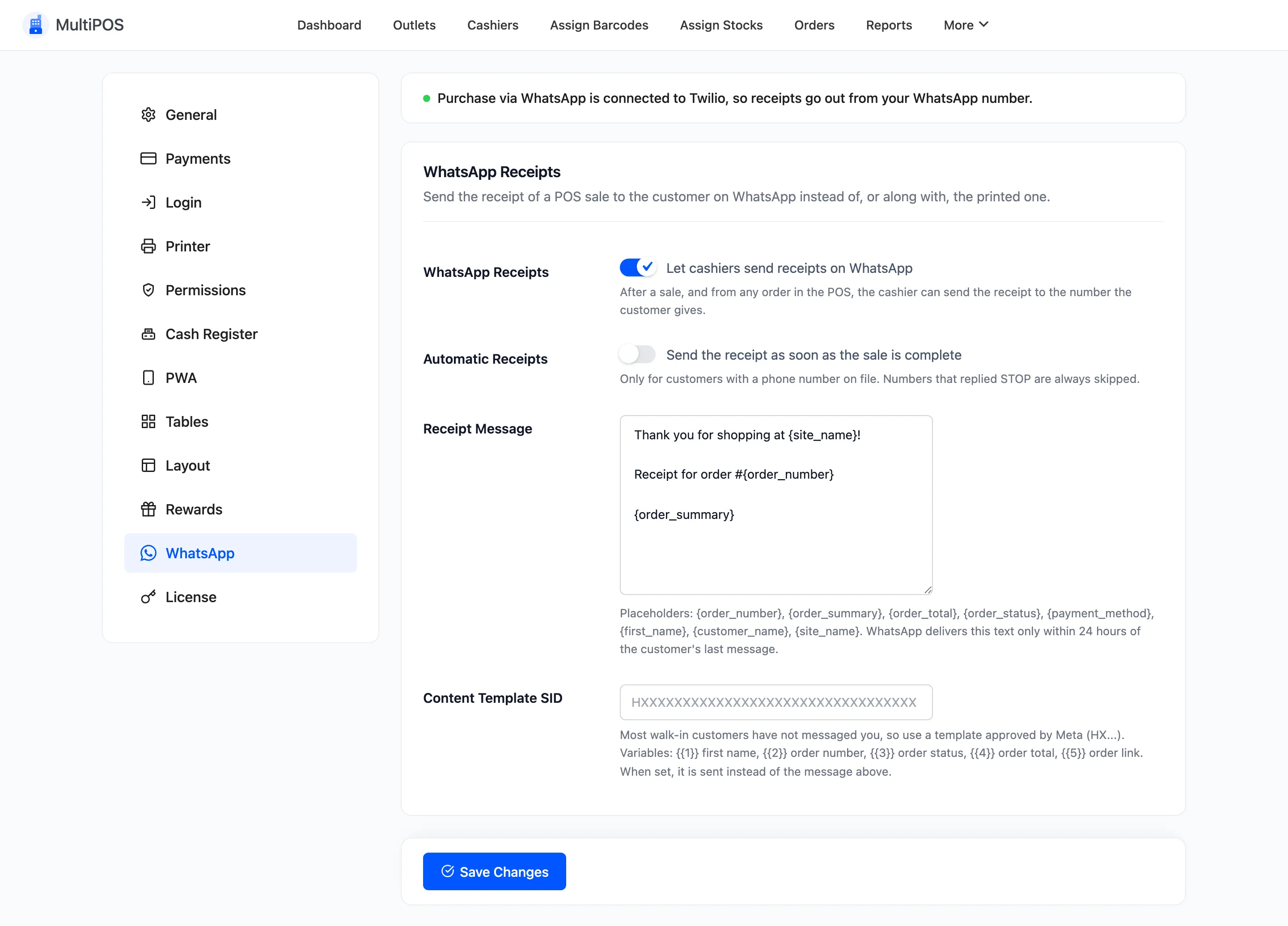
The status line
Section titled “The status line”The top of the tab says whether receipts can go out:
| Message | What to do |
|---|---|
| Purchase via WhatsApp is connected to Twilio, so receipts go out from your WhatsApp number. | Nothing. You are ready. |
| Purchase via WhatsApp is active, but Twilio is not connected yet, so no receipt can be sent. | Press Connect Twilio to finish the setup in Purchase via WhatsApp. |
| Purchase via WhatsApp is active, but this version cannot send POS receipts. Update it to 2.0.0 or later. | Update the plugin. |
| Purchase via WhatsApp is installed but not active | Press Activate Purchase via WhatsApp. |
| Purchase via WhatsApp is not installed | Press Get Purchase via WhatsApp. |
Setting up Twilio itself is covered in the Purchase via WhatsApp docs: How to Connect Twilio to Your Store.
The fields
Section titled “The fields”- WhatsApp Receipts: Default off. Lets cashiers send receipts on WhatsApp after a sale, and from any order in the POS.
- Automatic Receipts: Default off. Sends the receipt as soon as the sale is complete, for customers with a phone number on file.
- Receipt Message: The text of the receipt.
- Content Template SID: A WhatsApp template approved by Meta. When set, it is sent instead of the message above.
The default message is:
Thank you for shopping at {site_name}!
Receipt for order #{order_number}
{order_summary}
The placeholders are {order_number}, {order_summary}, {order_total}, {order_status},
{payment_method}, {first_name}, {customer_name} and {site_name}.
Message or template
Section titled “Message or template”WhatsApp delivers free text only within 24 hours of the customer’s last message to you. A shopper at the counter has usually never messaged your store, so a plain message may not arrive.
A Content Template approved by Meta has no such limit. Its variables are filled in this order: {{1}}
first name, {{2}} order number, {{3}} order status, {{4}} order total and {{5}} the order link.
Creating one is covered in
How to Create WhatsApp Message Templates in Twilio.
What else it changes
Section titled “What else it changes”- No second message: A POS sale does not also get Purchase via WhatsApp’s own “order completed” message. The receipt is the only one.
- STOP is respected: A number that replied STOP gets nothing. The cashier sees why.
- Walk-in numbers are kept: When the order had no phone number, the number the cashier typed is saved on the order.
- Every send is logged: Each receipt appears in the Purchase via WhatsApp message log and as an order note.
Where to go next
Section titled “Where to go next”- How to Send Receipts on WhatsApp (Pro)
- Cash Register Settings (Pro), for the Z-report on WhatsApp