

Printer Settings
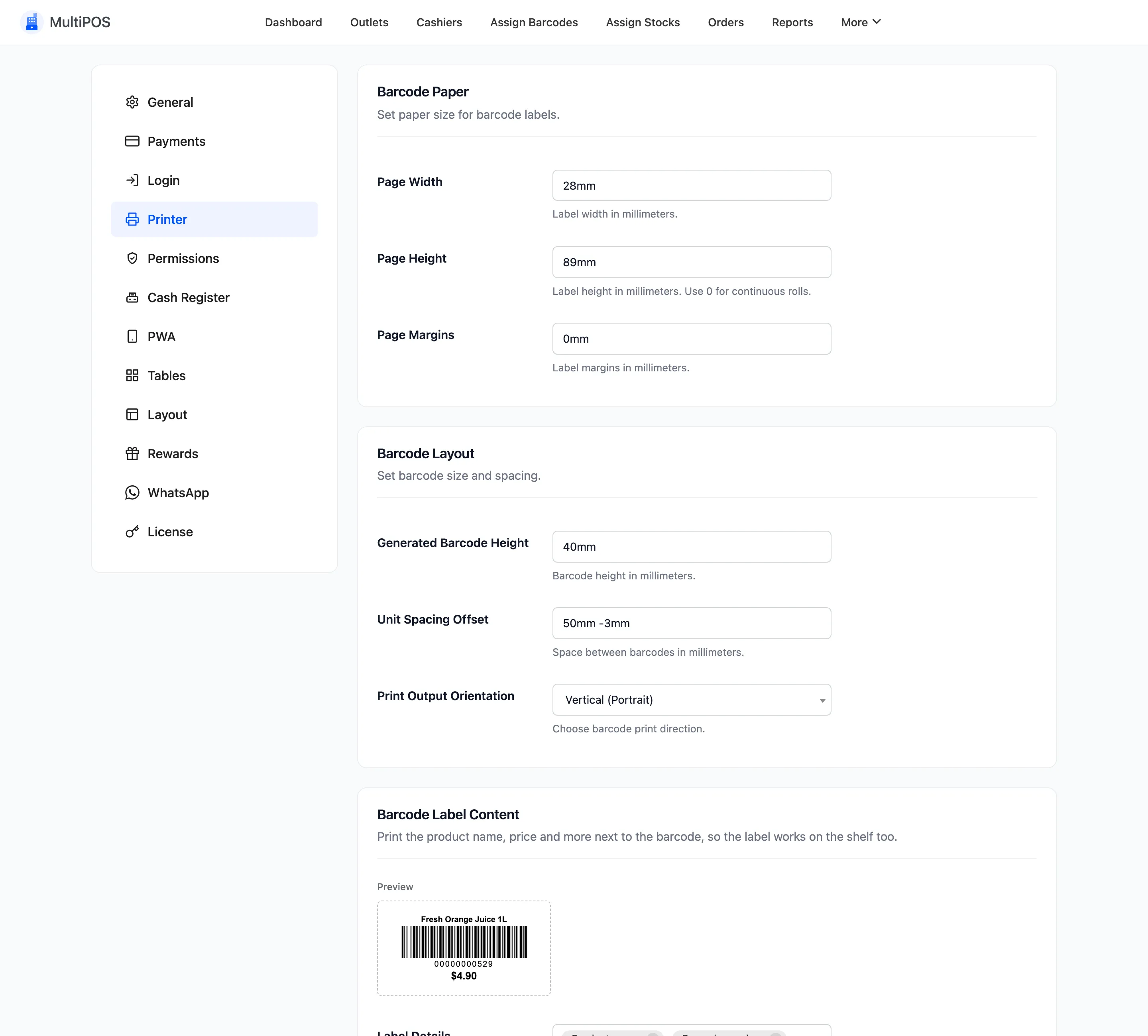
Two printers, one tab. The top two sections size barcode labels, the bottom section sizes receipts.
Every field here is in the free version, and every value is in millimetres.
Open the tab
Section titled “Open the tab”Go to DevDiggers Plugins → MultiPOS → Configuration → Printer.
Barcode Paper
Section titled “Barcode Paper”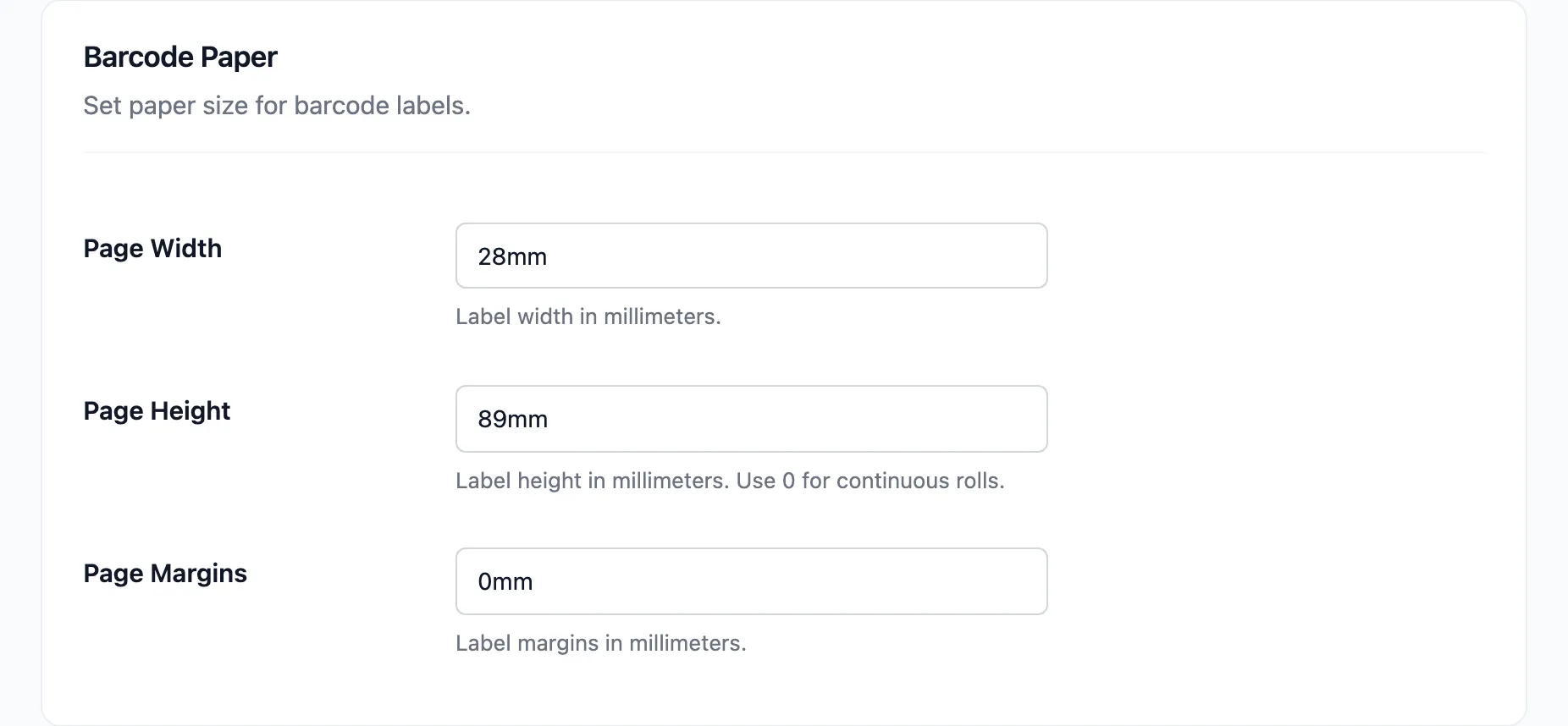
The physical label your barcode printer feeds.
| Field | Default | What it is |
|---|---|---|
| Page Width | 28mm |
Label width |
| Page Height | 89mm |
Label height. Use 0 for a continuous roll |
| Page Margins | 0mm |
Margins around the label |
The defaults match a common 28 by 89 millimetre address label. Measure your own stock and enter those numbers instead of guessing.
Page Height of 0 tells the printer the roll is continuous and it should cut per label rather
than per page. If your labels come off in one long strip, that is the field to check.
Barcode Layout
Section titled “Barcode Layout”The barcode inside the label.
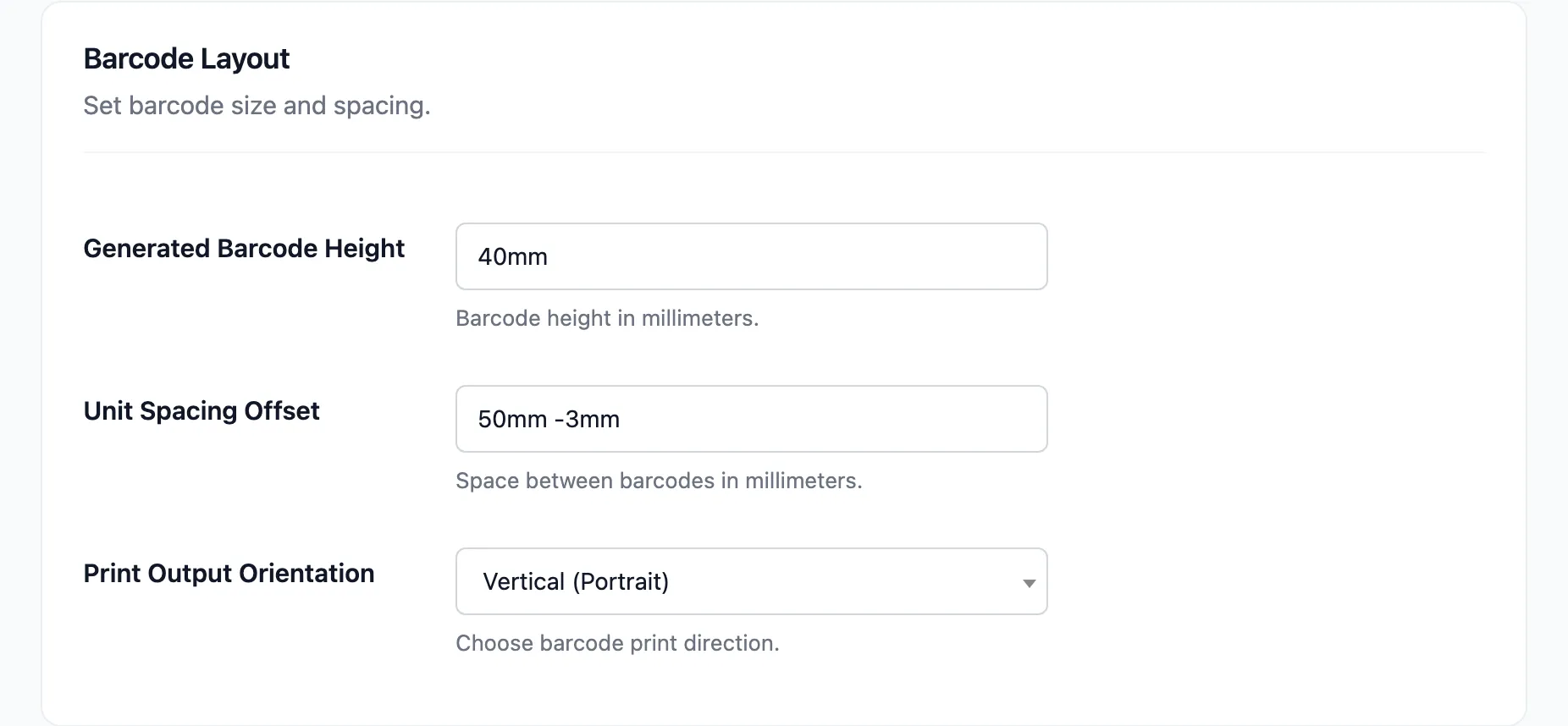
| Field | Default | What it is |
|---|---|---|
| Generated Barcode Height | 40mm |
How tall the bars print |
| Unit Spacing Offset | 50mm -3mm |
The gap between barcodes |
| Print Output Orientation | Vertical (Portrait) | Which way labels run down the sheet |
Unit Spacing Offset takes a CSS margin value, so two numbers set the vertical and horizontal gap independently. The negative figure in the default pulls labels together horizontally, which is what stops a two-across sheet drifting apart.
Print Output Orientation is Vertical (Portrait) or Horizontal (Landscape).
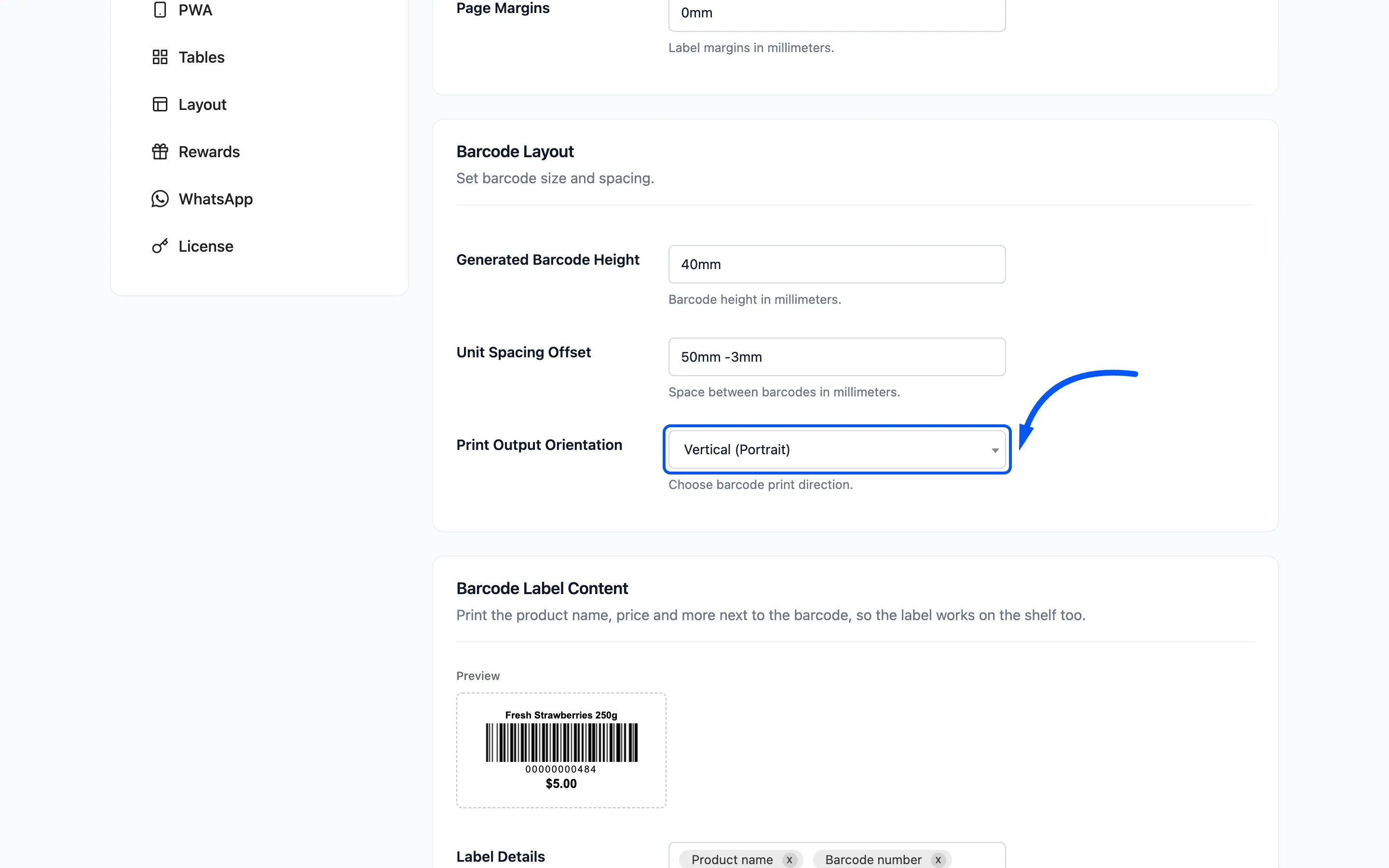
Print one sheet of ten labels before you print a thousand. Barcode sizing is the sort of thing you get right on the second attempt.
Barcode Label Content
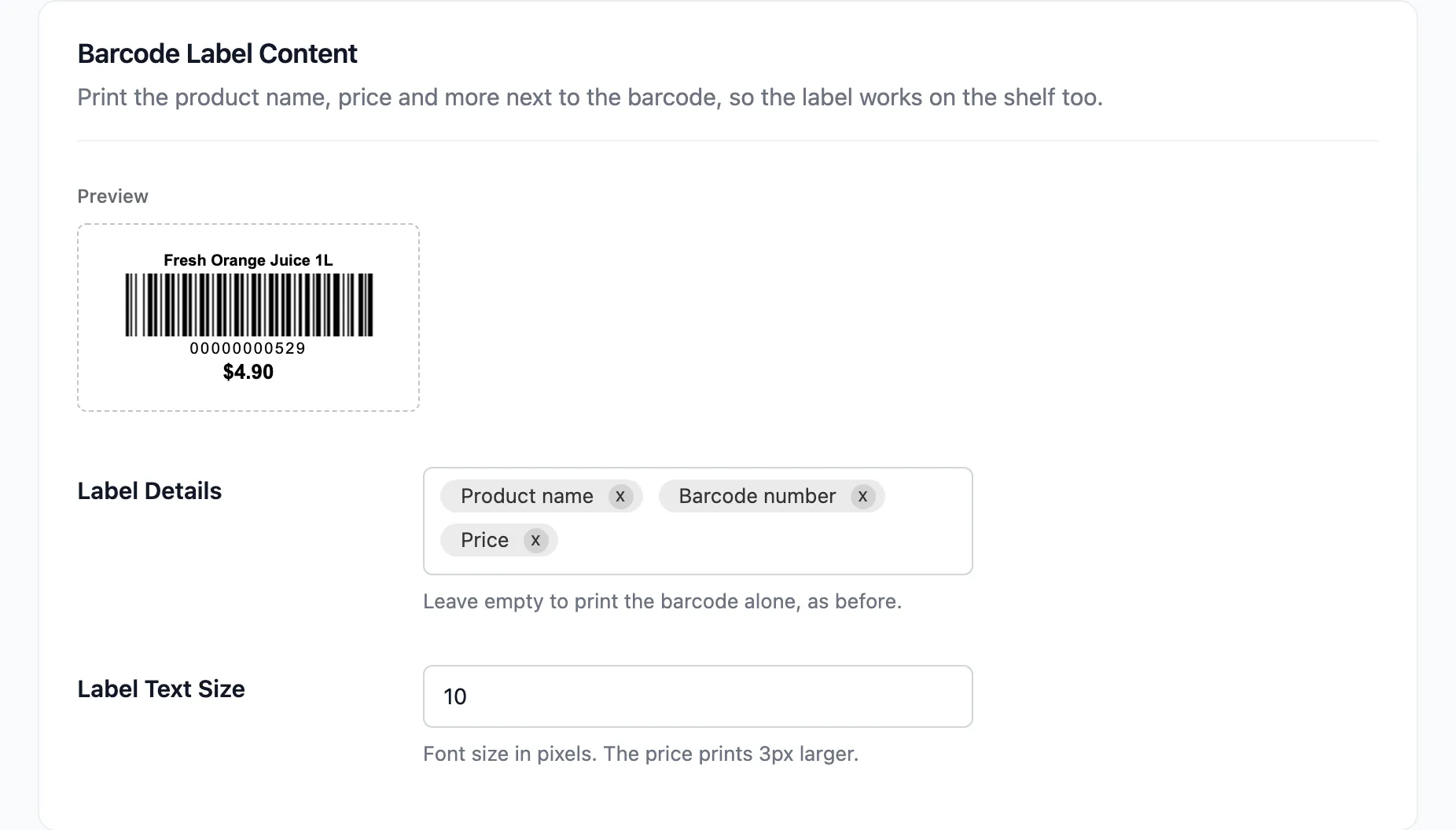
Section titled “Barcode Label Content”- Label Details: Default empty, which prints the barcode alone. Pick any of Store name, Product name, Variation (size, colour), Barcode number, SKU and Price.
- Label Text Size: The font size in pixels, from 6 to 30. The price prints 3px larger.
The Preview box beside the fields draws a sample label and redraws as you change them.
Receipt Size
Section titled “Receipt Size”The thermal roll your receipt printer feeds.
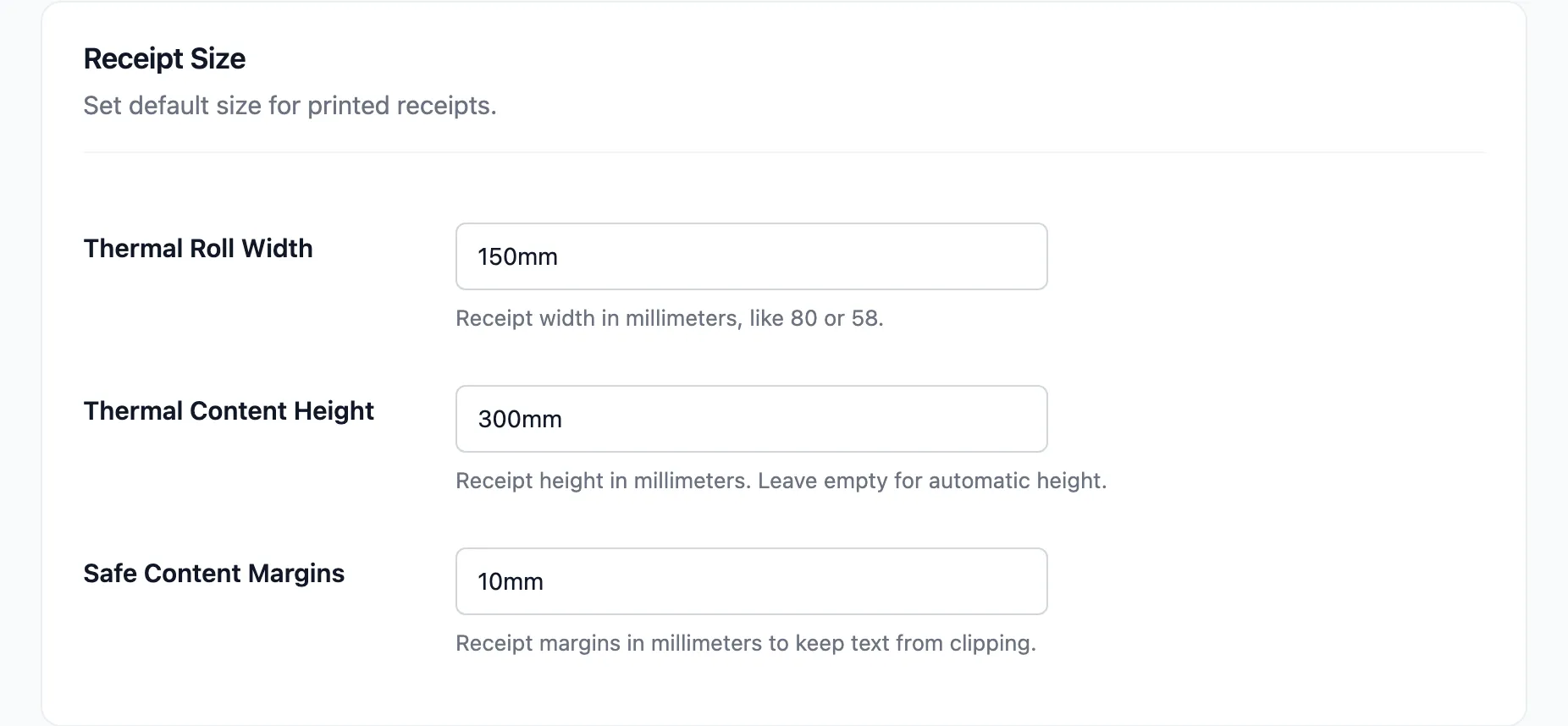
| Field | Default | What it is |
|---|---|---|
| Thermal Roll Width | 150mm |
Receipt width |
| Thermal Content Height | 300mm |
Receipt height. Leave empty for automatic |
| Safe Content Margins | 10mm |
Margins so text does not clip |
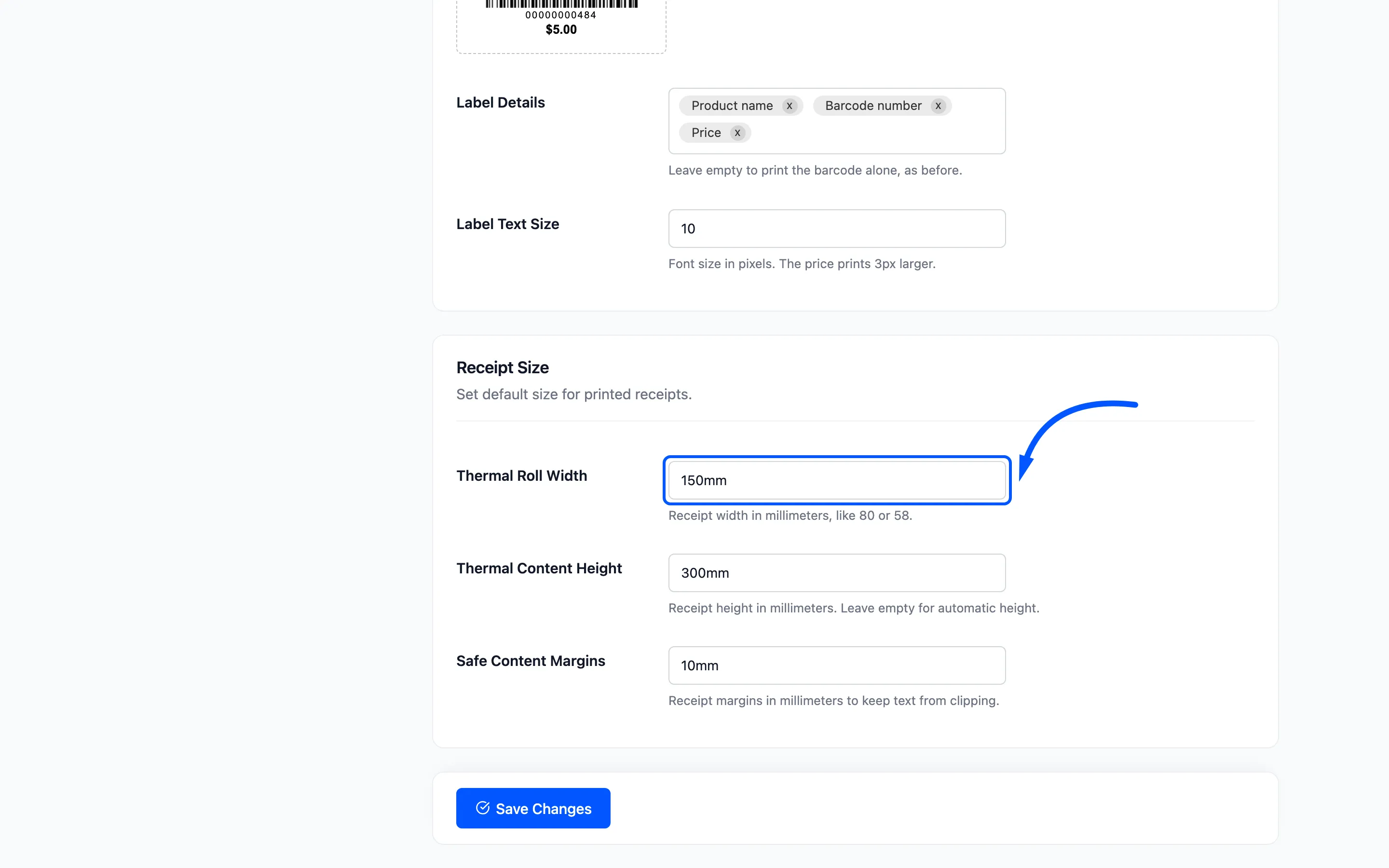
- Thermal Roll Width is the one that matters. Most thermal printers take 80mm or 58mm paper, so set it to match yours. The 150mm default suits a wider label printer and will look wrong on a standard receipt roll.
- Thermal Content Height empty lets the receipt grow to fit its contents, which is what you want. A fixed height either cuts a long order short or feeds blank paper after a short one.
- Safe Content Margins stops the printer clipping the edge of your text. Reduce it if your receipts waste paper at the sides, but do not take it to zero.
Cashiers can override the receipt size
Section titled “Cashiers can override the receipt size”The three receipt fields also appear inside the terminal, under Settings → Outlet.
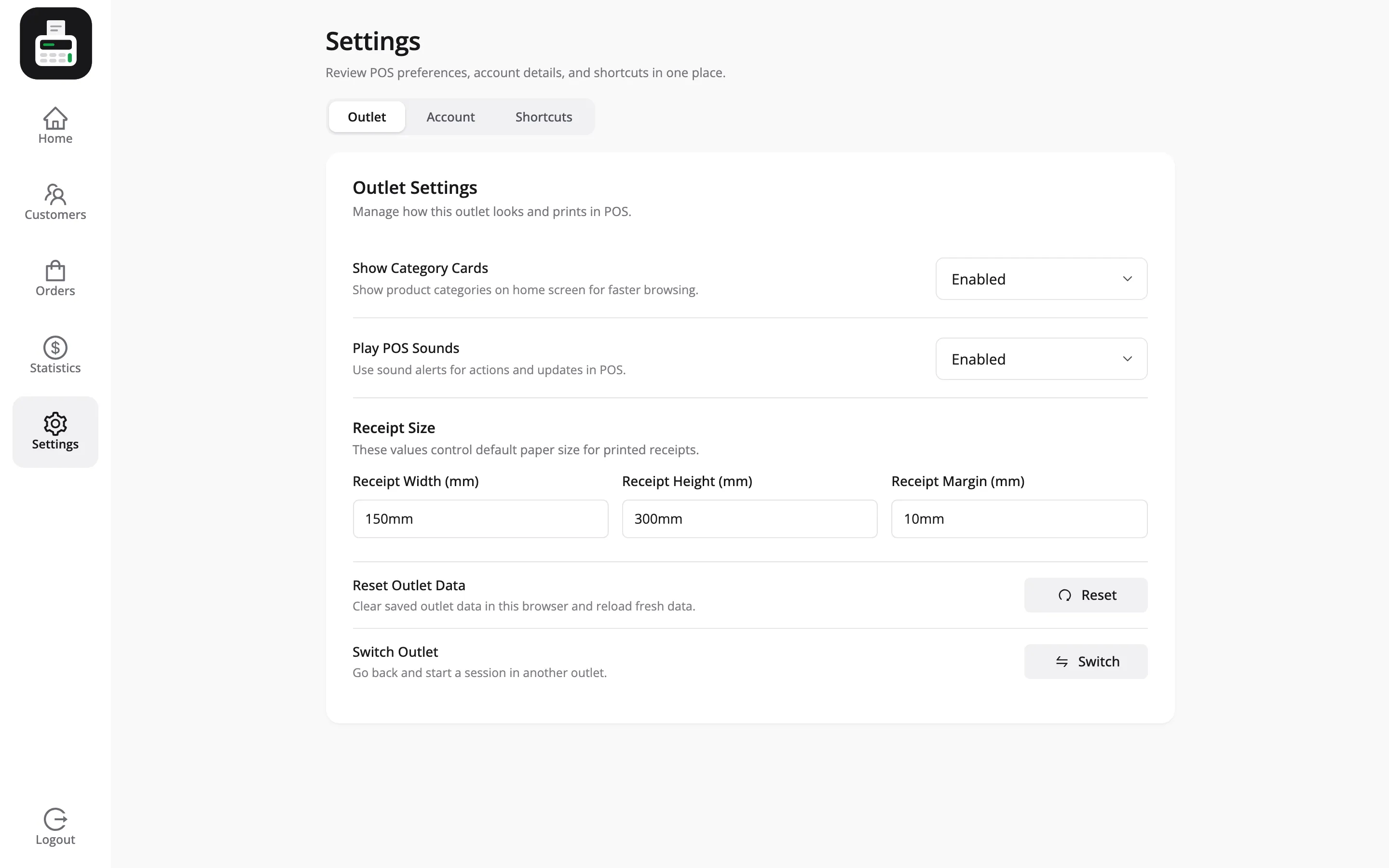
That is per-cashier and per-browser, which is the right shape when two terminals in one shop run different printers. The values here are the defaults each terminal starts from.
Click Save Changes, then print one receipt and one label sheet to check.
Where to go next
Section titled “Where to go next”- How to Print Barcode Labels
- How to Print a Receipt
- Receipt Templates for what the receipt says.