

Permissions Settings (Pro)
The Permissions tab decides what a cashier can do without help. Anything a cashier is not allowed to do either stops them, or asks a manager to approve it on the spot with a PIN.
Open it from MultiPOS → Configuration → Permissions.
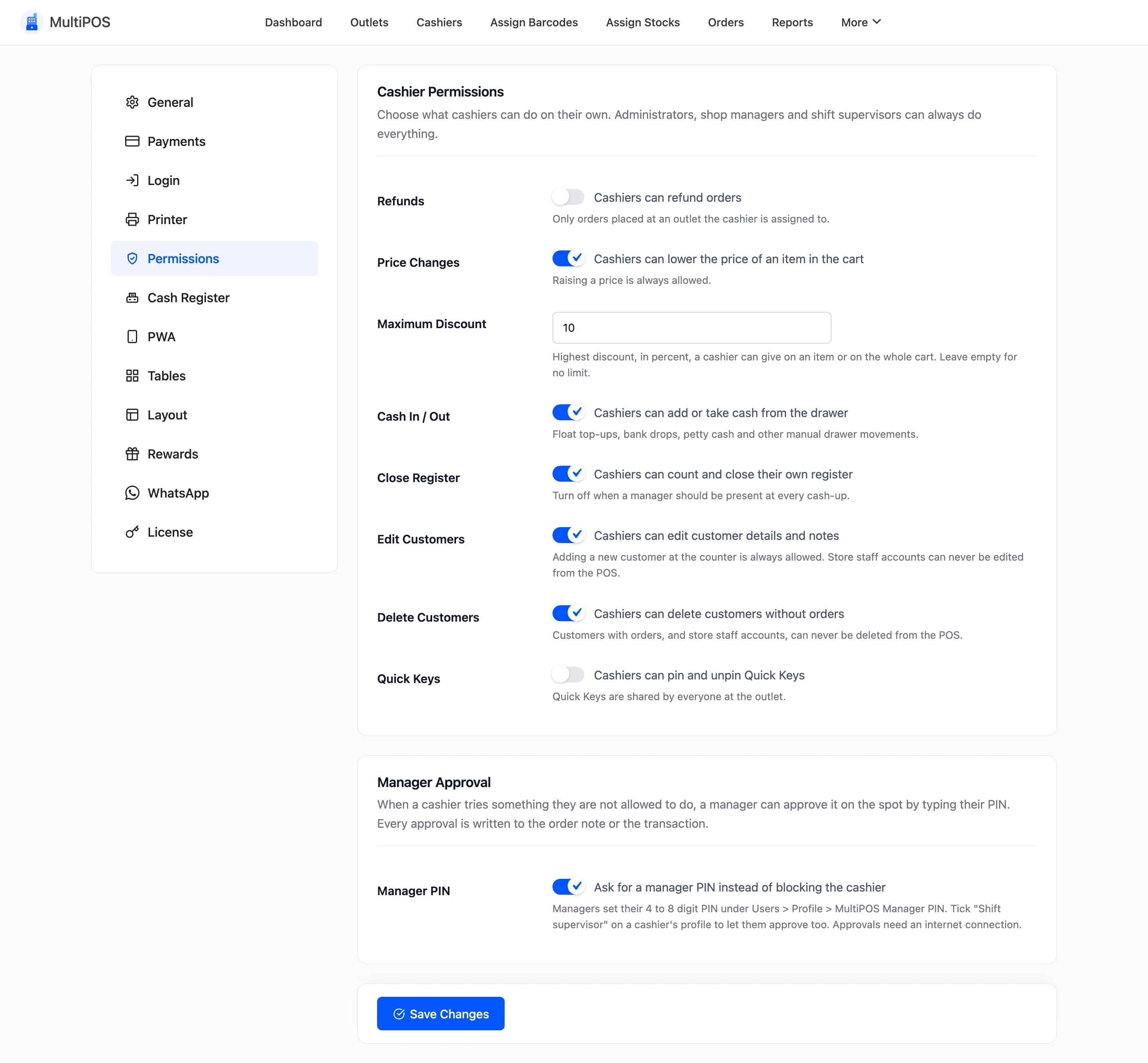
Administrators, shop managers and shift supervisors are never limited. These settings apply to cashiers only.
Cashier Permissions
Section titled “Cashier Permissions”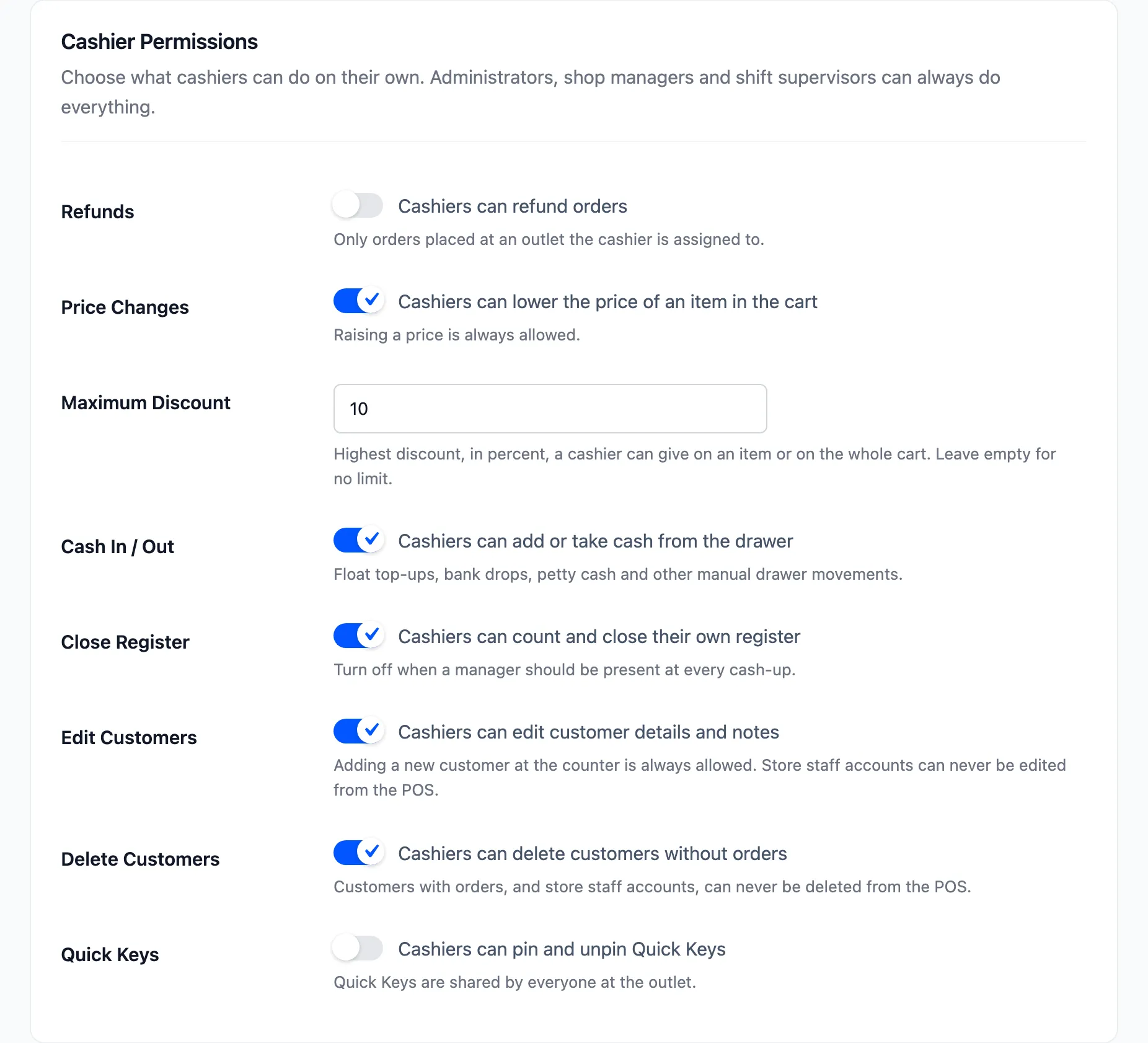
| Field | Default | What it allows |
|---|---|---|
| Refunds | On | Refund orders, but only orders placed at an outlet the cashier is assigned to. |
| Price Changes | On | Lower the price of an item in the cart. Raising a price is always allowed. |
| Maximum Discount | Empty (no limit) | The highest discount, in percent, a cashier can give on one item or on the whole cart. |
| Cash In / Out | On | Put cash into or take cash out of the drawer: float top-ups, bank drops, petty cash. |
| Close Register | On | Count and close their own register. Turn it off when a manager should be at every count. |
| Edit Customers | On | Edit customer details and the staff note. Adding a new customer is always allowed. |
| Delete Customers | On | Delete customers who have no orders. |
| Quick Keys | Off | Pin and unpin Quick Keys. They are shared by everyone at the outlet. |
Two limits apply whatever you set. Customers with orders can never be deleted from the POS, and store staff accounts can never be edited or deleted there.
The demo has Refunds off and Maximum Discount set to 10, so both need a supervisor.
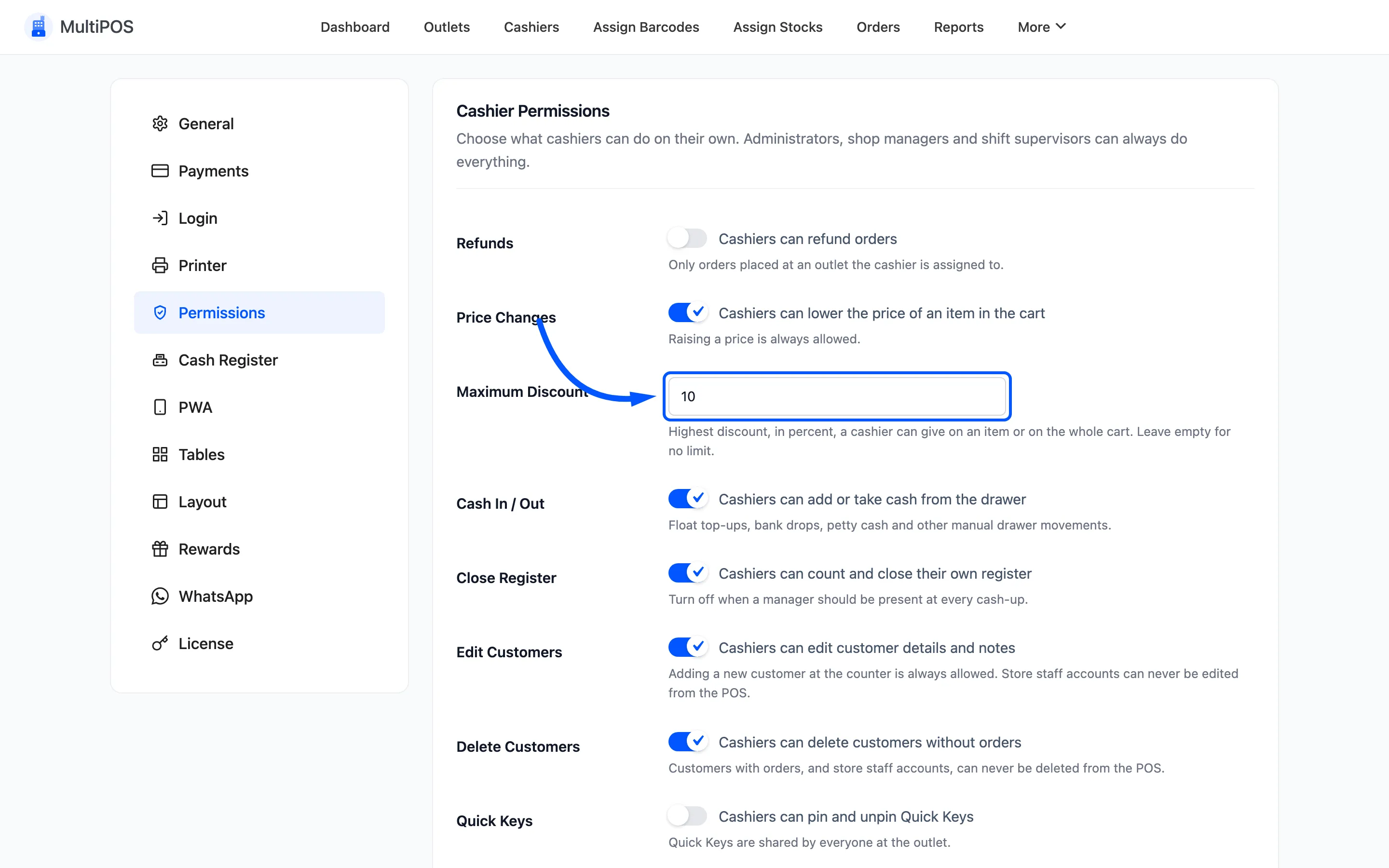
The discount cap covers both kinds of discount. A line discount above it and a cart discount above it both ask for approval. A lowered price counts as a discount by the same percentage.
Manager Approval
Section titled “Manager Approval”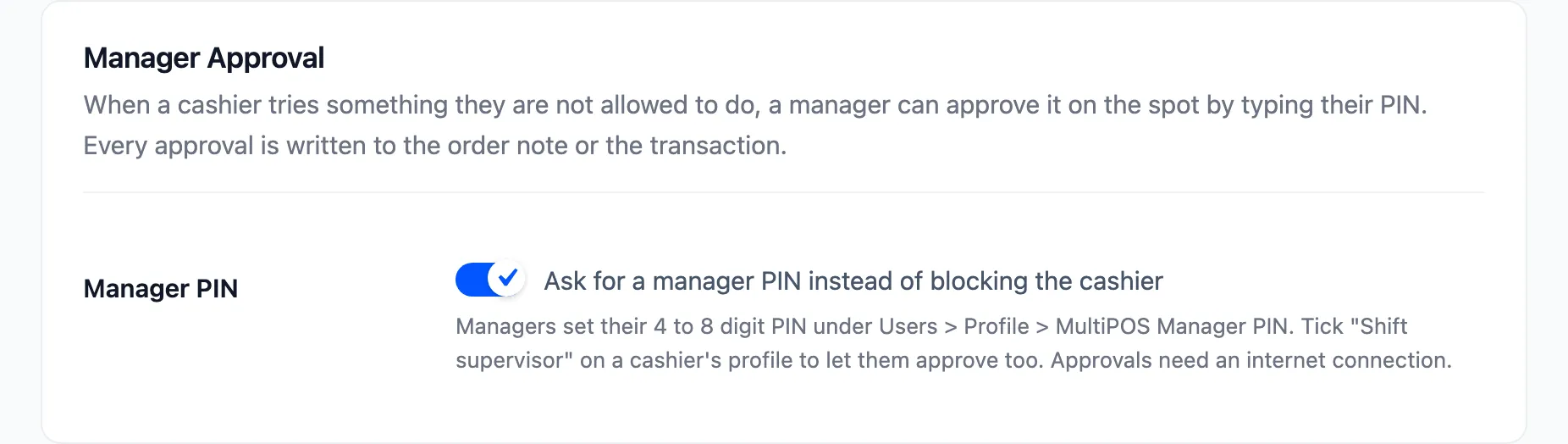
Manager PIN is on by default. With it on, a refused action opens a Manager Approval popup at the POS instead of a flat refusal. A manager types their PIN and the action goes through.
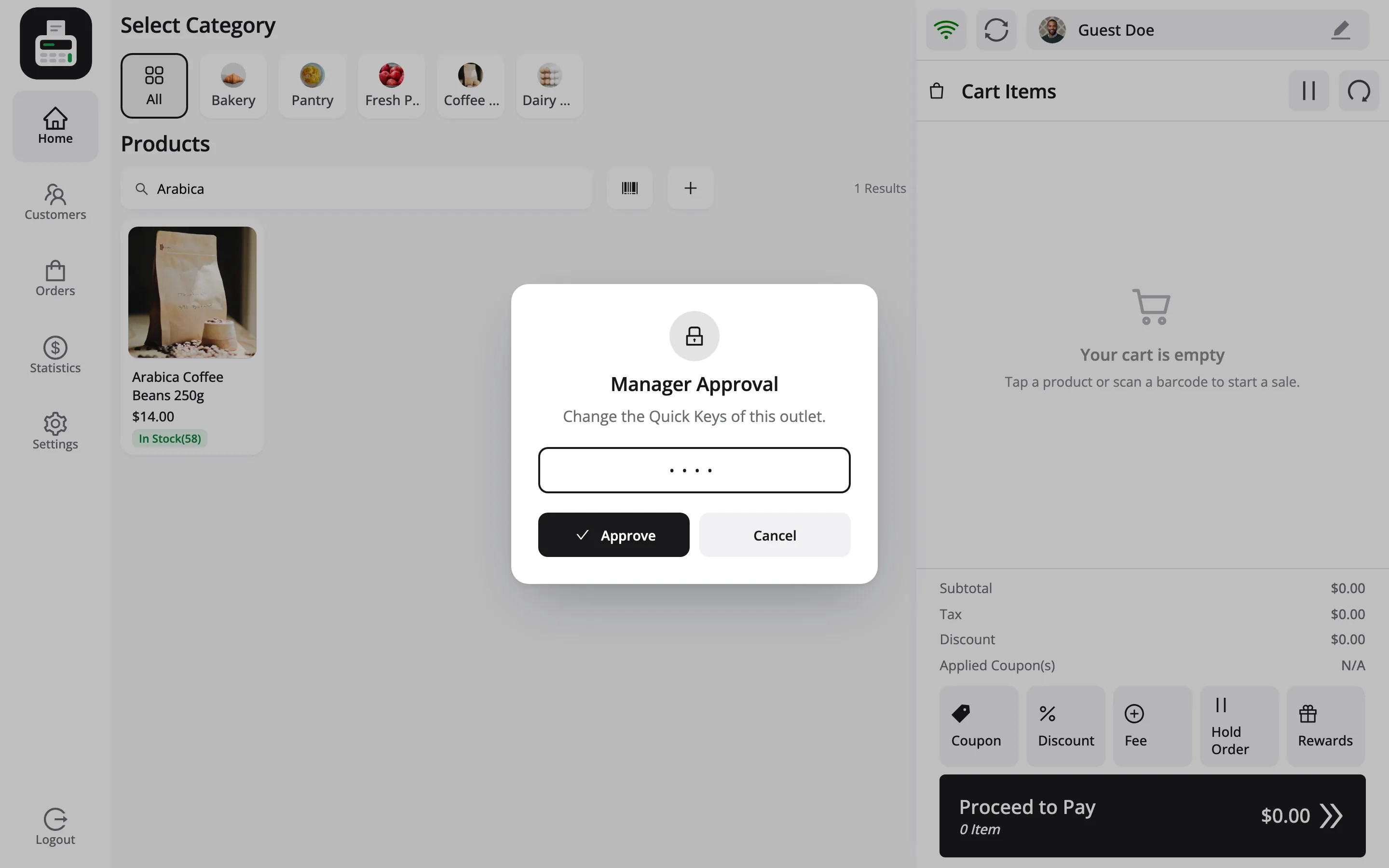
With it off, the cashier sees Not Allowed and the action stops.
A few rules of the approval itself:
- Who can approve: Administrators, shop managers and cashiers ticked as Shift Supervisor, each with their own 4 to 8 digit PIN.
- It needs a connection: The PIN is checked by the server, so approval does not work offline.
- Each approval works once: It covers the one action it was asked for and expires after 5 minutes.
- Five wrong PINs lock it: The prompt locks for 15 minutes after five tries.
- It leaves a record: The manager’s name goes on the order note, the refund note or the transaction.
How to give someone a PIN is in How to Approve Actions with a Manager PIN (Pro).
Sales flagged for review
Section titled “Sales flagged for review”Price cuts and discounts are written to the order note. One above the cashier’s limit that no manager approved, which can happen on a sale made offline, is flagged. Tick Over cashier limits on the Orders screen to see only those.