

Introduction to MultiPOS
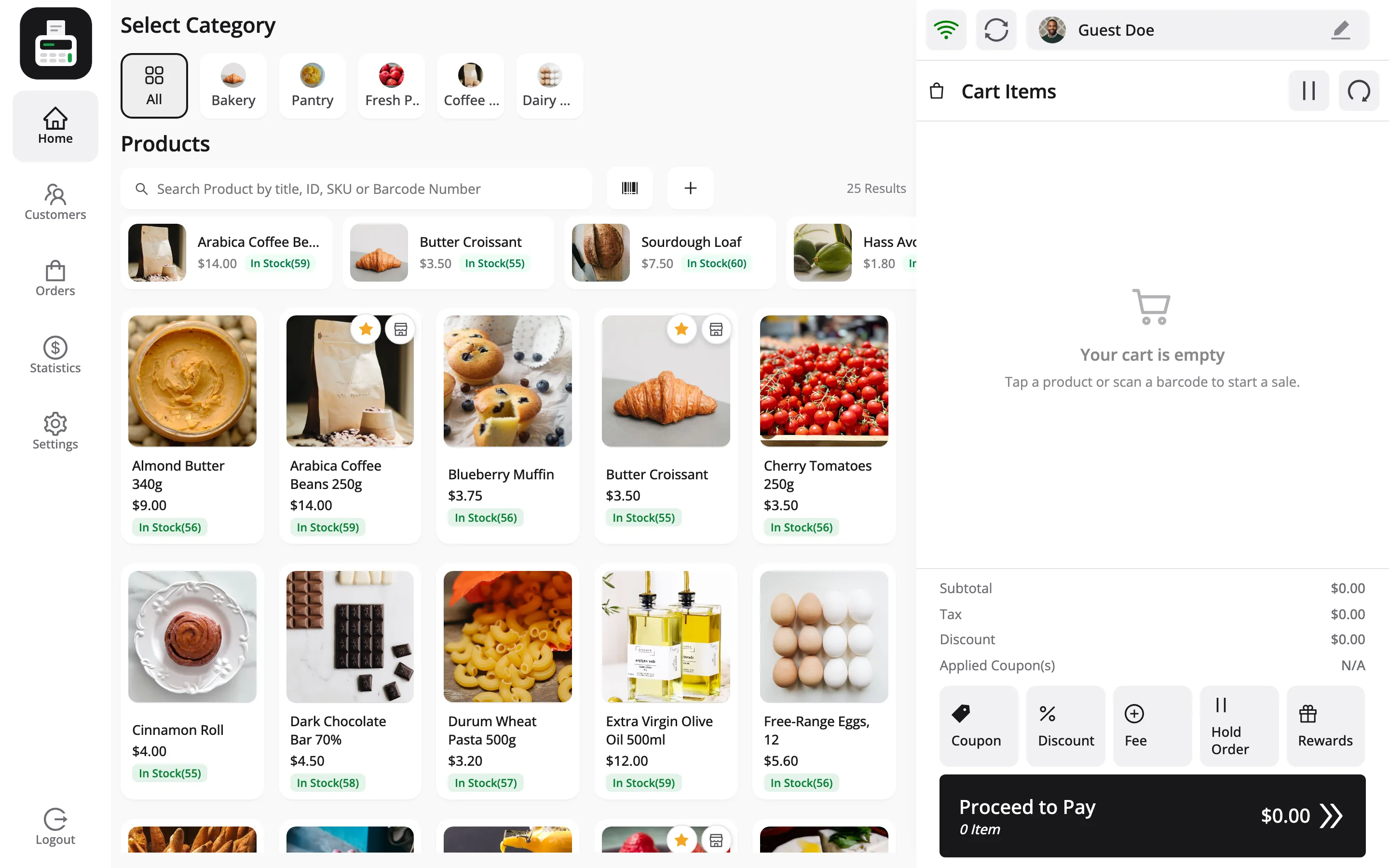
MultiPOS turns your WooCommerce store into a POS. A cashier opens a URL on a laptop or tablet, scans a barcode, takes cash or card, and prints a receipt. The sale lands in WooCommerce as a normal order.
There is no separate database and no nightly import. Your products, your stock, your customers and your tax rates are the ones already in WooCommerce.
Who it is for
Section titled “Who it is for”Any store that sells in person as well as online: a grocery counter, a cafe, a bakery, a showroom, a market stall or a pop-up.
The case for it is a single stock figure. Sell the last bag of coffee at the counter and the website stops offering it, because both read the same WooCommerce product.
What you get
Section titled “What you get”- A POS in the browser: It runs at
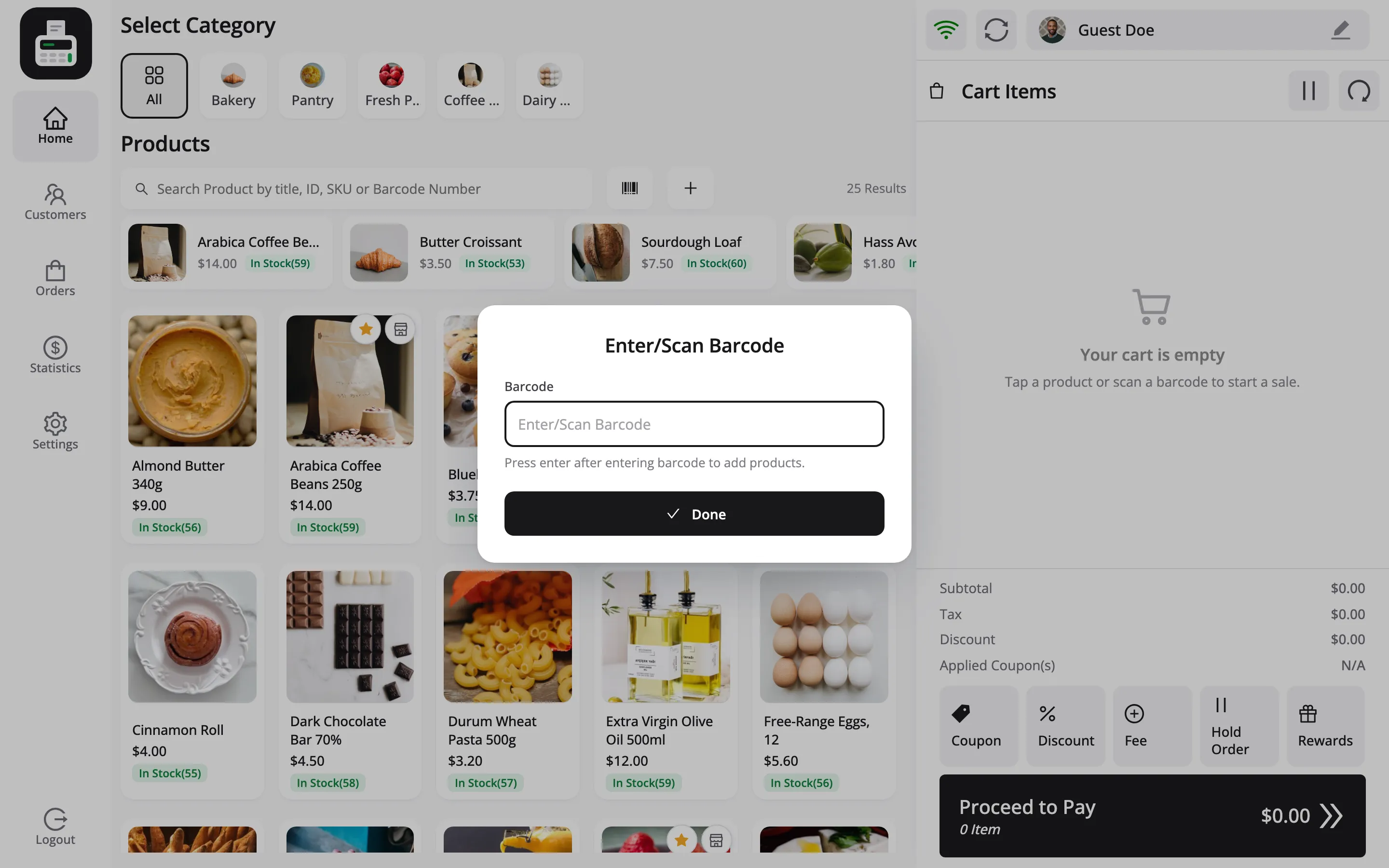
yoursite.com/poson a laptop, a tablet or a phone, with no install. - Barcode scanning: A USB scanner types into the search field like a keyboard. Scan, and the product drops into the cart.
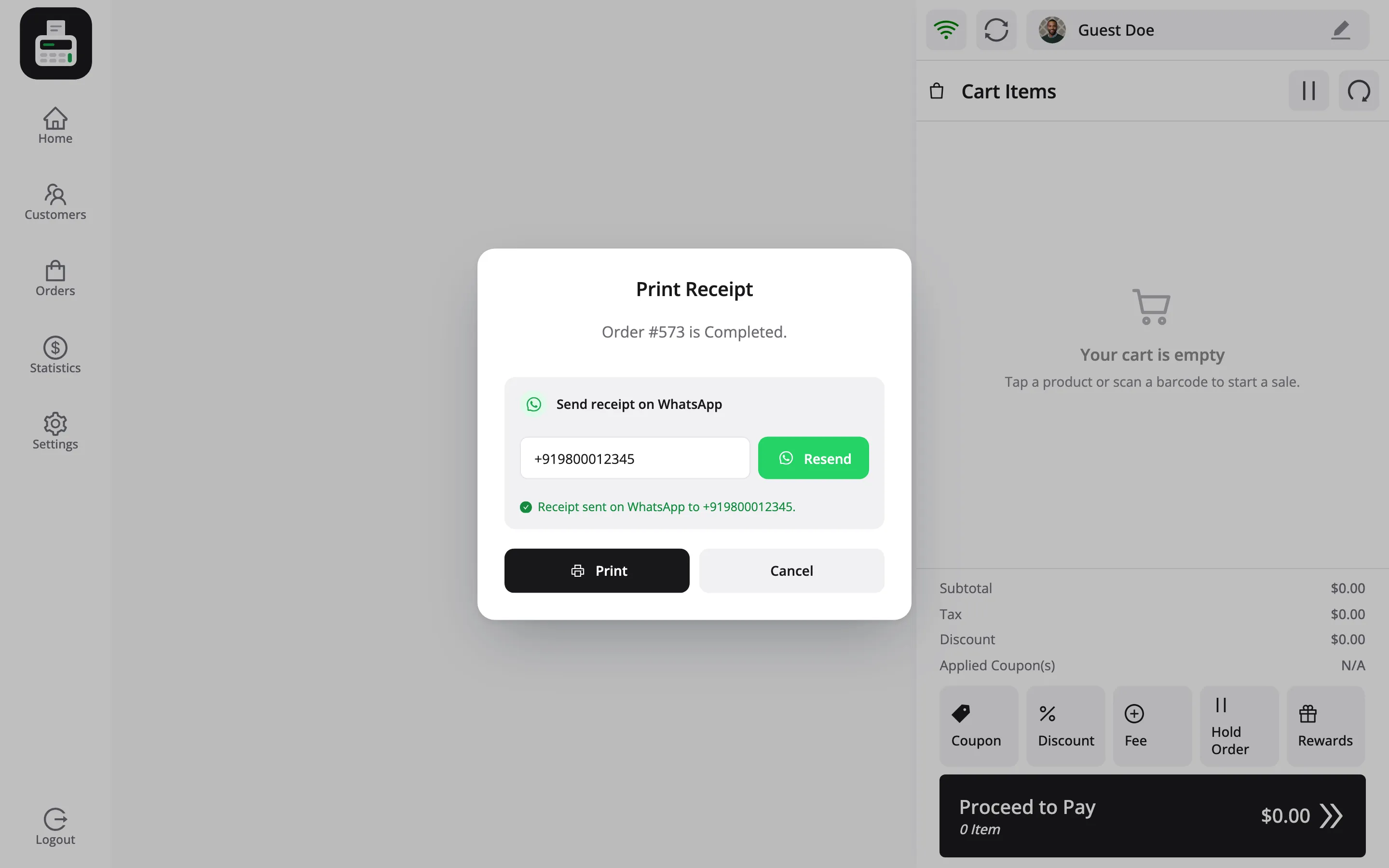
- Receipts: Printed on a thermal roll at a size you set, or sent to the customer on WhatsApp in Pro.
- Cashier accounts: A POS Cashier role that can use the POS and nothing else in WordPress.
- Its own records: Every POS sale carries the outlet and the cashier who took it, and every sale, refund and cash movement writes a transaction you can check against the drawer.
Cash control at the counter (Pro)
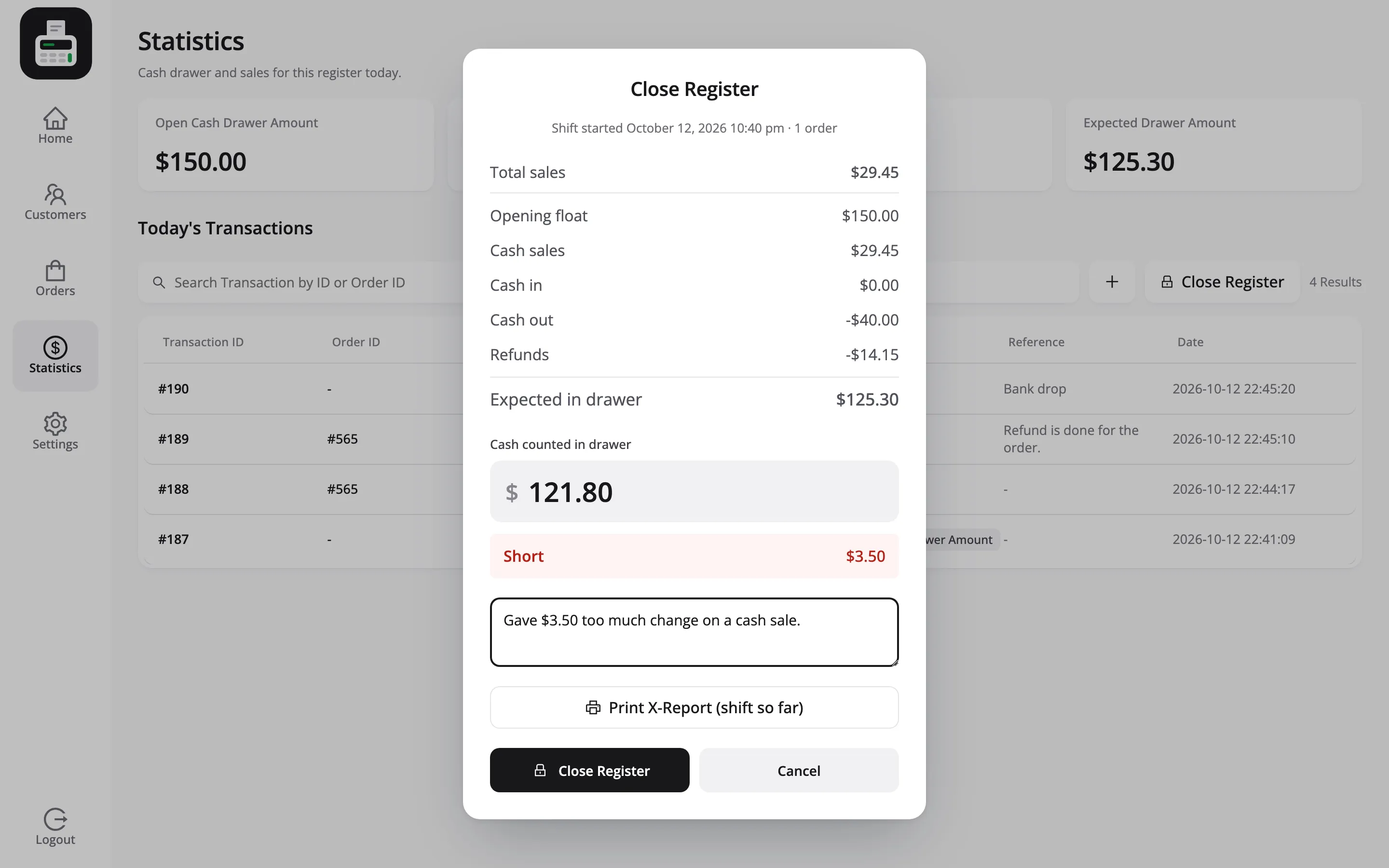
Section titled “Cash control at the counter (Pro)”MultiPOS Pro follows the money in the drawer through a whole shift. The cashier counts the opening amount, sales and refunds add up as they happen, and cash taken out for the bank is recorded with a reason.
At the end of the shift the cashier counts the drawer and closes the register. The POS shows at once whether it is balanced, over or short, prints a Z-report, and emails it to you.
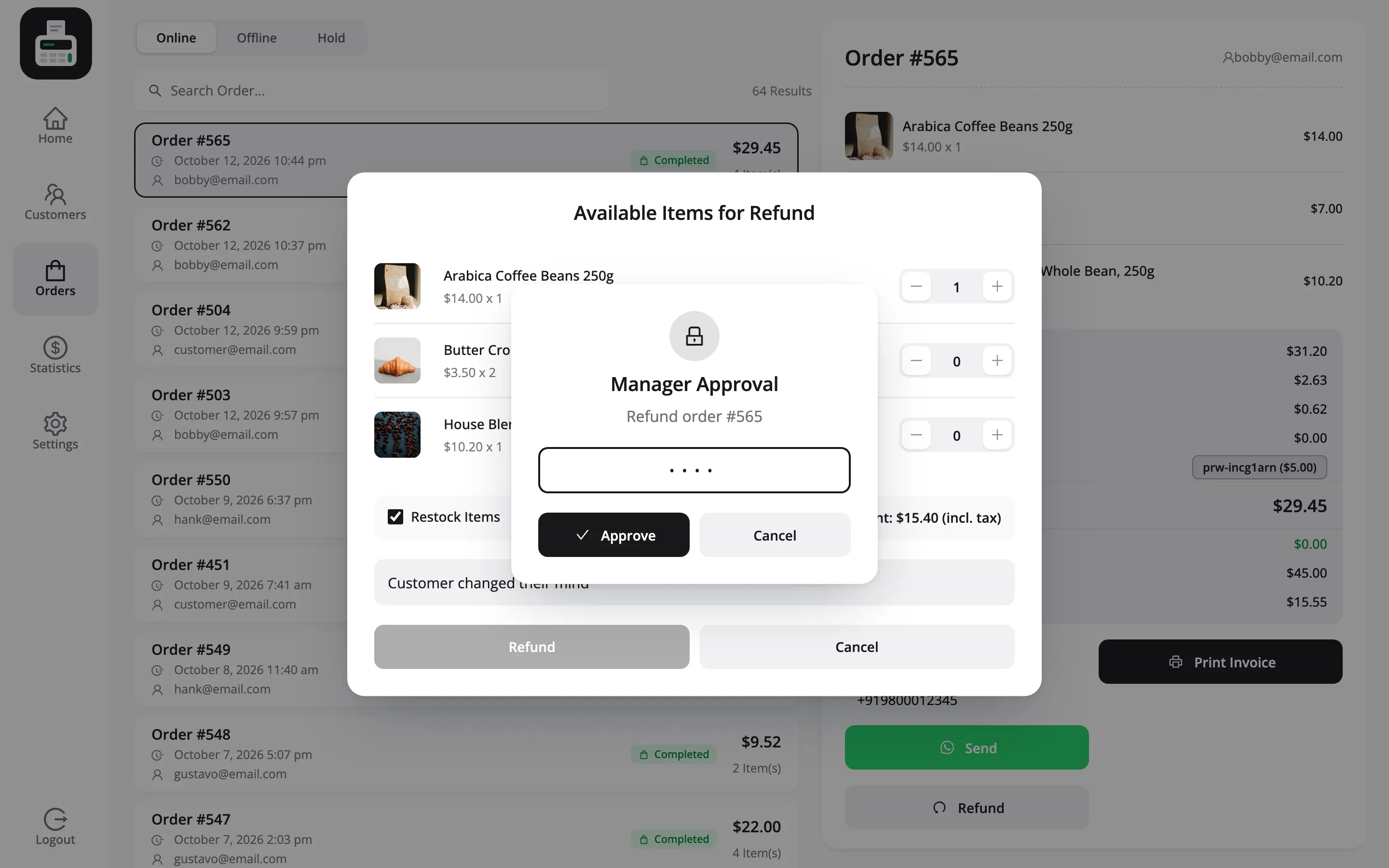
Cashiers can be limited, too. You choose what they may do alone, such as refunds or a discount above 10%, and a supervisor approves the rest by typing a PIN at the POS.
Works with LoyaltyX and Purchase via WhatsApp
Section titled “Works with LoyaltyX and Purchase via WhatsApp”Two other DevDiggers plugins plug straight into the POS in Pro.
- LoyaltyX: Customers earn points on counter sales and spend them on rewards at checkout, the same points they use online.
- Purchase via WhatsApp: The receipt goes to the customer’s WhatsApp, typed in after the sale or sent on its own.
Where it lives in WordPress
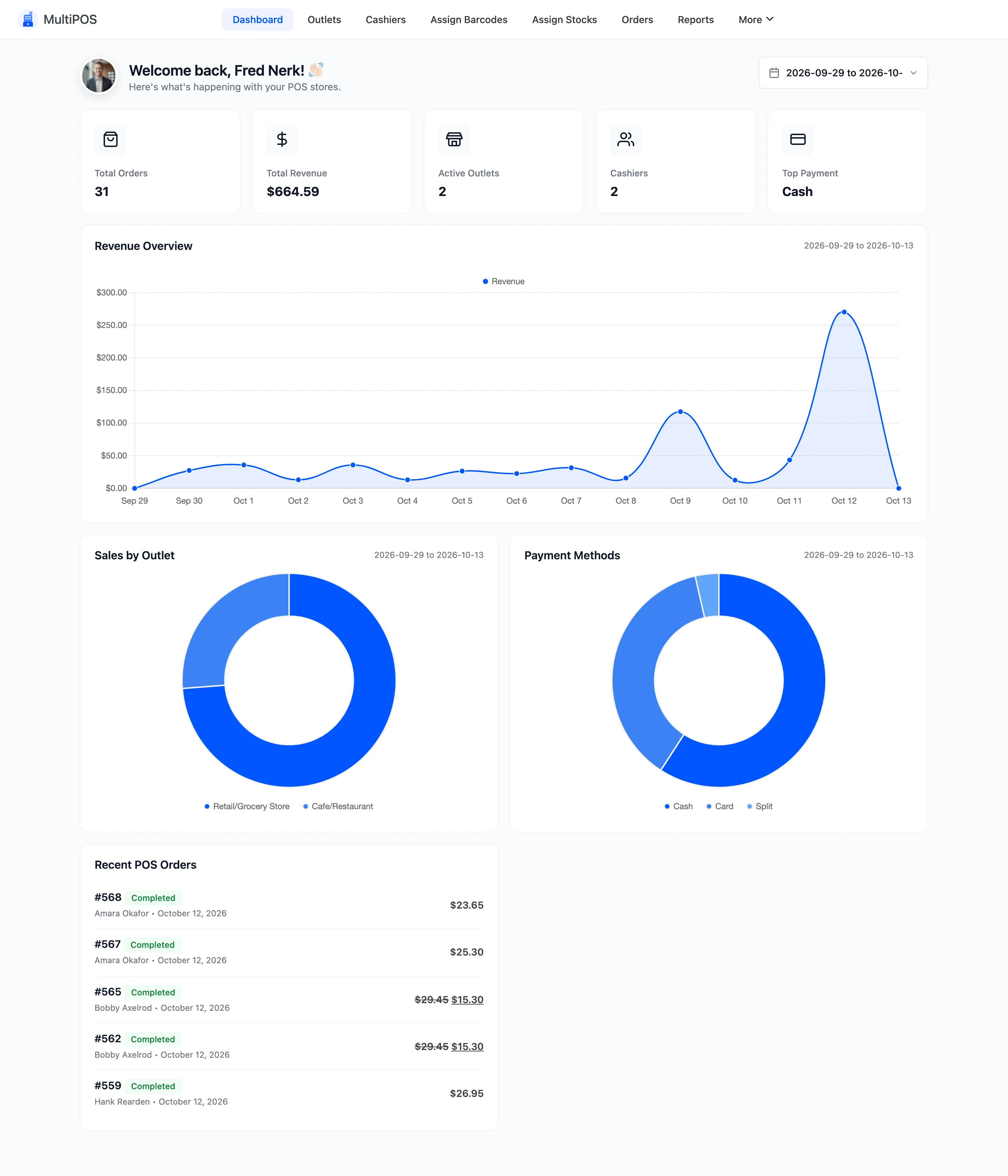
Section titled “Where it lives in WordPress”Everything sits under DevDiggers Plugins → MultiPOS. The menu across the top holds:
| Menu | What it is for |
|---|---|
| Dashboard | Sales, revenue and the payment split for a date range |
| Outlets | Each store or counter, its address, payment methods and stock mode |
| Cashiers | Who can open the POS, and in Pro what they may do there |
| Assign Barcodes | Give each product a barcode and print labels |
| Assign Stocks | Per-outlet stock levels (Pro) |
| Orders | Every POS order, with the cashier who took it |
| Reports | Sales, tax and discount charts (Pro) |
| Staff & Payments | Sales per cashier, payment methods and busiest hours (Pro) |
| Registers | Every closed register and its Z-report (Pro) |
| Transactions | Money in and out of the drawer |
| Invoices | The receipt templates |
| Configuration | The settings tabs |
Free and Pro
Section titled “Free and Pro”The free version is a complete single-outlet POS for simple products. You can sell, scan, print, take payment, manage customers and see the day’s transactions without paying anything.
The POS terminal
Section titled “The POS terminal”| Feature | Free | Pro |
|---|---|---|
| Product grid, categories, search and barcode entry | Yes | Yes |
| Simple products | Yes | Yes |
| Variable products, picked one attribute at a time | No | Yes |
| Cart, coupons, hold and resume, customers | Yes | Yes |
| Restaurant tables, dine in and take away | Yes | Yes |
| Keyboard shortcuts and outlet settings | Yes | Yes |
| Discounts on a line or the whole cart, fees and surcharges | No | Yes |
| Quick Keys and stock at other outlets | No | Yes |
| Split payments and order notes | No | Yes |
| Refunds from the POS | No | Yes |
| Custom items and weighed items | No | Yes |
| Selling offline with sync | No | Yes |
| Customer profile with spend, visits and a staff note | No | Yes |
| LoyaltyX rewards and WhatsApp receipts | No | Yes |
Cash and staff control
Section titled “Cash and staff control”| Feature | Free | Pro |
|---|---|---|
| Today’s transactions on the Statistics screen | Yes | Yes |
| Opening amount, cash in and cash out with reasons | No | Yes |
| Close Register, X-report and Z-report | No | Yes |
| Cashier permissions and manager approval with a PIN | No | Yes |
The admin
Section titled “The admin”| Feature | Free | Pro |
|---|---|---|
| Dashboard, orders, transactions, barcodes and label printing | Yes | Yes |
| One outlet | Yes | Yes |
| More than one outlet, with stock per outlet | No | Yes |
| One default receipt with preview and test print | Yes | Yes |
| Receipt editor and several templates | No | Yes |
| Reports, Staff & Payments and Registers screens | No | Yes |
| Installable app (PWA) | No | Yes |
The free version shows an upgrade panel in place of each Pro screen and settings tab, so you can see what is there before you buy.