

How to Check Stock at Other Outlets (Pro)
A customer wants something your counter has run out of. Rather than phoning round, the cashier can check every outlet from the product’s card and tell them which store has it.
Step 1: Find the product
Section titled “Step 1: Find the product”Search for the product by name, SKU or barcode, or browse to it in the grid.
Step 2: Press the shop icon on its card
Section titled “Step 2: Press the shop icon on its card”Hover over the card. Beside the Quick Keys star sits a small shop icon, Stock at other outlets.
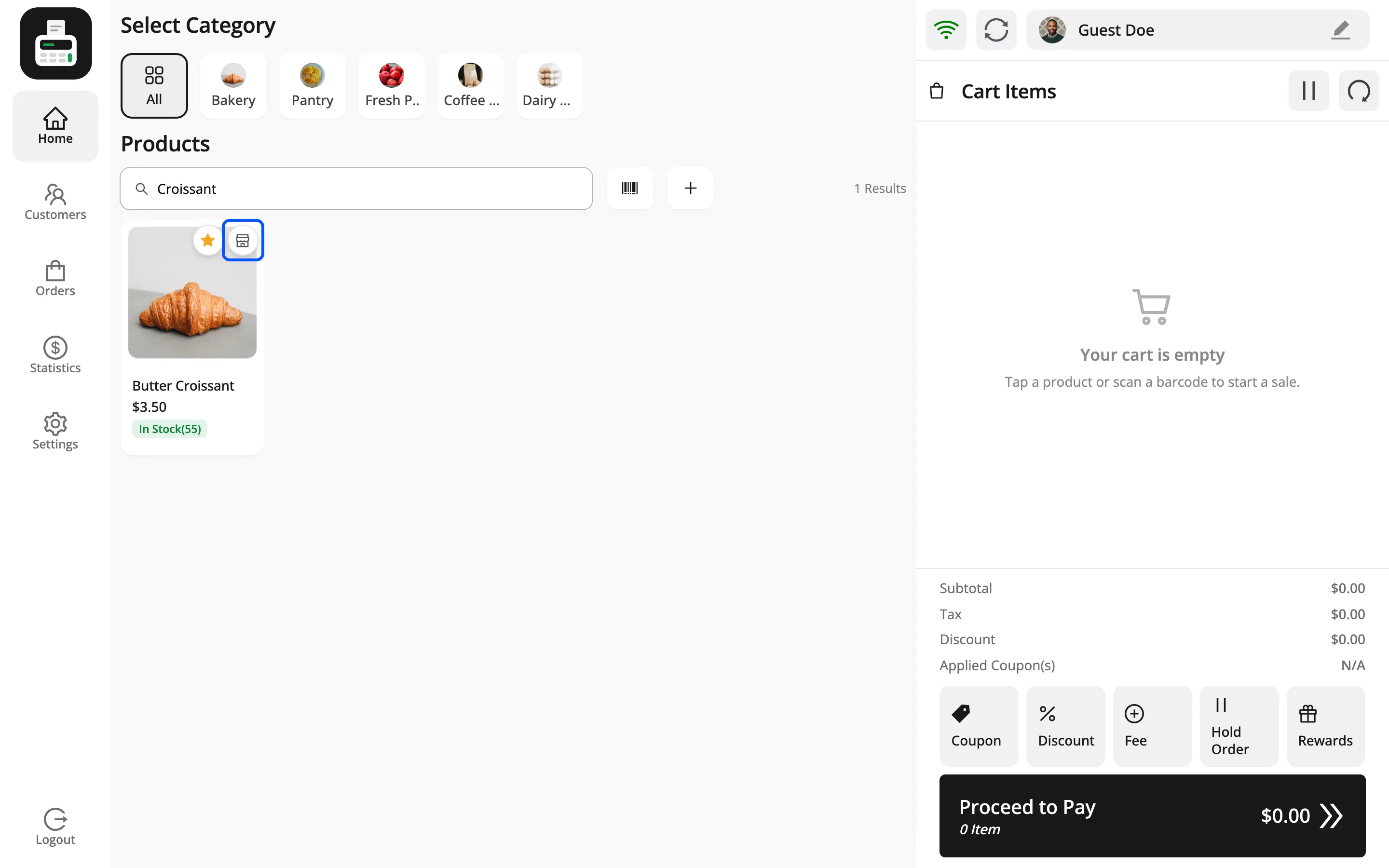
On a touch screen the icon is always showing.
Step 3: Read the list
Section titled “Step 3: Read the list”The Stock at Outlets popup lists every outlet with its count. The one you are at is outlined and marked This outlet.
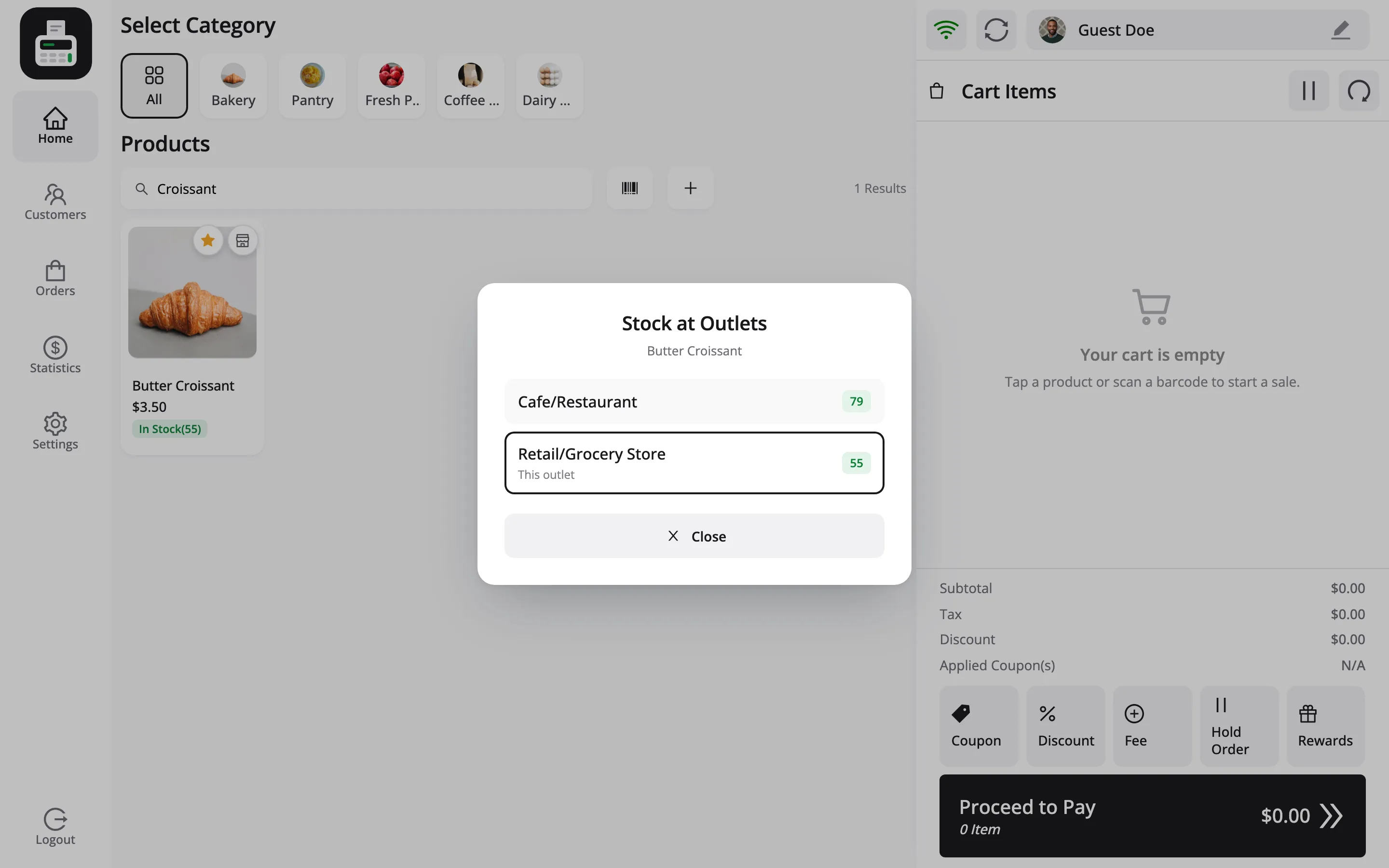
What each row shows depends on how that outlet keeps stock:
- Its own stock: The count for that outlet, set under Assign Stocks.
- Shared online stock: An outlet on Centralized inventory sells from the WooCommerce stock, so its row is tagged Shared online stock.
- Stock not tracked: The row reads In stock or Out of stock instead of a number.
Press Close to go back to the sale.
It needs a connection
Section titled “It needs a connection”The counts come from the server, so they are always current. Offline, the icon shows the message Stock at other outlets needs an internet connection. instead of the popup.