Cashiers
The Cashiers screen lists everyone who can open the POS, with how much each of them has sold. Cashiers are ordinary WordPress users with the POS Cashier role, so there is no separate account system to look after.
Open it from MultiPOS → Cashiers. Shop managers can add, edit and remove cashiers as well as administrators.
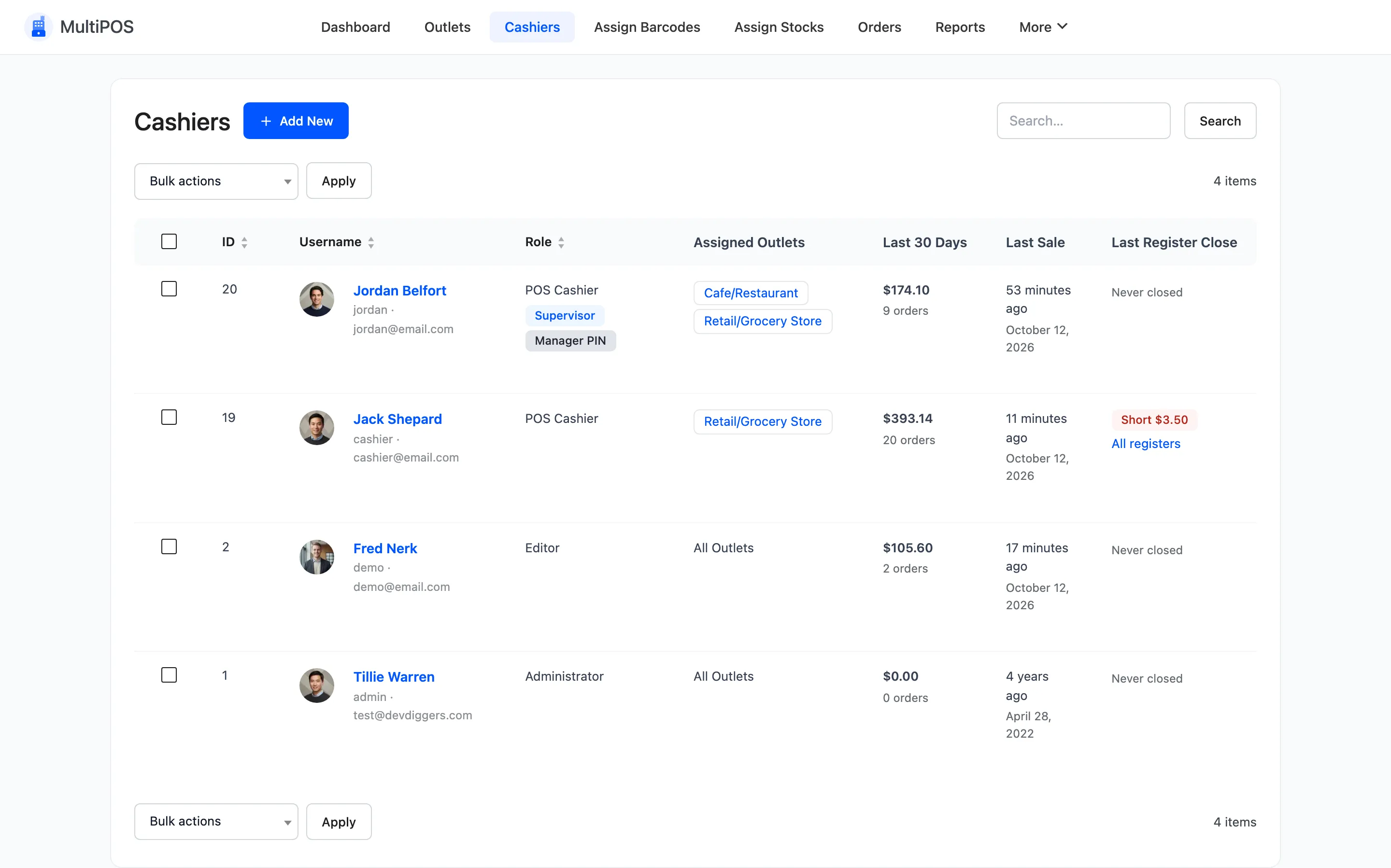
The columns
Section titled “The columns”| Column | What it shows |
|---|---|
| ID | The WordPress user ID. |
| Username | The name and photo, with the login name and email. |
| Role | POS Cashier, Administrator or Shop manager, with Supervisor and Manager PIN tags in Pro. |
| Assigned Outlets | The outlets the cashier can open, each linked to its outlet screen. |
| Last 30 Days | Sales and the number of orders in the last 30 days. |
| Last Sale | How long ago their last sale was. |
| Last Register Close | When they last closed a register, and whether it was over or short. Pro. |
The search box matches on ID, username and email. Screen Options at the top right sets how many rows show at a time.
Add a cashier
Section titled “Add a cashier”Press Add New at the top of the list. MultiPOS opens its own Add Cashier screen.
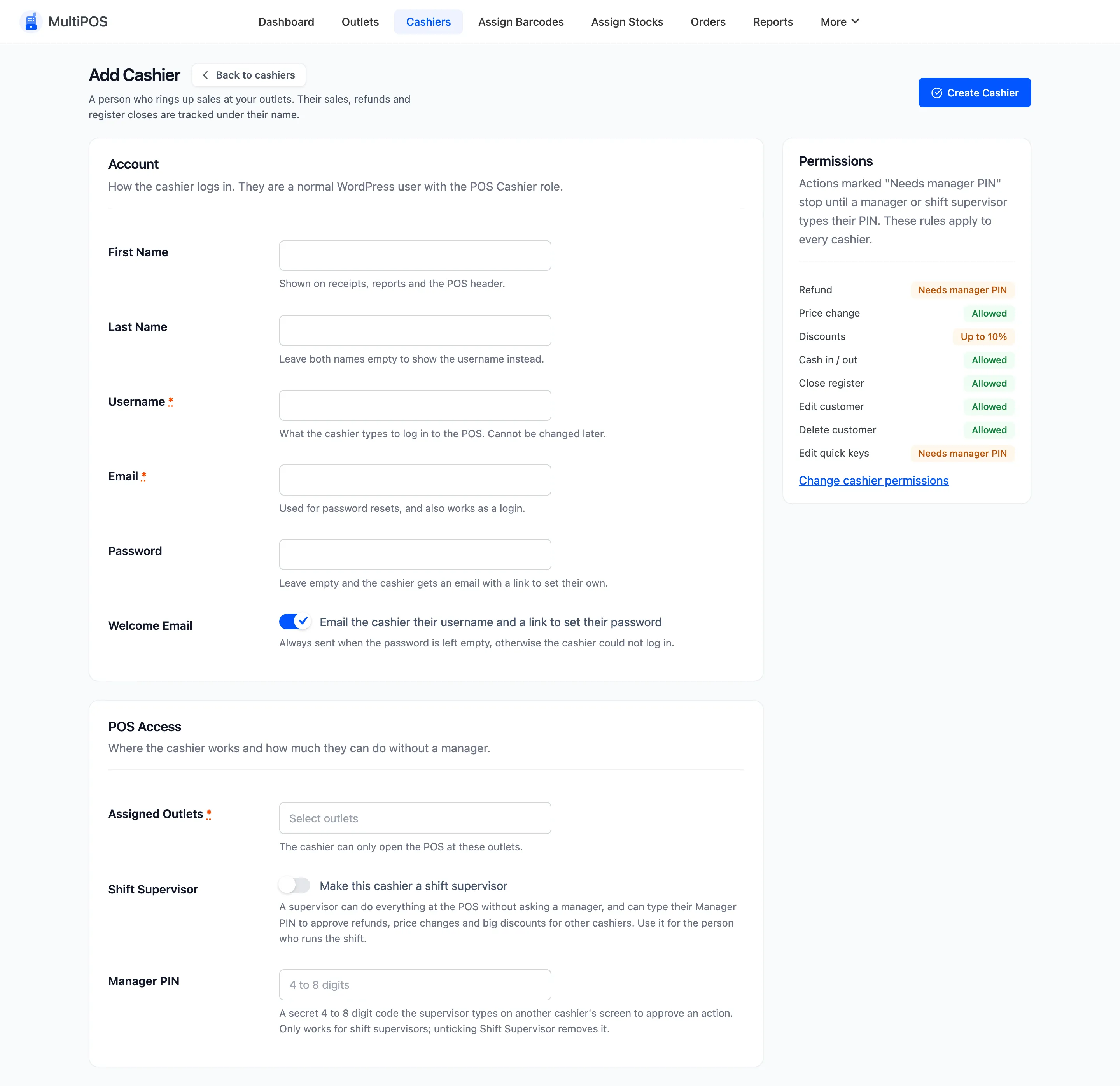
The Account section is how the cashier logs in:
- First Name and Last Name
- Username: It cannot be changed later.
- Password: Leave it empty to email the cashier a link instead.
- Welcome Email: Emails the username and a link to set the password. It is always sent when the password is empty, or the cashier could not log in.
Press Create Cashier. The full walkthrough is in How to Add a Cashier.
Edit a cashier
Section titled “Edit a cashier”Click a cashier’s name to open Edit Cashier. The same fields are there, with New Password in place of Password, and two panels down the right.
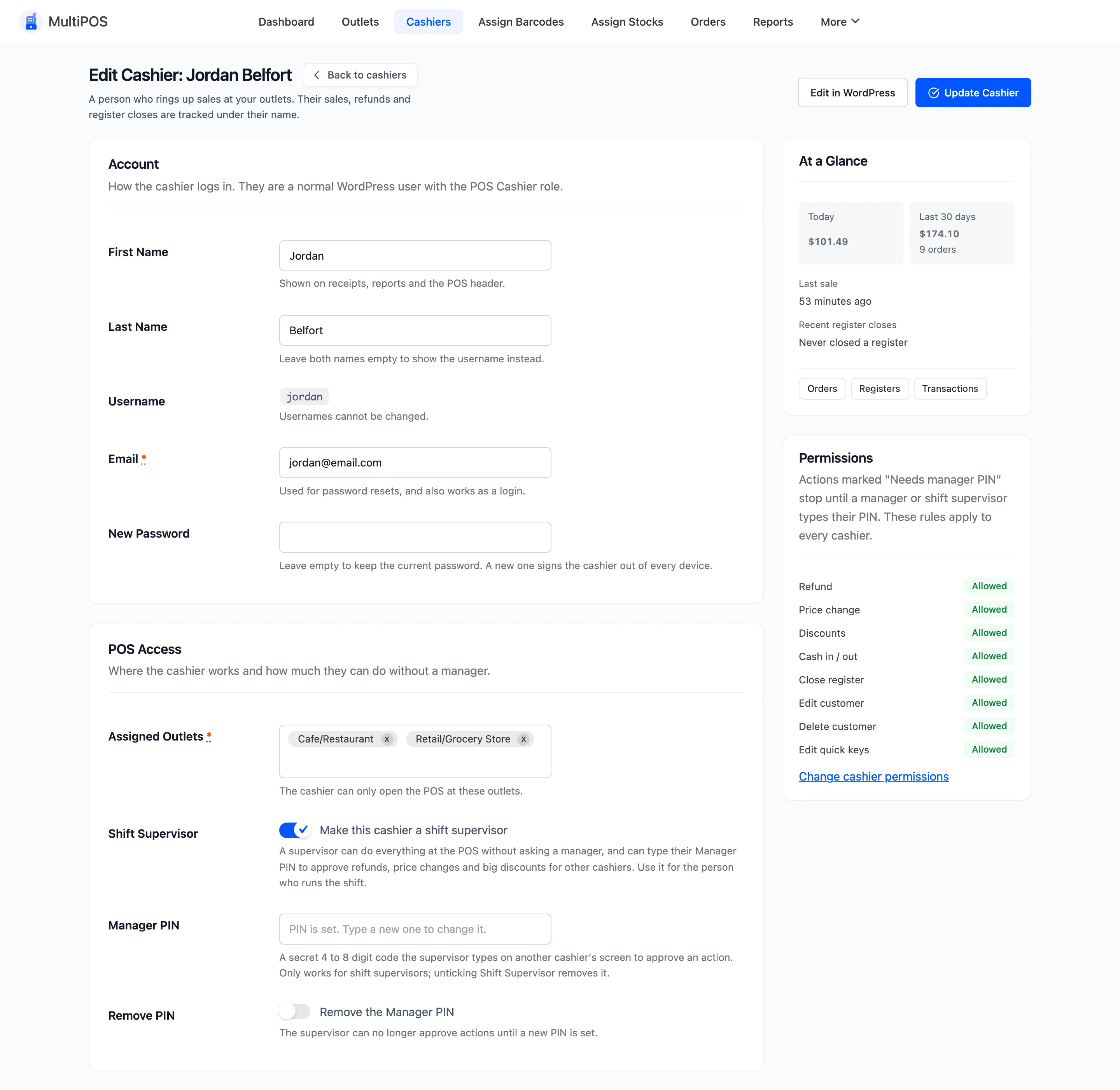
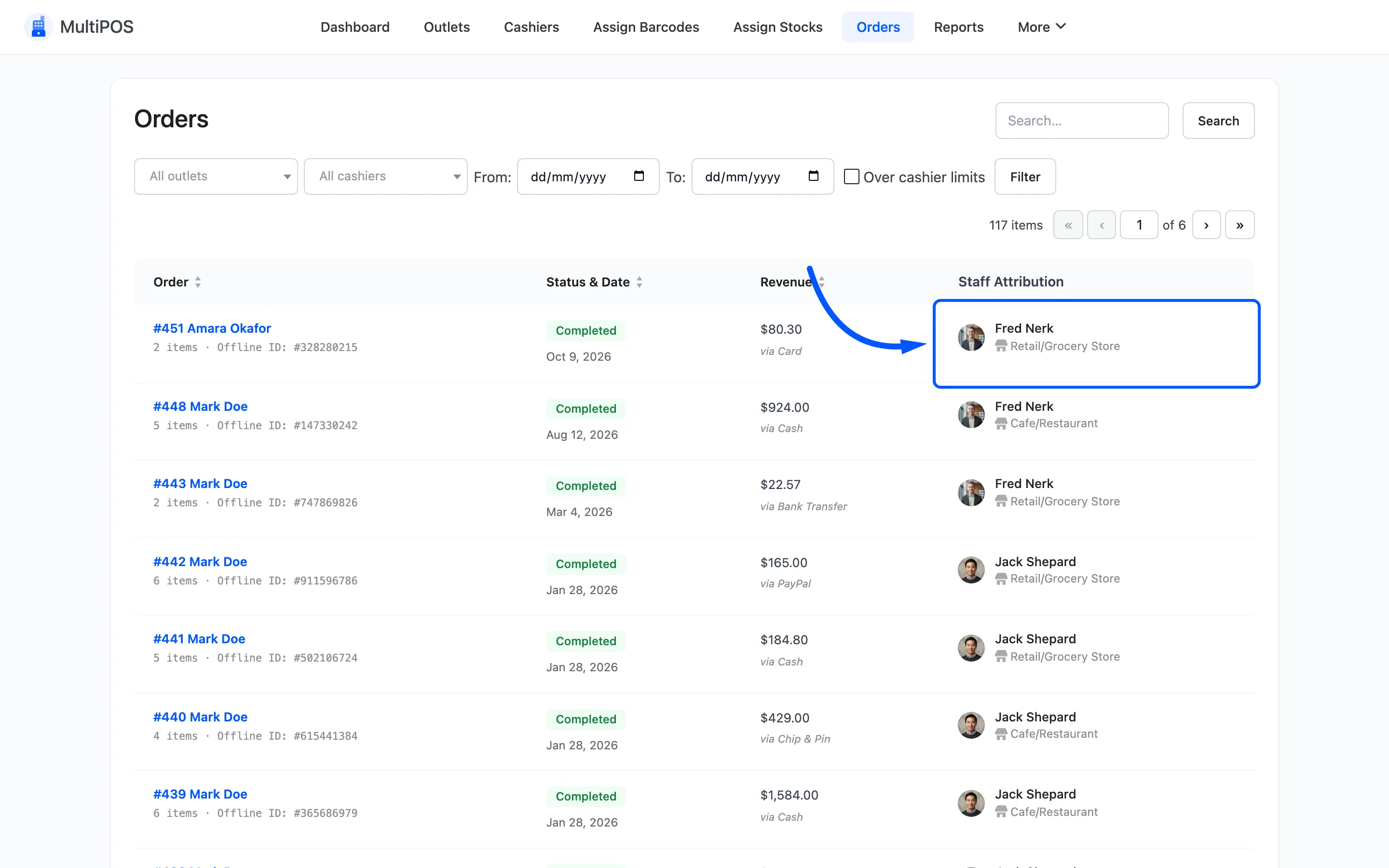
- At a Glance: Today’s sales, the last 30 days, the last sale and recent register closes, with links to the cashier’s orders, registers and transactions.
- Permissions: Each rule from the Permissions tab, marked Allowed, Needs manager PIN or Up to 10%, with a link to change them.
Edit in WordPress opens the cashier’s ordinary WordPress profile.
POS Access (Pro)
Section titled “POS Access (Pro)”- Assigned Outlets: Which outlets the cashier may open. A cashier with two picks one at the outlet screen; a cashier with one goes straight in.
- Shift Supervisor: Make this cashier a shift supervisor. A supervisor is never limited by permissions and can approve other cashiers with a PIN.
- Manager PIN: A 4 to 8 digit PIN, for supervisors only.
- Remove the Manager PIN: Clears a saved PIN.
Only a store manager can change the supervisor tick or the PIN. Approving with a PIN is covered in How to Approve Actions with a Manager PIN.
Delete a cashier
Section titled “Delete a cashier”Tick rows and pick Delete from the bulk actions, or use Delete on one row.
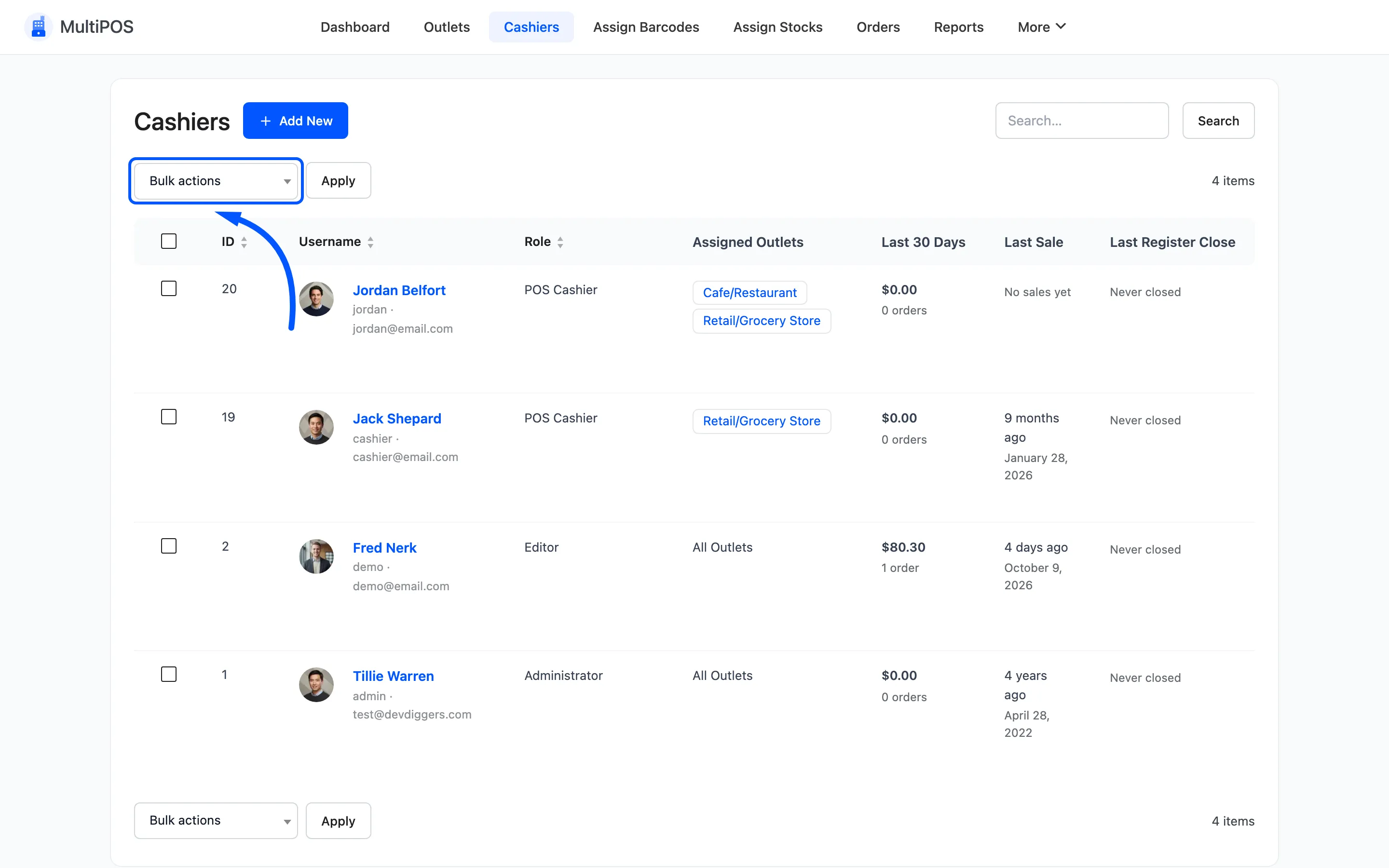
Two accounts are always skipped: your own and any administrator. The message says how many were left alone.
To stop someone using the POS and keep their history readable, change their role to Subscriber under Users instead. They lose the POS at once, and every order they took still names them.
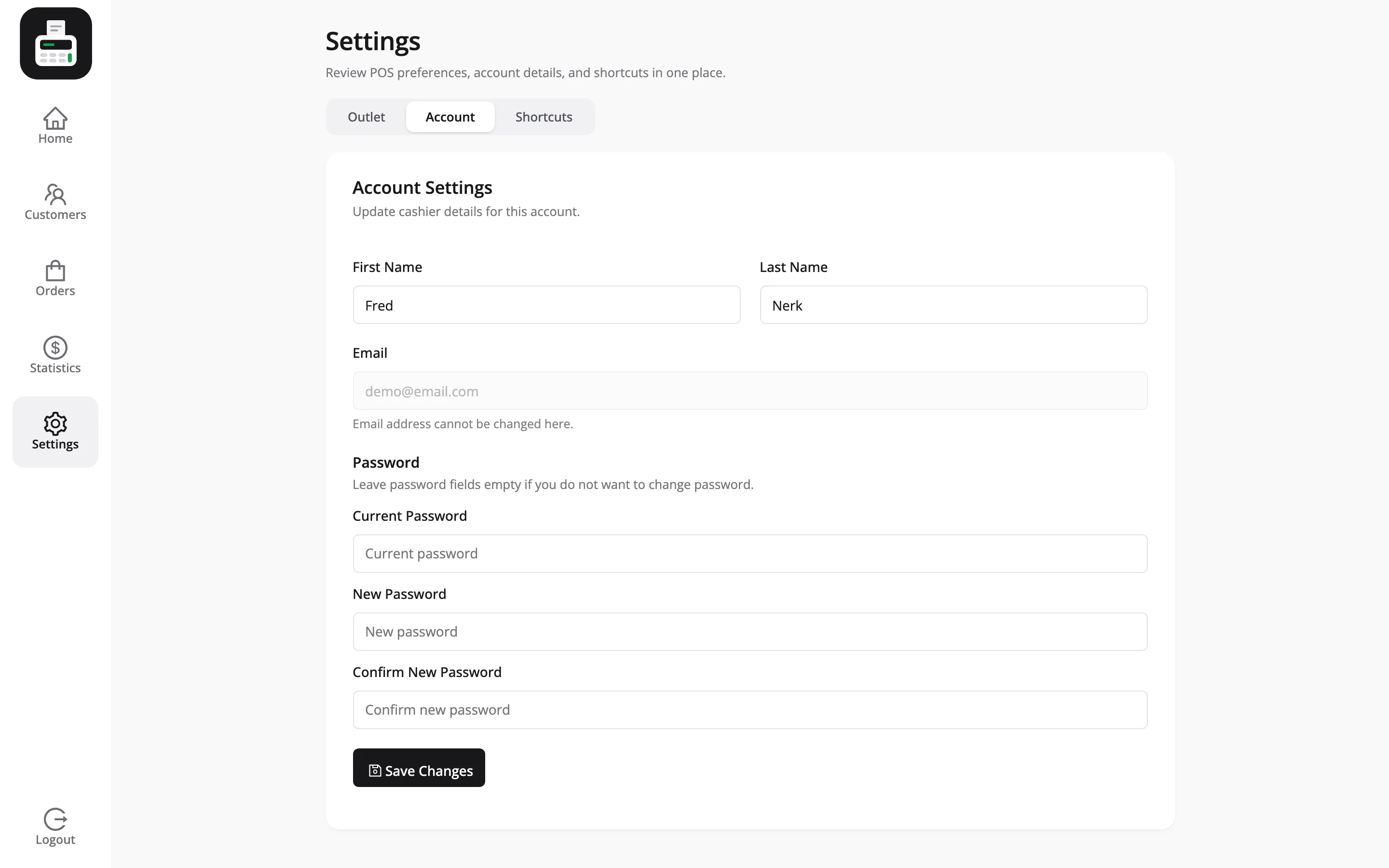
Where a cashier changes their own details
Section titled “Where a cashier changes their own details”Inside the POS, under Settings → Account, a cashier can change their first name, last name and password. Email is read only there, so an address change still comes to you.