A Cashier's Shift, Start to Finish (Pro)
This page follows one real shift at the demo’s Retail/Grocery Store, so you can see how each number on the Statistics screen and the Z-report is built. Every figure below came from performing it.
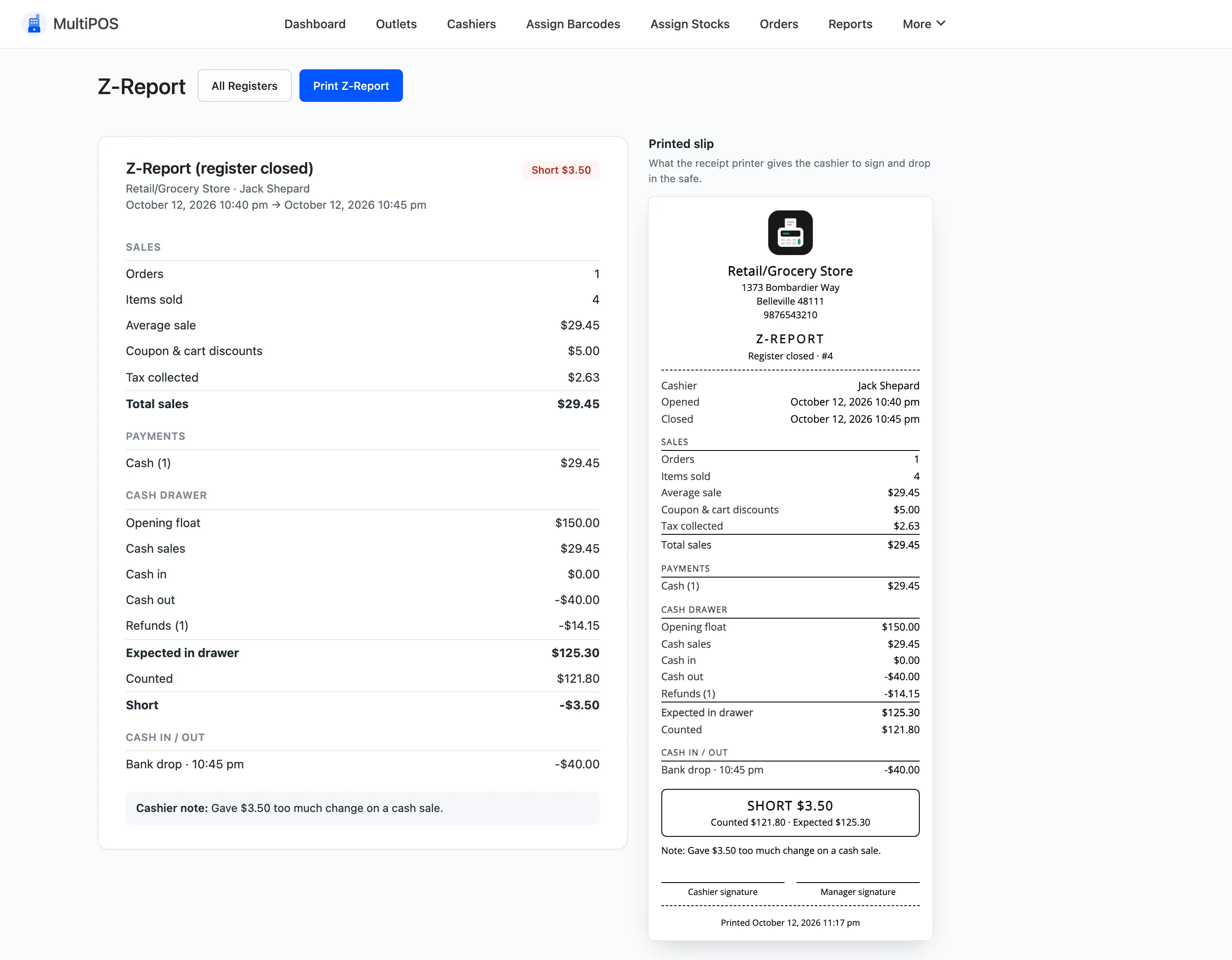
The shift in one line: open with $150.00, sell $29.45 in cash, take $40.00 to the bank, refund $14.15, and count the drawer at the end.
1. Open the register
Section titled “1. Open the register”When Cash Management is on under Configuration → General, the first screen of the day asks the cashier to count the cash in the drawer. They type the amount and press Open Register.
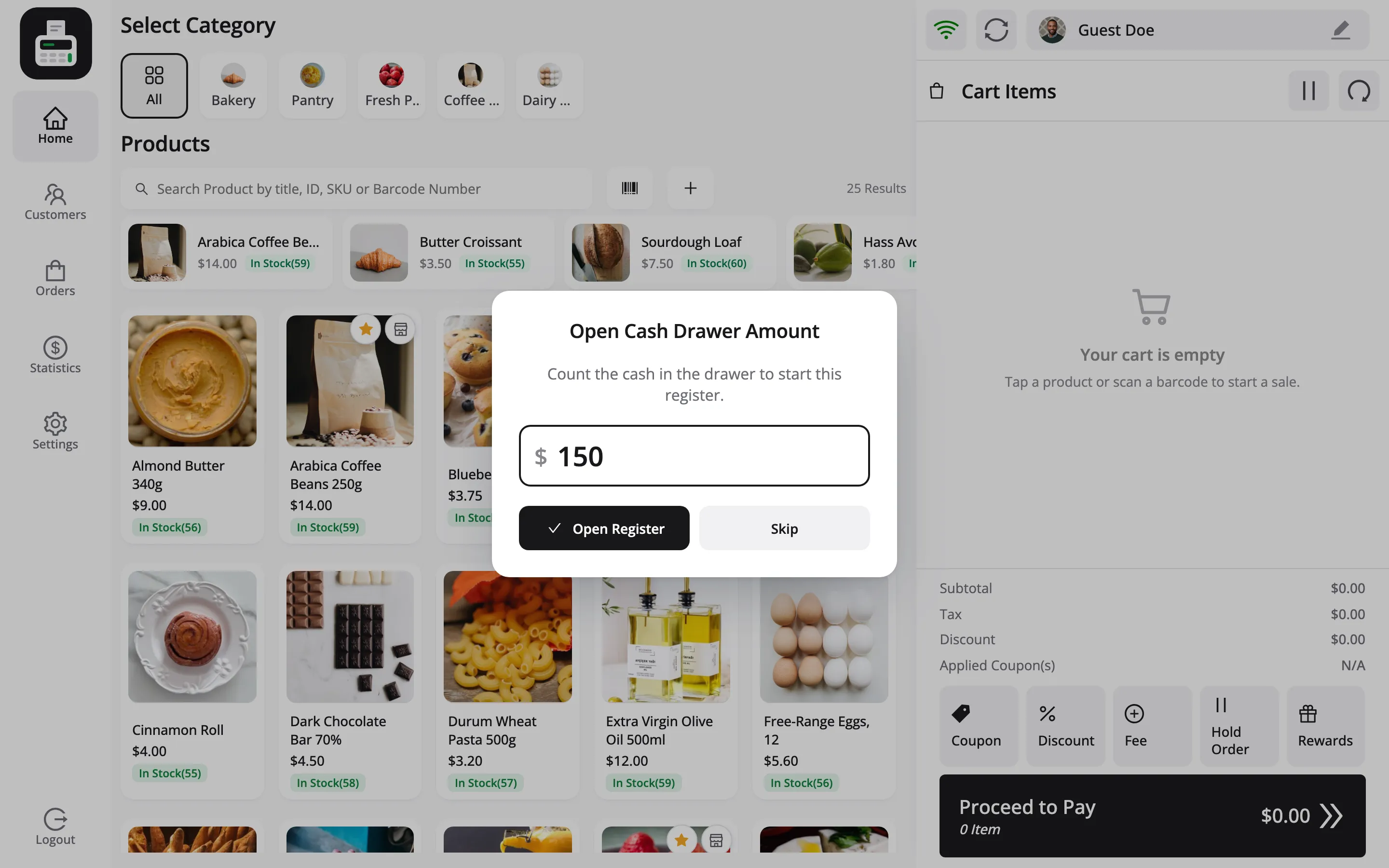
That amount is the opening float. It is written as the shift’s first transaction, and it is where the drawer’s expected amount starts. Skip opens the POS without one, which leaves the expected amount starting at zero.
2. Sell
Section titled “2. Sell”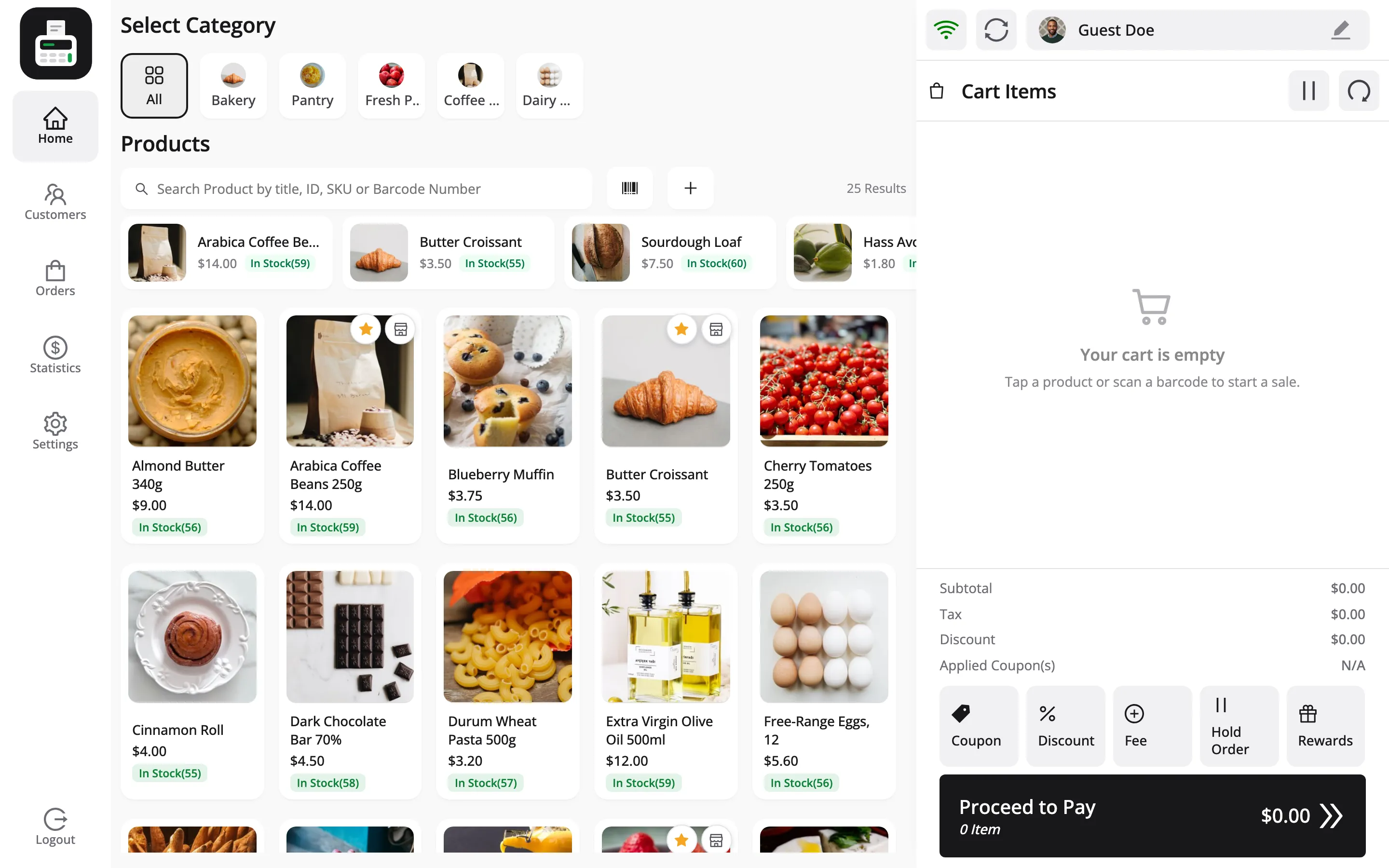
Every cash sale adds to the drawer. A card sale is recorded too, but it never touches the cash figure, because no cash went into the drawer.
The Statistics screen keeps a running picture of the shift.
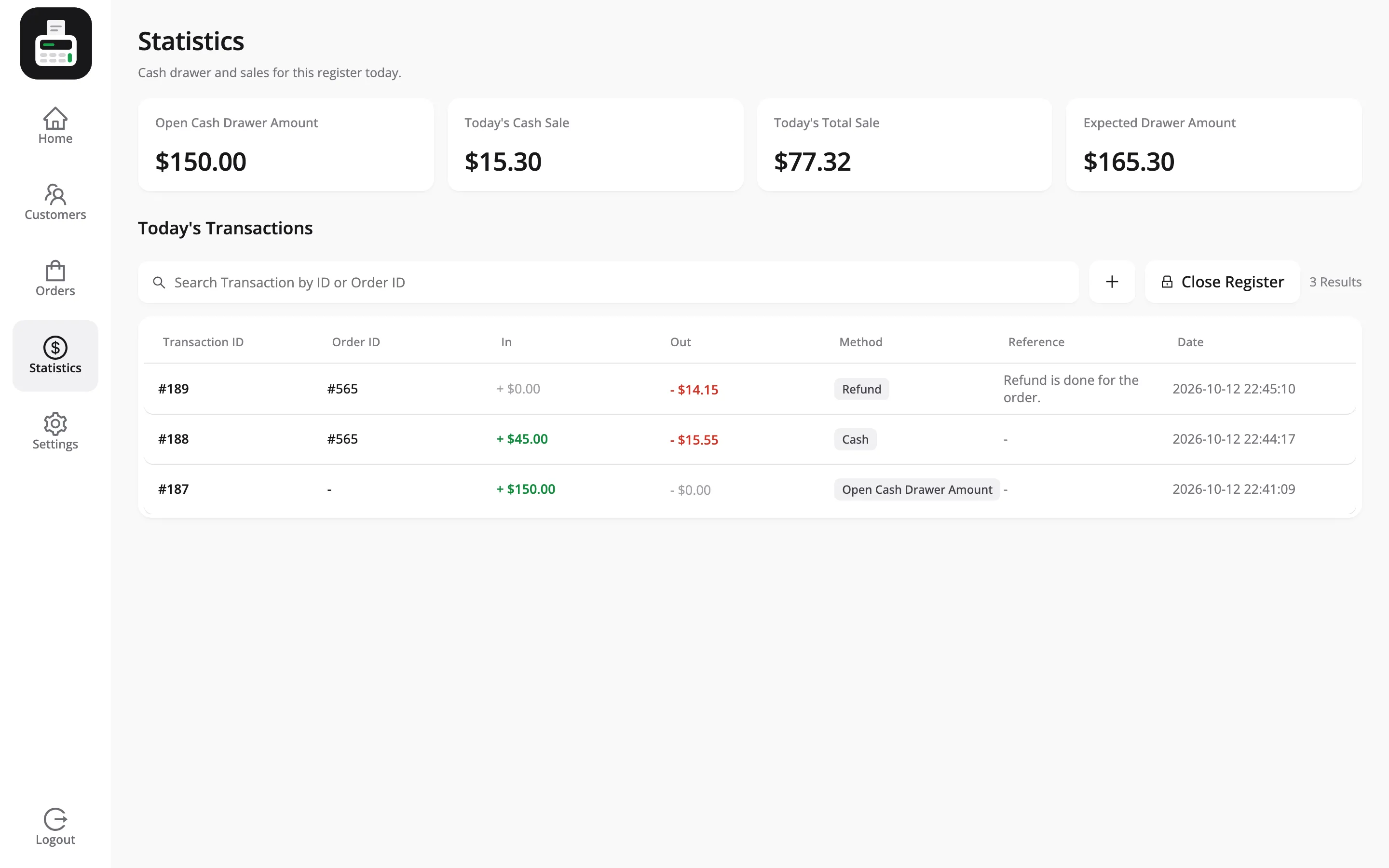
- Open Cash Drawer Amount: The opening float.
- Today’s Cash Sale: Cash taken today, less cash refunds.
- Today’s Total Sale: All sales today, whatever the payment method.
- Expected Drawer Amount: What should be in the drawer right now.
3. Take cash out, with a reason
Section titled “3. Take cash out, with a reason”Midway through the day, $40.00 goes to the bank. The cashier presses + beside the search box, chooses Out, types the amount and picks the reason Bank drop.
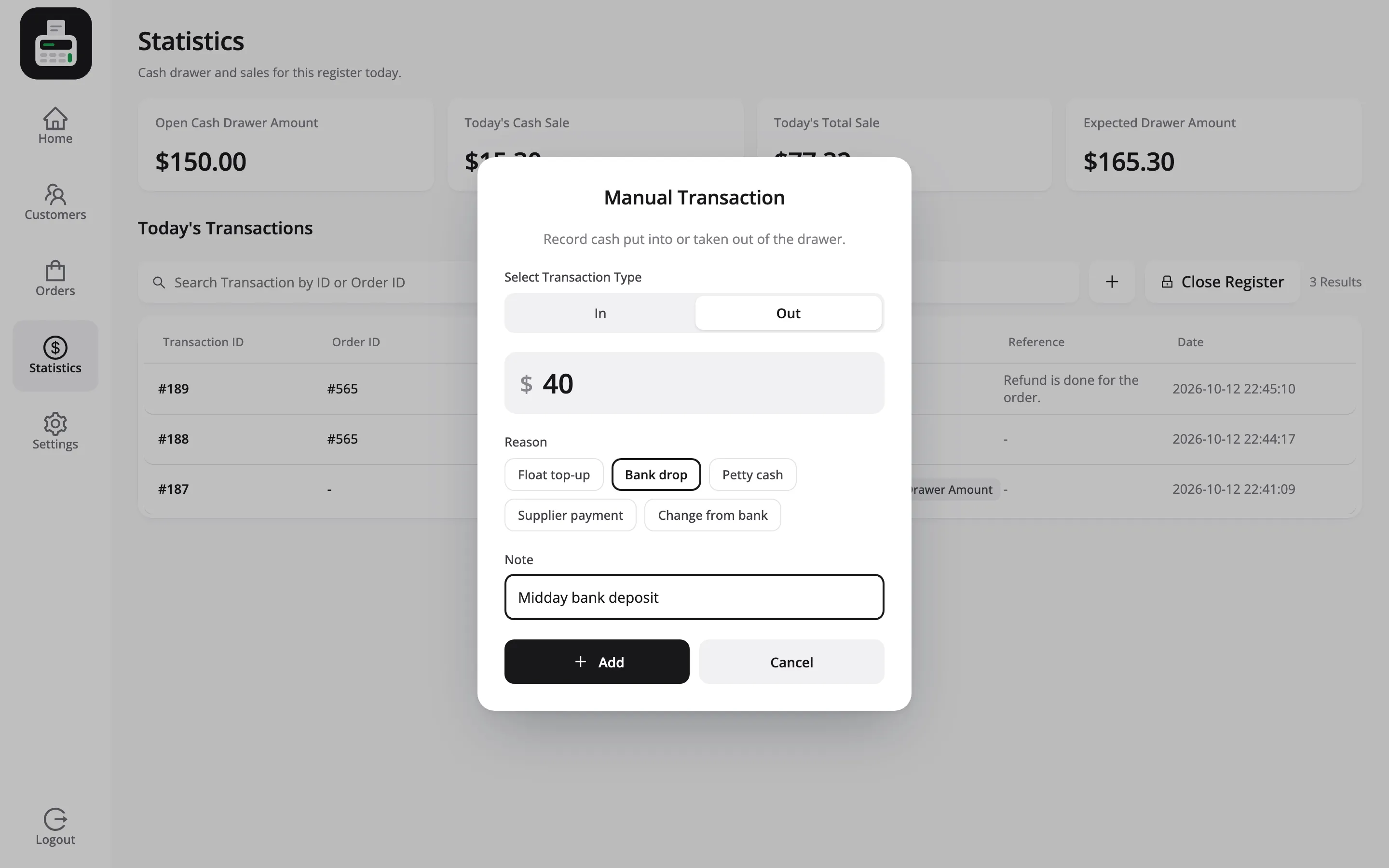
The reasons are yours to set under Configuration → Cash Register. The reason and note are saved together as the transaction’s reference, so the Z-report can say why each cash movement happened.
4. Refund a sale
Section titled “4. Refund a sale”A customer brings an item back and gets $14.15 in cash. On the demo, cashiers may not refund alone, so a supervisor typed their PIN to approve it. The refund appears as its own transaction, with the money in the Out column.
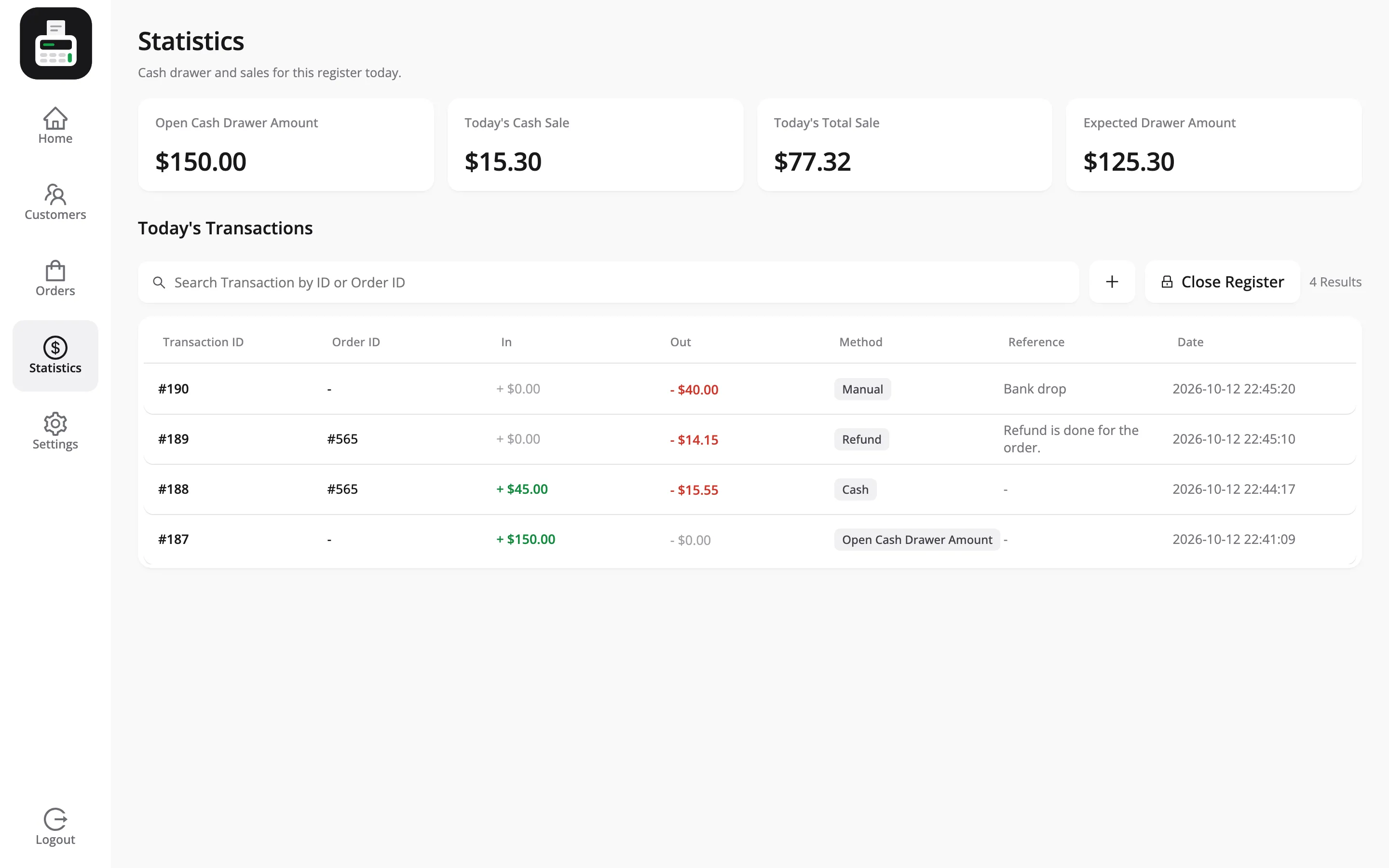
A refund of a card sale is recorded as Refund (not cash) and does not lower the expected drawer amount. Only cash refunds leave the drawer.
5. Count the drawer and close the register
Section titled “5. Count the drawer and close the register”At the end of the shift the cashier presses Close Register. The popup adds the shift up line by line.
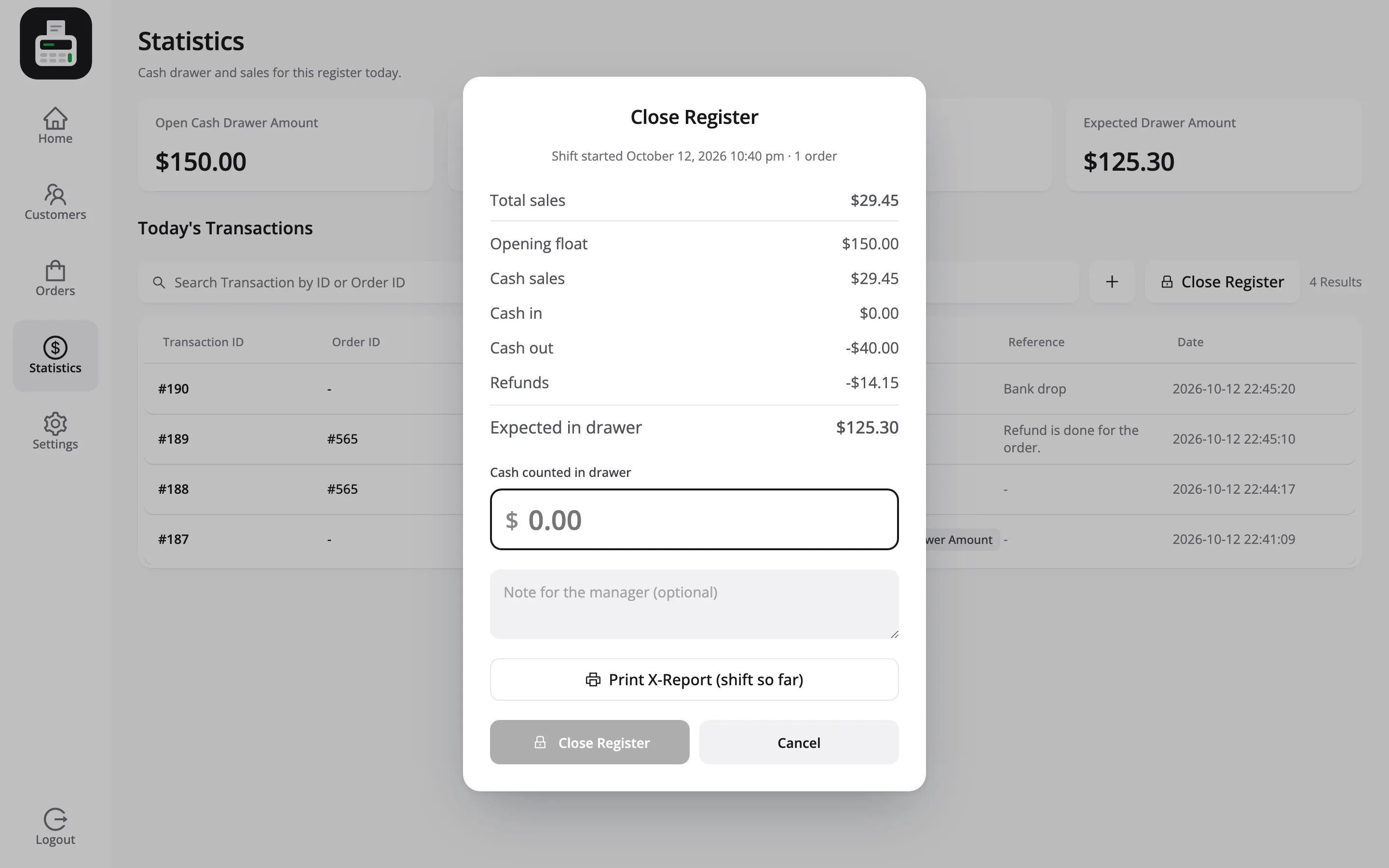
The sum is the whole mechanic:
| Line | Amount |
|---|---|
| Opening float | $150.00 |
| Cash sales | $29.45 |
| Cash in | $0.00 |
| Cash out | −$40.00 |
| Refunds | −$14.15 |
| Expected in drawer | $125.30 |
The cashier counts every note and coin and types the total. The drawer here held $121.80, so the popup turned red and read Short $3.50 as soon as the number was typed.
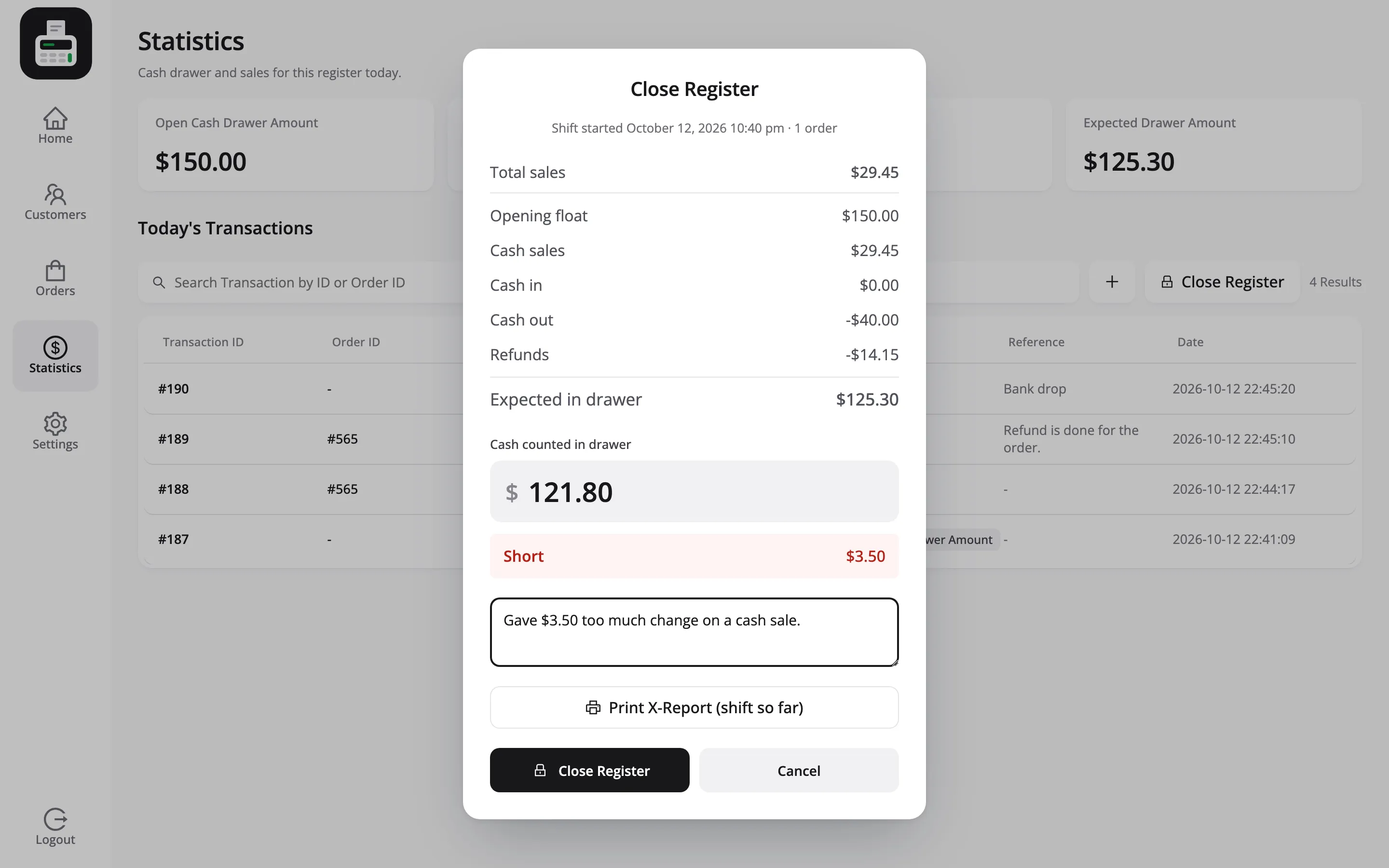
The demo asks for a note when the drawer is off by more than $5.00, so this one was optional. Any difference above your limit makes the note required, and the register will not close without it.
6. The Z-report
Section titled “6. The Z-report”Pressing Close Register saves the shift and opens its Z-report. Print Z-Report prints it as a receipt-width slip for the cashier to sign.
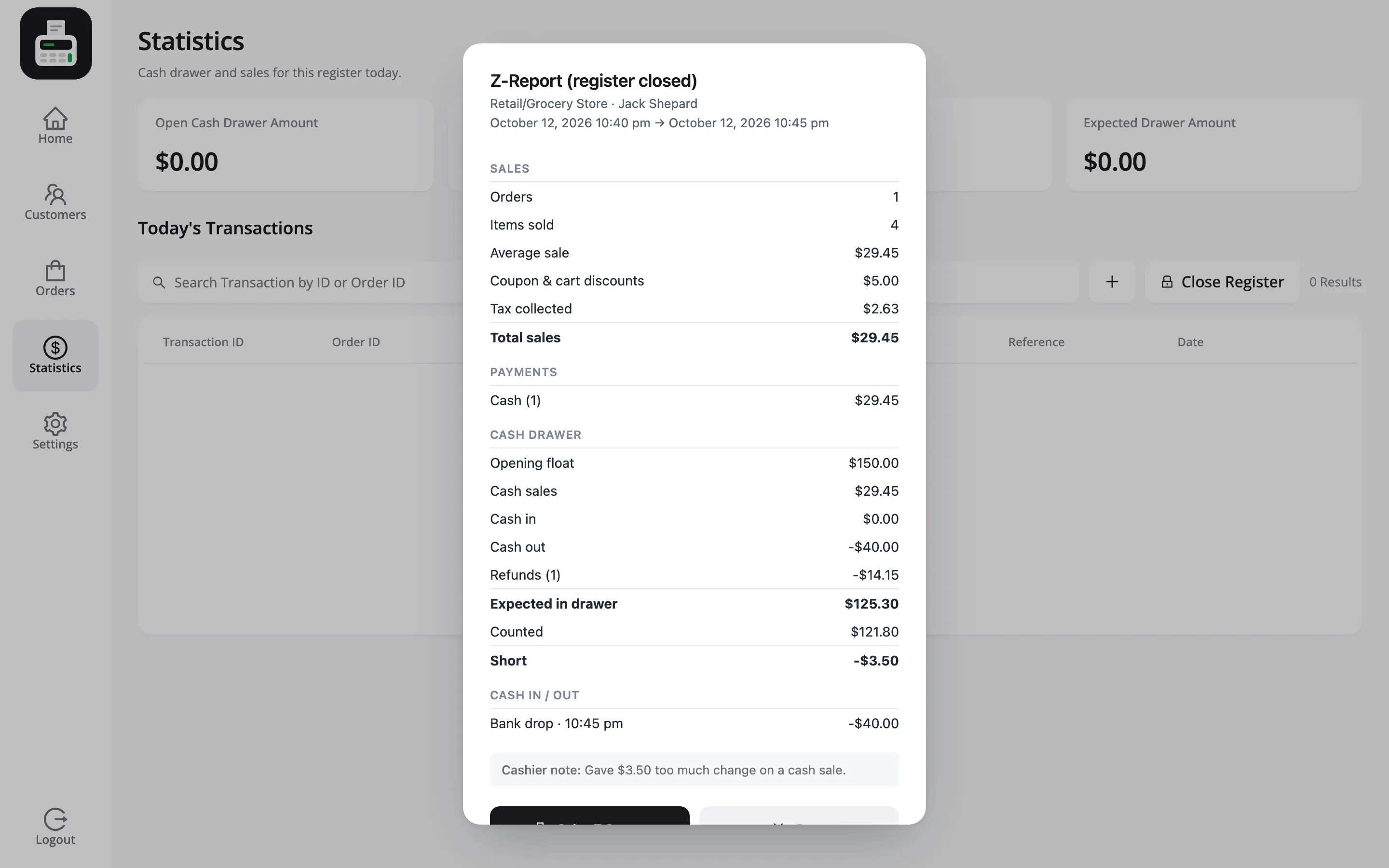
The Statistics screen then starts again from zero. The next shift opens with a fresh count.
7. What you see afterwards
Section titled “7. What you see afterwards”The closed register is saved under MultiPOS → Registers, with the same Z-report and a preview of the printed slip. When Email Report is on, the Z-report is also emailed to you the moment the register closes.