

Payment Methods
The Payments tab is the list of ways a customer can pay at the counter. It has nothing to do with your WooCommerce payment gateways, which handle website checkout.
That separation is the point. Cash and “card machine on the counter” are not gateways, and your Stripe or PayPal gateway is not something a cashier taps.
Open the tab
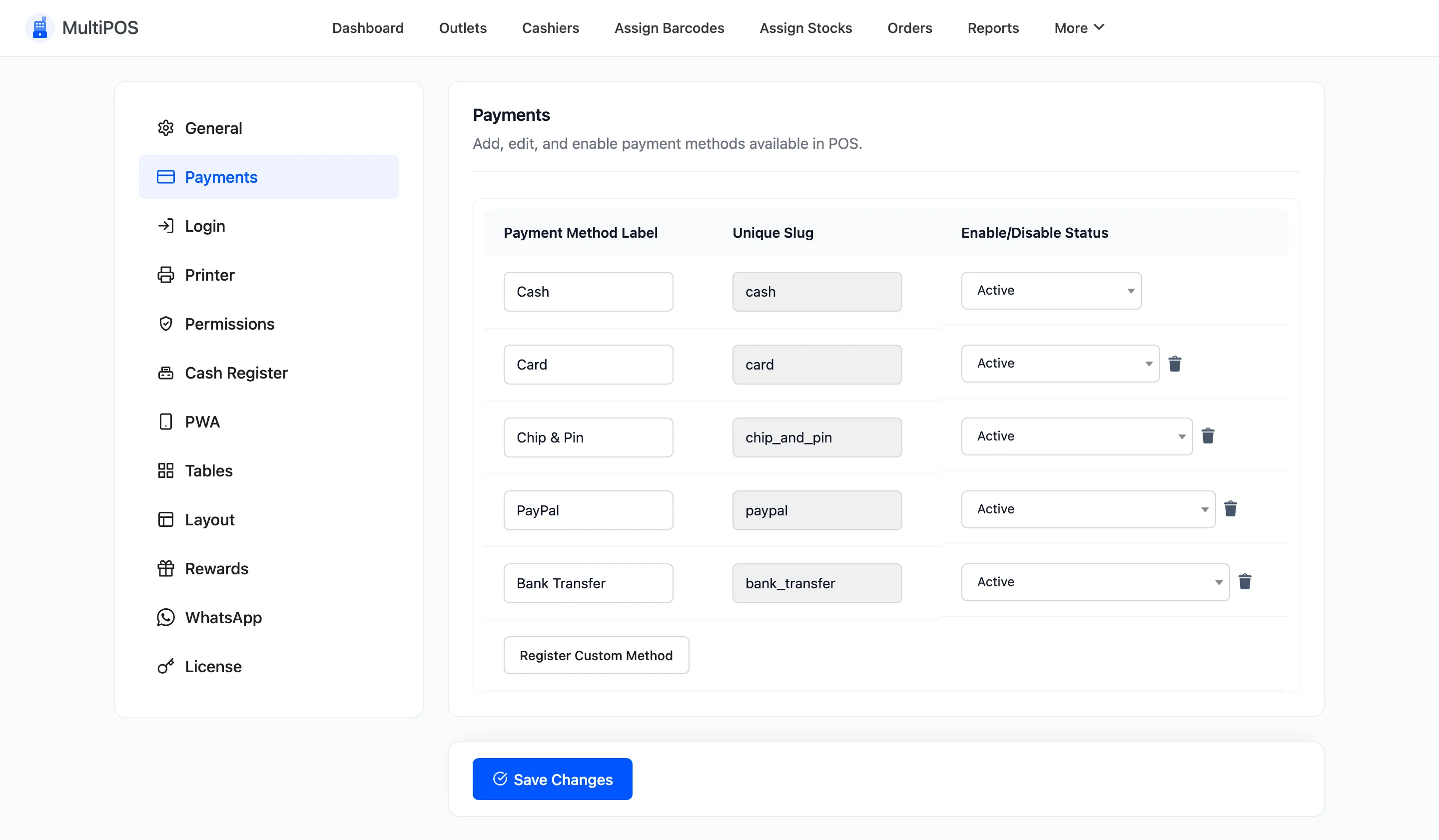
Section titled “Open the tab”Go to DevDiggers Plugins → MultiPOS → Configuration → Payments.
What ships by default
Section titled “What ships by default”One method, called Cash, with the slug cash. It is marked permanent and cannot be deleted.
That is deliberate. Cash is the one method the transactions list treats specially, so it always exists.
The three columns
Section titled “The three columns”| Column | What it is |
|---|---|
| Payment Method Label | What the cashier taps at payment |
| Unique Slug | The internal key stored on the order |
| Enable/Disable Status | Active or Inactive |
The label is free text and can be changed at any time. The slug is generated from the label when the row is created and then locked, so an existing order’s payment method never breaks.
Add a method
Section titled “Add a method”Click the button under the table, labelled Add Payment Method in the free version and Register Custom Method in Pro.
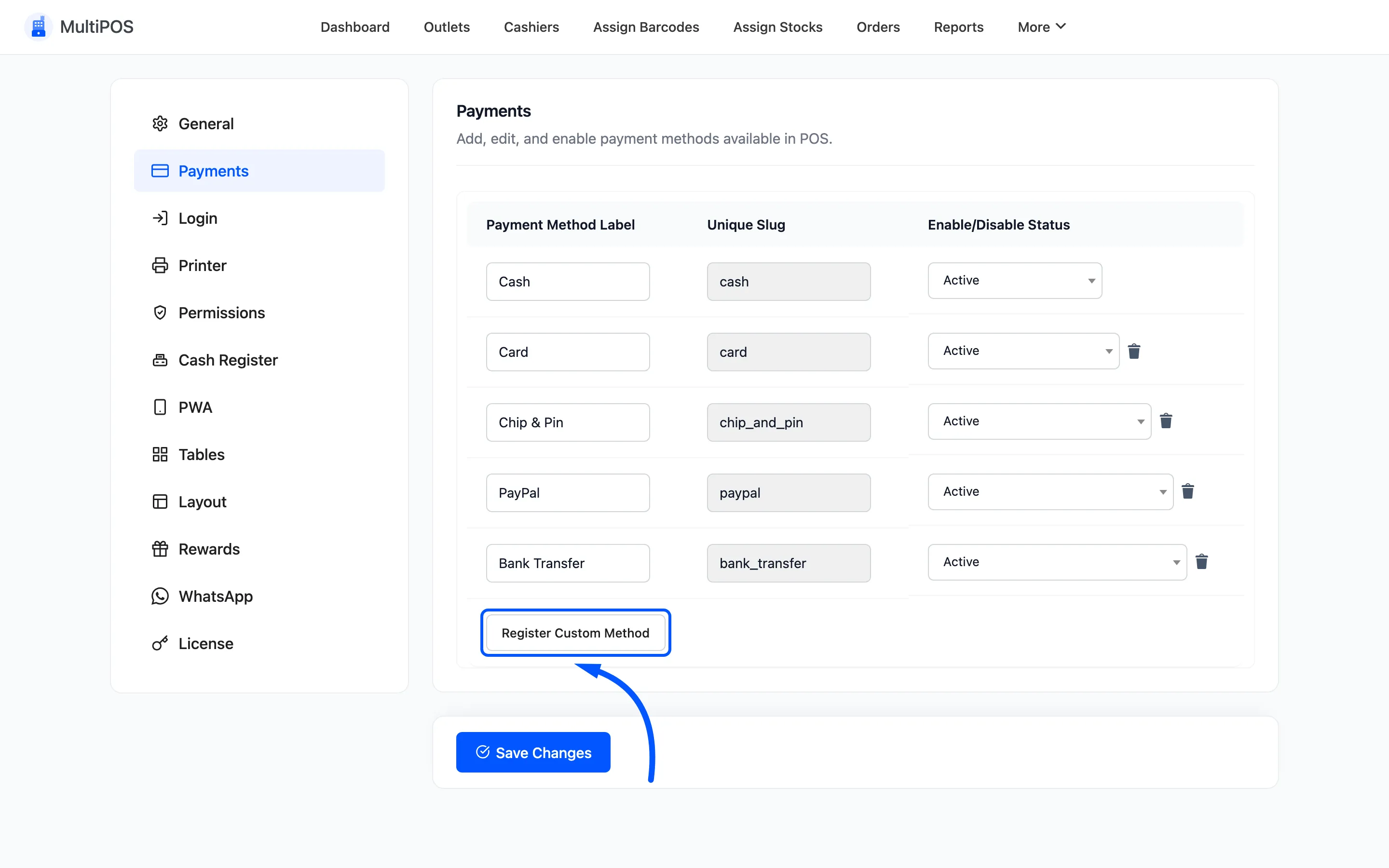
Fill in the label and the slug, set the status to Active, and click Save Changes.
Typical additions: Card, Chip & Pin, Bank Transfer, Gift Card, Voucher, Account.
The cash slug is special
Section titled “The cash slug is special”Out in the Transactions list
records change given back to the customer. It is only ever filled in when the payment method’s slug
is exactly cash.
Every other method records Out as zero, which is correct: no change leaves the drawer on a card payment.
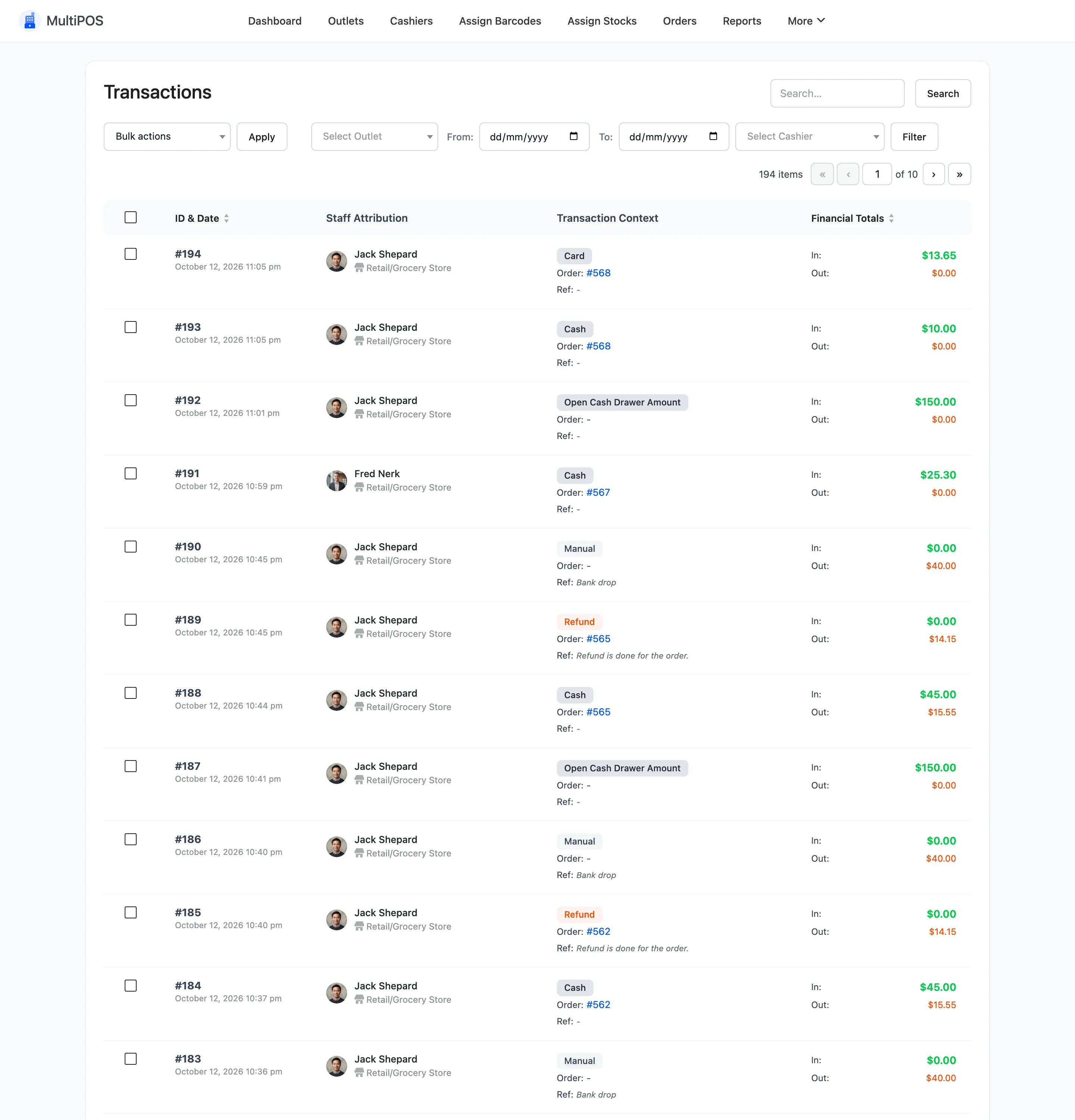
So if you rename the cash method, change the label, not the slug. Calling it “Cash / Notes” is
fine. Rebuilding it with a slug of cash-notes quietly breaks your drawer check.
Switch a method off
Section titled “Switch a method off”Set its status to Inactive rather than deleting it.
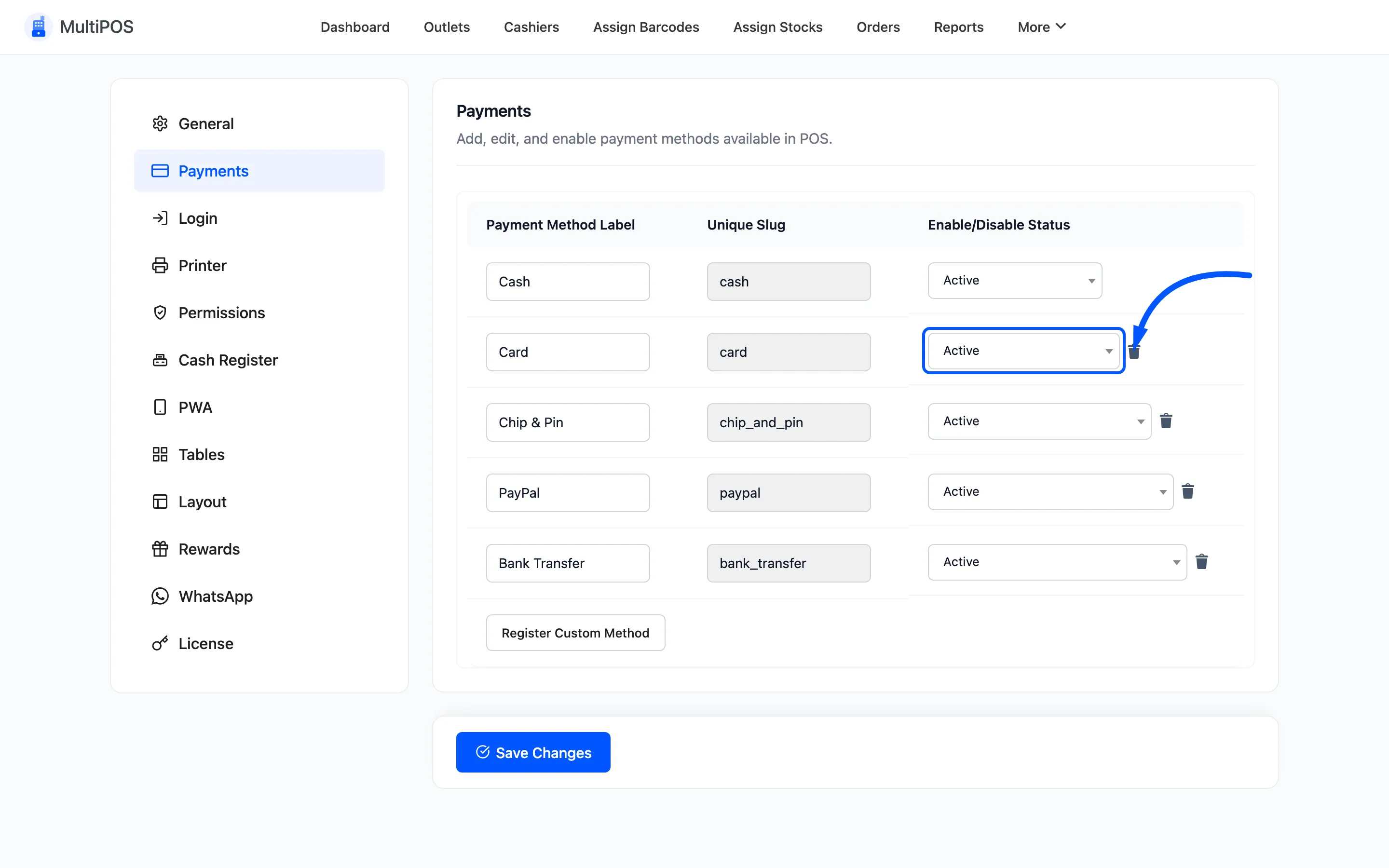
An inactive method disappears from the payment screen but stays on every order that already used it, so your reports keep making sense. Deleting the row removes the option you may want back next month.
Only Active methods can be assigned to an outlet, and only the methods assigned to the open outlet appear at payment.
Delete a method
Section titled “Delete a method”The bin icon on a row removes it. The permanent Cash row has no bin icon.
Delete only a method that was created by mistake and never used.
Methods have to be assigned to the outlet
Section titled “Methods have to be assigned to the outlet”Adding a method here does not put it on the payment screen. Each outlet carries its own list.
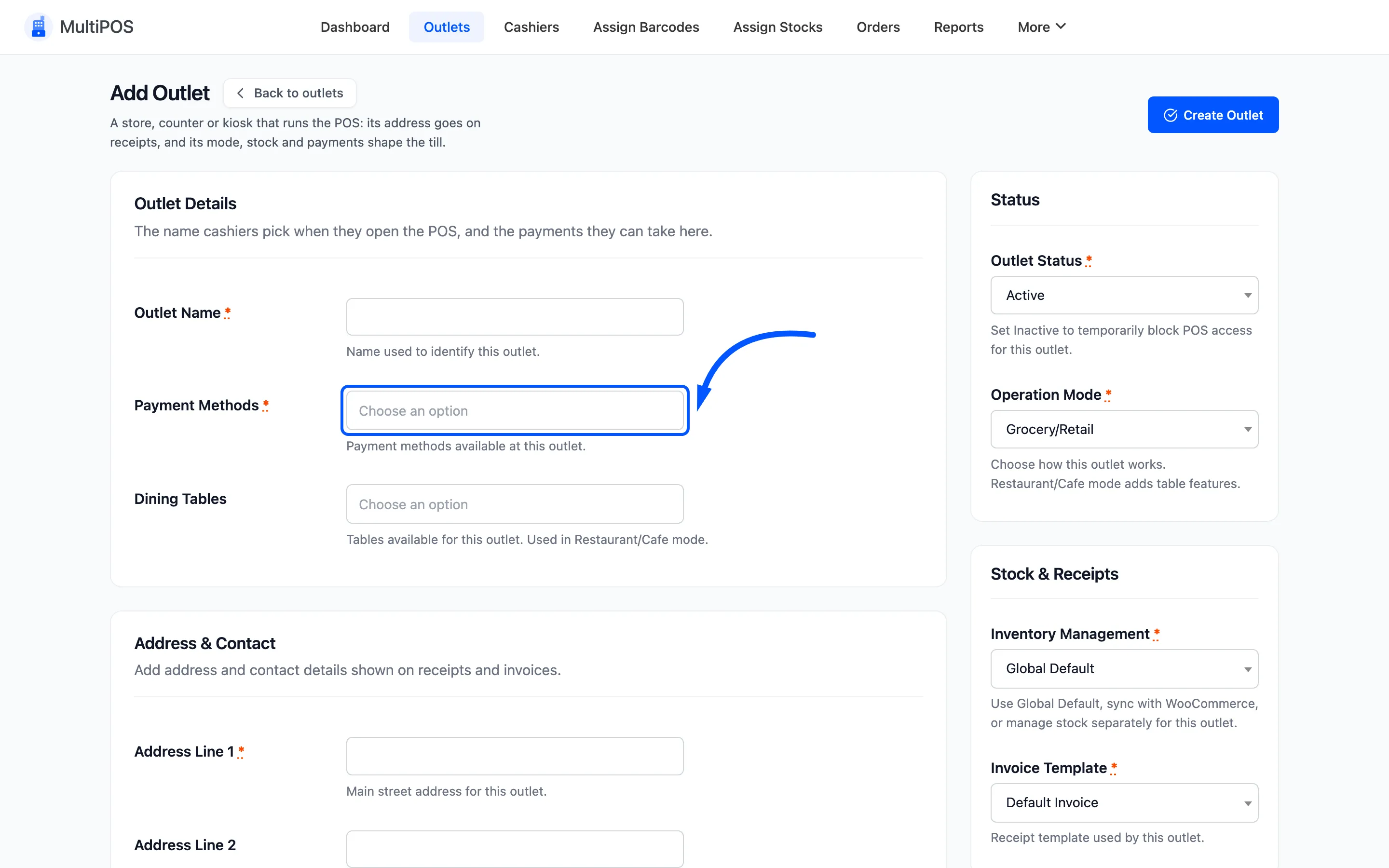
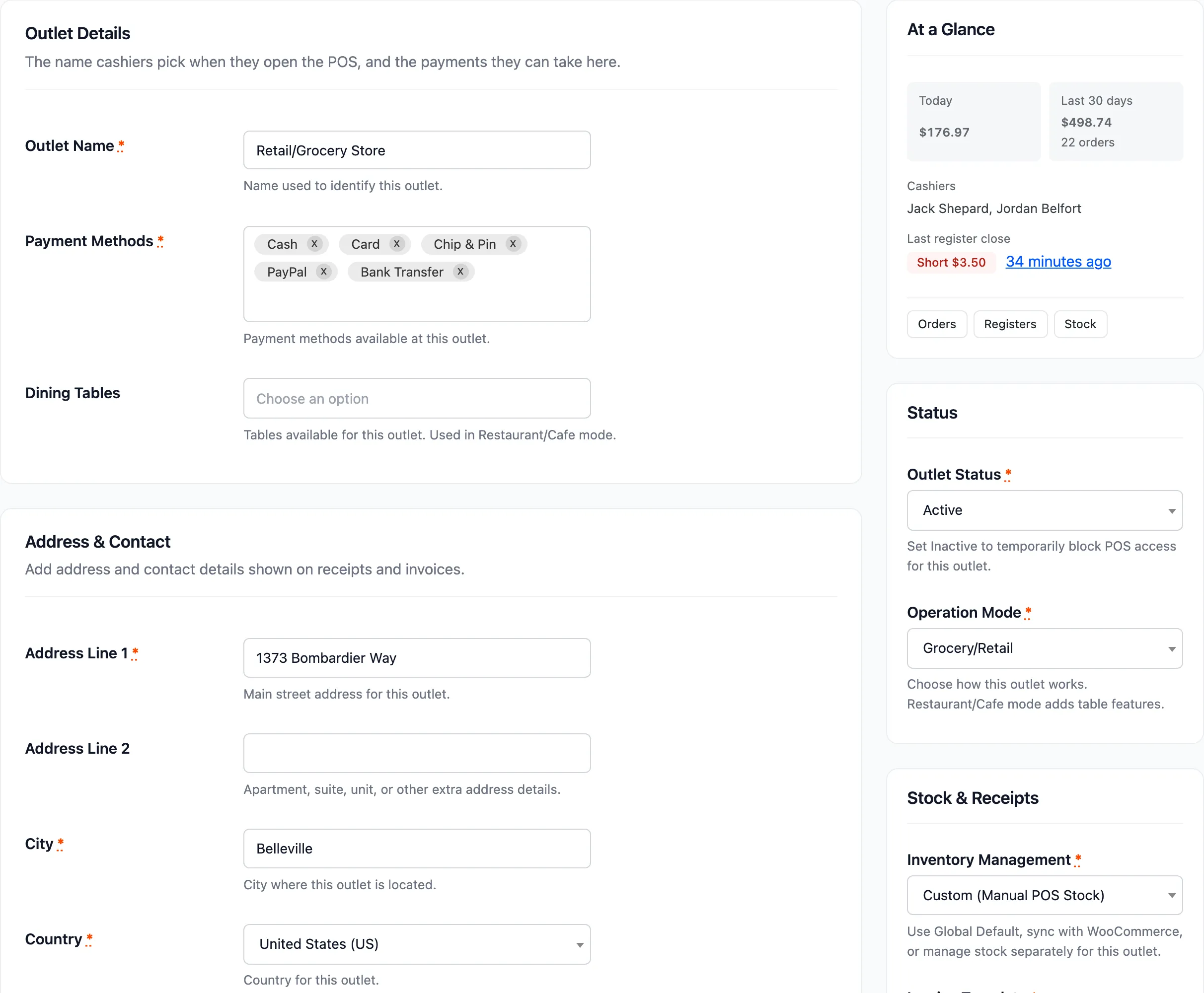
Go to MultiPOS → Outlet and select the methods this location takes in Payment Methods. A cashier only ever sees the intersection of Active here and selected there.
That is the usual reason a new method does not show up at the POS.
What the cashier sees
Section titled “What the cashier sees”The payment screen lists the outlet’s methods as buttons above the keypad.
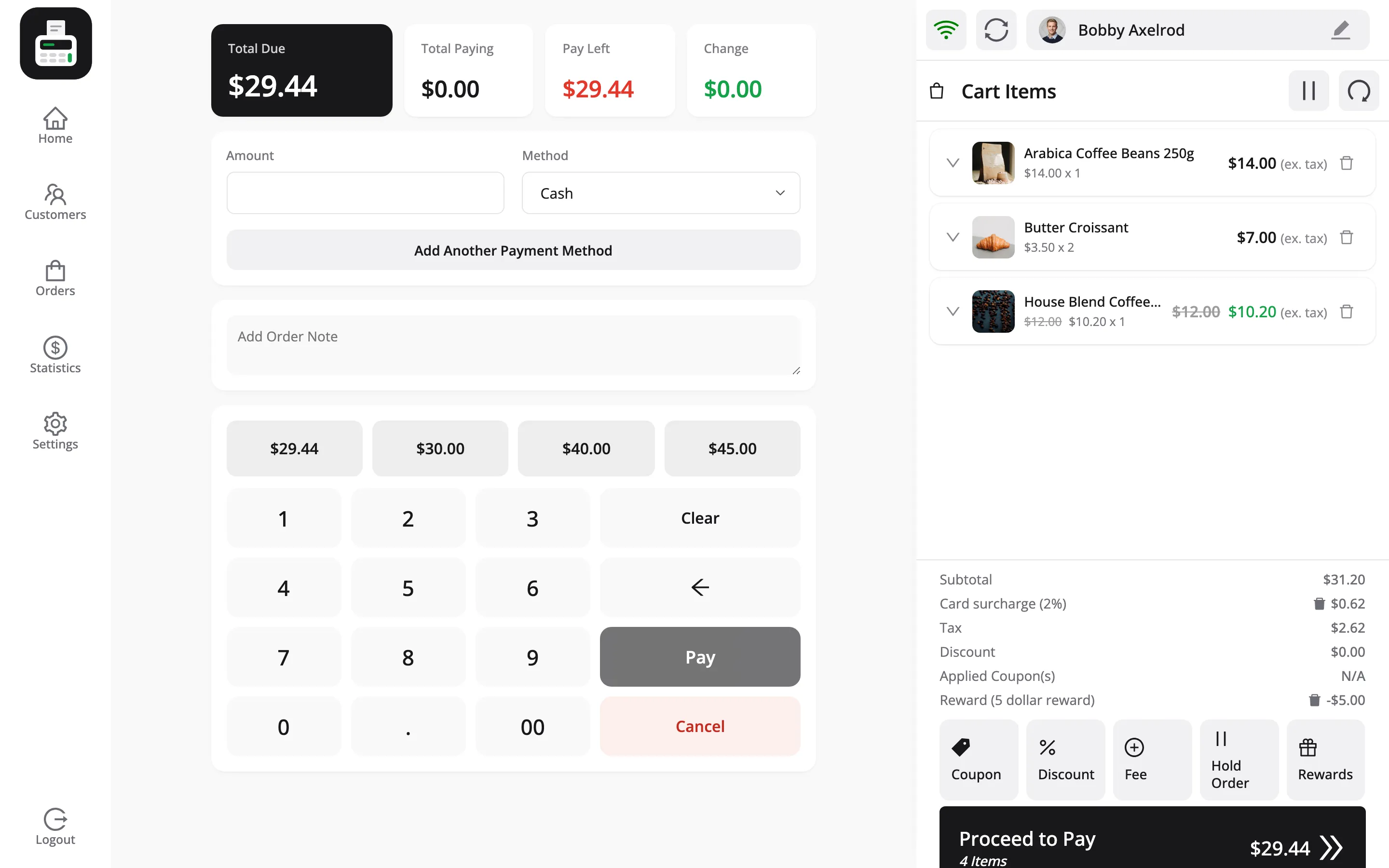
The cashier picks one, enters the amount handed over, and presses Pay.
Where to go next
Section titled “Where to go next”- How to Set Up Your Outlet to assign these methods.
- Transactions for what each method records.