

Transactions
A transaction is a movement of money, not a sale. Every payment taken at the POS writes one row here, and that row is what you check the cash drawer against.
One order can produce more than one row when a payment is split across methods.
Open the screen
Section titled “Open the screen”Go to MultiPOS → More → Transactions.
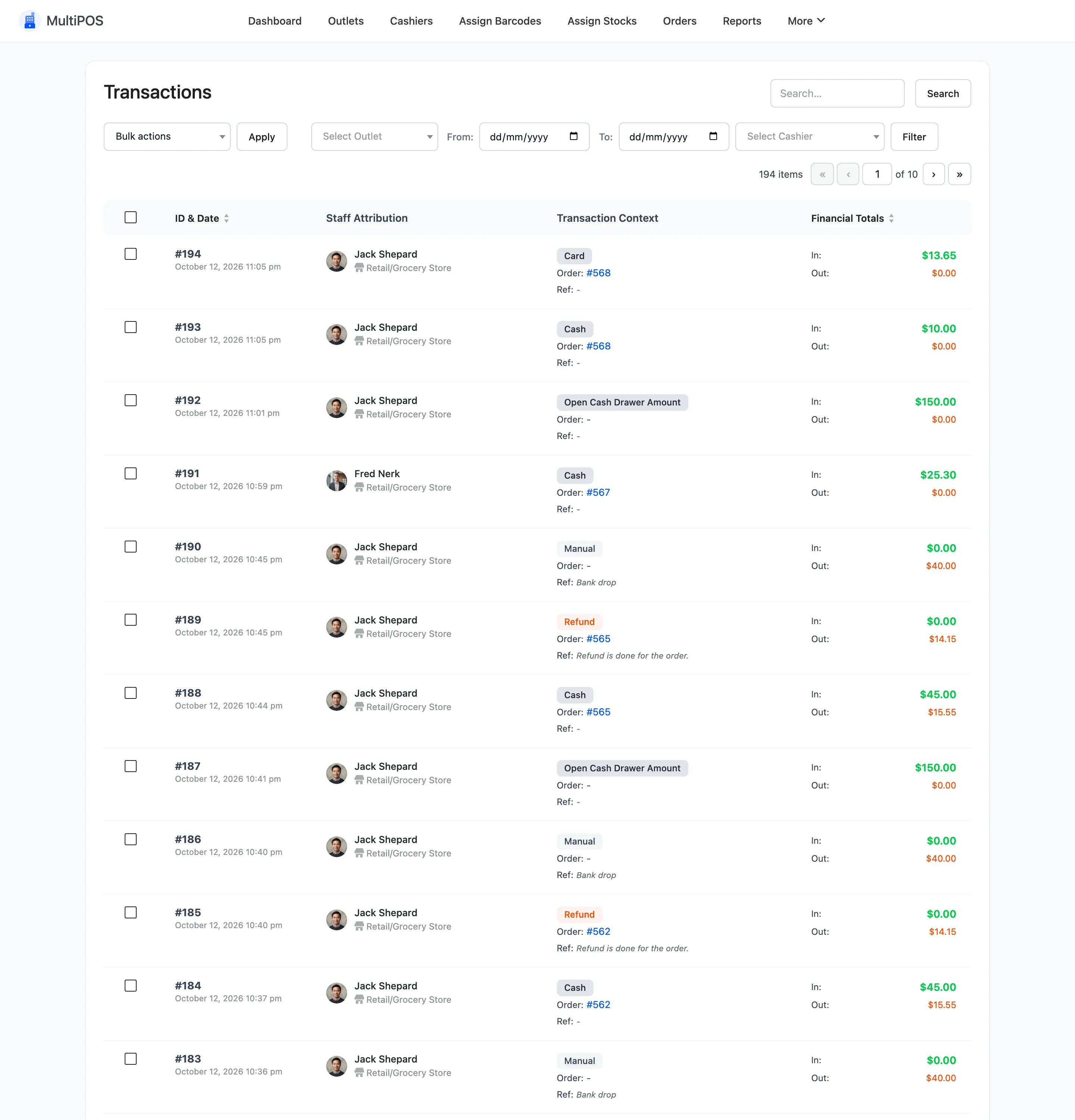
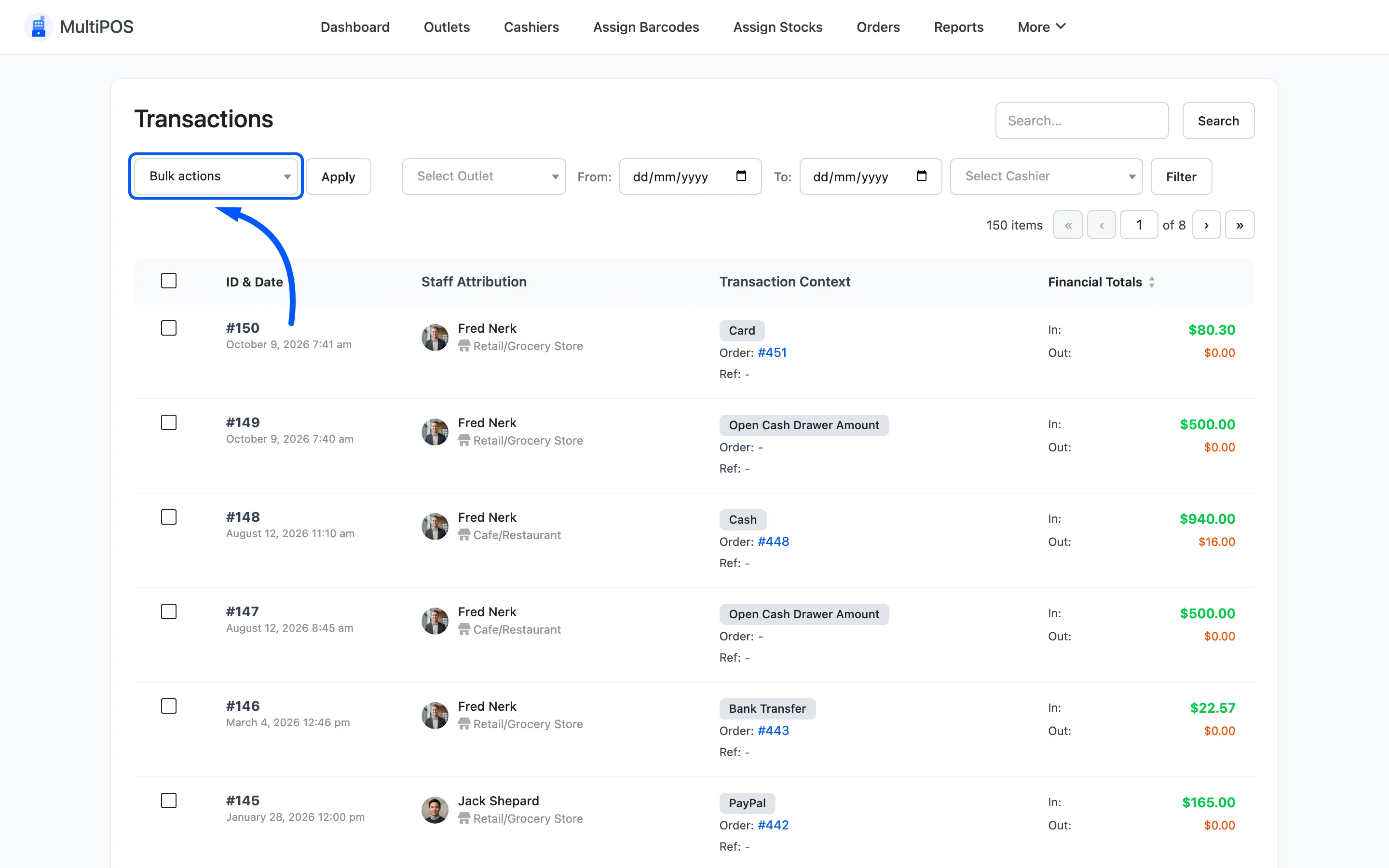
The columns
Section titled “The columns”| Column | What it shows |
|---|---|
| ID & Date | The transaction number and when it happened |
| Staff Attribution | The cashier, with their photo, and the outlet underneath |
| Transaction Context | The type, the order number and a reference, such as a cash-out reason |
| Financial Totals | In and Out |
ID & Date and Financial Totals are sortable.
In and Out
Section titled “In and Out”The two figures are the whole point of the screen.
- In is what the customer handed over.
- Out is the change given back.
On a sale, Out is only ever filled in for cash. The plugin records change only when the payment
method’s slug is exactly cash. Every other method records Out as zero, which is correct. No change
leaves the drawer on a card payment.
Two other kinds of row also use Out: a refund taken in the POS, and a manual cash-out. Both are covered further down.
So a 100 sale paid with a 120 note reads In 120, Out 20. The same sale on a card reads In 100, Out 0.
Total In minus total Out on the cash rows is what should physically be in the cash drawer, on top of the opening cash.
Do not change the cash slug
Section titled “Do not change the cash slug”Because the transactions list tests for the literal slug cash, renaming that payment method’s
slug stops
change being recorded and quietly breaks the drawer check.
Change the label as much as you like. Leave the slug alone.
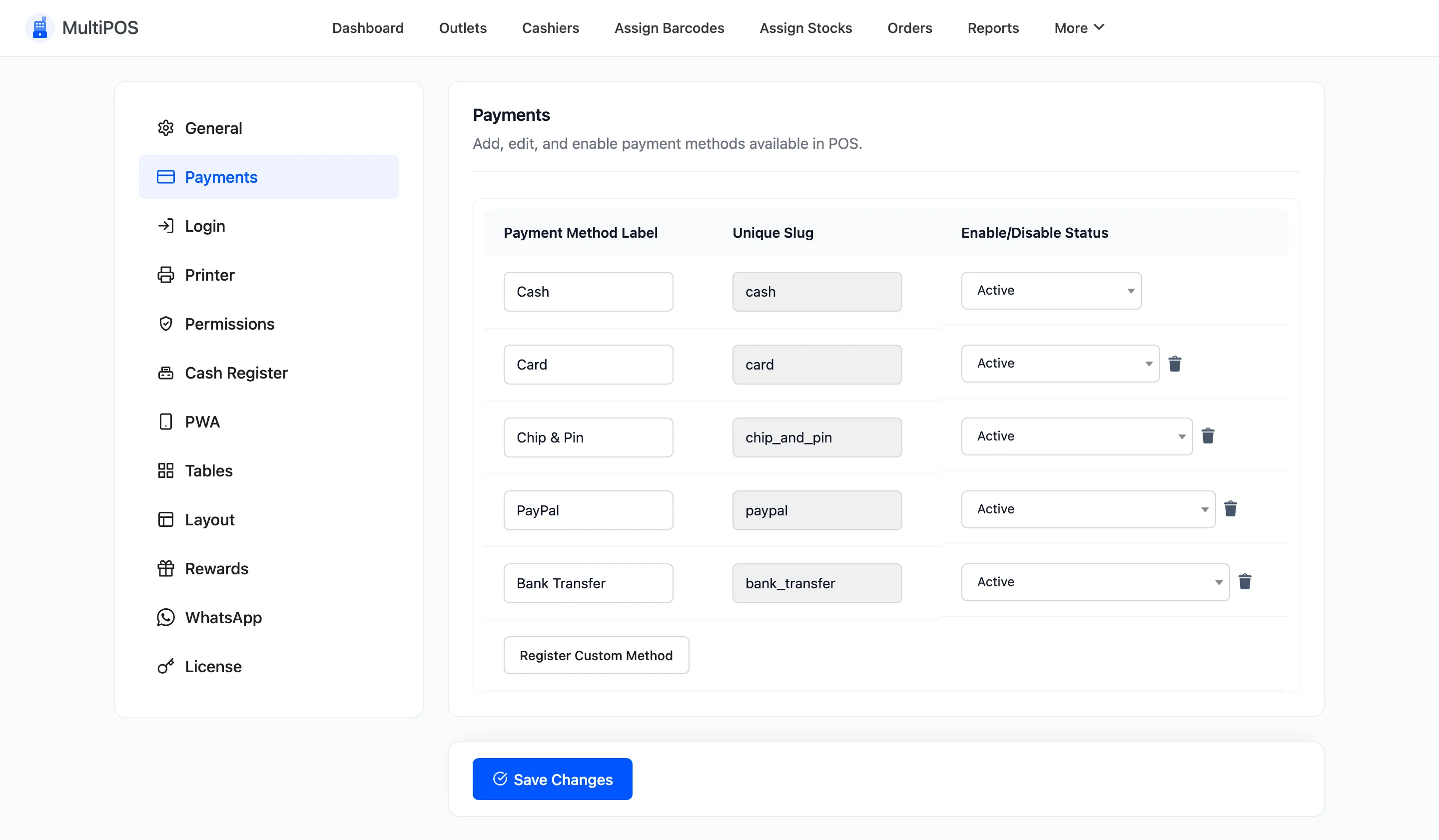
The slug column on that tab is read only for exactly this reason. It is generated once and then locked, so a past order’s payment method never stops resolving.
Filter by date
Section titled “Filter by date”Two date fields sit above the table.
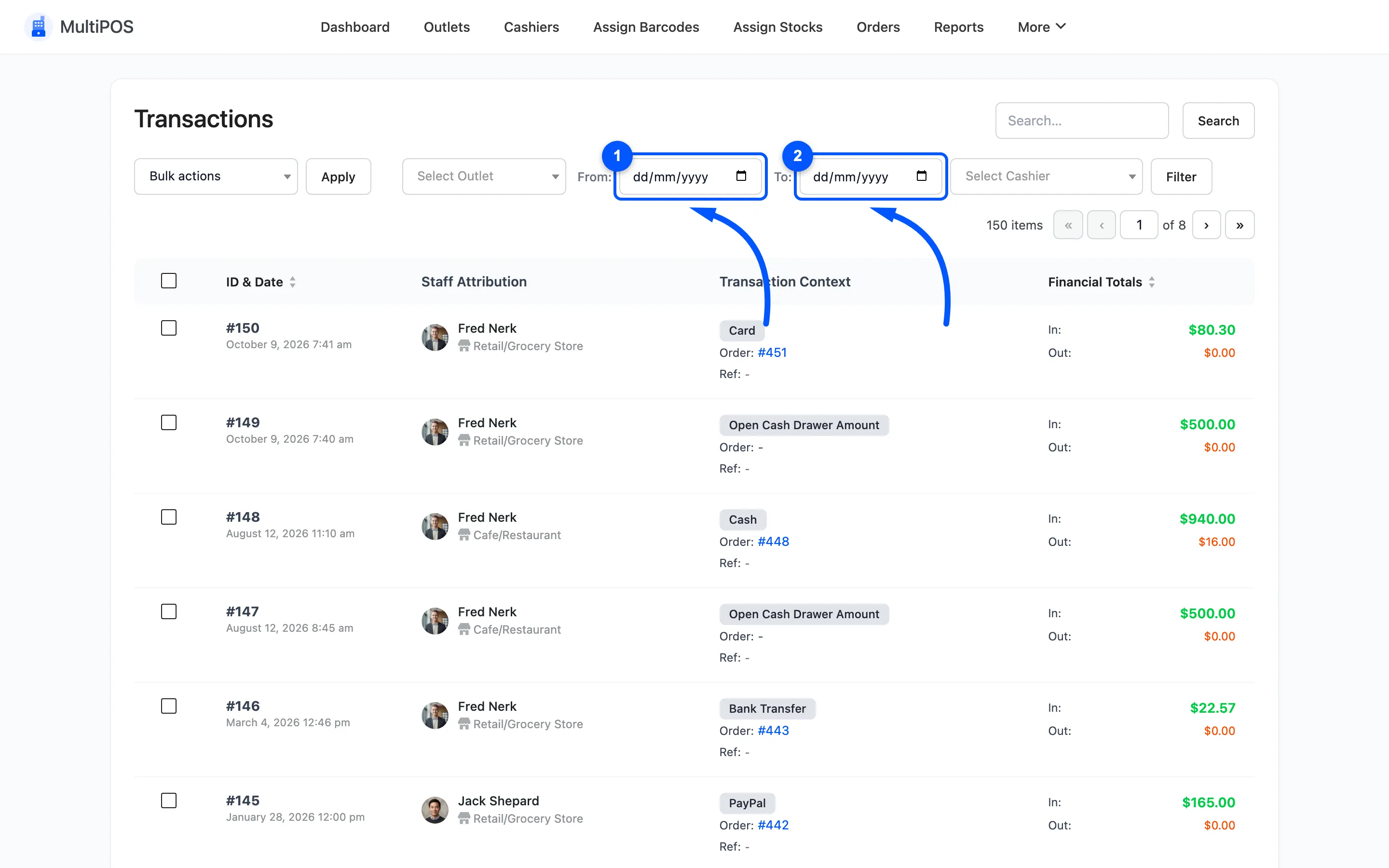
Set From and To, then click Filter. A Reset button appears next to it once a filter is applied.
Set both to the same day for a single shift.
Filter by cashier
Section titled “Filter by cashier”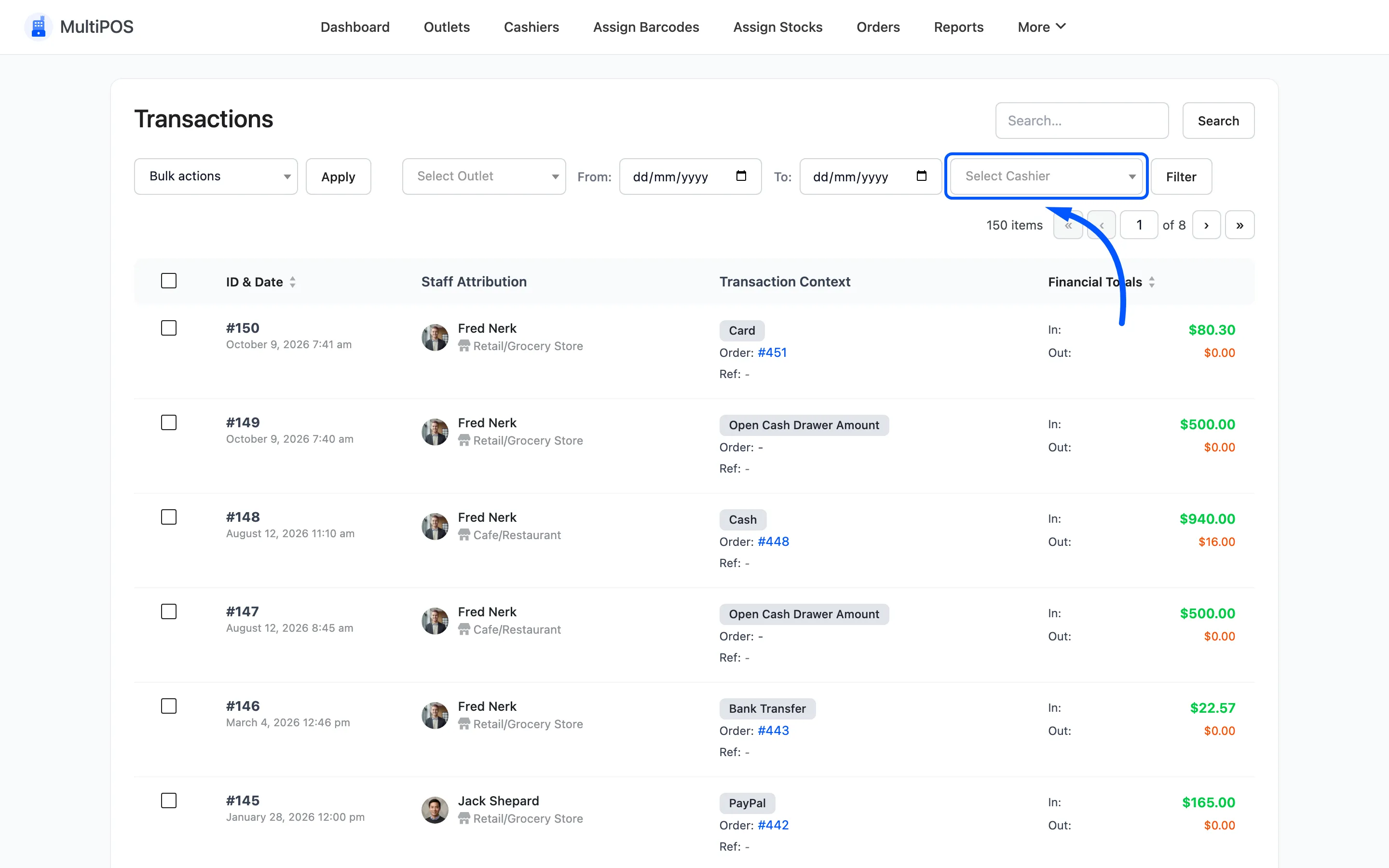
The dropdown lists every user who can open the POS. Each carries their ID and email, so two people with the same first name stay apart.
Combine it with the date filter and you have one person’s shift, which is exactly the view you want when a drawer does not balance. In Pro an outlet filter sits beside it.
The kinds of row
Section titled “The kinds of row”| Type | Written when |
|---|---|
| Open Cash Drawer Amount | A shift opens with a counted float (Pro) |
| The payment method, such as Cash or Card | A sale is paid |
| Split | A sale is paid with more than one method (Pro) |
| Refund | A cash refund from the POS (Pro) |
| Refund (not cash) | A refund of a card or other non-cash sale from the POS. It never leaves the drawer (Pro) |
| Manual | Cash put in or taken out by hand, with its reason (Pro) |
Bulk actions
Section titled “Bulk actions”Tick rows and pick Delete.
What the cashier sees
Section titled “What the cashier sees”The same figures, for today only, on the terminal’s Statistics screen.
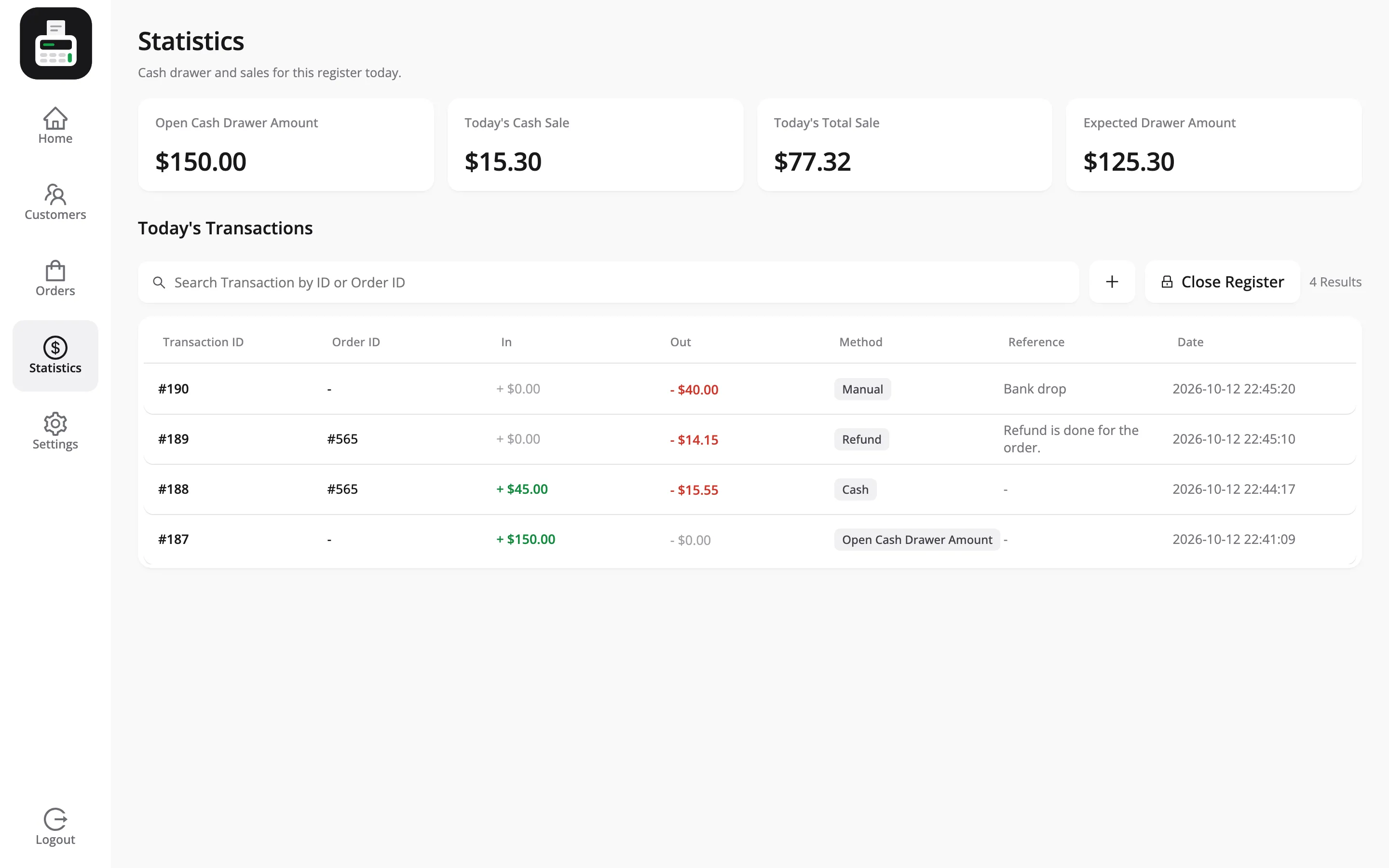
Expected Drawer Amount is the running total a cashier counts against when they close the register. Your transactions list is the record behind it.
Refunds are in the list, if they were taken in the POS
Section titled “Refunds are in the list, if they were taken in the POS”Where the refund was made decides whether it appears here.
| Refund made from | Transaction row |
|---|---|
| The POS Refund button, cash sale (Pro) | Yes, amount under Out, type Refund |
| The POS Refund button, card sale (Pro) | Yes, type Refund (not cash), which does not lower the drawer |
| The WooCommerce order screen in the admin | No |
A POS refund writes its own row, so Expected Drawer Amount already has the cash taken off and the drawer does not look short. See How to Refund an Order.
An admin refund does not, which is worth knowing if your office refunds by email while the shop counts a drawer. The stock still goes back correctly either way, including to the right outlet on a per-outlet stock store.
Cash that moves for any other reason
Section titled “Cash that moves for any other reason”Money that moves in or out of the drawer outside a sale needs a manual transaction. Add one with the plus icon above Today’s Transactions on the terminal’s Statistics screen.
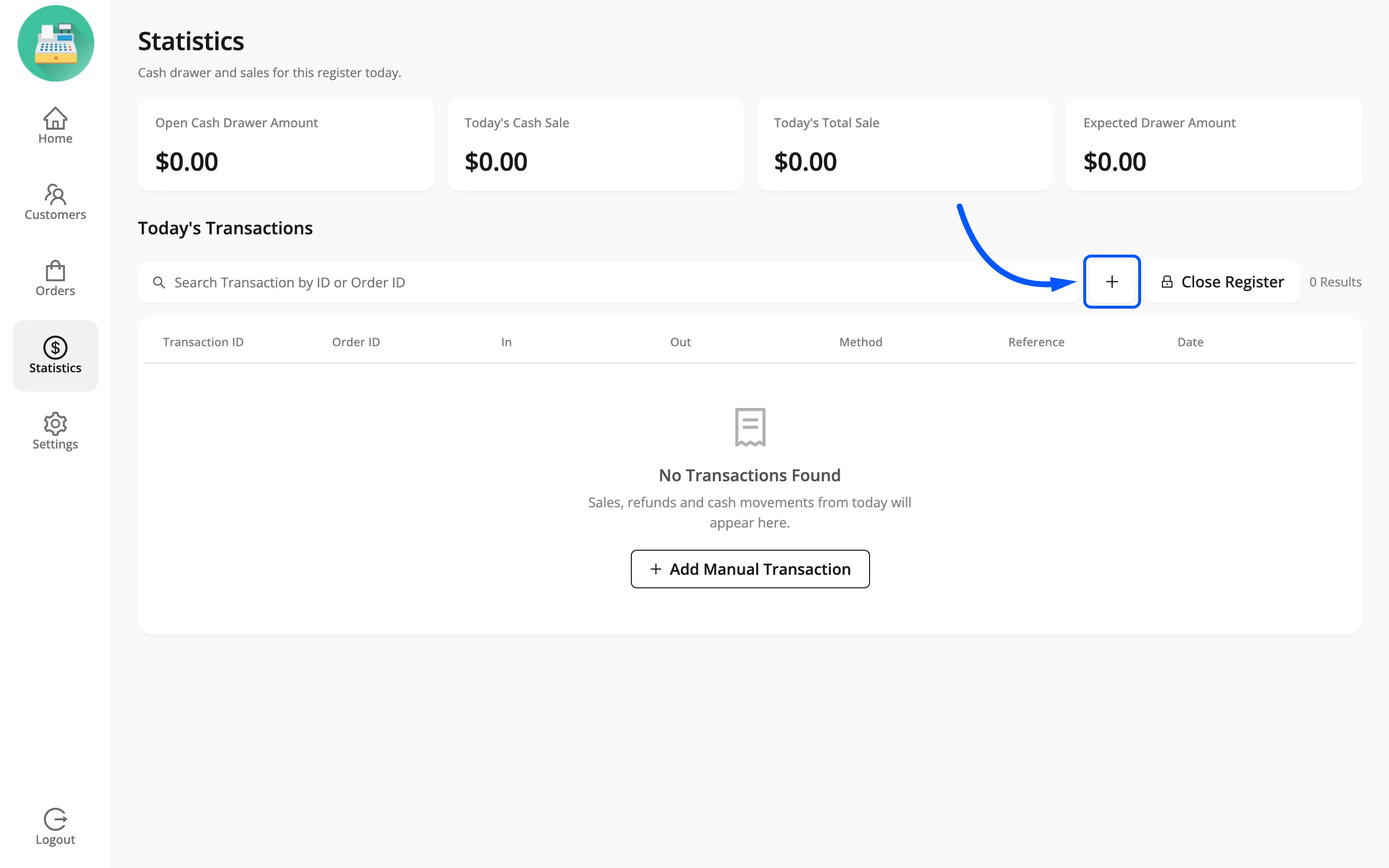
Those rows carry Manual as their type, the reason and note as their reference, and an empty Order column. The row appears on the POS Statistics screen straight away, and Expected Drawer Amount moves with it. Manual transactions are Pro; see How to Record Cash In and Cash Out.
In the free version nothing here can be added by hand, so keep a paper or spreadsheet record of cash moved outside a sale.
Where to go next
Section titled “Where to go next”- How to Close the Register (Pro)
- Registers (Pro)
- Orders for the sales side.
- Payment Methods for what fills the Method column.