

How to Hold and Resume an Order
A held order is a saved cart. The customer has gone to fetch something they forgot, or to find their card, and the queue behind them should not have to wait.
Nothing is created in WooCommerce. A held cart is a cart, not an order.
It is also stored in the browser rather than on your server. A cart held on one terminal stays on that terminal, so the cashier who held it is the one who resumes it.
Step 1: Build the cart
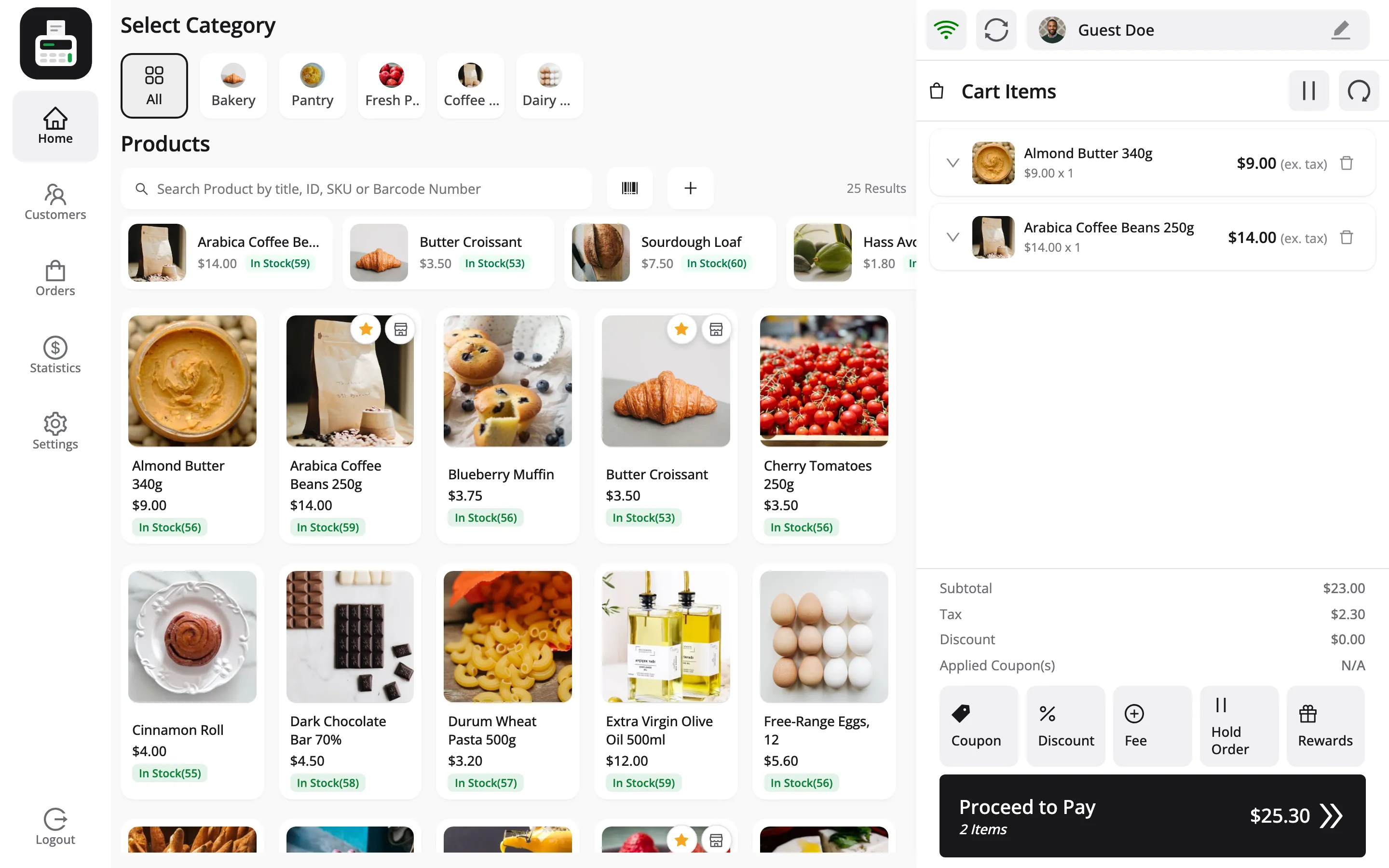
Section titled “Step 1: Build the cart”Add the customer’s items as normal.
Step 2: Press Hold Order
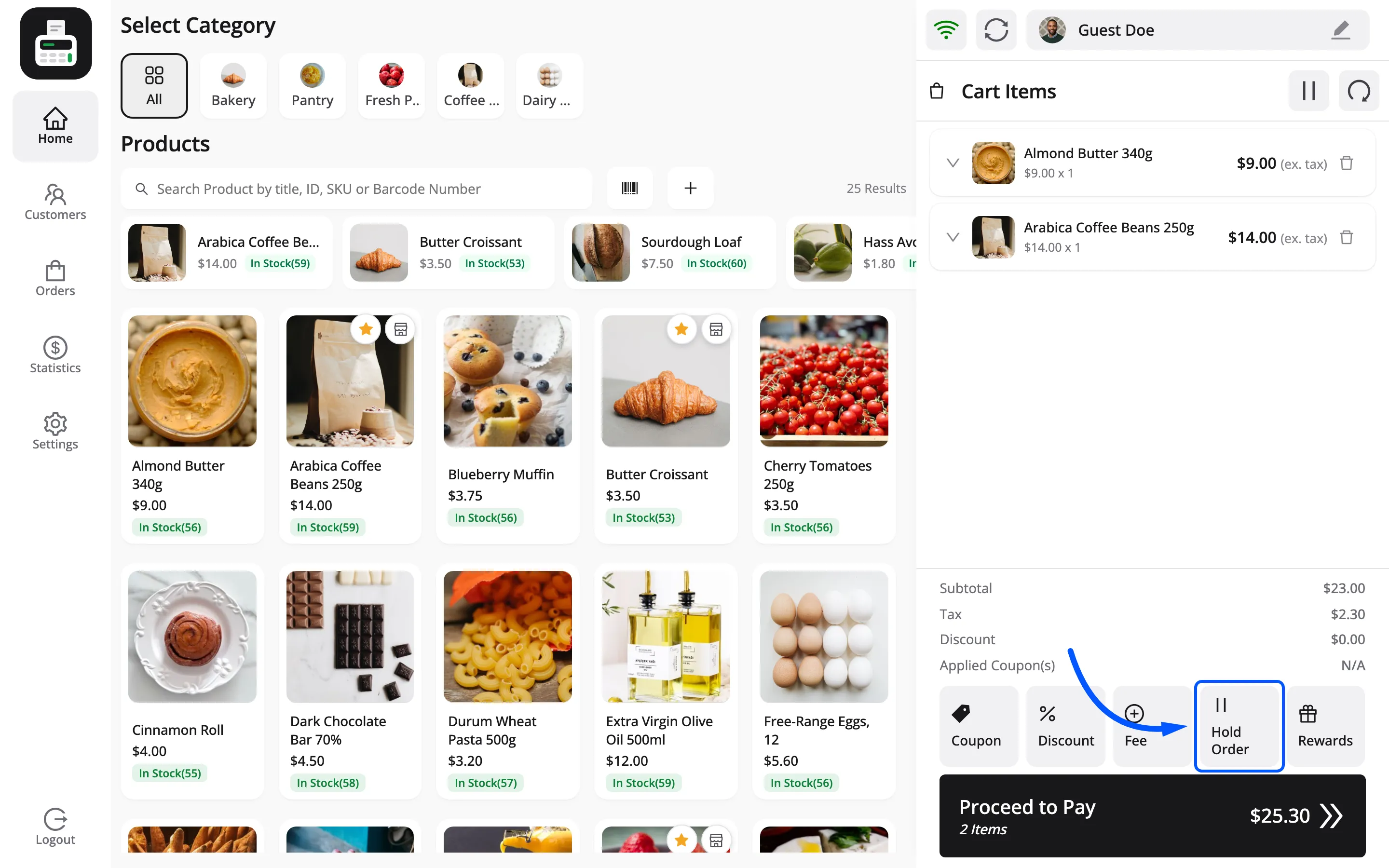
Section titled “Step 2: Press Hold Order”Hold Order sits in the cart actions, under the totals and above Proceed to Pay.
An empty cart cannot be held. The POS says so rather than holding nothing.
Step 3: Label the held cart
Section titled “Step 3: Label the held cart”A Hold Order box opens with an Enter Order Info field. Type something that identifies the customer and press Add.
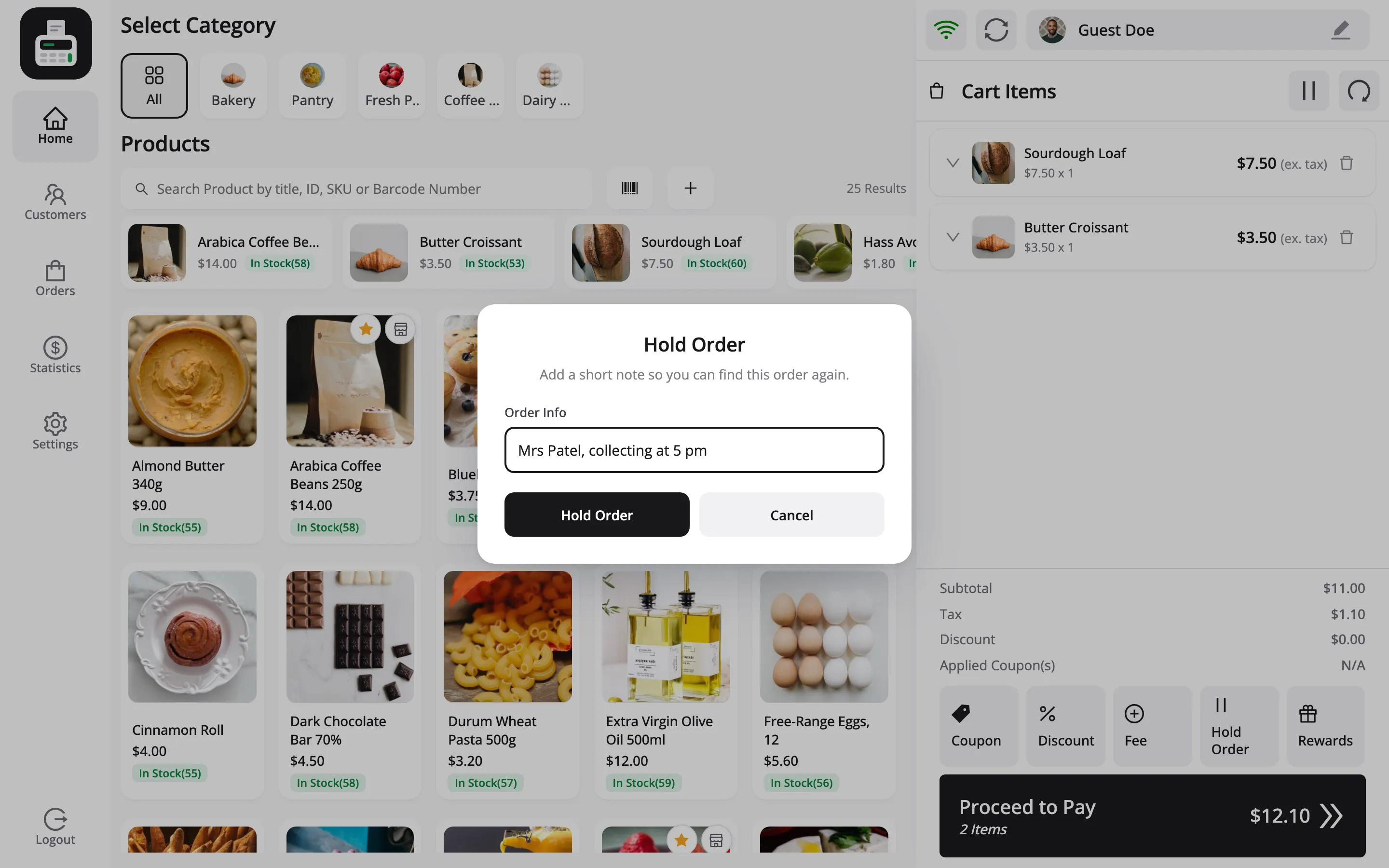
Use what a cashier will recognise across a busy shop: blue coat, pram by the door, Tom, card.
“Order 2” tells the next person nothing.
The list numbers the carts as Cart #1, Cart #2 and so on, so your label is the only thing that
distinguishes them.
The field can be left empty and the cart still holds. Do not make a habit of it.
Step 4: Serve the next customer
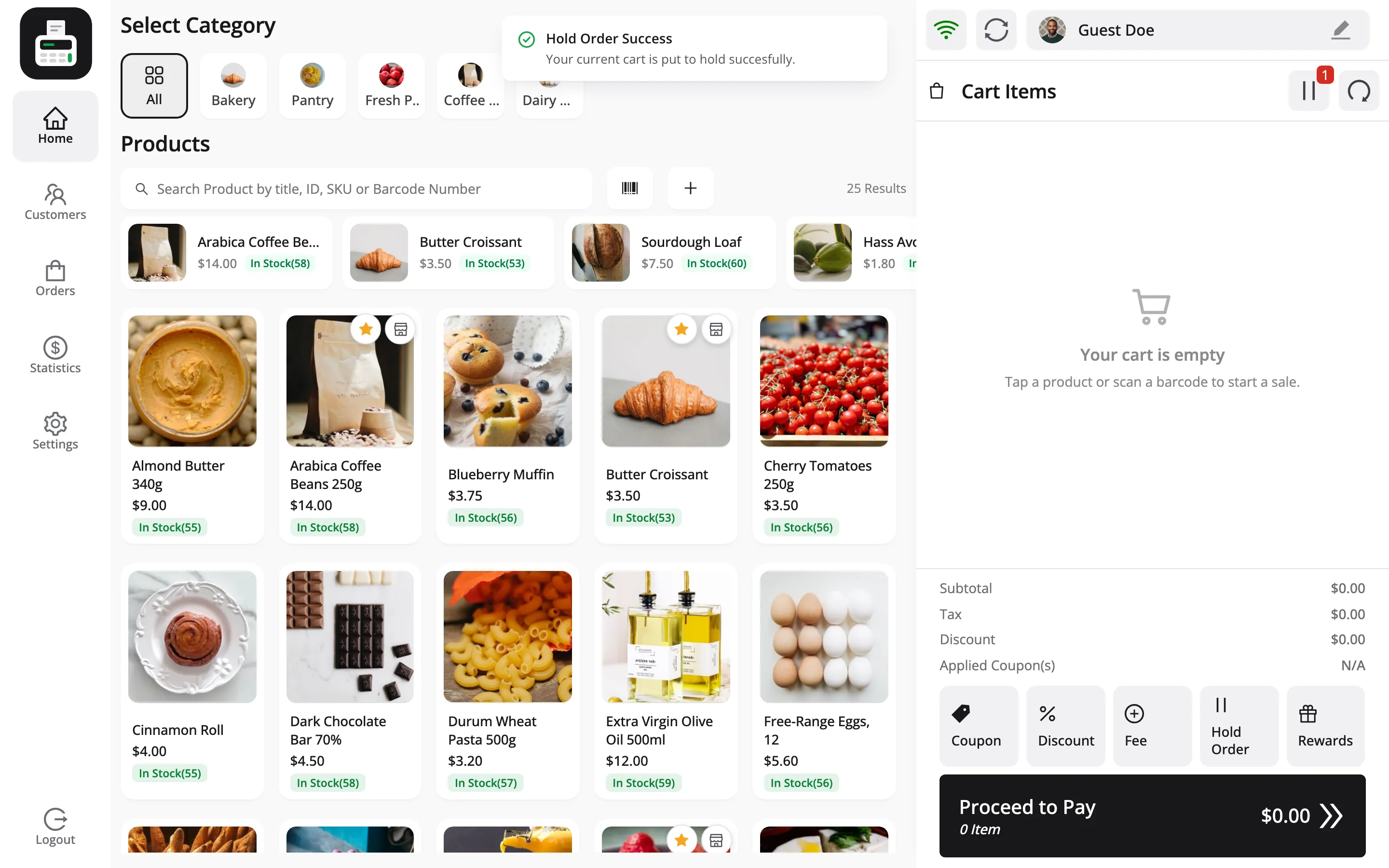
Section titled “Step 4: Serve the next customer”The cart clears. The POS is ready for the next person and the held one is waiting.
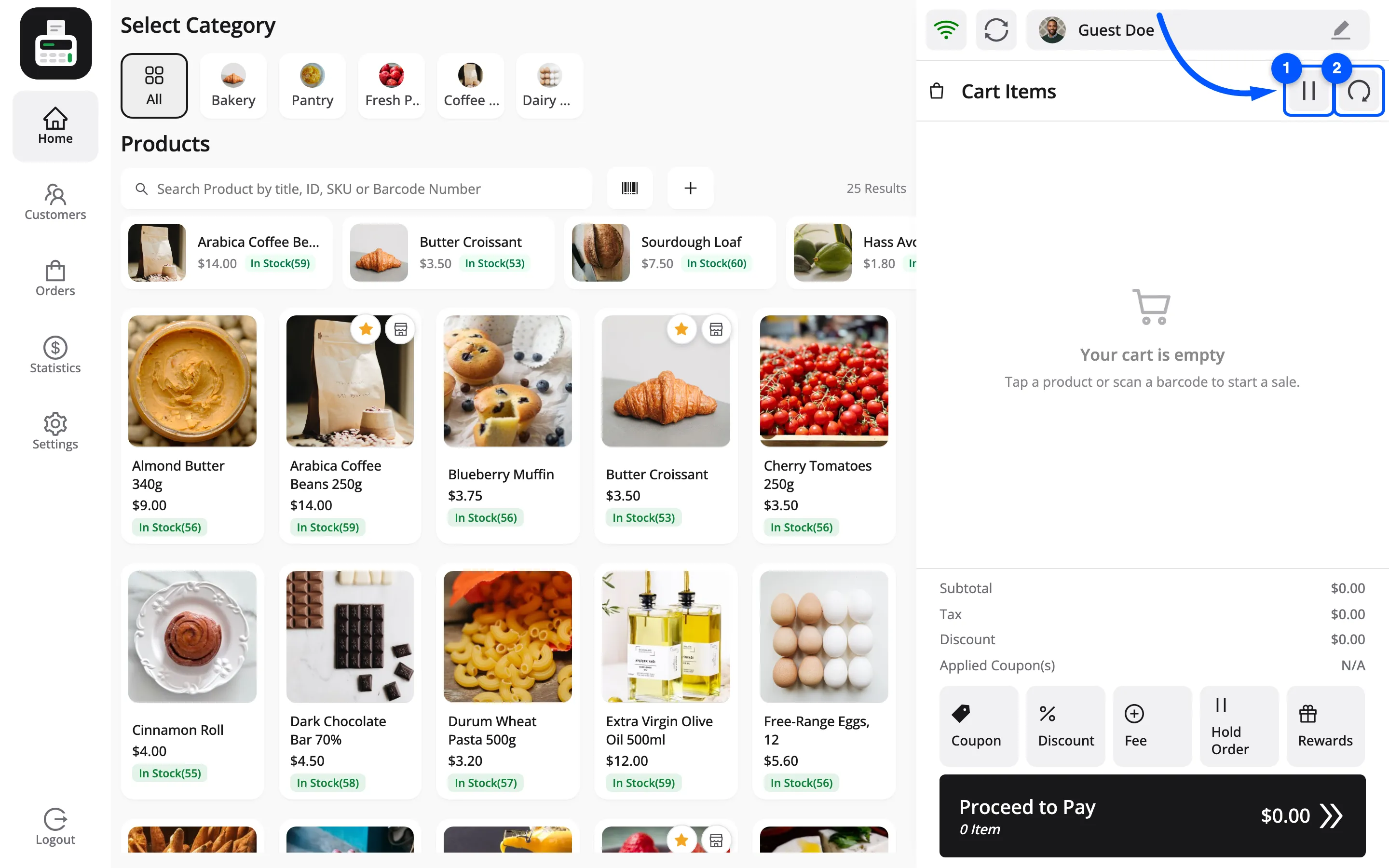
The pause icon at the top of the cart panel picks up a count. That is how a cashier knows something is held without leaving the selling screen.
There is no limit on how many carts can be held at once, which matters in a shop where several customers are mid-decision.
Step 5: Resume the held cart
Section titled “Step 5: Resume the held cart”Open Orders in the sidebar and switch to the Hold tab.
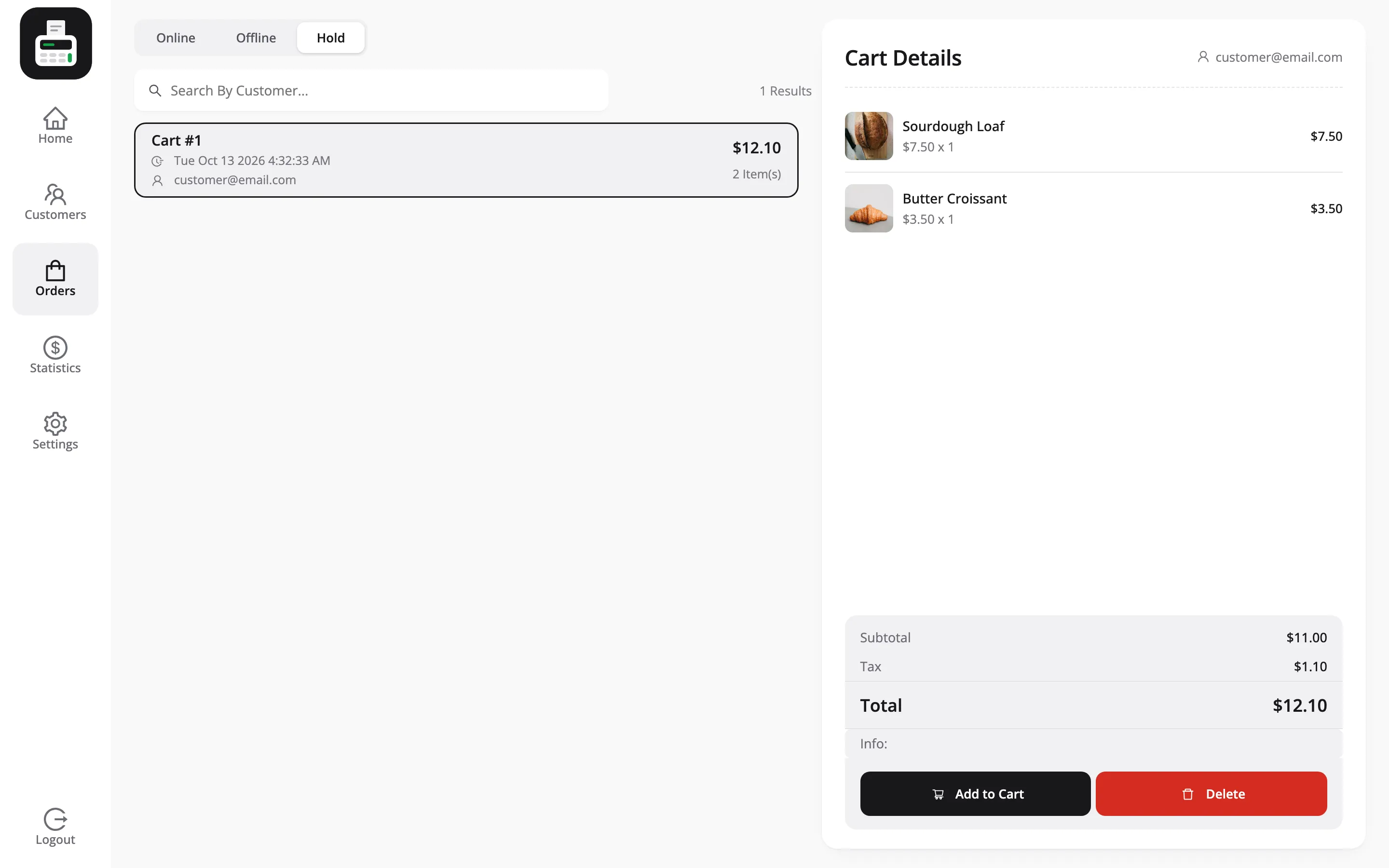
Select the cart. Its details open beside the list as Cart Details, with the line items, subtotal, tax, total and an Info line carrying the label you typed.
Press Add to Cart to bring it back.
What happens to the current cart
Section titled “What happens to the current cart”If the POS already has items in it, the terminal asks first. Confirming replaces the current items with the held ones.
That is the moment to be careful. Hold the current cart before you resume another, or you lose it.
There is a faster route for exactly this: the pause icon in the cart panel’s header reaches the same list without leaving the selling screen. The circular arrow beside it empties the current cart.
Step 6: Discard a held cart
Section titled “Step 6: Discard a held cart”Delete sits beside Add to Cart on the same detail panel.
It does not ask twice. The held cart goes the moment you press it, and the POS reports Hold order is deleted successfully. afterwards. Read the label on the panel before you press.
Clear out abandoned carts at the end of a shift. A held cart from three days ago is a customer who is not coming back, and it prices at whatever the price was then.
Held carts and stock
Section titled “Held carts and stock”A held cart does not reserve stock. The items are still available, and the website can still sell them.
That is the right behaviour for a shop counter, where the alternative is stock locked up by a customer who wandered off. But it means a held cart can fail at payment if the last one sold meanwhile.
The POS says so at that point rather than overselling.
Where to go next
Section titled “Where to go next”- How to Take Your First Sale
- How to Run a Restaurant with Tables, where a held order is attached to a table instead.
- The Cashier Experience