

Staff & Payments Report (Pro)
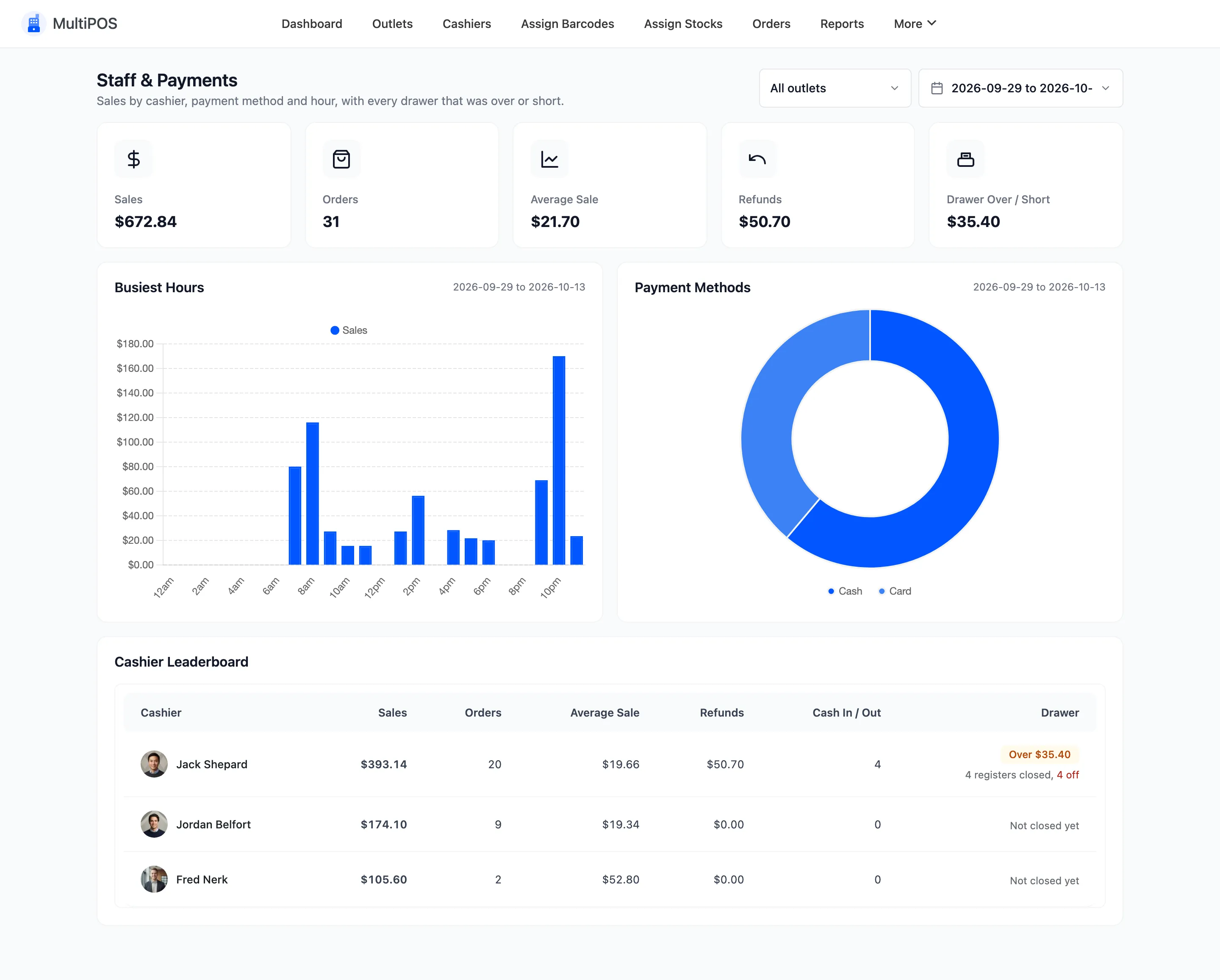
Staff & Payments answers three questions about your counters: who sold what, how customers paid, and when you are busiest.
Open it from MultiPOS → More → Staff & Payments.
Filters
Section titled “Filters”Two controls sit at the top right. All outlets narrows the report to one outlet, and the date picker sets the range. Every card, chart and row below follows both.
The summary cards
Section titled “The summary cards”- Sales: POS sales in the range.
- Orders: The number of POS orders.
- Average Sale: Sales divided by orders.
- Refunds: The amount refunded.
- Drawer Over / Short: The difference across every register closed in the range. A negative figure means the drawers held less than expected overall.
Busiest Hours
Section titled “Busiest Hours”Sales added up by the hour of the day across the whole range. Use it to decide when a second cashier earns their wage and when one is enough.
Payment Methods
Section titled “Payment Methods”How customers paid, split by method, with money in the store currency on the tooltip. A store with a card surcharge can see here how much of its trade carries it.
Cashier Leaderboard
Section titled “Cashier Leaderboard”One row per cashier, highest sales first.
| Column | What it shows |
|---|---|
| Cashier | The cashier’s name and photo. |
| Sales, Orders, Average Sale | Their figures for the range. |
| Refunds | The amount they refunded. |
| Cash In / Out | How many manual cash movements they recorded. |
| Drawer | Their over or short total, and how many registers they closed, or Not closed yet. |
On the demo, Jack Shepard closed one register $3.50 short, so his row carries a red Short $3.50 and the line 1 register closed, 1 off.