

How to Split a Payment (Pro)
A customer pays part in cash and the rest on a card. A gift card covers most of it and they make up the difference. Both need one order with two payment records.
Step 1: Turn on split payments
Section titled “Step 1: Turn on split payments”Go to DevDiggers Plugins → MultiPOS → Configuration → General → Checkout Features.
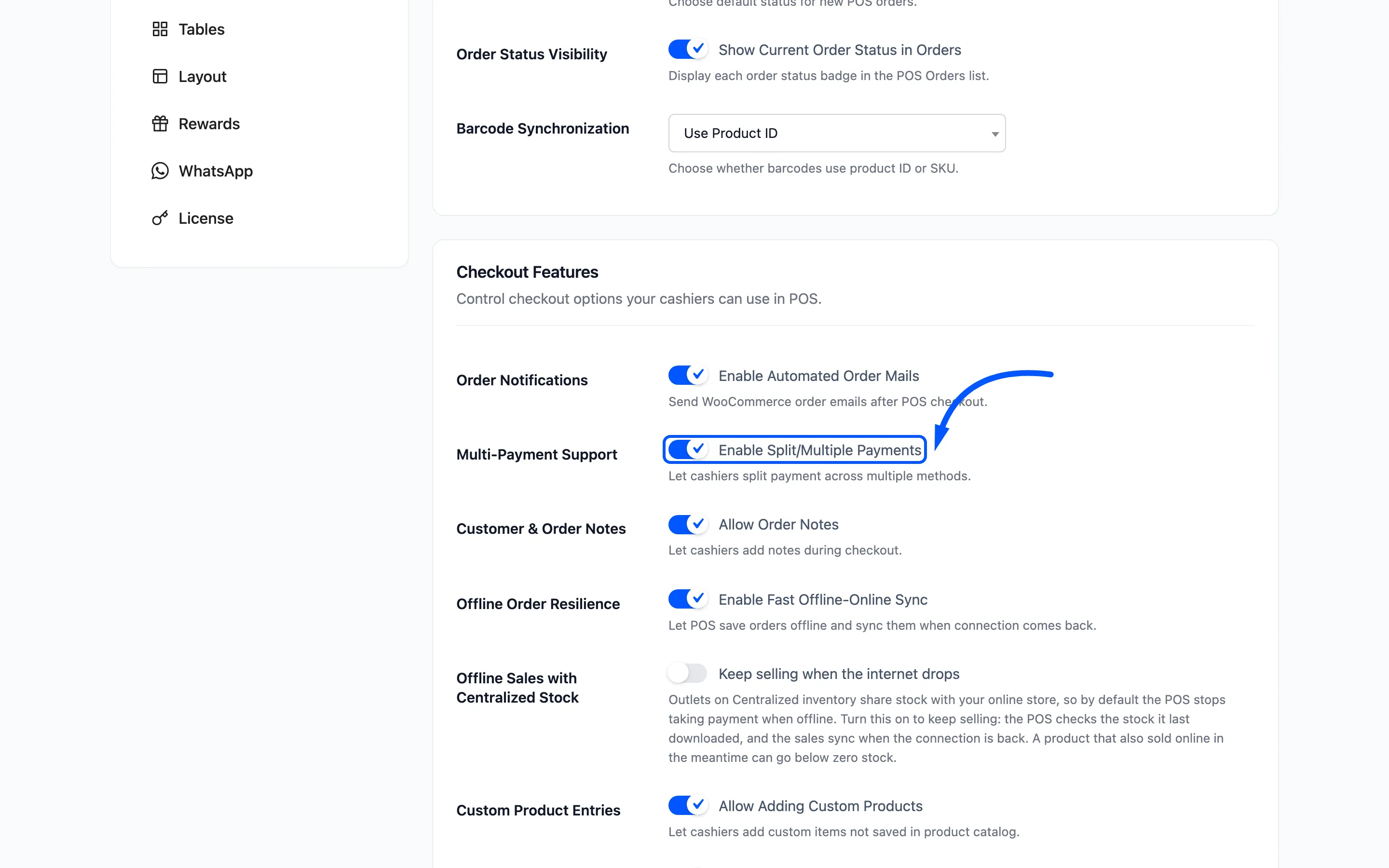
Switch on Multi-Payment Support and click Save Changes.
Step 2: Build the cart and go to payment
Section titled “Step 2: Build the cart and go to payment”Add the items as normal.
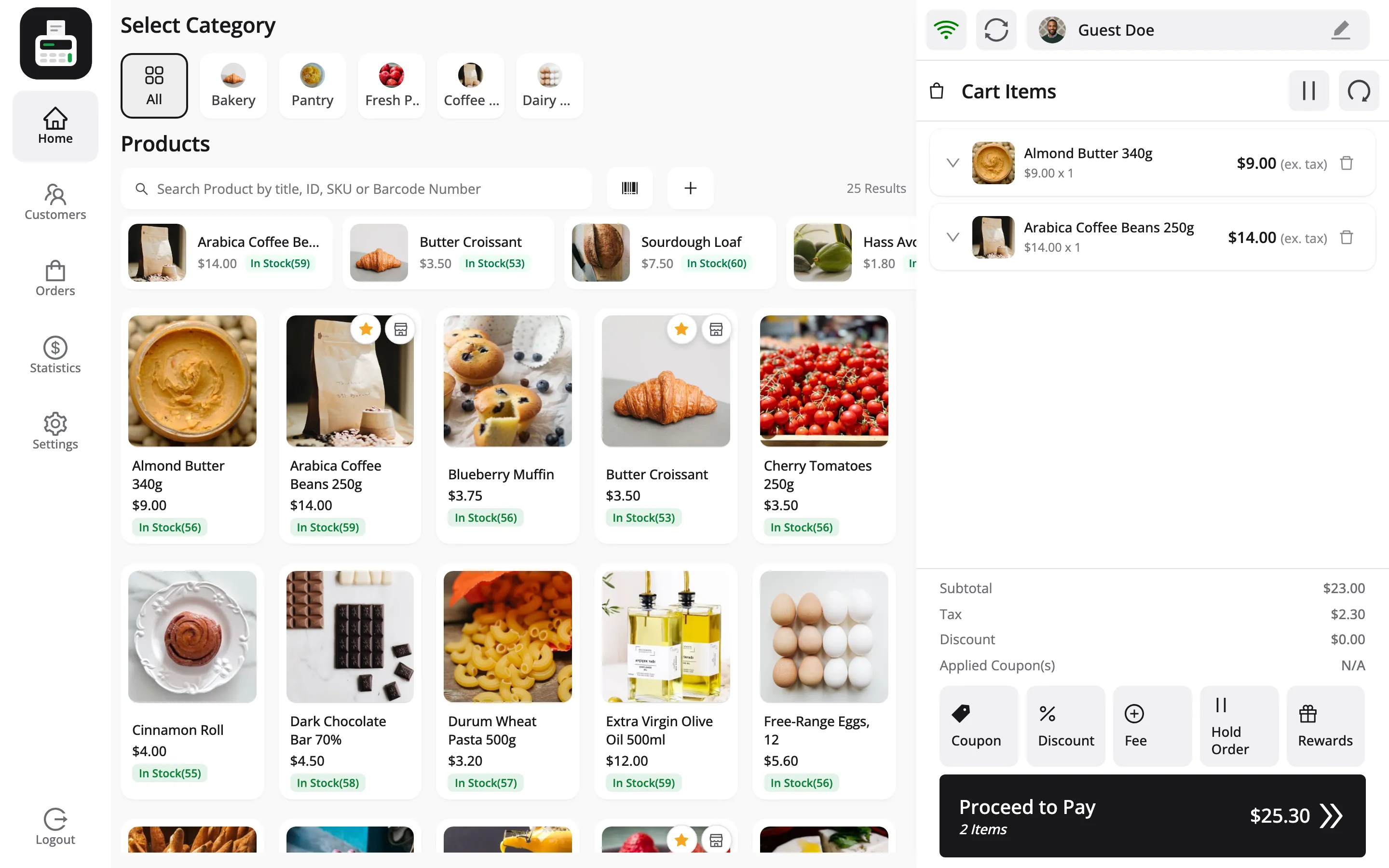
Then press Proceed to Pay.
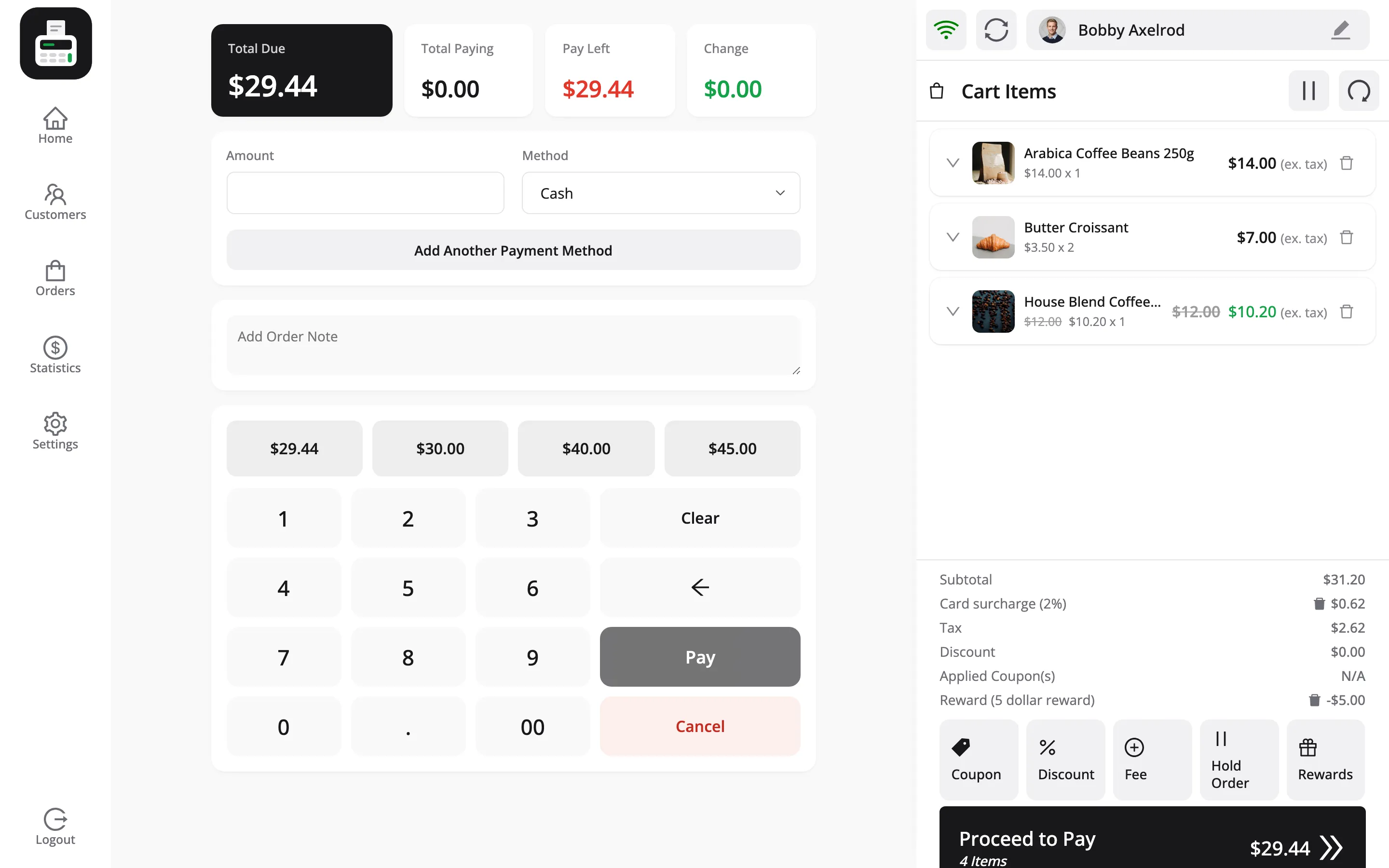
Four figures across the top do the work here:
- Total Due is what the order comes to.
- Total Paying is what has been entered so far.
- Pay Left is what is still outstanding.
- Change is what you owe back once the total is covered.
Step 3: Enter the first payment
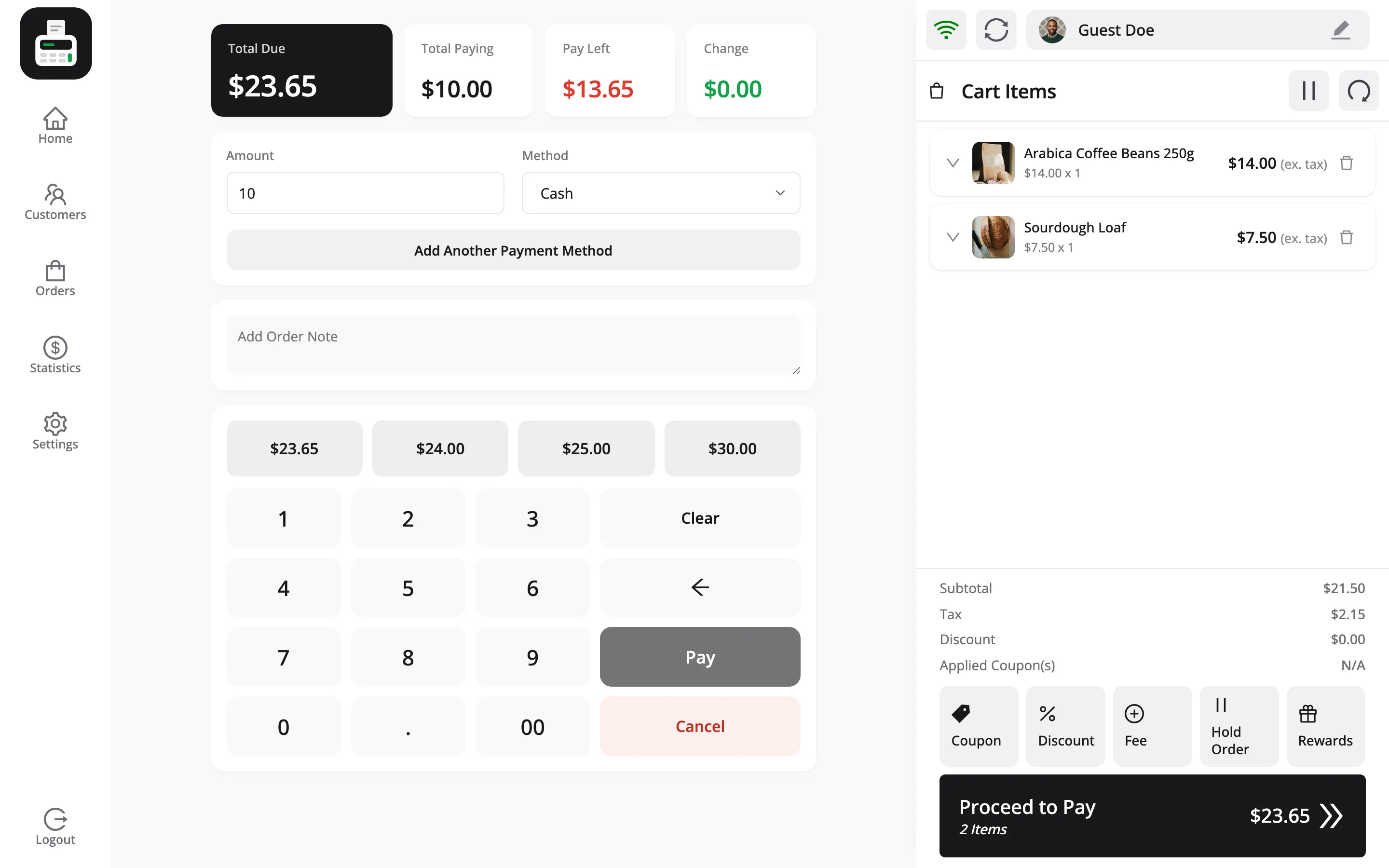
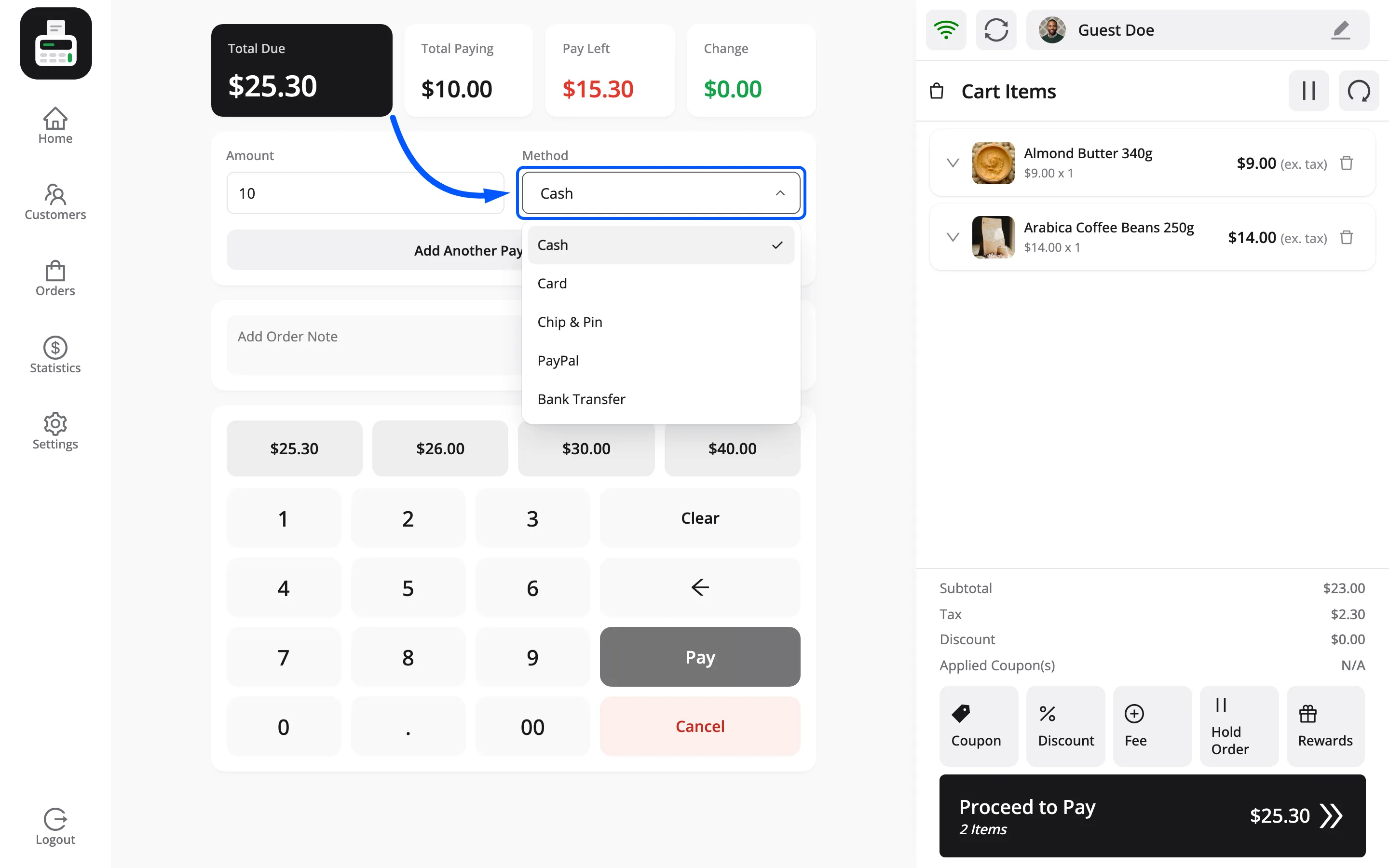
Section titled “Step 3: Enter the first payment”Pick the method in the row’s dropdown, then tap the amount on the keypad. Enter the amount for that part, not the whole total.
The amount box cannot be typed into. It is read-only, so the keypad and the four suggested amounts above it are the only ways in. That is deliberate on a touch screen.
In the screenshot the order is 23.65 and the customer has 10 in cash. The method is Cash and the keypad has entered 10, so Pay Left has dropped to 13.65.
Step 4: Add another method
Section titled “Step 4: Add another method”Press Add Another Payment Method. A second row appears under the first, with its own amount and method, and it becomes the active row.
The first row keeps its 10 on Cash. Set the new row to Card.
The first of the four suggested amounts is always exactly what is left to pay, so tapping it fills the rest in one go. Here that is 13.65.
Repeat for a third if you need one. There is no fixed limit on how many methods one order can carry.
The bin icon beside a row removes it. Only the rows after the first have one.
Step 5: Check Pay Left reaches zero
Section titled “Step 5: Check Pay Left reaches zero”Pay Left at zero means the order is covered, and Pay turns solid.
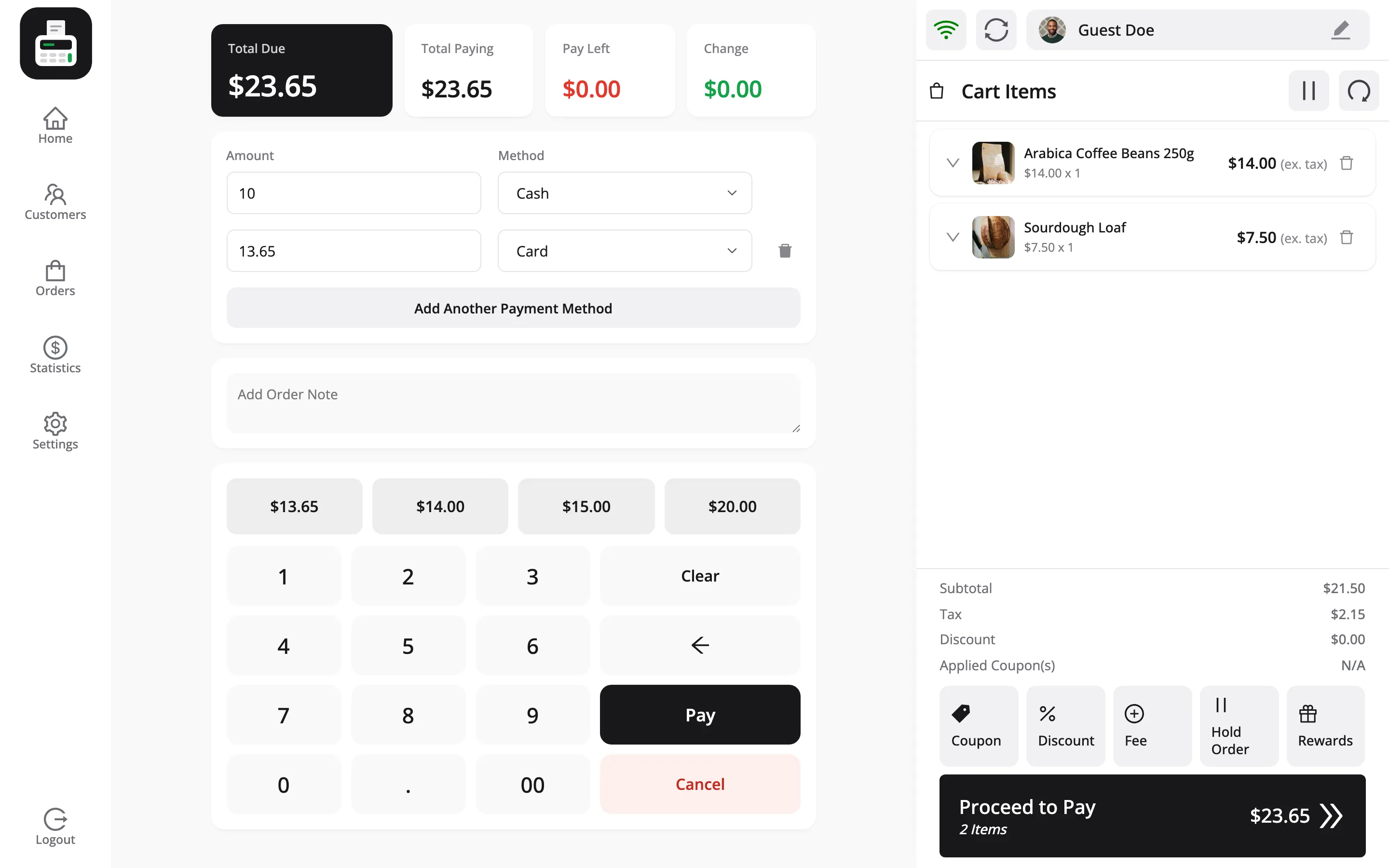
If Pay Left is still positive, the Pay button stays disabled. That guard is deliberate: a half-paid order is worse than no order.
If the customer overpays in cash, Change shows what you owe them back.
What gets recorded
Section titled “What gets recorded”One WooCommerce order, and one transaction row per payment method.
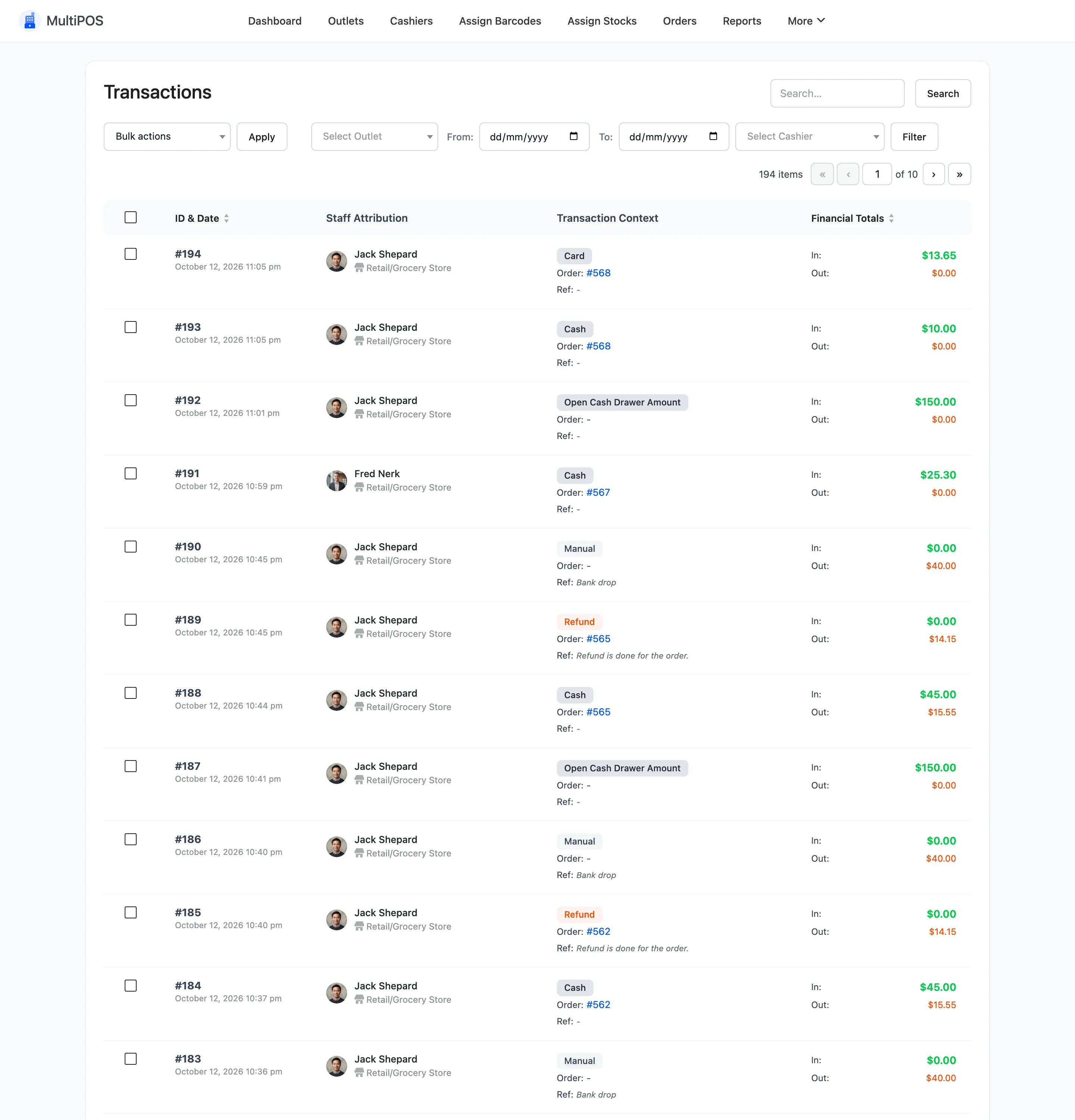
So the 10 cash and 13.65 card example writes two rows against the same order number:
| Method | In | Out |
|---|---|---|
| Cash | 10.00 | change, if any |
| Card | 13.65 | 0 |
Out is only ever filled in on the cash row. No change leaves the drawer on a card payment, so that is correct.
That split is what keeps the drawer easy to check. Recording the whole 23.65 as one cash payment would put 13.65 in the cash total that never went in the drawer.
The Method column on a split order reads Split, so you can spot one in the list without opening it.
Which order does the customer pay in
Section titled “Which order does the customer pay in”Take the cash part first.
Cash is the part that produces change, and knowing the exact card amount before you run the card avoids a second transaction to correct it.
Reading a split order later
Section titled “Reading a split order later”The order carries every method it was paid with. The Orders screen shows the primary method in its Revenue column, and the transactions list holds the full breakdown.
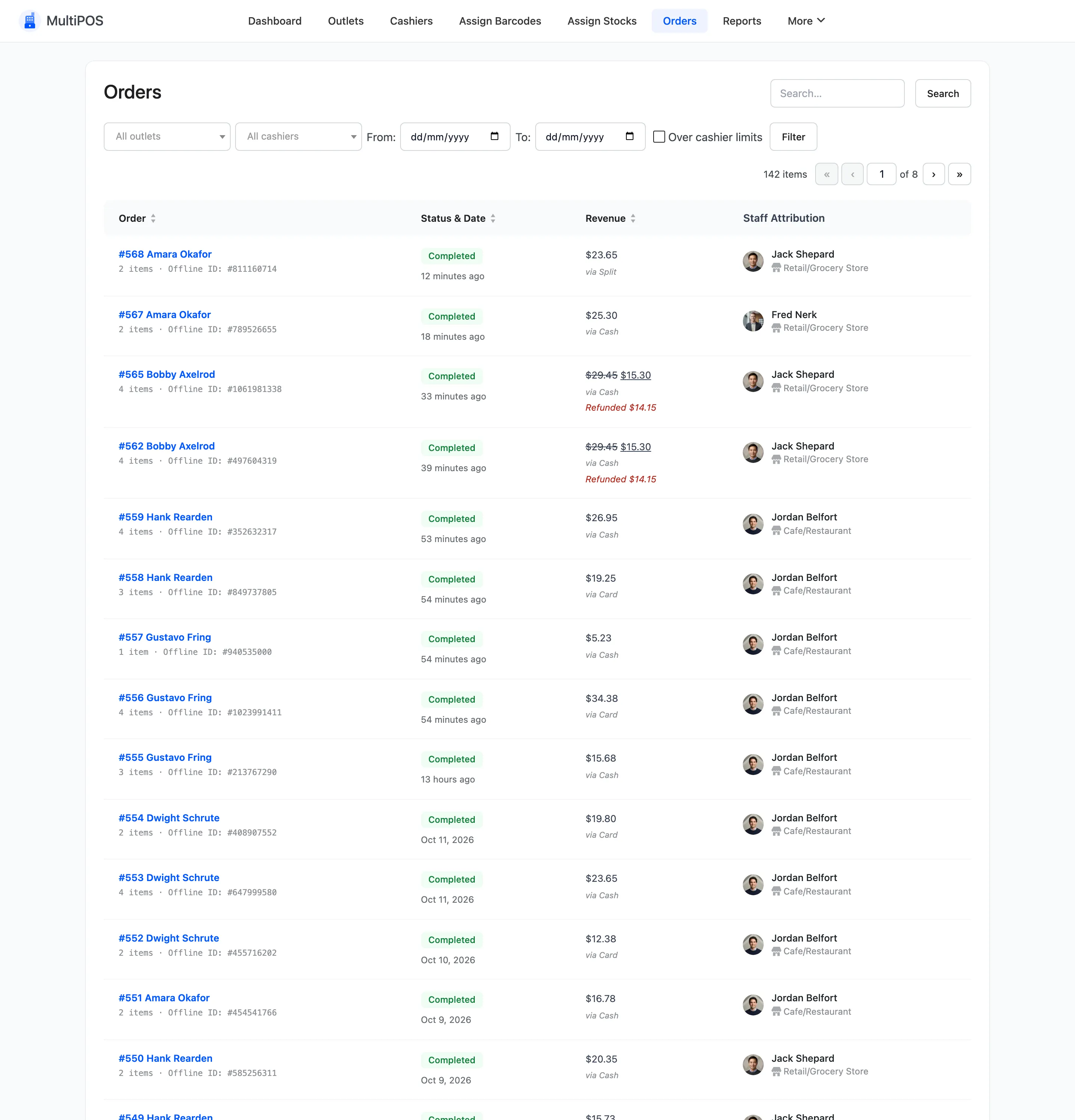
Filter transactions by order number when you need to see how a specific sale was settled.
Where to go next
Section titled “Where to go next”- Payment Methods to define what can be split across.
- Transactions for the rows this creates.
- How to Close the Register (Pro)