How to Record Cash In and Cash Out (Pro)
Not every note that moves through a drawer is a sale. Adding change from the bank, paying a supplier in cash, taking cash to the bank midway through the day. Log those, and the count at the end of the shift still matches.
Why it matters
Section titled “Why it matters”Expected Drawer Amount is the opening amount, plus cash sales, plus cash in, less cash out and cash refunds. Skip a cash-out and the first figures still add up to a number that is wrong. Pay a $20 delivery from the drawer without recording it, and the register closes $20 short.
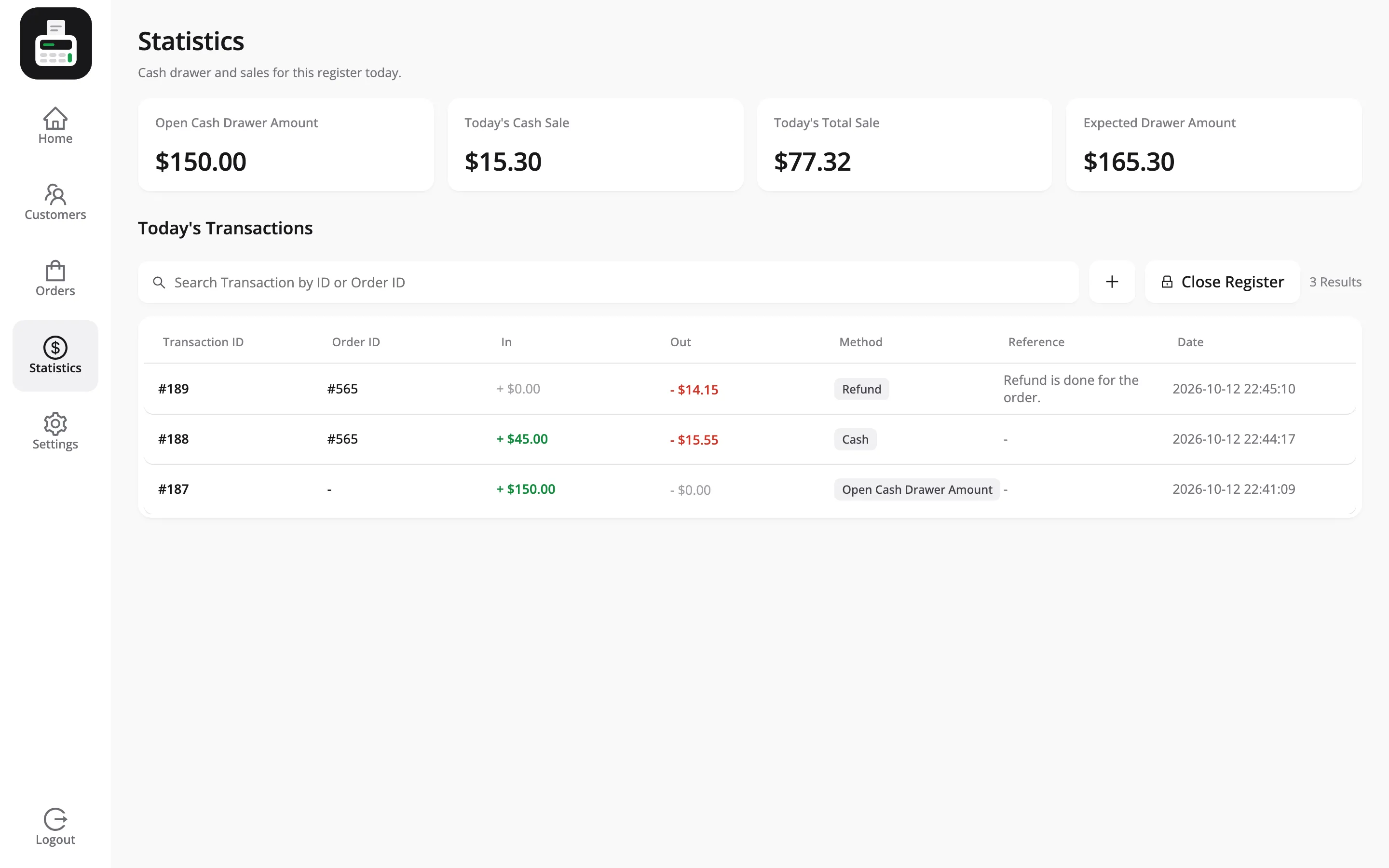
Step 1: Open the Statistics screen
Section titled “Step 1: Open the Statistics screen”In the POS, press Statistics in the menu.
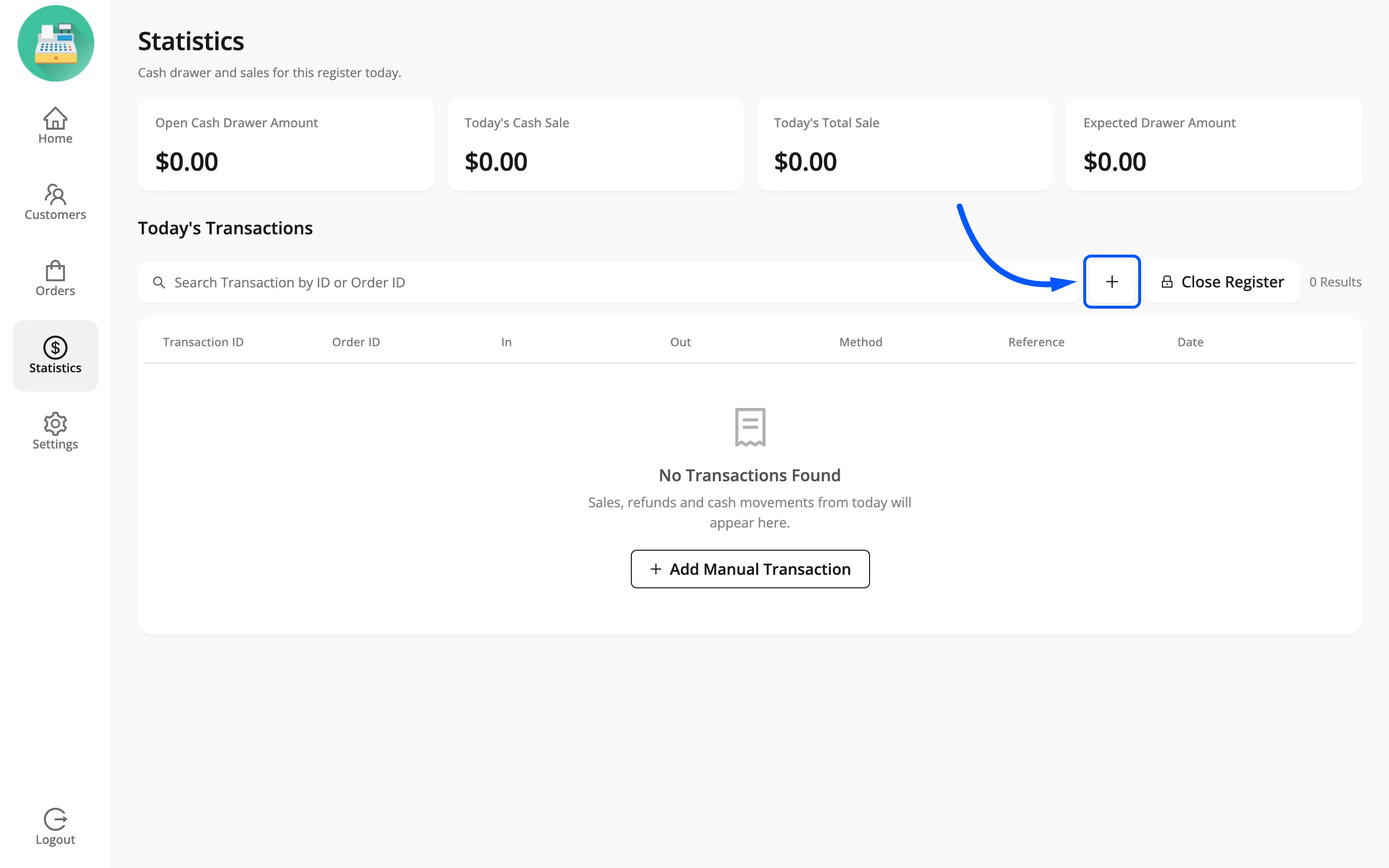
Step 2: Press the plus icon
Section titled “Step 2: Press the plus icon”The + beside the search box above Today’s Transactions is Add Manual Transaction.
Step 3: Choose In or Out and enter the amount
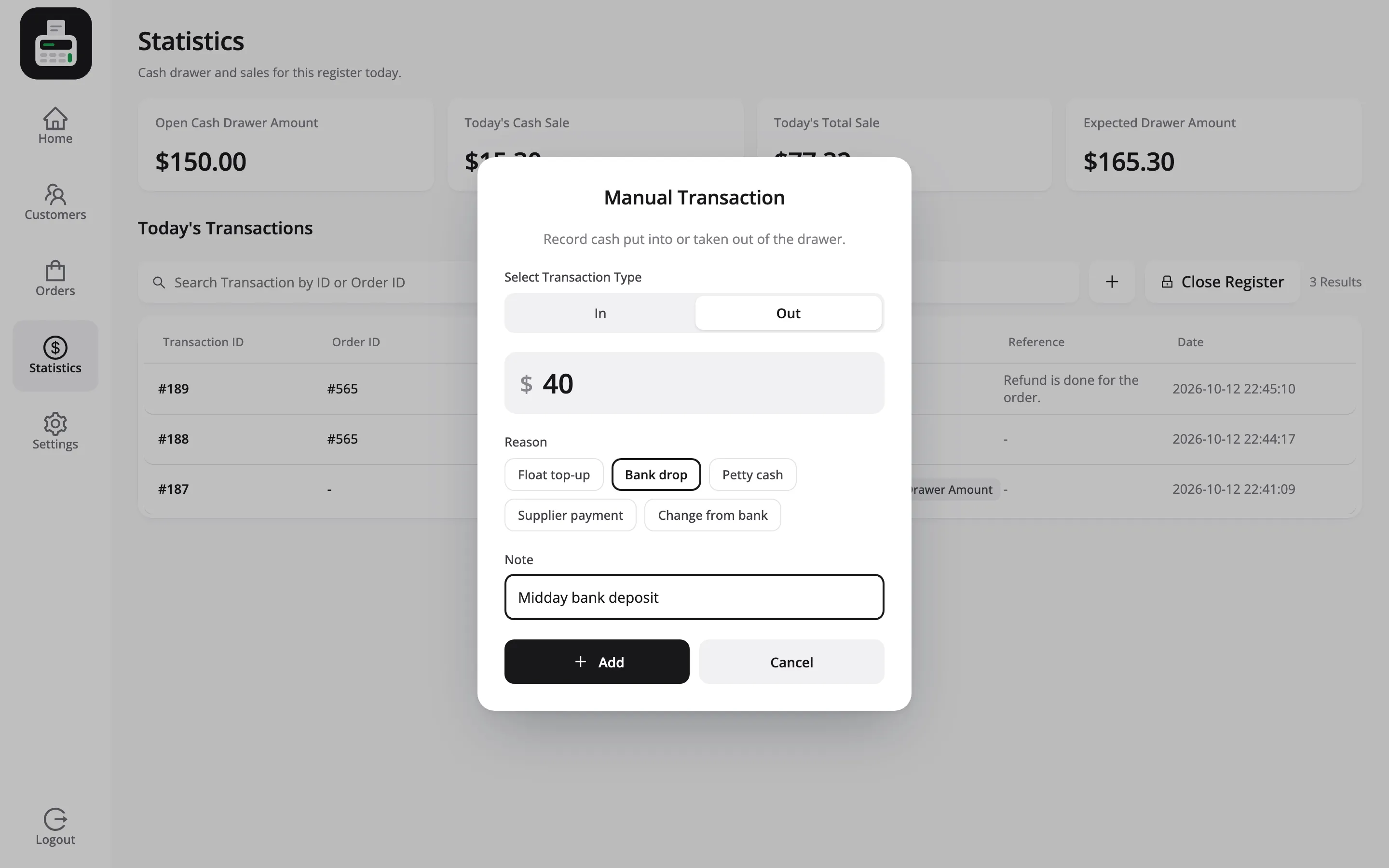
Section titled “Step 3: Choose In or Out and enter the amount”The Manual Transaction popup opens. Under Select Transaction Type, choose In or Out, then type the amount.
| You are doing this | Type |
|---|---|
| Adding change from the bank | In |
| Topping up the opening amount | In |
| Paying a supplier or a courier in cash | Out |
| Taking cash to the bank midway through the day | Out |
Get the direction right. Get it wrong and the drawer is out by twice the amount, which is the hardest kind of difference to spot. The amount must be above zero; Out is how you take money away.
Step 4: Pick a reason and add a note
Section titled “Step 4: Pick a reason and add a note”Under Reason, tap the one that fits. The demo’s list is Float top-up, Bank drop, Petty cash, Supplier payment and Change from bank, and you set your own under Configuration → Cash Register.
Add a Note if a stranger would need more, such as Midday bank deposit.
Step 5: Press Add
Section titled “Step 5: Press Add”The row joins Today’s Transactions at once, with Manual as its type and the reason and note as its reference. Expected Drawer Amount moves with it.
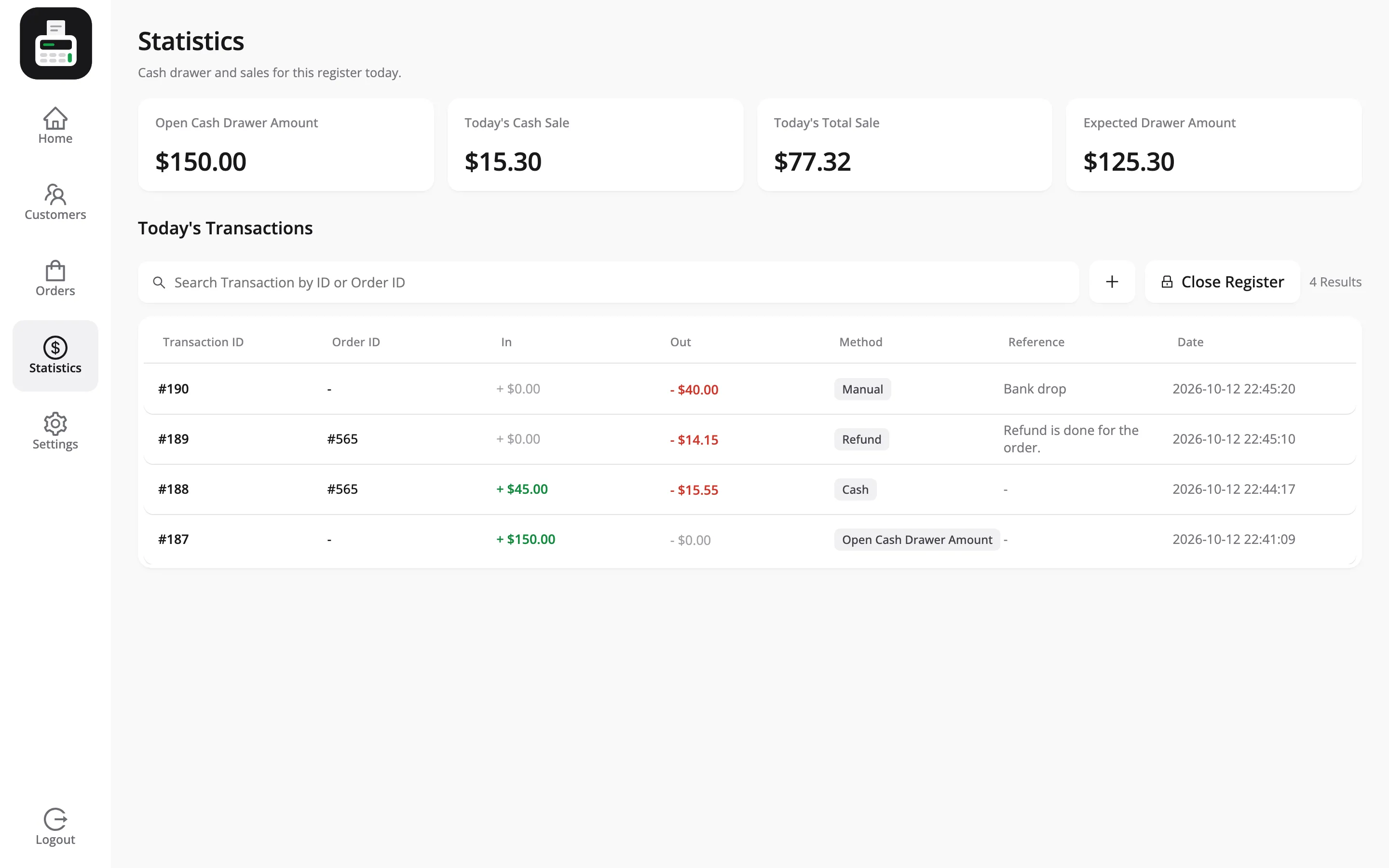
At close, every movement is listed on the Z-report under Cash in / out, with its reason and time.
When a cashier may not do it
Section titled “When a cashier may not do it”With Cash In / Out switched off for cashiers under Permissions, pressing Add asks for a manager’s PIN, with the reason Take cash out of the drawer: $40.00. The manager’s name is saved on the transaction.
It needs a connection
Section titled “It needs a connection”A manual transaction cannot be created offline. The POS says Transaction cannot be generated in offline mode. Note it on paper and enter it when the connection is back; the time stamp is the moment you enter it.
A manual transaction cannot be edited
Section titled “A manual transaction cannot be edited”Fix a mistake by adding the opposite: a $20 Out entered by mistake is corrected with a $20 In whose note says so. Both rows stay, which is the honest record anyway.
The opening amount
Section titled “The opening amount”With Cash Management on under General, the POS asks for the opening amount as the shift starts. It is stored as its own kind of row, Open Cash Drawer Amount.
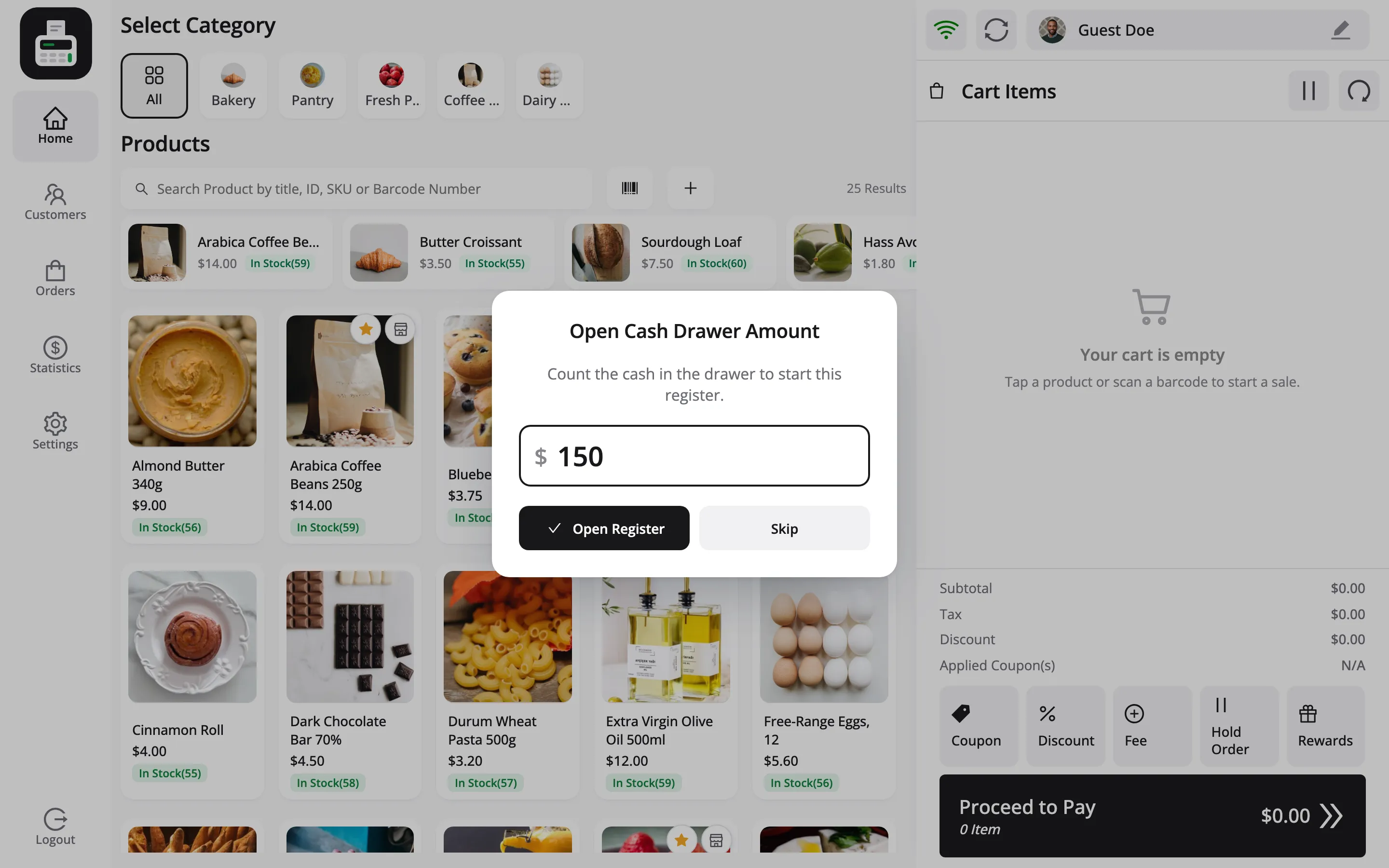
Type the count and press Open Register. Skip opens the POS without one, and the drawer figure then knows nothing about the money you started with.
Reading them back in the admin
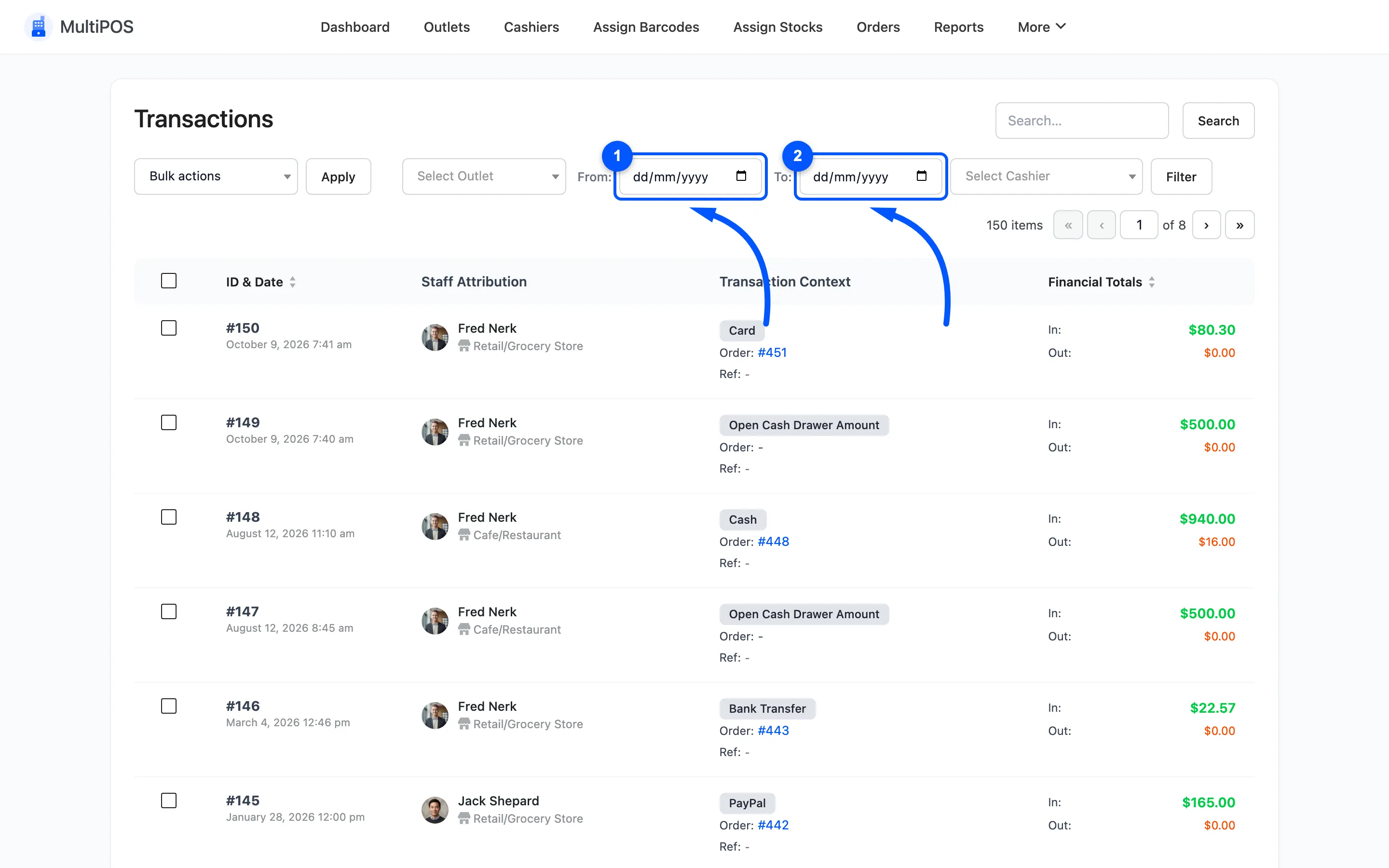
Section titled “Reading them back in the admin”Go to MultiPOS → More → Transactions. Manual rows sit alongside the sales with Manual as their type and no order number. Filter by cashier and date to see one shift.