

How to Approve Actions with a Manager PIN (Pro)
A cashier should be able to sell without waiting for anyone. A refund, a big discount or a change to the drawer is different, and you may want a second person to agree.
MultiPOS handles that with a PIN. The cashier is stopped, a supervisor types their PIN on the same screen, and the sale carries on. Nobody has to log out and back in.
Step 1: Choose what cashiers may do
Section titled “Step 1: Choose what cashiers may do”Go to MultiPOS → Configuration → Permissions. Switch off each action that should need a manager, and type a Maximum Discount in percent.
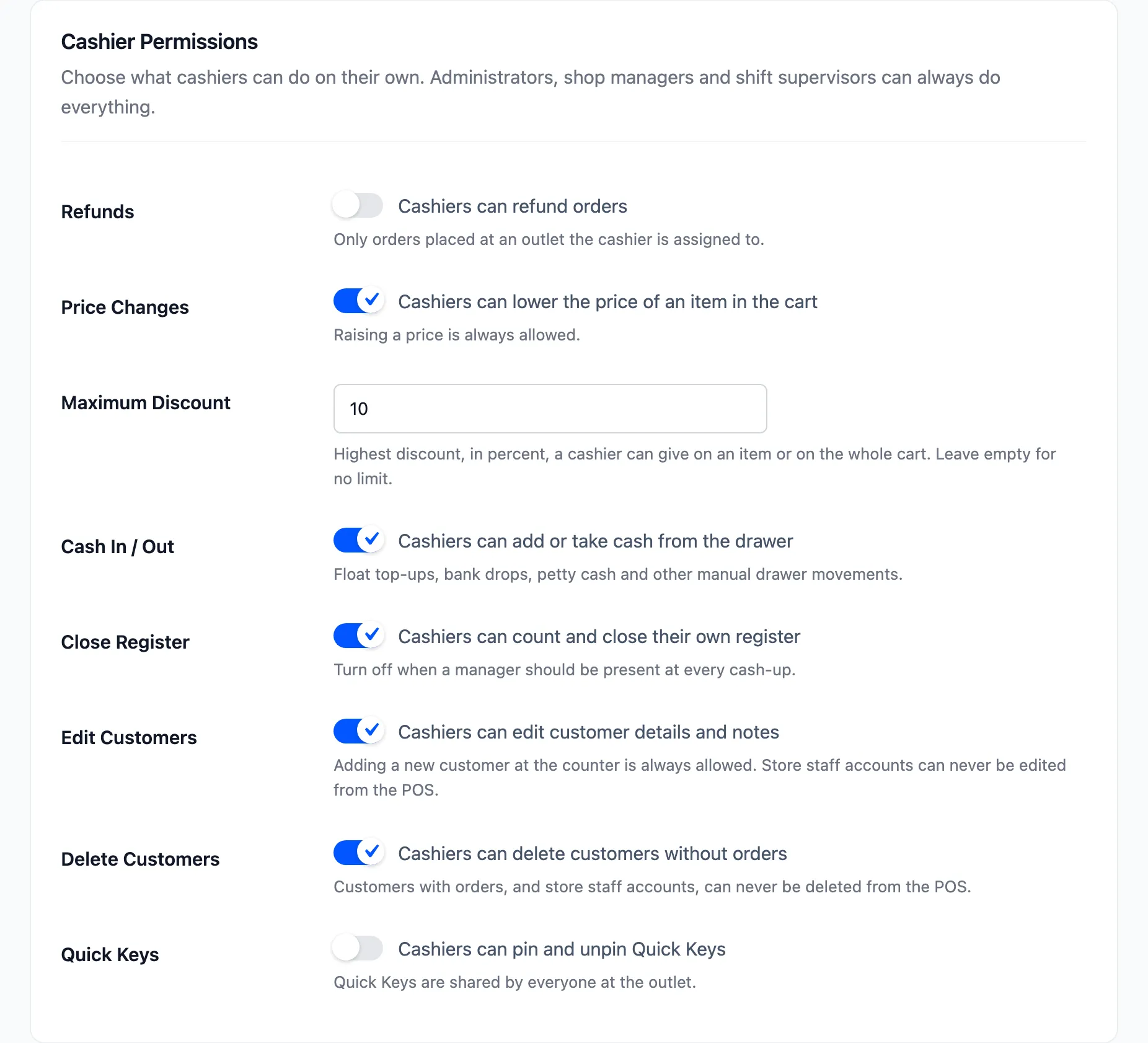
The demo switches Refunds off and caps discounts at 10. Leave Manager PIN on in the Manager Approval section, or a refused cashier is simply stopped. Press Save Changes.
Every field is explained in Permissions Settings.
Step 2: Make a cashier a shift supervisor
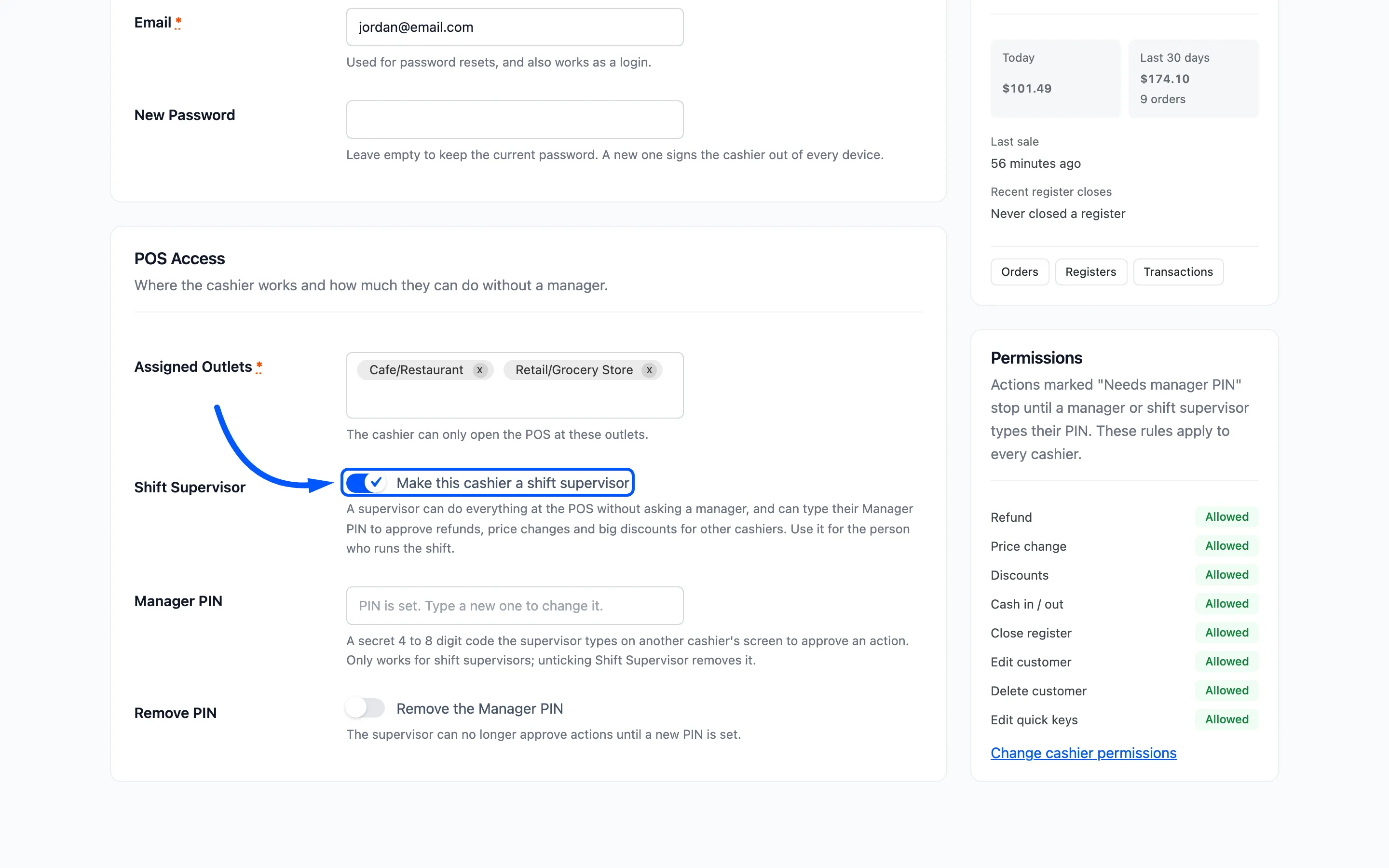
Section titled “Step 2: Make a cashier a shift supervisor”Open MultiPOS → Cashiers and edit the cashier who runs the shift. In the POS Access section, tick Make this cashier a shift supervisor.
Then type a 4 to 8 digit number in Manager PIN and press Update Cashier.
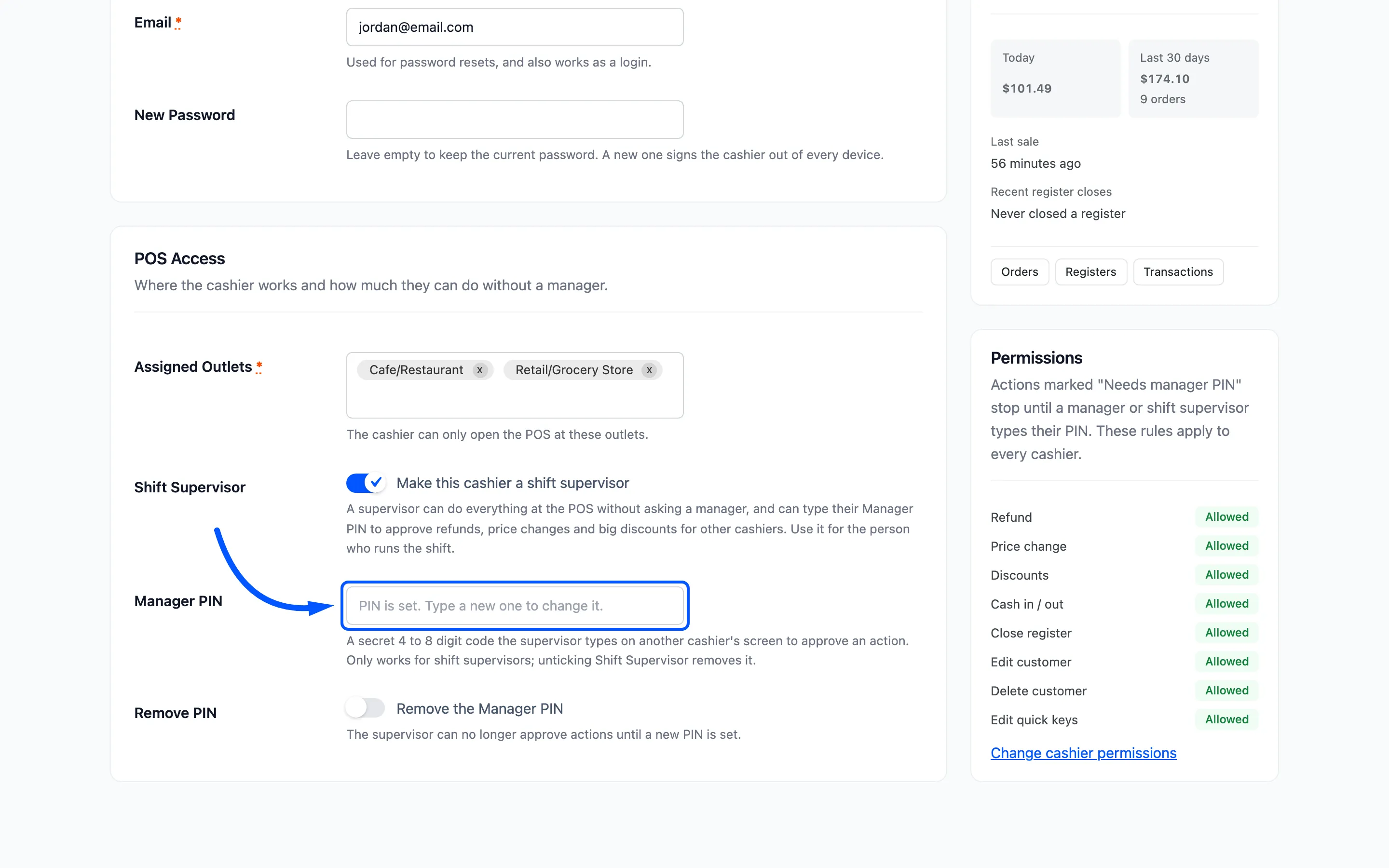
Three rules apply here:
- Only a store manager can change it: A cashier cannot make themselves a supervisor.
- Supervisors only: A cashier who is not ticked as a supervisor cannot hold a PIN. Untick it and the PIN is removed.
- Every PIN is different: Two people cannot share one, so each approval names the right person.
Once a PIN is saved, the field reads PIN is set. Type a new one to change it. The PIN itself is never shown again.
Step 3: Or give a manager a PIN on their profile
Section titled “Step 3: Or give a manager a PIN on their profile”Administrators and shop managers can approve too. They set their own PIN under Users → Profile → MultiPOS Manager PIN.
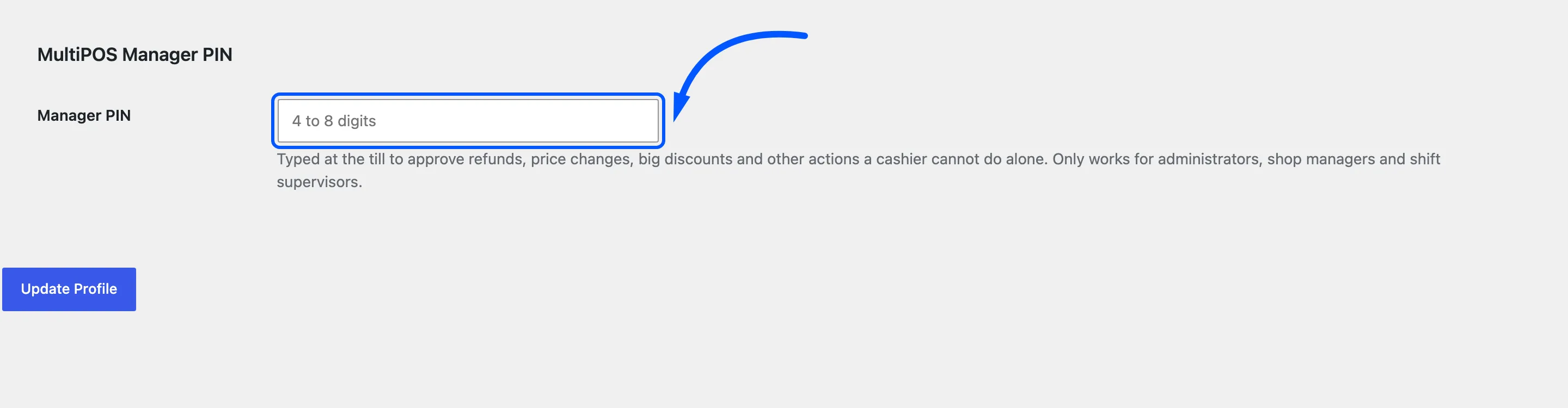
The same section shows the Shift Supervisor checkbox when you edit a cashier’s profile.
Step 4: Approve at the POS
Section titled “Step 4: Approve at the POS”The cashier does what they normally do. When they reach something they are not allowed to do, the POS asks for a manager instead of refusing.
On the demo, the cashier tried a 15% discount on one item, above the 10% cap.
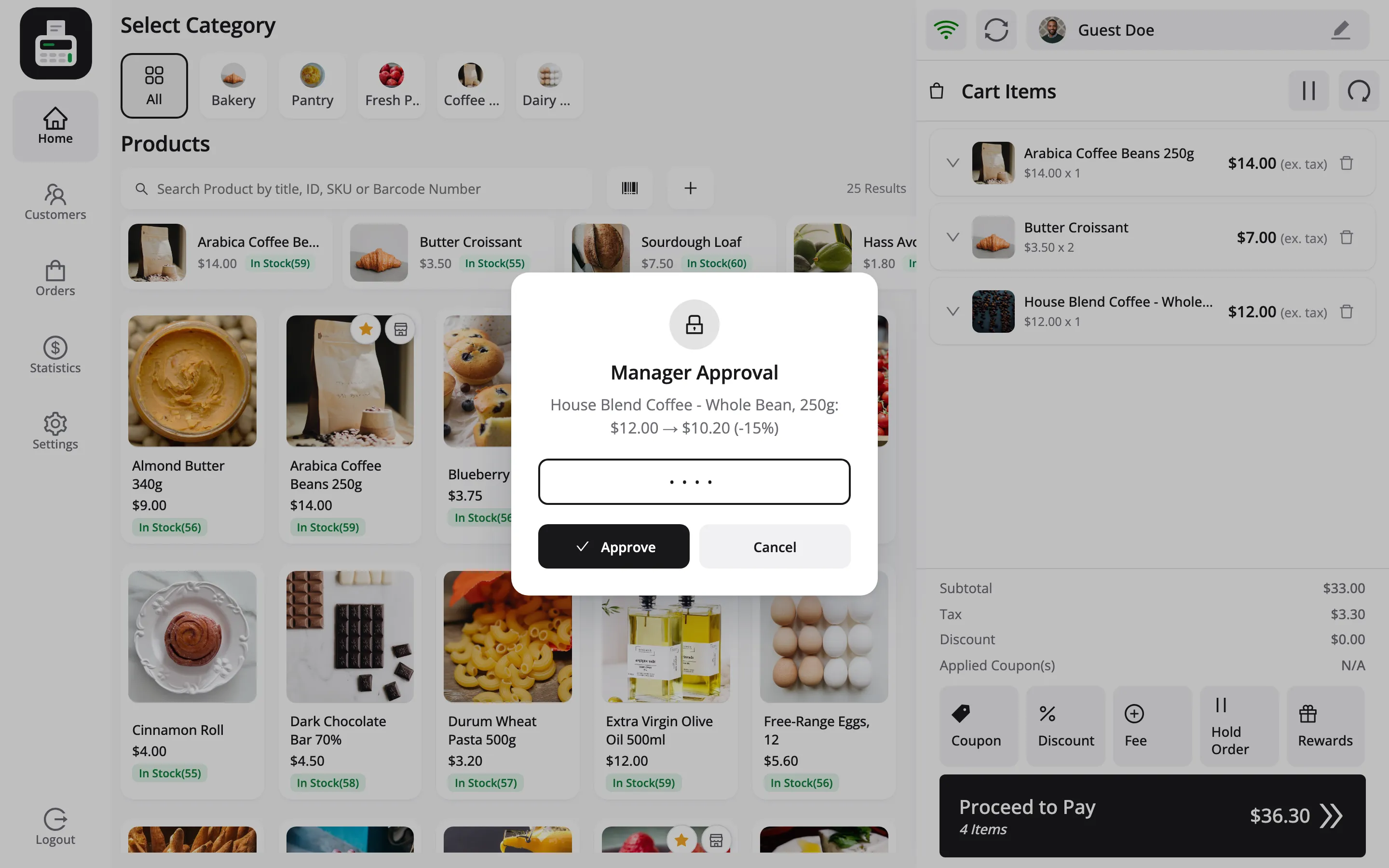
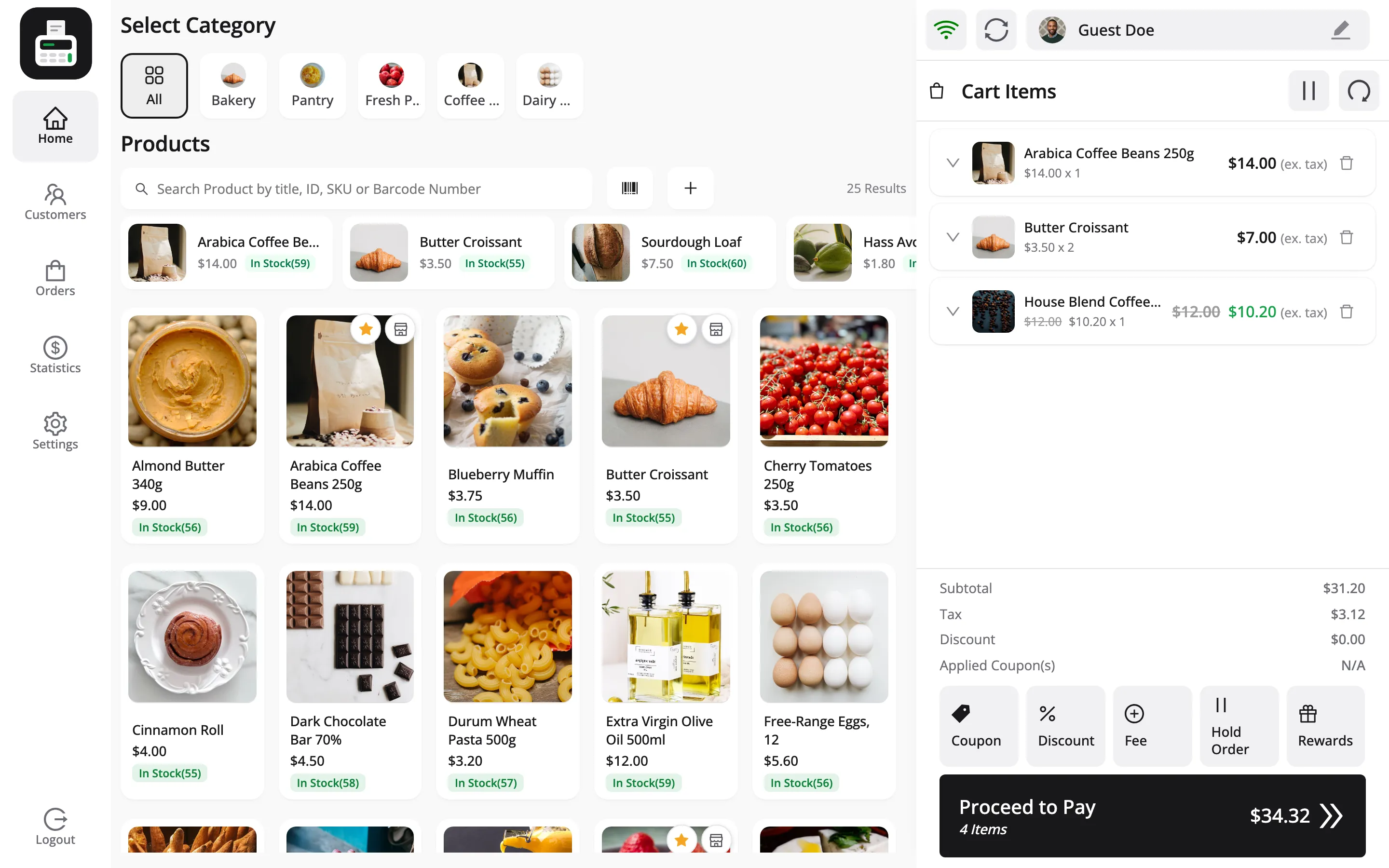
The popup says what is being approved. The supervisor types their PIN and presses Approve. A message reads Approved by Jordan Belfort., and the discount is applied to the line.
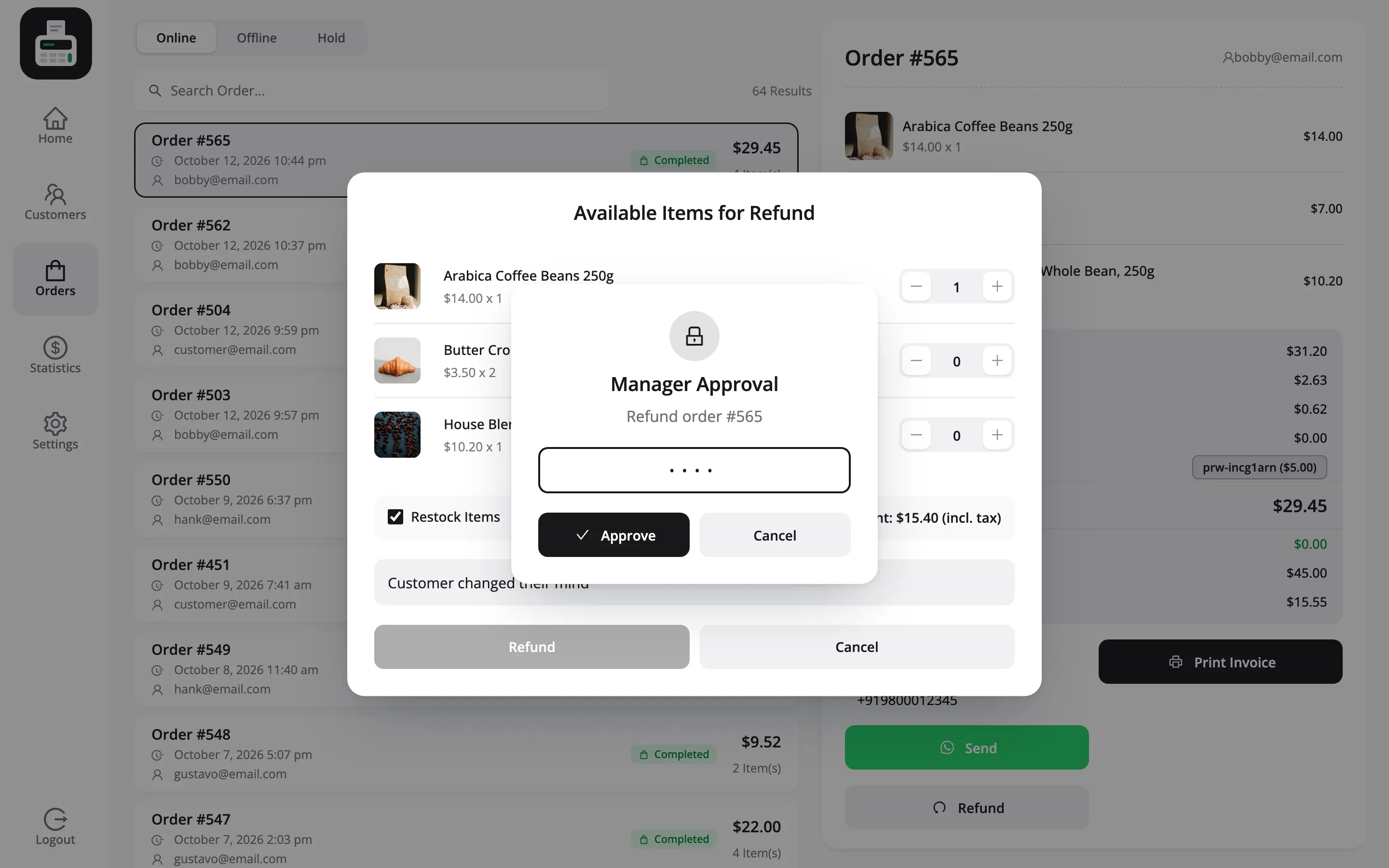
Refunds work the same way. The reason line reads Refund order #565.
What can trigger it
Section titled “What can trigger it”| Action | Setting that decides |
|---|---|
| Refund an order | Refunds |
| Lower a price in the cart | Price Changes |
| A discount above the cap, on a line or the cart | Maximum Discount |
| Cash in or out of the drawer | Cash In / Out |
| Close the register | Close Register |
| Edit a customer or their staff note | Edit Customers |
| Delete a customer | Delete Customers |
| Pin or unpin a Quick Key | Quick Keys |
If it goes wrong
Section titled “If it goes wrong”- This PIN does not belong to a manager: The PIN is wrong, or belongs to someone who is no longer a supervisor.
- Too many wrong PINs: After five wrong tries the prompt locks for 15 minutes.
- Manager approval needs an internet connection: The PIN is checked by the server.
Each approval covers the one action it was asked for and expires after 5 minutes. Nothing carries over to the next sale.
Step 5: Check the record
Section titled “Step 5: Check the record”Every approval leaves a trail. On the order, the note POS price changes lists the item, the old and new price, and (approved by Jordan Belfort).
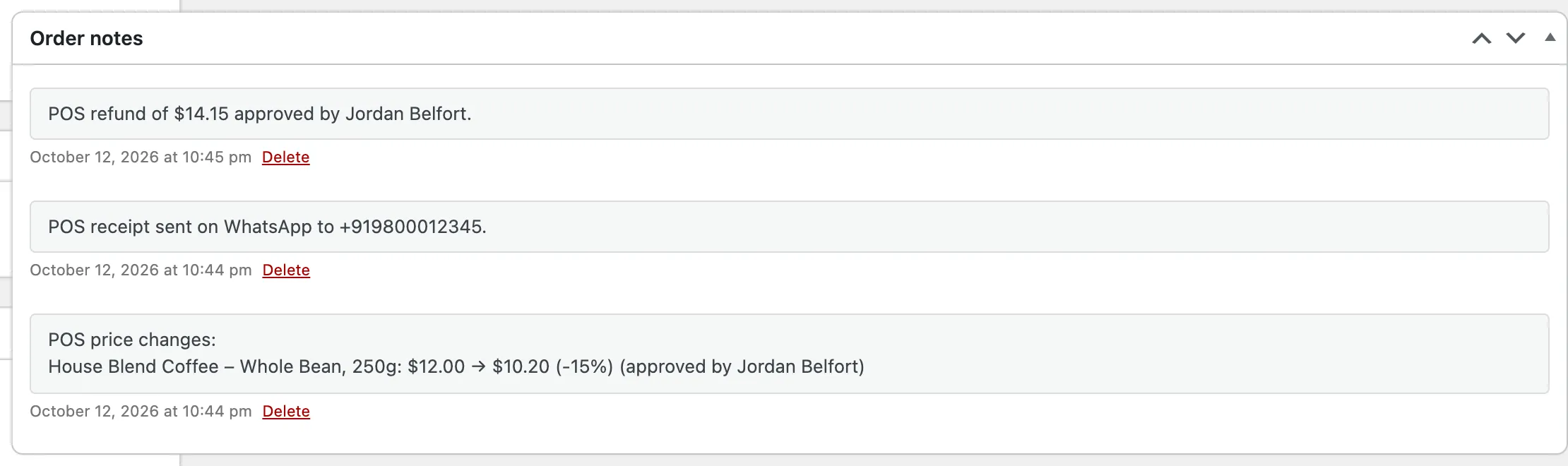
A refund gets its own note, POS refund of $14.15 approved by Jordan Belfort., and an approved cash movement names the approver on the transaction.
A discount above the cap that nobody approved, which can happen on a sale made offline, is flagged. Tick Over cashier limits on the Orders screen to find those.