

How to Add a Fee or Surcharge (Pro)
Some sales cost you more than others. A card payment carries a processing fee, a delivery carries the driver, a large party carries a service charge. A fee adds that to the sale as its own line, so the customer sees exactly what they pay for.
Step 1: Fill the cart
Section titled “Step 1: Fill the cart”Add the products first. A fee needs something to sit on, and the POS says Please add products in the cart first to add a fee. if the cart is empty.
Step 2: Press Fee
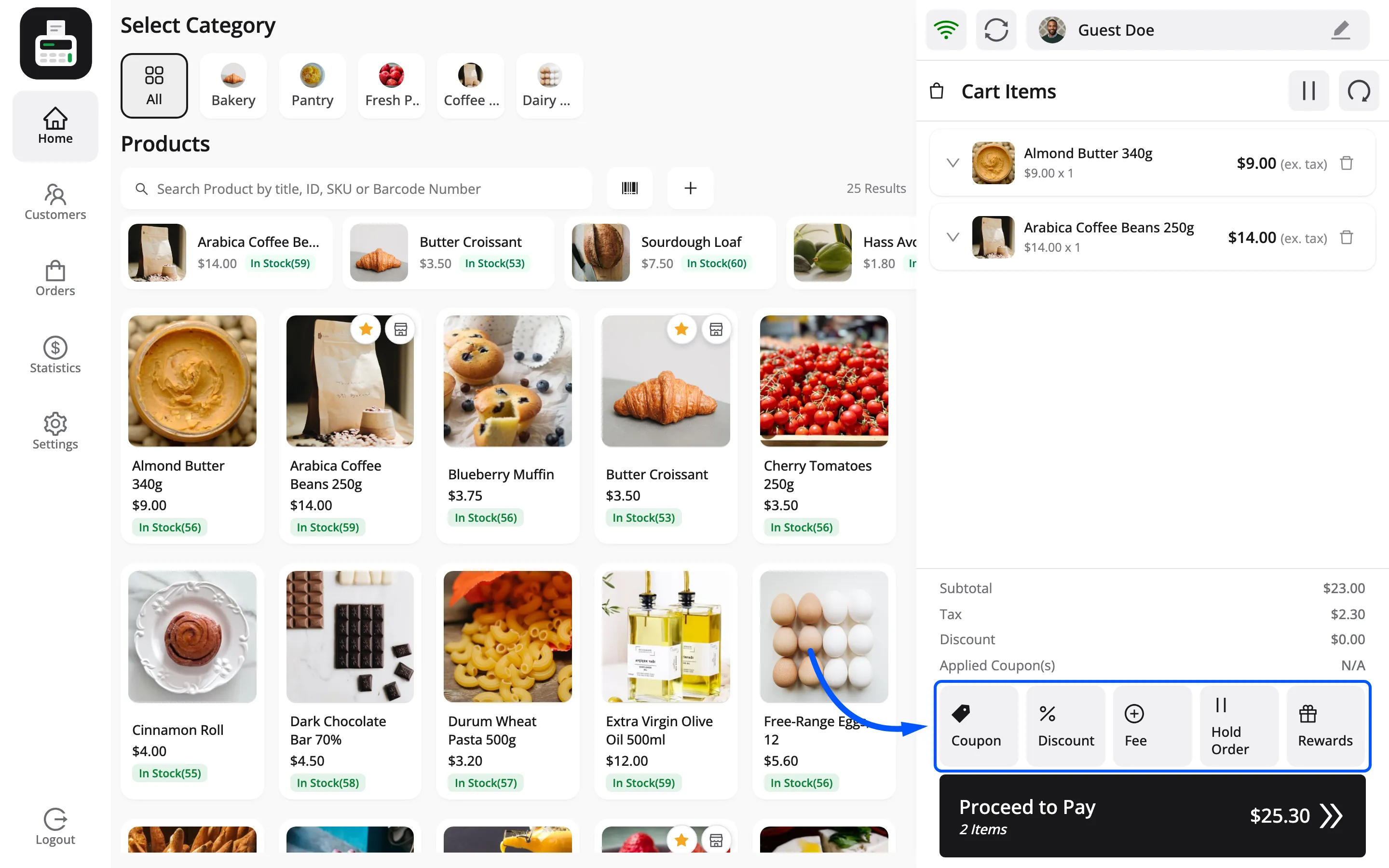
Section titled “Step 2: Press Fee”Fee is in the row of cart actions under the totals, between Discount and Hold Order.
Step 3: Name the fee and choose its type
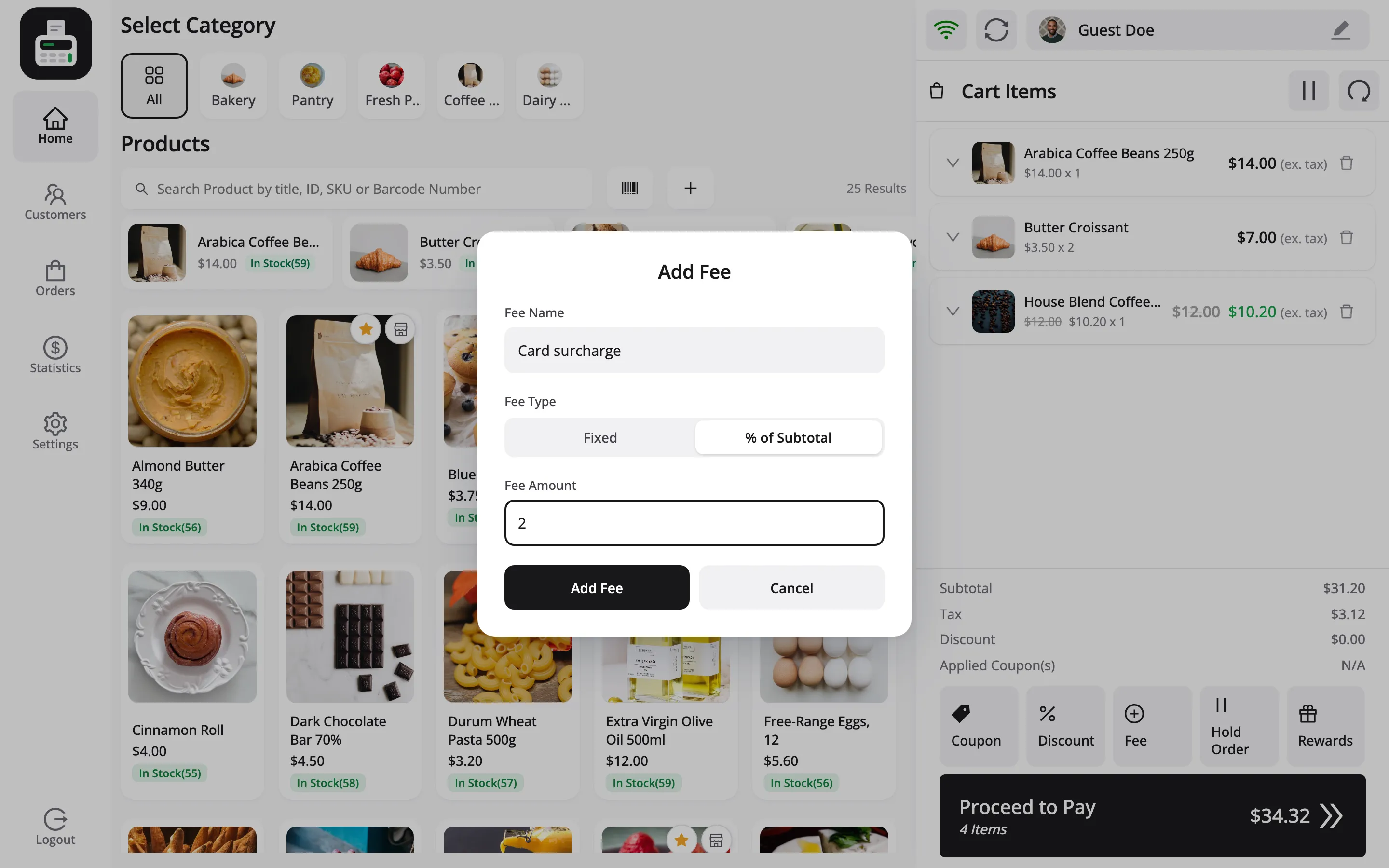
Section titled “Step 3: Name the fee and choose its type”Type a Fee Name, such as Card surcharge, Delivery or Service. Leave it empty and the fee is called Surcharge.
Then choose a Fee Type:
- Fixed: An amount in your store currency.
- % of Subtotal: A percentage of the cart subtotal.
Step 4: Enter the amount and add it
Section titled “Step 4: Enter the amount and add it”Type the Fee Amount and press Add Fee. The demo adds a 2% card surcharge.
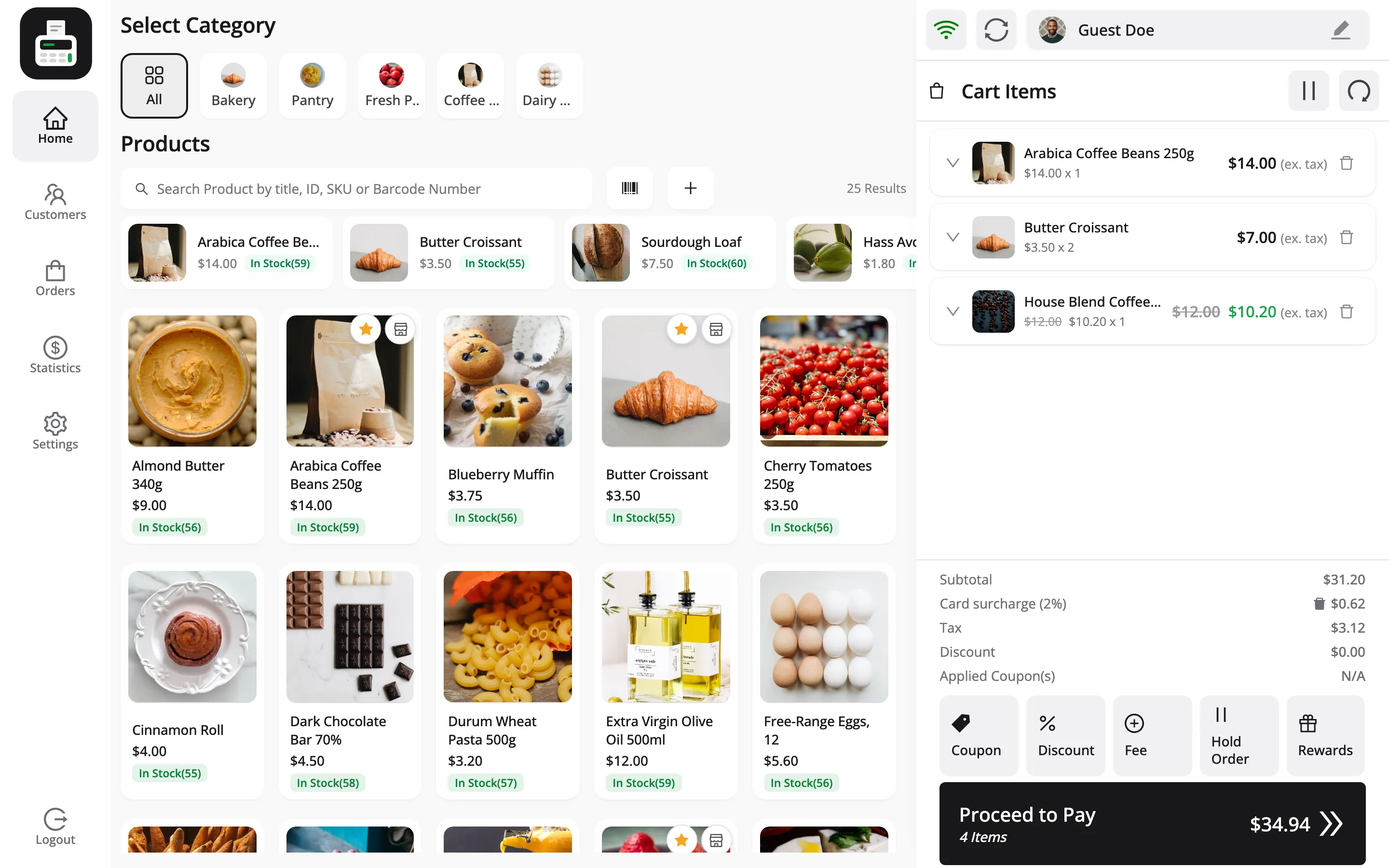
The fee appears in the totals under Subtotal, with the percentage in its name.
Things to know
Section titled “Things to know”- A percentage is fixed when you add it: 2% of the subtotal is worked out once, so adding another item afterwards does not change the fee. Remove it and add it again if the cart changes.
- Remove it with its bin icon: Each fee line in the totals has its own delete icon.
- It works offline: Fees are kept in the POS with the cart, so they need no connection.
- It leaves with the sale: Once the sale is paid, the fee goes with it and the next cart starts clean.
- It is on the order: The fee is saved on the WooCommerce order, and shows in the order’s totals in the POS Orders tab.