

Dashboard Overview
The dashboard is the first screen under DevDiggers Plugins → MultiPOS. It answers one question: what did the POS take, and how was it paid.
Open the dashboard
Section titled “Open the dashboard”Go to DevDiggers Plugins → MultiPOS. Dashboard is the first tab.
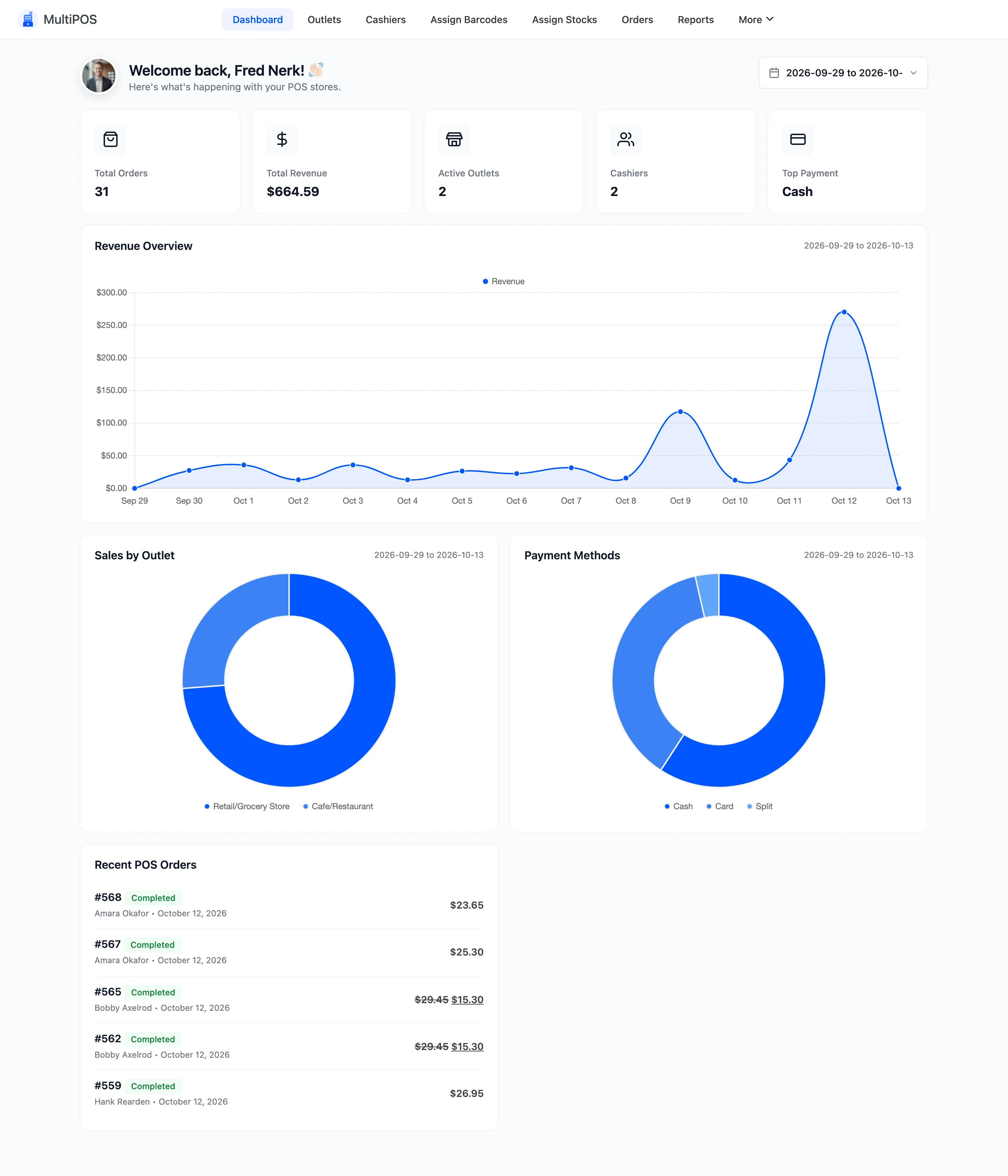
The date selector at the top right sets the period for every number on the screen. It defaults to This Month, which is why a store with older data reads as a row of zeros until you widen it.
The summary cards
Section titled “The summary cards”
- Total Orders is how many POS orders were created in the period. Website orders are not counted.
- Total Revenue is what those orders were worth.
- Cashiers is how many accounts can open the POS.
- Top Payment is the payment method that took the most money.
Total Orders and Total Revenue carry a percentage against the previous period of the same length when that period had sales. With nothing to compare against, as on the demo, no percentage shows.
Revenue Overview
Section titled “Revenue Overview”A line chart of revenue across the period. It is the fastest way to see whether a promotion moved sales or a quiet week was actually quiet.
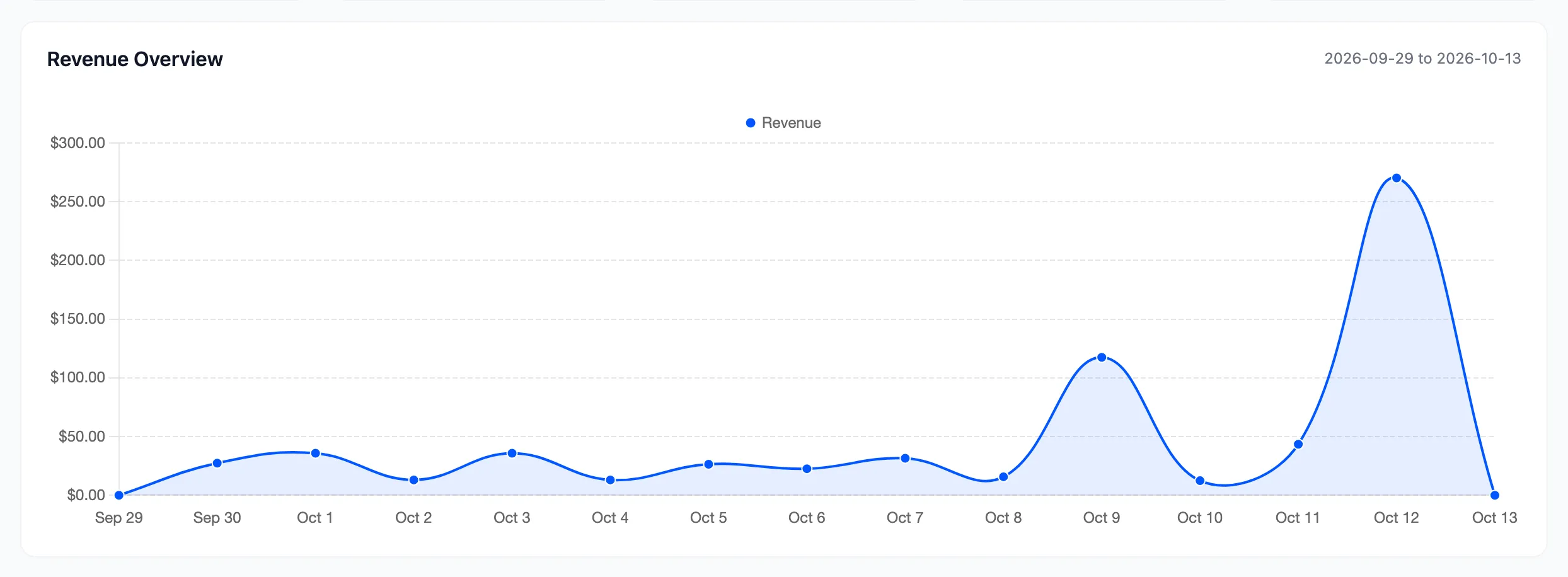
A flat line at zero means there is no data in the selected period, not that the POS is broken. Widen the date selector before you go looking for a fault.
Payment Methods
Section titled “Payment Methods”A ring chart splitting sales by payment method, built from the method recorded on each POS order.
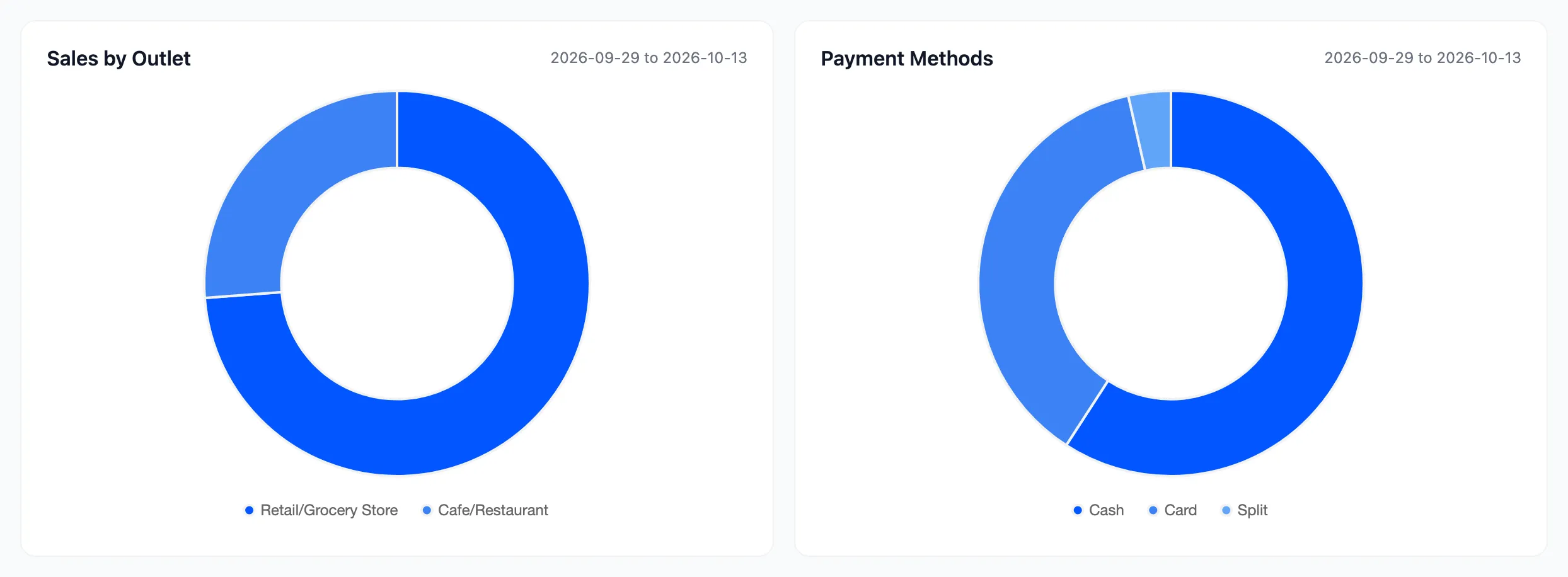
This is the panel to check before you decide whether a card terminal is earning its rental.
Recent POS Orders
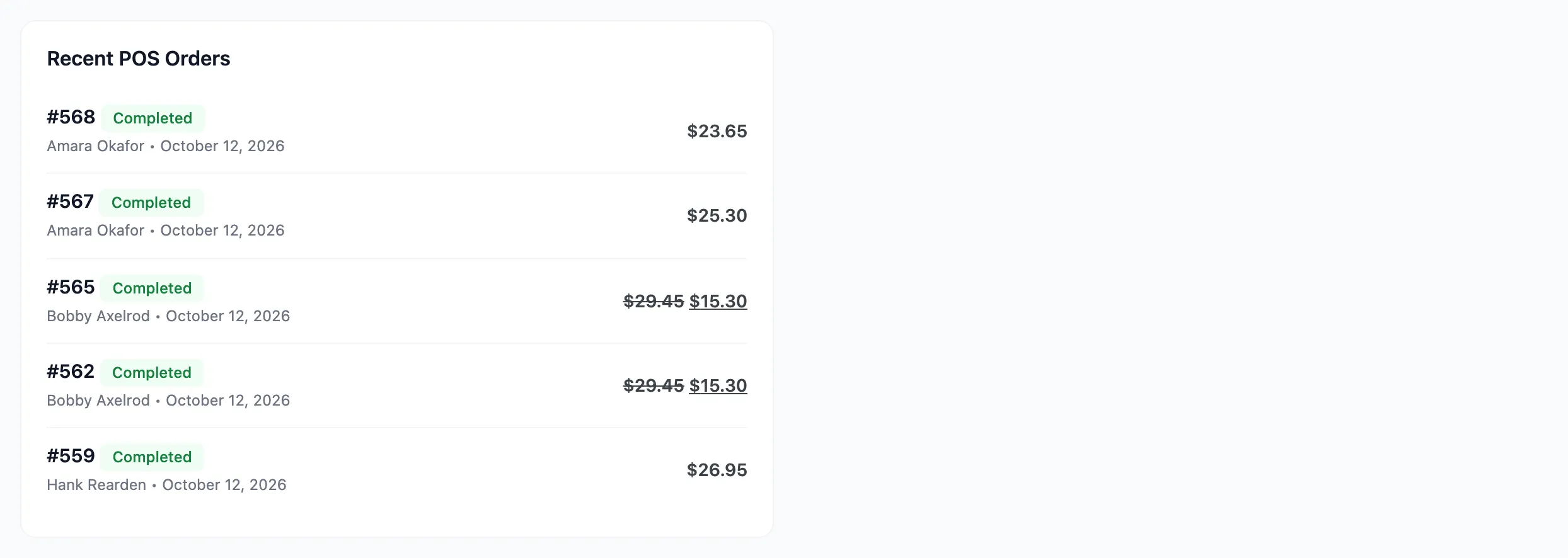
Section titled “Recent POS Orders”The last few POS orders, each with its number, status, customer, date and total. Click an order number to open it in WooCommerce.
A partly refunded order shows its original total struck through beside what was kept, such as
$29.45 $15.30.
For the full list with filters, use the Orders screen.
When the dashboard is empty
Section titled “When the dashboard is empty”Three checks, in order.
- The date range. This Month hides everything older.
- Enable Point of Sale System under Configuration → General. With it off, nothing can be sold.
- Whether any sale has been taken yet. The dashboard counts POS orders only, so a store with website orders alone reads as zero here and is correct.
Where to go next
Section titled “Where to go next”- Orders for every POS order with its cashier.
- Transactions for money in and money out.
- Reports for detailed sales, tax and discount charts.