

PWA Settings (Pro)
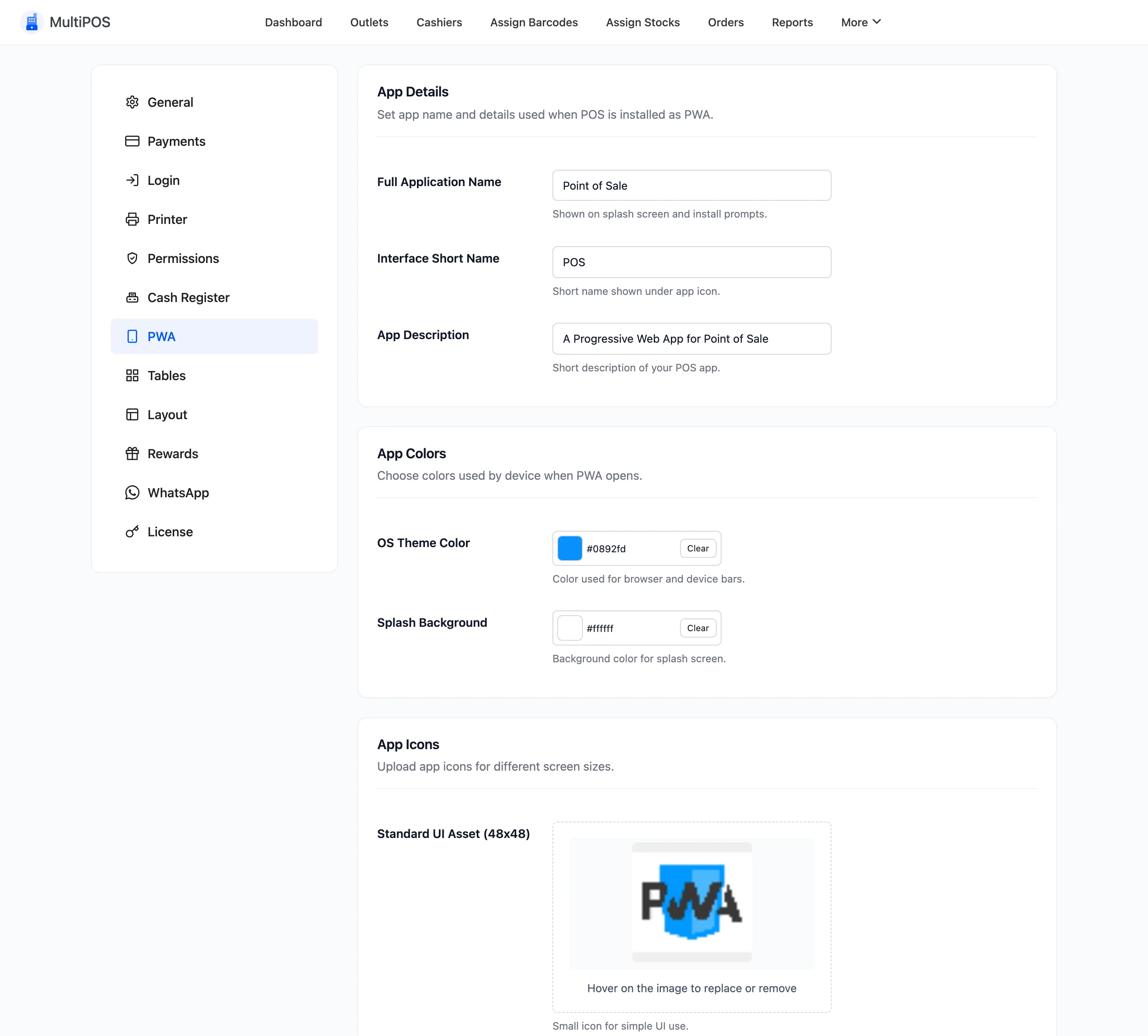
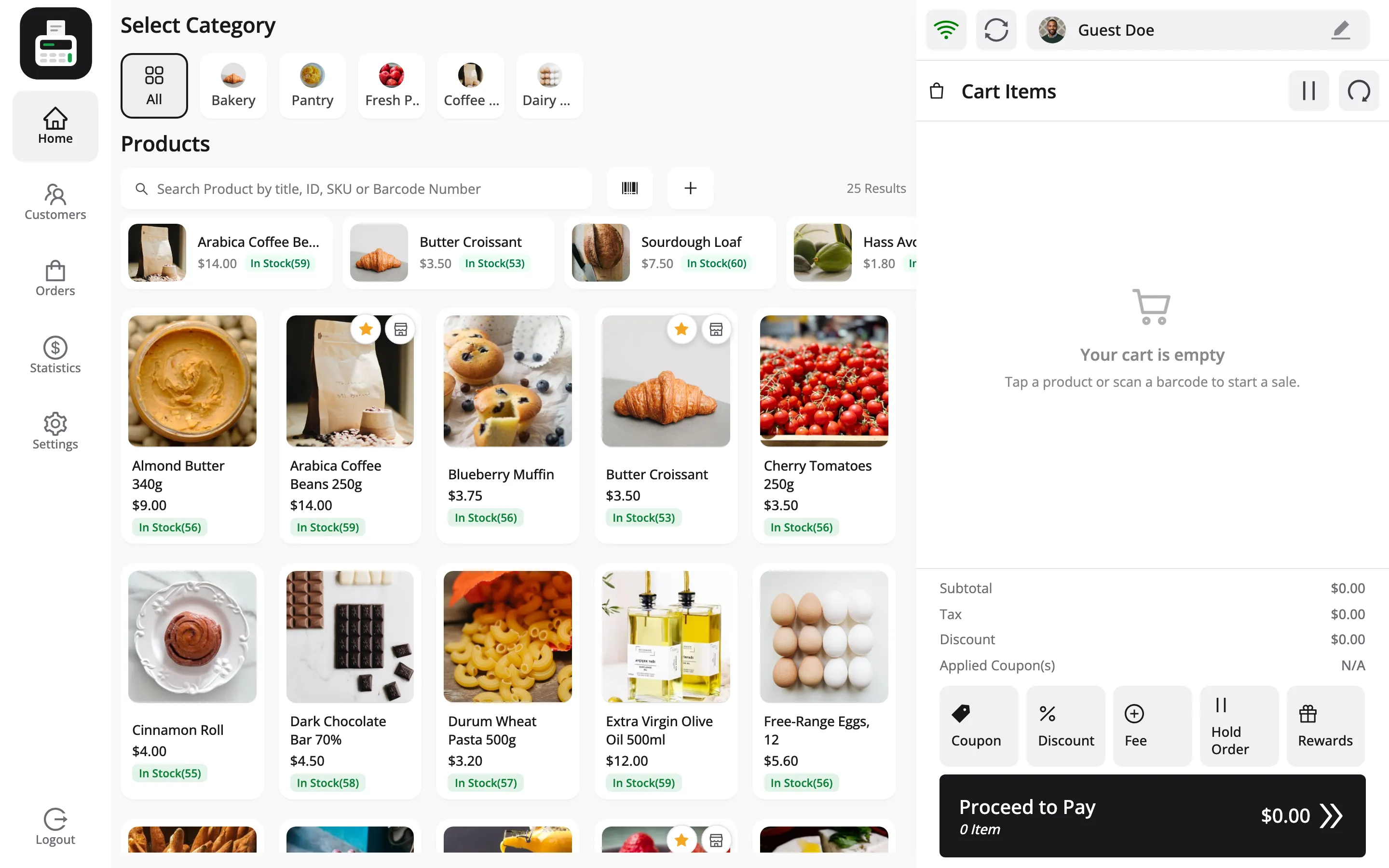
A Progressive Web App is a website a device can install. Once installed, the POS opens from the home screen with its own icon, no browser bar and no address to mistype.
That is the whole case for it. A tablet on a counter should not show a URL a customer can edit.
Open the tab
Section titled “Open the tab”Go to DevDiggers Plugins → MultiPOS → Configuration → PWA.
App Details
Section titled “App Details”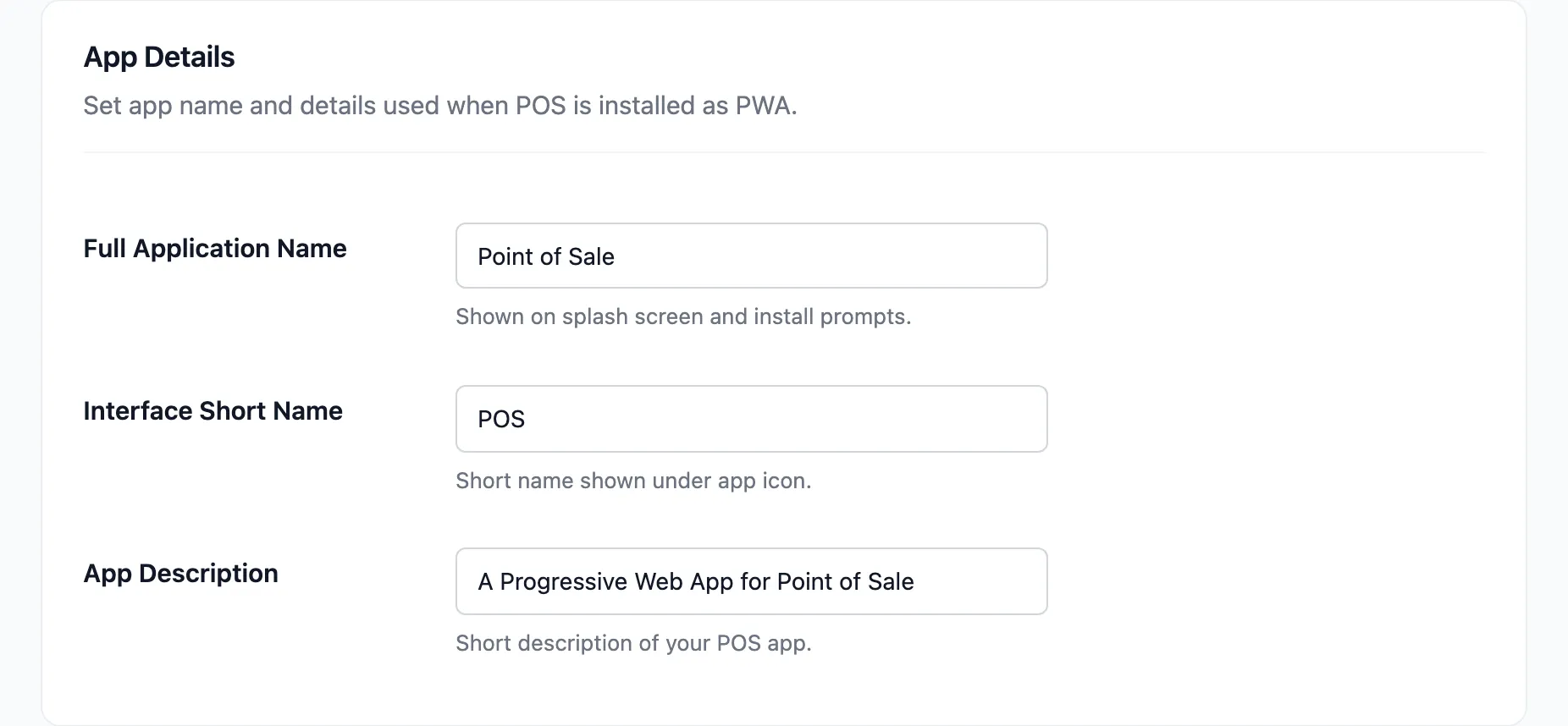
| Field | Default | Where it shows |
|---|---|---|
| Full Application Name | Point of Sale | The install prompt and the app list |
| Interface Short Name | POS | Under the home screen icon |
| App Description | A Progressive Web App for Point of Sale | The install prompt |
Interface Short Name is the one staff actually read. Keep it under about twelve characters or the device truncates it.
Use your shop’s name rather than “POS” if staff have more than one installed app that could be confused for it.
App Colors
Section titled “App Colors”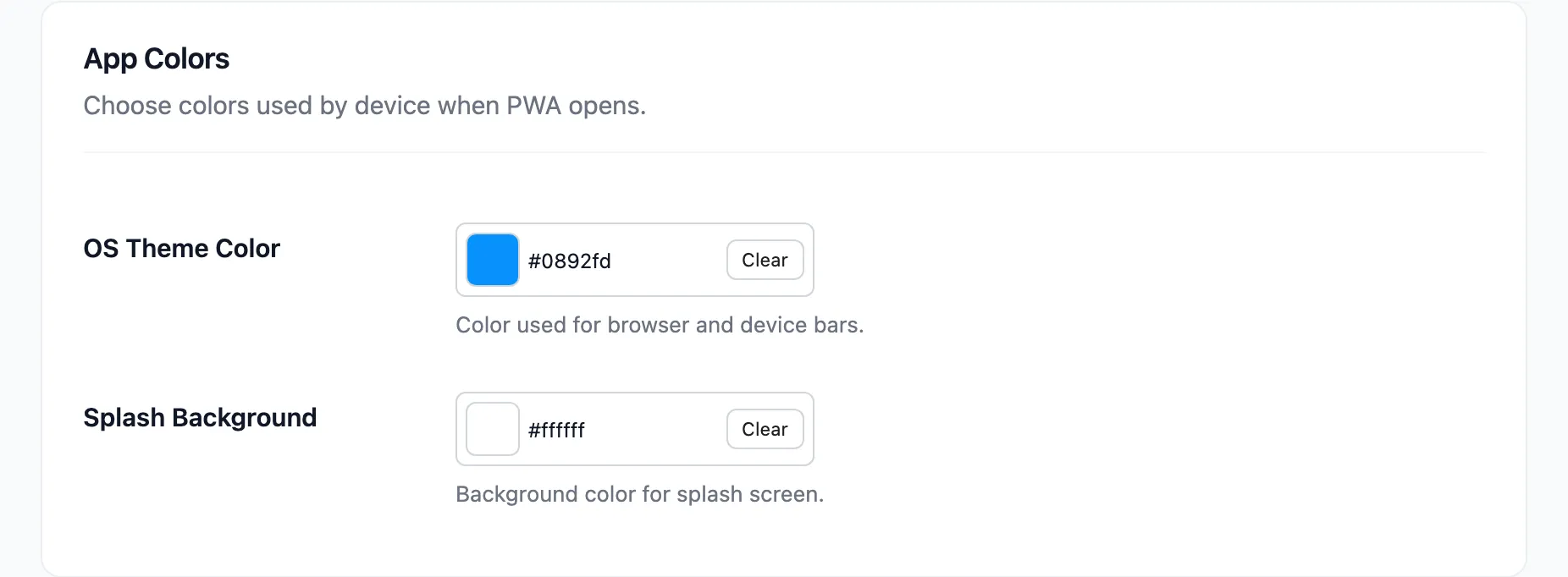
- OS Theme Color tints the system chrome around the app: the status bar on Android, the title
bar on desktop. It defaults to
#0892fd. - Splash Background is the colour behind the icon on the splash screen shown while the app
loads. It defaults to
#ffffff.
Match the splash background to your logo’s background. A white logo on a white splash disappears.
App Icons
Section titled “App Icons”Five uploads, one per screen density.
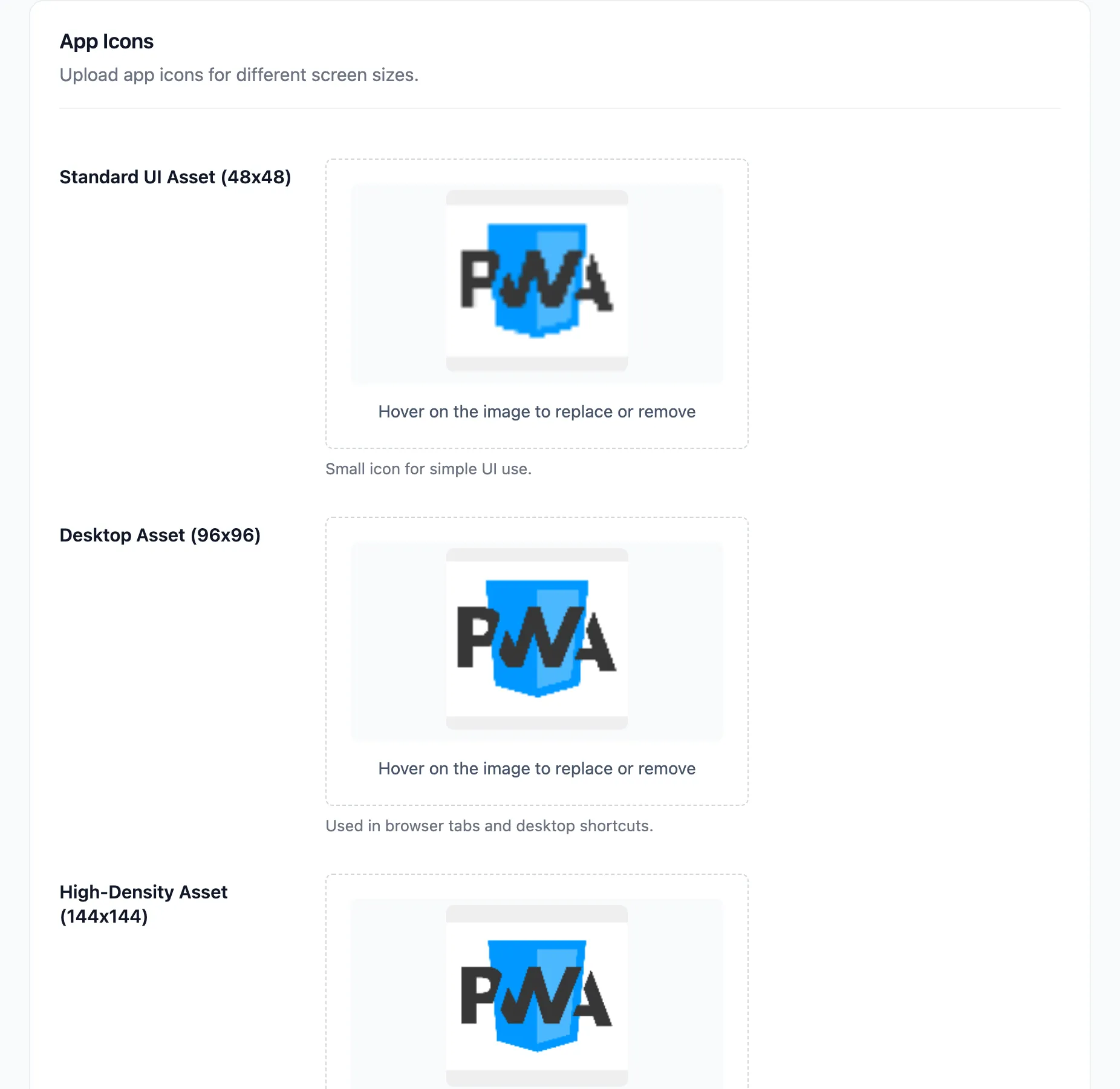
| Field | Size |
|---|---|
| Standard UI Asset | 48 by 48 |
| Desktop Asset | 96 by 96 |
| High-Density Asset | 144 by 144 |
| Enhanced Resolution Asset | 196 by 196 |
| Master Branding Asset | 512 by 512 |
Upload all five. A device picks the closest match and scales it, so a missing size means a blurry icon on exactly the hardware that skipped it.
Export square PNGs from one master file. Do not upload the same 512 image five times renamed. The small sizes need a simpler mark, because detail that reads at 512 is mush at 48.
Installing on a device
Section titled “Installing on a device”Once the fields are filled in and saved, open the terminal URL on the device.
- Android and desktop Chrome show an install prompt, or an install icon in the address bar.
- iPad and iPhone need Share, then Add to Home Screen.
The app then launches full screen from the home icon, straight into the terminal.
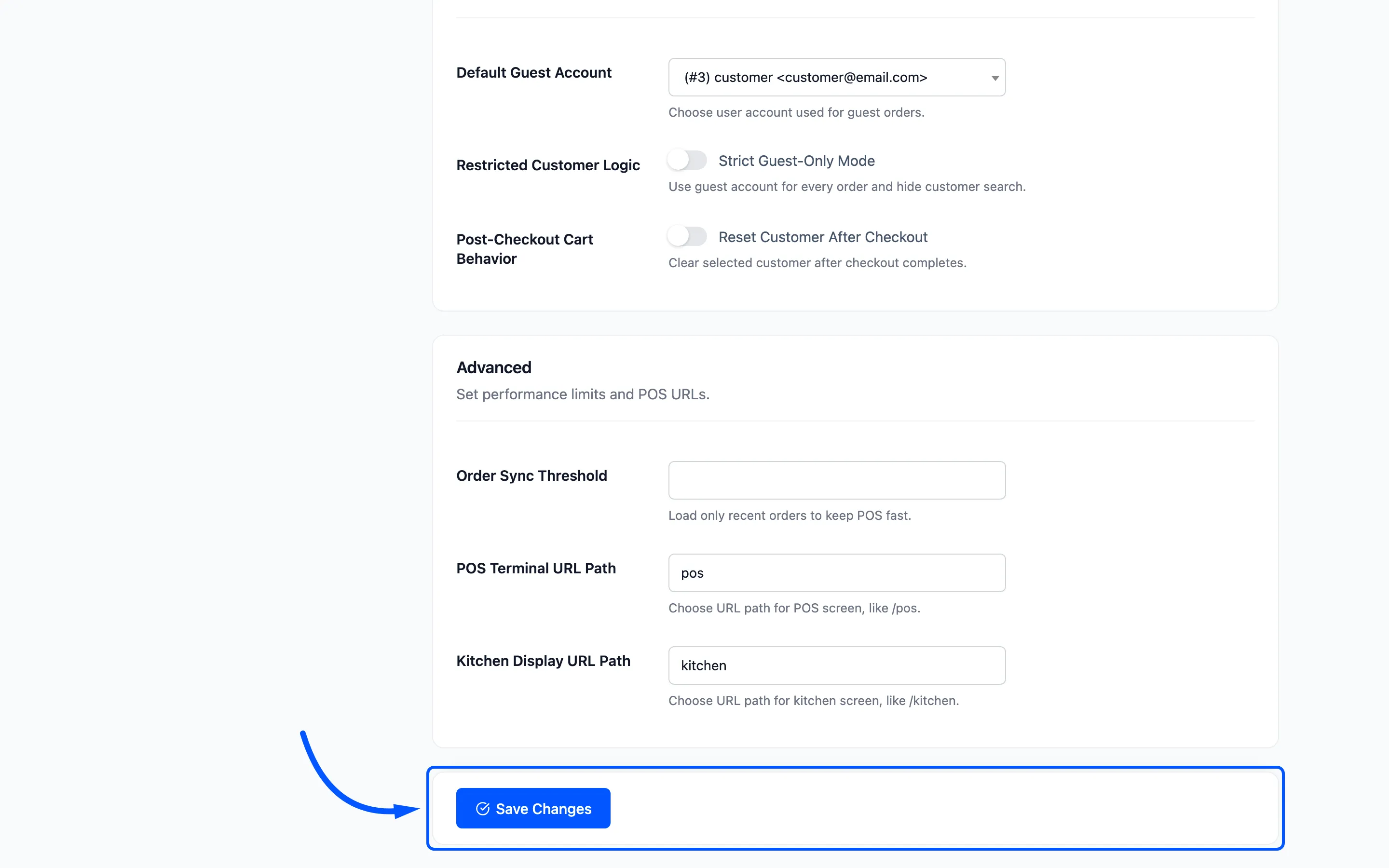
Click Save Changes, then reinstall the app on any device that already had it. A device caches the old name, colours and icons until it is reinstalled.
Where to go next
Section titled “Where to go next”- How to Install the POS as an App
- Layout Settings for the colours inside the app.