How to Give a Discount at the Counter (Pro)
Some discounts do not deserve a coupon. A damaged box, a long-standing regular, a manager waving something through. This is the button for those.
Coupon or discount
Section titled “Coupon or discount”They are different jobs and they land on different rows of the cart.
| Coupon | Discount | |
|---|---|---|
| Needs a code set up first | Yes | No |
| Cashier can invent the amount | No | Yes |
| Rules, limits and expiry | Yes | None |
| Shows on | Applied Coupon(s) | Discount |
| Free version | Yes | No |
Use a coupon for anything you want to control or count. Use a discount for a one-off.
Step 1: Build the cart
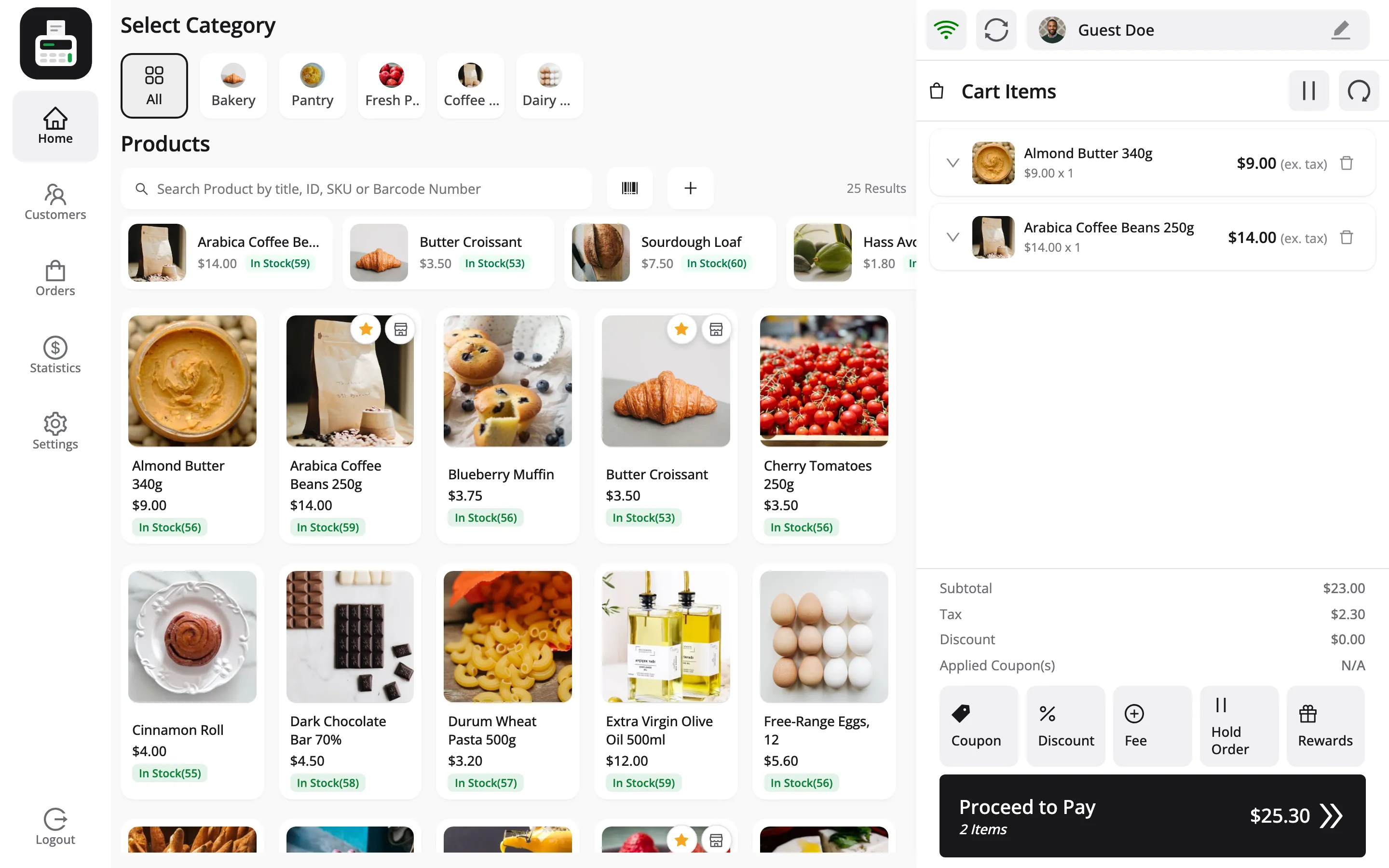
Section titled “Step 1: Build the cart”Add the items first. Pressing Discount on an empty cart raises Please add products in the cart to apply discount.
Step 2: Press Discount
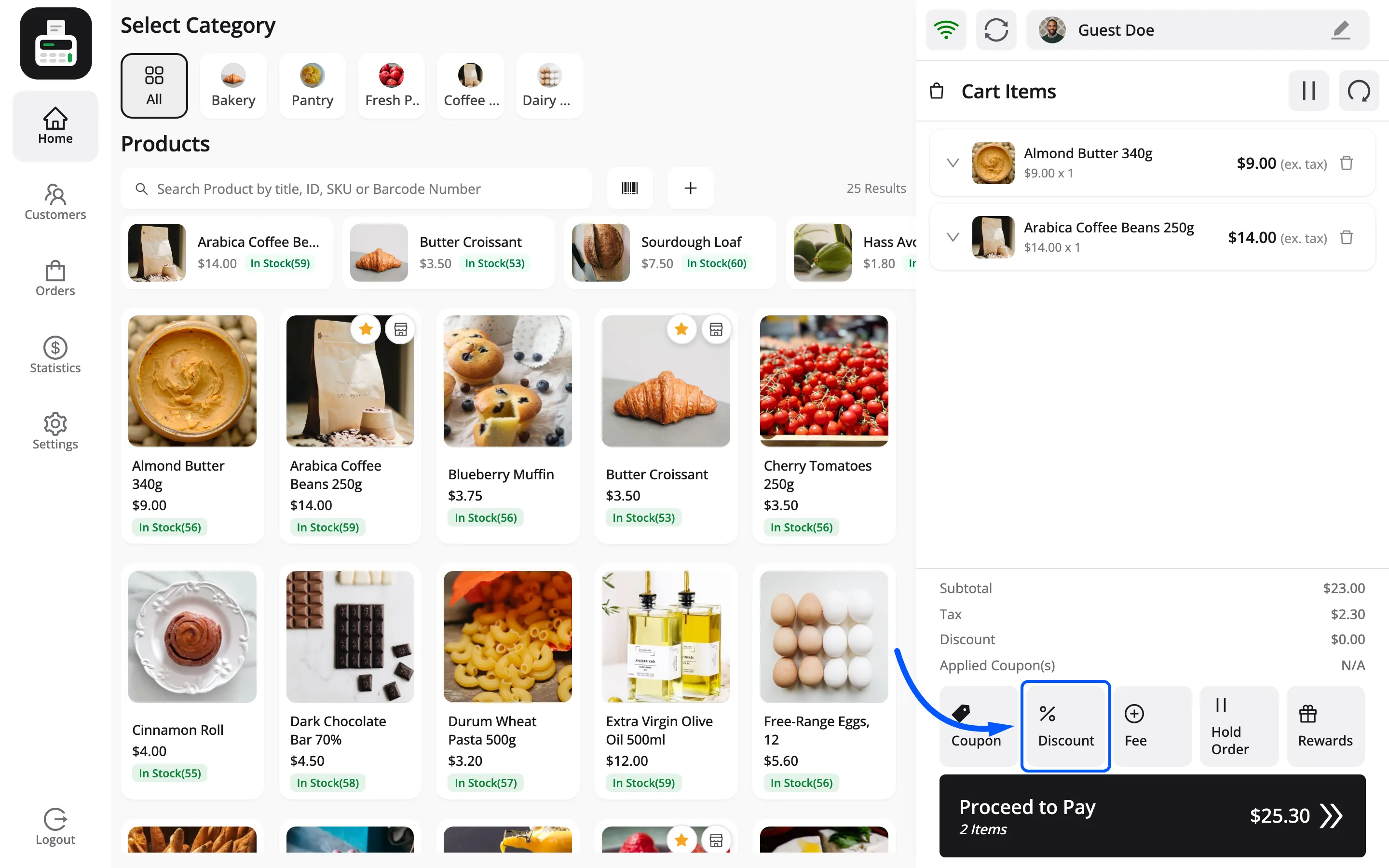
Section titled “Step 2: Press Discount”Discount is the middle cart action, between Coupon and Hold Order.
Step 3: Choose Fixed or Percentage
Section titled “Step 3: Choose Fixed or Percentage”The Apply Discount popup opens with Select Discount Type at the top. Fixed is already chosen.
Press Percentage to switch. The chosen one is filled in, so you can see which is active.
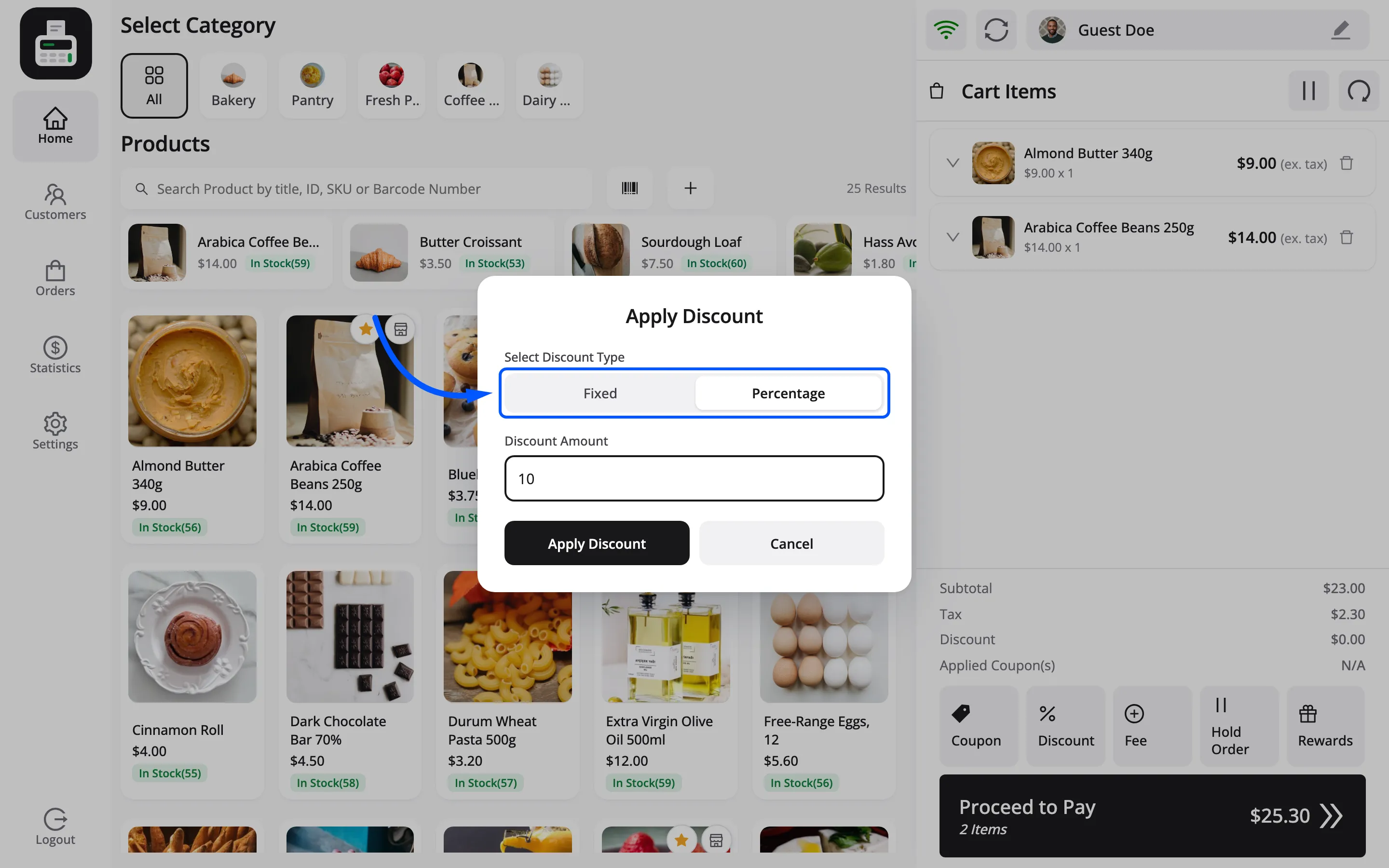
Fixed takes money off in your shop currency. Percentage takes a share off the subtotal.
Step 4: Enter the amount and press Apply Discount
Section titled “Step 4: Enter the amount and press Apply Discount”Type the figure into Discount Amount and press Apply Discount.
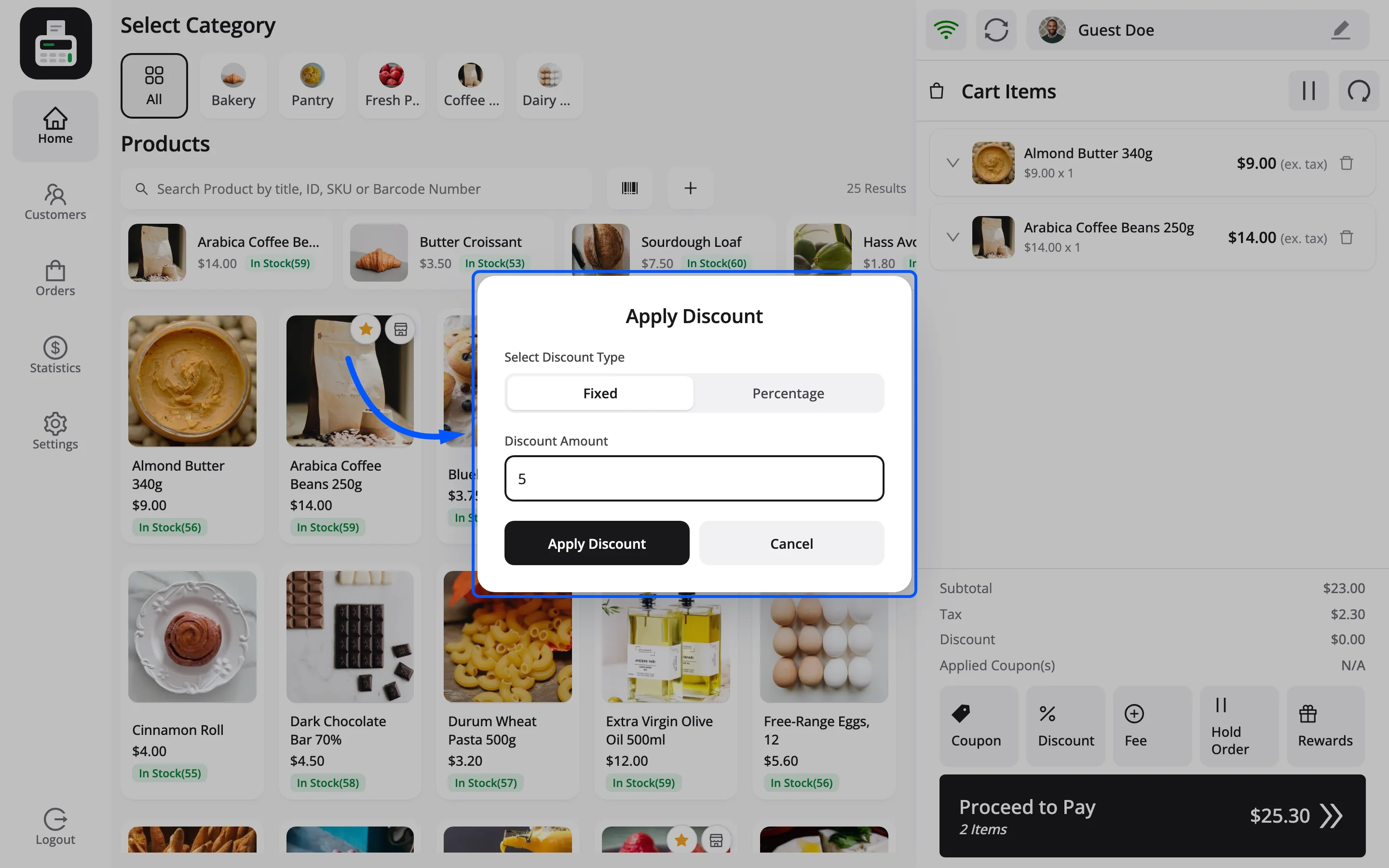
The button stays greyed out until the box has a value.
Two amounts are refused:
- A negative or nonsense figure raises Amount Error, reading Entered amount is invalid.
- A percentage outside 0 to 100 raises Discount Error, reading Discount percentage must be between 0 and 100.
Step 5: Check the Discount row
Section titled “Step 5: Check the Discount row”The POS says Discount applied successfully. The figure lands on the Discount row, and Proceed to Pay falls by the same amount.
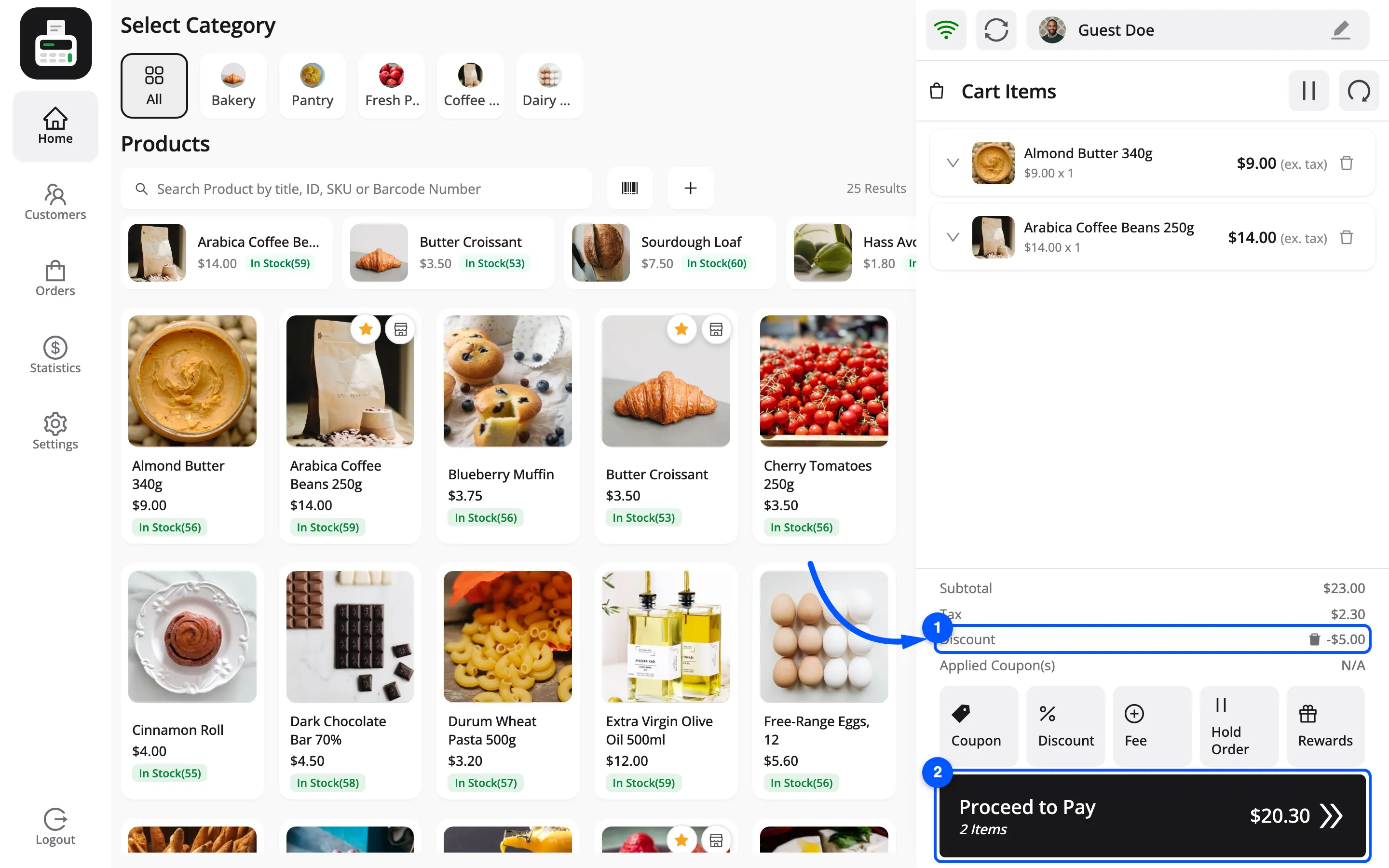
Read the new total back to the customer before taking payment.
Taking a discount off again
Section titled “Taking a discount off again”The Discount row grows the same small bin icon a coupon gets. Press it and the discount comes off, with a Discount removed successfully. confirmation.
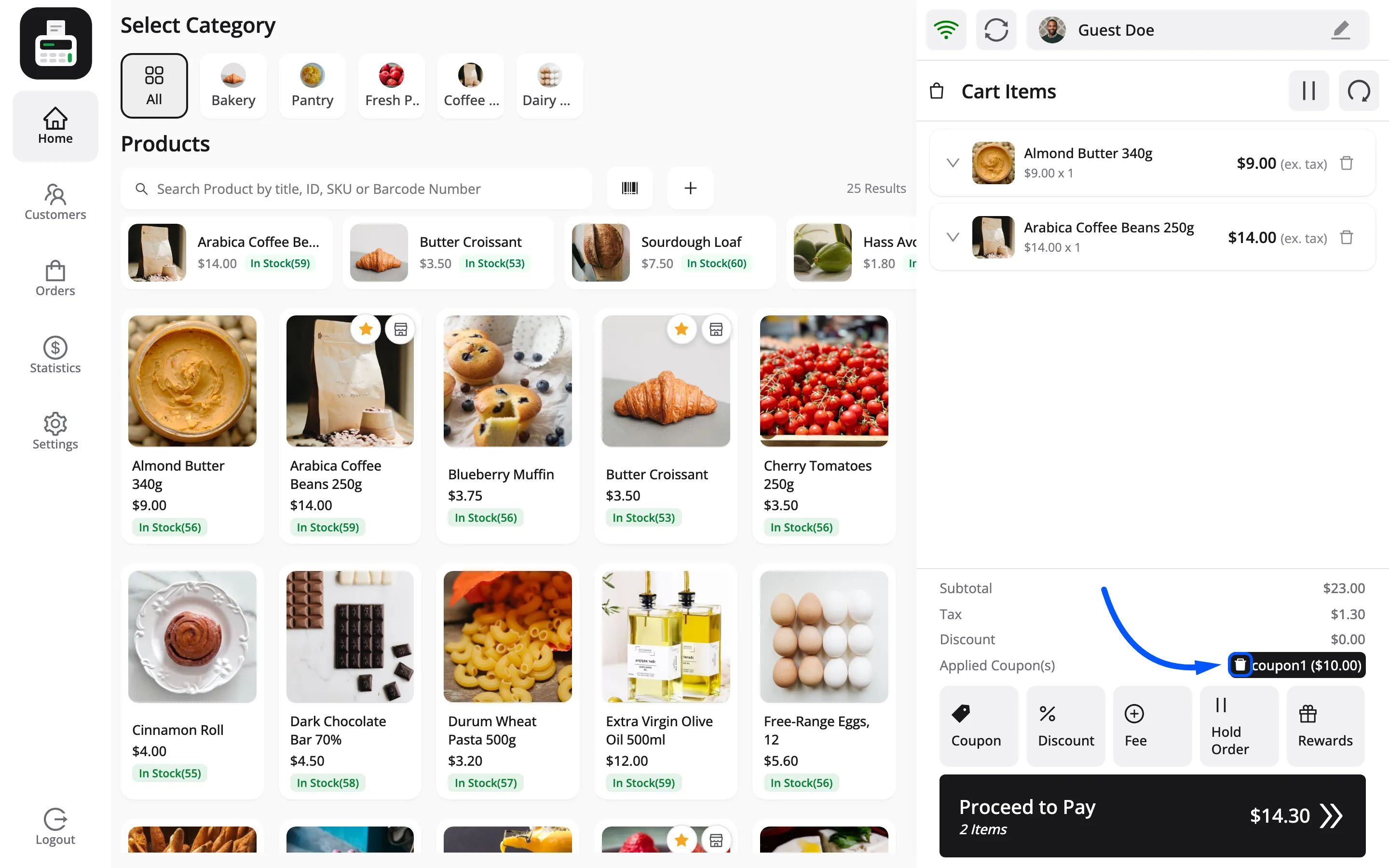
There is one discount per cart, not a list. Applying a second one replaces the first rather than adding to it, so to change an amount you simply apply the new one.
What reaches WooCommerce
Section titled “What reaches WooCommerce”The discount is added to the order as a line called POS Custom Discount.
That matters in two places, and the second one is the one to know about.
- On a refund, the discount is shared across the units in proportion. Refunding one unit of three gives back a third of the discount along with the item, and you do not have to work that out.
- In reports, it does not show as a discount. The Discounted Orders and Gross Discounted charts are built from WooCommerce’s coupon table. A manual discount is not a coupon, so it appears in neither.
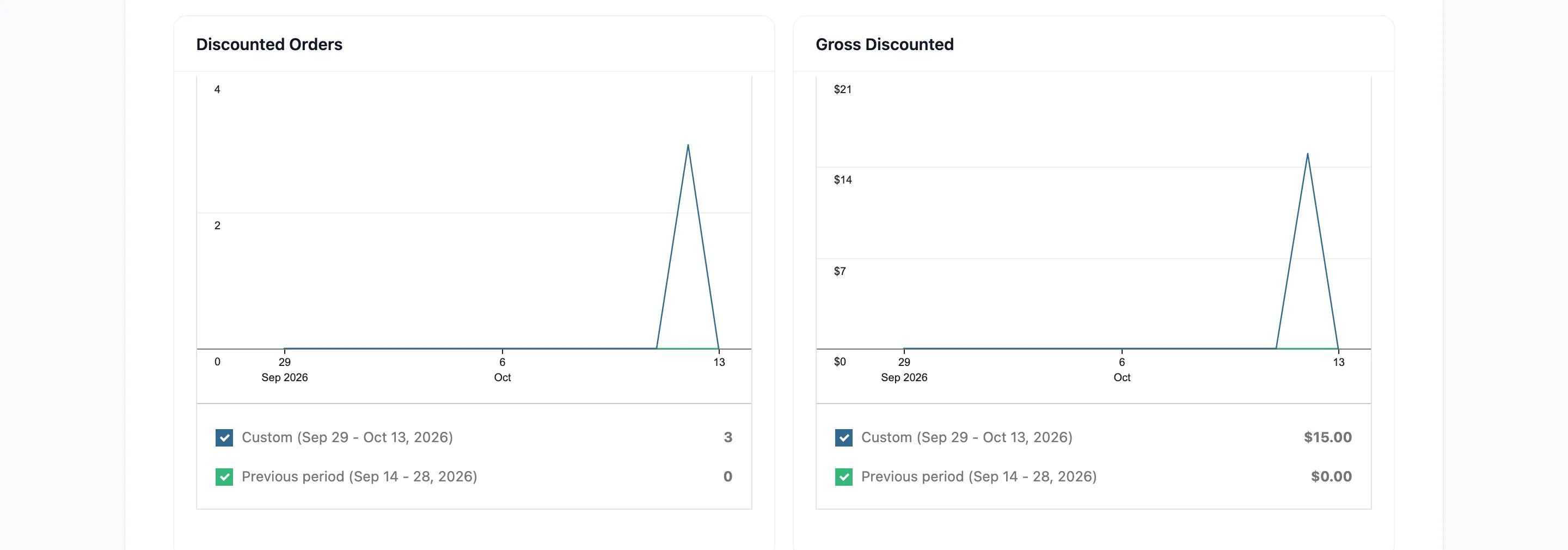
It is still in the money. A discounted sale has a lower order total, so revenue and net sales are correct everywhere. What you cannot do is ask the reports how much was given away by hand.
If you need that number, use coupon codes instead. A code your staff know is a discount you can count.
Discounting one line instead of the whole cart
Section titled “Discounting one line instead of the whole cart”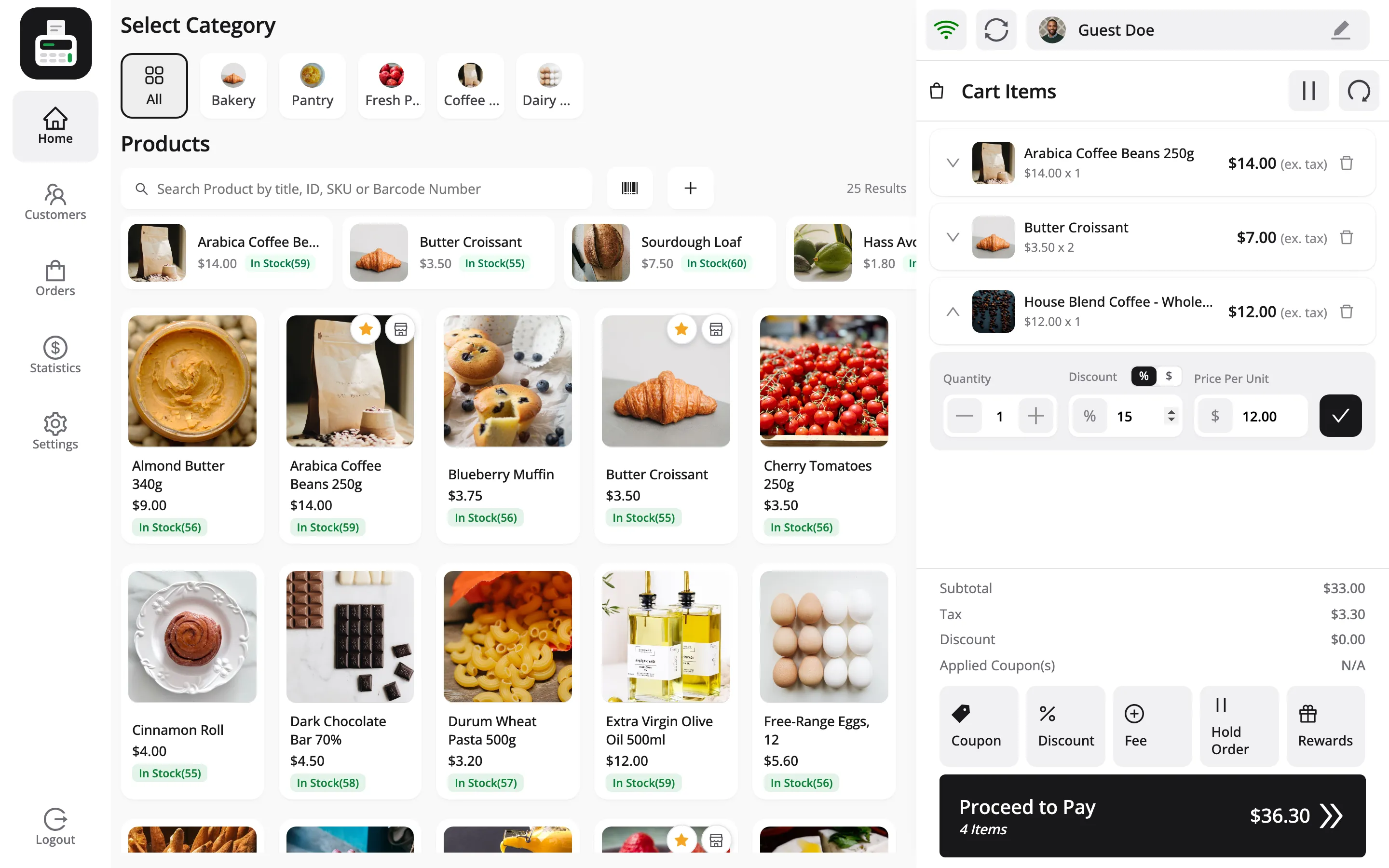
There is a second discount, inside a cart line rather than under the totals. Press the arrow at the left of a line to open it.
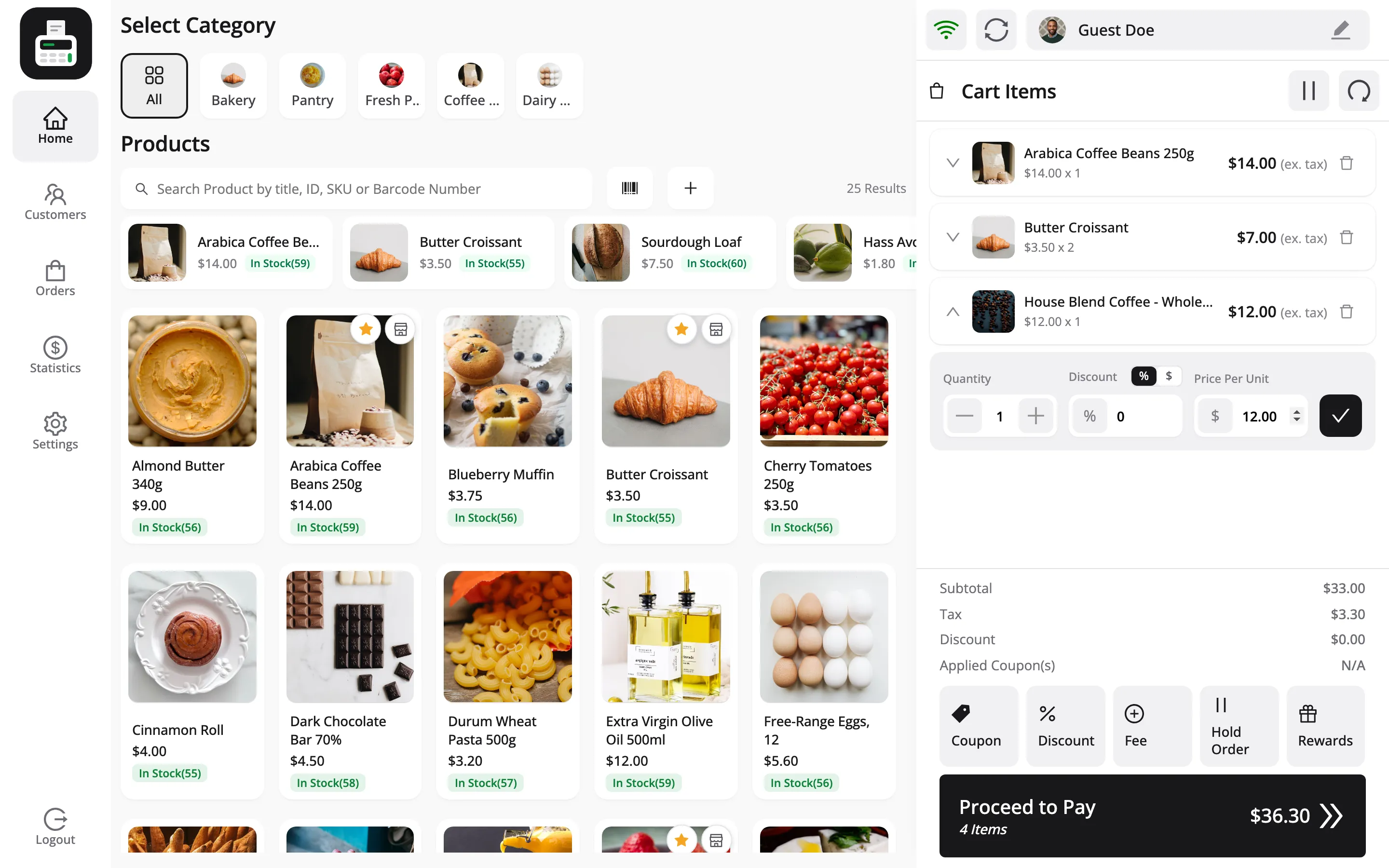
| Field | What it does |
|---|---|
| Quantity | How many, capped at what is in stock |
| Discount | Money off this line, with a toggle between % and your currency for a fixed amount |
| Price Per Unit | The unit price, typed over directly |
Choose % or the currency, type the figure and press the tick. The line shows the old price struck through, the new one in green, and a note such as 15% discount applied or Price changed.
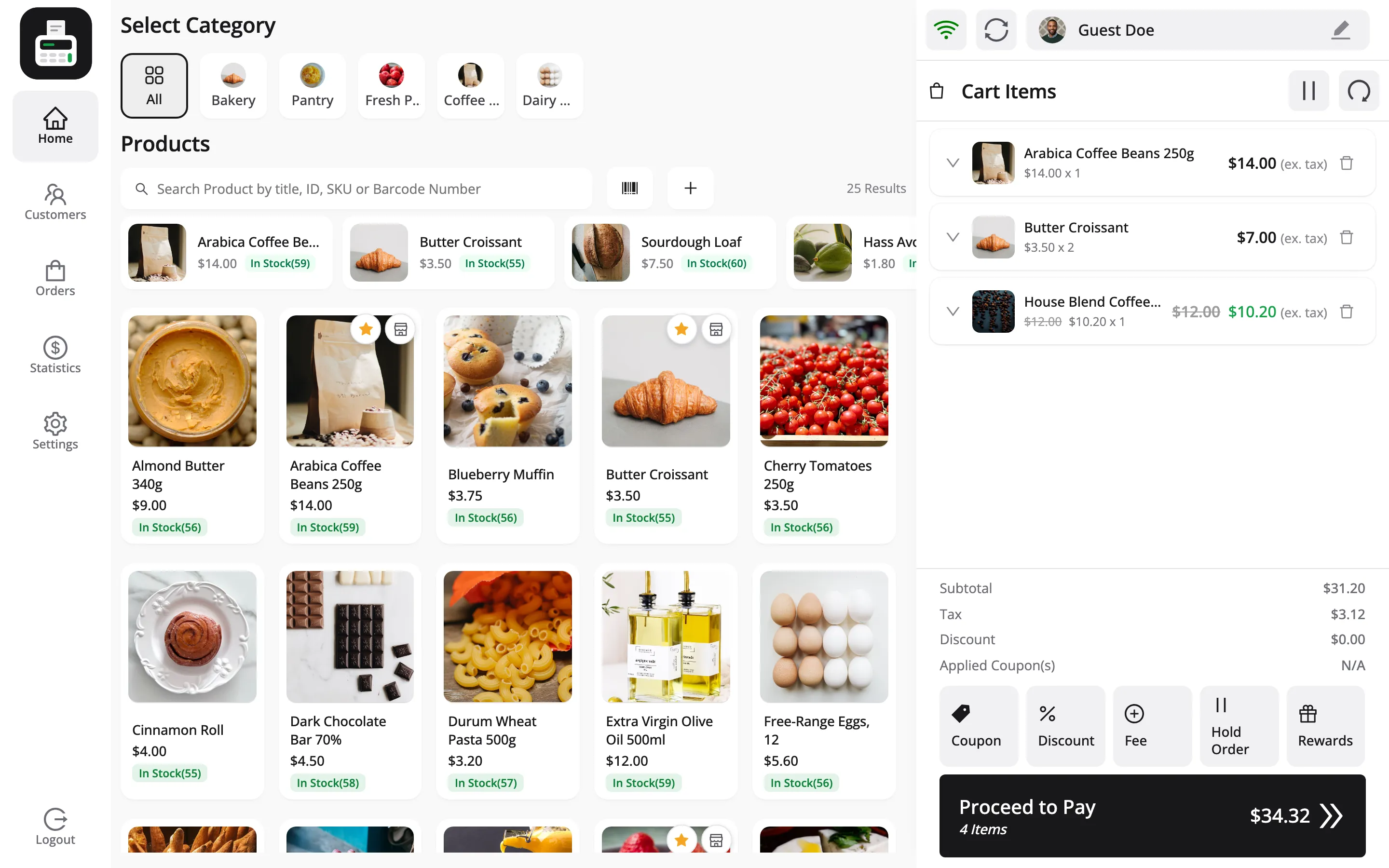
Two figures are refused: a fixed discount above the item price (The discount cannot be more than the item price.) and a percentage outside 0 to 100.
Use a line discount when the reason belongs to one item, like a damaged box. Use the cart Discount button when it belongs to the whole sale.
A discount can be stacked on a coupon
Section titled “A discount can be stacked on a coupon”Both can sit on one cart. The coupon shows on Applied Coupon(s), the discount on Discount, and Proceed to Pay is the subtotal less both.
Worth watching. A cashier who applies a code and then a goodwill discount has given away twice, and nothing on the screen warns about it. If that is a risk in your shop, teach staff to read the total back out loud.
Who can give one
Section titled “Who can give one”By default, any cashier can give any discount. In Pro you can put a ceiling on it under Configuration → Permissions:
- Maximum Discount: The highest percentage a cashier can give on a line or the whole cart.
- Price Changes: Whether a cashier may lower a price at all. A lowered price counts as a discount of the same percentage.
Above the limit, the POS asks for a manager’s PIN, naming the item and the cut. On the demo the cap is 10%, so a 15% line discount needs approval.
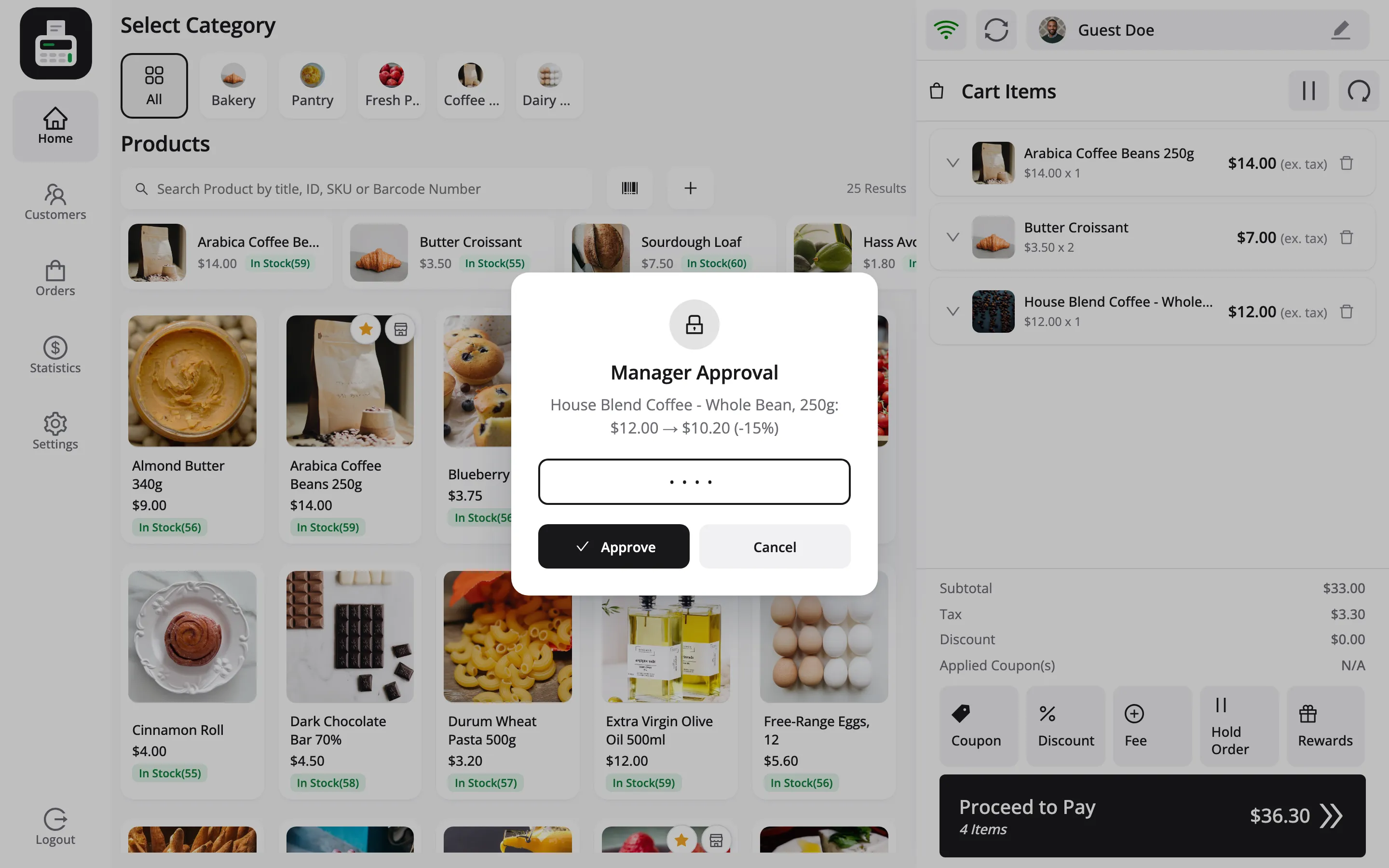
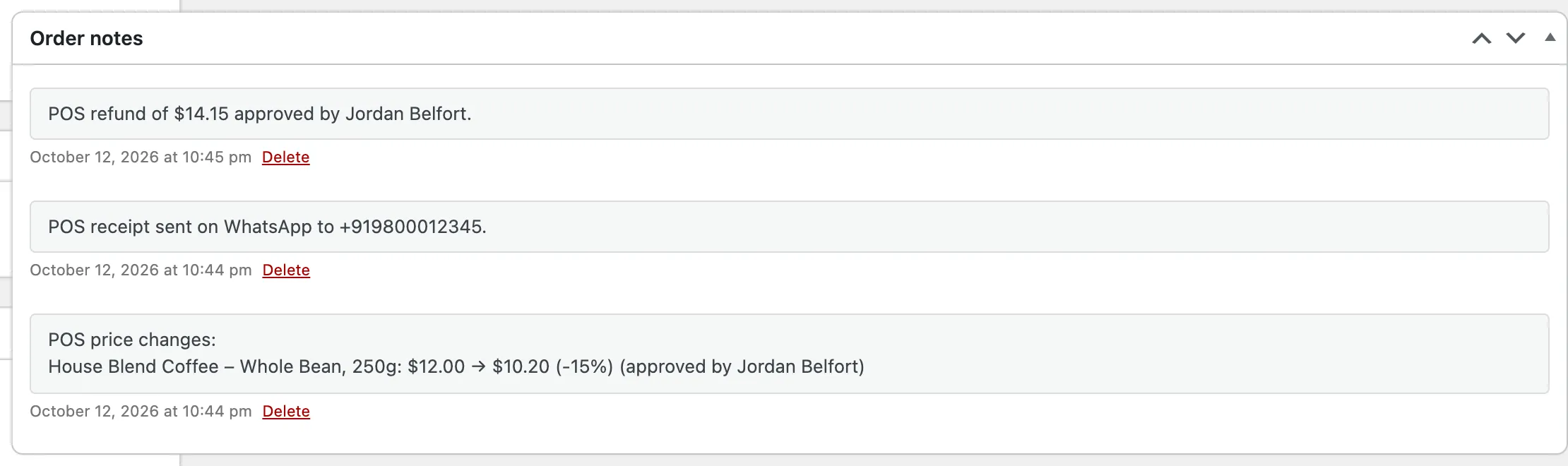
Every price cut and discount is written to the order note, with the approver’s name when a PIN was used. One above the limit that nobody approved, which can happen offline, is flagged. Tick Over cashier limits on the Orders screen to see those.