

Kitchen Display (Pro)
The Kitchen Display is a screen for the people cooking. Orders arrive on it as cards, the kitchen works through them, and each one is cleared with a single button.
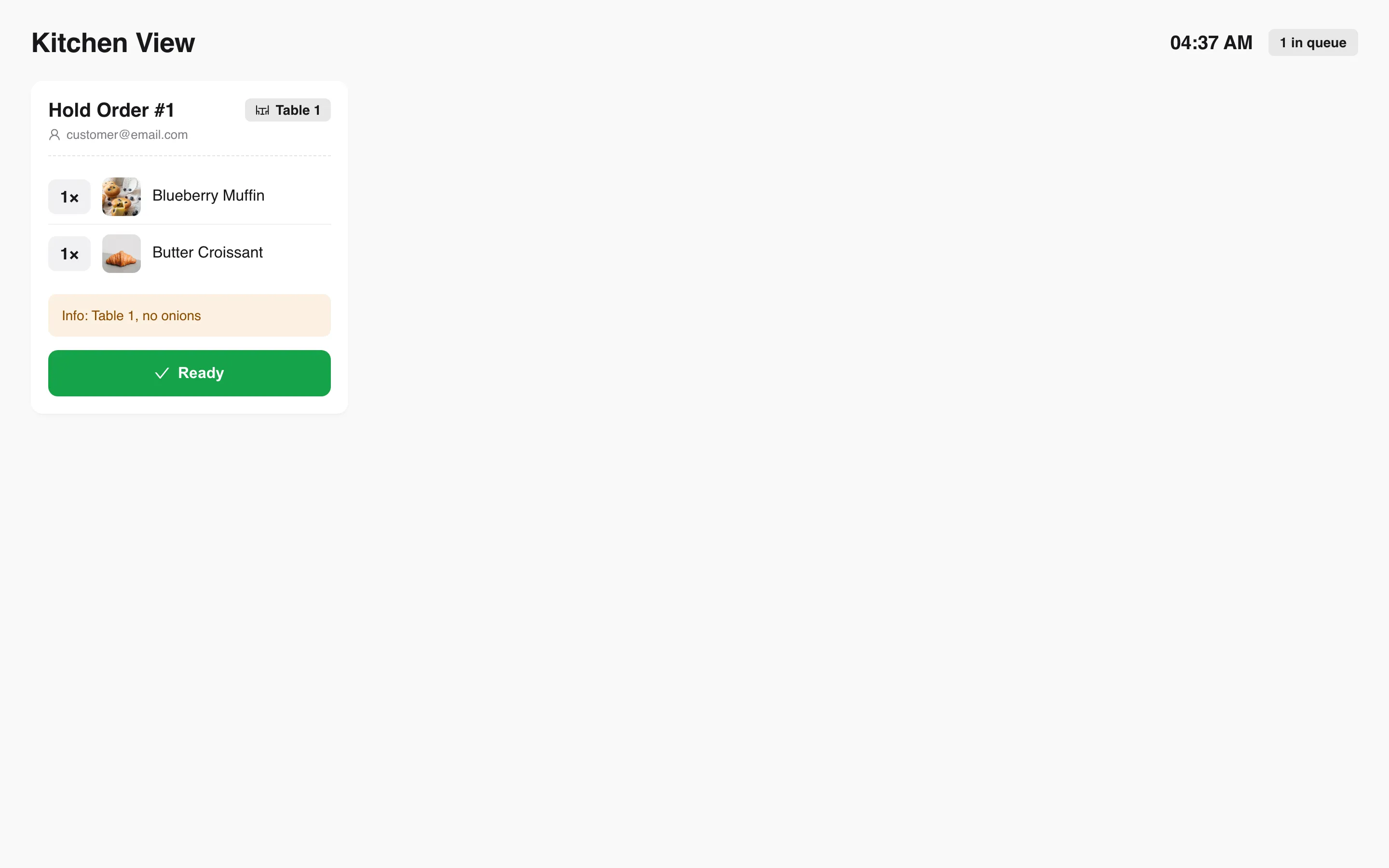
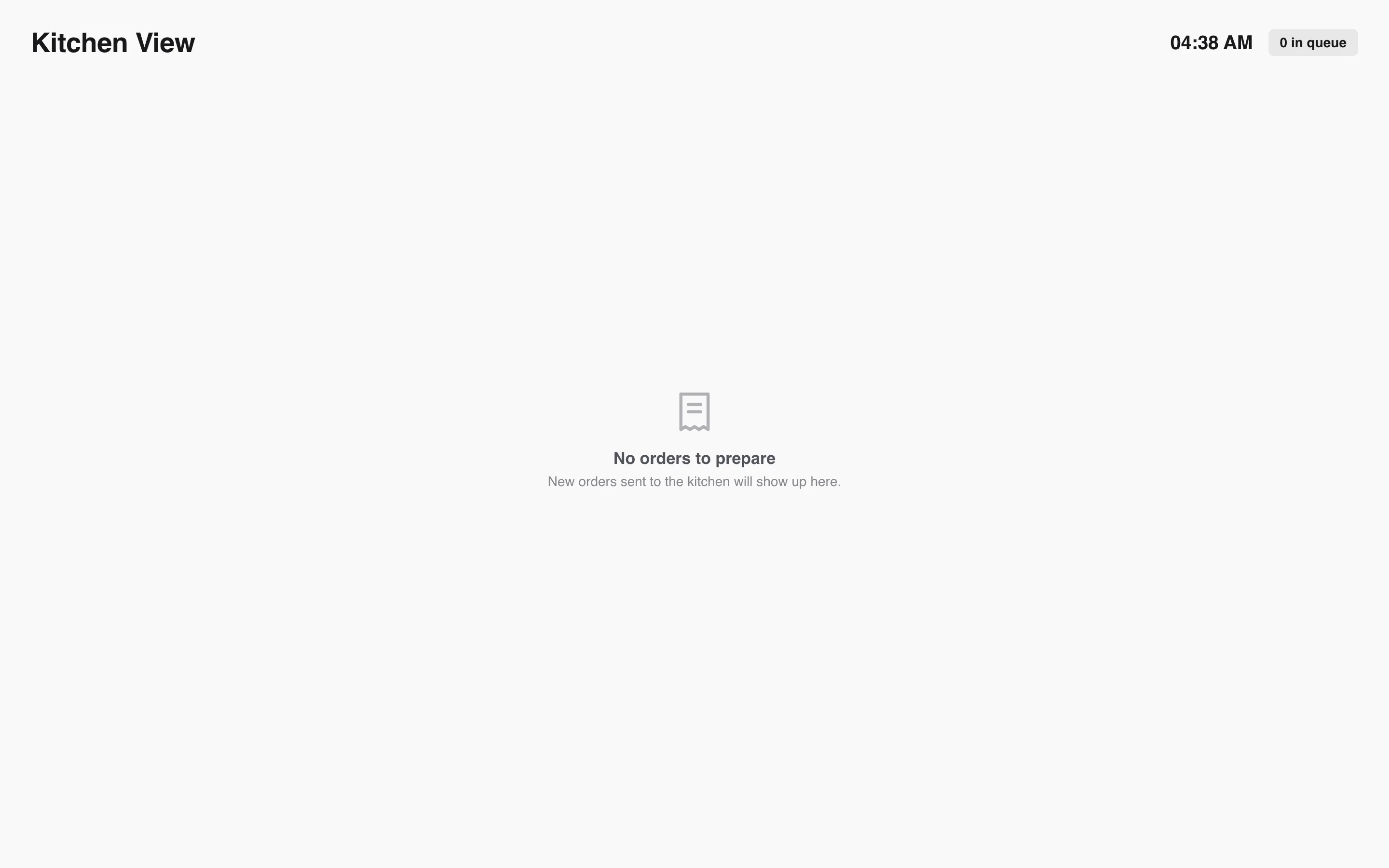
The header carries a clock and a count, such as 1 in queue, so a cook sees the backlog without counting cards. With nothing waiting the screen reads No orders to prepare.
Open the screen
Section titled “Open the screen”Two ways in.
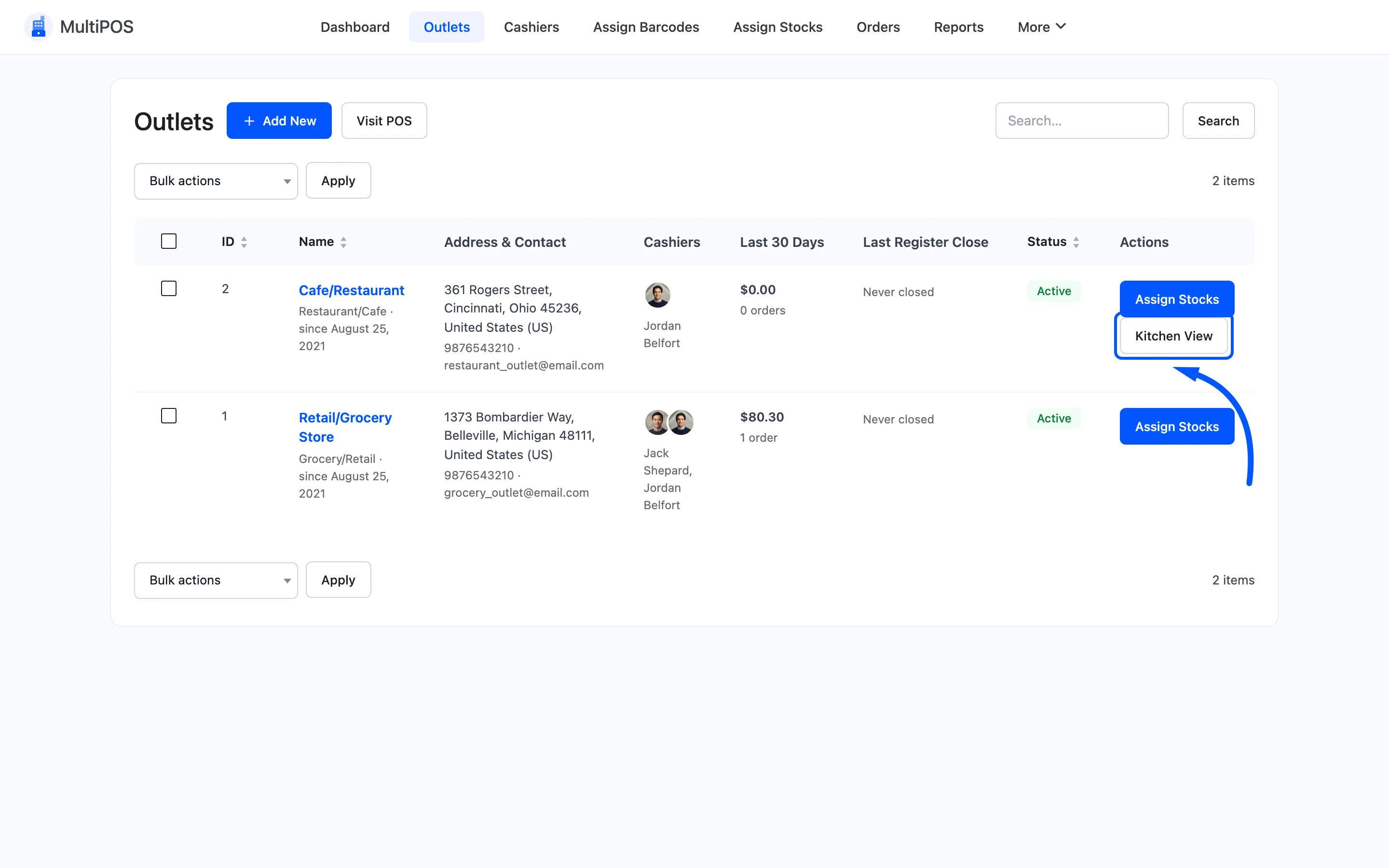
From the admin, go to DevDiggers Plugins → MultiPOS → Outlet and press Kitchen View on the outlet’s row.
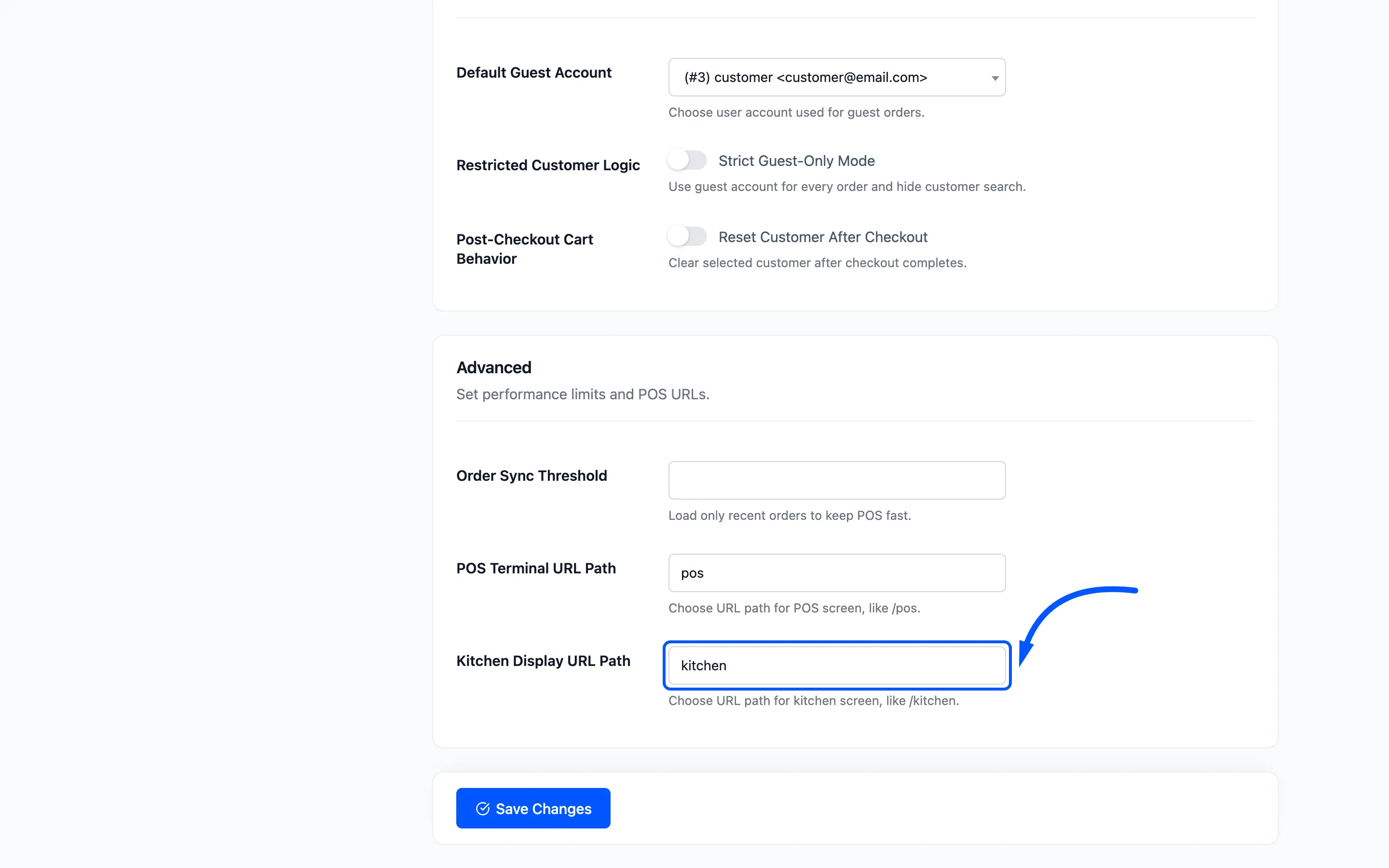
Or open the URL directly. It is yoursite.com/kitchen?outlet_id=<id>, where the path comes from
Kitchen Display URL Path under
Configuration → General.
The outlet_id is not optional. Each outlet keeps its own kitchen queue, so a kitchen only ever
sees its own orders and no branch can plate another branch’s tickets.
The button appears only on an outlet whose Operation Mode is Restaurant/Cafe. A Retail/Grocery row has no kitchen.
Leave it open on a screen in the kitchen
Section titled “Leave it open on a screen in the kitchen”That is what it is for. The page polls every two seconds and adds new cards on its own, so nobody has to refresh it. A notice reads New order arrived to prepare when one lands, which is the cue to look up.
What puts an order on it
Section titled “What puts an order on it”Two routes, and both are in the terminal rather than here.
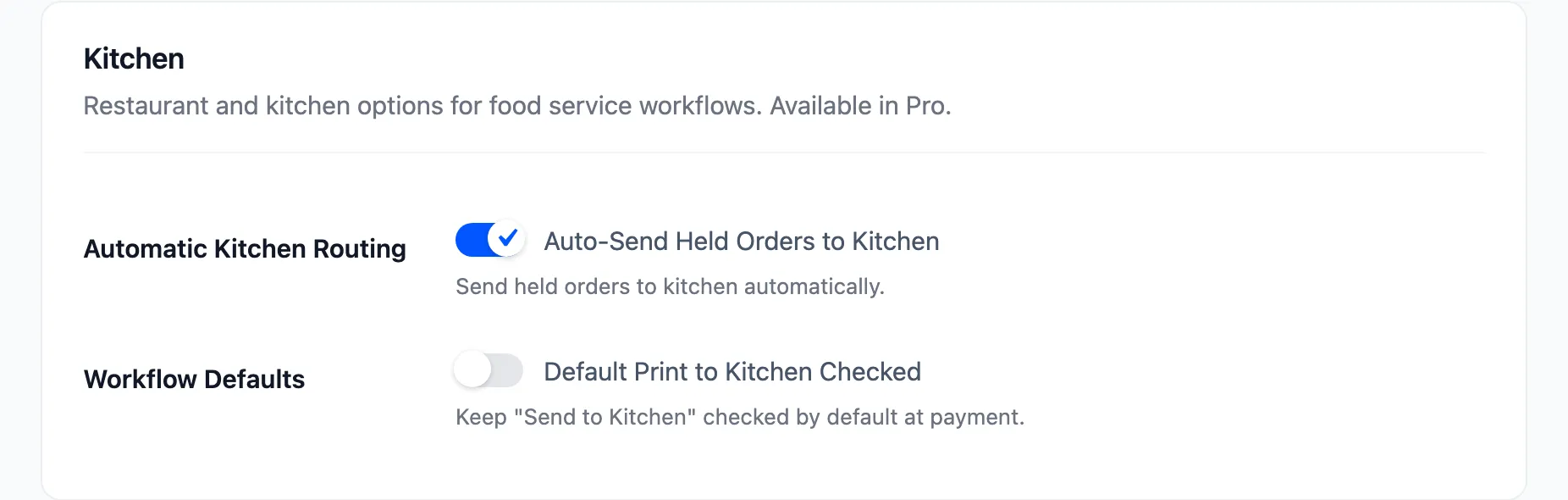
- Holding a cart in restaurant mode, with Auto-Send Held Orders to Kitchen turned on. The kitchen gets the ticket the moment the order is taken, before anyone pays.
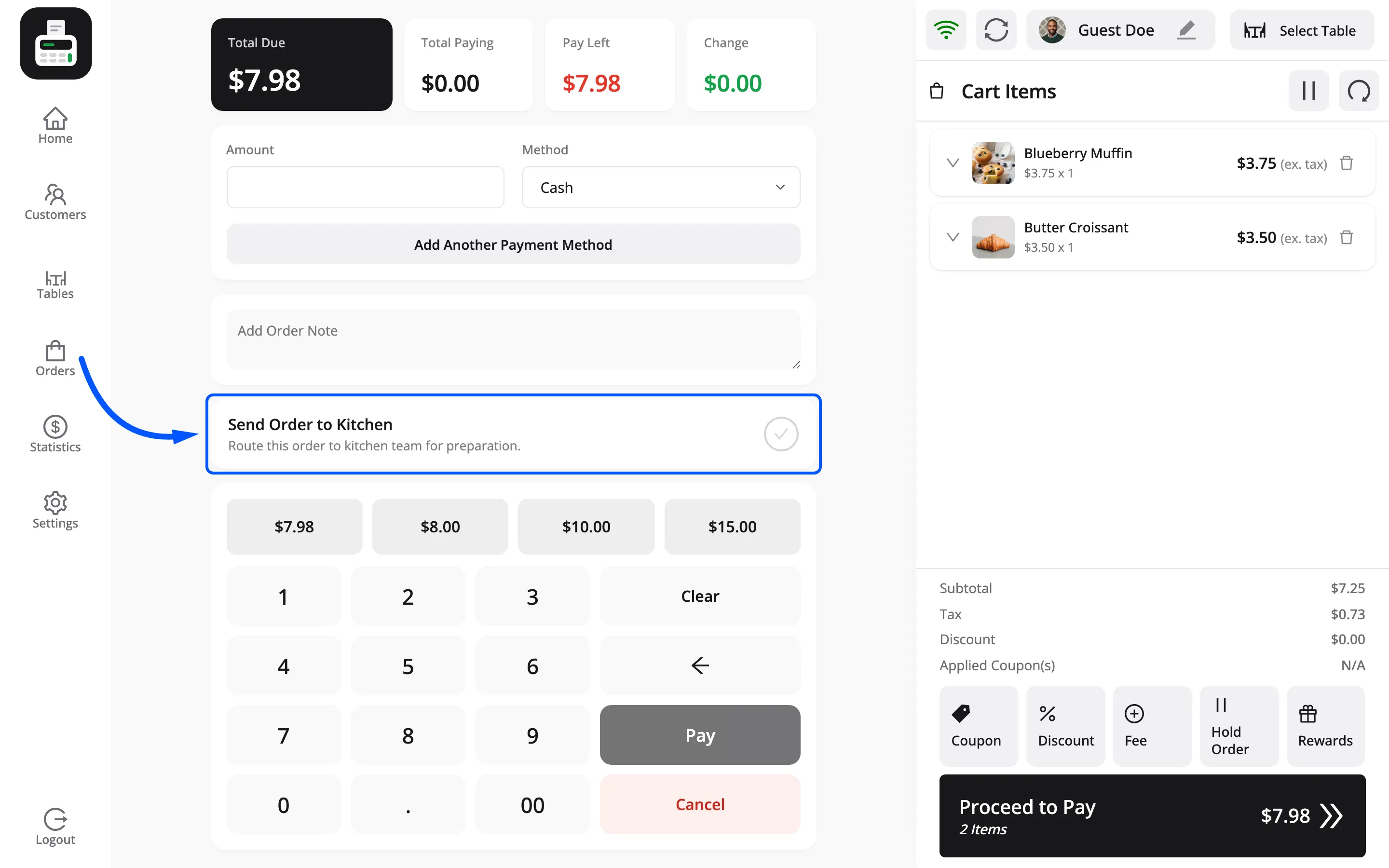
- Ticking Send Order to Kitchen at payment. The card appears on the payment screen in restaurant mode, above the keypad.
Both switches live under Configuration → General → Kitchen.
Nothing else routes an order here. A retail sale, a website order and an unheld cart all stay off this screen. That is the point: the kitchen sees food to cook and nothing else.
What a card shows
Section titled “What a card shows”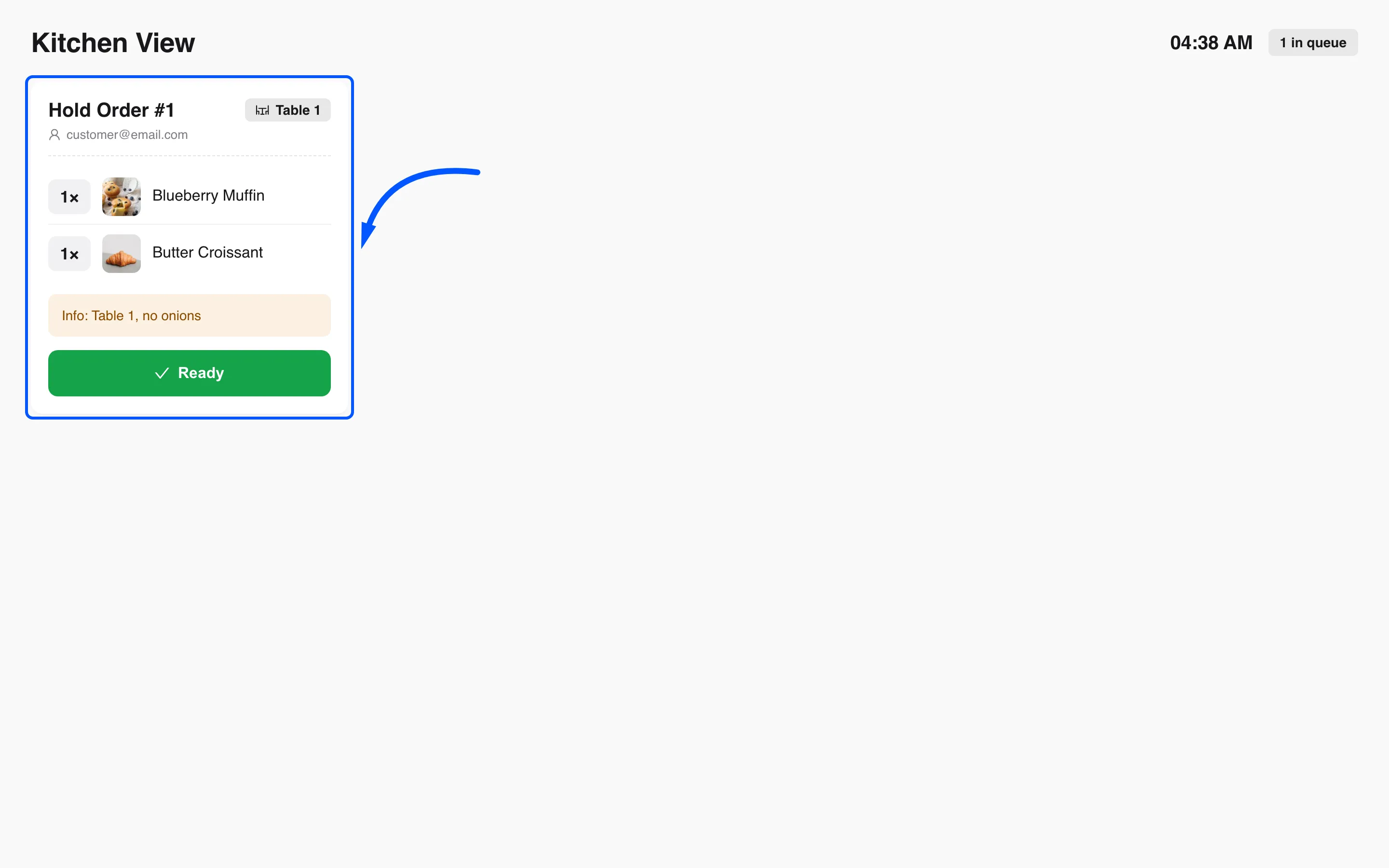
| Part | What it is |
|---|---|
| Title | Order #123 for a paid order, Hold Order #1 for a held cart |
| Table | The table name, when the order has one |
| Customer | The customer’s email address |
| Items | Each line with its picture, name and quantity |
| Info | Whatever the cashier typed when holding the order |
| Ready | Clears the card |
The pictures are the product images from WooCommerce. They earn their place on a kitchen screen, where someone is reading at arm’s length across a hot pass.
Info is the free-text label from the hold box, so it is worth telling cashiers what to put there.
no onions, table by the window is a kitchen instruction. Cart 4 is not.
Ready removes the card.
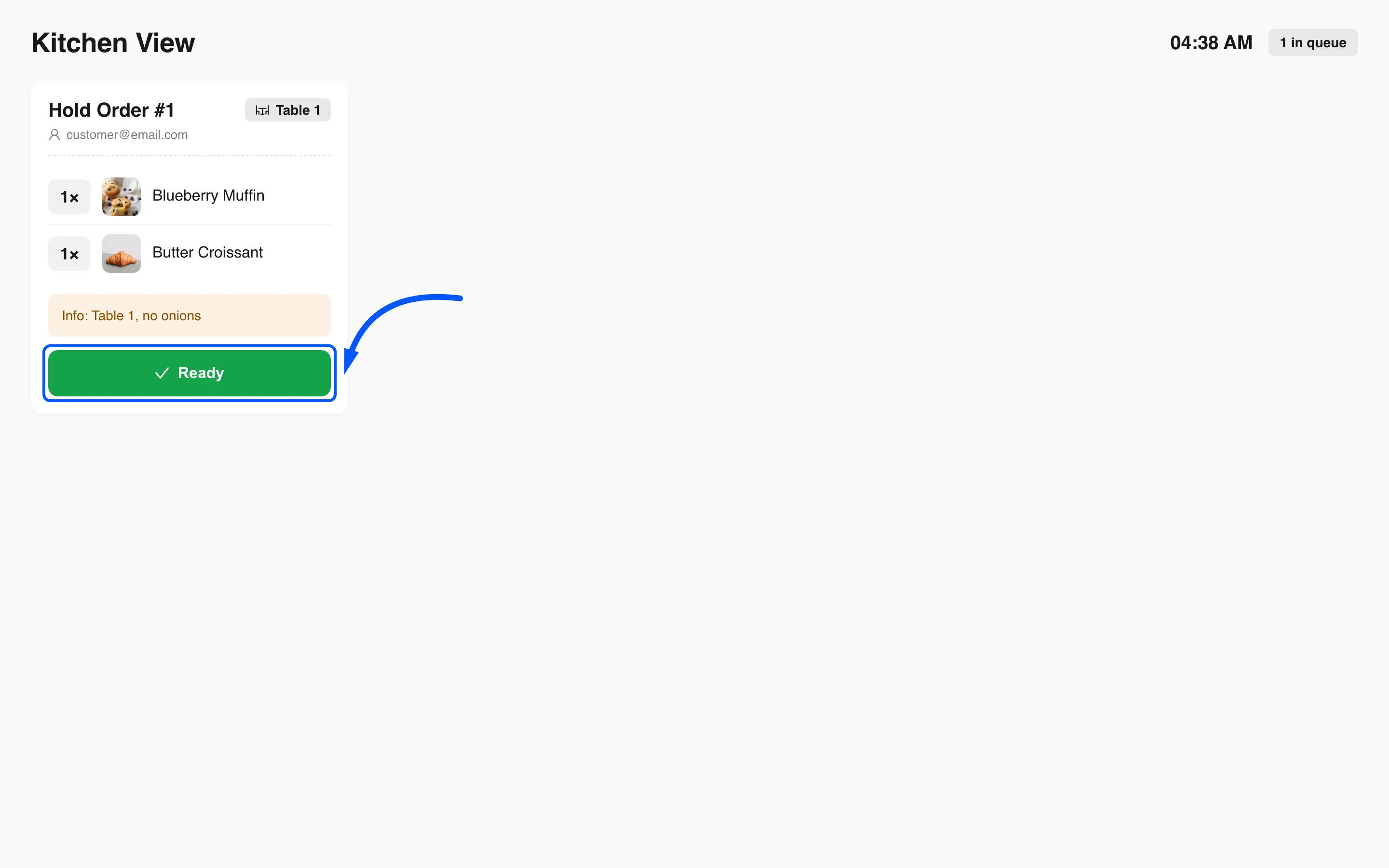
The browser confirms first, because there is no undo:
Are you sure to remove this order from kitchen?
That is a plain browser box rather than a MultiPOS one, so it looks different in each browser. Accept it and the card goes, with a Order is successfully removed from kitchen. message.
Press Ready with the kitchen device offline and it refuses: Cannot make request, check your internet connection!
Press it when the food goes out, not when it starts. The screen is a queue of outstanding work, and a card cleared early is an order nobody is watching.
Clearing a card removes it from the kitchen queue only. The WooCommerce order is untouched, and so is the held cart in the terminal.
Who can see it
Section titled “Who can see it”The page itself is not behind a login, but the data is. The order list comes from the plugin’s own REST route. That route answers only a signed-in POS Cashier, Shop manager or Administrator.
So a logged-out screen shows the Kitchen View heading and You do not have any orders!! forever, however many tickets are really waiting. Sign the kitchen terminal in once with a cashier account and leave it that way.
Where to go next
Section titled “Where to go next”- How to Run a Restaurant with Tables
- How to Hold and Resume an Order
- General Settings for the two Kitchen switches and the URL path.