

Login Screen
The POS login screen is not wp-login.php. It is a separate screen with its own wording and its own
colours, which is why it gets a settings tab of its own.
Every field here is in the free version.
Open the tab
Section titled “Open the tab”Go to DevDiggers Plugins → MultiPOS → Configuration → Login.
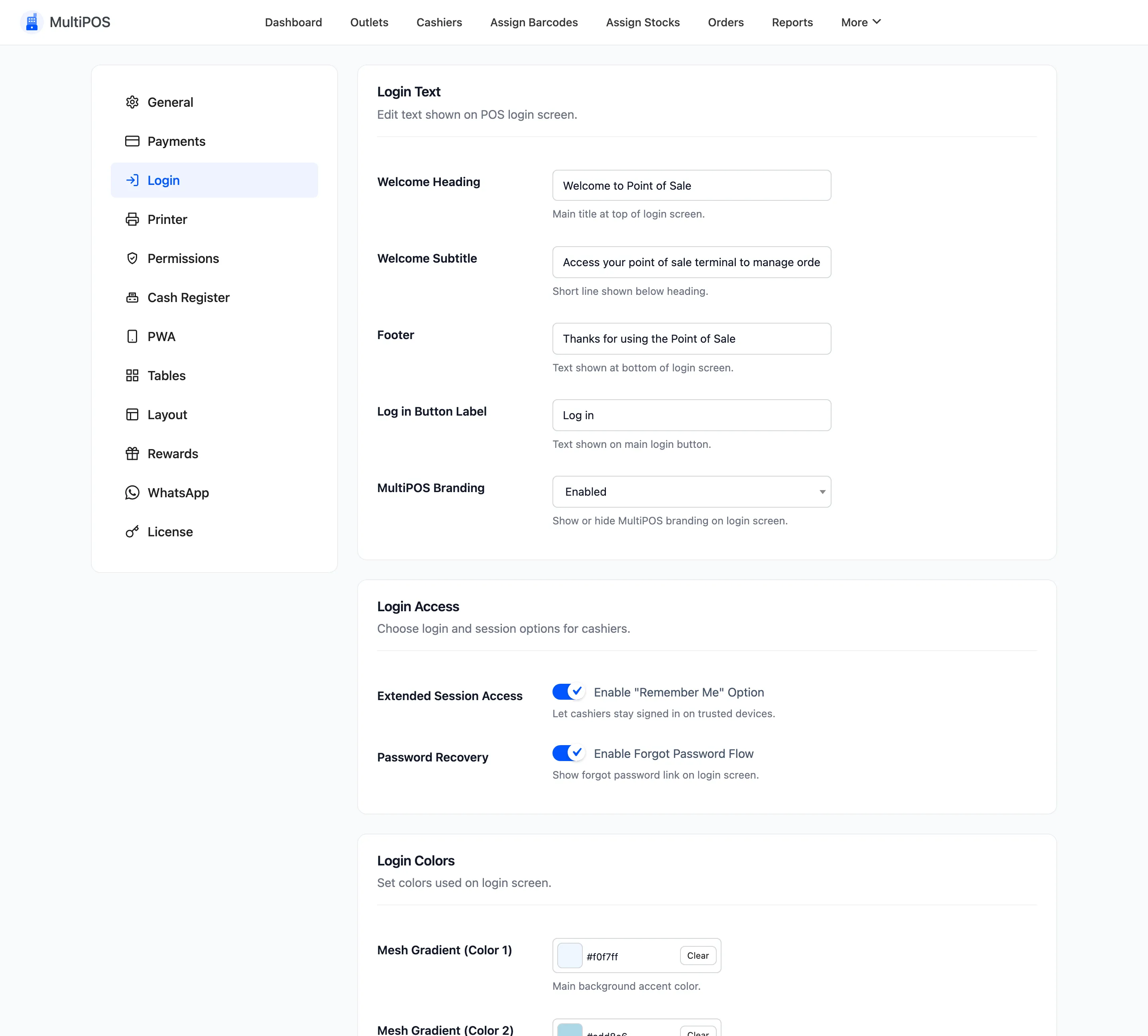
This is what it controls:
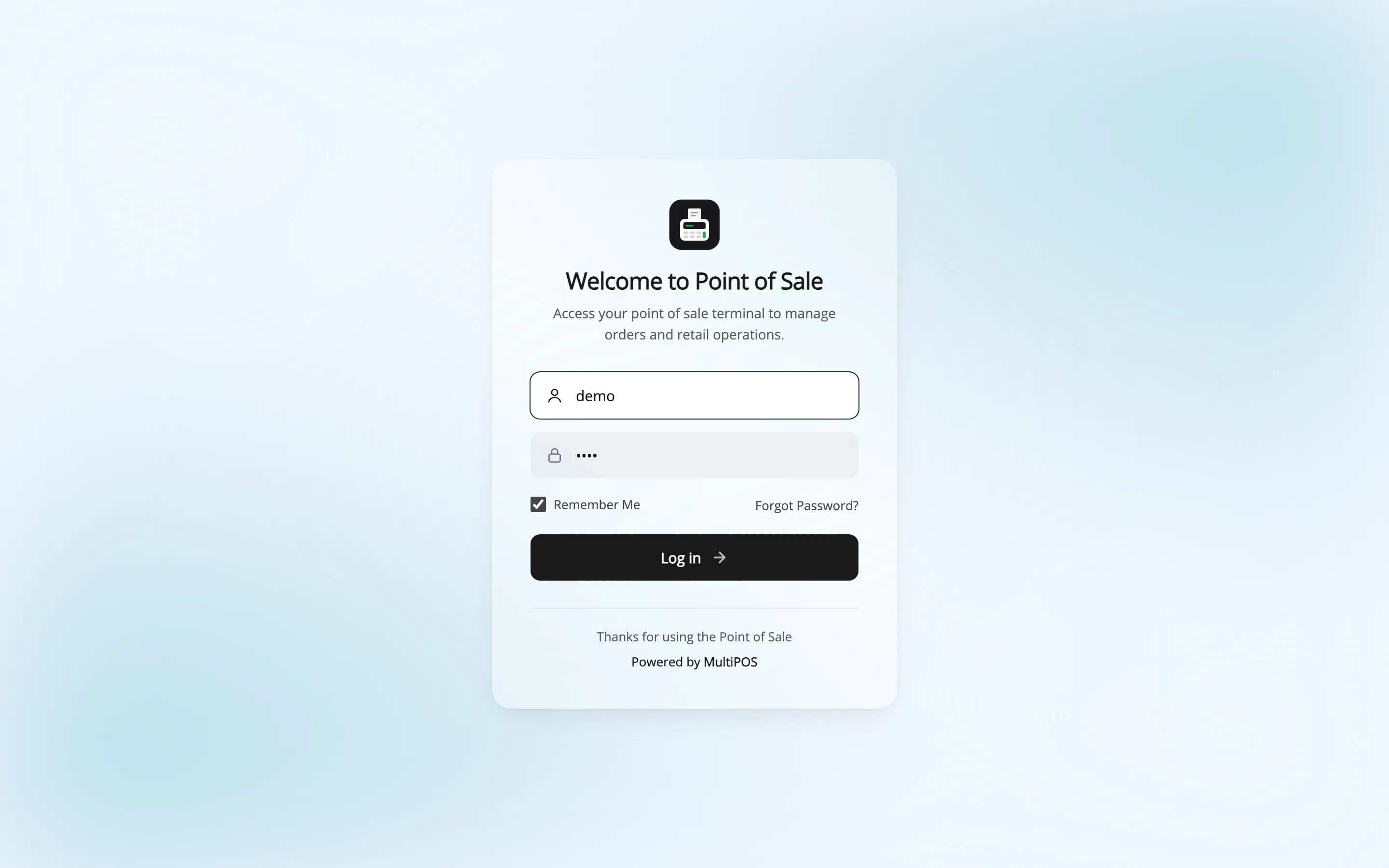
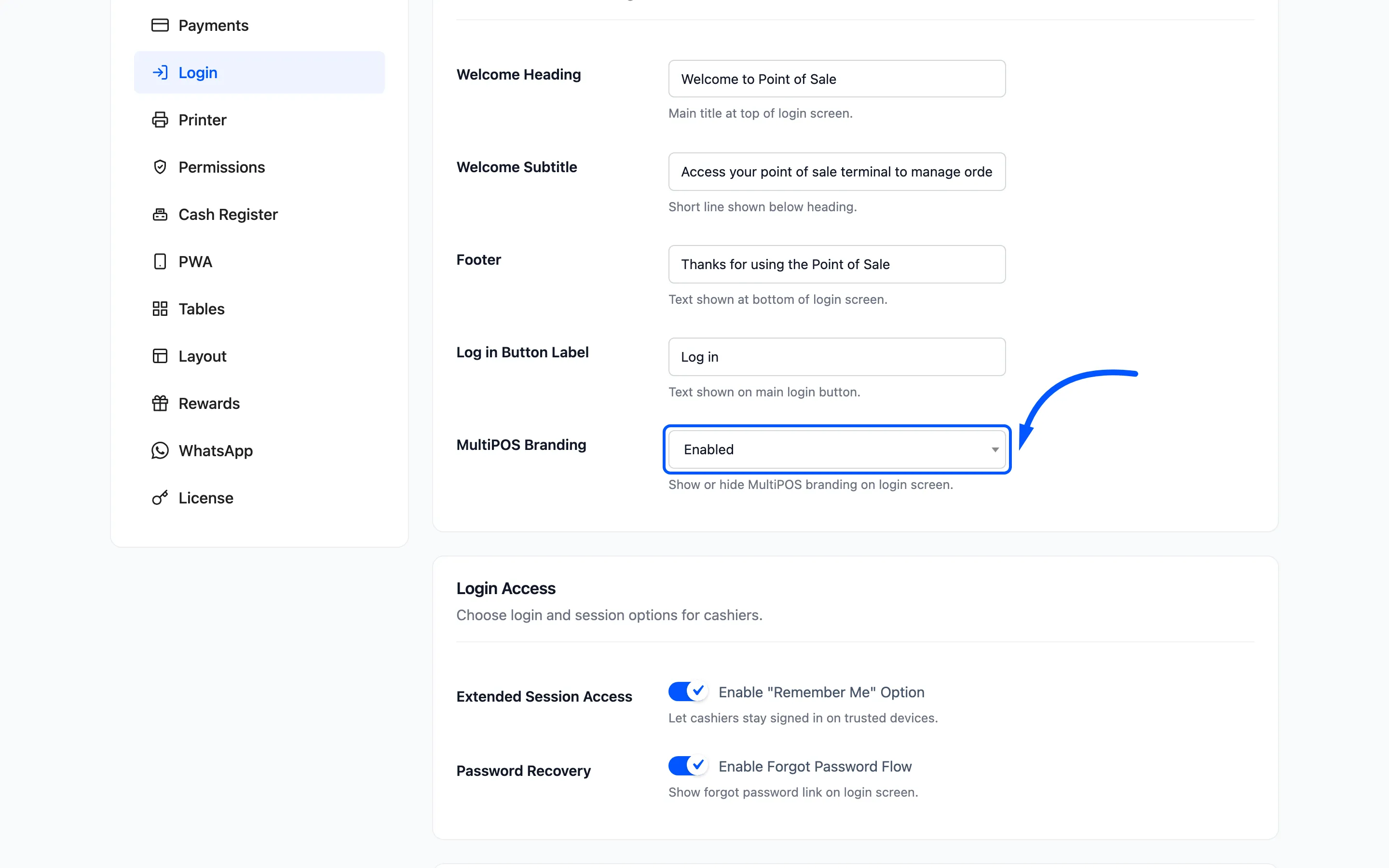
Login Text
Section titled “Login Text”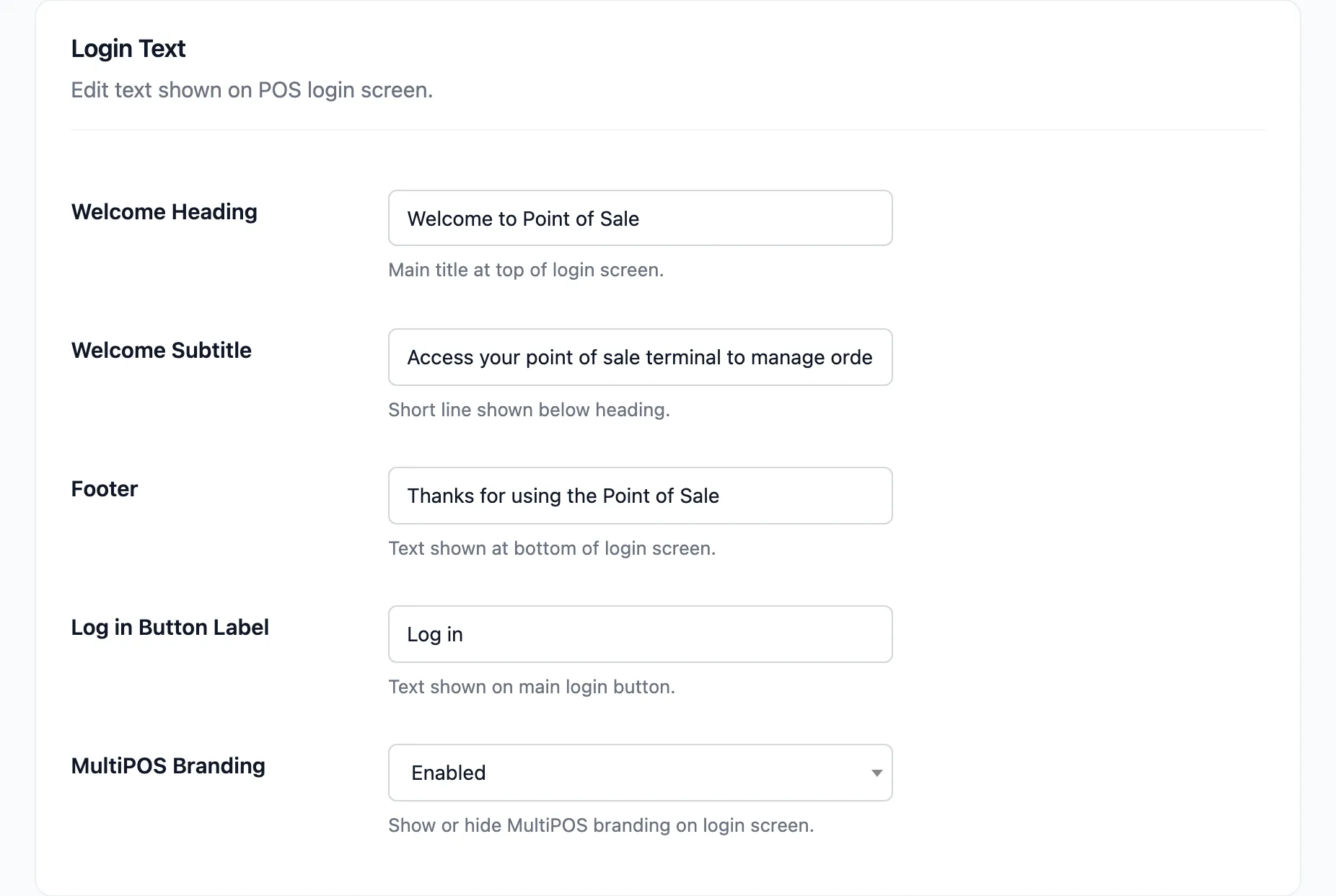
Four strings and a branding switch.
| Field | Default |
|---|---|
| Welcome Heading | Welcome to Point of Sale |
| Welcome Subtitle | Access your point of sale terminal to manage orders and retail operations. |
| Footer | Thanks for using the Point of Sale |
| Log in Button Label | Log in |
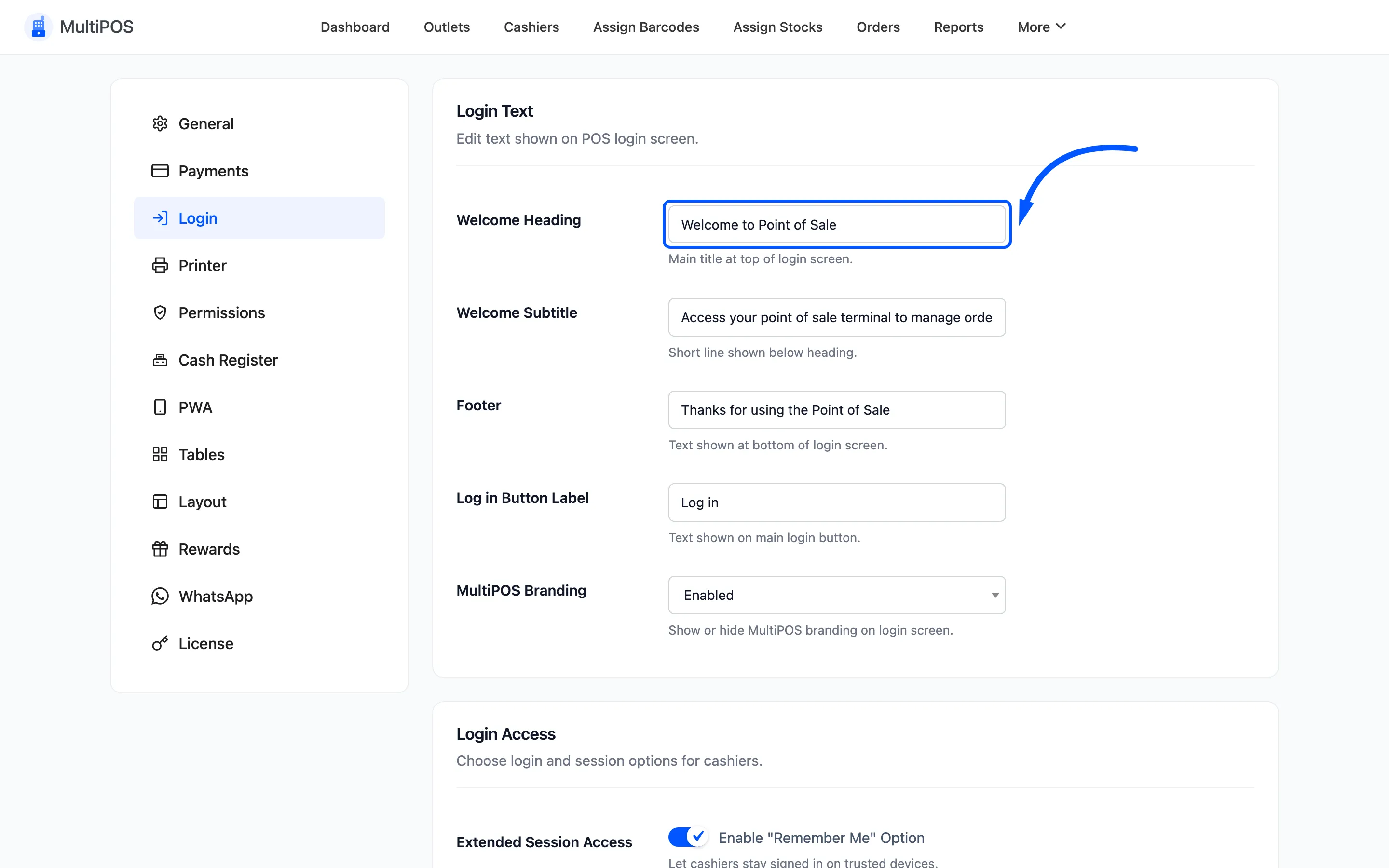
Put your shop’s name in the heading. A cashier who works two jobs on two systems should be able to tell at a glance which terminal they have open.
MultiPOS Branding shows a “Powered by MultiPOS” link in the footer. It is on out of the box. Turn it off for a screen with nothing on it but your own name.
Login Access
Section titled “Login Access”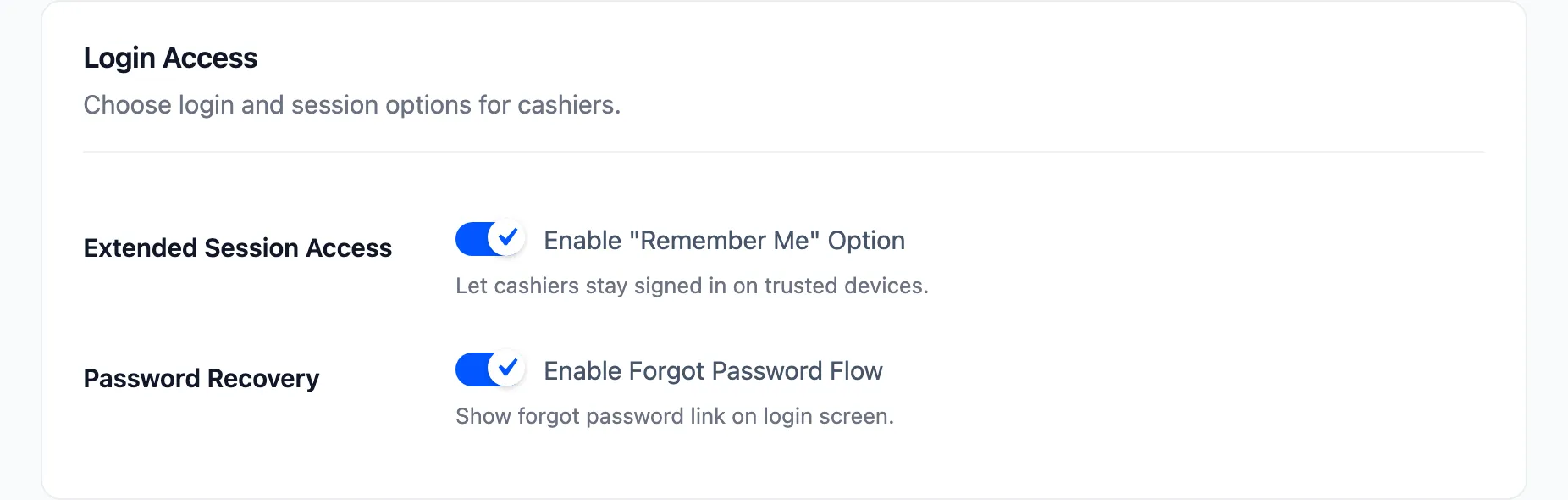
Enable “Remember Me” Option lets a cashier stay signed in on that device. Off by default.
Turn it on for a fixed terminal in a locked shop. Leave it off for a shared tablet, or for anything that leaves the building.
Enable Forgot Password Flow shows a forgot-password link. Off by default.
Off means a cashier who forgets their password asks you. On means they can reset it from the shop floor without waiting. Which you want depends on how quickly you answer the phone.
Login Colors
Section titled “Login Colors”Five colours, all with sensible defaults.
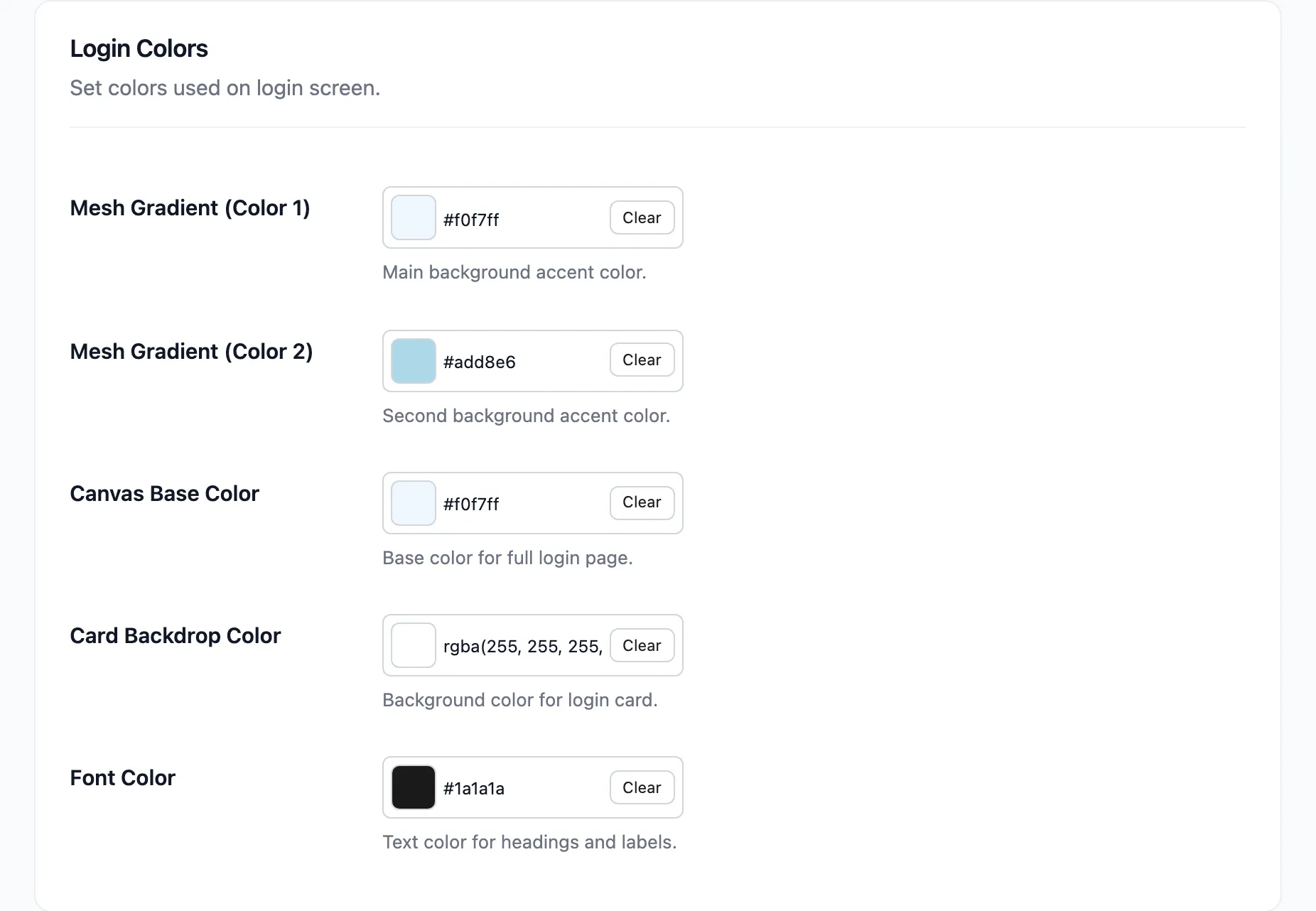
| Field | Default | What it paints |
|---|---|---|
| Mesh Gradient (Color 1) | #f0f7ff |
The main background accent |
| Mesh Gradient (Color 2) | #add8e6 |
The second background accent |
| Canvas Base Color | #f0f7ff |
The base colour of the whole page |
| Card Backdrop Color | rgba(255, 255, 255, 0.4) |
The login card itself |
| Font Color | #1a1a1a |
Headings and labels |
The two mesh colours blend into the soft gradient behind the card. Pick two shades from the same family. Two unrelated colours turn the background into a smear.
Card Backdrop Color takes an rgba value, and the default is deliberately translucent so the gradient shows through. Set it to a solid colour if you want a flat card.
Keep Font Color dark against a pale canvas. This is a screen staff read in a hurry, sometimes in bad light.
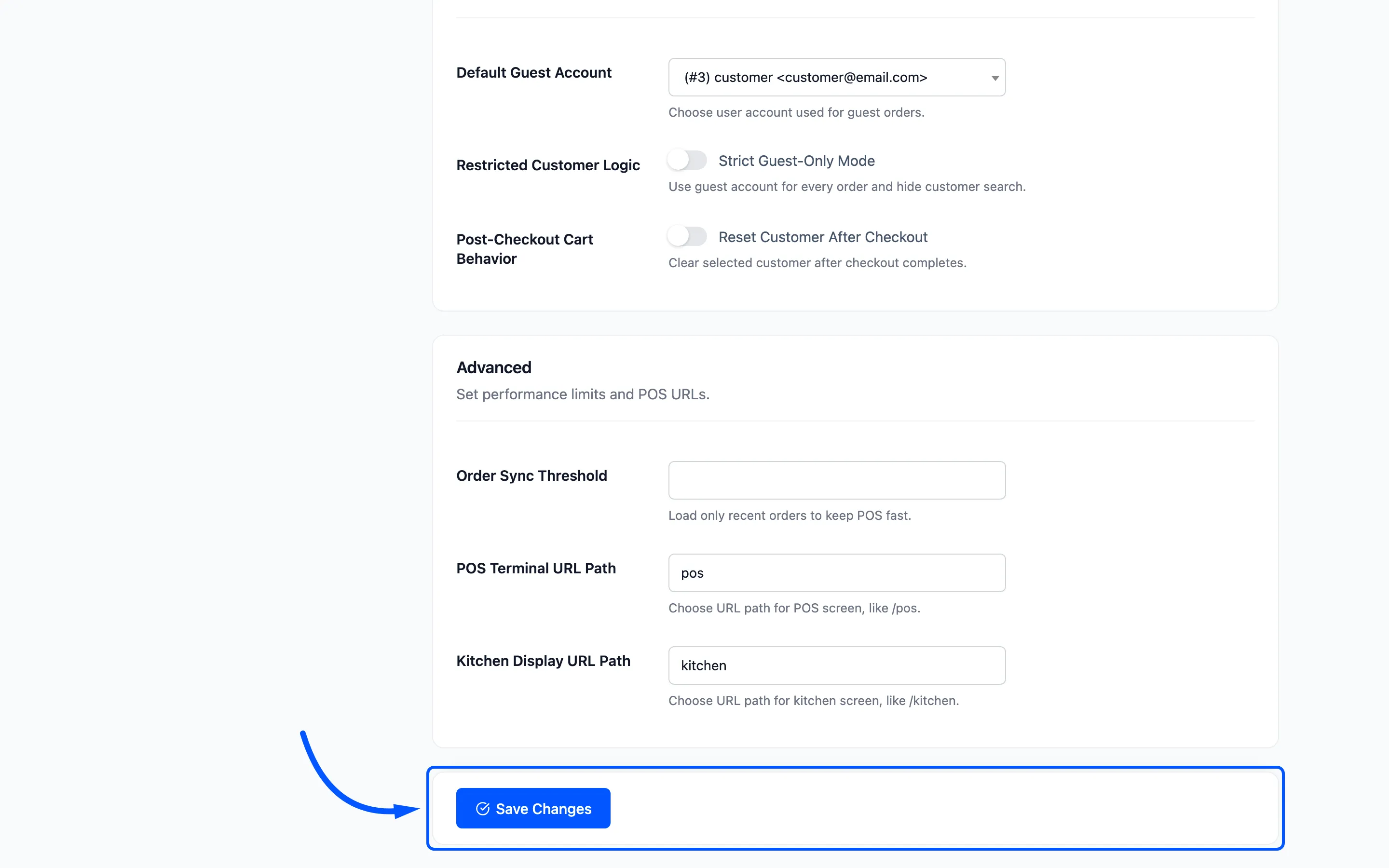
Click Save Changes. Reload the terminal in a private window to see the result without your admin session redirecting you.
Where to go next
Section titled “Where to go next”- Layout Settings for the colours inside the terminal.
- How to Brand the POS Terminal to do the login screen and the terminal together.
- Roles and POS Access for who gets past this screen.