How to Close the Cash Drawer
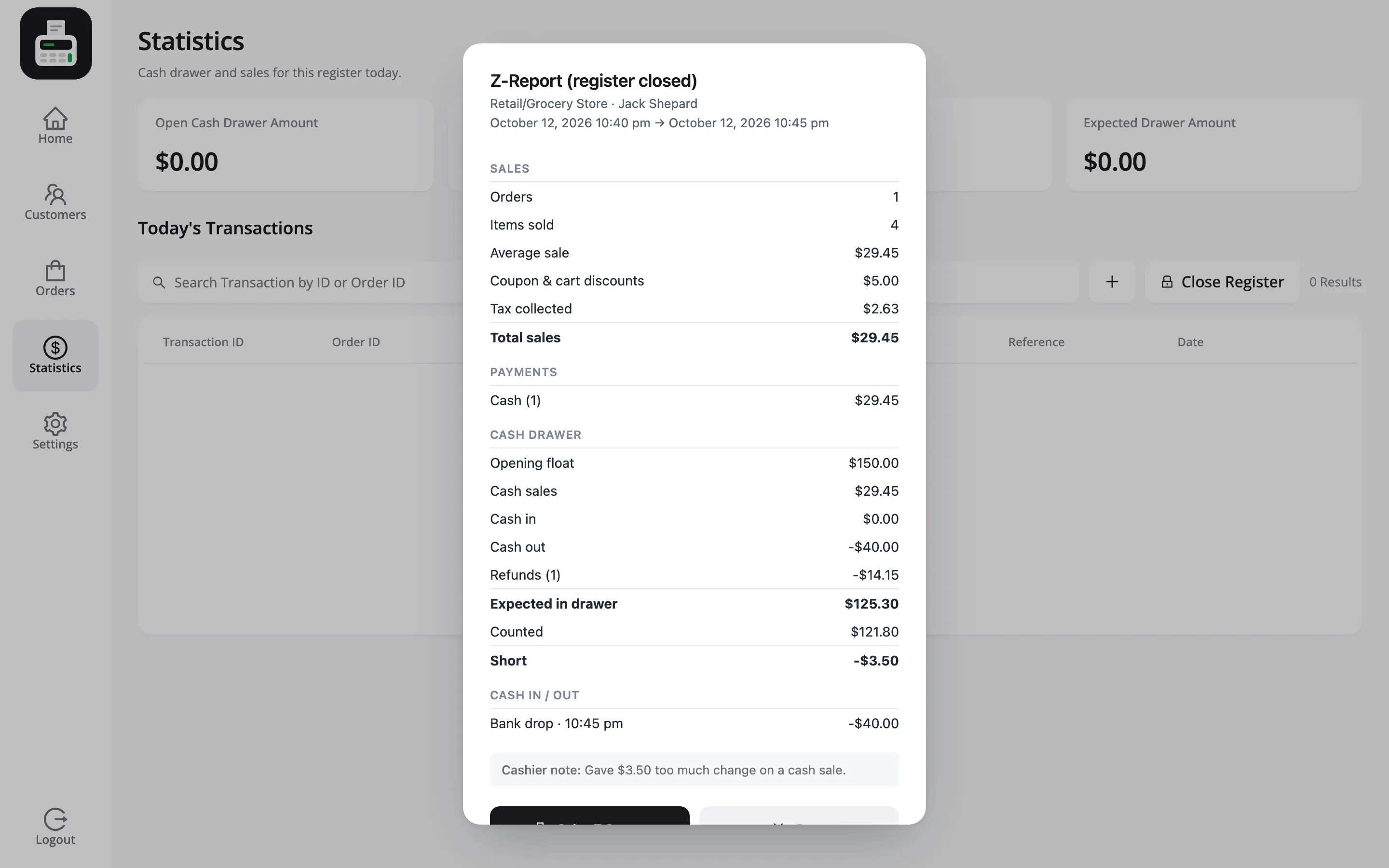
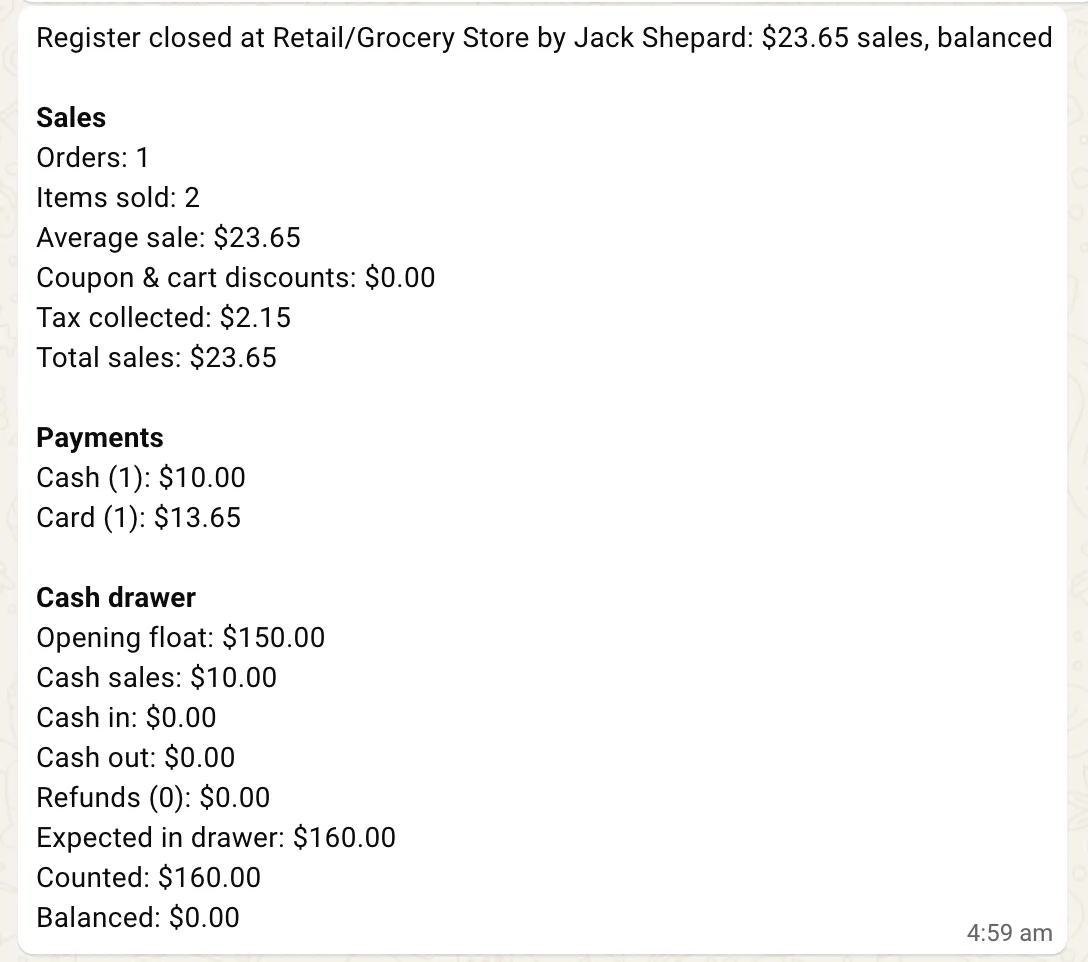
Closing the drawer is a count and a comparison. MultiPOS gives you the expected figure on the terminal and the full record in the admin, which is everything you need to find a difference.
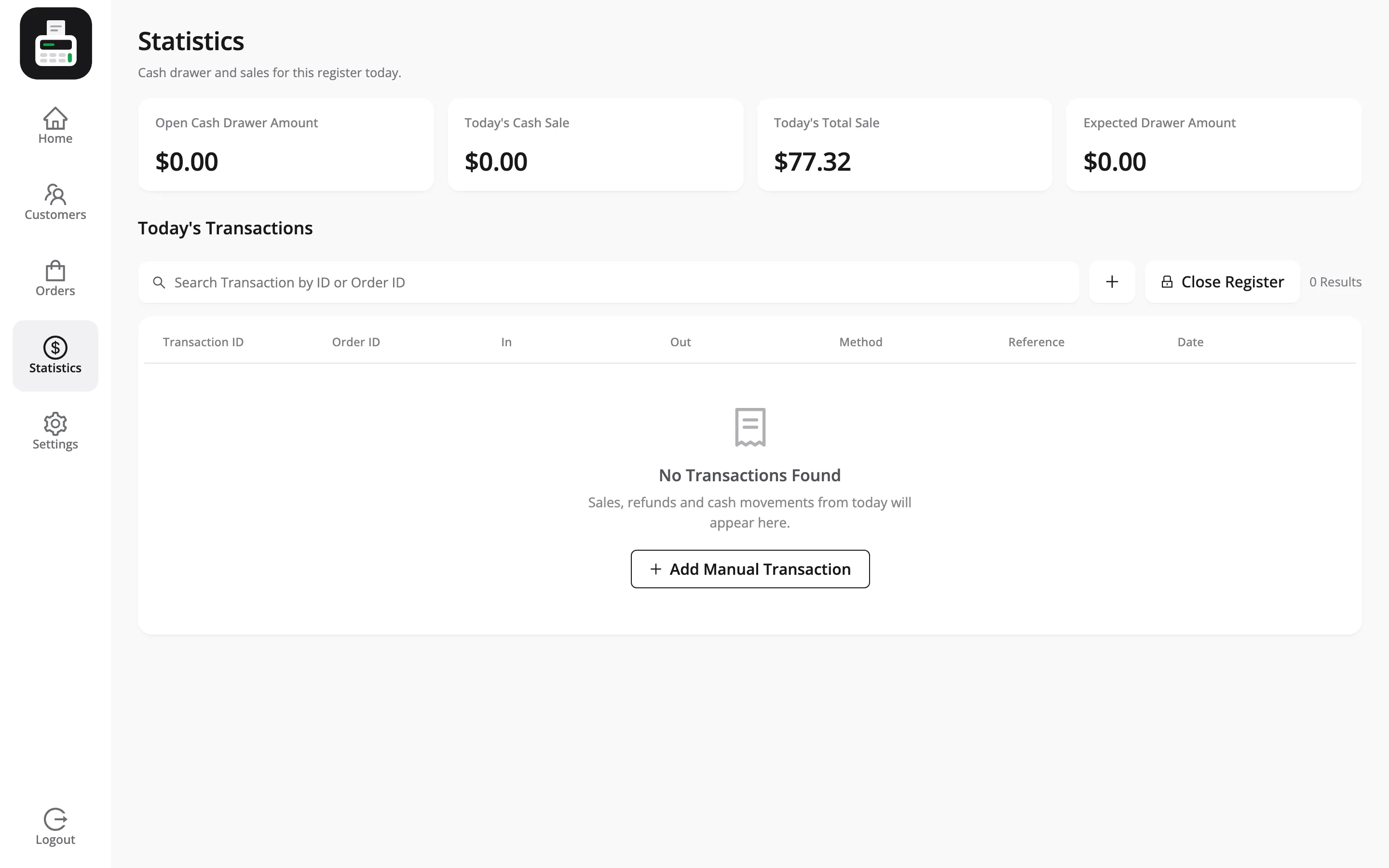
Step 1: Open the Statistics screen
Section titled “Step 1: Open the Statistics screen”In the terminal, click Statistics in the sidebar.

This is the cashier’s screen, and it covers today only.
Step 2: Read the three figures
Section titled “Step 2: Read the three figures”- Today’s Cash Sale is what came in as cash.
- Today’s Total Sale is everything, all payment methods.
- Expected Drawer Amount is what should physically be in the cash drawer.

Card payments are in Today’s Total Sale but not in the drawer, which is exactly why the two figures are separate.
Expected Drawer Amount adds up four things, and knowing which four is what makes the rest of this article usable:
- The opening amount, if one was recorded.
- Cash sales in, less the change given out.
- Cash refunds out.
- Manual transactions, in and out.
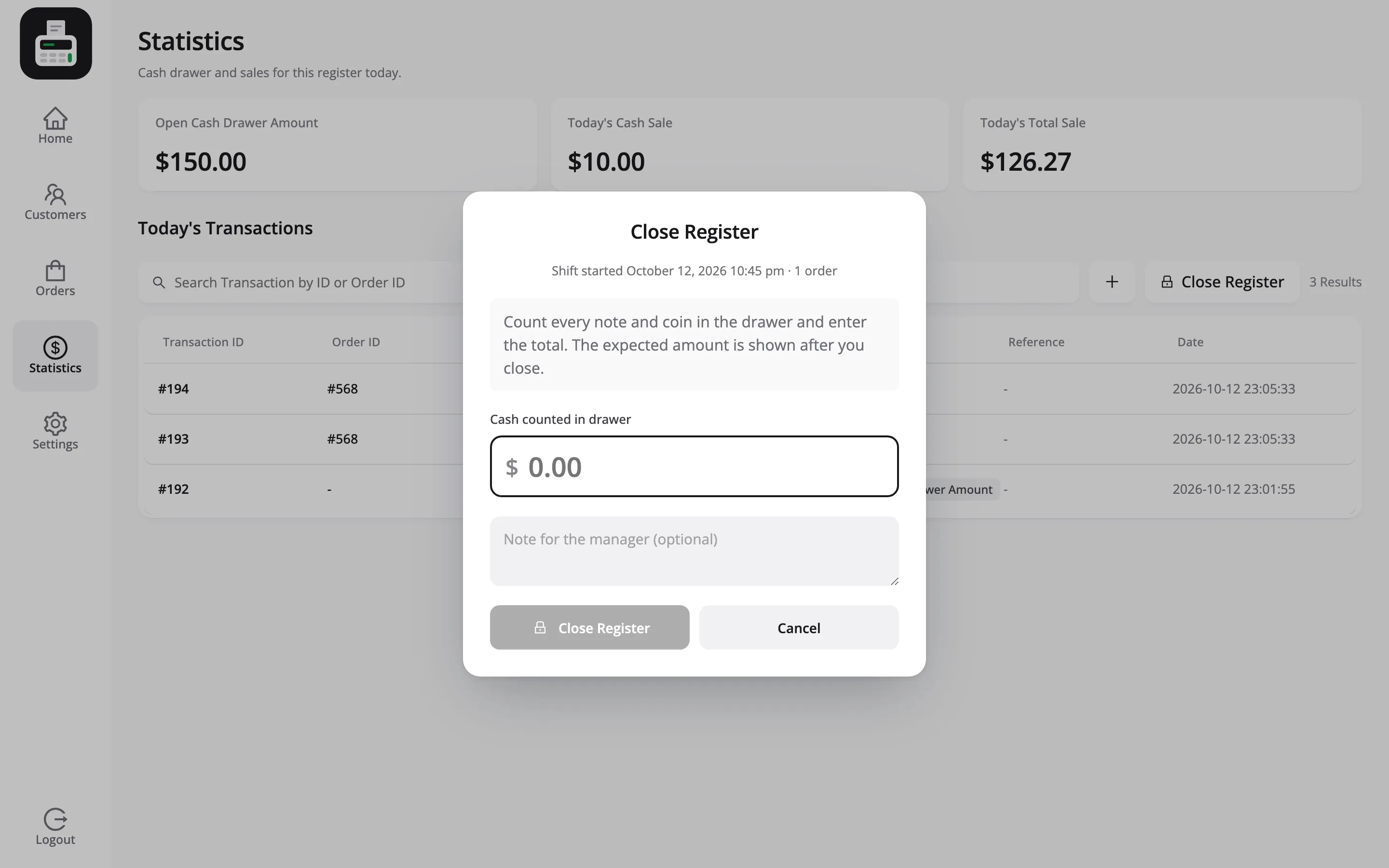
Step 3: Count the drawer
Section titled “Step 3: Count the drawer”Count the cash.
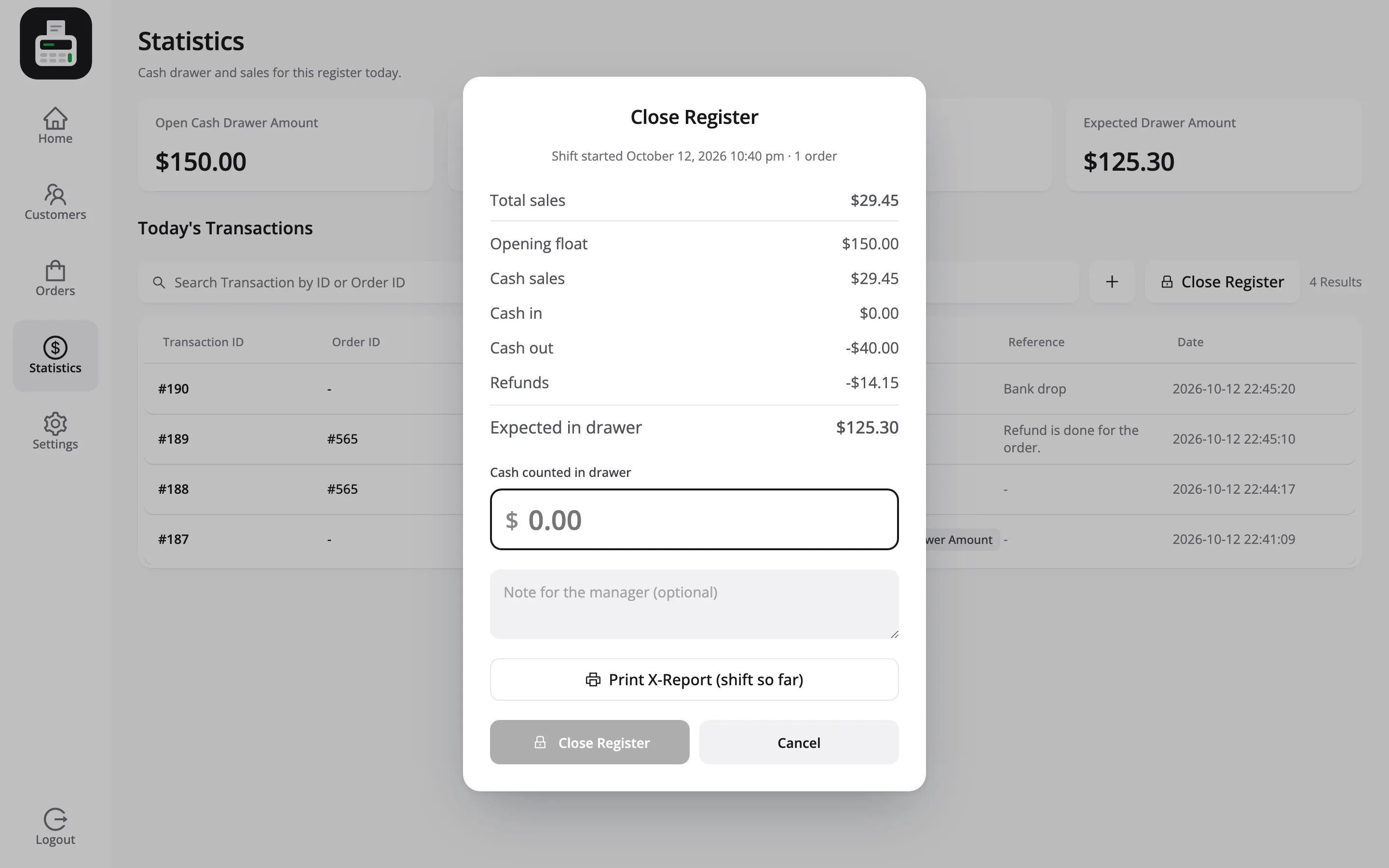
Do not subtract the amount you started with. If the opening amount was recorded, it is already in Expected Drawer Amount, and taking it off again leaves you short by exactly that much.
Which raises the question of whether it was recorded at all.
Step 4: Compare
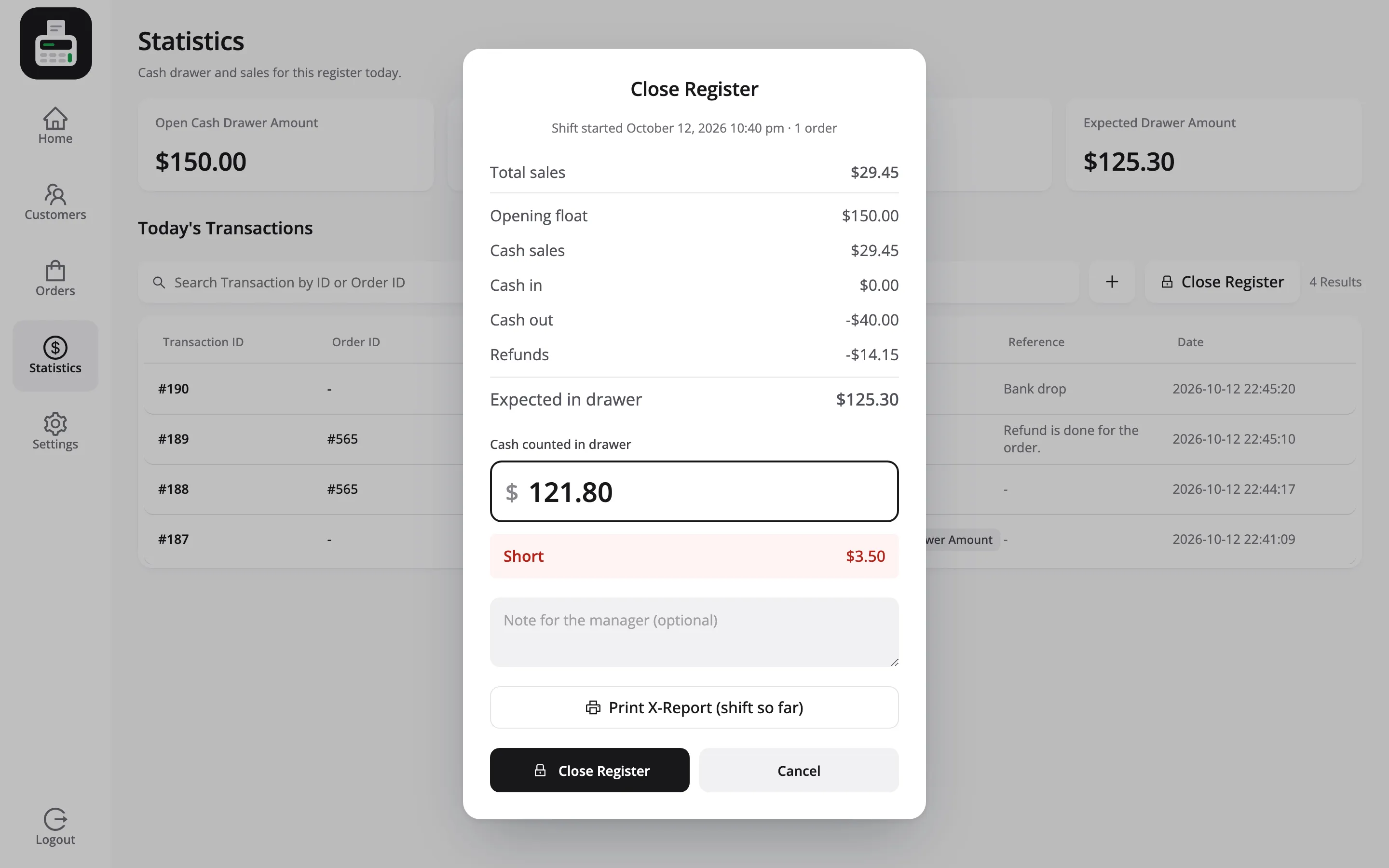
Section titled “Step 4: Compare”Your count should equal Expected Drawer Amount.
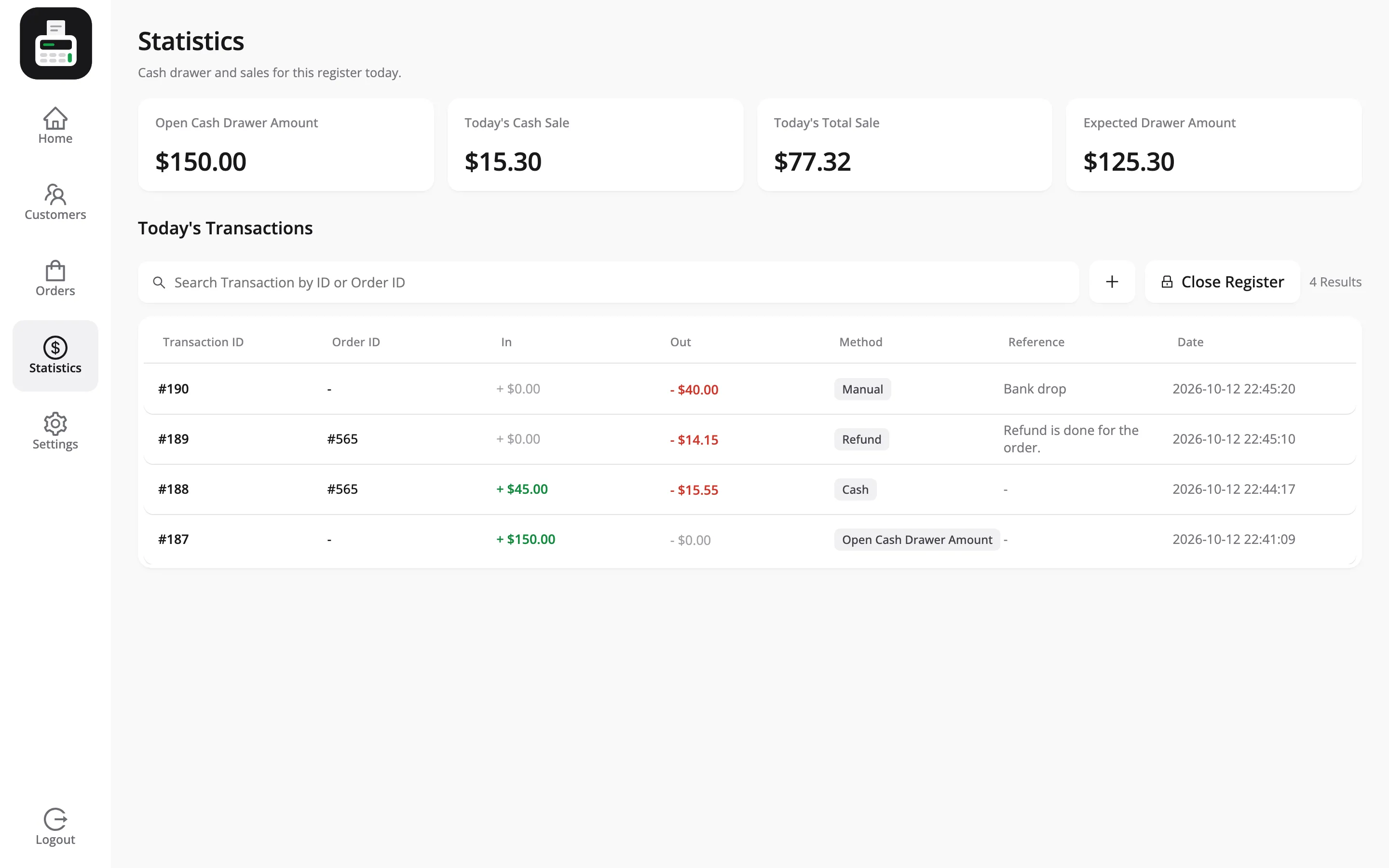
Under the four cards sits Today’s Transactions, one row per payment with Transaction ID, Order ID, In, Out, Method, Reference and Date.

Add up In on the cash rows and take off Out on the same rows. That is the expected figure worked out by hand, which is how you check the card rather than trust it.
The Method column tells you which rows count towards the drawer:
| Method | In the drawer? |
|---|---|
| Cash | Yes |
| Open Cash Drawer Amount | Yes, it is the opening amount |
| Manual | Yes, in or out |
| Refund | Yes, as an Out |
| Card, Chip & Pin, PayPal, Bank Transfer | No |
| Split | Only the cash part of it |
The shot above is a whole day in four rows, so it is worth reading as a worked example:
| Row | Effect |
|---|---|
| Open Cash Drawer Amount, In $100.00 | The float you started with |
| Cash, In $36.30 | A cash sale, no change given |
| Manual, Out $20.00 | Paid the courier |
| Refund, Out $16.50 | A returned item, refunded in cash |
$100.00 plus $36.30, less $20.00 and $16.50, is $99.80, which is what the card reads. Count $99.80 and the day balances.
If your count matches, you are done. Write it down and move on.
Step 5: Find a difference in the transactions list
Section titled “Step 5: Find a difference in the transactions list”Go to DevDiggers Plugins → MultiPOS → Transactions.

Set From and To to today’s date and click Filter.

Then narrow to the cashier whose drawer it is.

You now have one person’s shift, row by row, with In and Out on each. Where it stops agreeing with your count is where the problem is.
The three usual causes
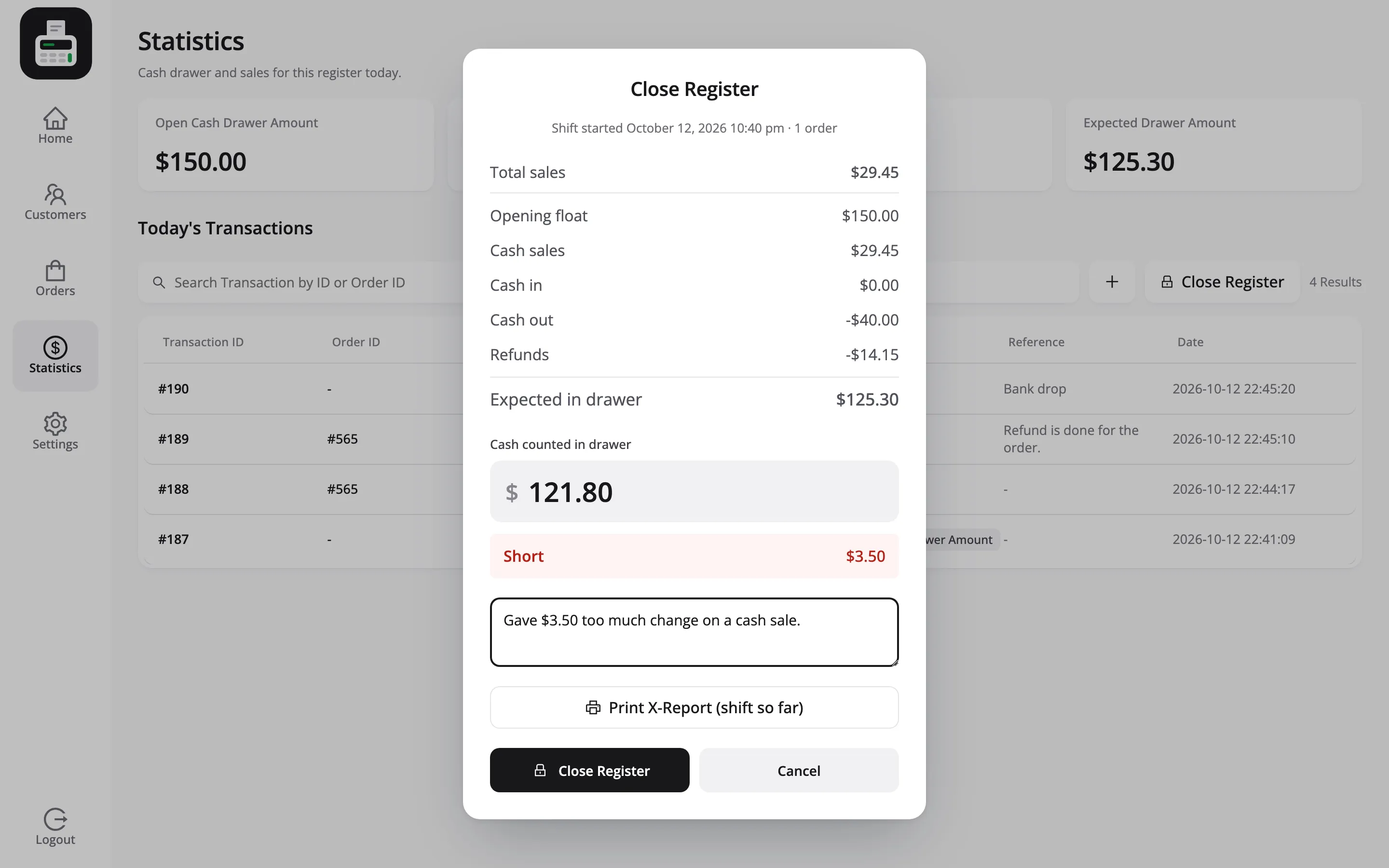
Section titled “The three usual causes”- The wrong amount typed in. A cashier who types 20 when the customer handed over 50 leaves the drawer over by 30, and the transactions list says nothing is wrong. This is the common one.
- A payment taken under the wrong method. A card sale entered as cash makes the drawer look short by the whole amount. The Method column on the transaction row shows it.
- Money that moved and was never logged. Paying a courier out of the drawer, or taking change to the bank, without recording it.
That last one is avoidable, and it is worth stamping out rather than allowing for.
One more, and it is the software rather than the person. A manual transaction recorded during the shift is not counted by Expected Drawer Amount on the terminal that recorded it, so the card reads high by that amount. The admin transactions list has it, and so does the terminal in a later session. Check there before you go looking for a missing note.
Log cash that moves for any other reason
Section titled “Log cash that moves for any other reason”Refunds are already accounted for
Section titled “Refunds are already accounted for”A cash refund taken at the counter writes its own transaction row, with the amount under Out and Refund in the Method column.

So a refund does not make the drawer look short. Expected Drawer Amount has already taken it off.
The one case that does go wrong is a refund recorded in the POS and never actually paid out, or paid out and never recorded. Both leave a difference the size of the refund, in opposite directions. See How to Refund an Order.
Can the drawer open by itself when a receipt prints?
Section titled “Can the drawer open by itself when a receipt prints?”Short answer: not from MultiPOS, and it can still work.
- MultiPOS prints through the browser. It builds the receipt as a web page and calls the browser’s own print, the same as pressing Ctrl+P. Neither the free nor the Pro build sends a drawer-open command to a printer. There is no setting for one either.
- Almost every receipt printer can do it anyway. The drawer plugs into the printer, not into the computer, and the printer fires it as it prints. Whether it does is a setting in the printer’s own driver, not something a web page controls.
So the sequence in a shop with the drawer wired to the printer is:
- Cashier presses Print Receipt in MultiPOS.
- The browser sends the receipt to the printer.
- The printer prints it and pops the drawer open.
To set that up:
- Plug the drawer into the printer, not the computer. The socket is usually labelled DK, RJ11 or DRAWER on the back of the printer.
- Turn the drawer trigger on in the printer driver. Names vary: “Cash drawer”, “Peripheral unit”, “DK setting”, “Open drawer before printing”.
- Test it by printing anything at all. If the drawer opens on a test page, it will open on a receipt.
Two consequences to plan for, because the drawer opens for every print:
A reprint opens it too. Reprinting an old receipt from Print Invoice looks the same to the printer as a new sale.

A card sale opens it. The printer cannot tell how the customer paid.
Neither is a setting you can change in MultiPOS, and neither needs to be. Printing is always a choice. The POS asks after every sale rather than printing on its own. A cashier who does not want the drawer open simply does not print.

Anything beyond that is printer support, not MultiPOS support. A drawer that will not open from a printer test page will not open from a receipt either.
Check the day’s sales in the admin
Section titled “Check the day’s sales in the admin”For the sales side rather than the money side, go to MultiPOS → Orders.

The Staff Attribution column names the cashier on every row, which is what turns “the drawer is short” into a question you can actually ask.
A weekly view
Section titled “A weekly view”The dashboard covers a range rather than a day.

Set the date selector to the week and read Total Revenue and the payment split together. A cash share that drifts week on week is worth a look before it becomes a habit.
Where to go next
Section titled “Where to go next”- How to Record Cash In and Cash Out
- Transactions for the field reference.
- Dashboard Overview
- How to Read Your POS Reports