

How to Sell a Variable Product (Pro)
A variable product is one product with options: a coffee that comes whole or ground, in 250g or 1kg. Each combination is its own variation with its own price and stock. MultiPOS lets the cashier pick the options in order, so the right variation reaches the cart.
Step 1: Tap the product
Section titled “Step 1: Tap the product”A variable product’s card shows a price range instead of one price. The demo’s House Blend Coffee runs from $12.00 to $38.00.
Tap the card, or search for it by name.
Step 2: Pick the first attribute
Section titled “Step 2: Pick the first attribute”The grid is replaced by the product’s first attribute, here Grind, marked Step 1 of 2. Tap an option.
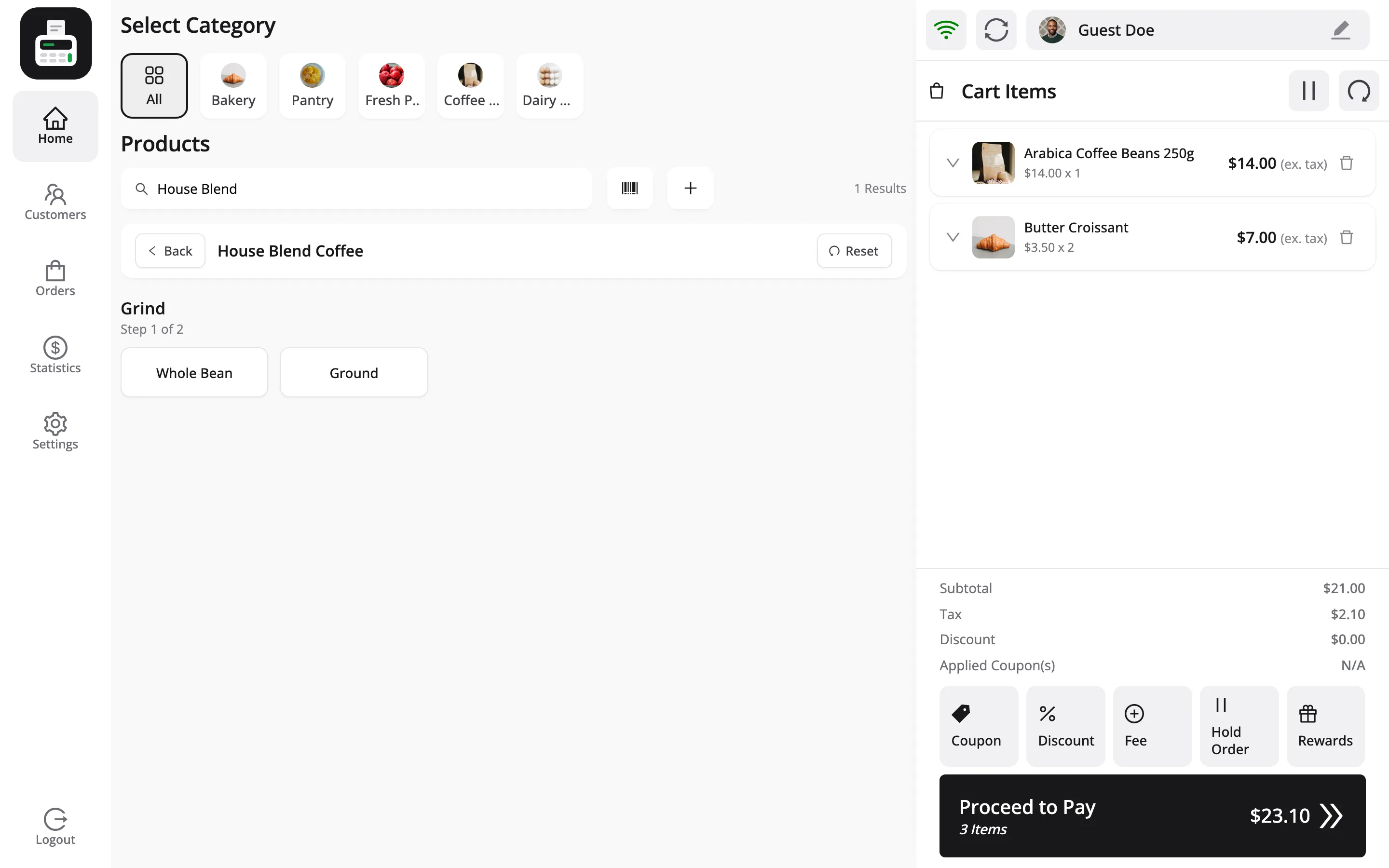
Back returns to the grid, and Reset clears every choice and starts again.
Step 3: Pick the last attribute
Section titled “Step 3: Pick the last attribute”The finished step folds into a line with your choice and a Change link. The last attribute, Size, shows each remaining variation as a card with its own price and stock.
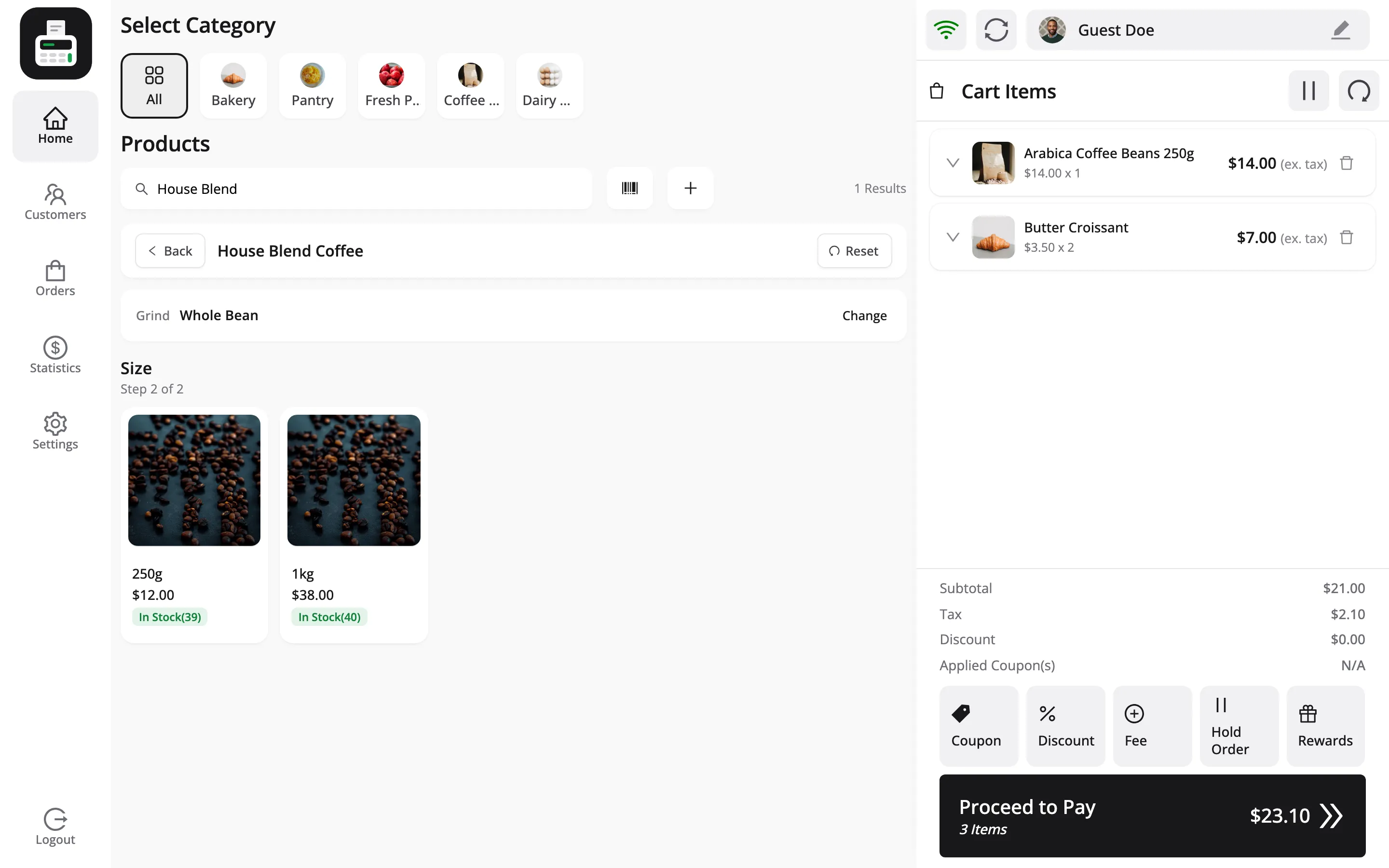
Tap a card and that variation goes into the cart. A variation that is out of stock is never offered.
Change on a finished step reopens it and clears every choice after it.
Step 4: Check the cart line
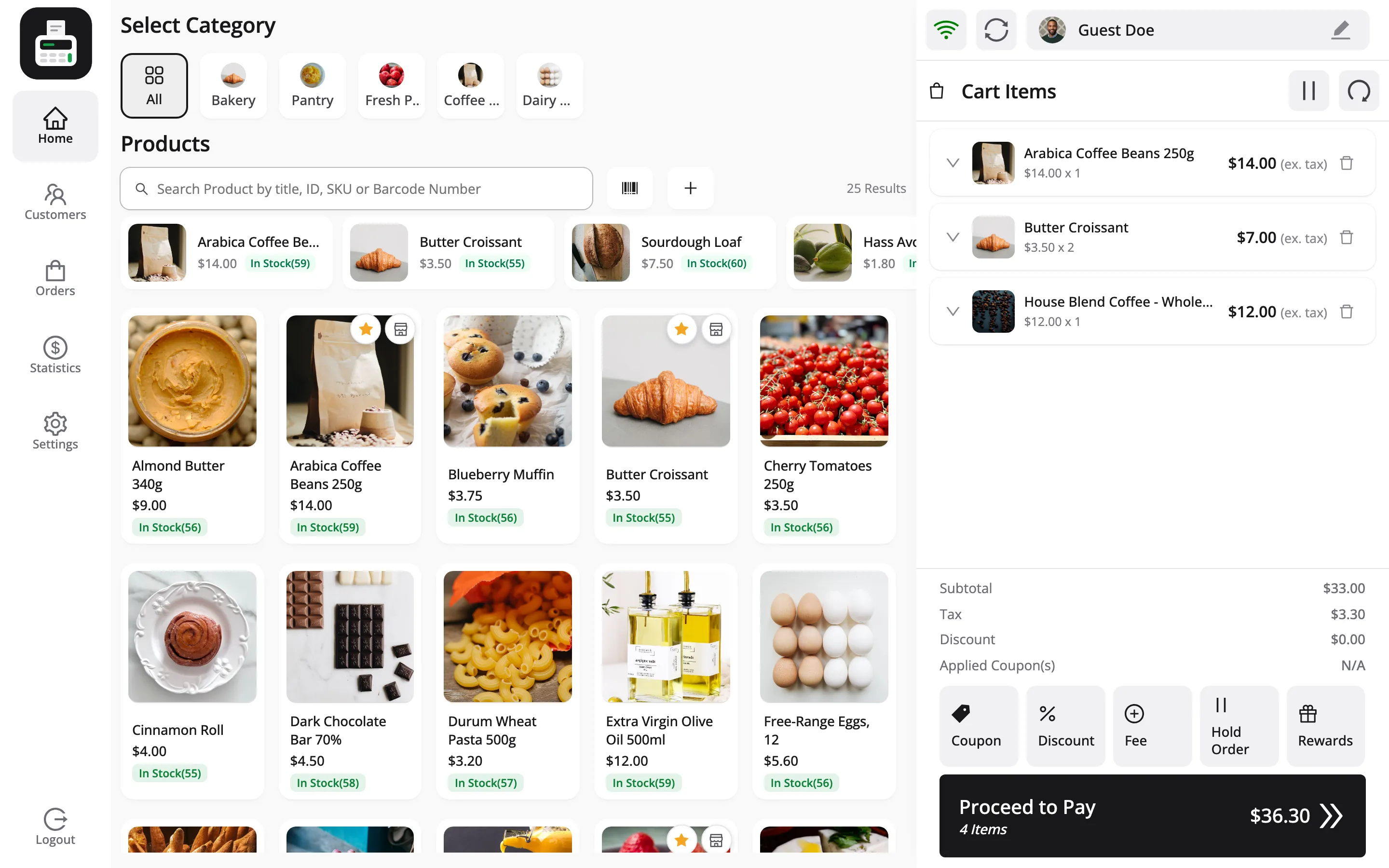
Section titled “Step 4: Check the cart line”The cart line names the variation in full.
Two other ways to show variations
Section titled “Two other ways to show variations”Both are set under Configuration → Layout.
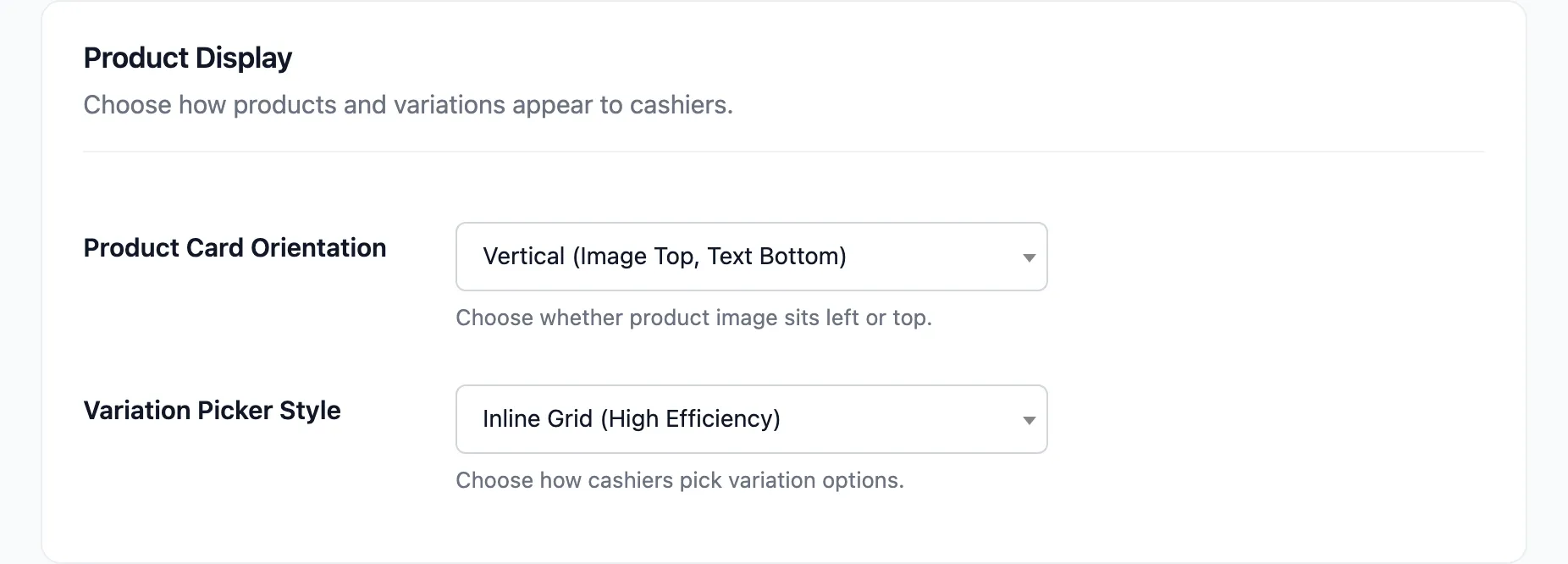
- Variation Picker Style: Inline Grid (High Efficiency), the default, is the step-by-step picker above. Modal Popup (Clean Design) opens a Select Variation popup with each attribute as a row of option chips, and an out-of-stock icon on any choice that cannot be sold.
- Show Variations as Individual Items: Under Product Details. Turn it on and every variation is its own card in the grid, with no picking at all. That suits a store with few variations that sells them by sight.