

How to View a Customer Profile at the POS (Pro)
Knowing a regular by name is half of good service. The customer profile gives every cashier the same memory: what someone spends, when they last came in, what they usually buy, and anything a colleague noted about them.
Step 1: Open Customers and find the customer
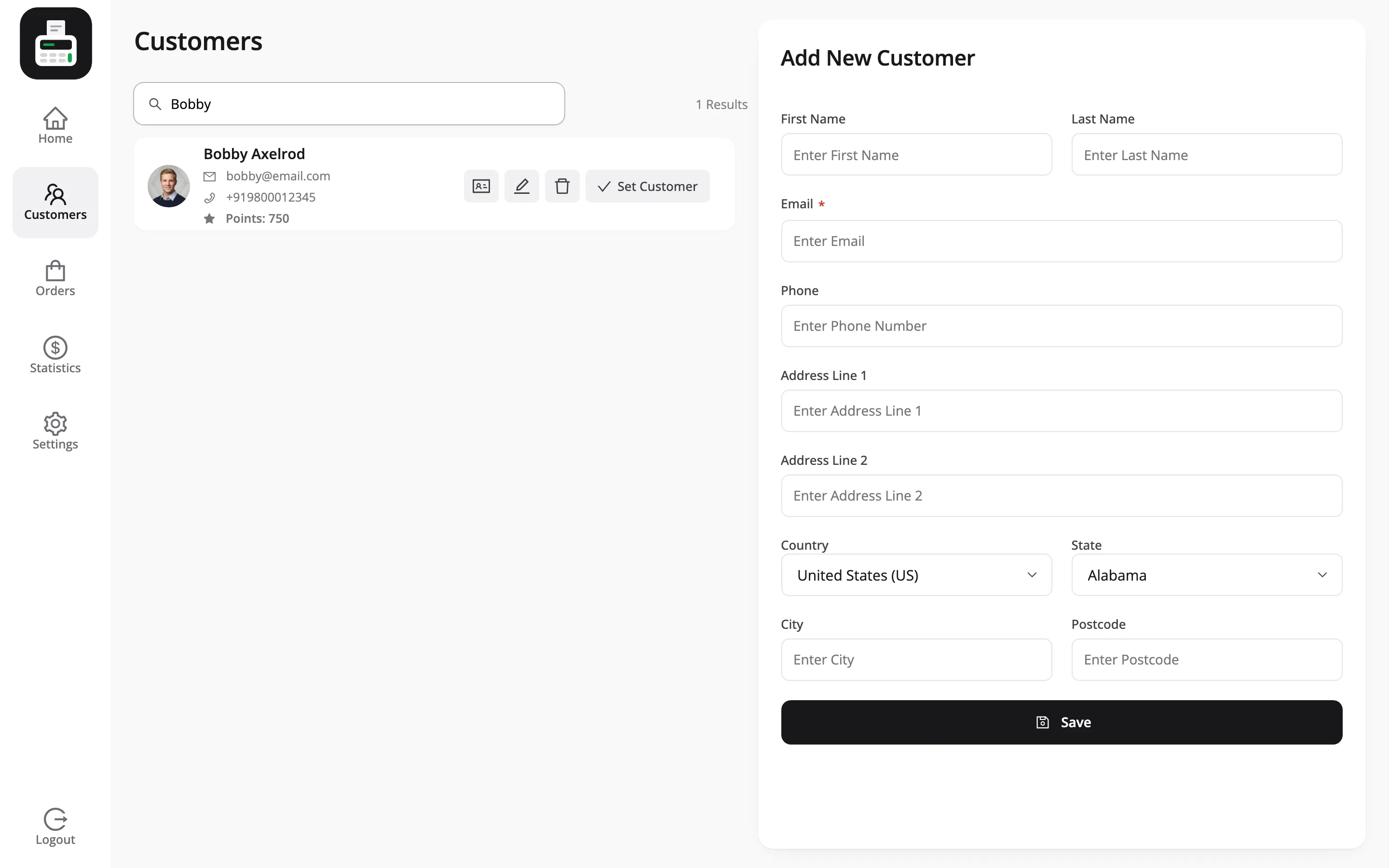
Section titled “Step 1: Open Customers and find the customer”Press Customers in the POS menu, then search by name, email or phone number.
Step 2: Press the profile icon
Section titled “Step 2: Press the profile icon”Each row has a set of icons beside Set Customer. The first, Customer Profile, opens the profile.
Step 3: Read the profile
Section titled “Step 3: Read the profile”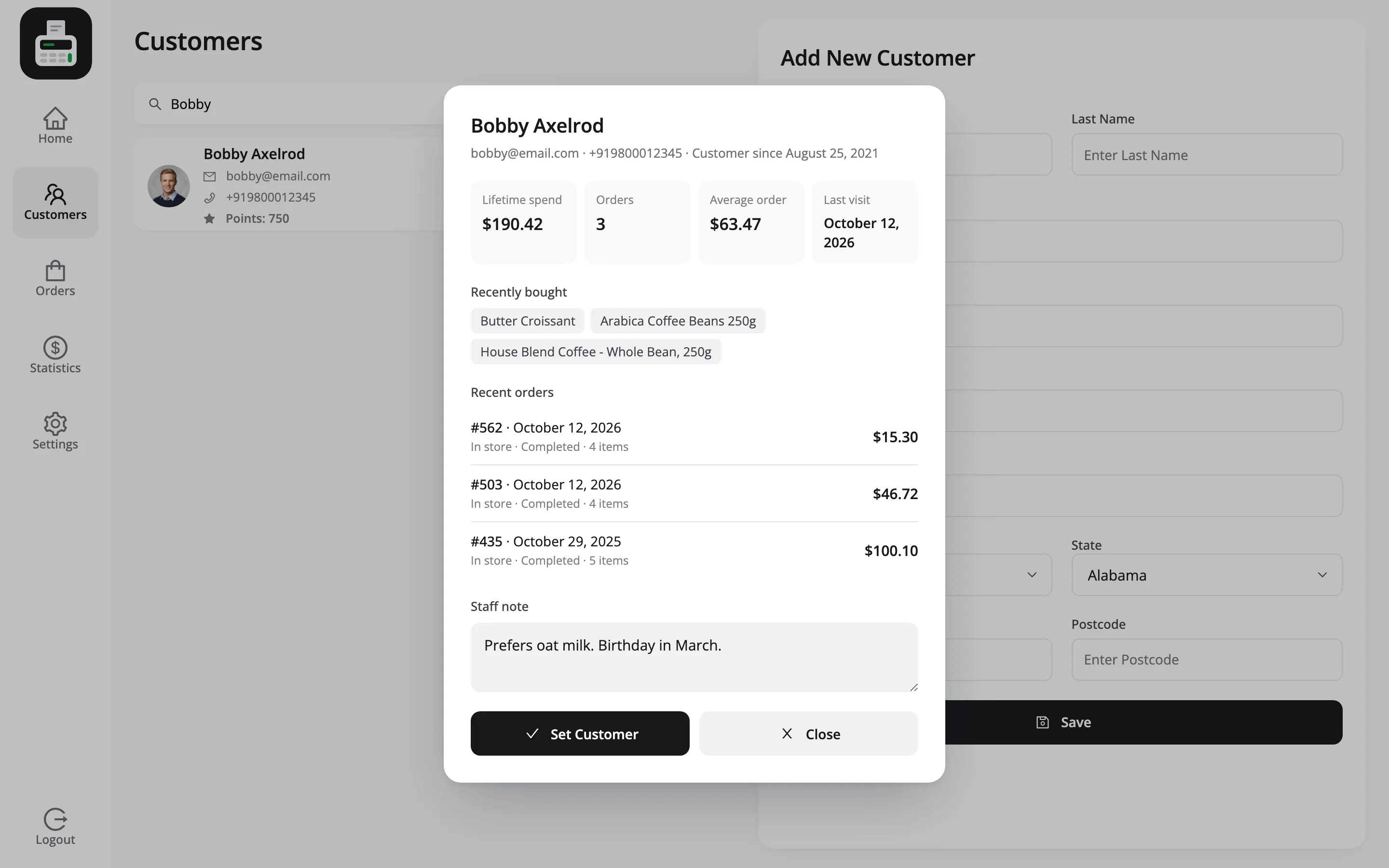
From the top:
- The header: Name, email, phone and Customer since the date they registered.
- Lifetime spend, Orders, Average order and Last visit: Their whole history with the store, online and in store together.
- Recently bought: The products they bought most recently.
- Recent orders: Their last few orders, each marked In store or Online, with the status, the number of items and the total.
Step 4: Leave a staff note
Section titled “Step 4: Leave a staff note”Staff note is for anything the next cashier should know, such as an allergy, a preference or a birthday. Every cashier sees it on the profile.
Type the note and press Save note, which appears once you change the text.
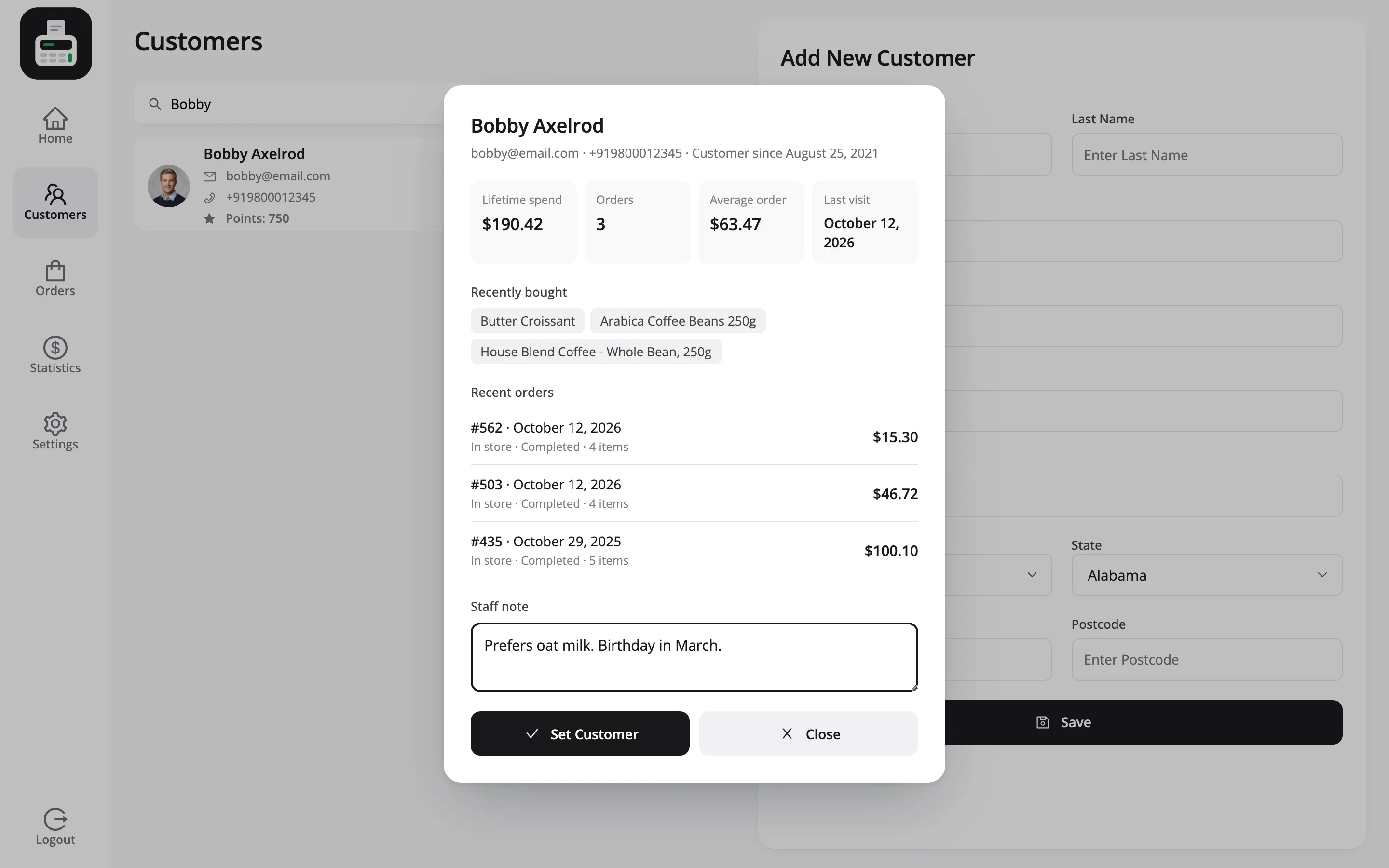
Saving a note counts as editing the customer, so it follows the Edit Customers permission. A cashier without it is asked for a manager’s PIN.
Step 5: Set them on the sale
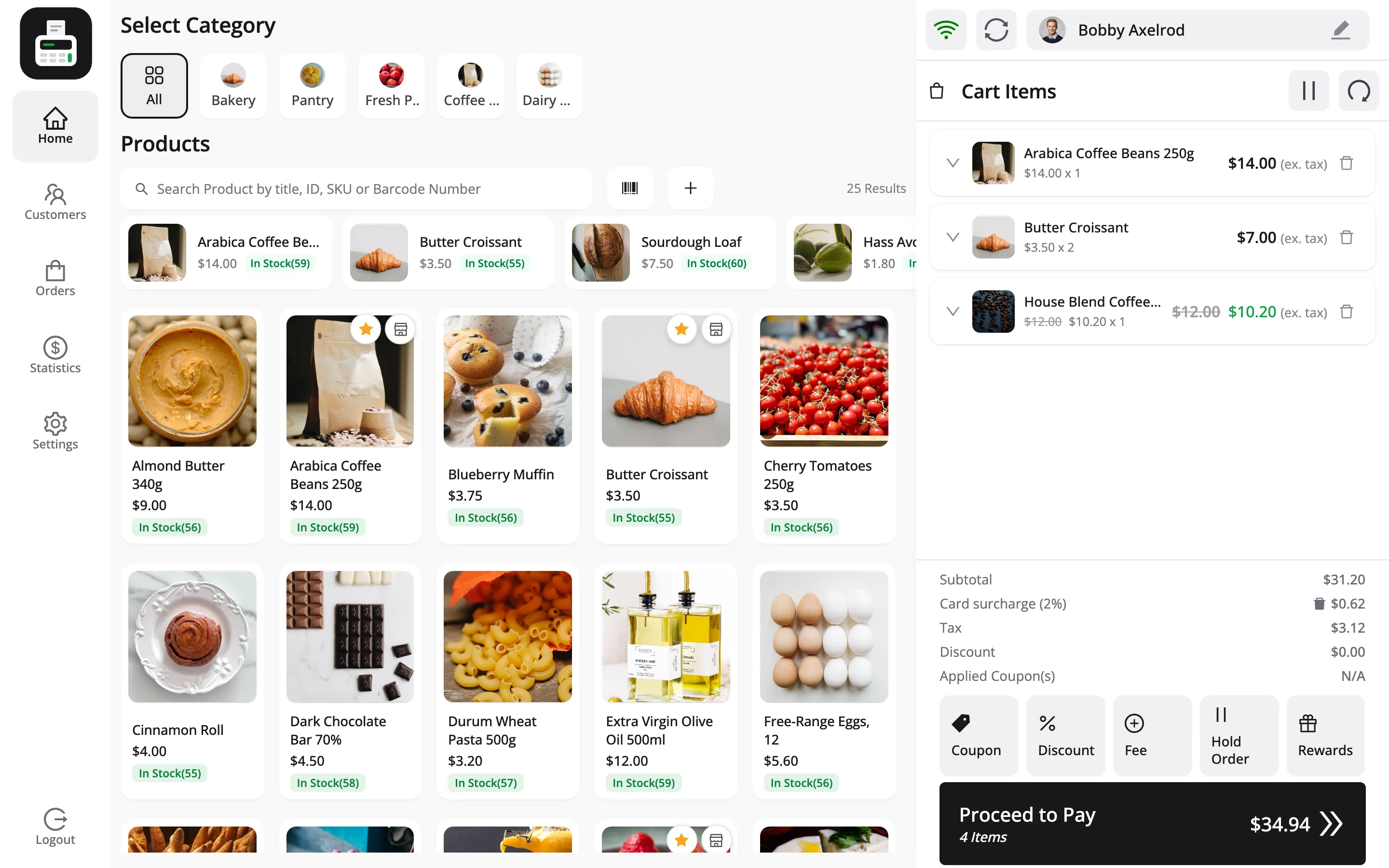
Section titled “Step 5: Set them on the sale”Press Set Customer to put them on the current sale, or Close to go back.
It needs a connection
Section titled “It needs a connection”The profile is built from your store’s orders when you open it, so it is always current. Offline the POS says The customer profile needs an internet connection.