

How to Connect Twilio to Your Store (Pro)
Your store sends messages to Twilio by itself. Messages from customers travel the other way: Twilio has to know where your store is. That address is the Incoming Messages URL.
Without it, the chat assistant never hears a customer and no WhatsApp order is ever created.
Step 1: Copy the Incoming Messages URL
Section titled “Step 1: Copy the Incoming Messages URL”Go to Purchase via WhatsApp → Configuration → Twilio and scroll to Webhooks. Click Copy next to Incoming Messages URL.
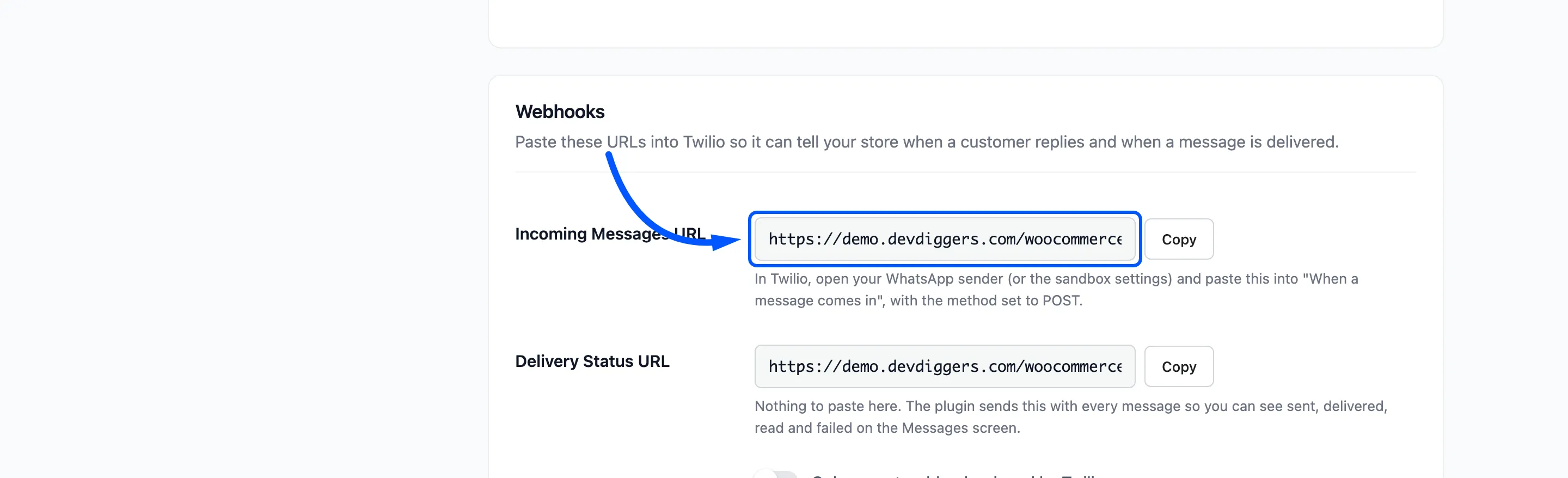
The URL is your site address followed by /wp-json/ddwcpvw/v1/whatsapp-business-bot.
Delivery Status URL below it needs nothing from you. The plugin hands it to Twilio with every message.
Step 2: Paste it into Twilio
Section titled “Step 2: Paste it into Twilio”Where you paste it depends on the number you send from.
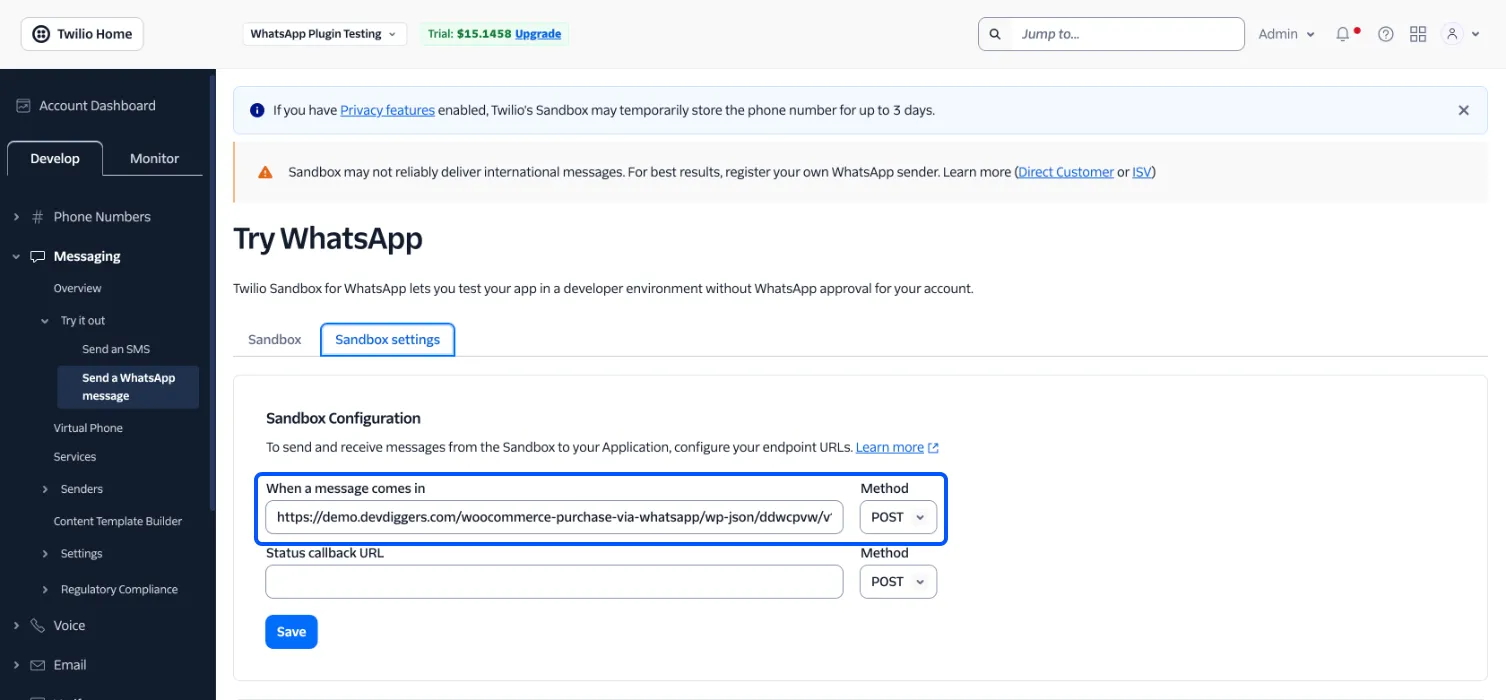
- The sandbox: Messaging → Try it out → Send a WhatsApp message → Sandbox settings, field When a message comes in.
- Your own registered number: Messaging → Senders → WhatsApp senders, open the sender, then the same field in its endpoint settings.
Set the method to POST and save.
Step 3: Keep request verification on
Section titled “Step 3: Keep request verification on”Back on the plugin’s Twilio tab, leave Request Verification ticked. It is labelled “Only accept webhooks signed by Twilio”.
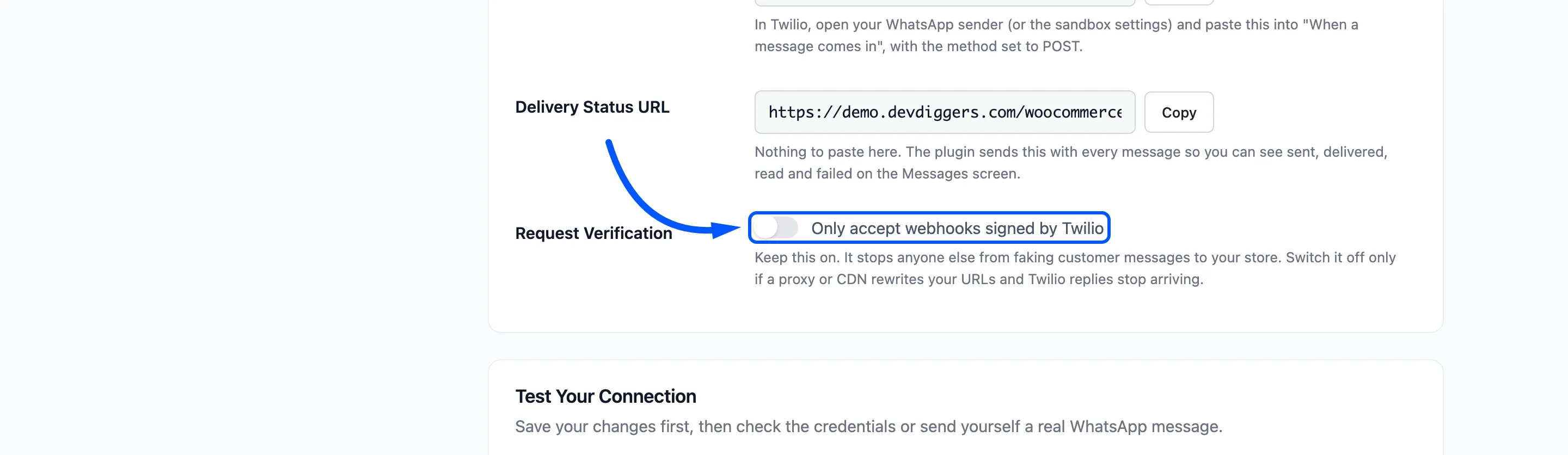
Twilio signs each message with your Auth Token. The plugin checks that signature, so nobody else can post a fake customer message to your store and create orders. Anything unsigned is refused with “This request was not signed by Twilio.”
The check needs the Auth Token saved on the tab, even if you send with an API Key.
Step 4: Check that a message arrives
Section titled “Step 4: Check that a message arrives”From a phone that can chat with your sender, send “hi”. The assistant answers with the Welcome Reply, which starts “Hello! To place an order”.
Open Purchase via WhatsApp → Messages. Your message is listed as Received and the reply as Delivered.
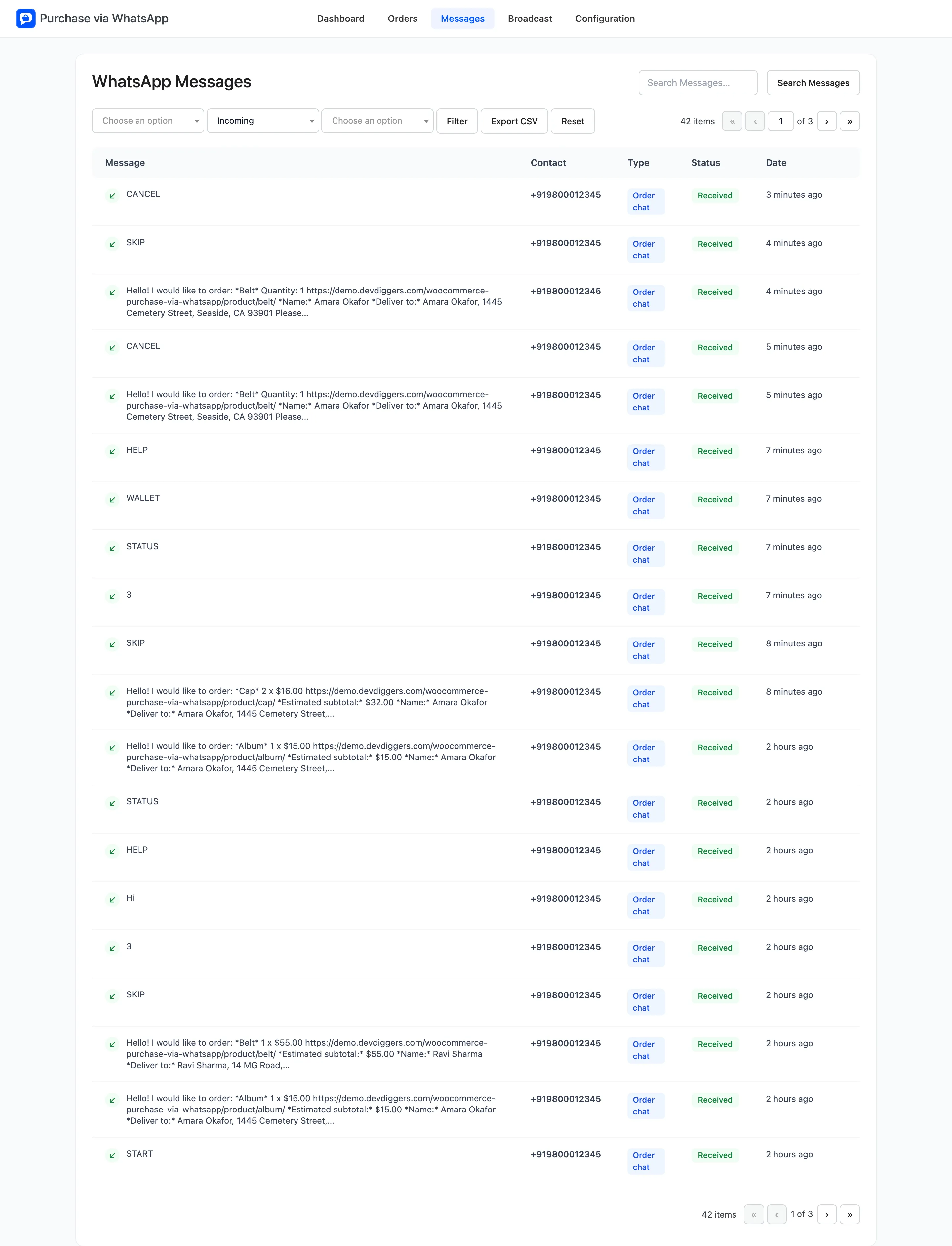
The dashboard ticks Receive your first customer message at the same moment.
When nothing arrives
Section titled “When nothing arrives”- No incoming row at all: the URL in Twilio is wrong, or the method is GET. Copy it again.
- Your site sits behind a login or a maintenance page: Twilio cannot reach it. The REST address must be public.
- Verification is on and no Auth Token is saved: every message is refused. Save the token.