

How to Message a Customer from an Order
Sometimes an order needs a person: a delay, a substitution, a question about the address. The WhatsApp box on the order sends that message without leaving WooCommerce.
Step 1: Open the order
Section titled “Step 1: Open the order”Open the order from WooCommerce → Orders, or click View order on Purchase via WhatsApp → Orders. The WhatsApp box is in the right-hand column.
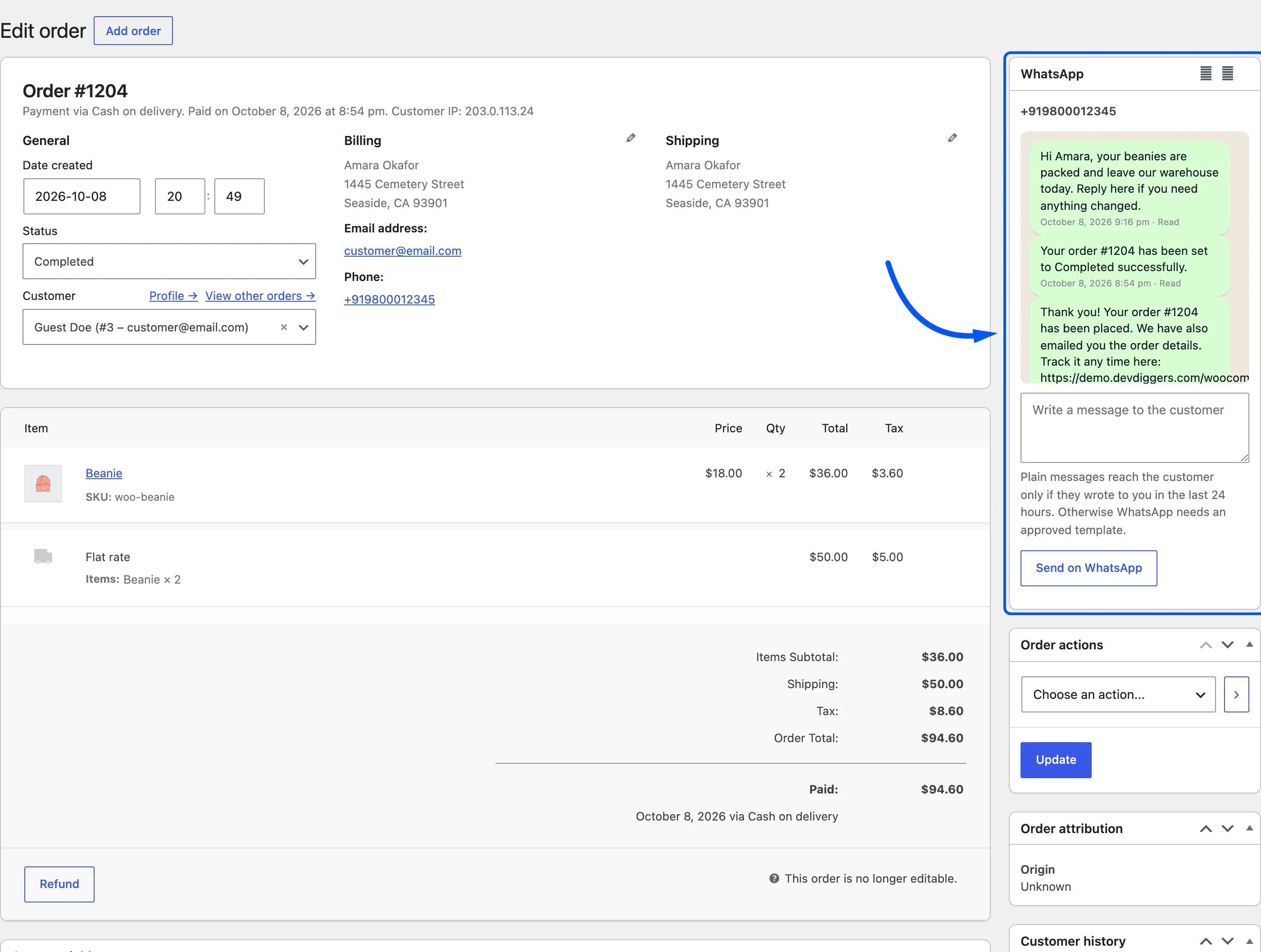
It shows the billing phone, the last five messages for this order with their status, and a text box.
Step 2: Write the message
Section titled “Step 2: Write the message”Type into Write a message to the customer. Order placeholders such as {order_id} and {order_total} are
filled in. On the demo the message was:
Hi Amara, your beanies are packed and leave our warehouse today. Reply here if you need anything changed.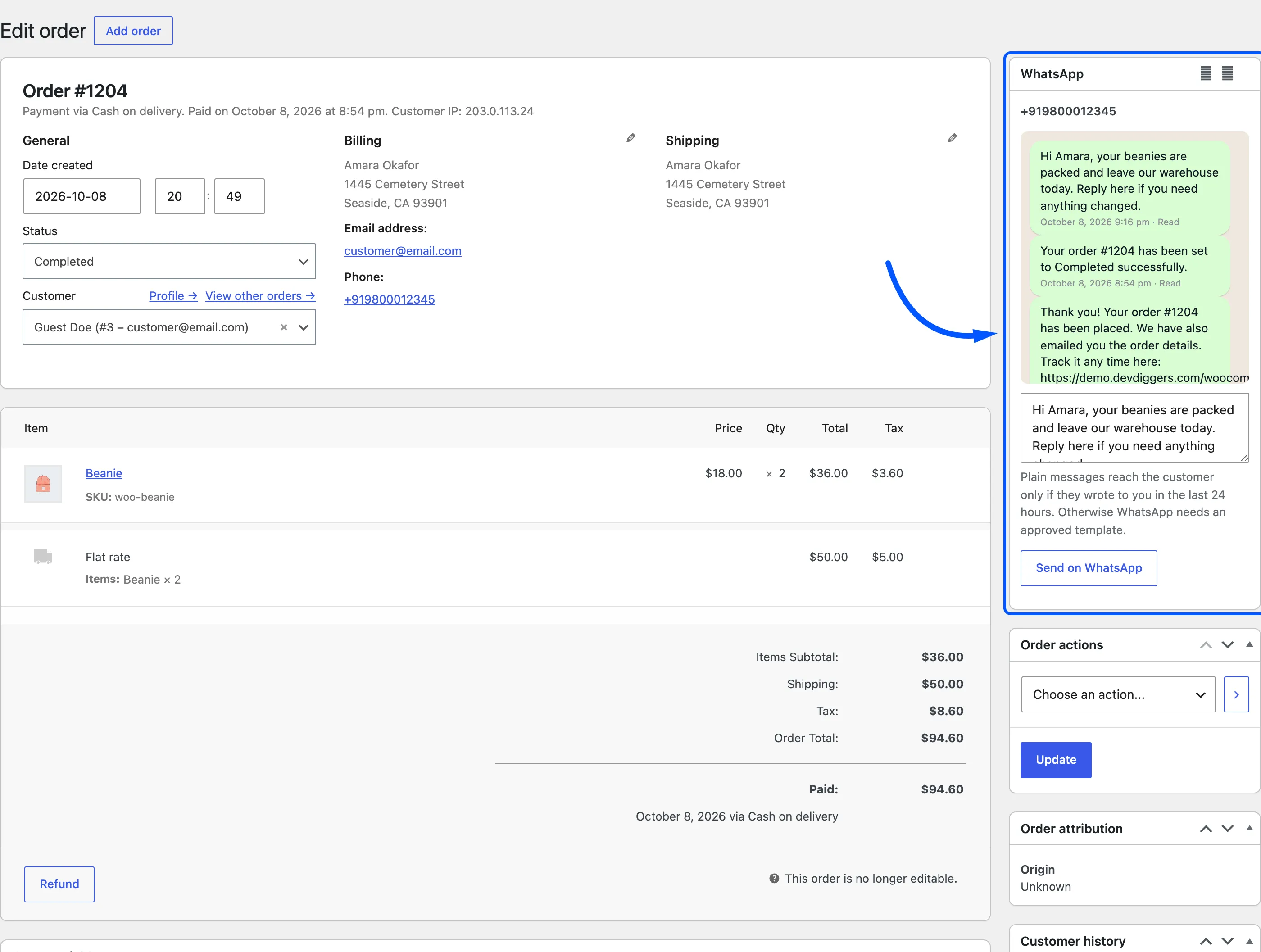
Step 3: Send it
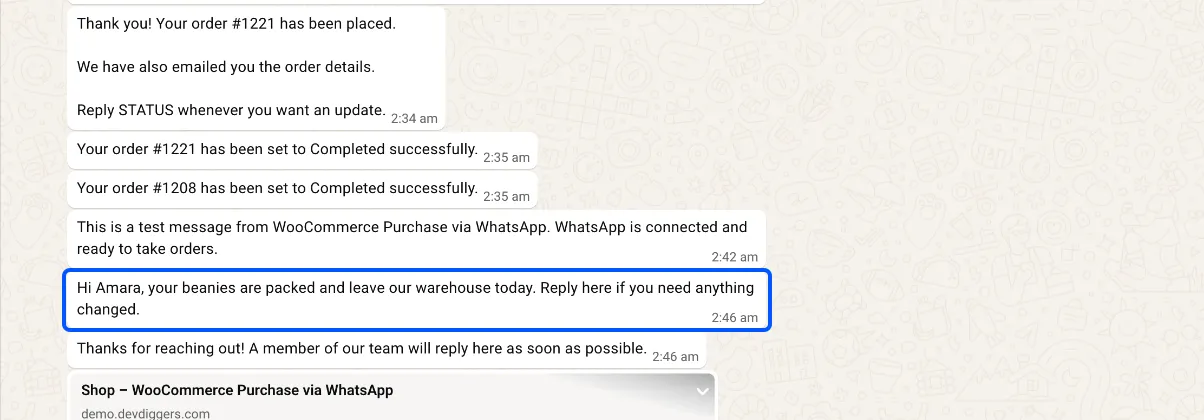
Section titled “Step 3: Send it”Click Send on WhatsApp. The message goes to the billing phone.
It arrives as a plain message from your store’s number, with nothing added:
Step 4: Check the status
Section titled “Step 4: Check the status”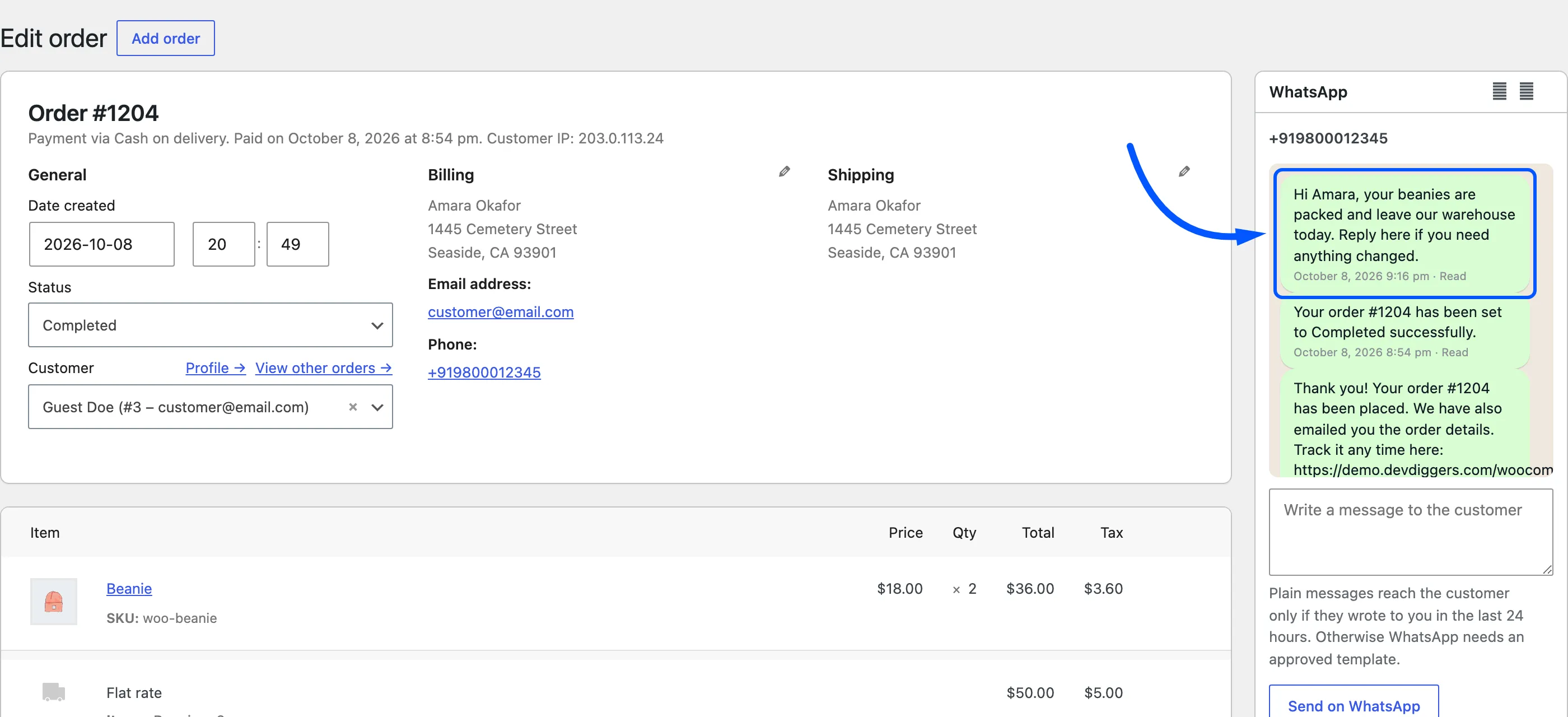
The message joins the list in the box, with its status. On the demo it was Delivered within seconds. The order also gets a note, “WhatsApp message sent:” and the text, which the customer can see.
On the Messages screen it is listed with the type Manual and a link to the order.
A customer’s reply arrives in your WhatsApp sender’s chat. With the chat assistant on, a reply outside an order gets the Welcome Reply, and a second one is passed to your team by email. Answer in the WhatsApp Business app or Twilio if you need a longer conversation.