

Broadcast (Pro)
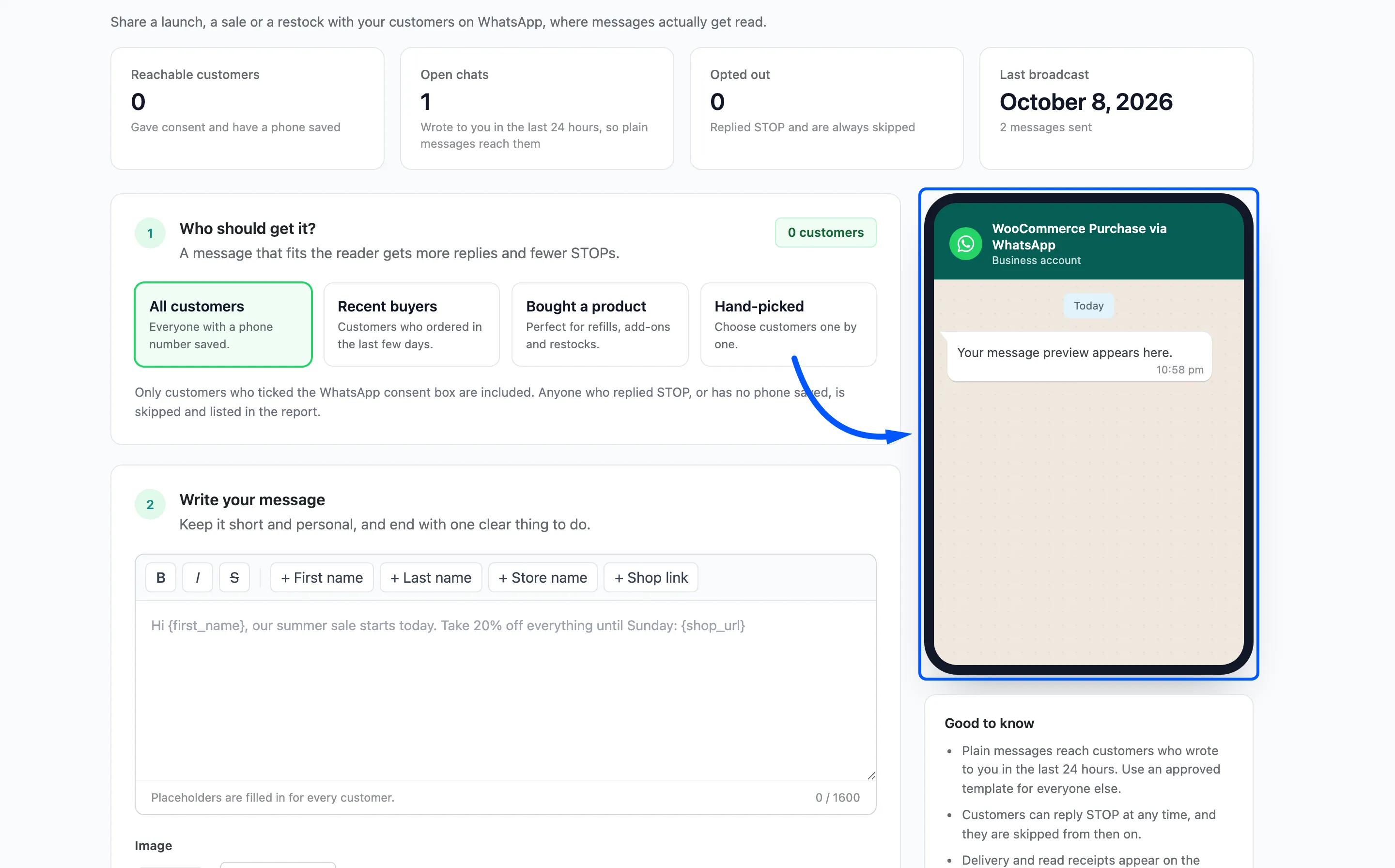
The Broadcast screen sends one message to a group of customers, such as a sale, a launch or a restock. Open Purchase via WhatsApp → Broadcast.
The stat cards
Section titled “The stat cards”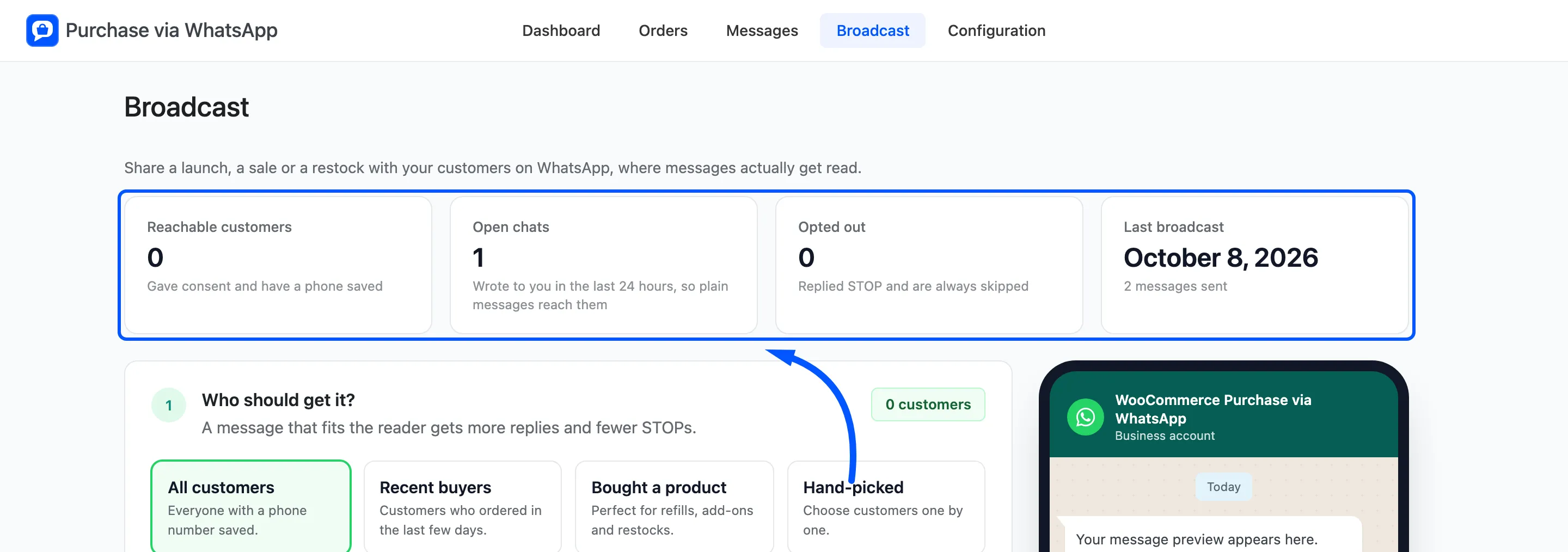
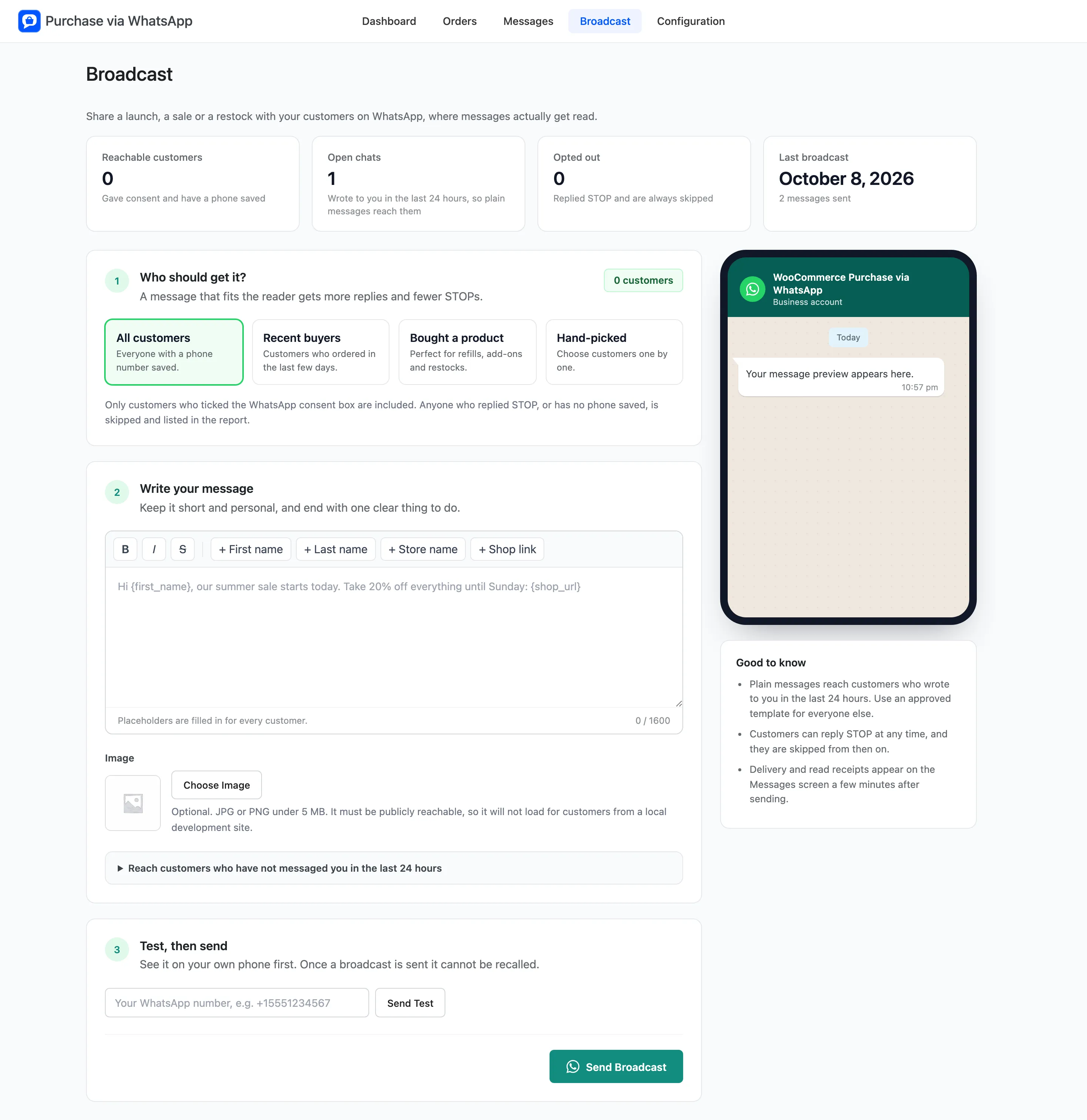
- Reachable customers: Customers with a phone number saved.
- Open chats: Customers who wrote to you in the last 24 hours. A plain message reaches them.
- Opted out: Numbers that replied STOP. They are always skipped.
- Last broadcast: When you last sent one.
Step 1: Who should get it?
Section titled “Step 1: Who should get it?”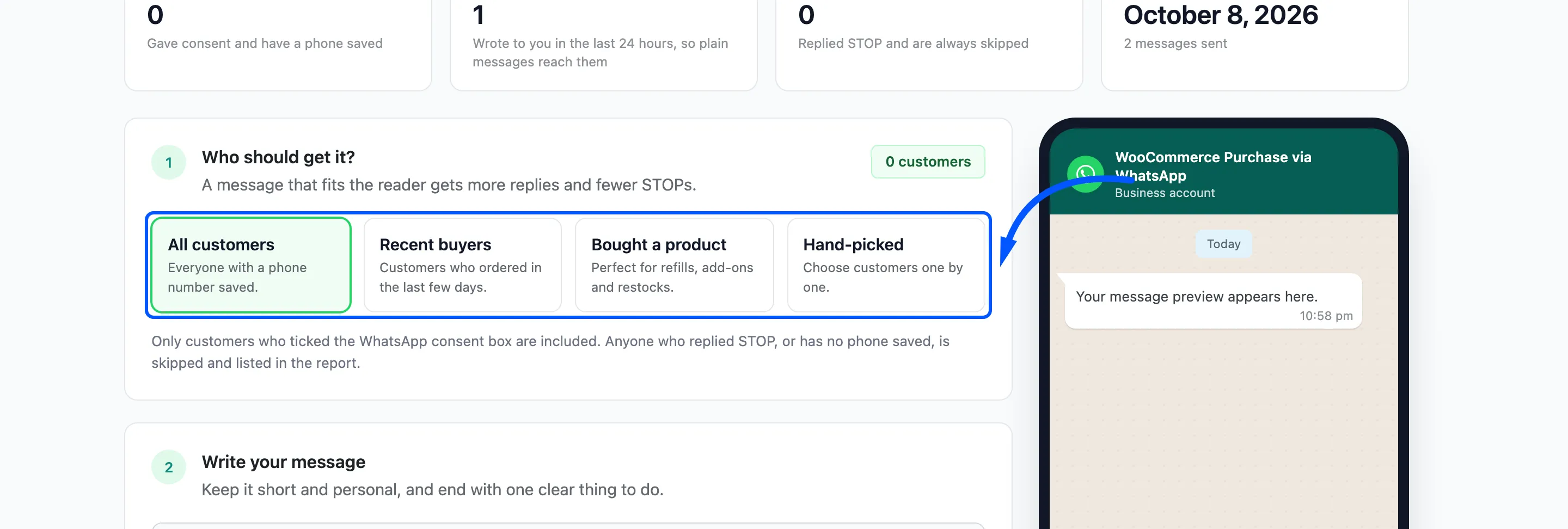
- All customers: Everyone with a phone number saved.
- Recent buyers: Customers who ordered in the last few days. You set the number of days, 30 by default.
- Bought a product: Customers who bought the products you pick, variations included. Use it for refills, add-ons and restocks.
- Hand-picked: Customers you choose one by one.
The badge at the top right counts the customers your choice reaches.
Two limits apply to every audience:
- Only customer accounts are included. The plugin reads the billing phone saved on each account. A guest who ordered without an account is never in a broadcast.
- Consent can narrow it. The consent checkbox and Broadcast Audience are on the Notifications tab. While both are on, only customers who ticked the checkbox are included. The screen says so under the options.
Step 2: Write your message
Section titled “Step 2: Write your message”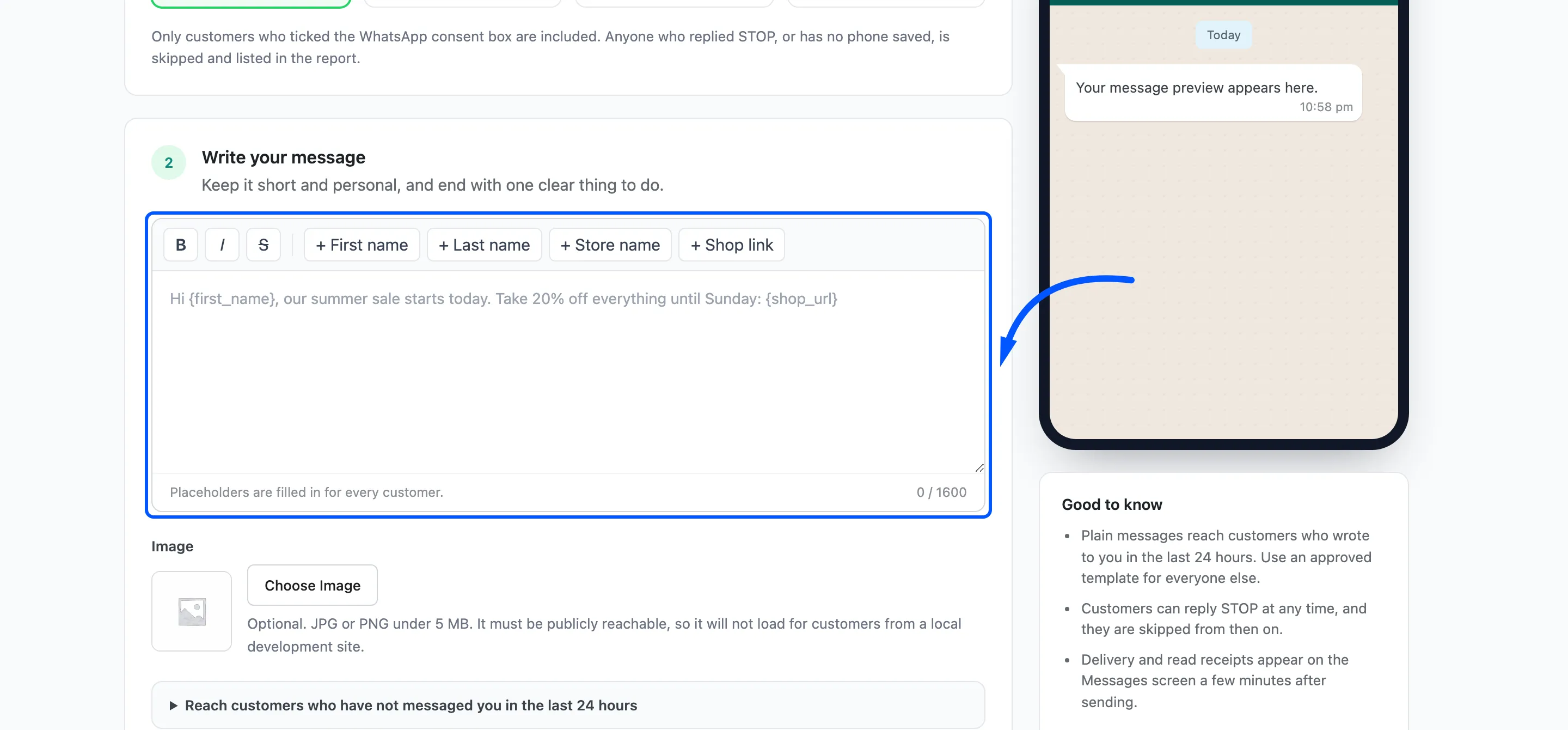
- B, I and S wrap the selected words for bold, italic and strikethrough.
- + First name, + Last name, + Store name and + Shop link add
{first_name},{last_name},{site_name}and{shop_url}. Each customer gets their own. - The counter stops at 1,600 characters.
- Image is optional: a JPG or PNG under 5 MB. It must be on a public address, so it does not load from a local site.
The phone on the right shows how the message will look, with a sample name.
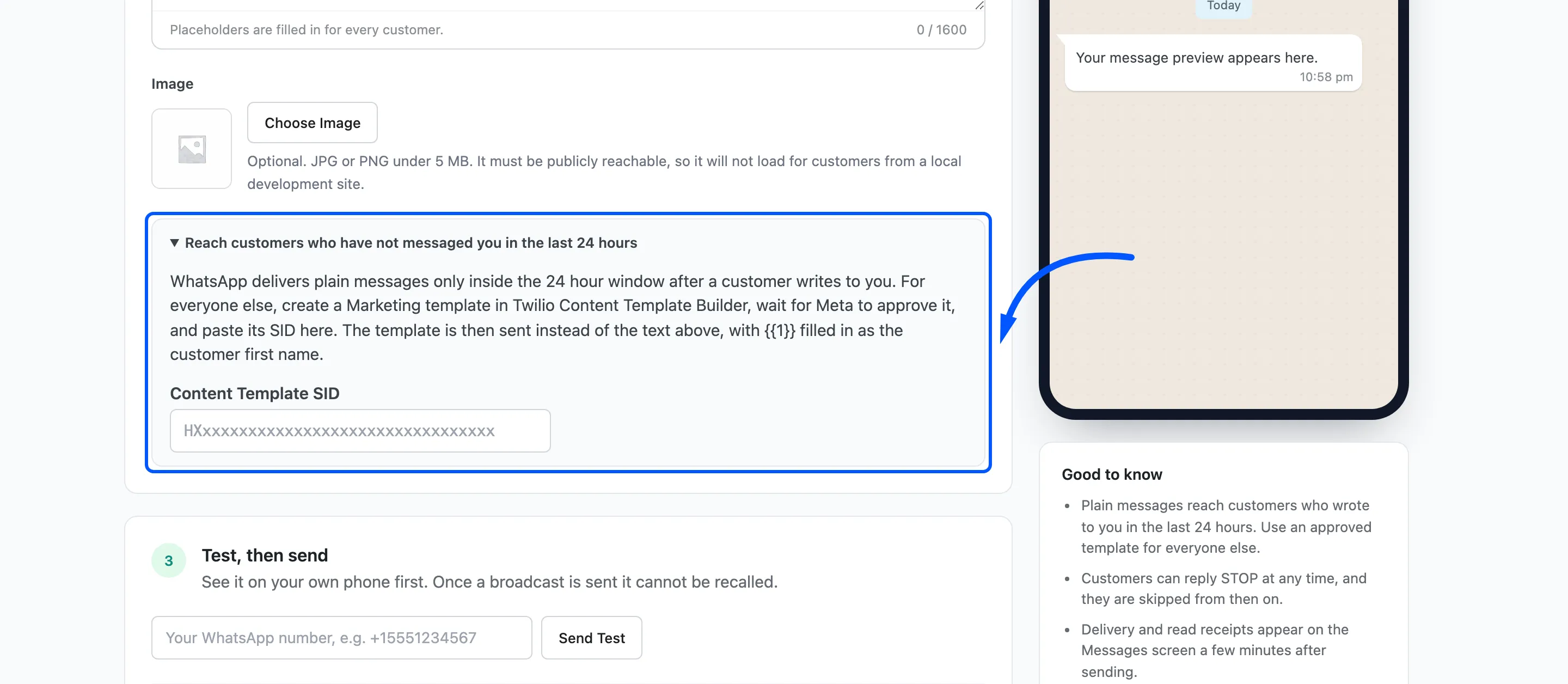
Reach customers who have not messaged you in the last 24 hours opens a Content Template SID field.
With a template, the broadcast reaches everyone, not only the open chats. The template’s {{1}} is filled
with the first name.
Step 3: Test, then send
Section titled “Step 3: Test, then send”Type your own WhatsApp number and click Send Test to see the message on your phone first.
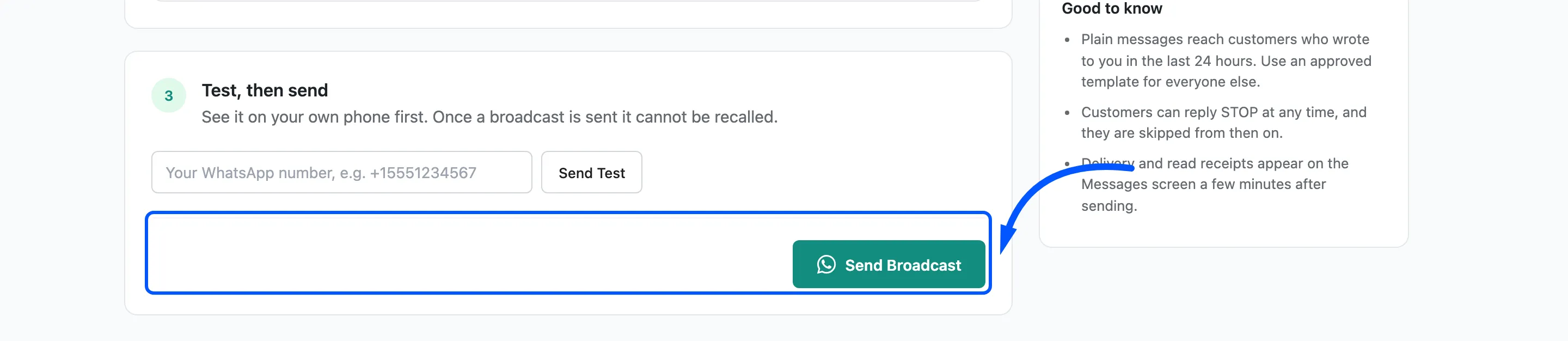
Send Broadcast asks “Send this message now? It cannot be recalled once sent.” with the number of customers. The plugin then sends in batches of 20 and shows the progress.
Keep the tab open until it finishes, because the batches are sent from your browser.
There is no scheduling. A broadcast goes out when you click.
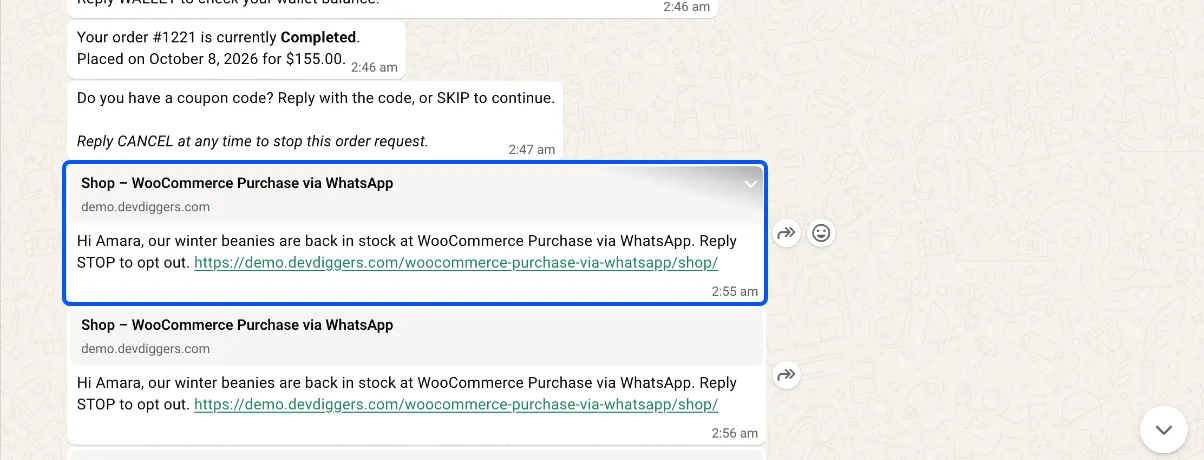
Each customer gets the message as a normal chat message from your number:
The report
Section titled “The report”The report counts Sent, Skipped and Failed, and lists each customer who was not sent the message with the reason.
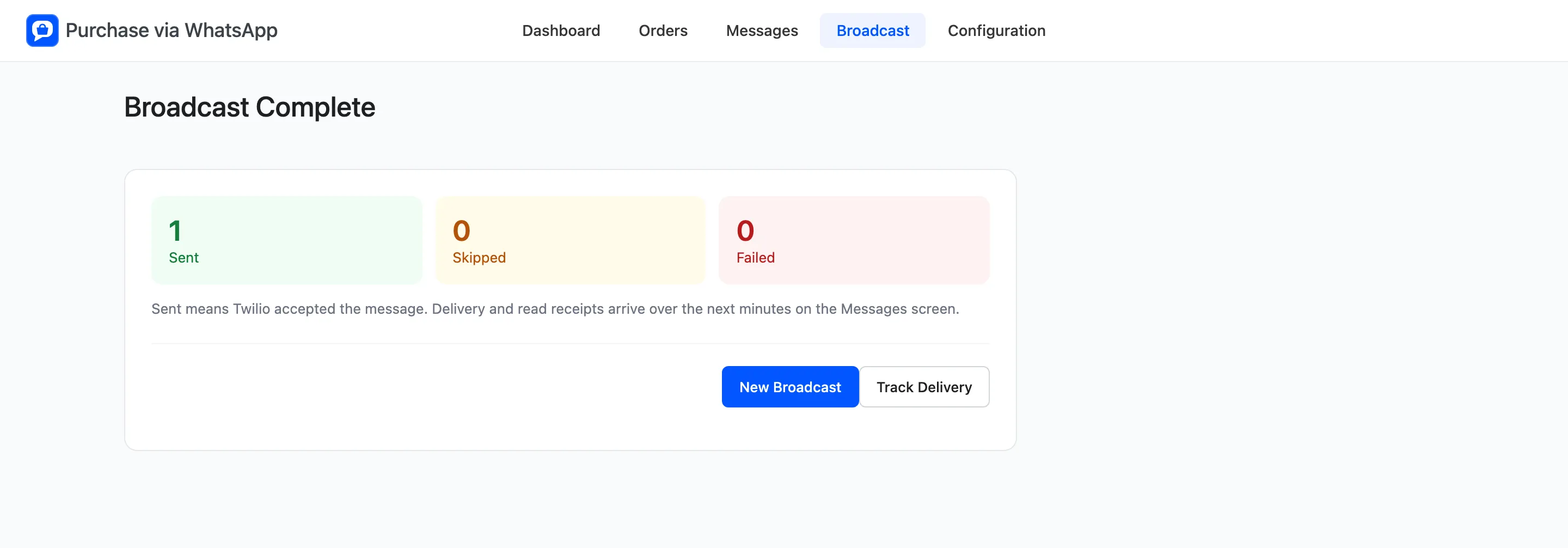
Sent means Twilio accepted the message. Delivery and read receipts arrive afterwards on the Messages screen, under the type Broadcast. Track Delivery opens it, and New Broadcast starts again.