

How to Style the WhatsApp Button
The button should look like it belongs to your store and still read as WhatsApp at a glance. All of this is in the free version too.
Step 1: Open Button Style
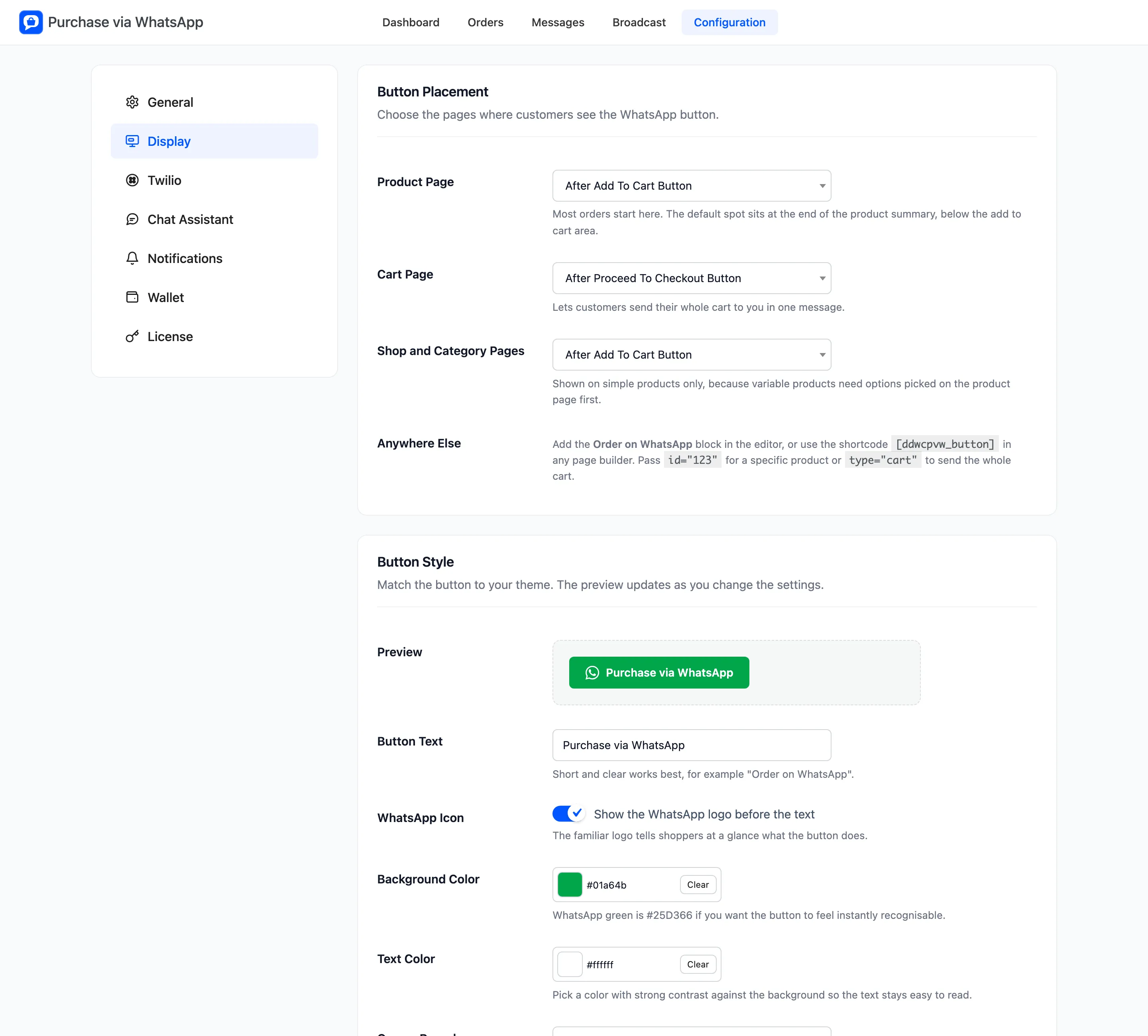
Section titled “Step 1: Open Button Style”Go to Purchase via WhatsApp → Configuration → Display and scroll to Button Style. The Preview at the top redraws the button as you change each field.
Step 2: Set the text and icon
Section titled “Step 2: Set the text and icon”Button Text is what the button says. Short and clear works best, such as “Order on WhatsApp”.
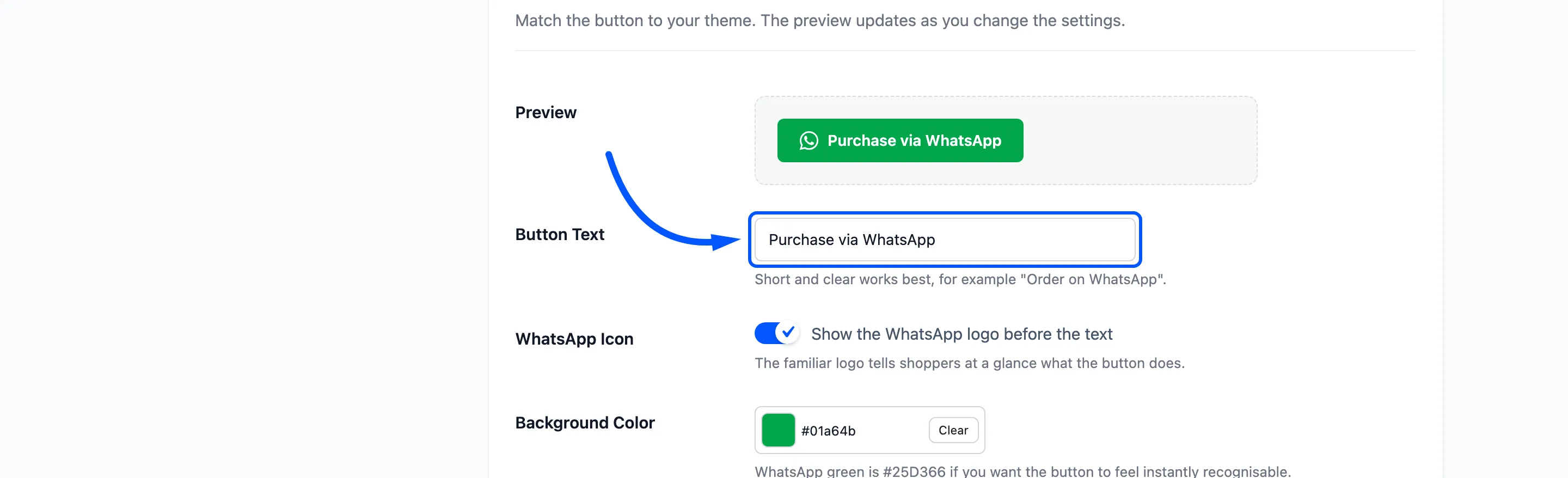
Keep WhatsApp Icon ticked. The logo tells a shopper what the button does before they read it.
Step 3: Set colours, corners and width
Section titled “Step 3: Set colours, corners and width”- Background Color: WhatsApp’s green is
#25D366. The demo uses a darker#01A64B. - Text Color: White by default. Pick one that stays easy to read on the background.
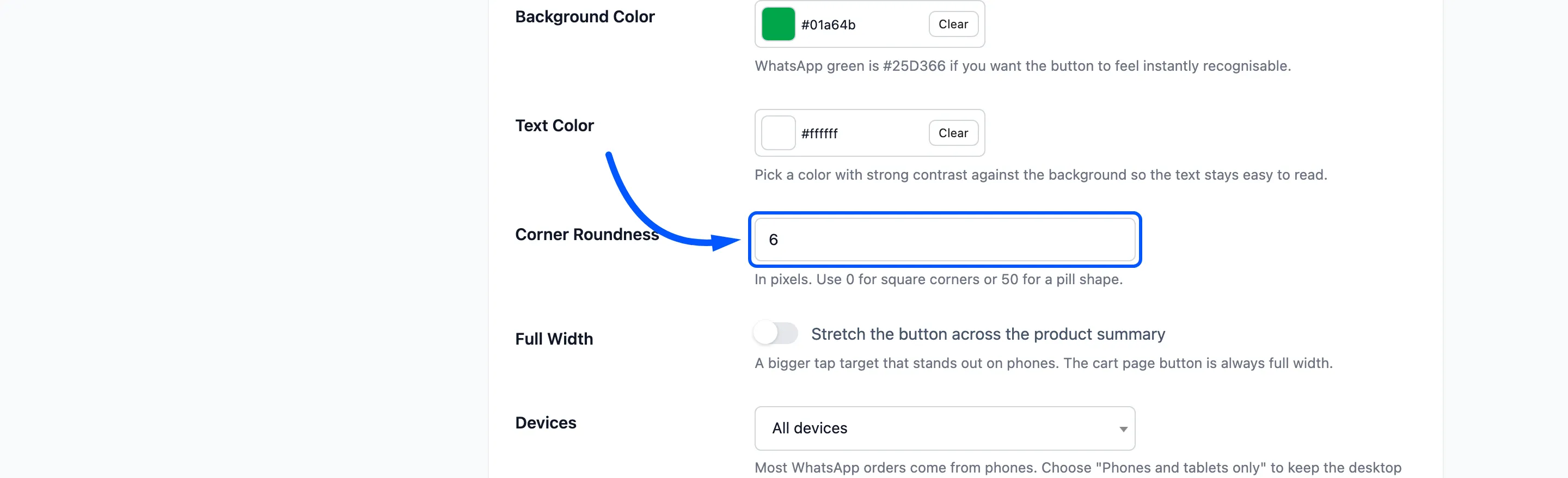
- Corner Roundness: 0 for square, 6 by default, 50 for a pill.
- Full Width: Stretches the button across the product summary. The cart button is always full width.
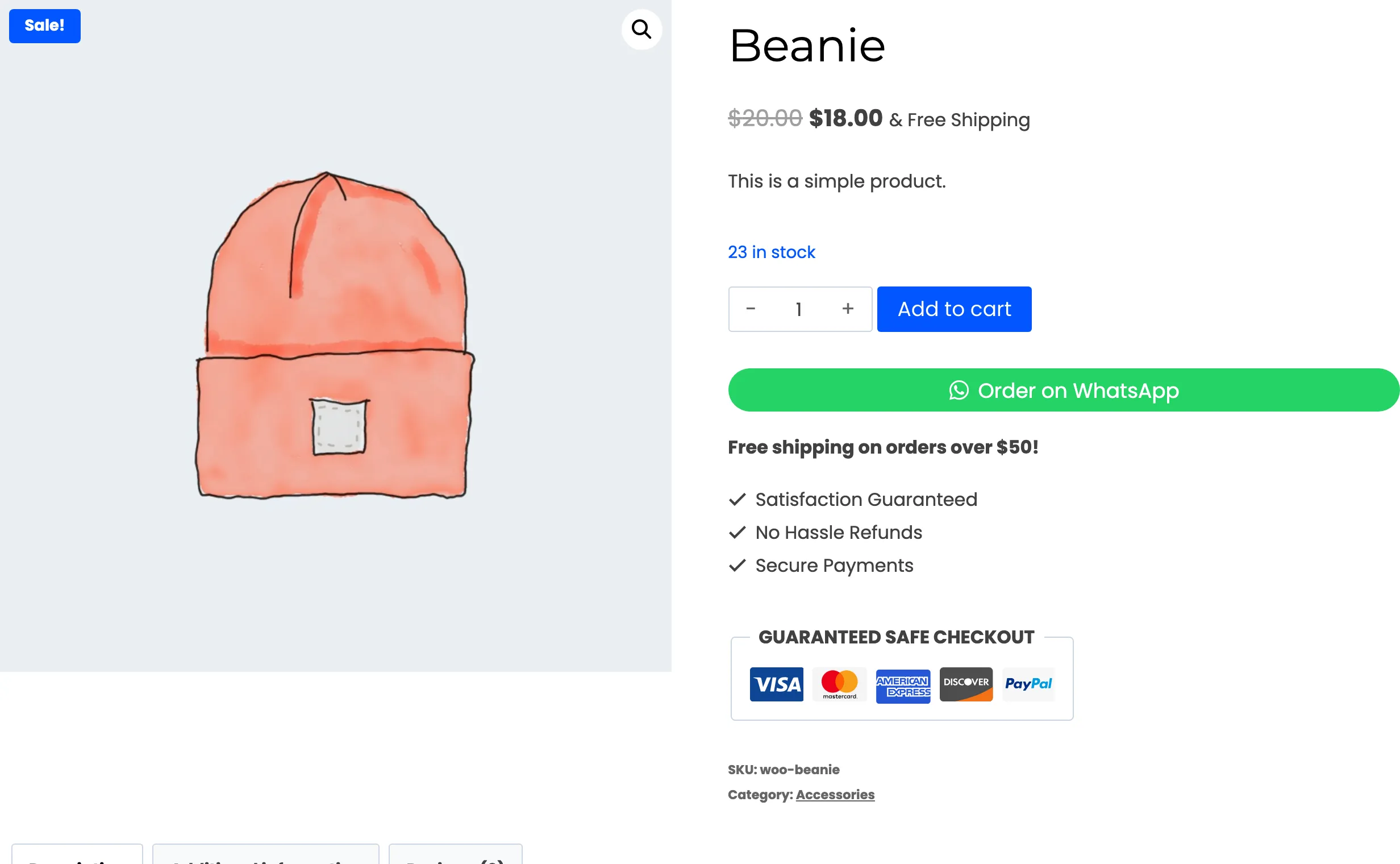
With the text “Order on WhatsApp”, #25D366, a roundness of 50 and Full Width ticked, the product page
looks like this:
Step 4: Choose the devices
Section titled “Step 4: Choose the devices”Devices shows the button on All devices, Phones and tablets only or Desktop only. The split is at a screen 1024 pixels wide.
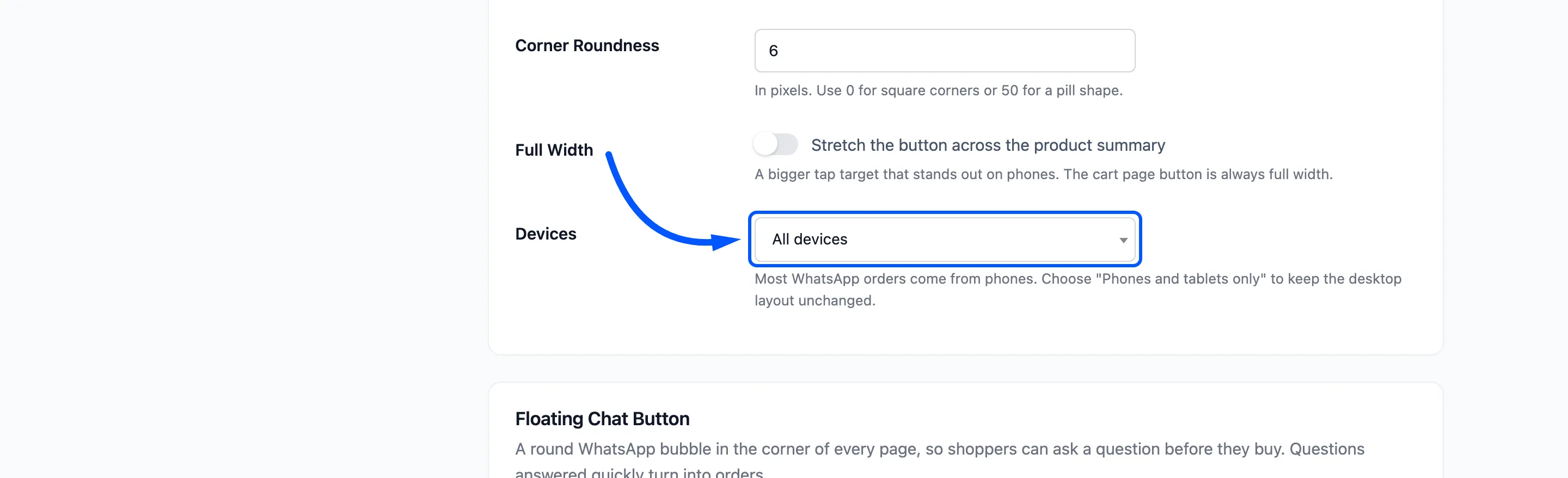
Most WhatsApp orders come from phones. Phones and tablets only leaves the desktop page as it was. Click Save Changes.
The floating chat bubble uses the same two colours, so it always matches.