

How to Send a WhatsApp Broadcast (Pro)
A restock, a sale or a new product is worth telling customers about. On WhatsApp the message is read, not filtered into a promotions tab. This tutorial sends a real broadcast on the demo.
Step 1: Pick the audience
Section titled “Step 1: Pick the audience”Go to Purchase via WhatsApp → Broadcast. Under Who should get it?, choose one of the four.
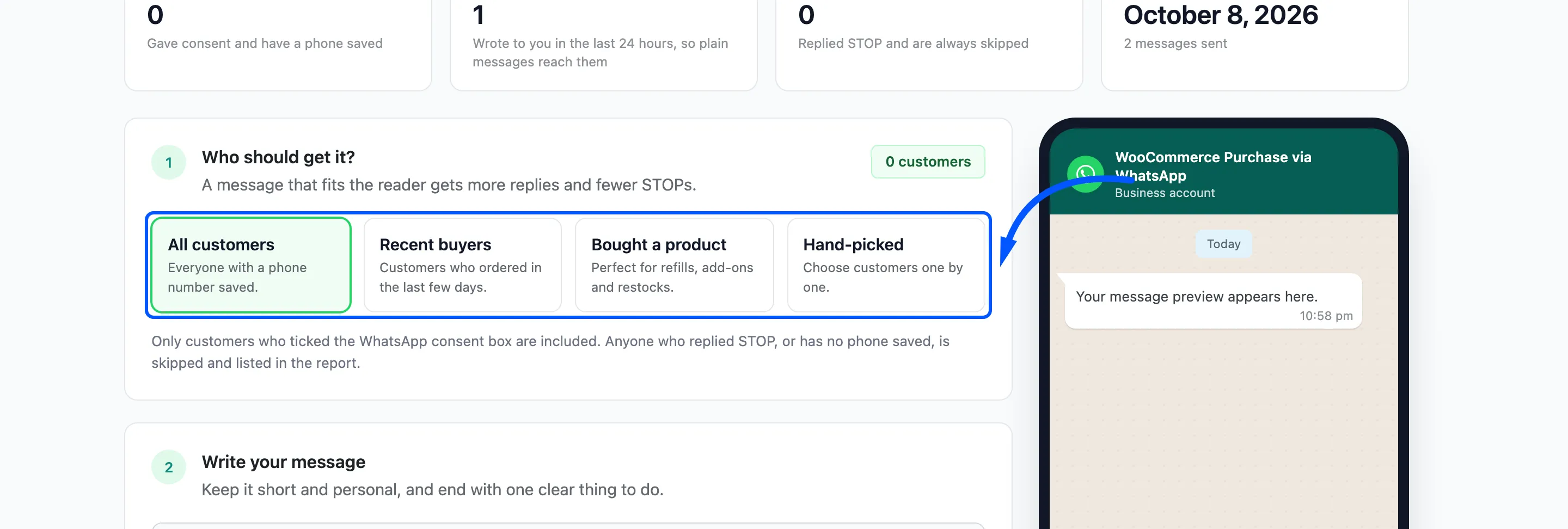
For a restock, Bought a product reaches exactly the customers who will care. The demo used Hand-picked with one customer, so nobody else was messaged. The badge at the top right reads 1 customer.
Guests are never included, because a broadcast reads the phone saved on customer accounts.
Step 2: Write the message
Section titled “Step 2: Write the message”Type the message. + First name and + Shop link add {first_name} and {shop_url}, filled in per
customer. The demo’s message:
Hi {first_name}, our winter beanies are back in stock at {site_name}. Reply STOP to opt out. {shop_url}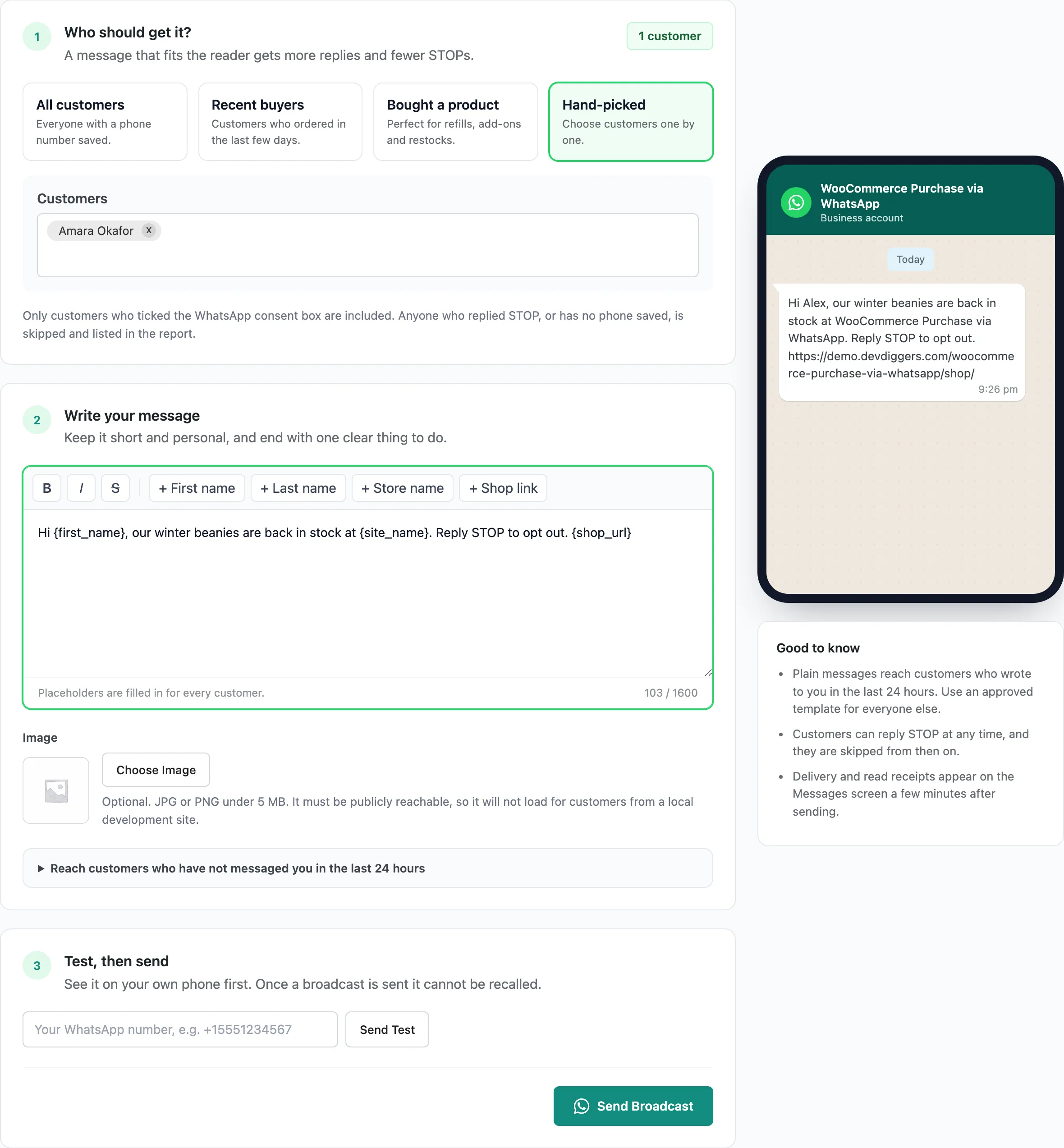
Ending with “Reply STOP to opt out” is good manners, and STOP is handled for you.
Step 3: Add a template if needed
Section titled “Step 3: Add a template if needed”A plain broadcast only reaches Open chats, customers who wrote in the last 24 hours. To reach everyone, open Reach customers who have not messaged you in the last 24 hours and paste an approved template’s SID.
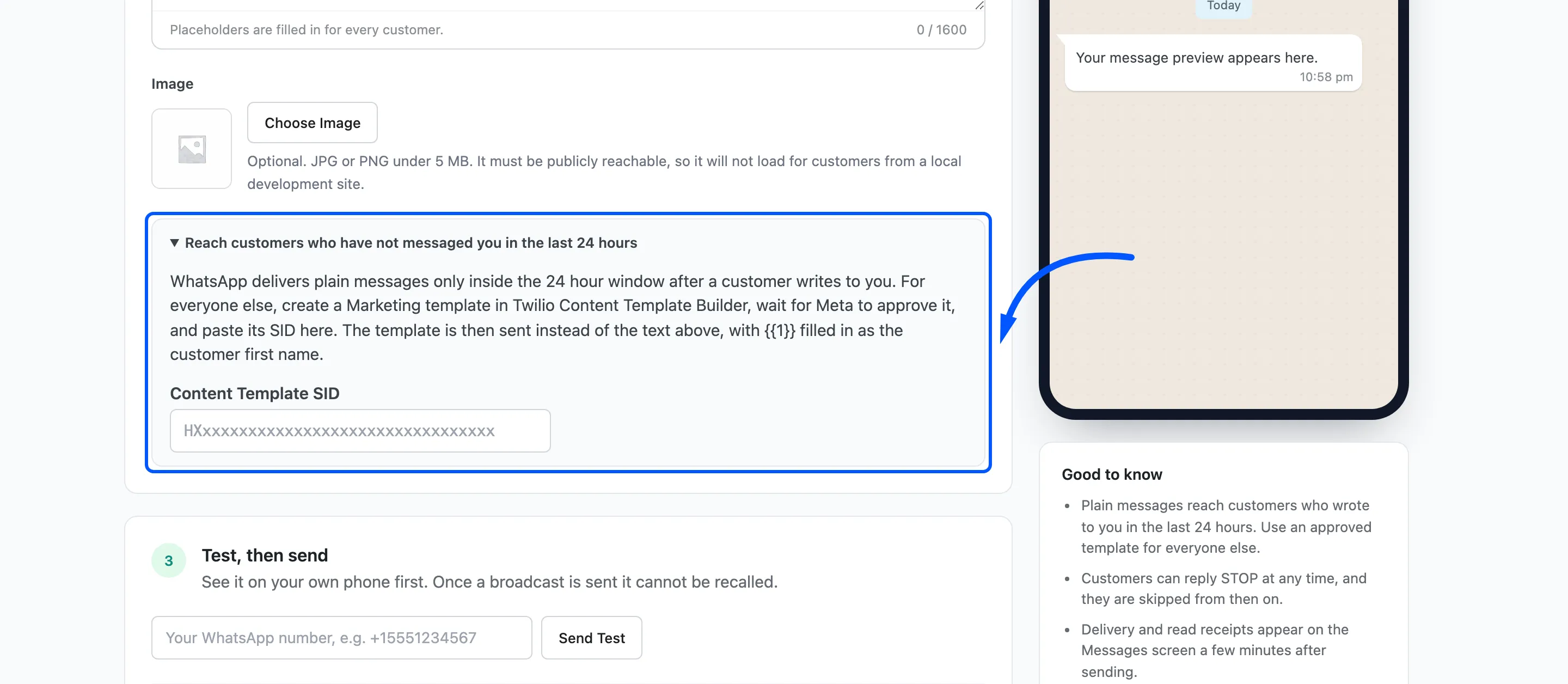
Promotional templates belong in Twilio’s Marketing category.
Step 4: Test it on your phone
Section titled “Step 4: Test it on your phone”Type your own WhatsApp number in Test, then send and click Send Test.
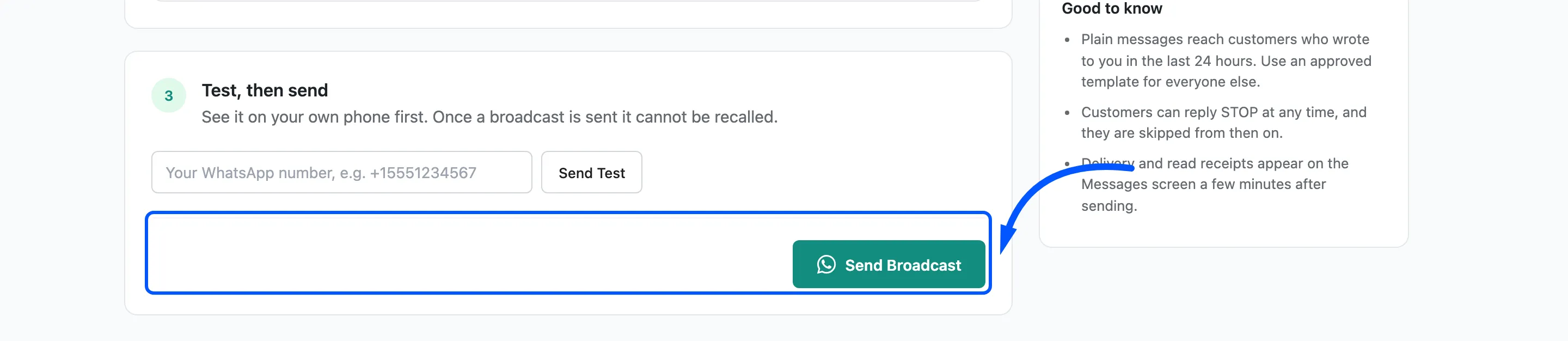
Read it on your phone the way a customer will. A broadcast cannot be recalled.
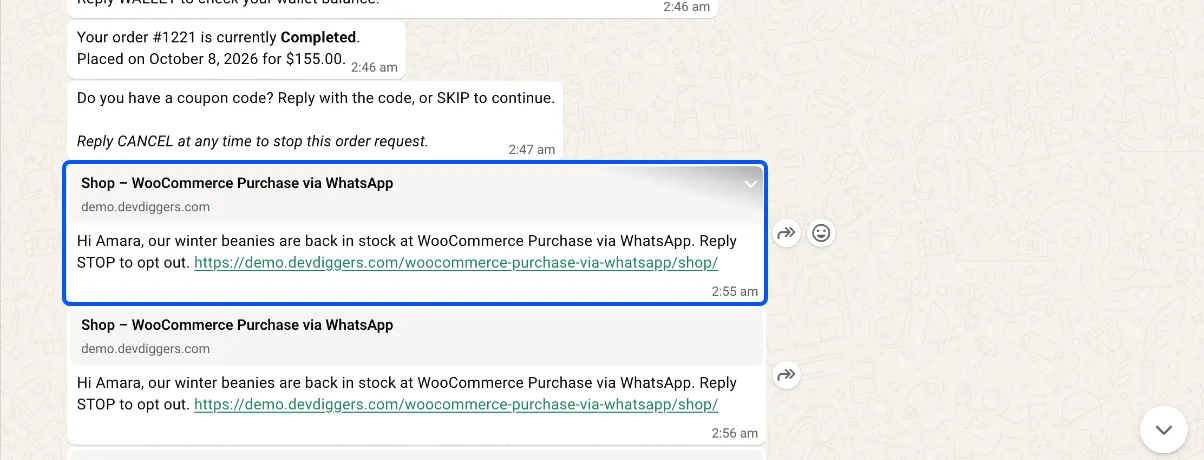
On the demo the test arrived a minute before the real broadcast, word for word the same, with
{first_name} already filled in:
Step 5: Send and read the report
Section titled “Step 5: Send and read the report”Click Send Broadcast. The browser asks “Send this message now? It cannot be recalled once sent. (1 customer)”.
Confirm, and keep the tab open while it sends in batches of 20.
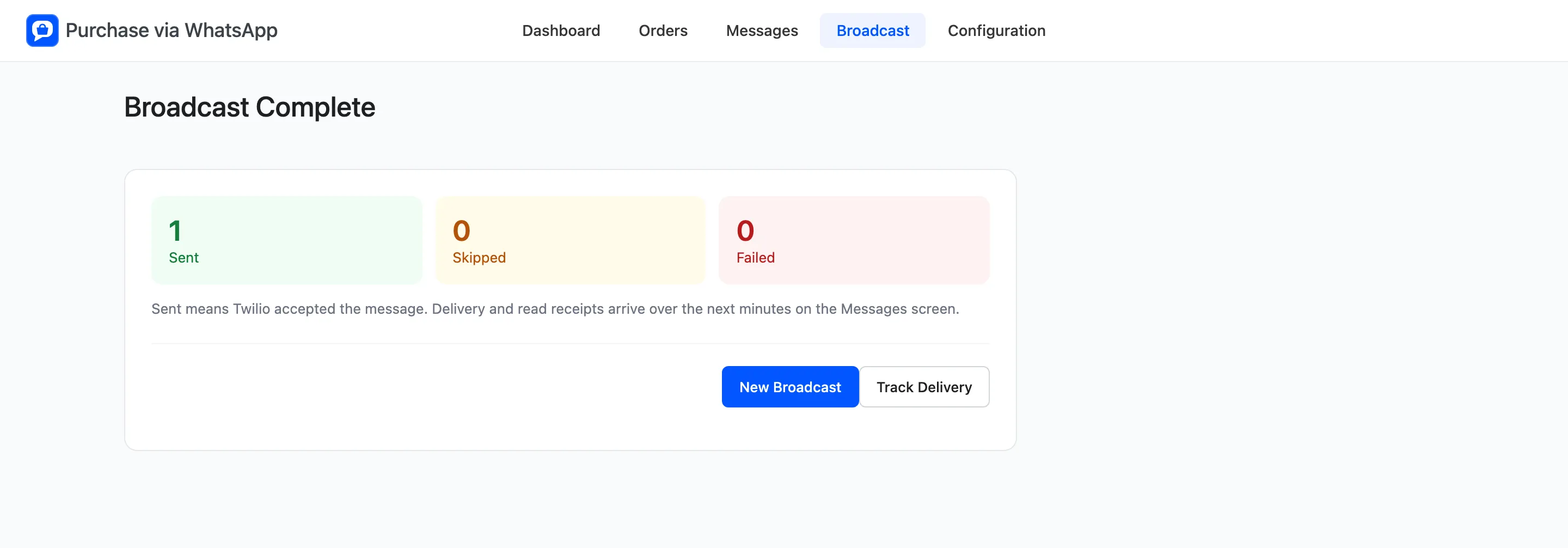
The report counts Sent, Skipped and Failed, and lists everyone skipped or failed with the reason. Track Delivery opens the Messages screen, where the broadcast appears with the type Broadcast and moves to Delivered within seconds.