

How to Track WhatsApp Orders in Google Analytics
A WhatsApp order leaves your site before checkout, so analytics never sees a purchase. This event counts the moment a customer heads to WhatsApp with an order. It is in the free version too.
Step 1: Check your tracking code
Section titled “Step 1: Check your tracking code”The plugin adds no tracking code of its own. It uses the Google tag (gtag), a Tag Manager dataLayer or the
Meta Pixel already on your pages. With none of them, nothing is sent.
Step 2: Turn on Analytics Events
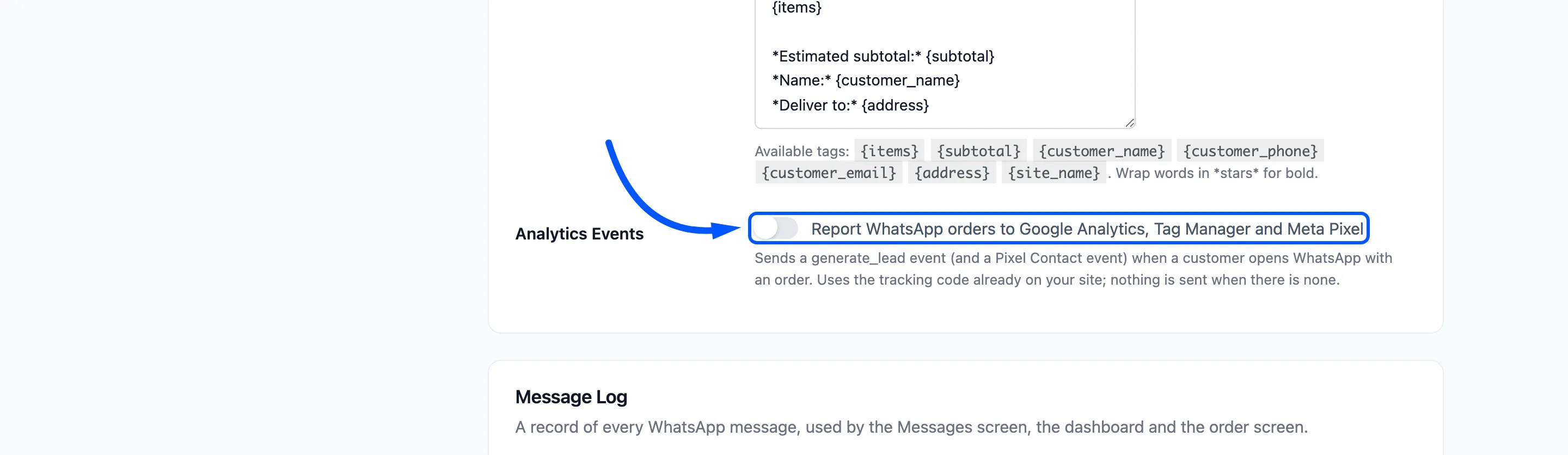
Section titled “Step 2: Turn on Analytics Events”Go to Purchase via WhatsApp → Configuration → General and tick Analytics Events, labelled “Report WhatsApp orders to Google Analytics, Tag Manager and Meta Pixel”. Click Save Changes.
Step 3: Tap the button and look for the event
Section titled “Step 3: Tap the button and look for the event”Open a product and tap the WhatsApp button. On the demo the page sent exactly this to the Google tag:
gtag('event', 'generate_lead', { method: 'whatsapp', ddwcpvw_source: 'product', item_id: '15'});ddwcpvw_sourceisproductfor a product button andcartfor the cart button.item_idis the product ID, or the variation ID once options are picked.
With Tag Manager instead of the Google tag, the same values are pushed to the dataLayer with event: 'generate_lead'. With Meta Pixel, a Contact event is sent too.
The event fires when WhatsApp opens. A guest fires it after the delivery popup, not on the first tap.
Use it as a conversion
Section titled “Use it as a conversion”In Google Analytics, mark generate_lead as a key event. Add ddwcpvw_source as a custom dimension to split
product taps from cart taps.
The event counts intent, not sales. Compare it with WhatsApp Orders on the dashboard to see how many chats finish.