

Installing and Activating Purchase via WhatsApp
Purchase via WhatsApp installs like any WordPress plugin. You upload the zip, activate it, and the setup wizard opens. This guide covers the Pro zip, the free version and how to check the plugin is running.
Before you start
Section titled “Before you start”Check that your store meets the requirements:
- WordPress 6.5 or newer.
- WooCommerce 9.0 or newer.
- PHP 7.4 or newer.
- For Pro, a Twilio account. A free trial is enough to start.
WooCommerce must be active first. Without it the plugin shows “WooCommerce Purchase via WhatsApp is activated but not effective. It requires WooCommerce.” and does nothing.
Install from a downloaded zip
Section titled “Install from a downloaded zip”Use this method for the Pro version you bought and downloaded from DevDiggers.
-
In WordPress admin, go to Plugins → Add New Plugin.

-
Click Upload Plugin at the top of the screen.

-
Click Choose File and select the plugin
.zipyou downloaded.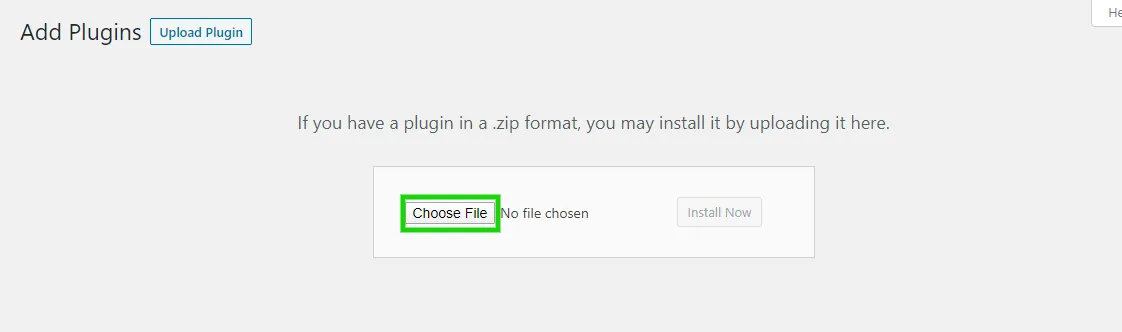
-
Click Install Now.

-
When the install finishes, click Activate Plugin.

Do not unzip the file first. WordPress expects the .zip, not the folder inside it.
Install the free version
Section titled “Install the free version”The free version is called DevDiggers Order via Chat for WooCommerce. Install its zip the same way.
You can keep both installed. While Pro is active, the free version stays switched off by itself. Pro reads the free version’s WhatsApp number if Pro has no sender number yet.
Confirm the plugin is active
Section titled “Confirm the plugin is active”After activation the setup wizard opens once. The plugin’s own menu, Purchase via WhatsApp, appears in the admin sidebar, with Dashboard, Orders, Messages, Broadcast and Configuration. The free version’s menu is called Order via Chat.
On Plugins → Installed Plugins, the plugin’s row has Dashboard, Configuration and Setup Wizard links.