

How to Edit the WhatsApp Order Message
The Order Request is the first thing a customer sends you, so it sets the tone. It is in the free version too.
Step 1: Open the Order Request field
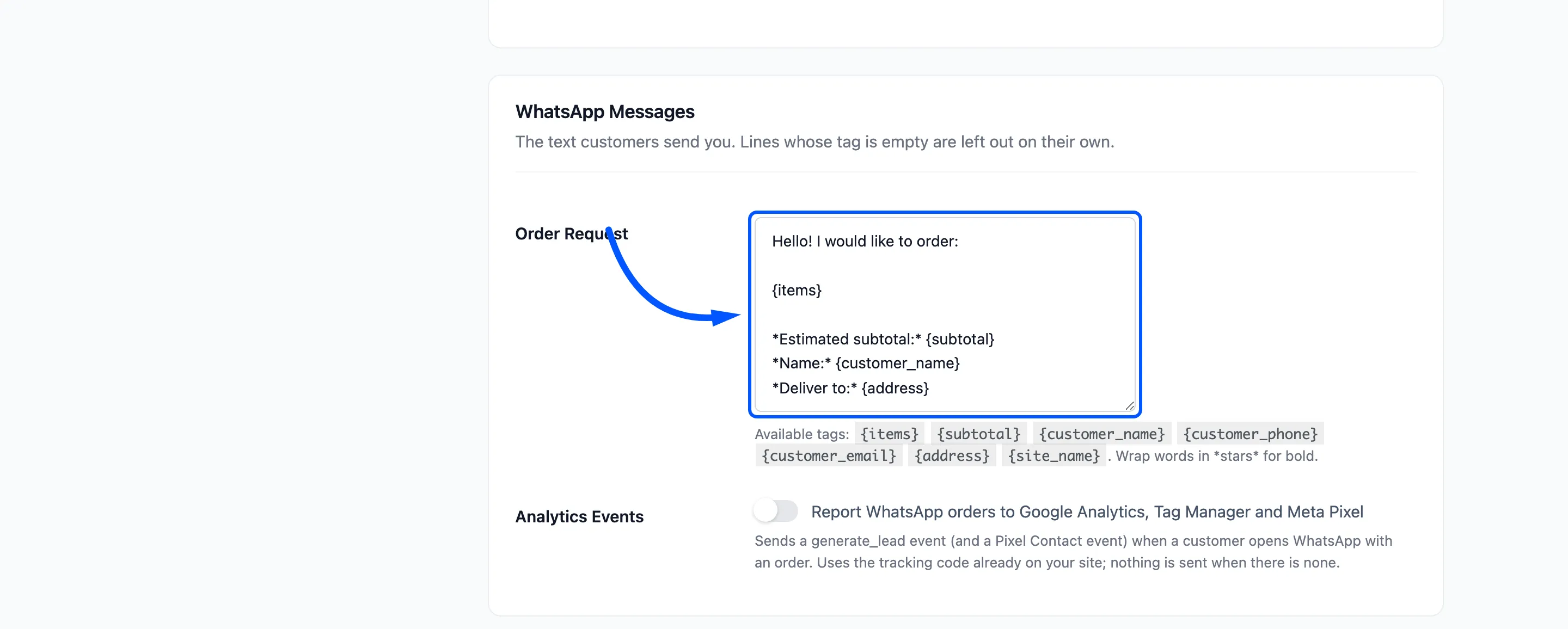
Section titled “Step 1: Open the Order Request field”Go to Purchase via WhatsApp → Configuration → General. Order Request is in WhatsApp Messages.
Step 2: Rewrite the message with tags
Section titled “Step 2: Rewrite the message with tags”| Tag | Becomes |
|---|---|
{items} |
Each product in bold, its options, the quantity and price, and its link |
{subtotal} |
The estimated subtotal before shipping and tax |
{customer_name} |
The name from the popup or the account |
{customer_phone} |
The phone from the popup or the account |
{customer_email} |
The email |
{address} |
The delivery address on one line |
{site_name} |
Your site’s name |
Wrap words in *stars* for bold, as in WhatsApp. The default reads:
Hello! I would like to order:
{items}
*Estimated subtotal:* {subtotal}*Name:* {customer_name}*Deliver to:* {address}
Please send this message as it is to continue.
A line whose tag comes out empty is dropped on its own. With prices hidden, the subtotal line disappears and each item shows “Quantity: 2” instead of a price.
Step 3: Save and tap the button
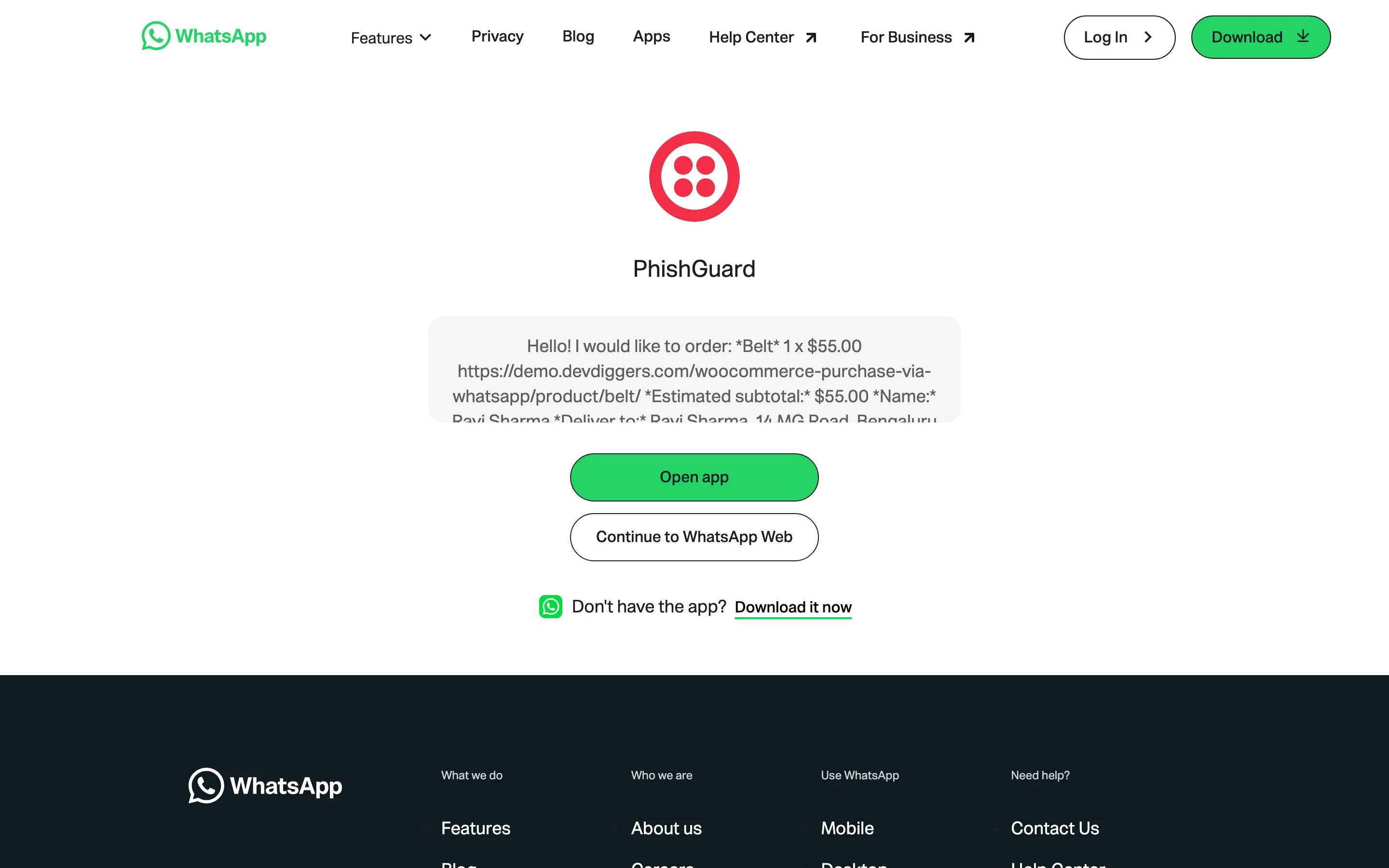
Section titled “Step 3: Save and tap the button”Click Save Changes, open a product and tap the WhatsApp button. The message WhatsApp opens with is your new wording.
Wording that works
Section titled “Wording that works”- Keep the request clear. “I would like to order” tells the store what the message is at a glance.
- Keep the closing line in Pro. The assistant finds the order by the customer’s phone number, not by the text. A customer who deletes it and sends HELP gets the help list instead of the next step. “Please send this message as it is” saves that round trip.
- Keep it short. WhatsApp shows long messages folded, and the customer has to scroll before sending.