

How to Get New Order Alerts on Your Phone (Pro)
A small team often lives on its phones. An alert puts each new order there the moment it is placed.
Step 1: Turn on the alerts
Section titled “Step 1: Turn on the alerts”Go to Purchase via WhatsApp → Configuration → Notifications and tick Status under New Order Alerts For You.
Step 2: Add your numbers
Section titled “Step 2: Add your numbers”Enter your WhatsApp numbers in Send Alerts To, with the country code, separated by commas.
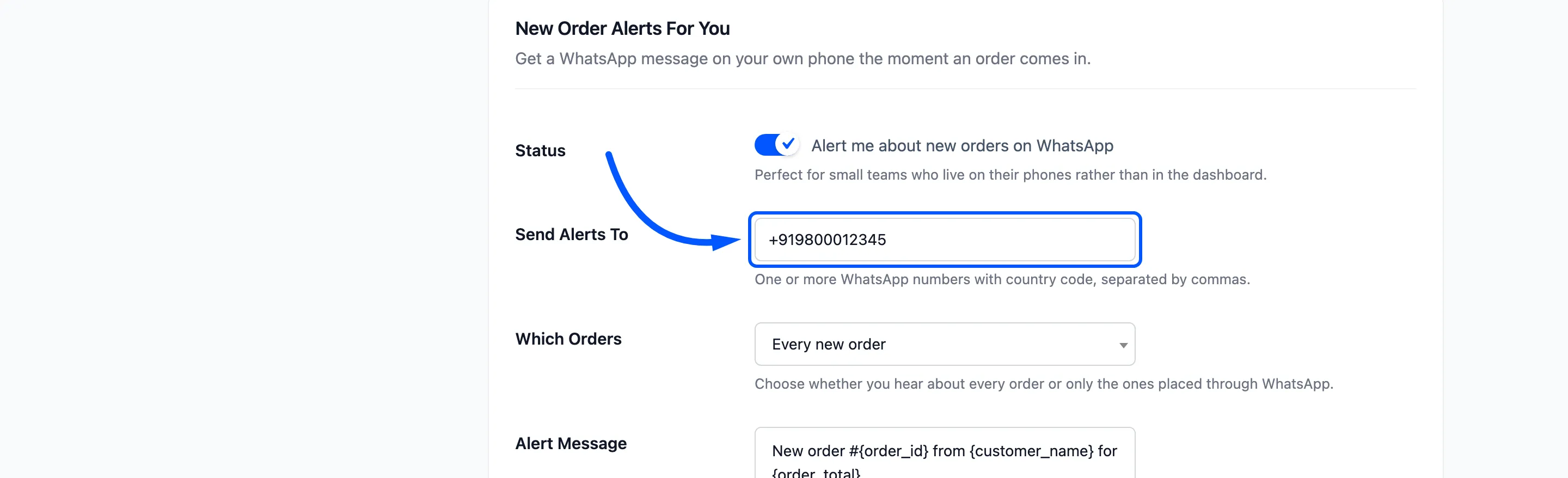
On the sandbox, each of these phones must have joined it.
Step 3: Choose which orders
Section titled “Step 3: Choose which orders”Which Orders offers Every new order or Only WhatsApp orders. Edit Alert Message if you like.
Besides the usual placeholders it can use {edit_order_url}, a link straight to the order in your admin.
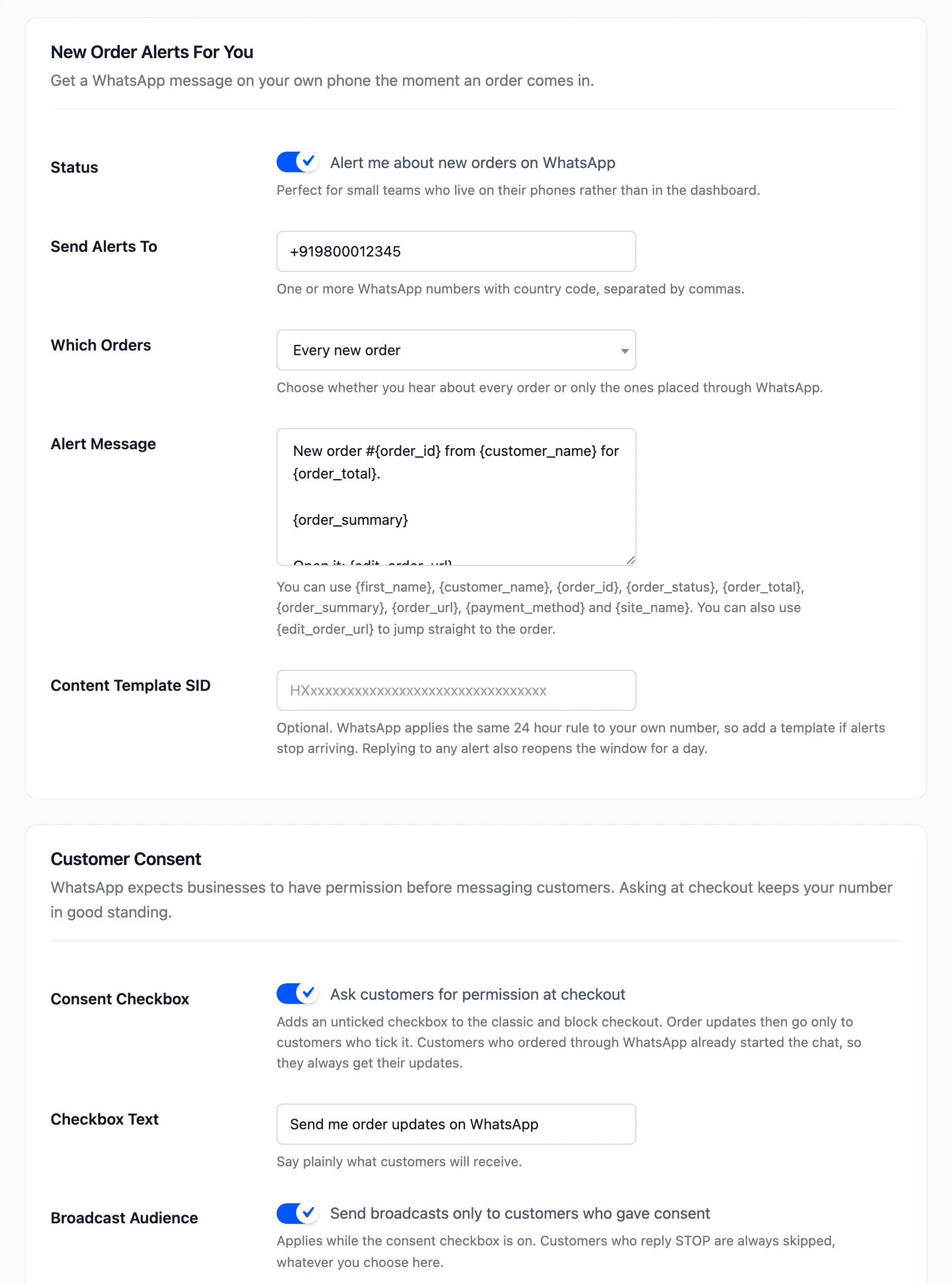
Click Save Changes. On the demo, an order placed in the WhatsApp chat produced this alert seconds later:
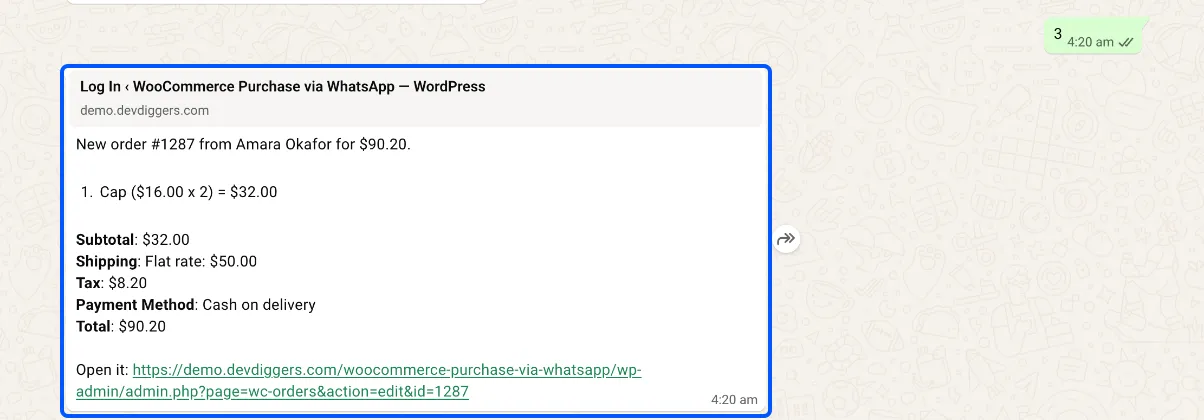
The Open it link goes to the order in your admin. WhatsApp’s link preview shows your login page, because the preview is fetched without your login. The link itself works once you are signed in.
It is logged on the Messages screen with the type Store alert.
Step 4: Keep the alerts arriving
Section titled “Step 4: Keep the alerts arriving”WhatsApp’s 24 hour rule applies to your own phone too. Two ways to keep alerts coming:
- Reply to an alert. Any reply from your phone opens the window again for a day. The chat assistant answers that reply like any customer’s, so expect its Welcome Reply back.
- Add a template. Paste an approved SID into Content Template SID, and the alert arrives whenever it is sent.
The setup wizard’s Alert Me On field fills the same numbers, and clearing it there switches the alerts off.