

How to Choose Where the WhatsApp Button Appears
The button only sells if shoppers see it where they decide. This tutorial sets the three positions and shows each on the storefront. Everything here is in the free version too.
Step 1: Open the Display tab
Section titled “Step 1: Open the Display tab”Go to Purchase via WhatsApp → Configuration → Display. Button Placement is the first section.
Step 2: Pick the product page position
Section titled “Step 2: Pick the product page position”Product Page offers eight choices.
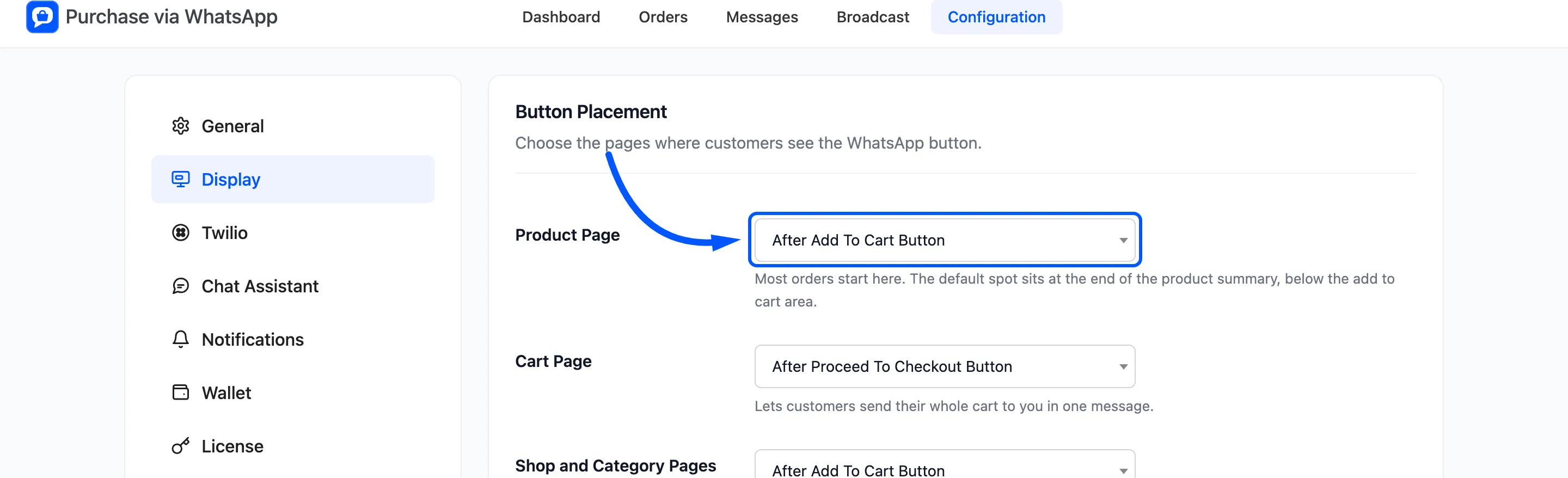
| Choice | Where it lands |
|---|---|
| Default (end of the summary) | Under everything in the product summary |
| After Add To Cart Button | Right below Add to cart, the demo’s setting |
| After Short Description | Between the description and Add to cart |
| Before Product Title / After Product Title | At the top of the summary |
| After Product Image | Under the gallery, on the left |
| Before Tab Information | Above the Description and Reviews tabs |
| Do not show | No button on product pages |
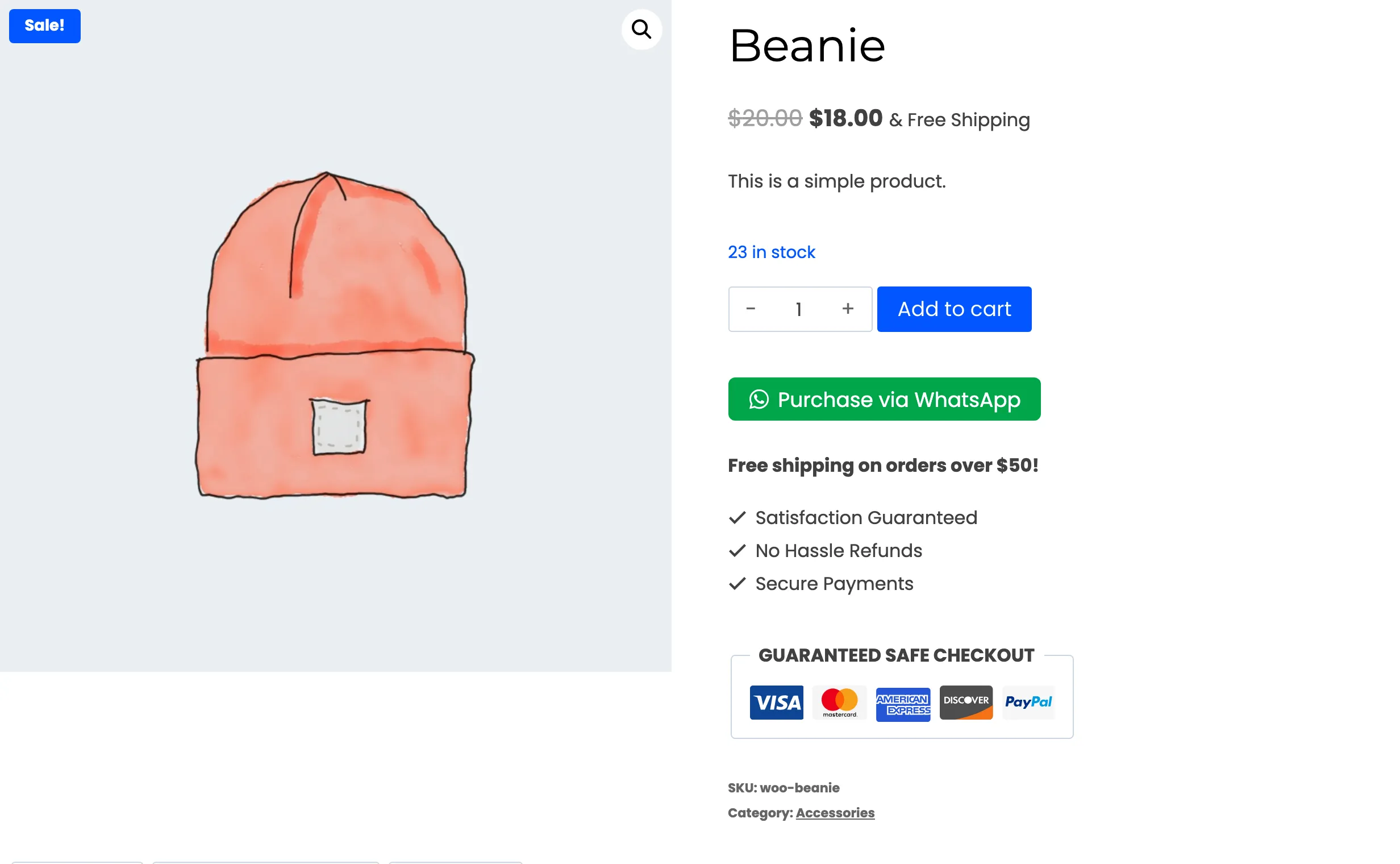
Right under Add to cart works for most stores, because the two choices sit side by side.
Step 3: Pick the cart and shop positions
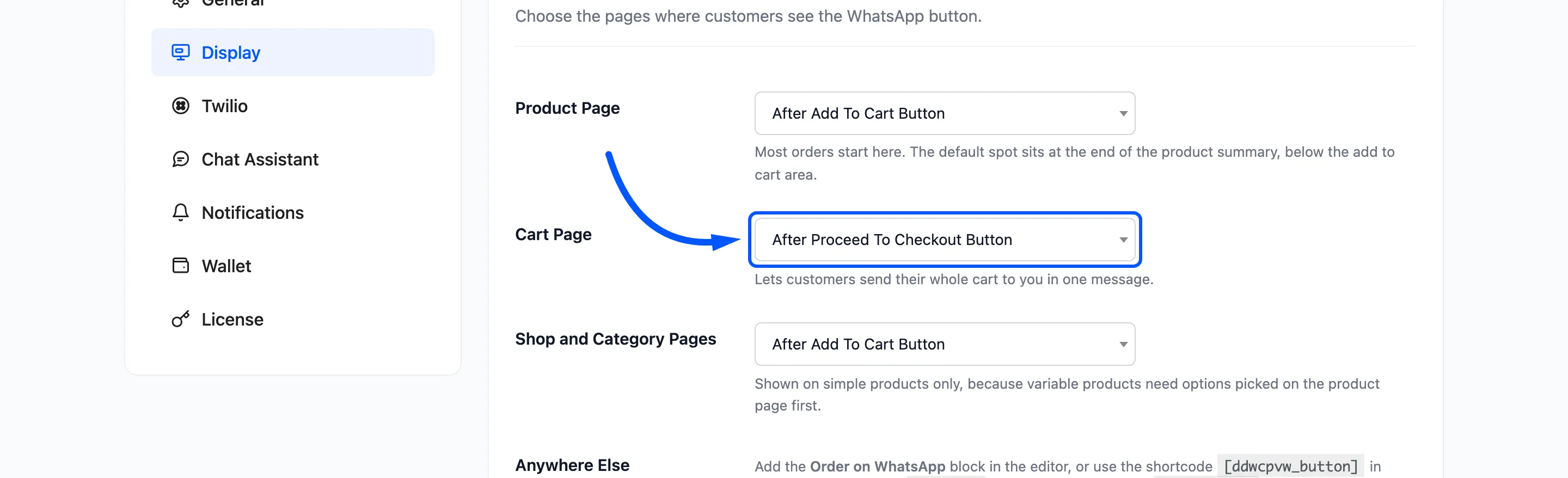
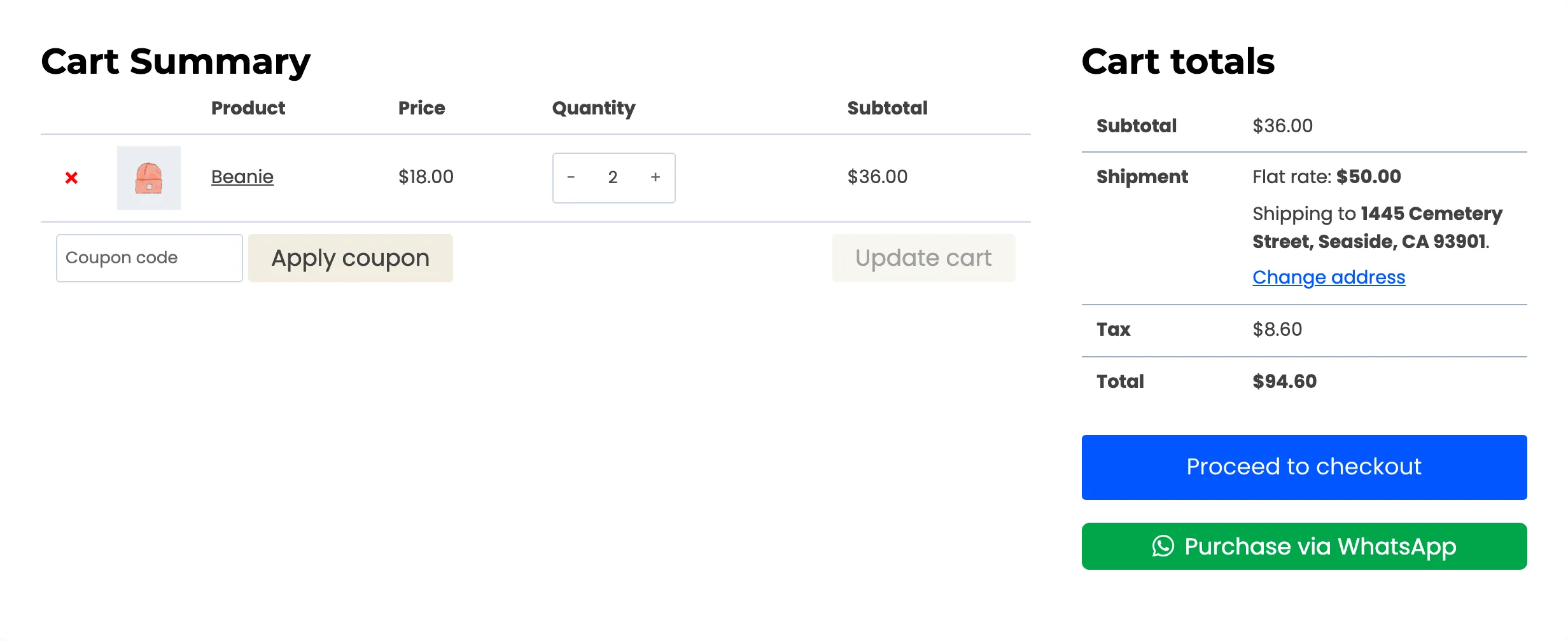
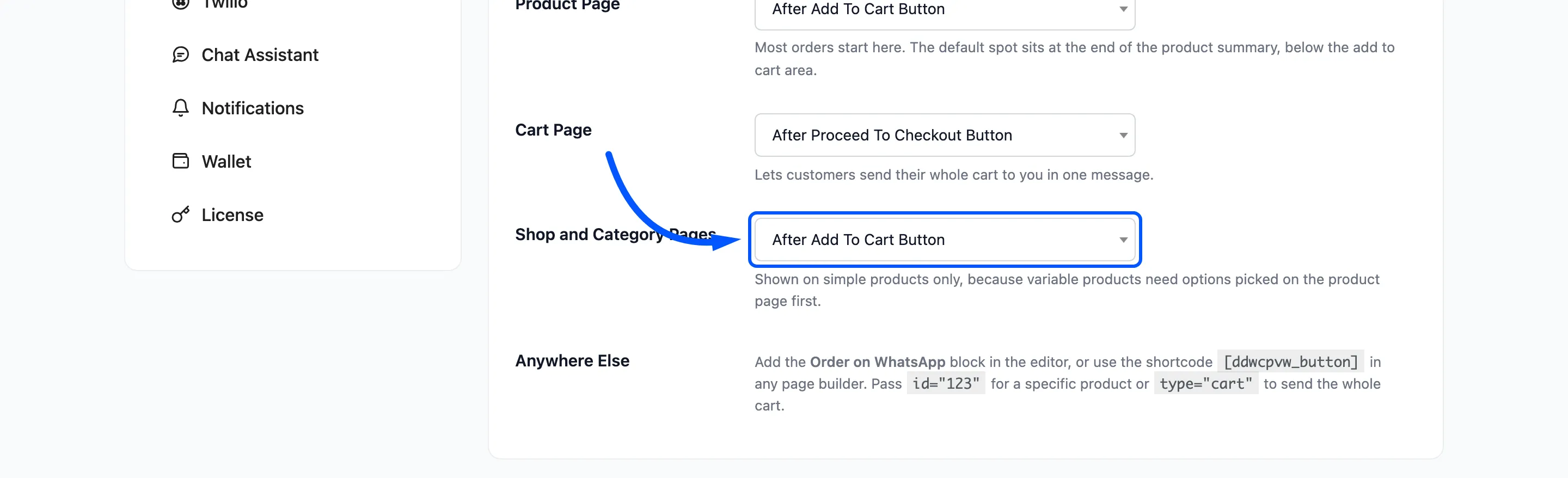
Section titled “Step 3: Pick the cart and shop positions”Cart Page places a button before or after Proceed to checkout. It sends the whole cart in one message.
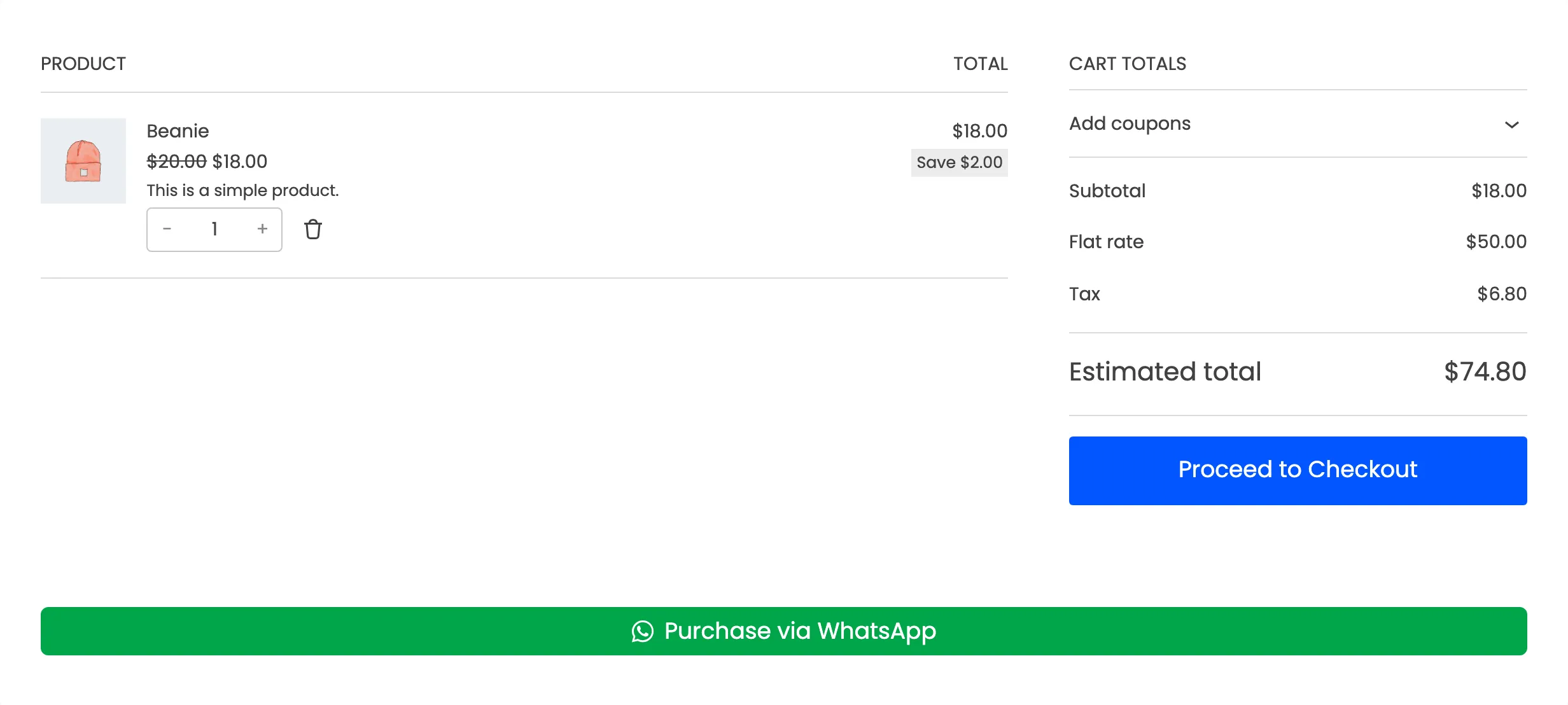
Shop and Category Pages adds a button to each simple product’s card, before or after its Add to cart. It is Do not show by default. Variable products get none, because their options are picked on the product page.
Step 4: Save and check each page
Section titled “Step 4: Save and check each page”Click Save Changes, then open a product, the cart with something in it, and the shop, logged out. Clear your page cache if you use one.
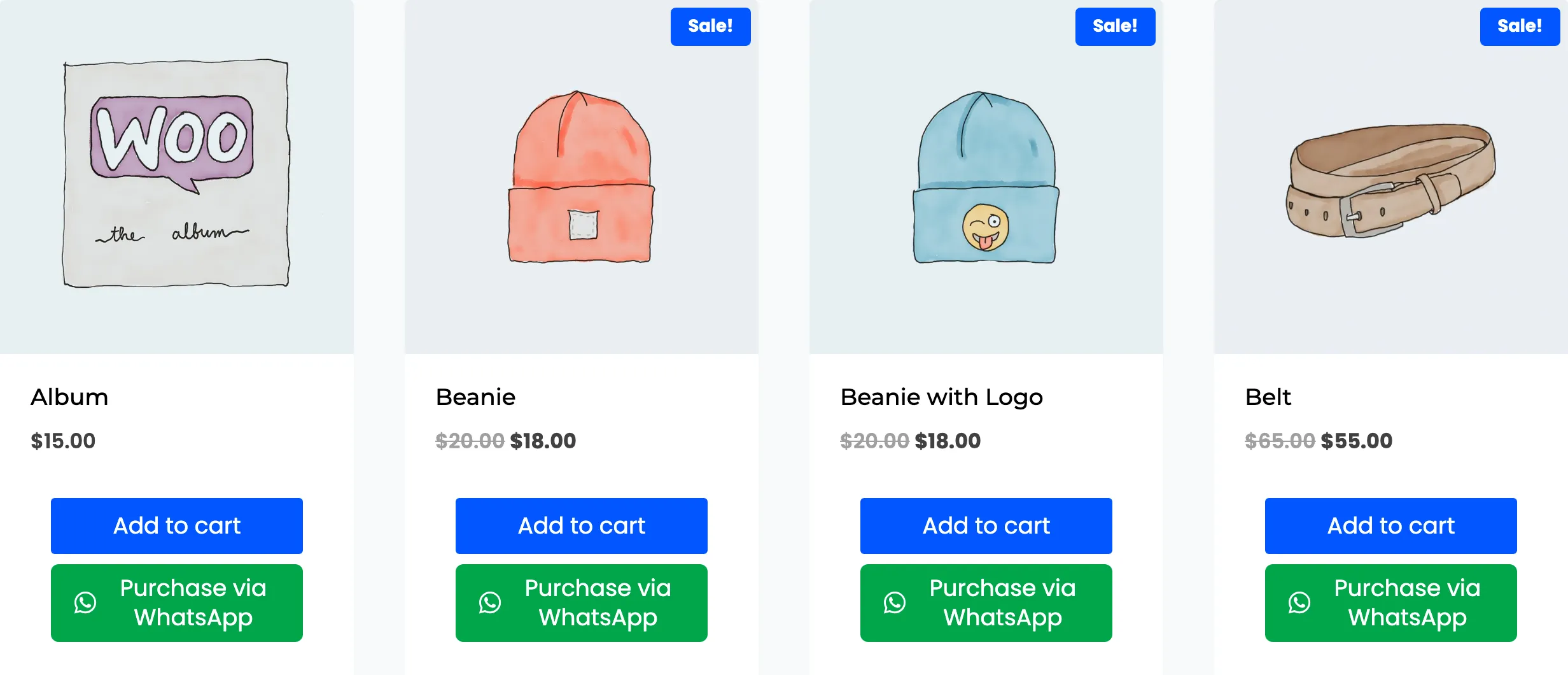
The cart button only shows when the cart has something in it.
On a cart page built with the Cart block, the button sits under the whole block, across the full width. The Cart Page position only applies to the classic cart.
If the shop buttons do not appear
Section titled “If the shop buttons do not appear”Some themes, the demo’s included, keep a product card’s buttons hidden until the pointer moves over the card. The WhatsApp button is there, but nobody on a phone sees it.
Add this in Appearance → Customize → Additional CSS, then click Publish. It is the CSS the demo uses:
.woocommerce ul.products li.product .product-details .product-action-wrap { position: static !important; opacity: 1 !important; transform: none !important; visibility: visible !important; padding-top: 12px;}.woocommerce ul.products li.product .product-action-wrap .button { width: 100%; justify-content: center; margin: 0 0 8px;}The class names belong to the demo’s theme. On another theme, ask your theme’s support for the class of the
card’s button area and use it in place of .product-action-wrap.
Anywhere else
Section titled “Anywhere else”For a landing page or a page builder, use the block or the shortcode. See How to Add the WhatsApp Button with a Block or Shortcode.