

How to Test with the Twilio WhatsApp Sandbox (Pro)
WhatsApp only lets a business message customers from a number it has approved. Approval takes time and needs a paid Twilio account. The Twilio WhatsApp Sandbox is a shared test number you can use today, for free.
The sandbox is for testing only. Every phone that chats with it must join it first by sending a code, so your real customers cannot use it. When you are ready to sell, follow How to Register Your WhatsApp Business Number in Twilio.
Step 1: Open the sandbox in Twilio
Section titled “Step 1: Open the sandbox in Twilio”In the Twilio Console, open Messaging → Try it out → Send a WhatsApp message. The Try WhatsApp page opens on its Sandbox tab.
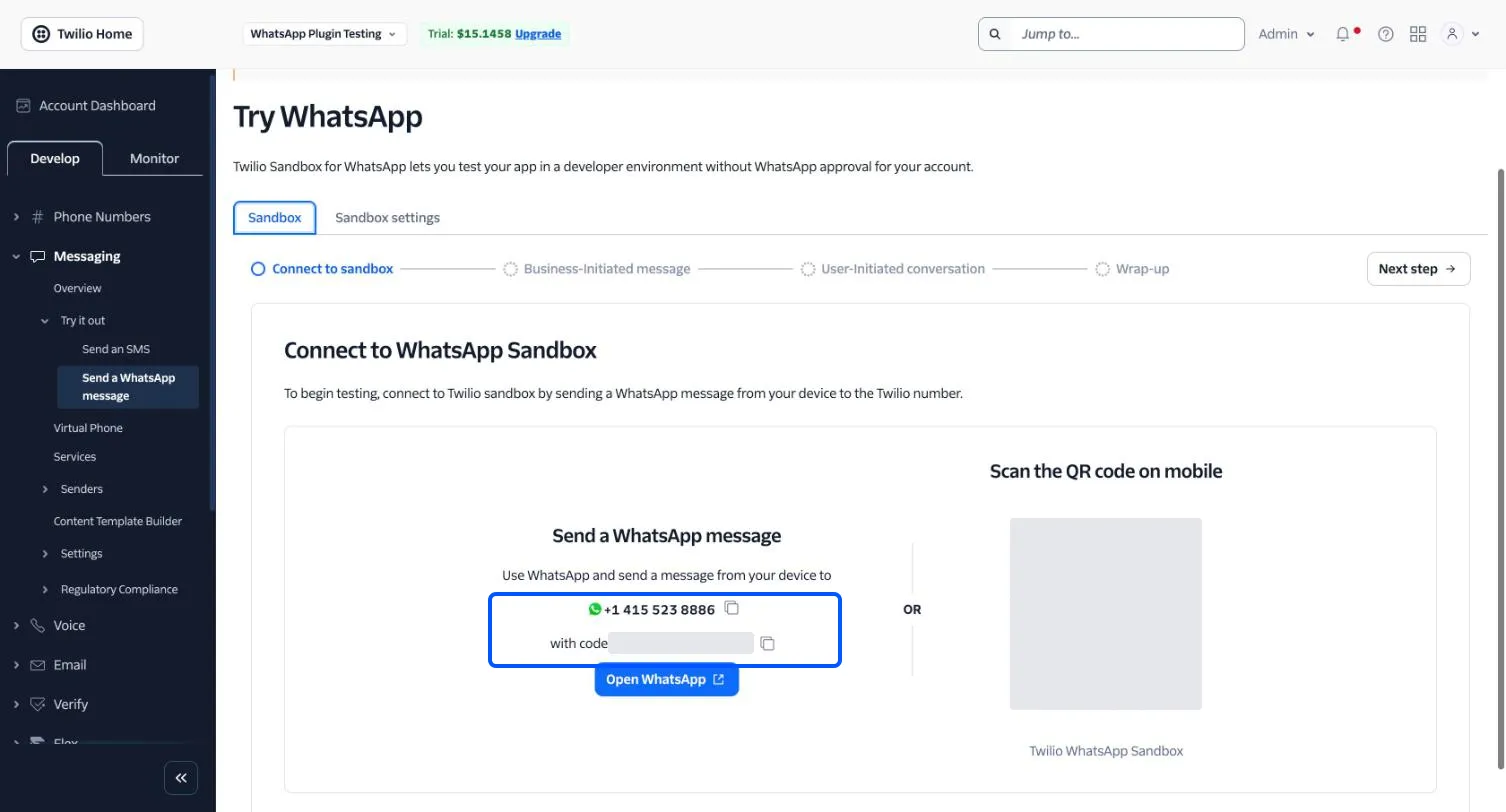
The page shows two things:
- The sandbox number, +1 415 523 8886. It is the same for every Twilio account.
- Your own join code, two words after join, such as
join green-tiger. It is hidden in this screenshot, because it is unique to the account.
Step 2: Join the sandbox from your phone
Section titled “Step 2: Join the sandbox from your phone”On your phone, open WhatsApp and send your join code to +1 415 523 8886. You can also scan the QR code on the page, or tap Open WhatsApp on the page if you are on your phone.
Twilio replies to confirm you joined. From then on, that phone can chat with the sandbox.
Repeat this on every phone you test with. Twilio drops a phone from the sandbox after 72 hours, so send the code again if messages stop arriving.
Step 3: Set the sandbox as your sender
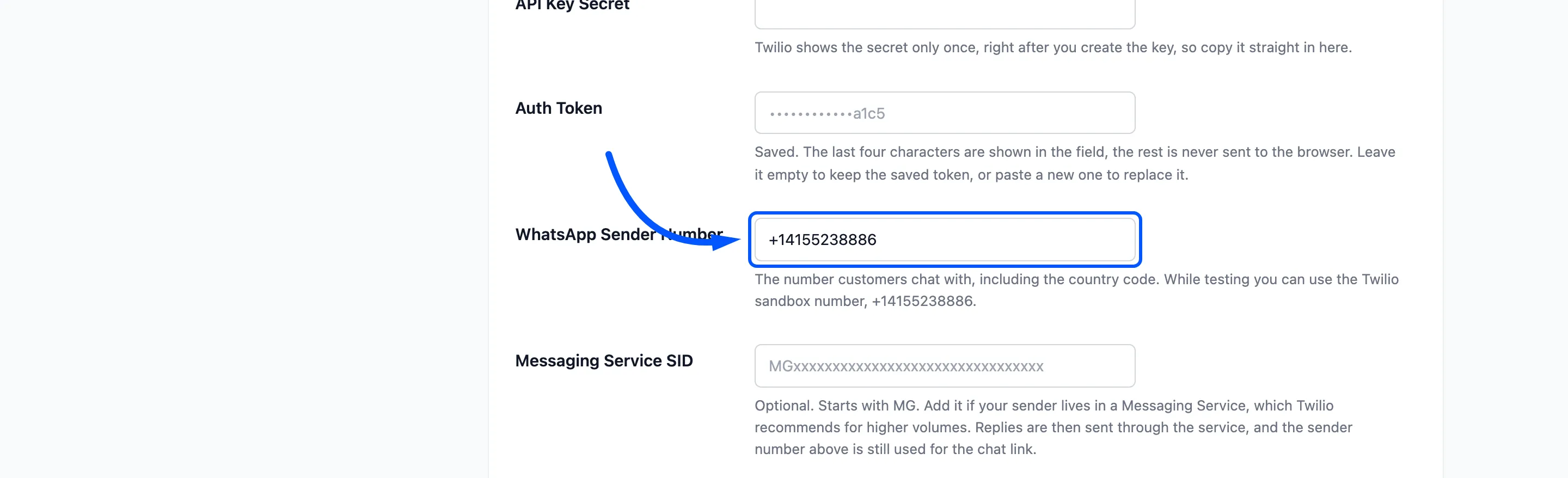
Section titled “Step 3: Set the sandbox as your sender”In WordPress, go to Purchase via WhatsApp → Configuration → Twilio and enter +14155238886 in WhatsApp Sender Number. The field’s own hint suggests the same number. Click Save Changes.
Step 4: Point the sandbox at your store
Section titled “Step 4: Point the sandbox at your store”Back in Twilio, open the Sandbox settings tab on the same page. Paste your store’s Incoming Messages URL into When a message comes in and keep the method on POST. Click Save.
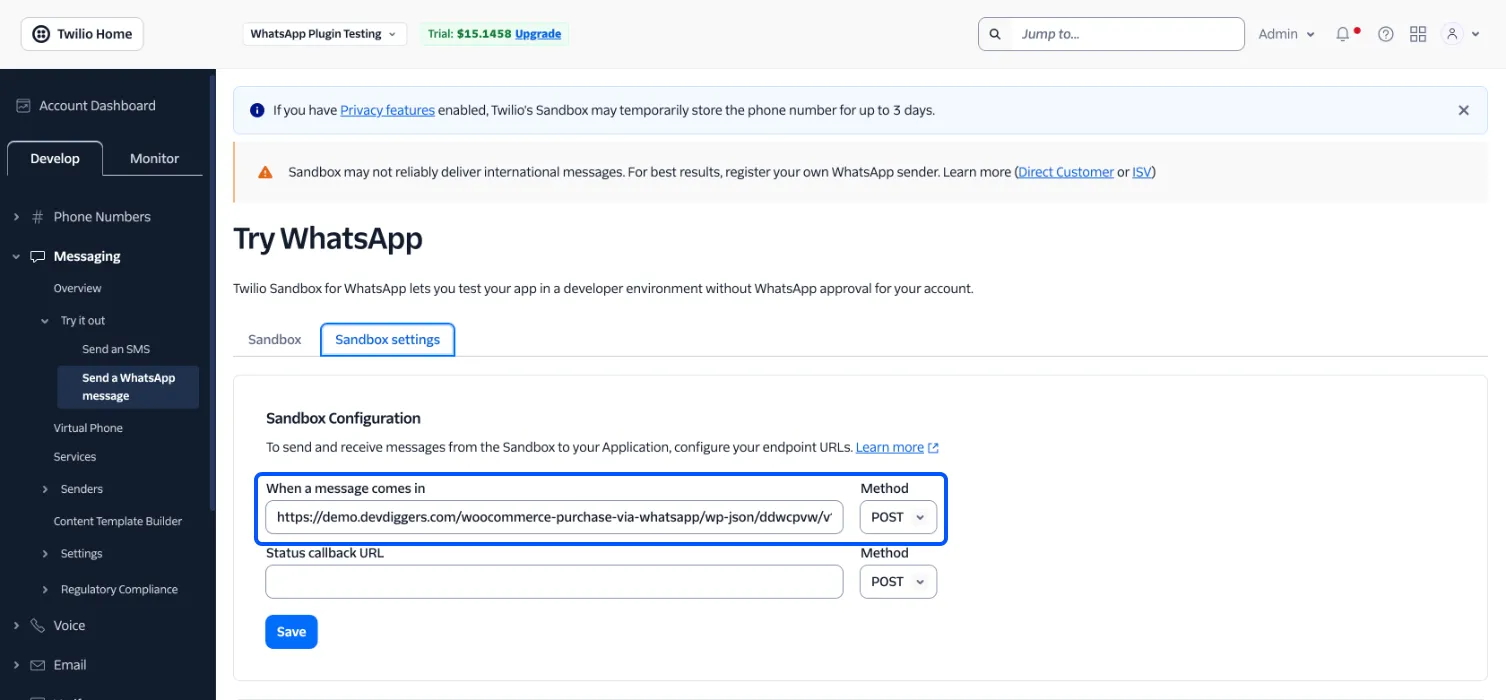
Leave Status callback URL empty. The plugin sends its own with every message.
How to Connect Twilio to Your Store explains where the Incoming Messages URL comes from.
What the sandbox changes for customers
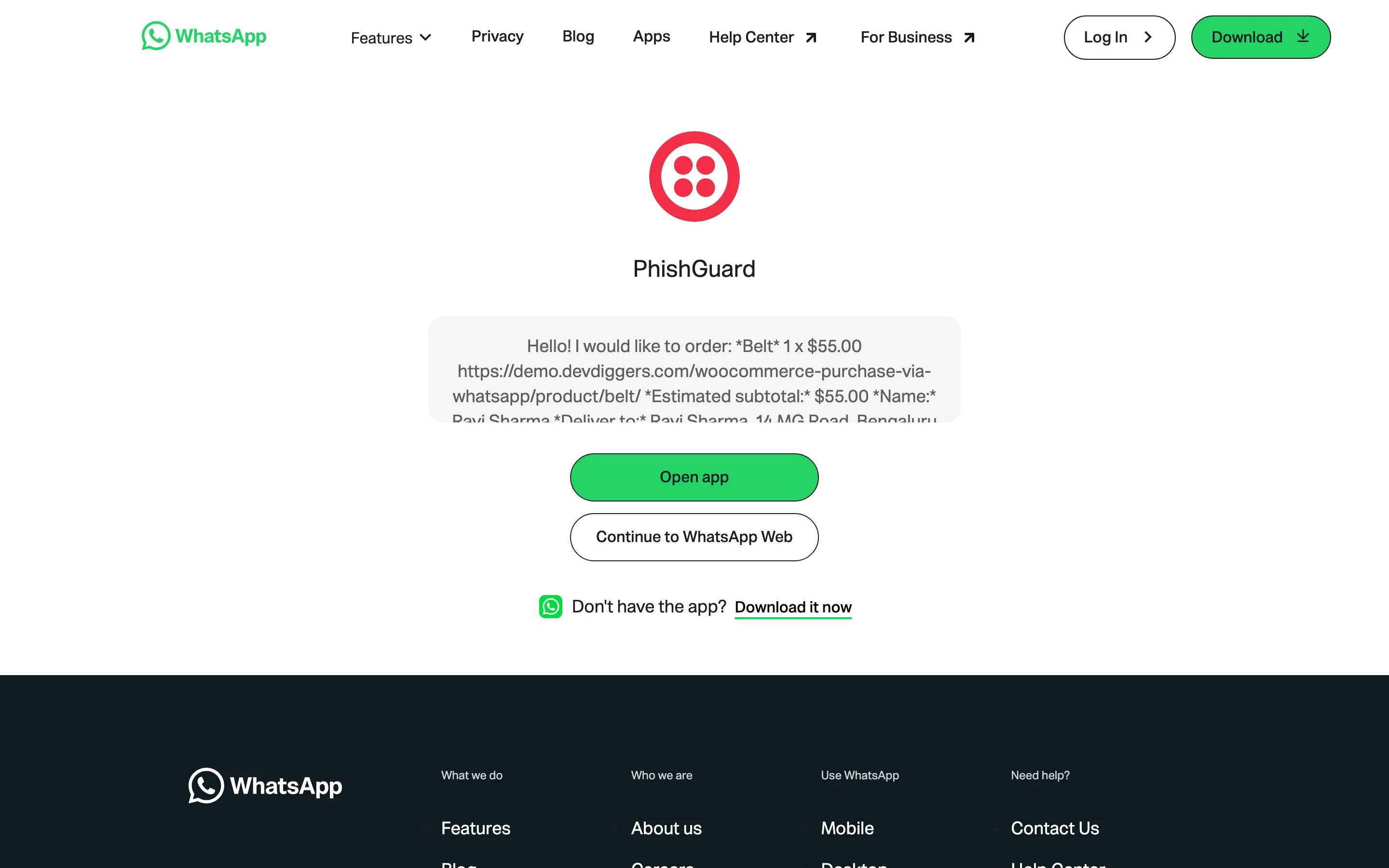
Section titled “What the sandbox changes for customers”When a customer taps the WhatsApp button, WhatsApp shows the profile of the number they are writing to. With the sandbox, that is Twilio’s shared test profile, not your store’s name.
Three more things behave differently on the sandbox and a trial account:
- Templates cannot be submitted for approval, because that needs a registered sender. Plain messages inside the 24 hour window work normally.
- A trial account sends at most 50 messages a day. On the demo the 51st failed with error 63038, “exceeded the 50 daily messages limit”. Testing a whole order uses five or six.
- A phone that has not joined gets nothing. The Messages screen marks the failure: “You are using the Twilio sandbox and this customer has not joined it yet.”