

How to Add a Floating WhatsApp Chat Button
A shopper with a question about size or delivery is close to buying. The floating bubble gives them a way to ask without leaving the page. It is in the free version too.
The bubble opens an ordinary chat. It does not carry a cart and does not start an order.
Step 1: Switch the bubble on
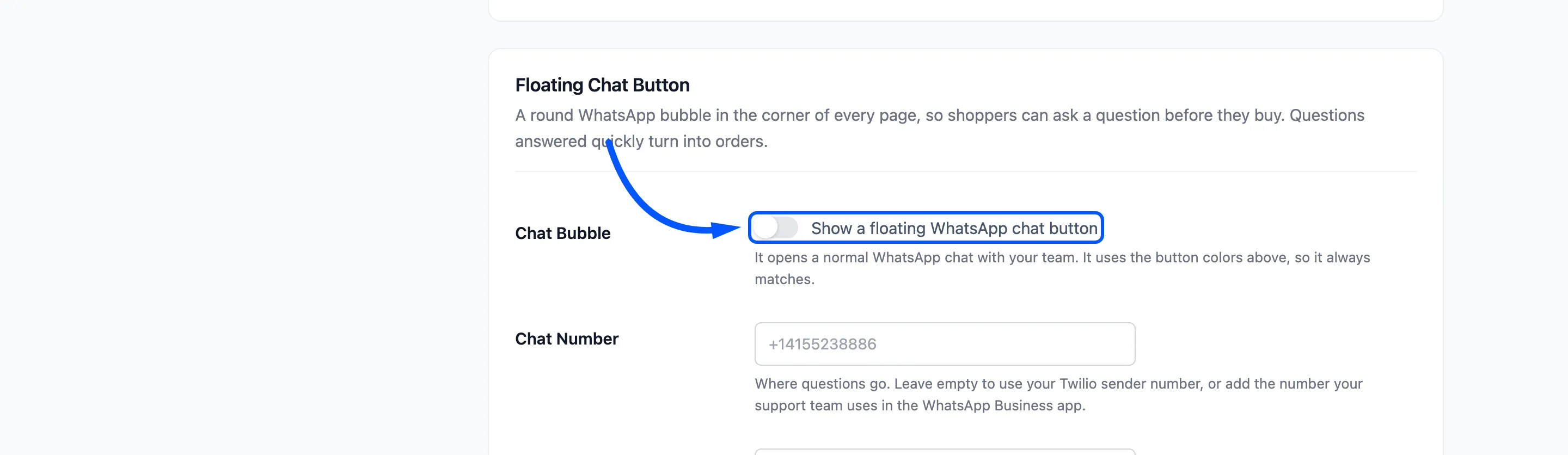
Section titled “Step 1: Switch the bubble on”Go to Purchase via WhatsApp → Configuration → Display, scroll to Floating Chat Button and tick Chat Bubble.
Step 2: Choose where questions go
Section titled “Step 2: Choose where questions go”Chat Number decides who answers. Leave it empty to use the WhatsApp Sender Number from the Twilio tab, or enter the number your team answers.
Use your team’s number in Pro. A question sent to the Twilio sender reaches the chat assistant. It answers with the Welcome Reply and passes a second question to you by email.
Step 3: Write the prefilled message and bubble text
Section titled “Step 3: Write the prefilled message and bubble text”- Prefilled Message is typed for the shopper when the chat opens. The default is “Hi! I have a question about your store.” On a product page the product’s name and link are added on new lines.
- Bubble Text is an optional line beside the icon, such as “Need help? Chat with us”. Empty means an icon only bubble.
Step 4: Pick the corner and pages
Section titled “Step 4: Pick the corner and pages”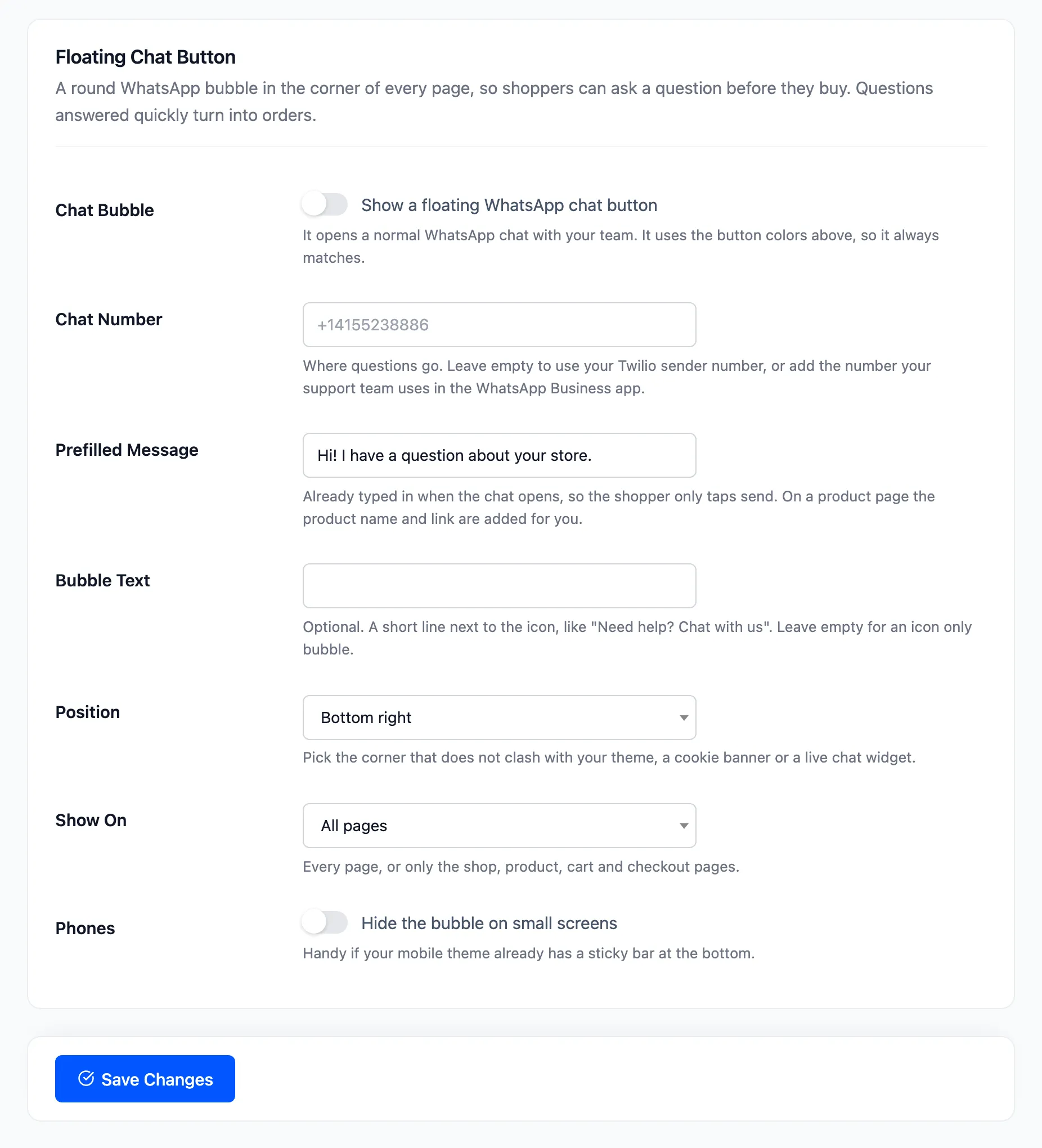
- Position: Bottom right or Bottom left. Pick the corner without a cookie banner or another chat widget.
- Show On: All pages, or Store pages only for the shop, products, cart and checkout.
- Phones: Tick it to hide the bubble on small screens, if your mobile theme has its own bar at the bottom.
Click Save Changes and open any page.
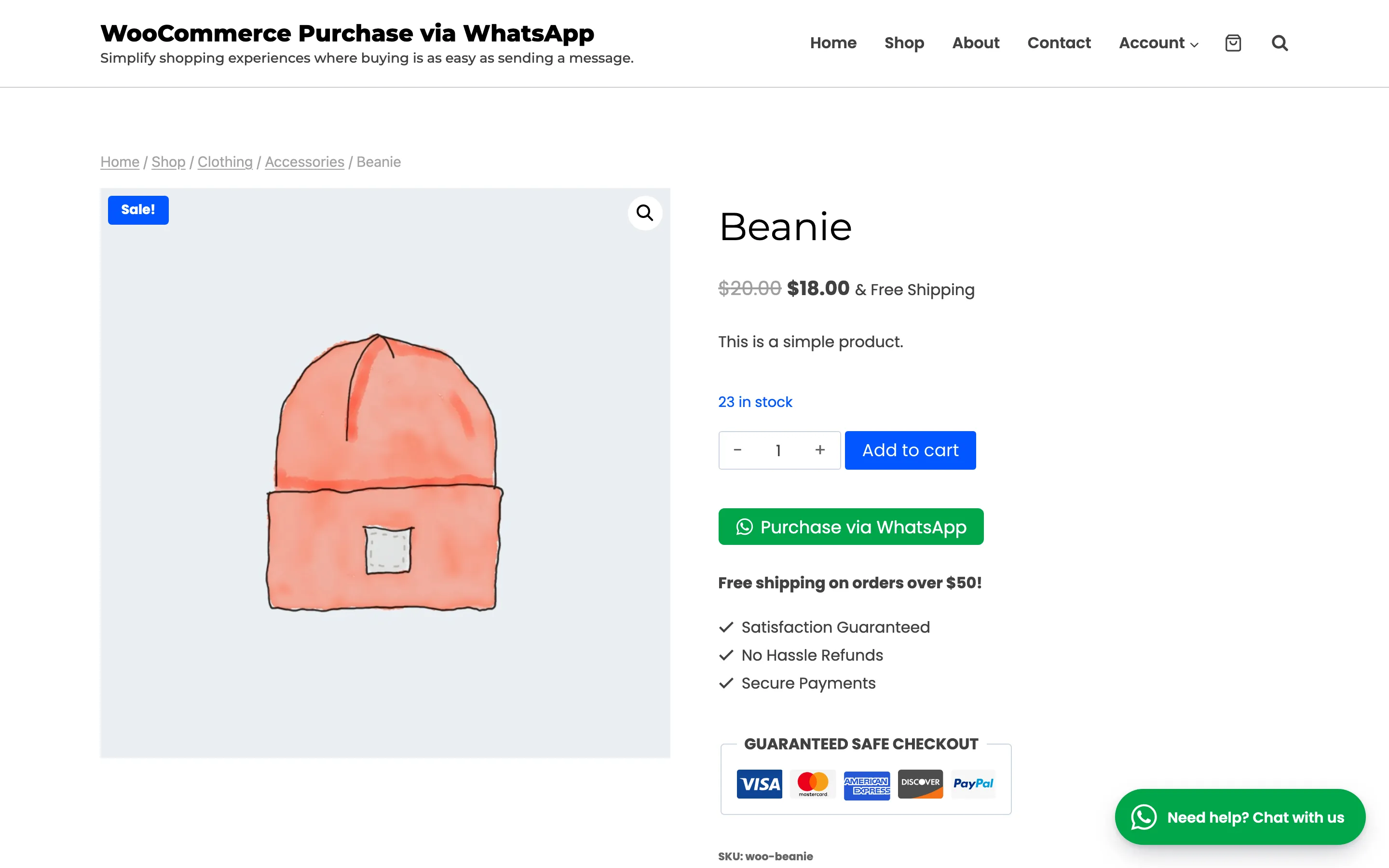
On the demo’s Beanie page the bubble opened WhatsApp with this text:
Hi! I have a question about your store.
Beaniehttps://demo.devdiggers.com/woocommerce-purchase-via-whatsapp/product/beanie/
The bubble uses the button’s Background Color and Text Color, so it matches without more settings.