

General Settings
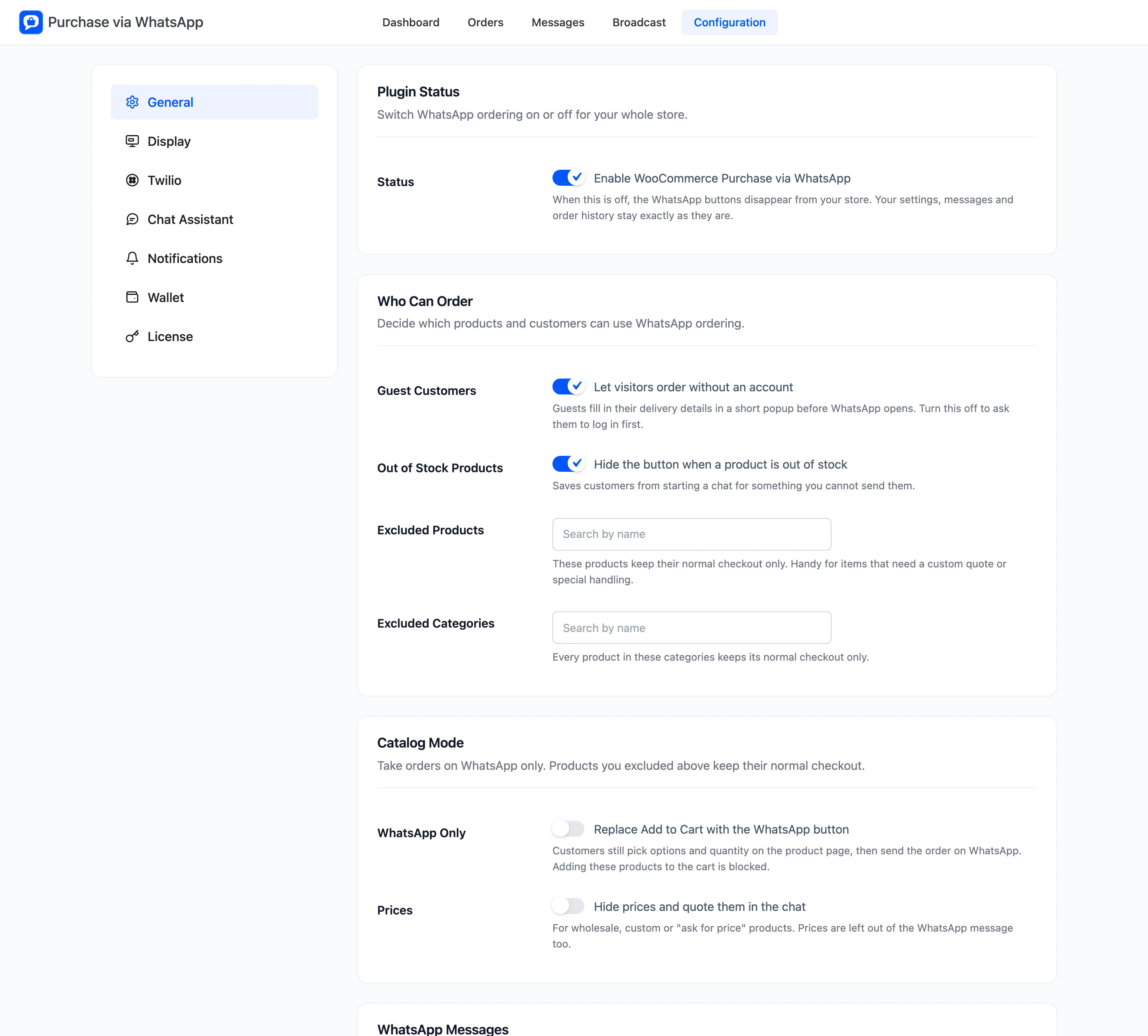
The General tab decides who can order on WhatsApp, which products take part, and what the order message says. Open Purchase via WhatsApp → Configuration → General.
Plugin Status
Section titled “Plugin Status”Status, labelled “Enable WooCommerce Purchase via WhatsApp”, is on by default. Switching it off removes every WhatsApp button from the store. Settings, messages and order history stay as they are.
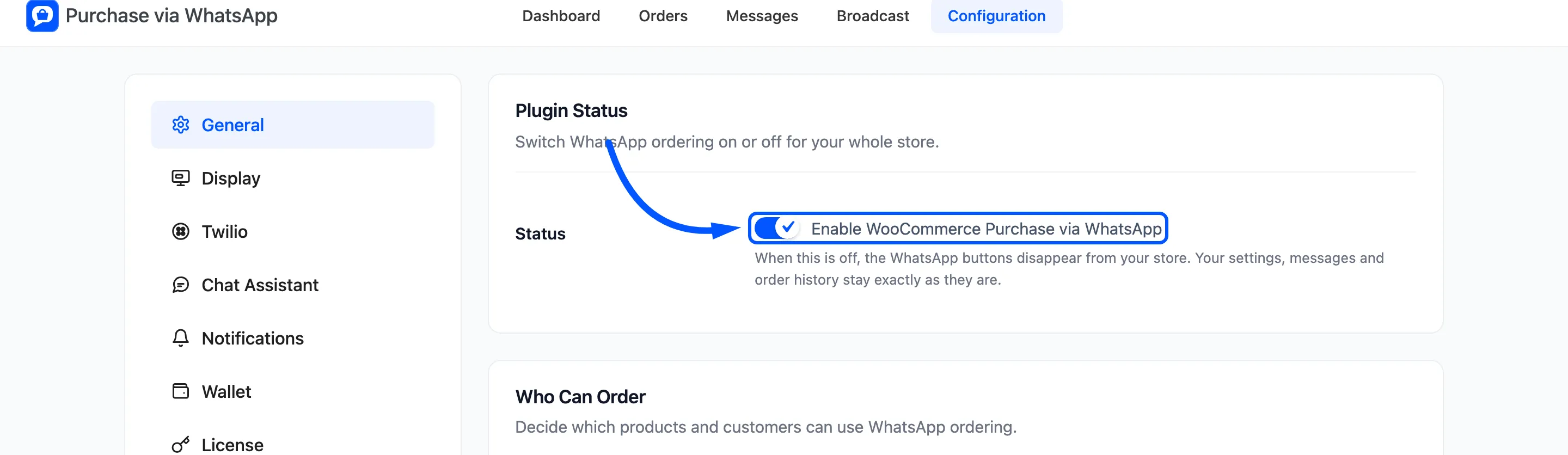
The buttons also need an active license and a saved WhatsApp Sender Number on the Twilio tab. Without both, the storefront shows no button even with Status on.
Who Can Order
Section titled “Who Can Order”- Guest Customers: “Let visitors order without an account”. On by default. Guests fill in a delivery popup before WhatsApp opens. Off, a guest who taps the button is sent to log in.
- Out of Stock Products: “Hide the button when a product is out of stock”. On by default.
- Excluded Products: Products that keep their normal checkout only. Use it for items that need a custom quote.
- Excluded Categories: Every product in these categories keeps its normal checkout only.
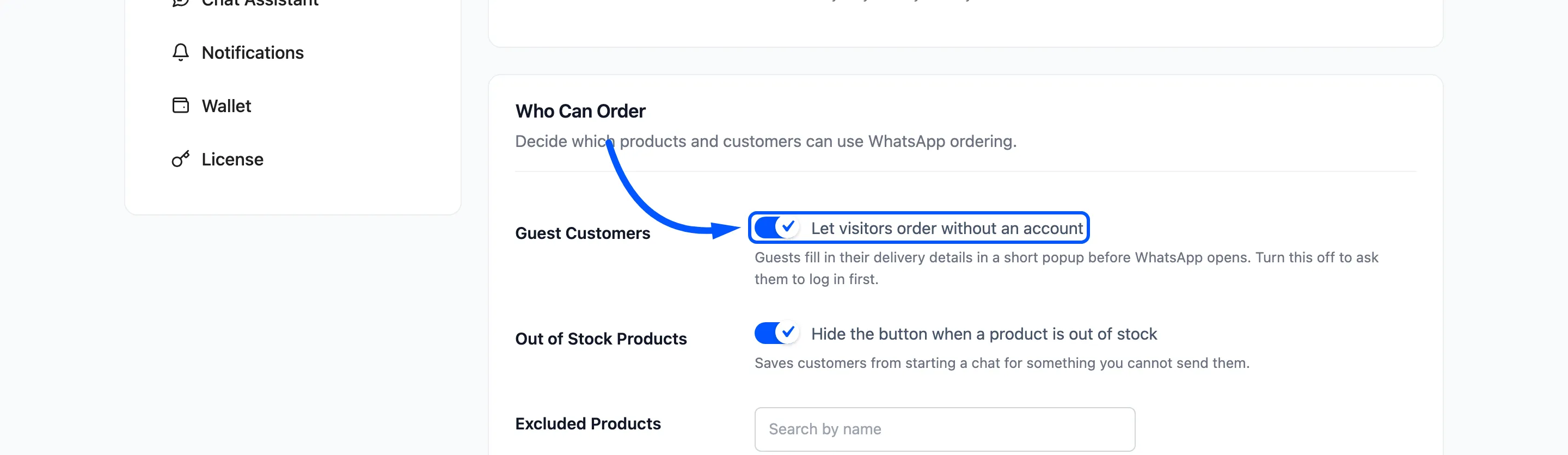
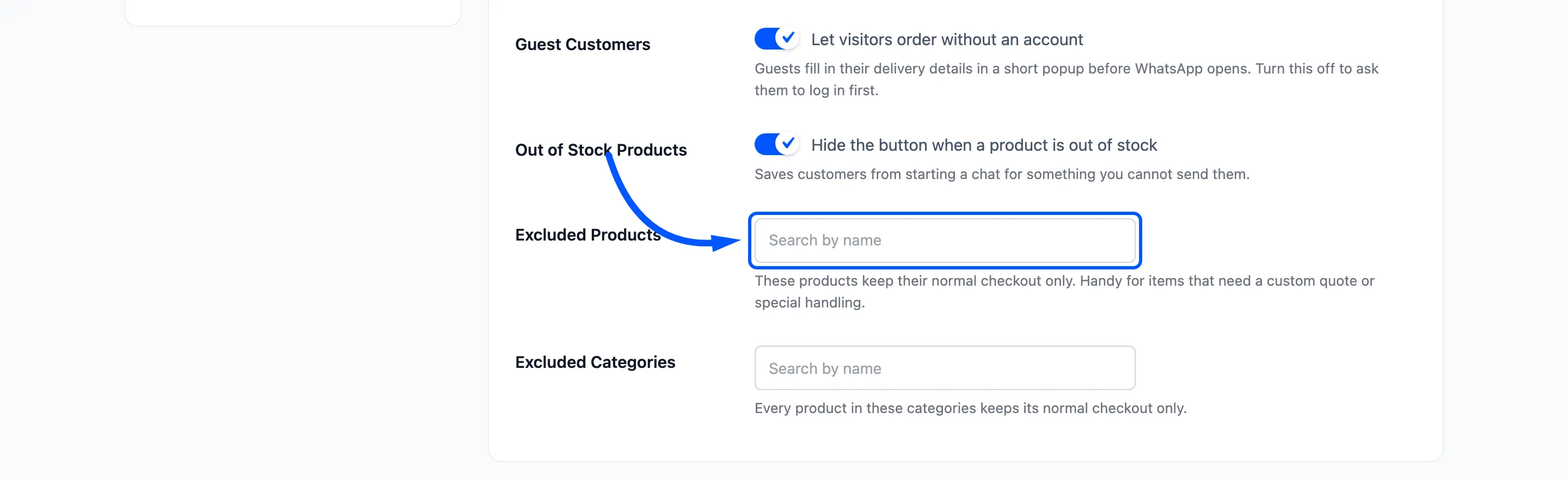
How to Let Guests Order on WhatsApp and How to Exclude Products from WhatsApp Ordering show both on the storefront.
Catalog Mode
Section titled “Catalog Mode”- WhatsApp Only: “Replace Add to Cart with the WhatsApp button”. Off by default. Customers still pick options and quantity, then send the order on WhatsApp. Adding these products to the cart is blocked.
- Prices: “Hide prices and quote them in the chat”. Off by default. Prices disappear from the product and shop pages and from the WhatsApp message.
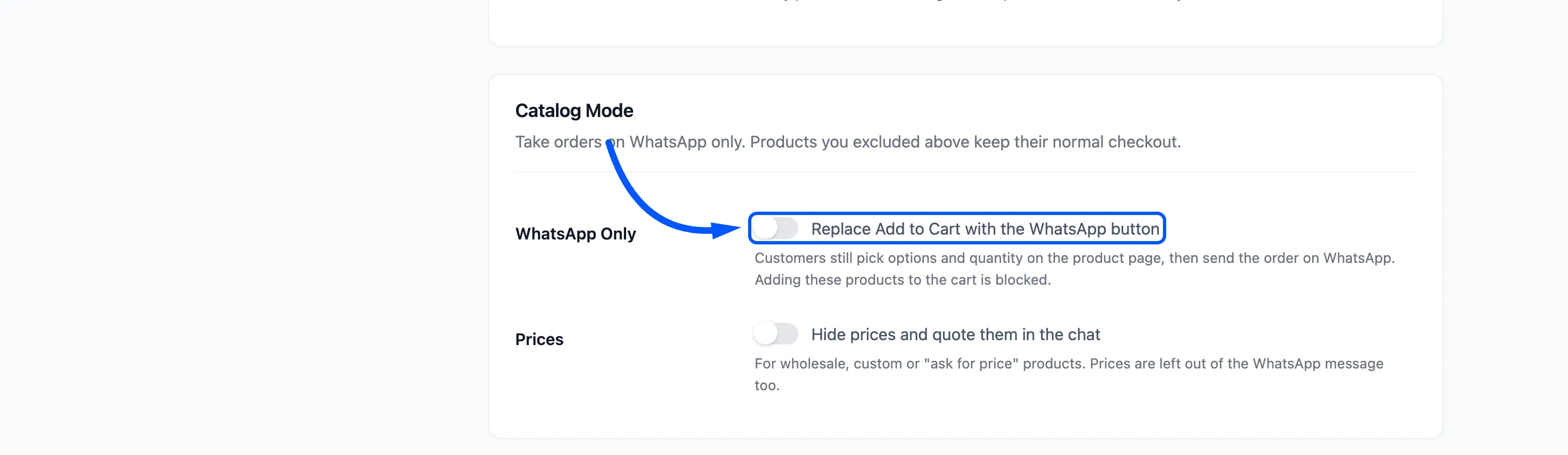
Products you excluded keep Add to cart in catalog mode.
Say WhatsApp Only is on and Product Page on the Display tab is Do not show. The button then still appears at the end of the summary. A product page in catalog mode always has a way to order.
WhatsApp Messages
Section titled “WhatsApp Messages”Order Request is the text a customer’s WhatsApp opens with. The tags are {items}, {subtotal},
{customer_name}, {customer_phone}, {customer_email}, {address} and {site_name}. Wrap words in
*stars* for bold.
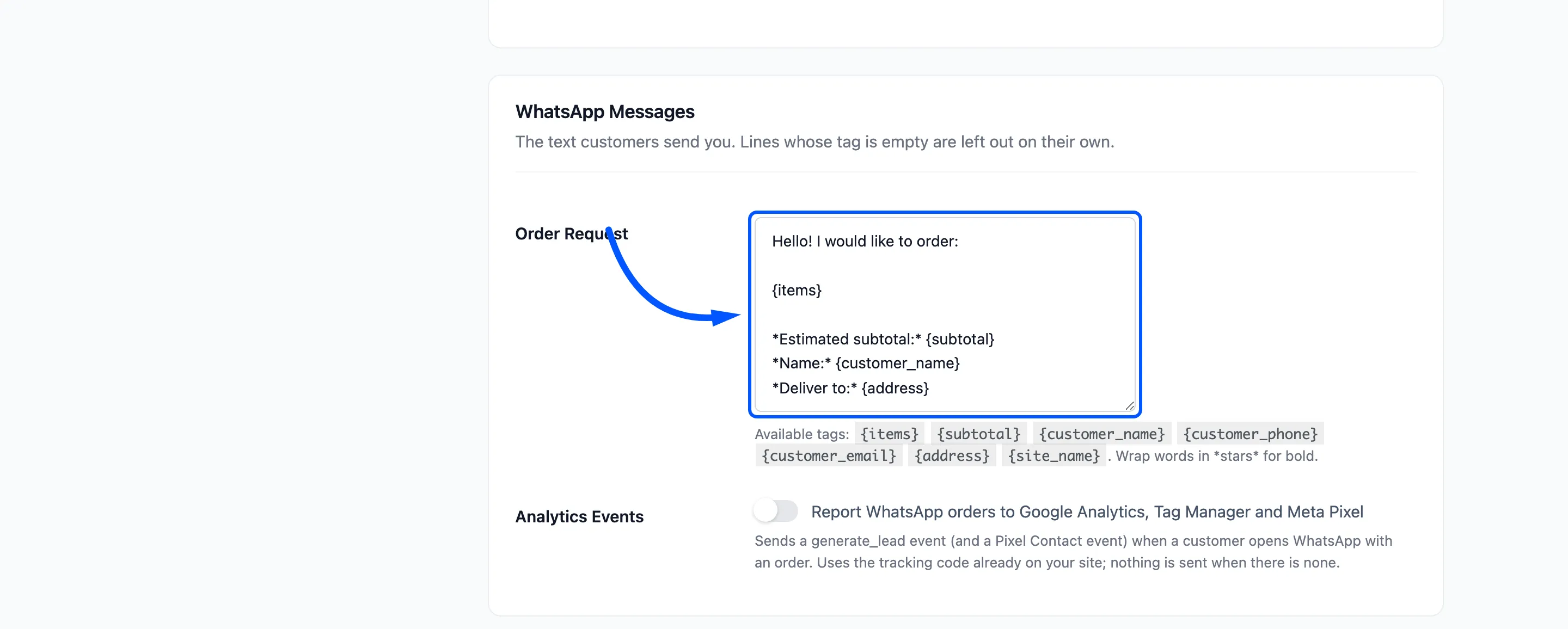
The default ends with “Please send this message as it is to continue.”
A line whose tag comes out empty is left out, so the message never shows an empty label.
Analytics Events sends a generate_lead event, and a Meta Pixel Contact event, when a customer opens
WhatsApp with an order. It uses the tracking code already on your site. See
How to Track WhatsApp Orders in Google Analytics.
Message Log
Section titled “Message Log”- Logging: “Keep a log of sent and received messages”. On by default. The Messages screen, the dashboard’s message figures and the order screen’s WhatsApp box all read this log.
- Keep Messages For: Days to keep the log, 90 by default. Older messages are removed once a day. Use 0 to keep them forever.
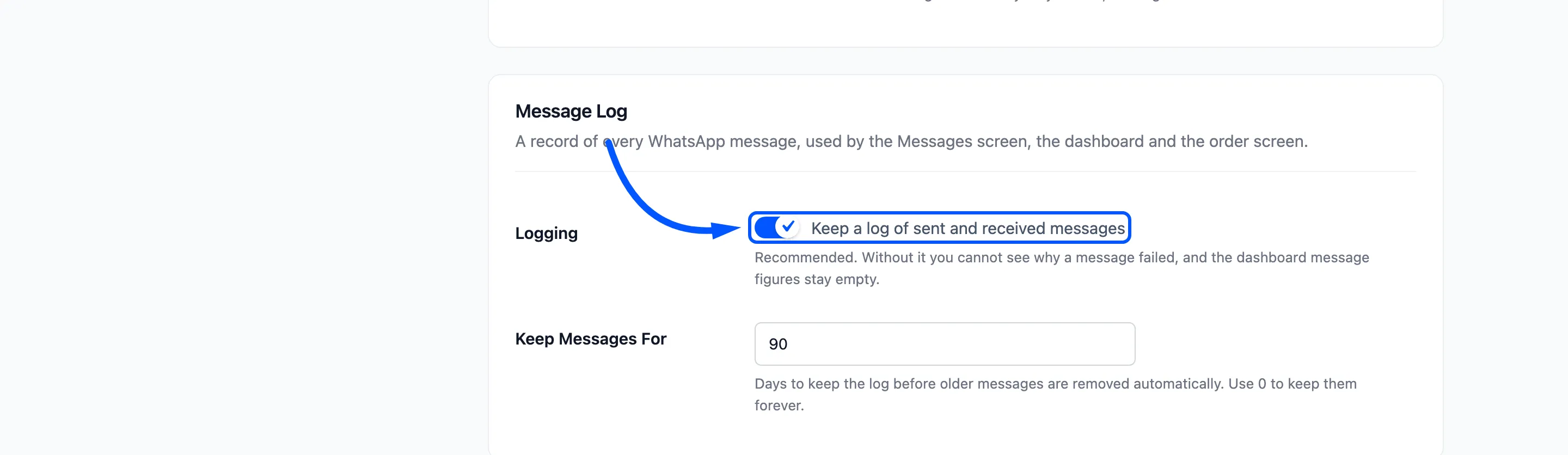
Leave logging on. Without it, a failed message leaves no trace of why it failed.
Click Save Changes at the bottom of the tab.