

How to Place a Test Order on WhatsApp (Pro)
The best way to know the store works is to buy from it. This takes five minutes and uses your own phone as the customer’s.
Before you start, finish How to Send a Test Message. If you test on the sandbox, your phone must have joined it.
Step 1: Open a product as a customer
Section titled “Step 1: Open a product as a customer”Log out of WordPress, or open a private window, so you see the store as a guest. Open any simple product that is in stock.
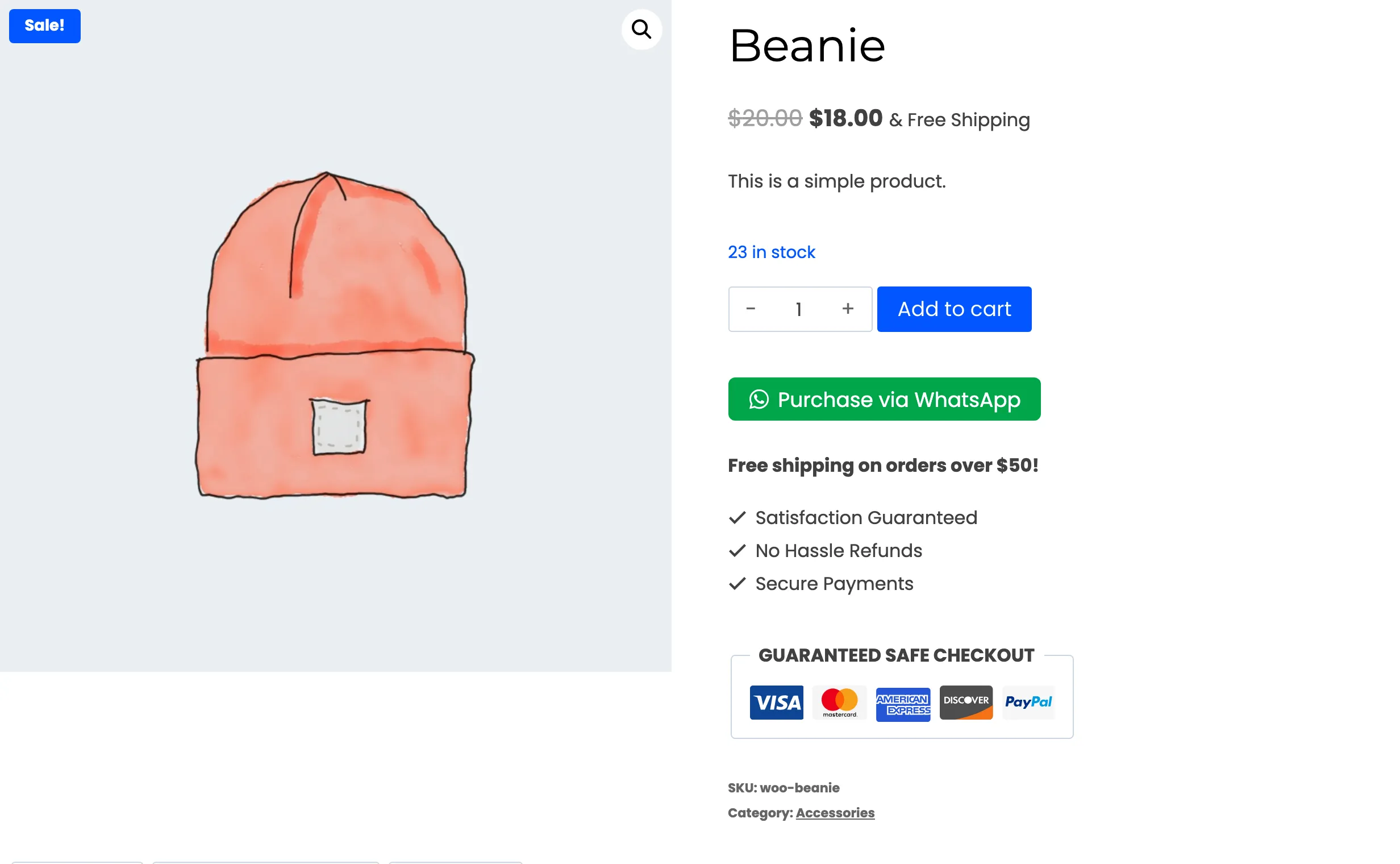
Step 2: Tap the button and fill in the popup
Section titled “Step 2: Tap the button and fill in the popup”Tap the WhatsApp button. As a guest you get Where should we deliver?
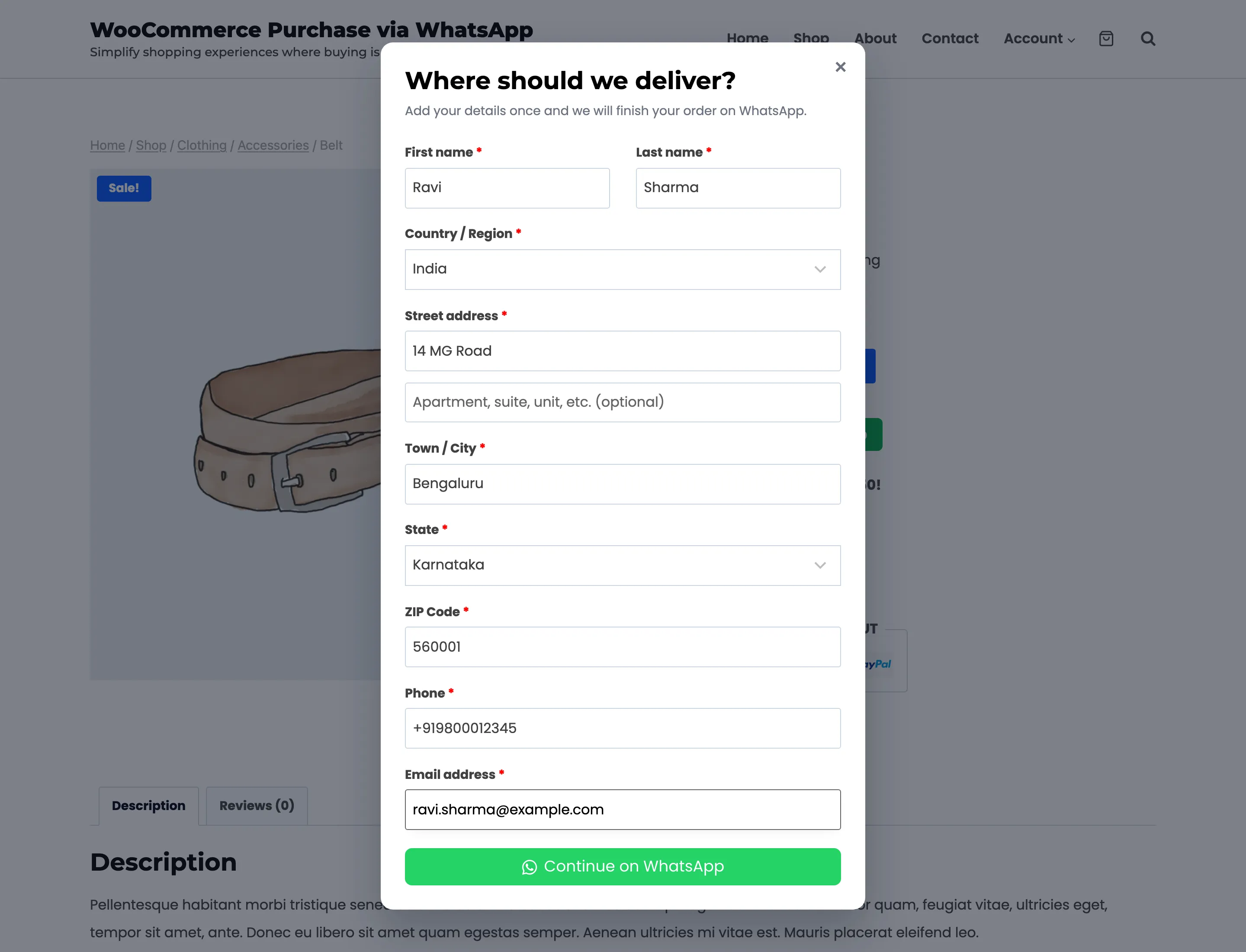
Fill it in with a real address in a country you ship to. In Phone, use the WhatsApp number on the phone in your hand. Click Continue on WhatsApp.
Step 3: Send the message
Section titled “Step 3: Send the message”WhatsApp opens with the order typed out. On a computer, choose the app or WhatsApp Web on WhatsApp’s page.
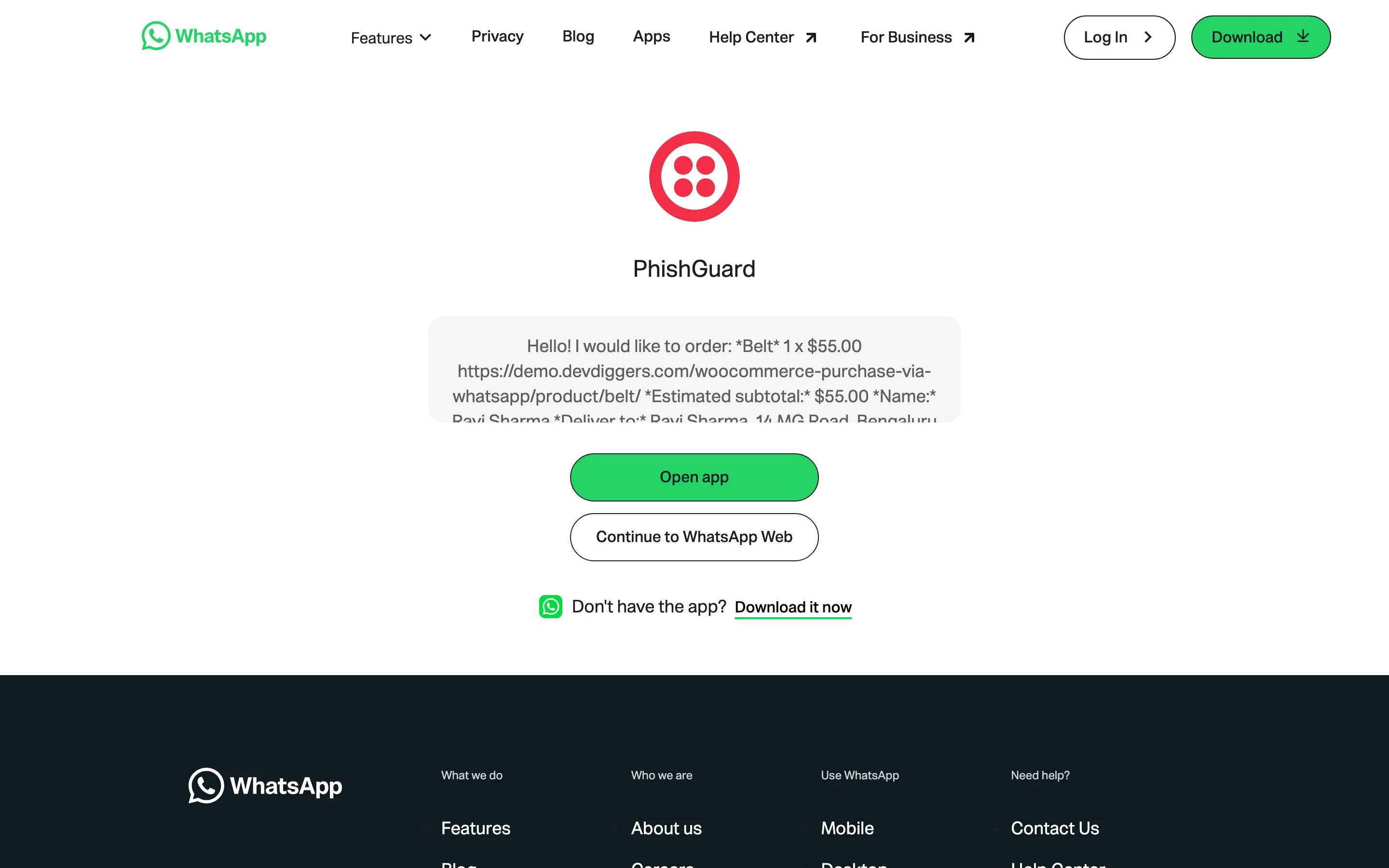
Send the message as it is, from the number you typed in the popup.
Step 4: Answer the assistant
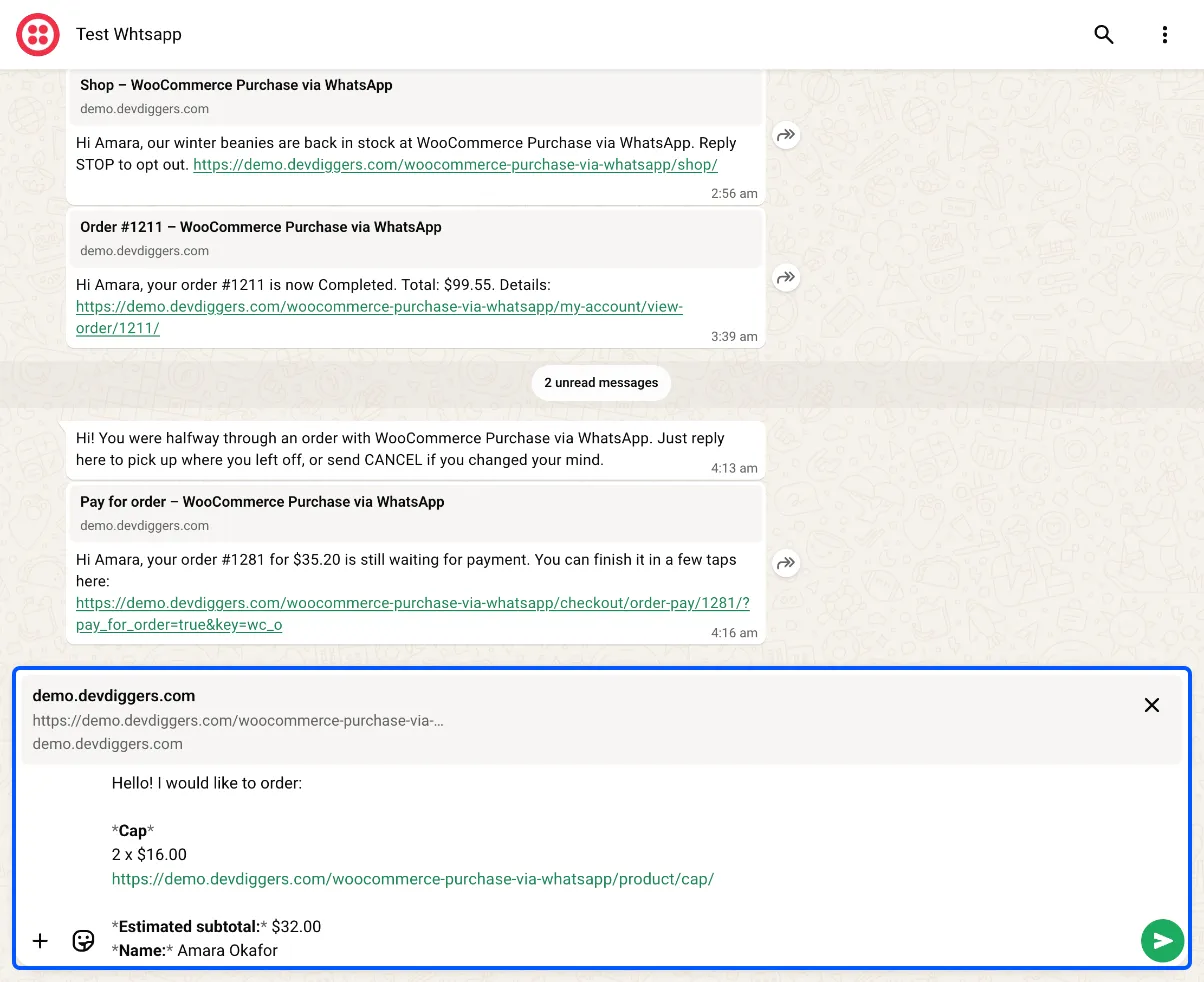
Section titled “Step 4: Answer the assistant”Replies arrive within a few seconds. A demo order went like this:
Store: Do you have a coupon code? Reply with the code, or SKIP to continue.You: SKIPStore: Here is your order summary: 1. Belt ($55.00 x 1) = $55.00 *Subtotal*: $55.00 *Shipping*: Flat rate: $100.00 *Total*: $155.00 How would you like to pay? Reply with a number: 1. Direct bank transfer 2. Check payments 3. Cash on deliveryYou: 3Store: Thank you! Your order #1221 has been placed. We have also emailed you the order details.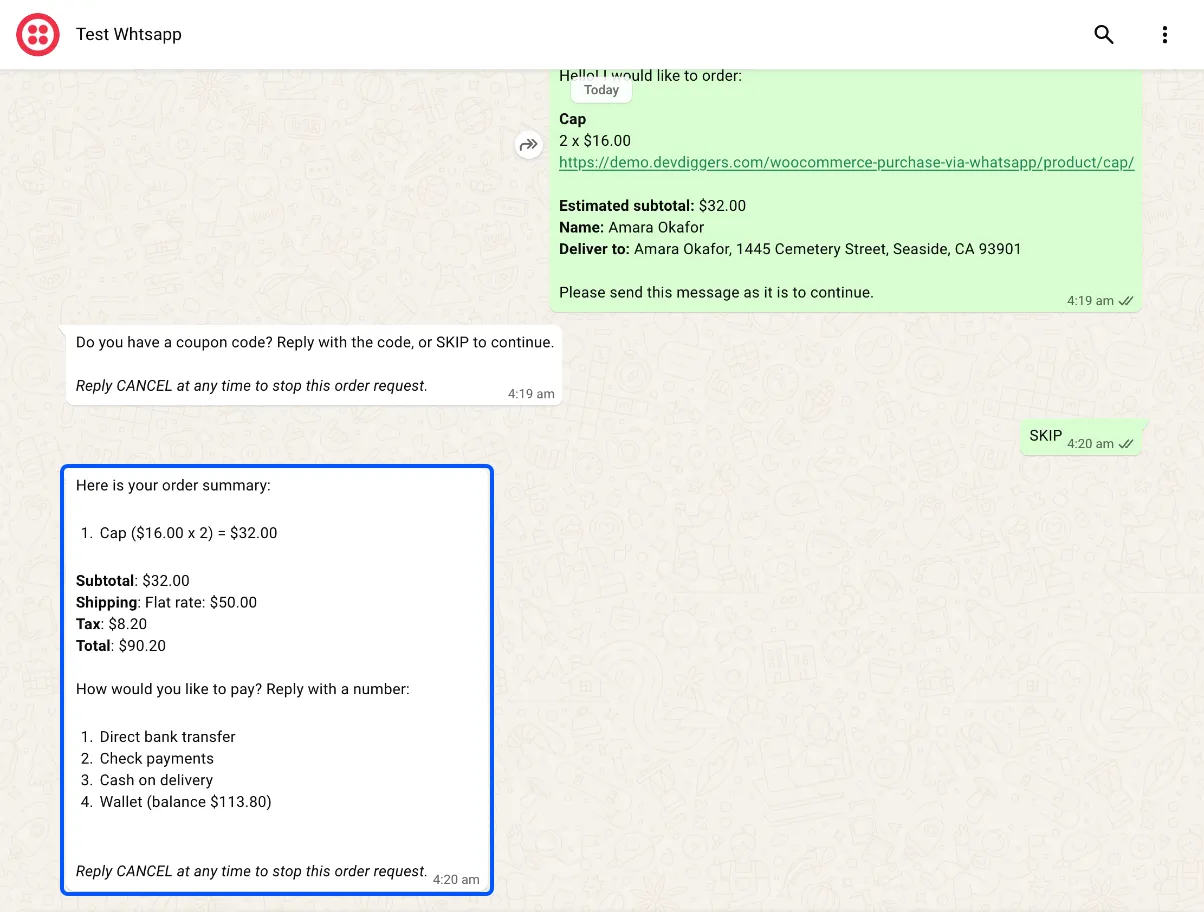
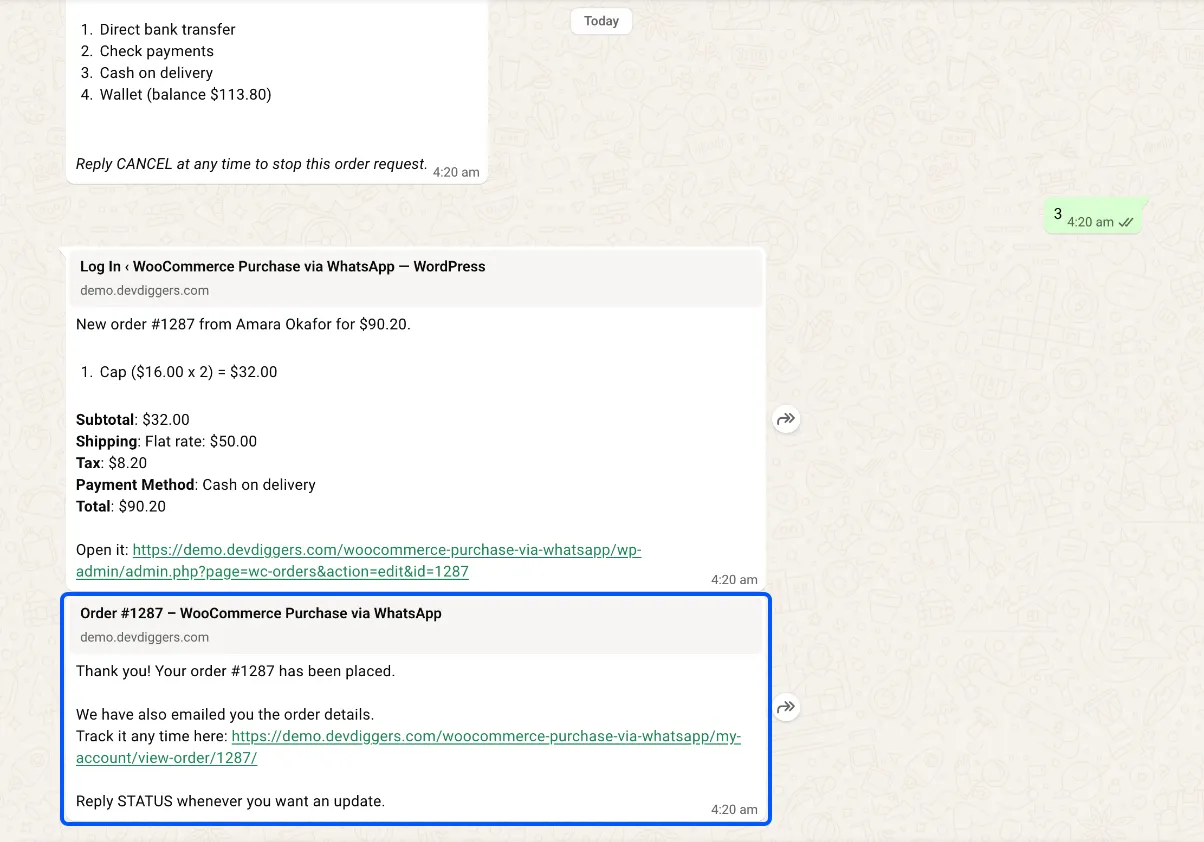
The demo has one shipping option for that address, so the delivery question was skipped. With two or more, the assistant asks for a number first.
Step 5: Check the order in WooCommerce
Section titled “Step 5: Check the order in WooCommerce”Open Purchase via WhatsApp → Orders. The new order is at the top, with your number and the payment method.
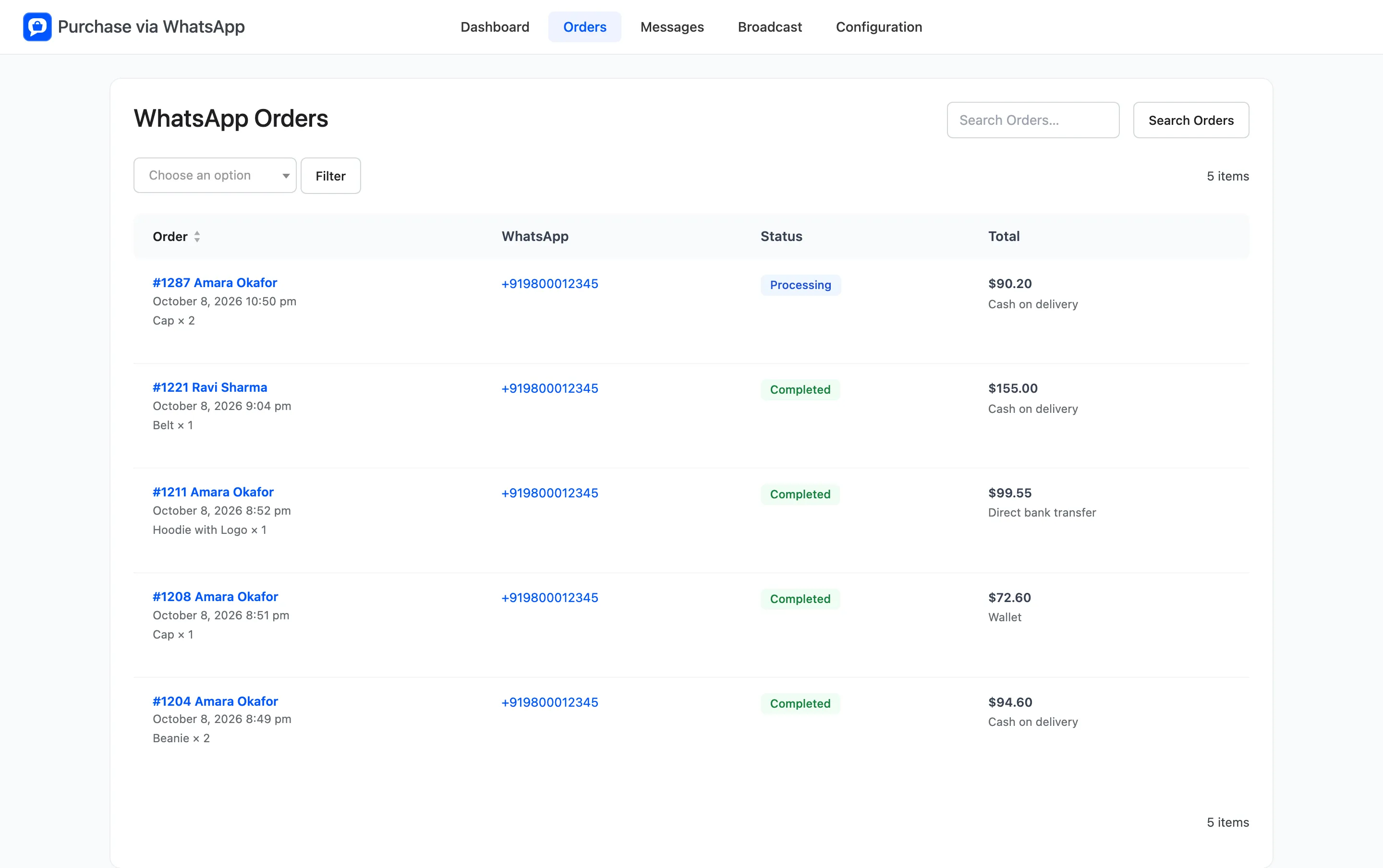
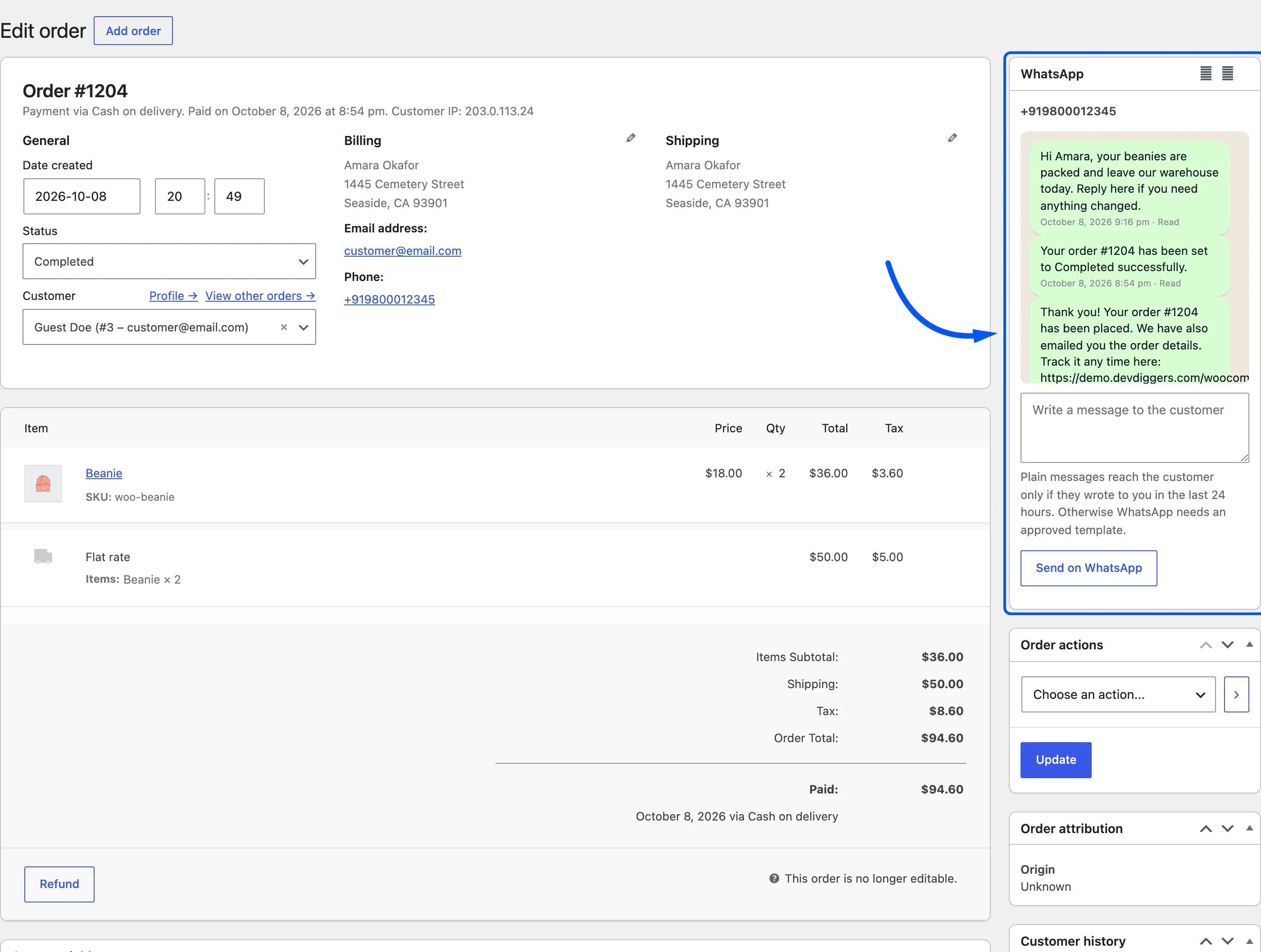
Open it with View order. The order has the note “Order created through a WhatsApp conversation”, and its WhatsApp box shows the chat.
Cancel or trash the test order afterwards, so it stays out of your reports.
If it does not work
Section titled “If it does not work”- You got the welcome message instead of a delivery question. The message came from a different number than the one in the popup. Send it from that number.
- Nothing came back. Check How to Connect Twilio to Your Store.
- “Sorry, we do not ship to your address yet.” Your shipping zones have no method for that address.