

Display Settings
The Display tab places the WhatsApp button and styles it. Open Purchase via WhatsApp → Configuration → Display. Everything on this tab is in the free version too.
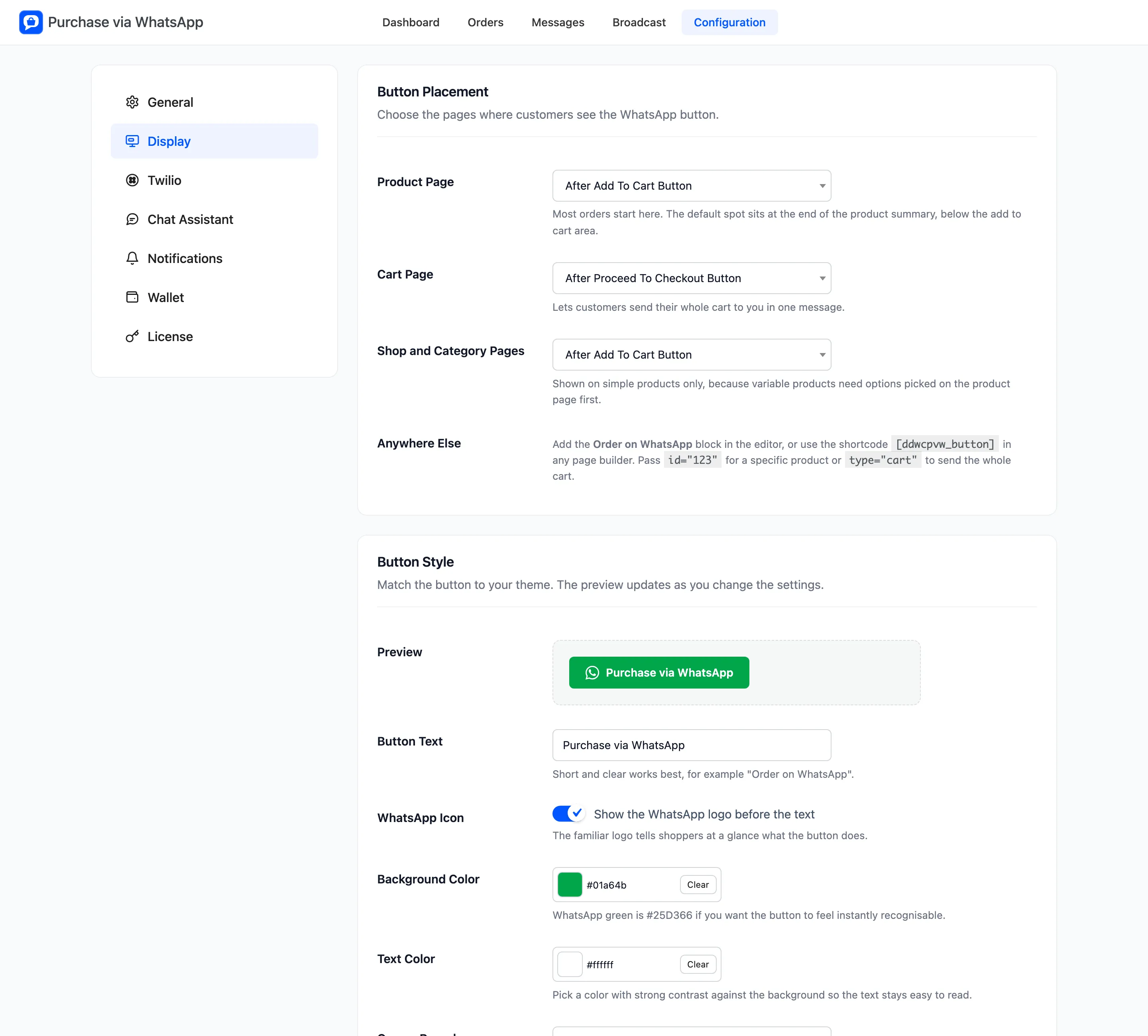
Button Placement
Section titled “Button Placement”- Product Page: Where the button sits on a single product. The default is Default (end of the summary). The other choices are Do not show, After Product Image, After Product Title, Before Product Title, After Short Description, After Add To Cart Button and Before Tab Information.
- Cart Page: Do not show, Before Proceed To Checkout Button or After Proceed To Checkout Button, the default. This button sends the whole cart in one message.
- Shop and Category Pages: Do not show, the default, Before Add To Cart Button or After Add To Cart Button. Only simple products get a button here, because a variable product needs its options picked on the product page.
- Anywhere Else: Not a setting. It tells you about the Order on WhatsApp block and the
[ddwcpvw_button]shortcode.
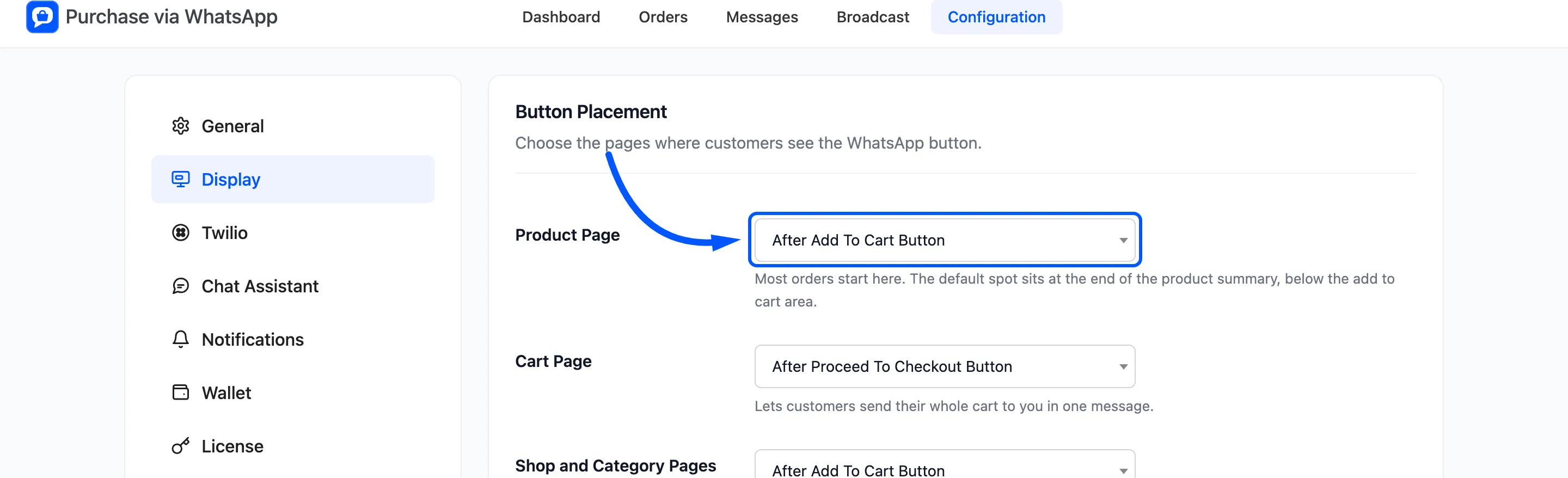
How to Choose Where the WhatsApp Button Appears shows each position on the storefront.
Button Style
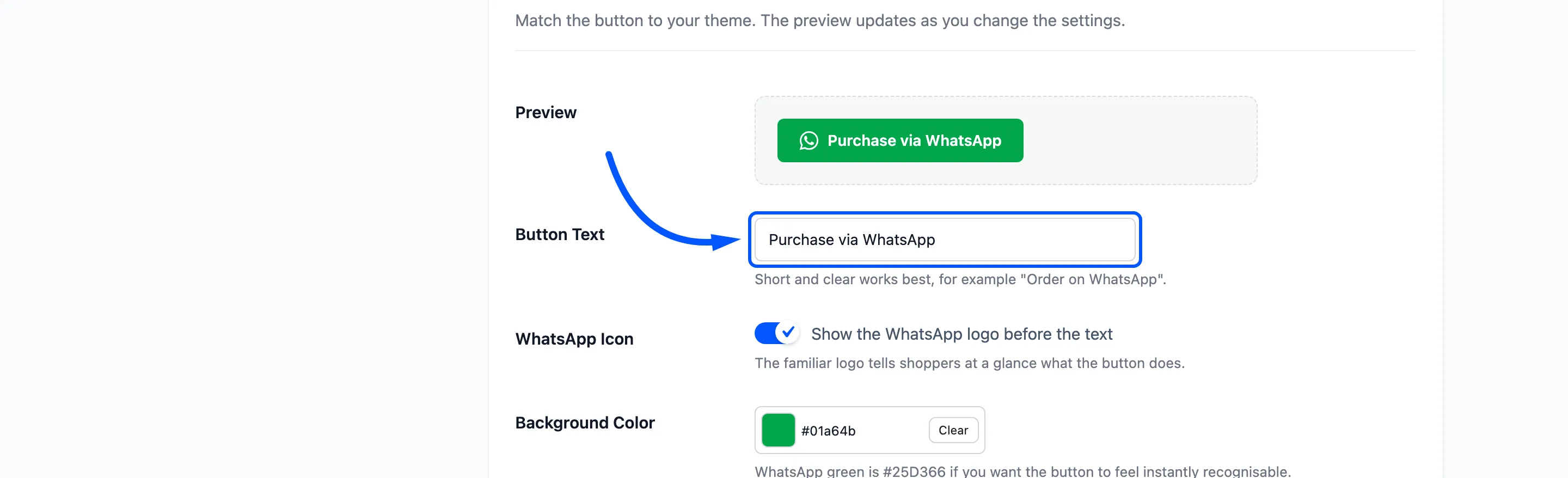
Section titled “Button Style”The Preview at the top of the section redraws the button as you change these fields.
- Button Text: Short and clear, such as “Order on WhatsApp”.
- WhatsApp Icon: “Show the WhatsApp logo before the text”. On by default.
- Background Color: WhatsApp’s own green is
#25D366. - Text Color: White by default. Pick a colour that reads well on the background.
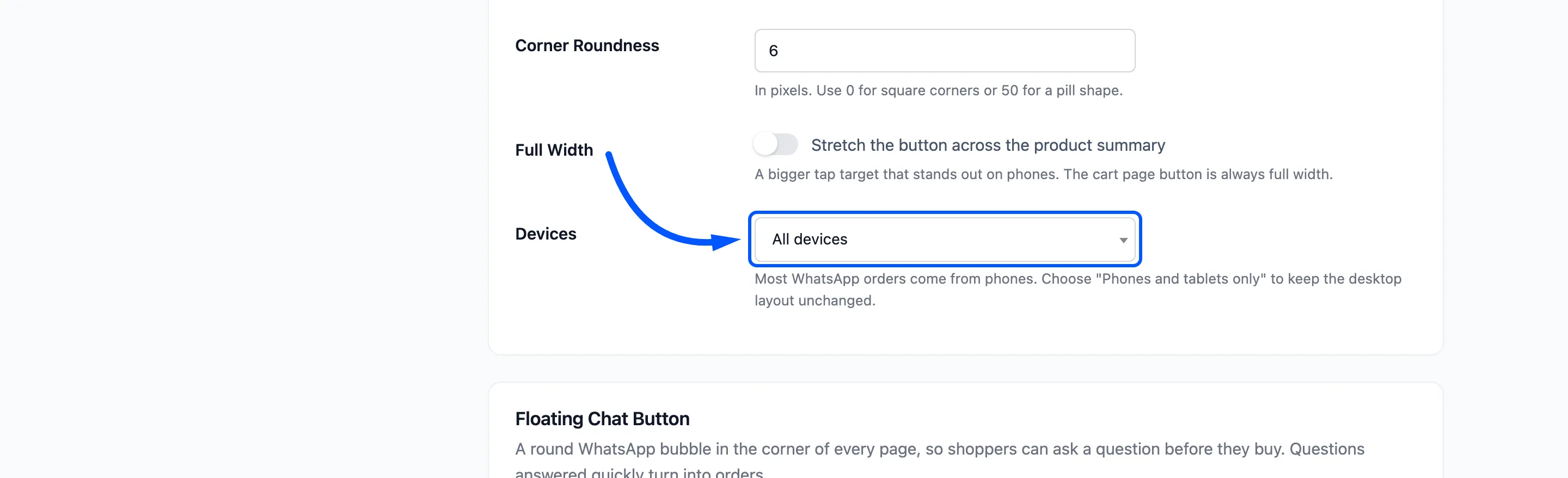
- Corner Roundness: In pixels, 6 by default. Use 0 for square corners or 50 for a pill.
- Full Width: “Stretch the button across the product summary”. Off by default. The cart button is always full width.
- Devices: All devices, Phones and tablets only or Desktop only. The split is at 1024 pixels of screen width.
Floating Chat Button
Section titled “Floating Chat Button”A round WhatsApp bubble in a corner of every page, for questions before a purchase. It opens a normal chat. It does not start an order and the chat assistant does not treat it as one.
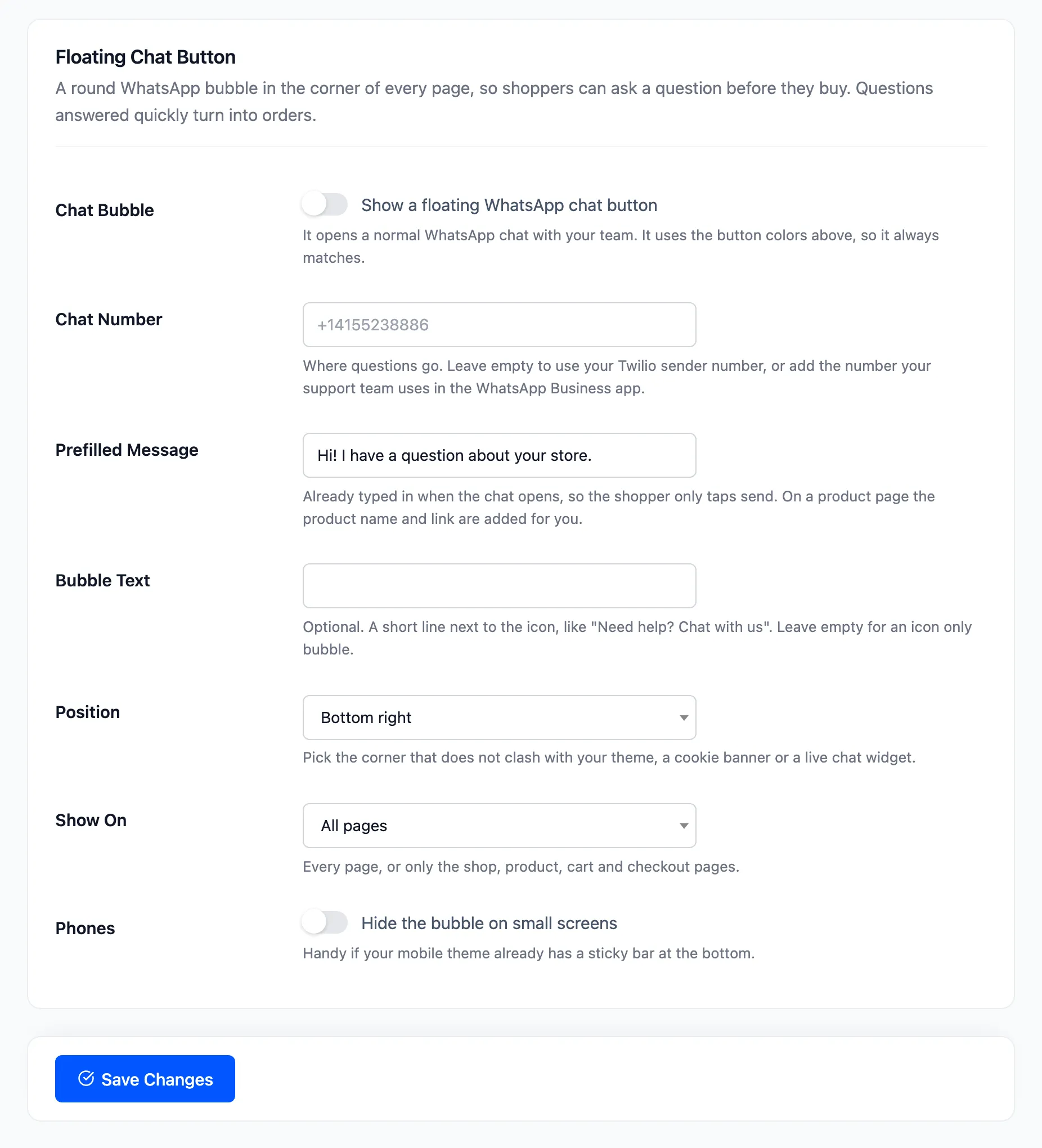
- Chat Bubble: “Show a floating WhatsApp chat button”. Off by default. It uses the button colours above.
- Chat Number: Where questions go. Leave it empty to use your Twilio sender number, or add the number your team answers in the WhatsApp Business app.
- Prefilled Message: Already typed when the chat opens. On a product page the product name and link are added for you. The default is “Hi! I have a question about your store.”
- Bubble Text: An optional line next to the icon, such as “Need help? Chat with us”.
- Position: Bottom right, the default, or Bottom left.
- Show On: All pages, or Store pages only, which means shop, product, cart and checkout.
- Phones: “Hide the bubble on small screens”.
Click Save Changes.