

How to Let Guests Order on WhatsApp
Most WhatsApp shoppers will not make an account first. Guest ordering lets them order with a short popup instead. It is on by default and works the same in the free version.
Step 1: Open the General tab
Section titled “Step 1: Open the General tab”Go to Purchase via WhatsApp → Configuration → General.
Step 2: Choose guest ordering
Section titled “Step 2: Choose guest ordering”Guest Customers is labelled “Let visitors order without an account”.
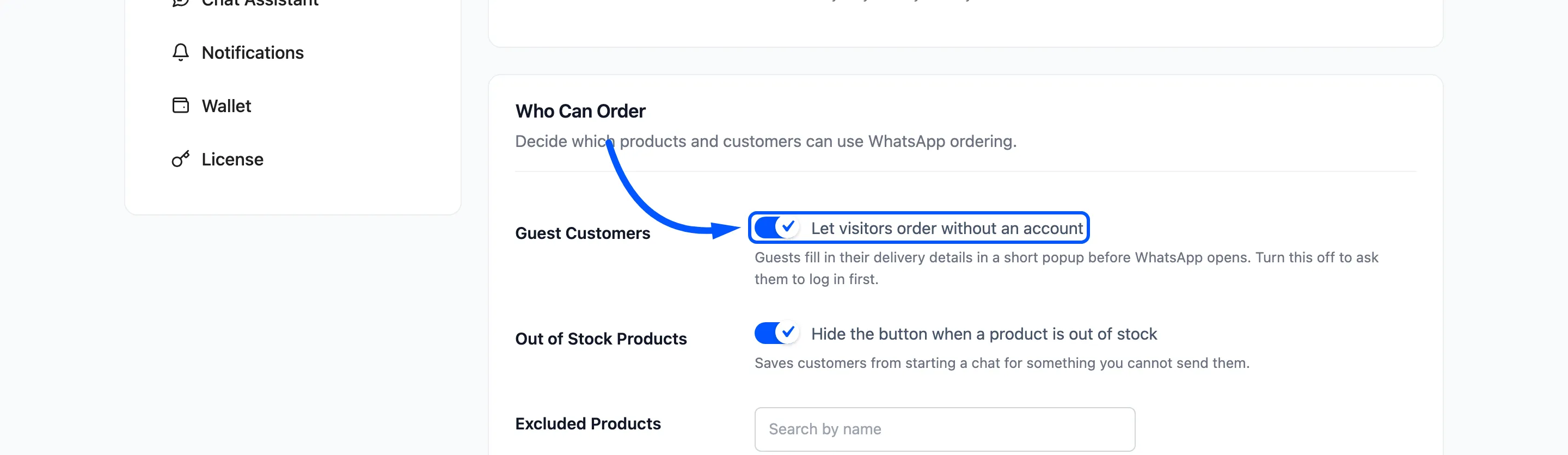
- Ticked: a guest fills in their delivery details in a popup, then WhatsApp opens.
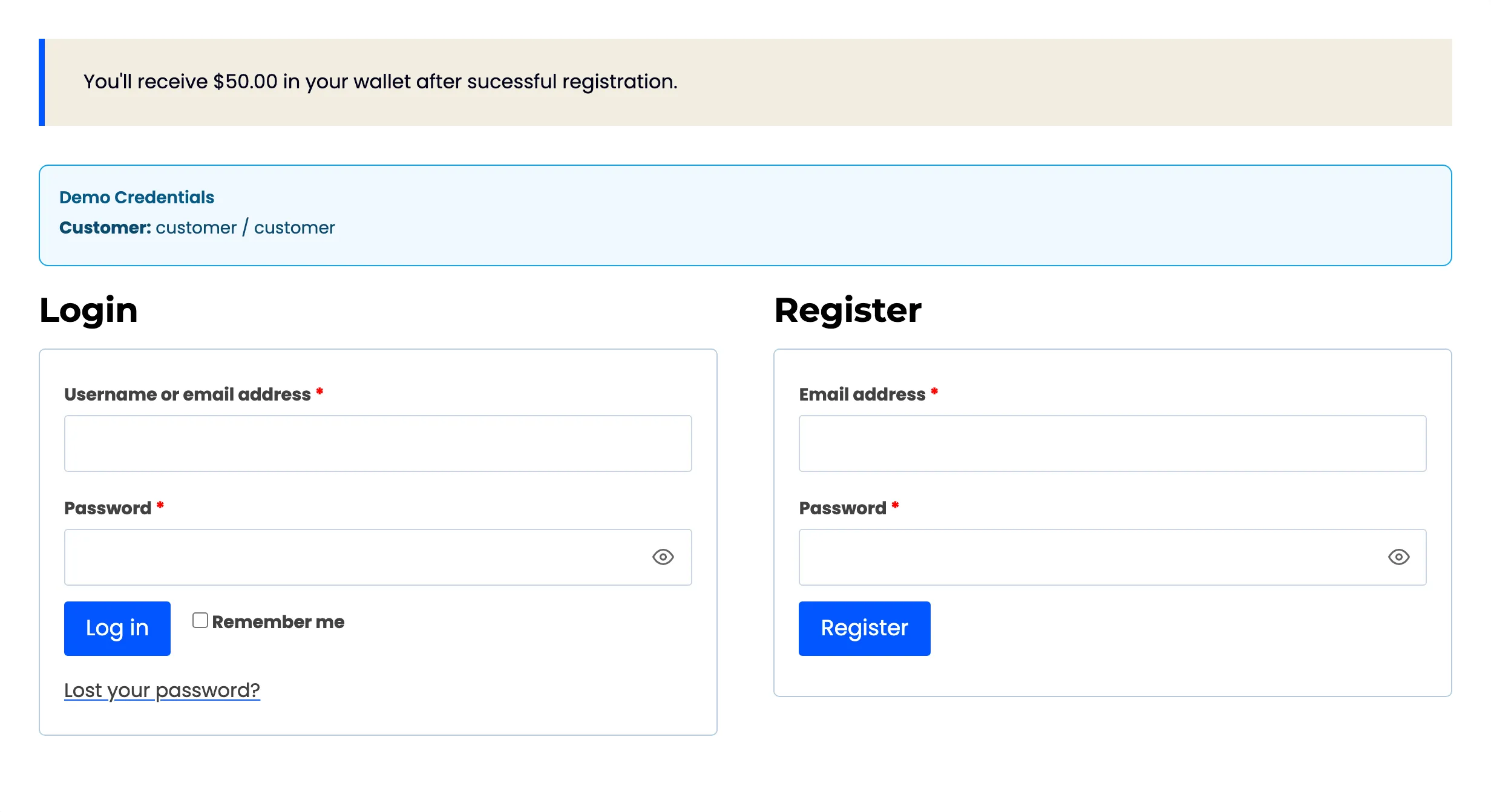
- Unticked: a guest is sent to the My Account page to log in or register first.
Click Save Changes.
Step 3: Check the button logged out
Section titled “Step 3: Check the button logged out”Open a product in a private window and tap the WhatsApp button.
With guests allowed, Where should we deliver? appears. It uses your checkout’s own billing fields, so a field you made required at checkout is required here too.
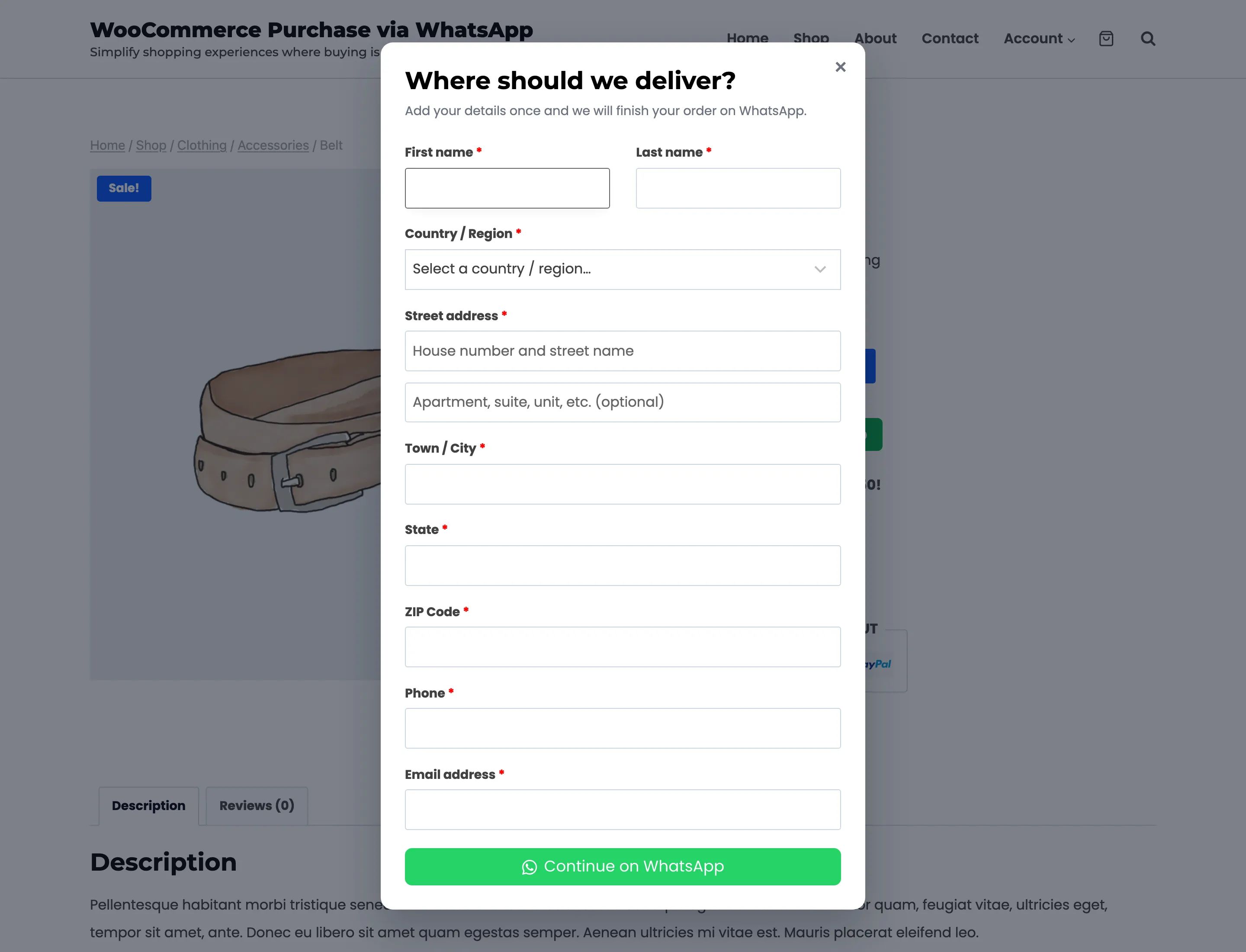
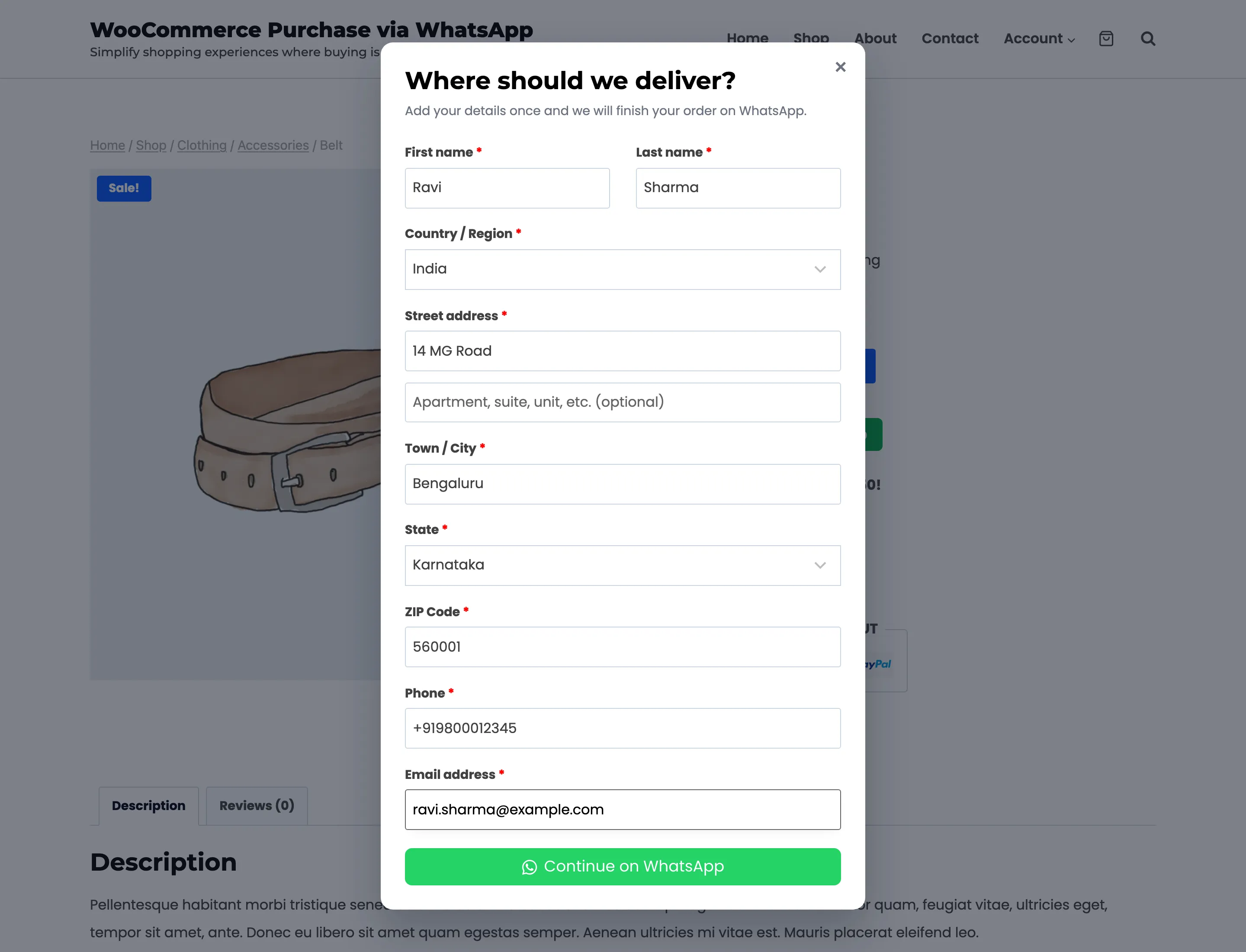
Under Phone the popup says “Use the number you have WhatsApp on. We continue your order there.” In Pro that number matters: the chat assistant finds the order by it.
Continue on WhatsApp checks the fields, then opens WhatsApp.
With guests not allowed, the button shows “Please log in to order on WhatsApp.” under itself for a moment and a half.
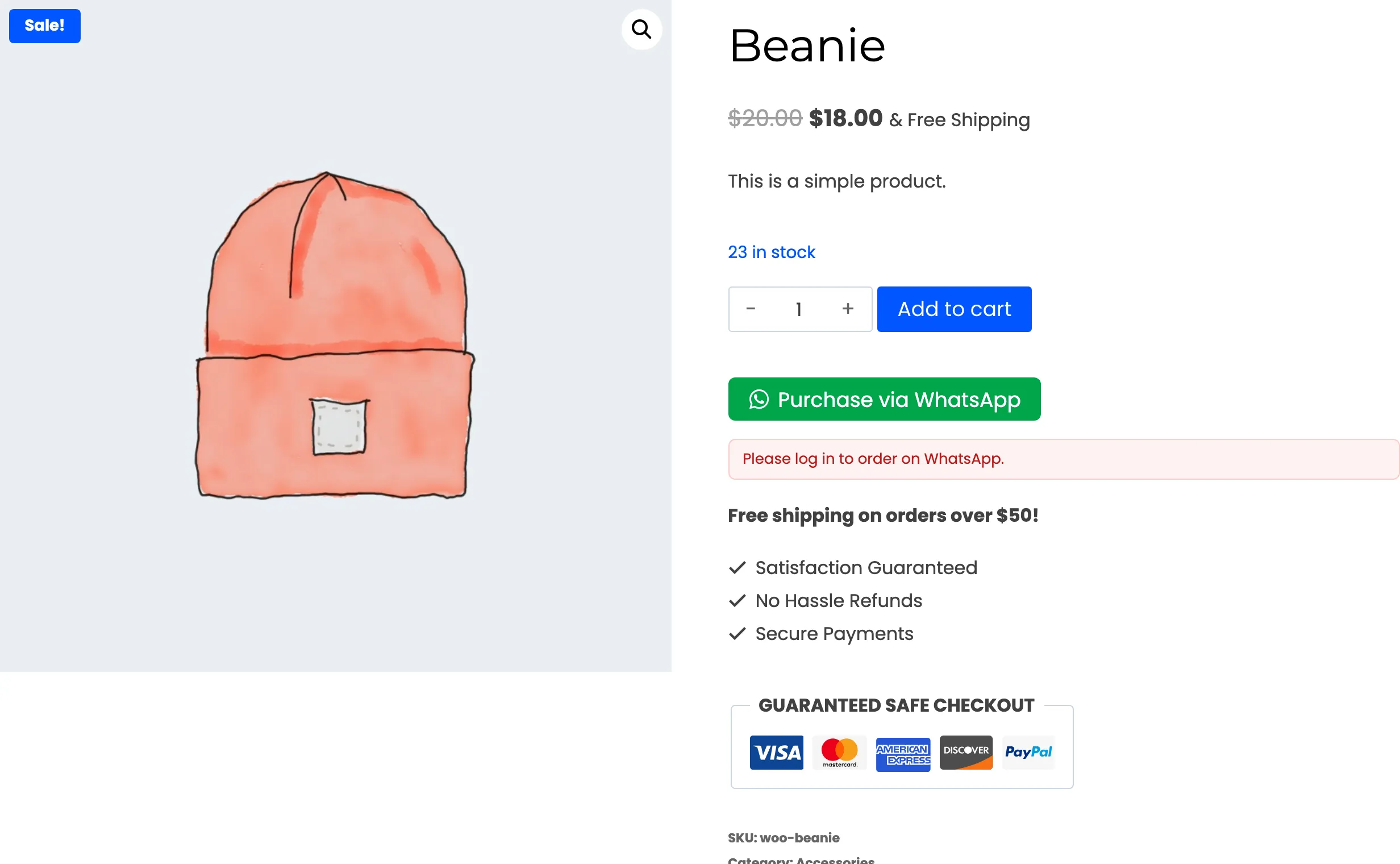
Then it opens the My Account login page.
Logged-in customers
Section titled “Logged-in customers”A logged-in customer with a complete saved address skips the popup. WhatsApp opens straight away with their saved name and address in the message. If a required field is missing from their account, they get the popup too.
Guest orders and the rest of Pro
Section titled “Guest orders and the rest of Pro”- A guest order is a normal guest order in WooCommerce, with the popup’s details as its billing address.
- Status updates reach a guest by the phone they gave.
- Broadcasts never include guests, because a broadcast reads phone numbers from customer accounts.