

Messages (Pro)
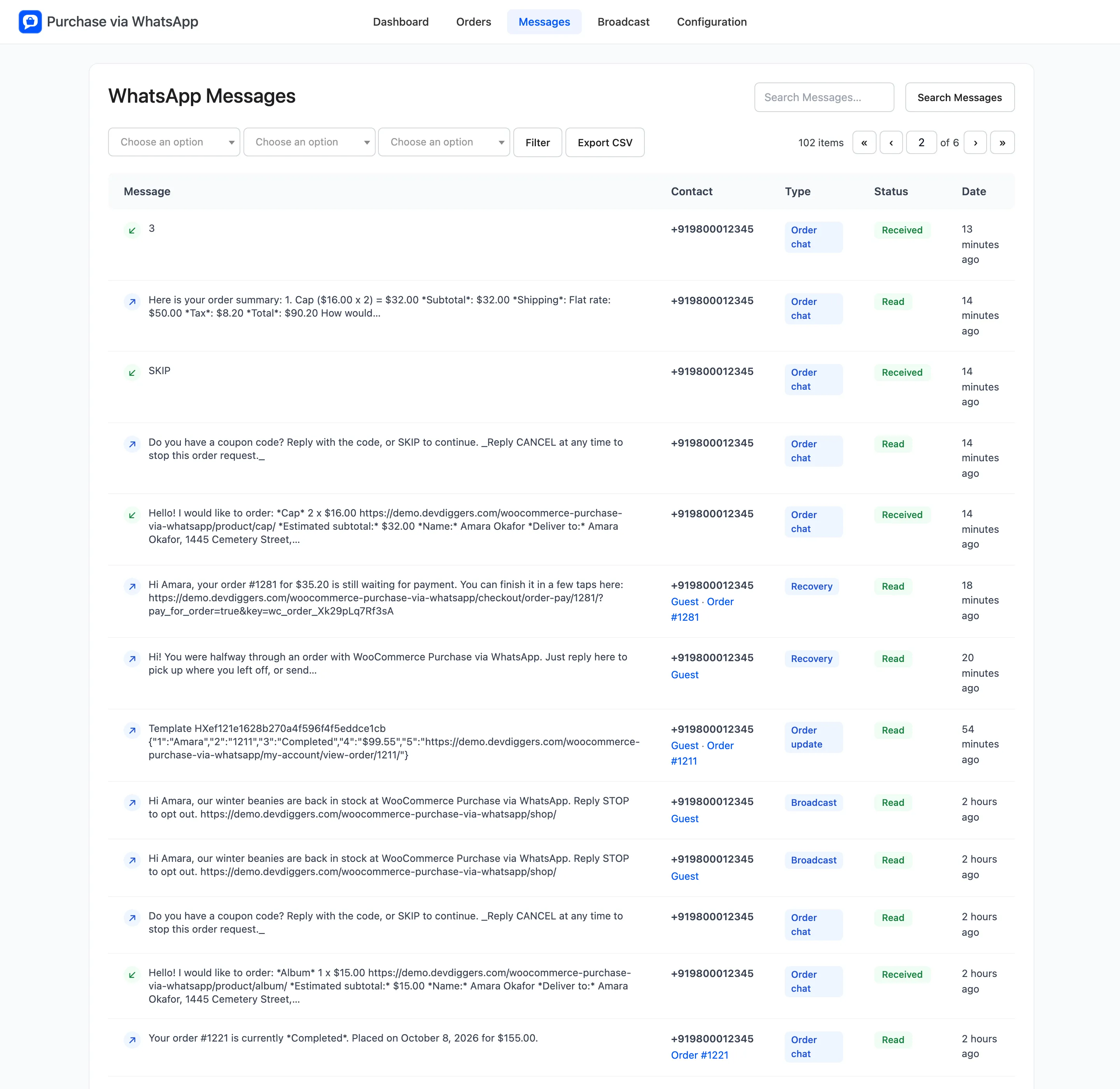
The Messages screen is the log of every WhatsApp message your store sent or received. Open Purchase via WhatsApp → Messages.
The columns
Section titled “The columns”- Message: An arrow for the direction, then the text, trimmed to 24 words. A failed message adds the reason, and an Error link to Twilio’s page for that error code.
- Contact: The phone number, the customer account if there is one, the order, and Opted out for a number that sent STOP.
- Type: What sent it. See the list below.
- Status: The latest report from Twilio.
- Date: How long ago. Hover it for the exact date and time.
Message types
Section titled “Message types”| Type | Sent when |
|---|---|
| Order chat | The conversation with the chat assistant, both directions |
| Order update | Order confirmations and status updates |
| Broadcast | A broadcast, or its test |
| Store alert | A new order alert to your own number |
| Recovery | A reminder for an unfinished chat or an unpaid order |
| Wallet | A wallet balance reply or a wallet alert |
| Manual | A message you typed in the WhatsApp box on an order |
| Test | The connection test on the Twilio tab |
Delivery statuses
Section titled “Delivery statuses”- Queued and Sent: Twilio accepted the message and is passing it to WhatsApp.
- Delivered: It reached the phone.
- Read: The customer opened it. This needs read receipts switched on in their WhatsApp.
- Failed or undelivered: It did not arrive. The reason is under the message.
- Received: A message the customer sent you.
A later report never moves a message backwards, so a late “sent” cannot replace “read”.
Filter and search
Section titled “Filter and search”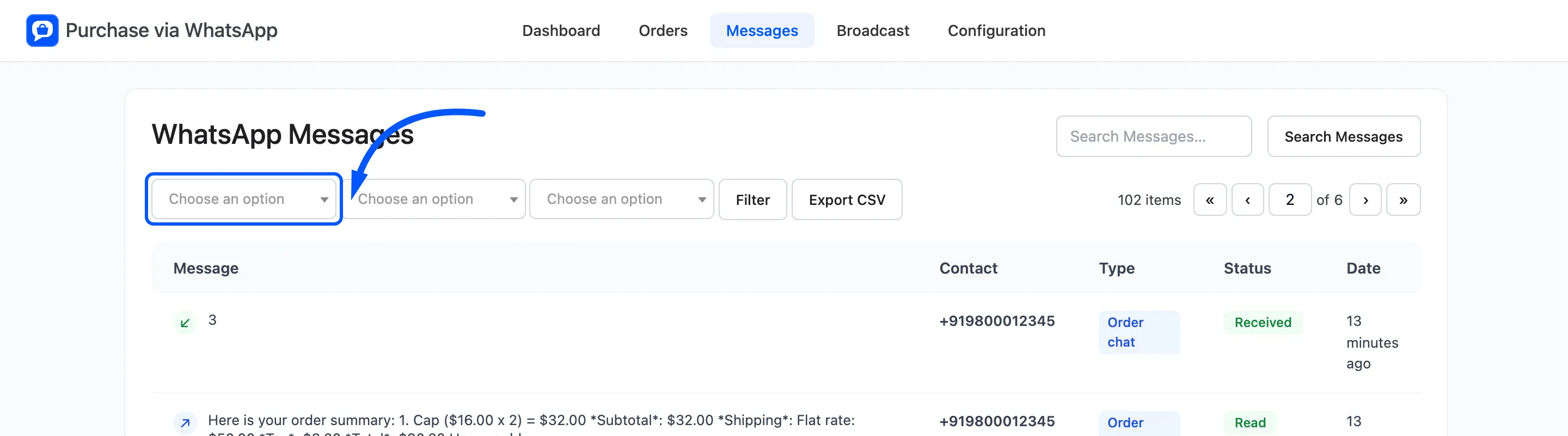
Pick a status, a direction and a type, then click Filter. Search Messages matches a phone number or words in the text. The View chat link on the Orders screen is this search, run for you.
Export CSV
Section titled “Export CSV”Export CSV downloads the list as whatsapp-messages- plus the date. It keeps the filters you set.
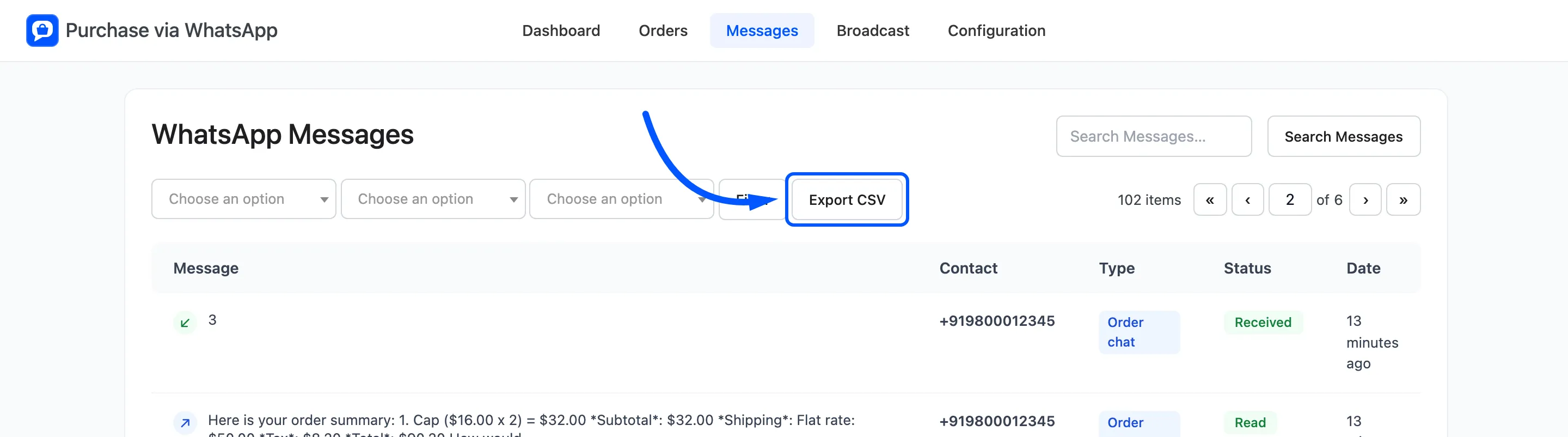
The file has Date, Direction, Type, Phone, Customer ID, Order ID, Status, Message, Template SID, Error Code and Error. Unlike the screen, it holds each message in full.
What the screen does not do
Section titled “What the screen does not do”There is no reply box, no delete and no bulk action. Reply to a customer from the order’s WhatsApp box, or from your WhatsApp app.
Messages older than Keep Messages For on the General tab are removed once a day. With Logging off, the screen shows a warning and stays empty. Turn logging back on at Configuration → General.