

How to Export the WhatsApp Message Log (Pro)
The Messages screen trims each message to 24 words. The export holds everything, which is what you need for a support case, a delivery audit or your own records.
Step 1: Filter the log
Section titled “Step 1: Filter the log”Go to Purchase via WhatsApp → Messages. Set any filters you need, such as Failed or undelivered or the type Broadcast, and click Filter. The export follows them.
Step 2: Click Export CSV
Section titled “Step 2: Click Export CSV”Click Export CSV above the list.
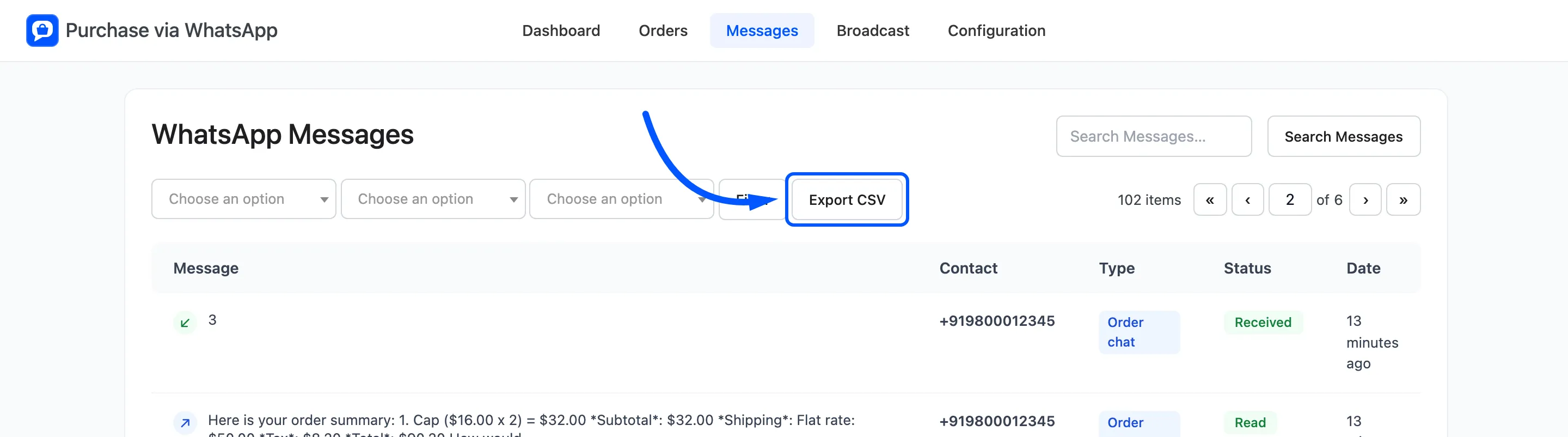
The file is named whatsapp-messages- followed by the date, such as whatsapp-messages-2026-10-08.csv.
Step 3: Open it in a spreadsheet
Section titled “Step 3: Open it in a spreadsheet”The columns are:
| Column | Holds |
|---|---|
| Date | When it was sent or received |
| Direction | Outgoing or incoming |
| Type | Order chat, Order update, Broadcast and so on |
| Phone | The customer’s number |
| Customer ID | Their account, if they have one |
| Order ID | The order it belongs to |
| Status | The latest delivery report |
| Message | The full text |
| Template SID | The template used, if any |
| Error Code | Twilio’s code for a failure |
| Error | The reason in words |
Text that starts like a spreadsheet formula is escaped, so a customer’s message cannot run as a formula when you open the file.
The log only goes back as far as Keep Messages For on the General tab, 90 days by default. Export before then if you need to keep older messages.