The Customer Experience
This page walks through the store as a customer sees it. Every screen is from the live demo.
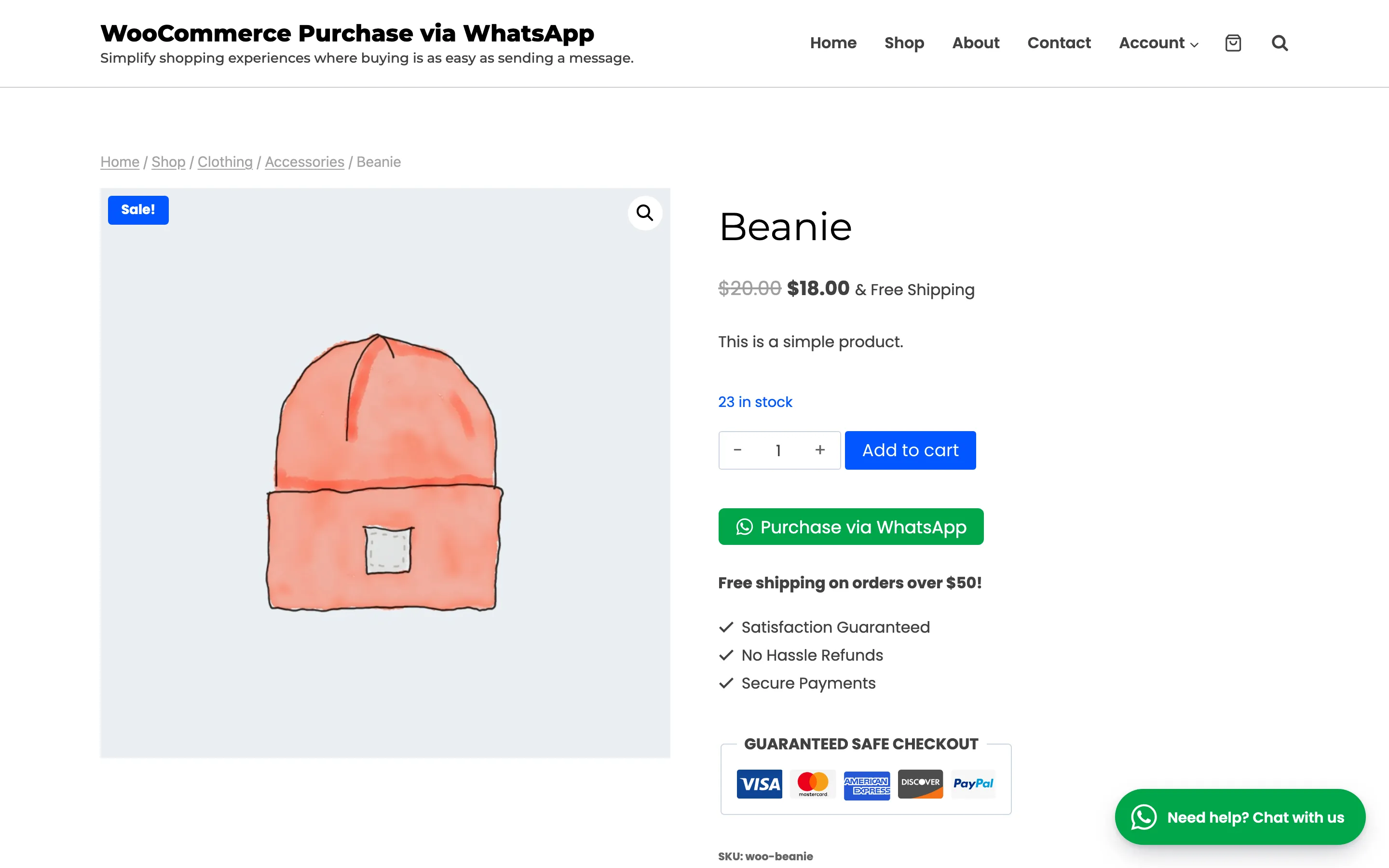
The button on a product page
Section titled “The button on a product page”The WhatsApp button sits under Add to cart by default. Its text, colour and position come from the Display tab.
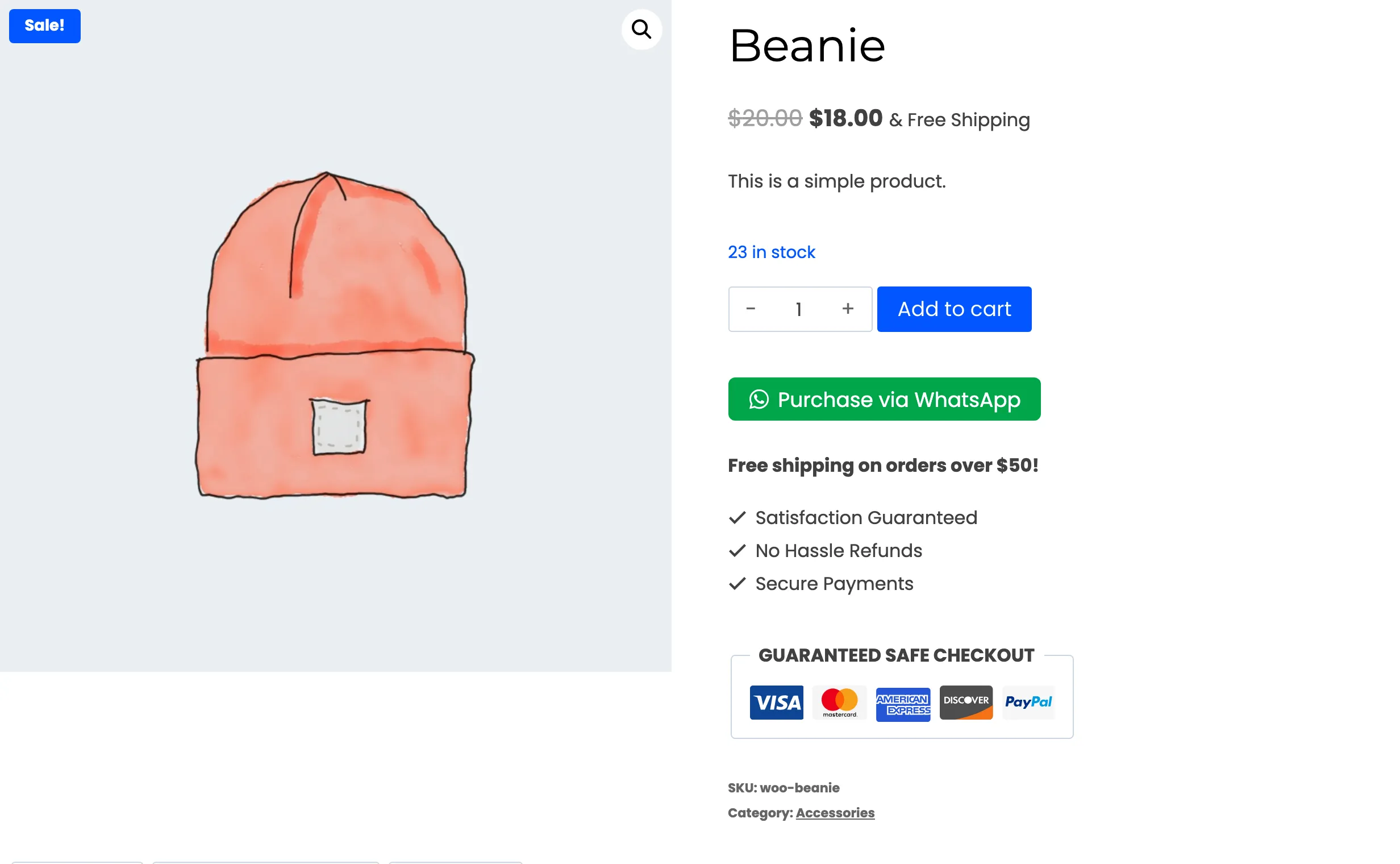
On a variable product the customer picks the options first. The quantity box counts too, so ordering five puts five in the message.
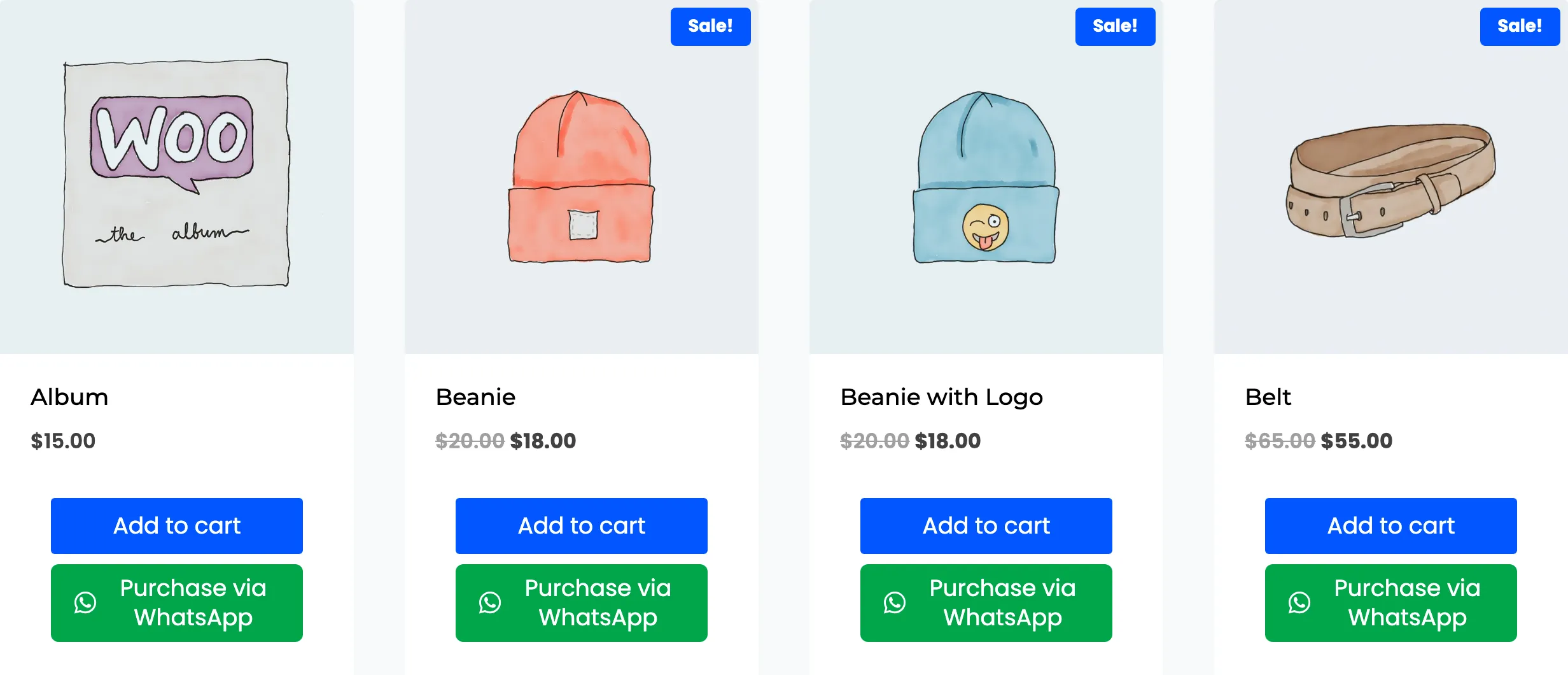
The buttons on the shop page
Section titled “The buttons on the shop page”With Shop and Category Pages set to a position, simple products get a button on their card.
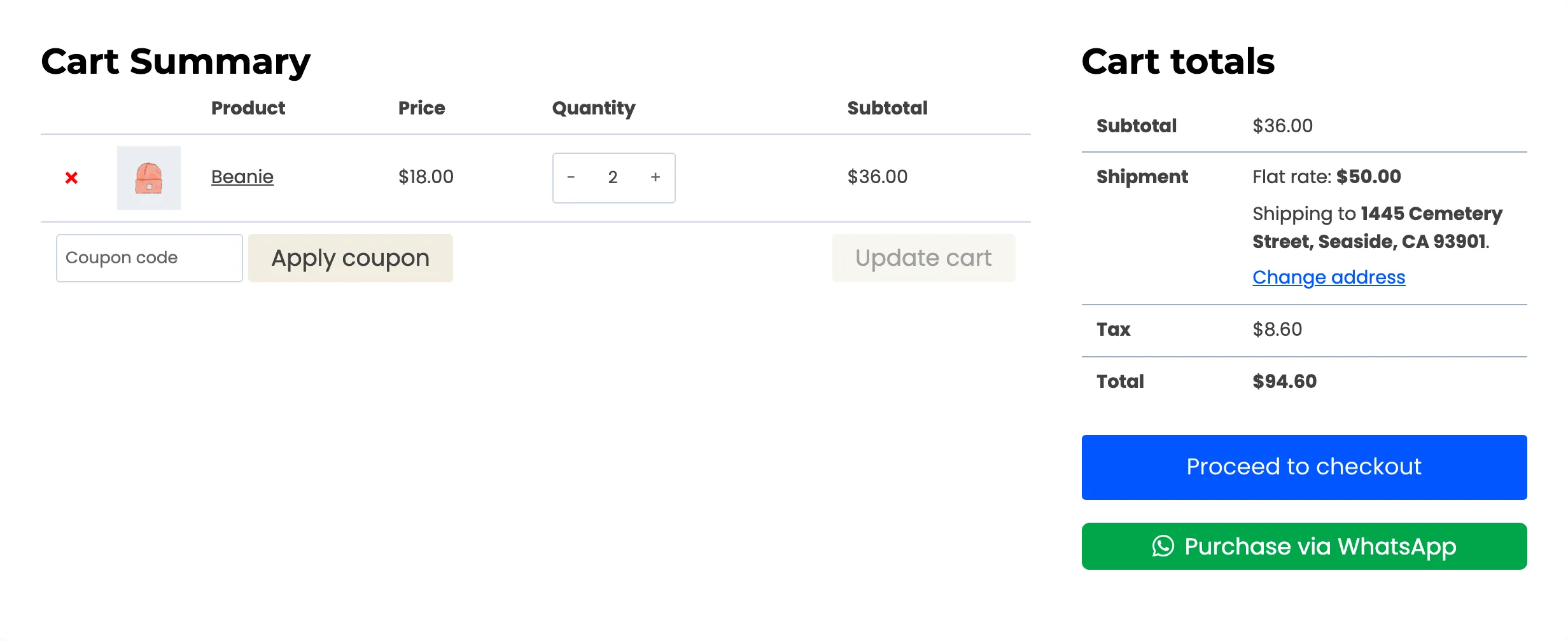
The button on the cart page
Section titled “The button on the cart page”The cart button sends the whole cart in one message. It is always full width. With the Cart block, it sits under the whole block rather than under Proceed to checkout.
The delivery popup
Section titled “The delivery popup”A guest, or a customer whose saved address is incomplete, gets the Where should we deliver? popup. Its fields are your checkout’s own billing fields.
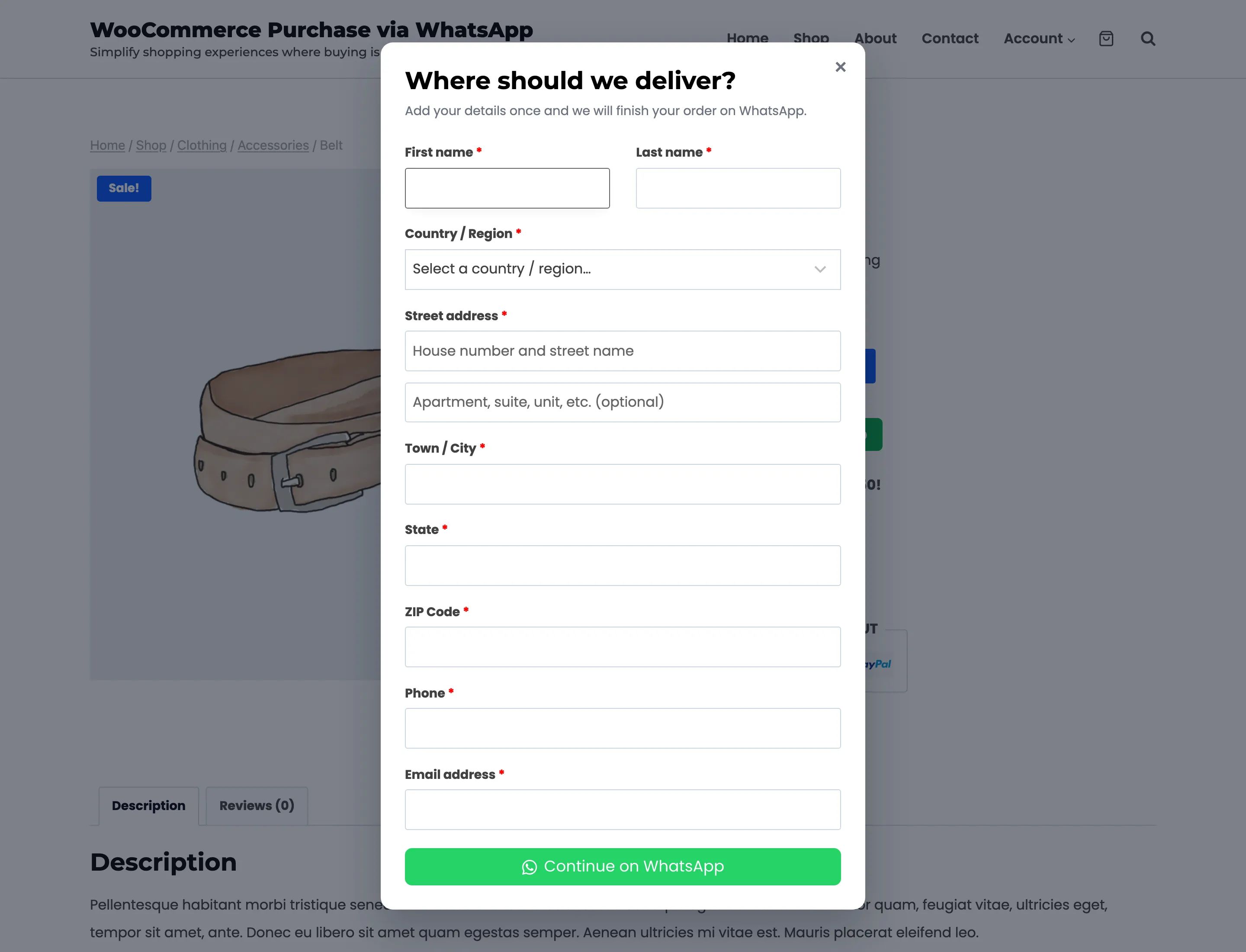
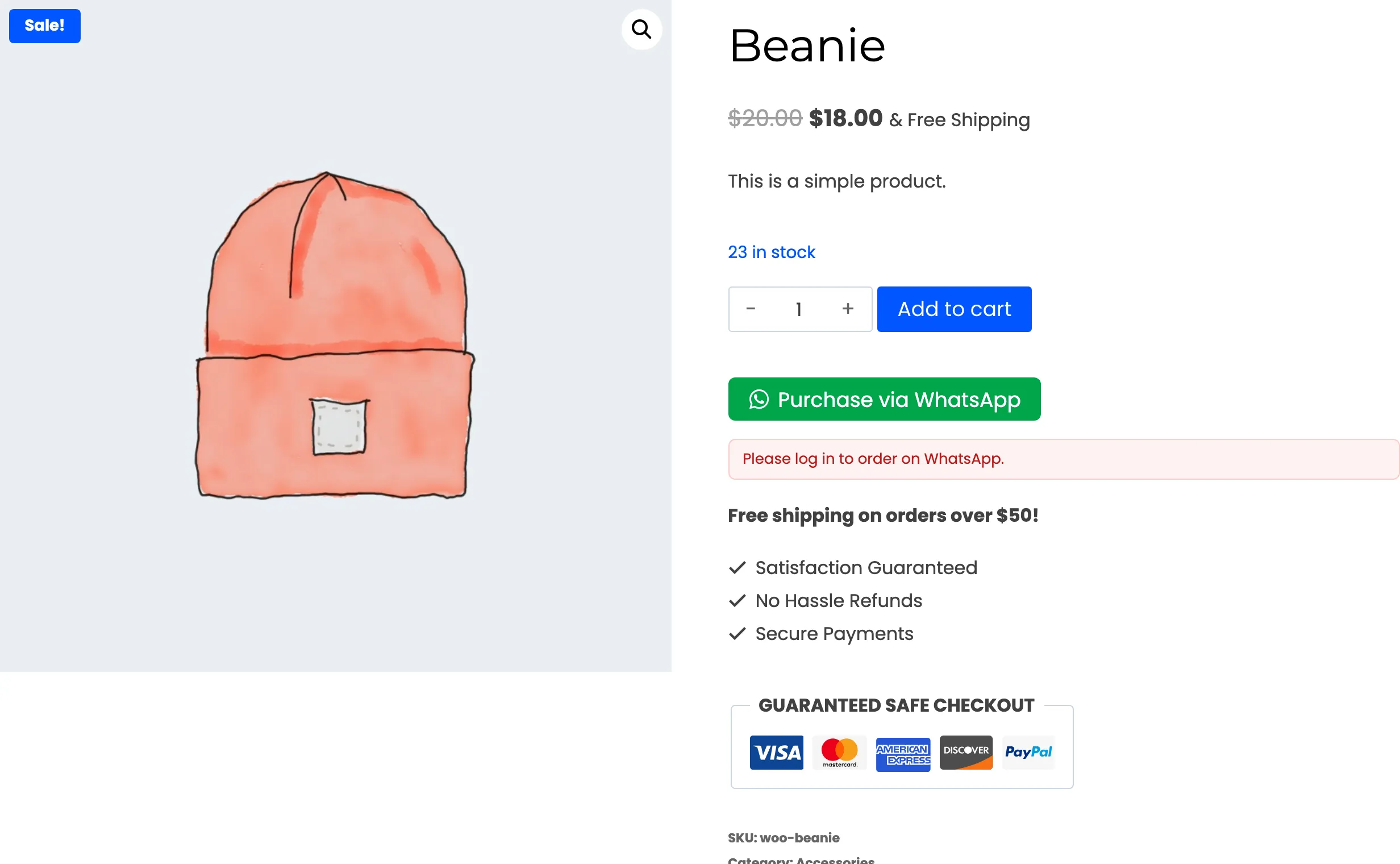
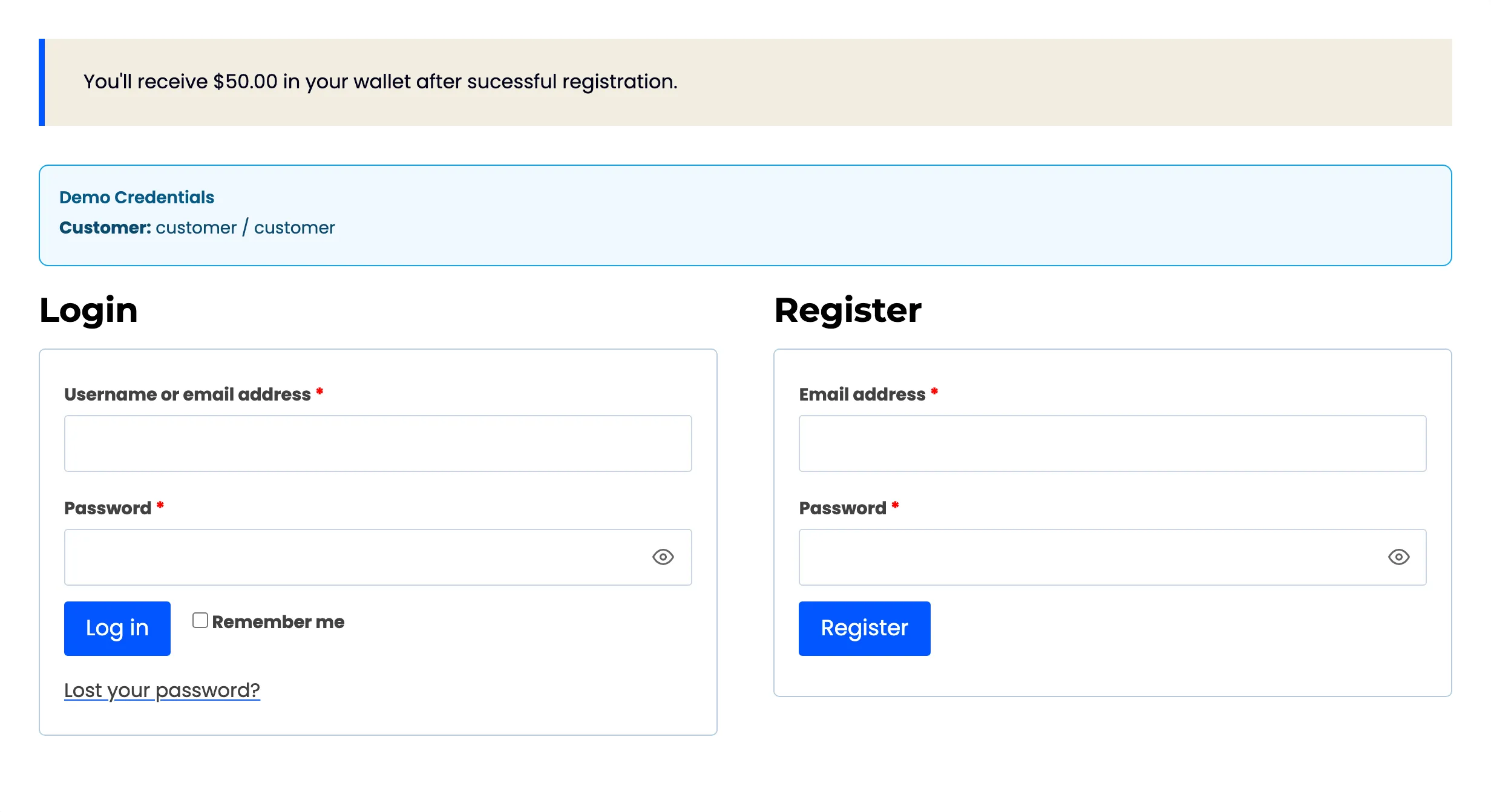
Continue on WhatsApp opens WhatsApp. With guest ordering off, a guest who taps the button sees “Please log in to order on WhatsApp.” Then the My Account login page opens.
WhatsApp opens
Section titled “WhatsApp opens”On a phone the WhatsApp app opens with the order typed out. On a computer, WhatsApp’s page offers the app or WhatsApp Web first.
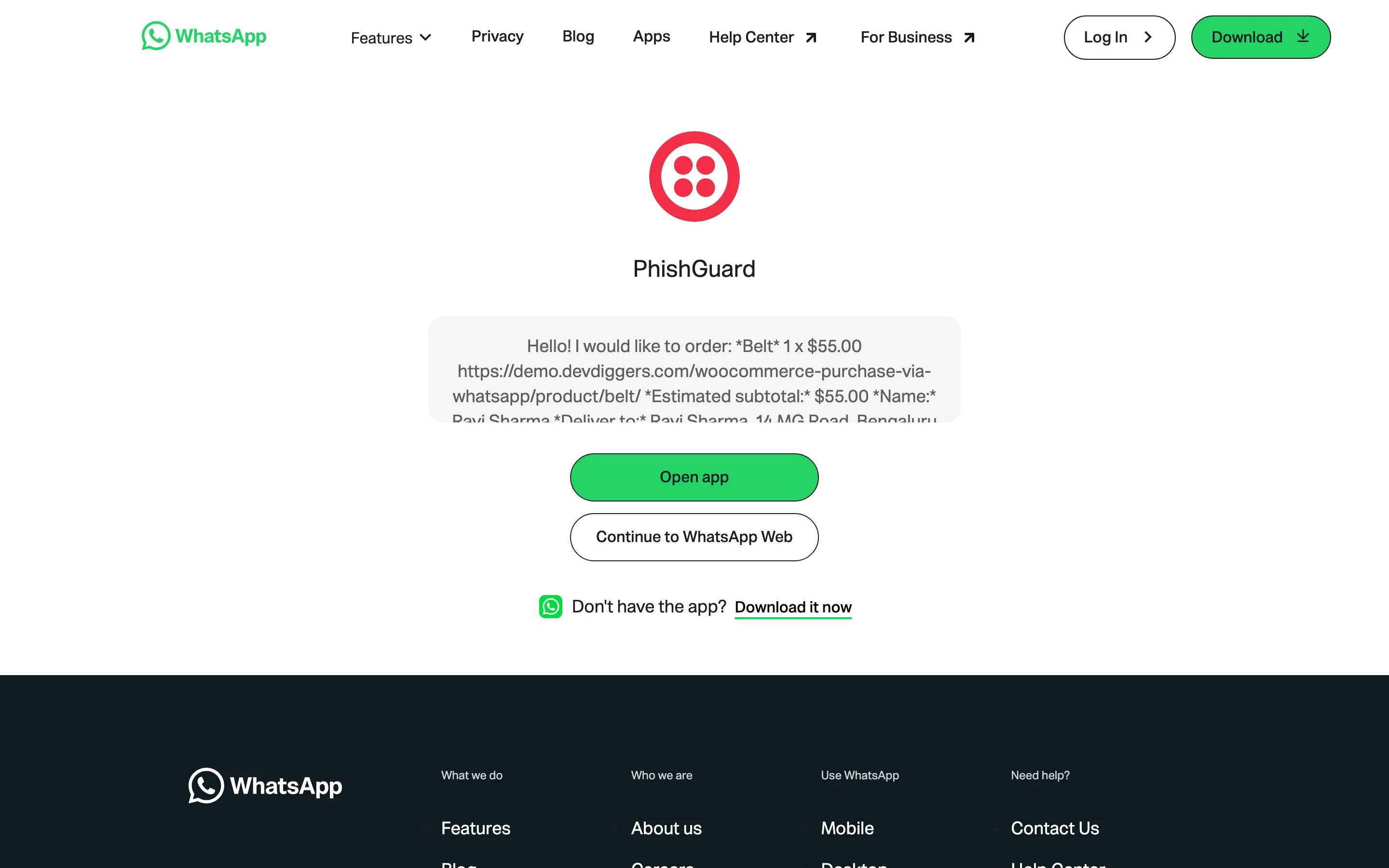
The name and picture at the top are your WhatsApp sender’s profile. With the Twilio sandbox they belong to Twilio’s shared test number, not to your store. A registered sender shows your business name.
The chat
Section titled “The chat”The customer sends the message and the assistant answers within seconds:
- A delivery question, unless your store has only one option for that address.
- “Do you have a coupon code? Reply with the code, or SKIP to continue.”
- The order summary and a numbered list of payment methods.
- “Thank you! Your order #1221 has been placed.” with a tracking link for customers with an account.
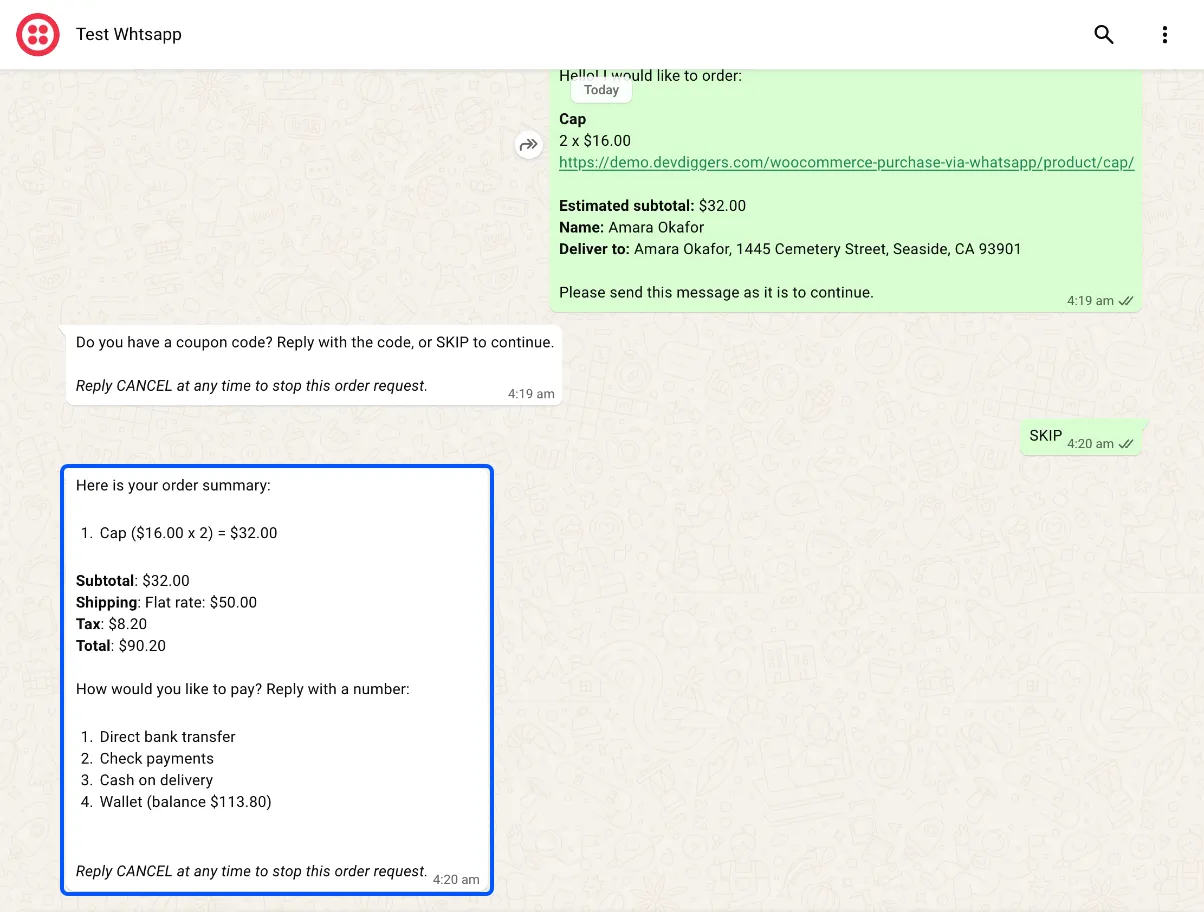
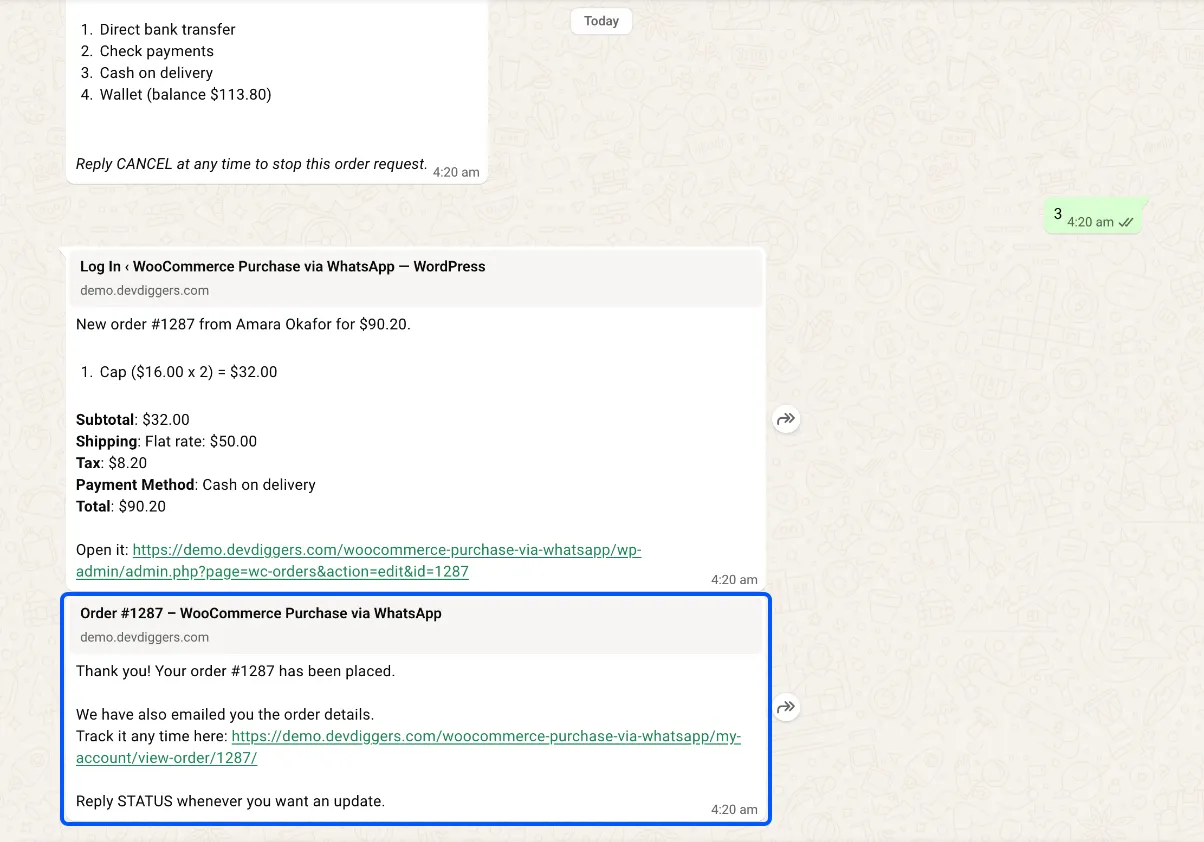
How WhatsApp Ordering Works has every message word for word.
At any time the customer can reply with a keyword:
- STATUS for their latest order.
- HELP for the list of keywords.
- AGENT for a person.
- CANCEL to drop the order in progress.
- STOP to hear nothing more.
After the order
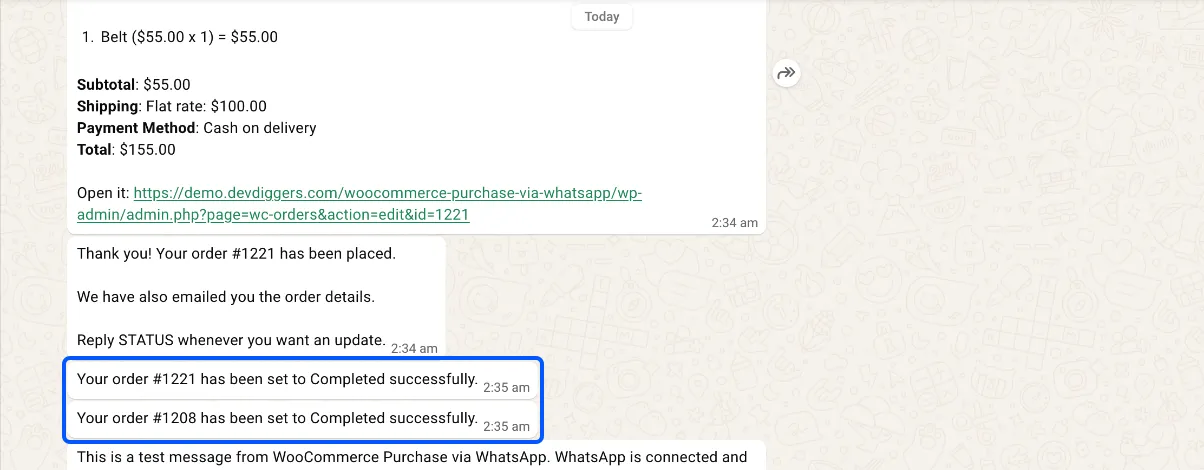
Section titled “After the order”- Status updates, when the store changes the order’s status. On the demo: “Your order #1204 has been set to Completed successfully.”
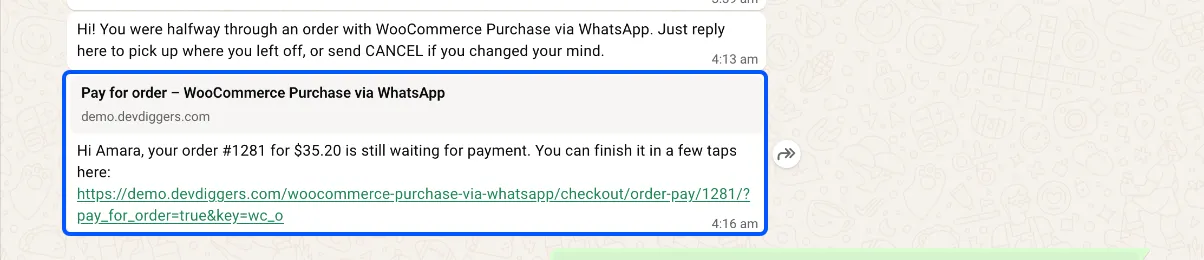
- A payment link, if the order is still unpaid after a few hours.
- Broadcasts, such as a restock or a sale.
On the demo customer’s phone, these look like this:
At the normal checkout
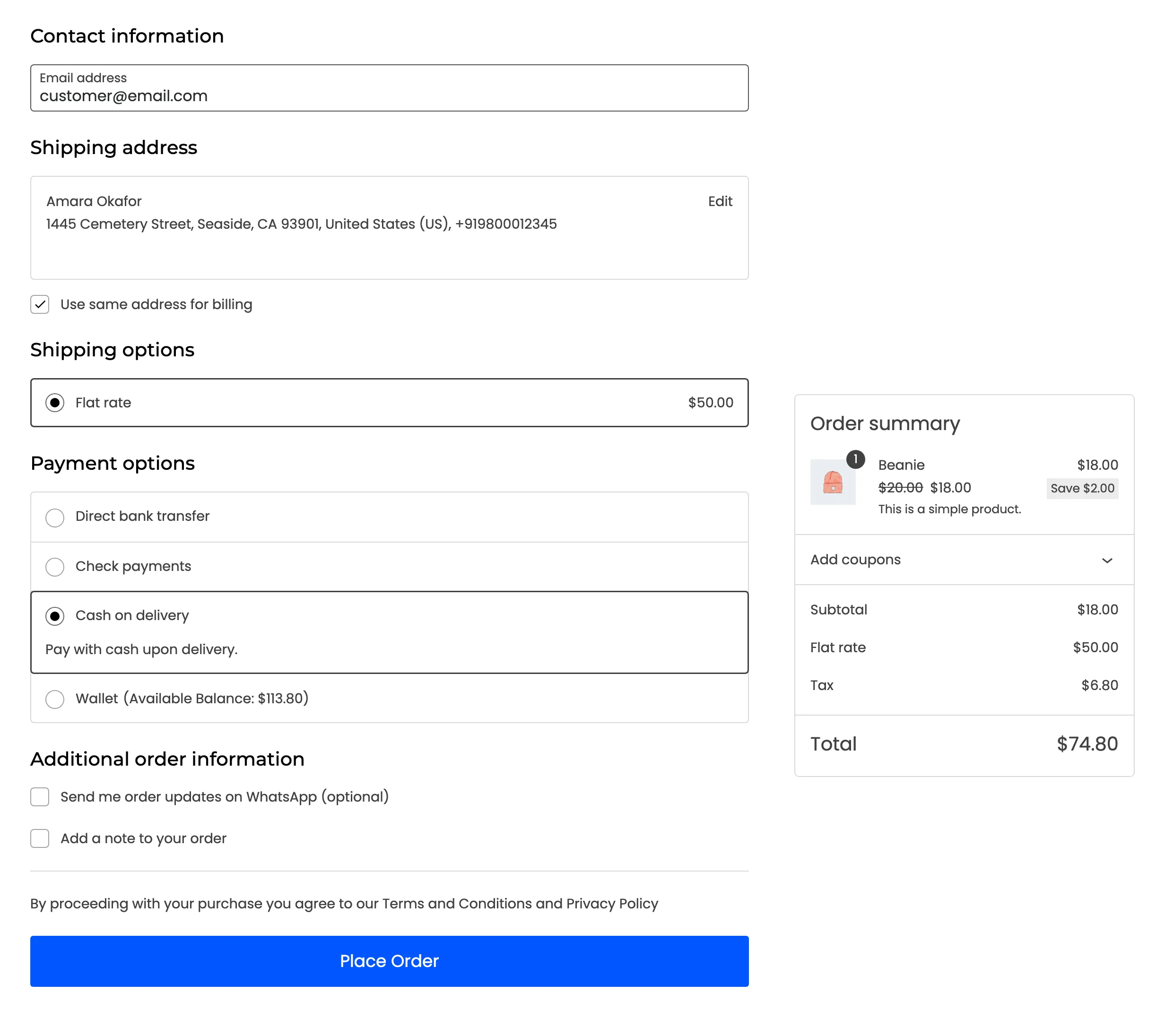
Section titled “At the normal checkout”When the consent box is switched on, the checkout carries one more checkbox above Place order.
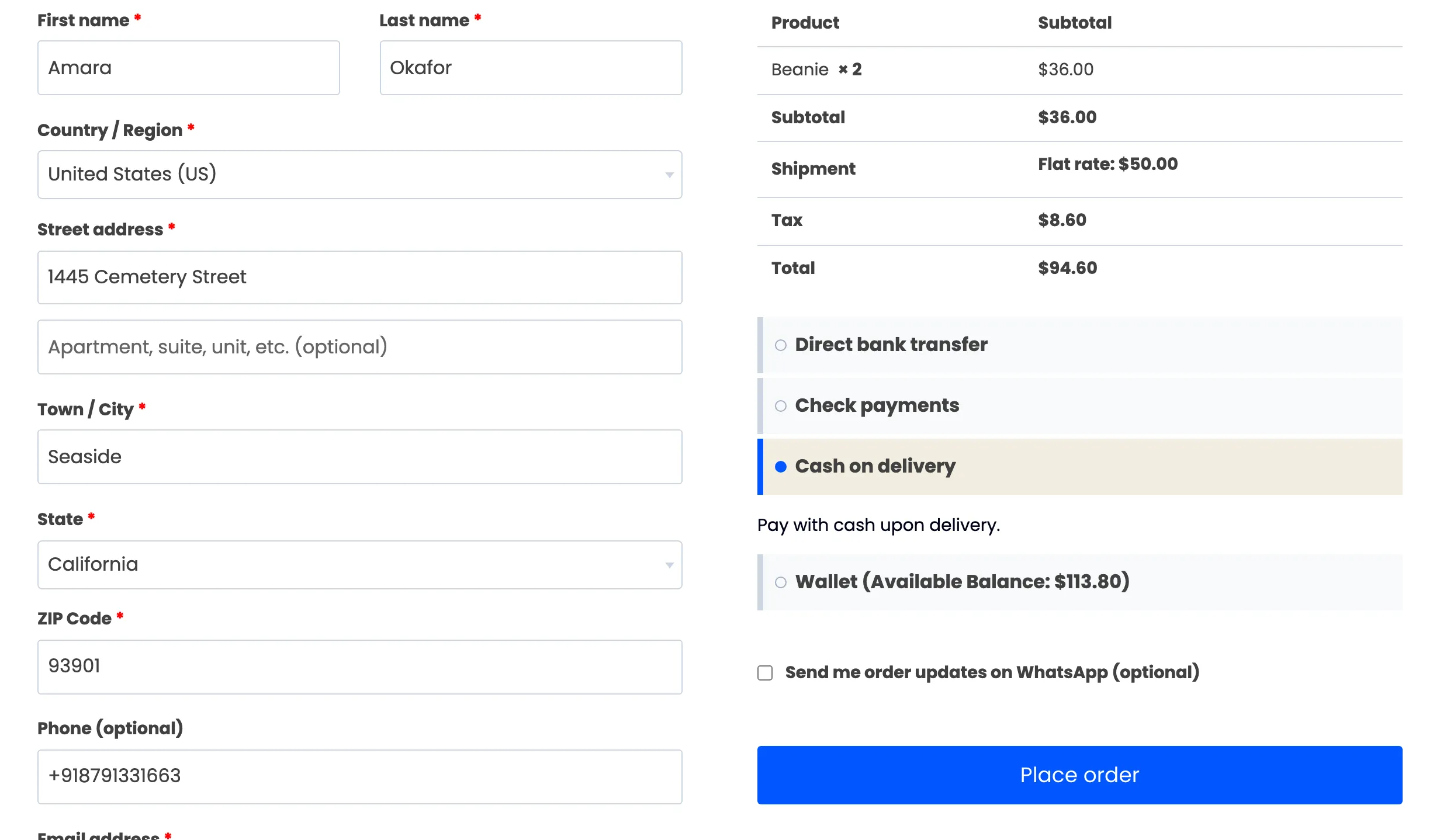
A ticked box means order confirmations and updates arrive on WhatsApp too. The Checkout block shows the same box under Additional order information.
Catalog mode and hidden prices
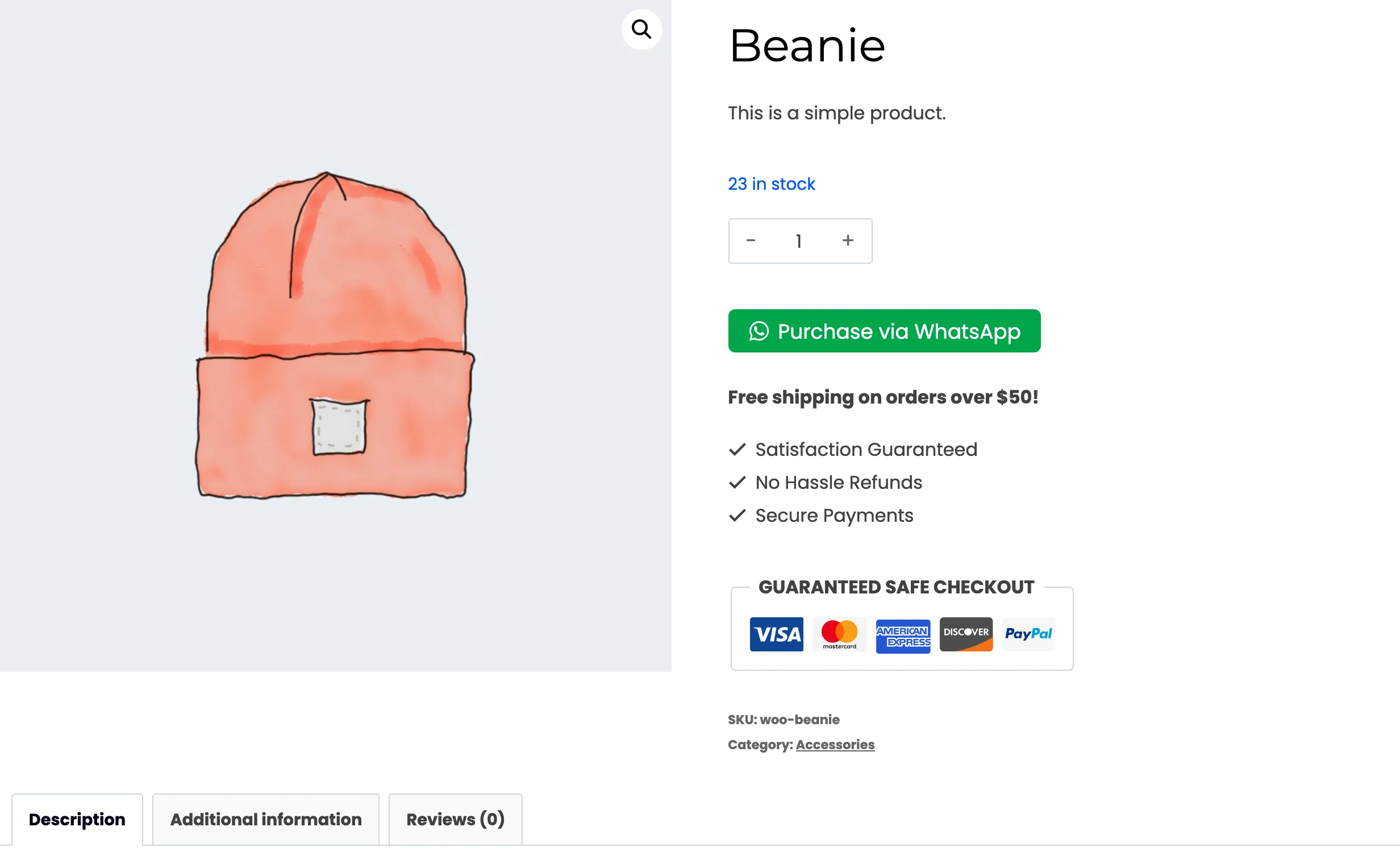
Section titled “Catalog mode and hidden prices”With WhatsApp Only on, Add to cart is gone and the WhatsApp button takes its place.
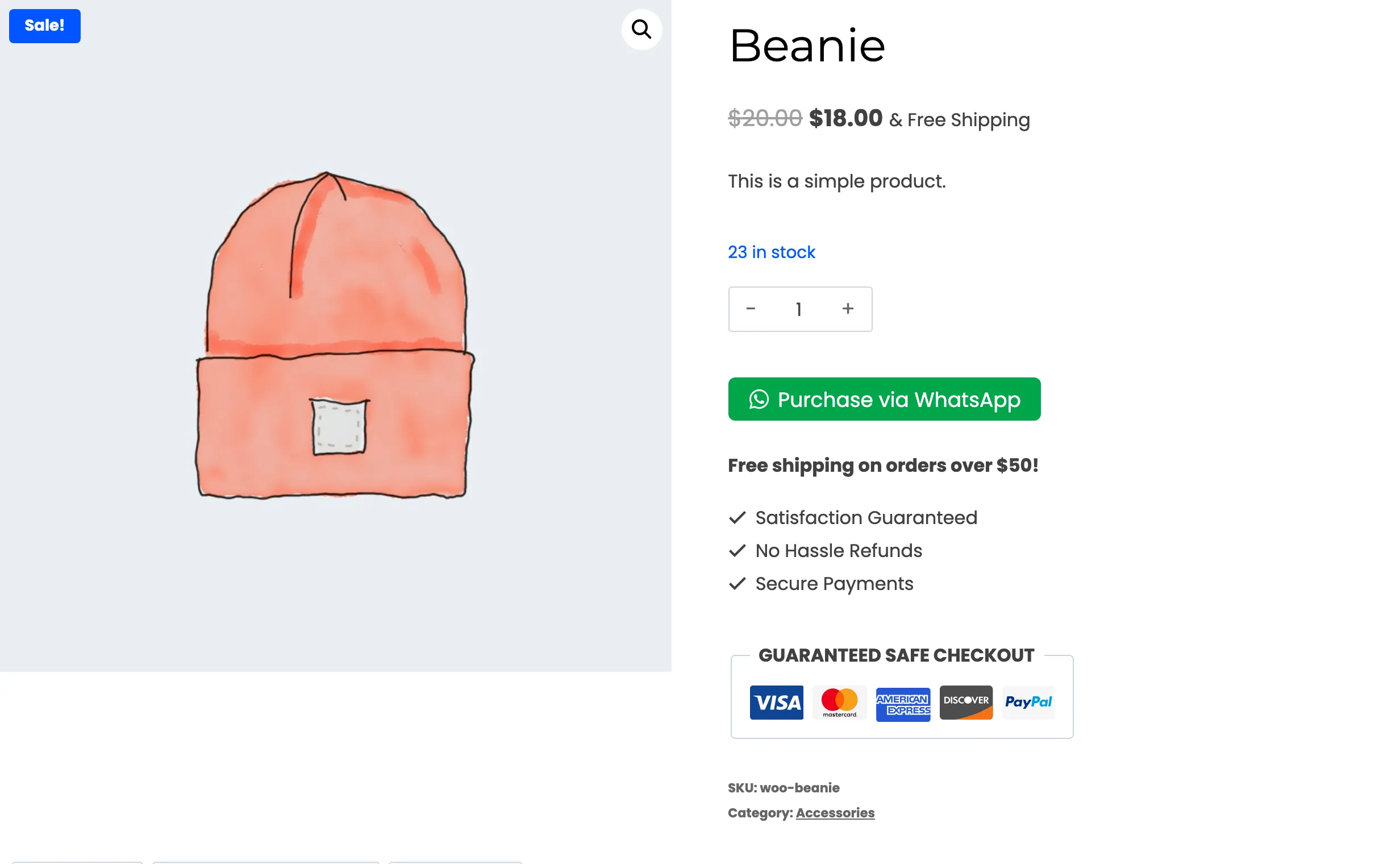
With Prices hidden as well, the store reads like a quote request.
The floating chat bubble
Section titled “The floating chat bubble”The bubble sits in a corner of every page and opens an ordinary WhatsApp chat for questions. On a product page the product’s name and link are added to the message.