

How to Ask Customers for WhatsApp Consent at Checkout (Pro)
WhatsApp expects a business to have permission before it messages a customer. Customers who report a business as spam can get its number limited. Asking at checkout keeps your number in good standing.
Step 1: Turn on the consent checkbox
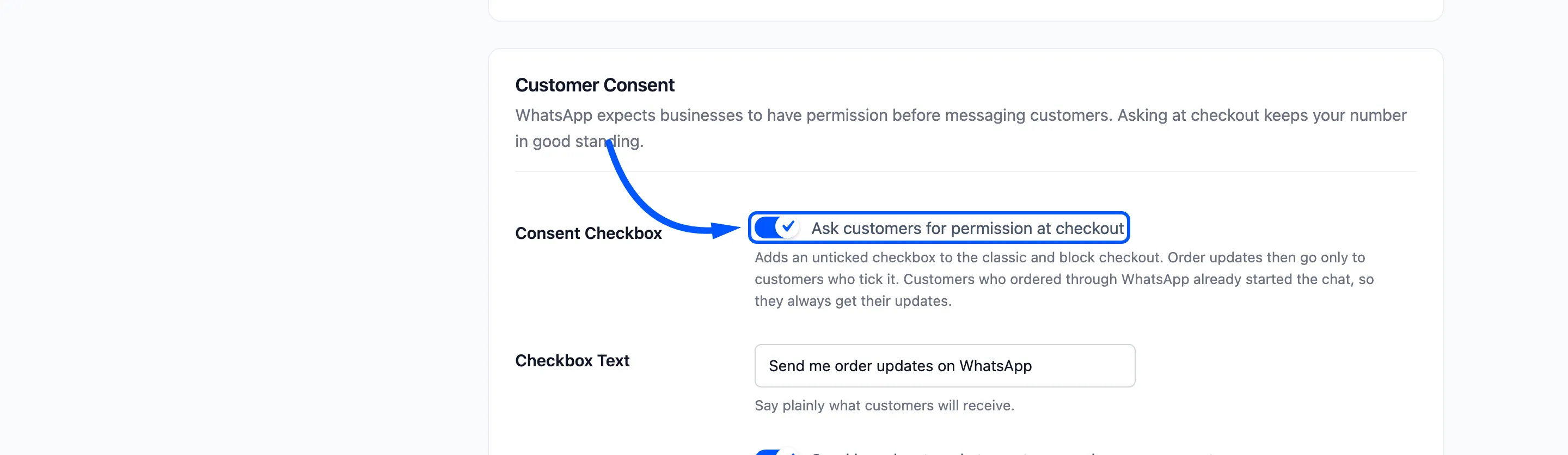
Section titled “Step 1: Turn on the consent checkbox”Go to Purchase via WhatsApp → Configuration → Notifications, scroll to Customer Consent and tick Consent Checkbox.
Step 2: Write the checkbox text
Section titled “Step 2: Write the checkbox text”Checkbox Text defaults to “Send me order updates on WhatsApp”. If you also send broadcasts, say so, such as “Send me order updates and offers on WhatsApp”.
Step 3: Decide about broadcasts
Section titled “Step 3: Decide about broadcasts”Broadcast Audience, “Send broadcasts only to customers who gave consent”, narrows every broadcast to customers who ticked the box. Keep it ticked. Click Save Changes.
Step 4: Check the checkout
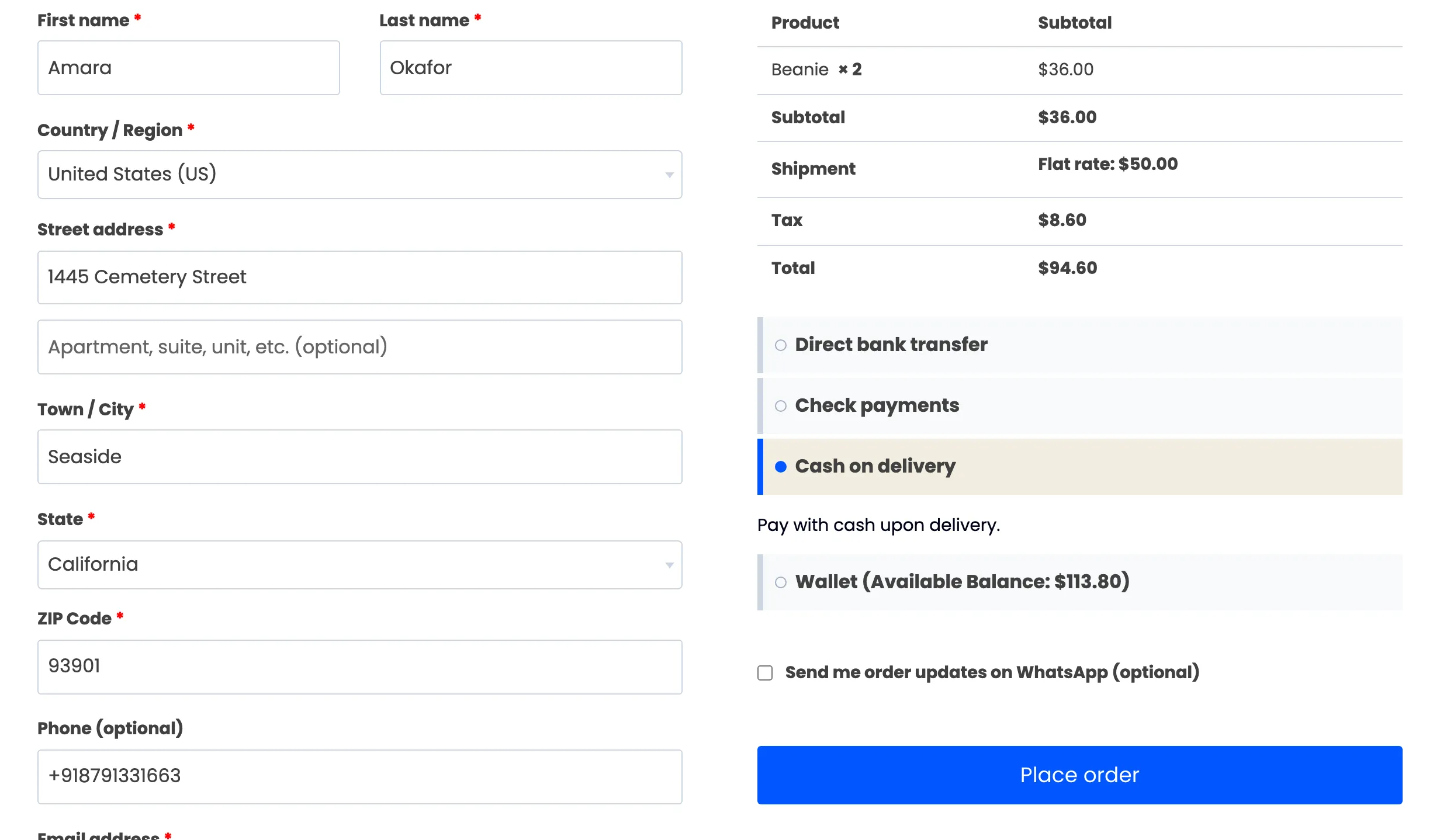
Section titled “Step 4: Check the checkout”Put a product in the cart and open the checkout. The box sits above Place order, unticked and marked optional.
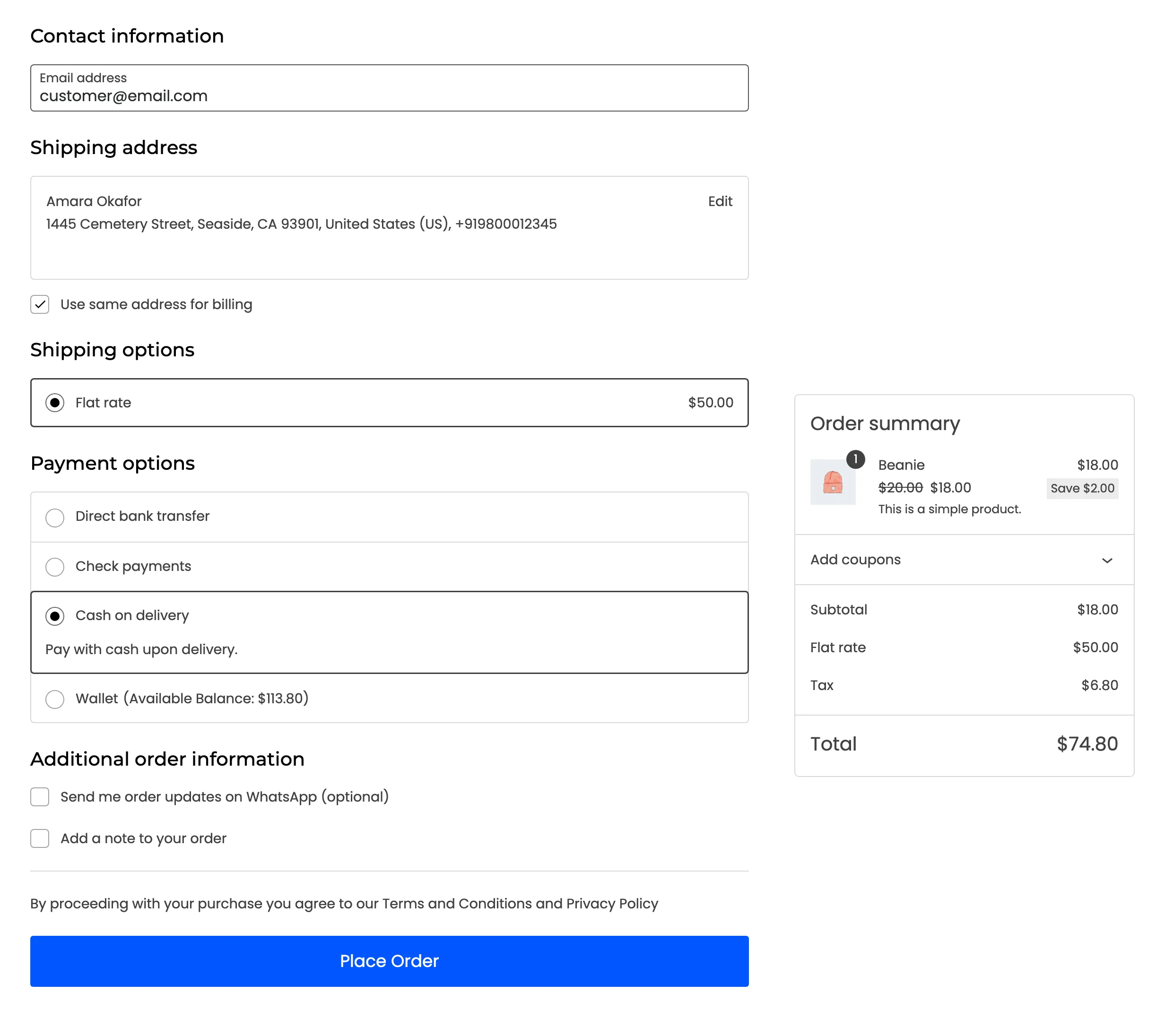
The Checkout block shows it under Additional order information.
While order updates are on, the billing Phone field also gets a hint: “We can send your order updates to this number on WhatsApp.”
What the choice changes
Section titled “What the choice changes”On the demo, a customer ticked the box and placed an order. The order confirmation and the store’s new order alert both arrived on WhatsApp seconds later.
| Ticked | Not ticked | |
|---|---|---|
| Order confirmation and status updates | Sent | Not sent |
| Broadcasts, with Broadcast Audience on | Included | Skipped |
| Wallet alerts | Sent | Not sent |
| WhatsApp orders | Always sent, since the customer started the chat | Always sent |
The answer is saved on the order and on the customer’s account, so the next broadcast knows it.
A customer who replies STOP is never messaged again until they reply START, whatever they ticked.