

How to Exclude Products from WhatsApp Ordering
Not every product suits a chat order. A gift card, a subscription or an item needing a custom quote can stay on the normal checkout. This is in the free version too.
Step 1: Open Who Can Order
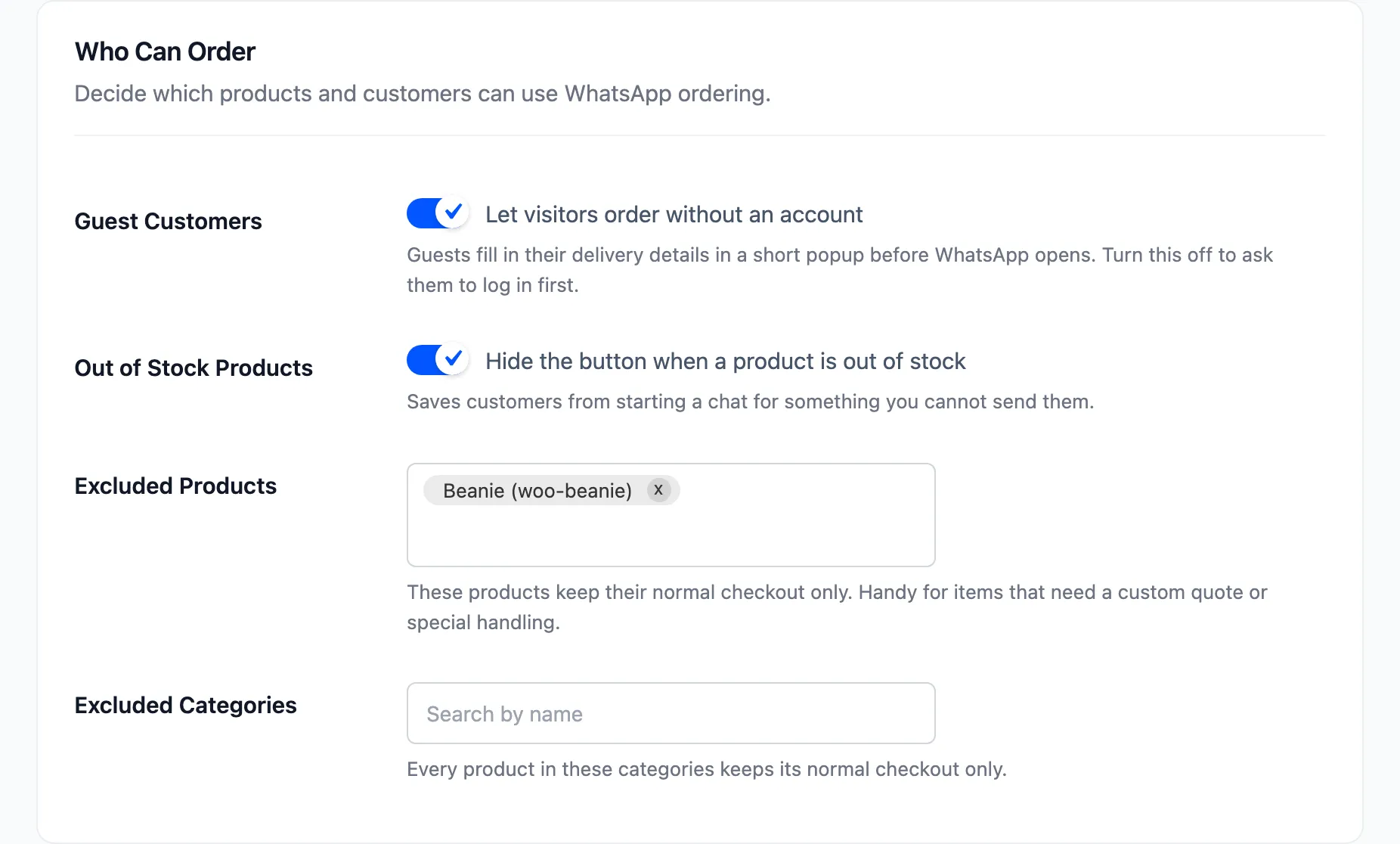
Section titled “Step 1: Open Who Can Order”Go to Purchase via WhatsApp → Configuration → General. The exclusions are in Who Can Order.
Step 2: Pick the products or categories
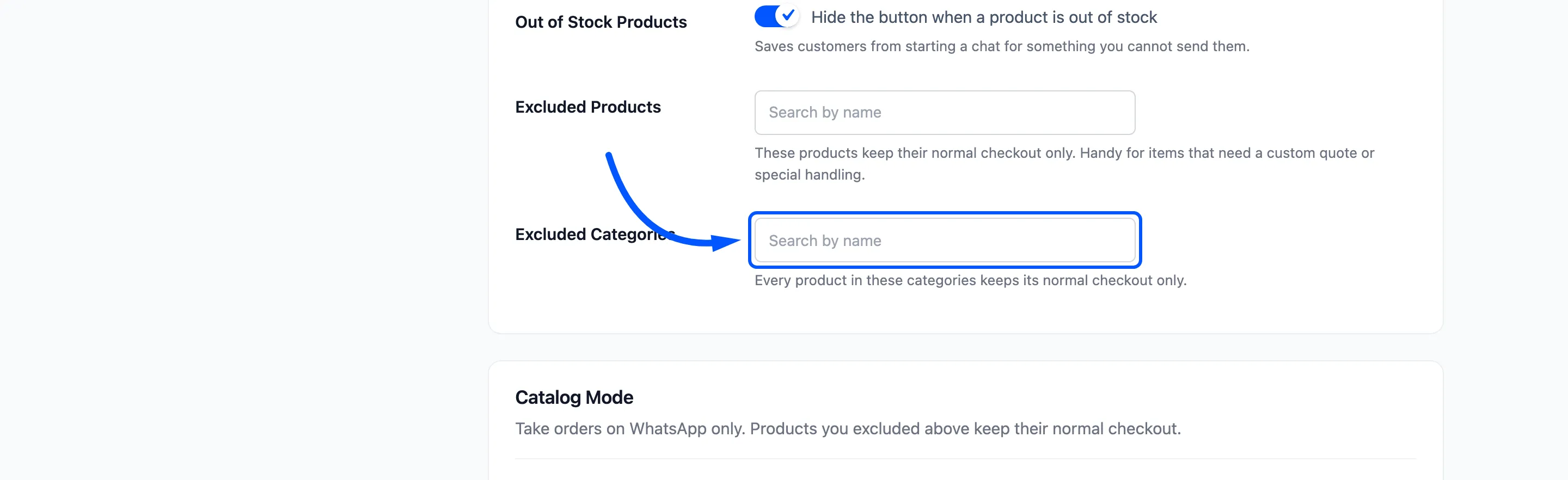
Section titled “Step 2: Pick the products or categories”Type a few letters into Excluded Products and pick from the list. Excluded Categories works the same way and covers every product in each category.
Step 3: Decide about out of stock items
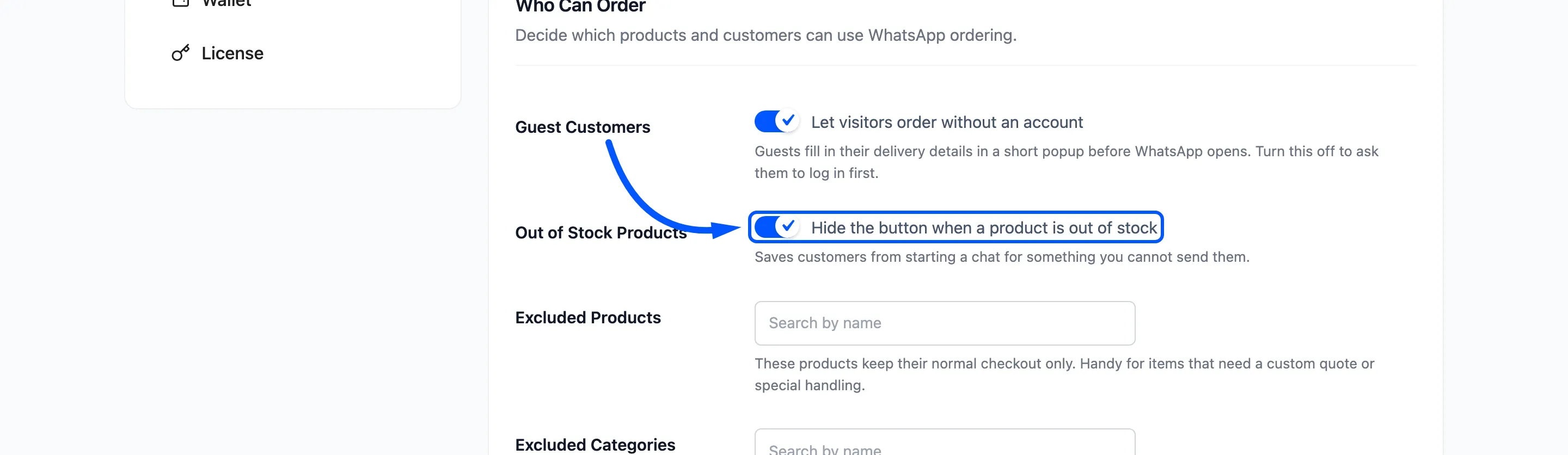
Section titled “Step 3: Decide about out of stock items”Out of Stock Products, “Hide the button when a product is out of stock”, is ticked by default. It stops a chat about something you cannot send.
Click Save Changes.
Step 4: Check an excluded product
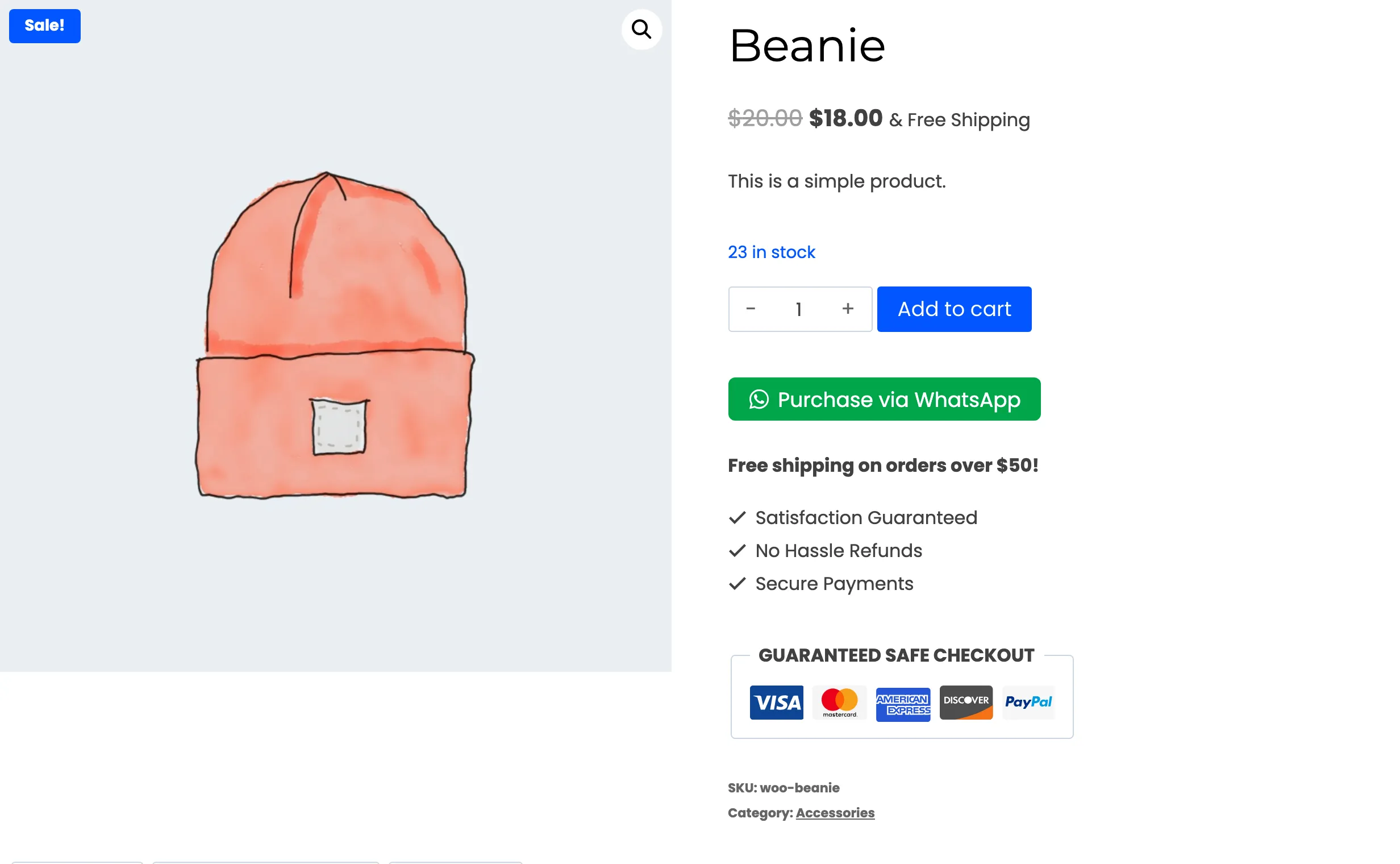
Section titled “Step 4: Check an excluded product”Open the product logged out. With the Beanie excluded, its page has Add to cart and no WhatsApp button.
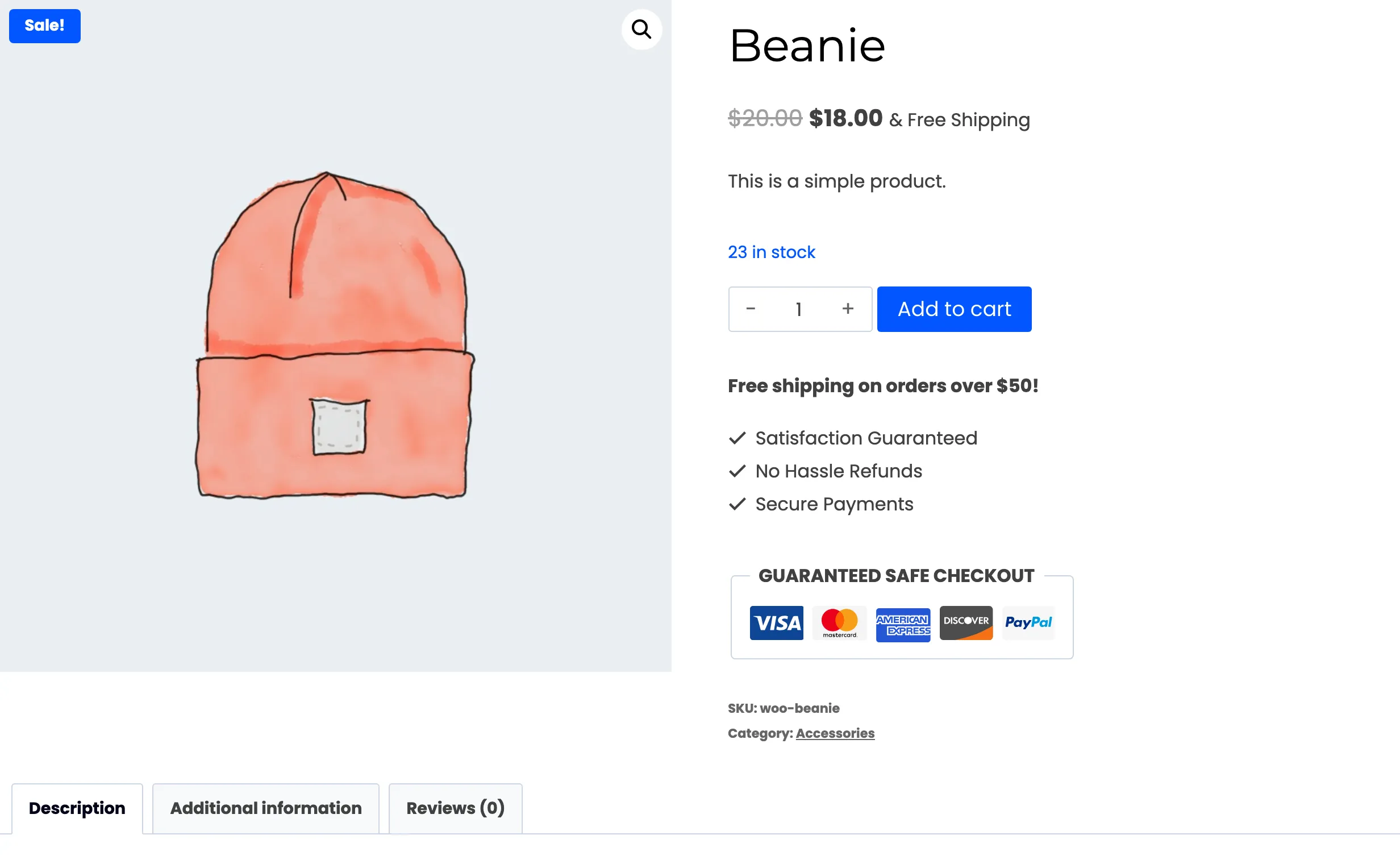
Compare it with the same page before the exclusion.
Exclusions in the cart
Section titled “Exclusions in the cart”An excluded product never gets a WhatsApp button of its own. With catalog mode on, excluded products also keep their Add to cart. That is how a WhatsApp only store still sells a few items the usual way.