

How to Send Order Updates on WhatsApp (Pro)
“Where is my order?” is the most common question a store gets. A WhatsApp update answers it before it is asked.
Step 1: Turn on the order confirmation
Section titled “Step 1: Turn on the order confirmation”Go to Purchase via WhatsApp → Configuration → Notifications and tick Status under Order Confirmation. Edit Message if you like.
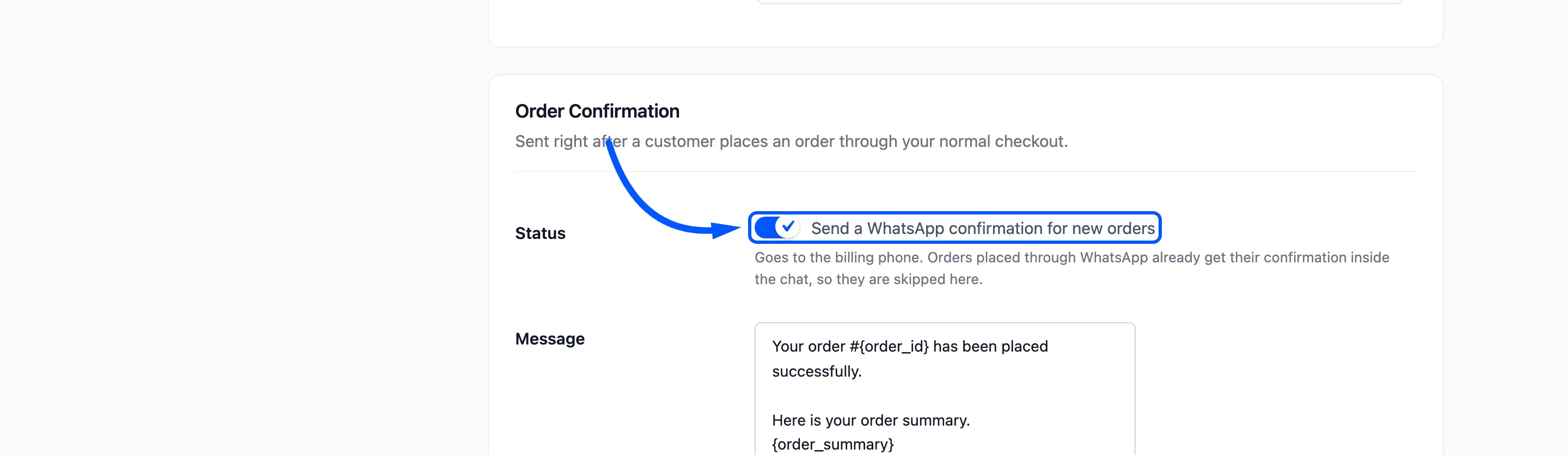
The confirmation goes to orders from your normal checkout, to the billing phone. WhatsApp orders already got their confirmation in the chat, so they are skipped.
On the demo, a checkout order got this within seconds:
Your order #1218 has been placed successfully.Here is your order summary.1. Sunglasses ($90.00 x 1) = $90.00*Subtotal*: $90.00*Shipping*: Flat rate: $50.00*Tax*: $14.00...Step 2: Turn on status updates
Section titled “Step 2: Turn on status updates”Tick Status under Order Status Updates. In Notify On, pick the statuses that matter. Processing, Completed, Cancelled and Refunded are chosen by default.
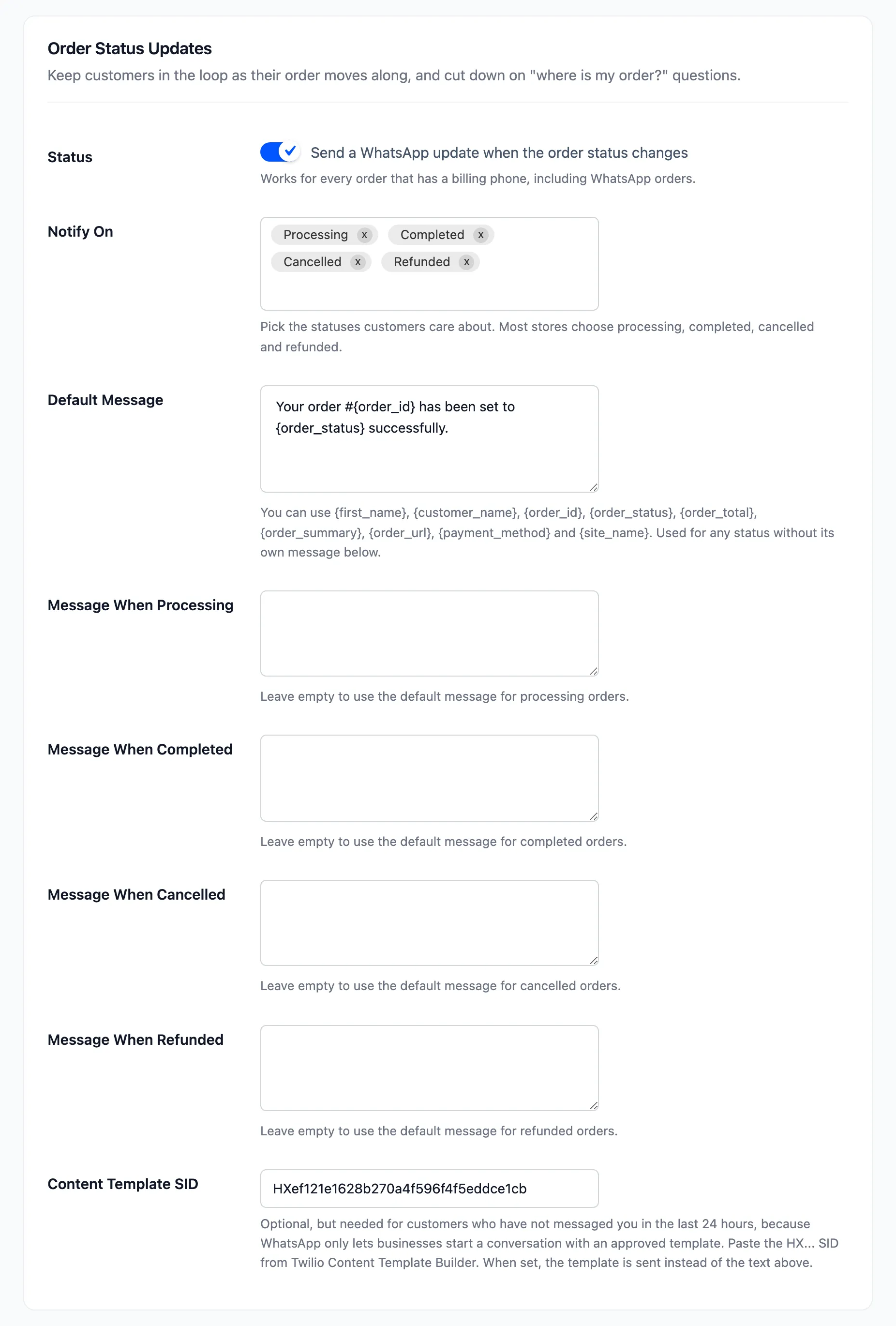
Updates go to every order with a billing phone, WhatsApp orders included.
Step 3: Write a message per status
Section titled “Step 3: Write a message per status”The Default Message covers every status. Each status you picked gets its own Message When box below it. Leave a box empty to use the default.
Useful placeholders: {first_name}, {order_id}, {order_status}, {order_total} and {order_url}, the
link to the order.
Step 4: Add a template
Section titled “Step 4: Add a template”A plain update only arrives if the customer wrote to you in the last 24 hours. A WhatsApp order usually qualifies for a day. A shipment three days later does not.
Paste an approved template’s SID into Content Template SID in each section. One SID serves all the
statuses, with the status name in {{3}}.
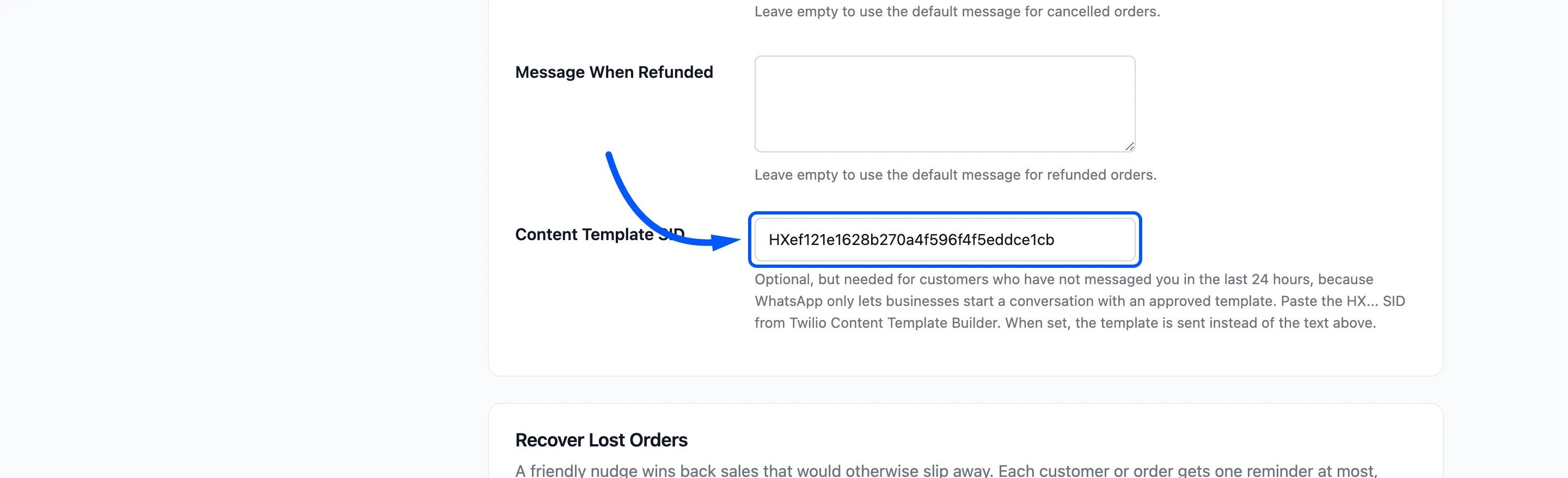
How to Create WhatsApp Message Templates in Twilio builds that template. Click Save Changes.
Step 5: Change an order’s status and check
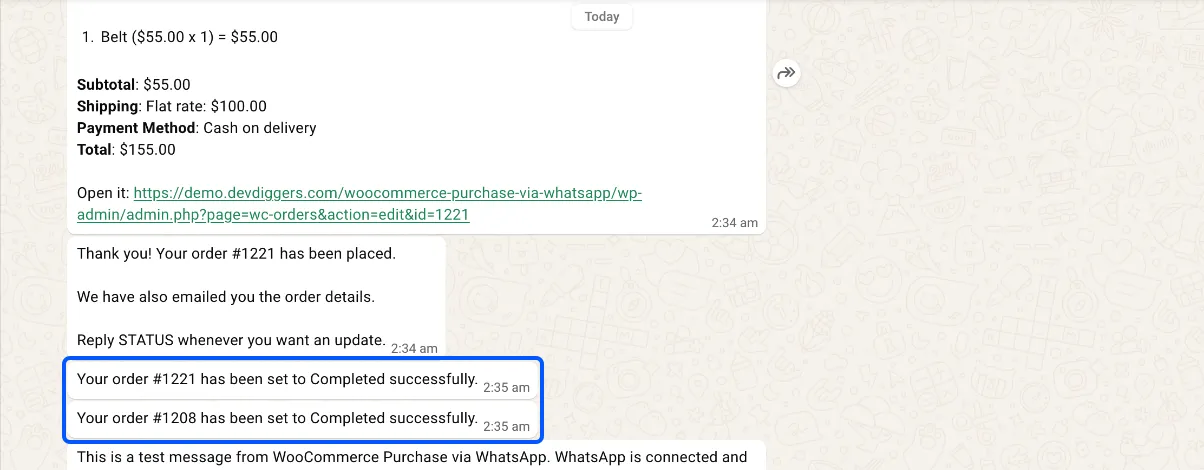
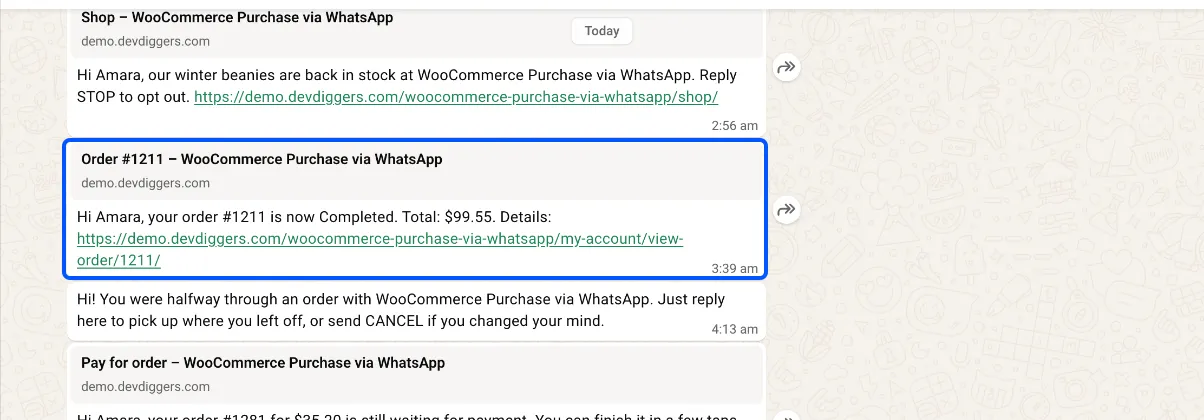
Section titled “Step 5: Change an order’s status and check”Open an order and move it to Completed. The update goes out at once. On the demo it read “Your order #1204 has been set to Completed successfully.”
This is how the customer sees it, right under the order confirmation:
With a template set, the same update arrives in the template’s wording, with the order link as a preview:
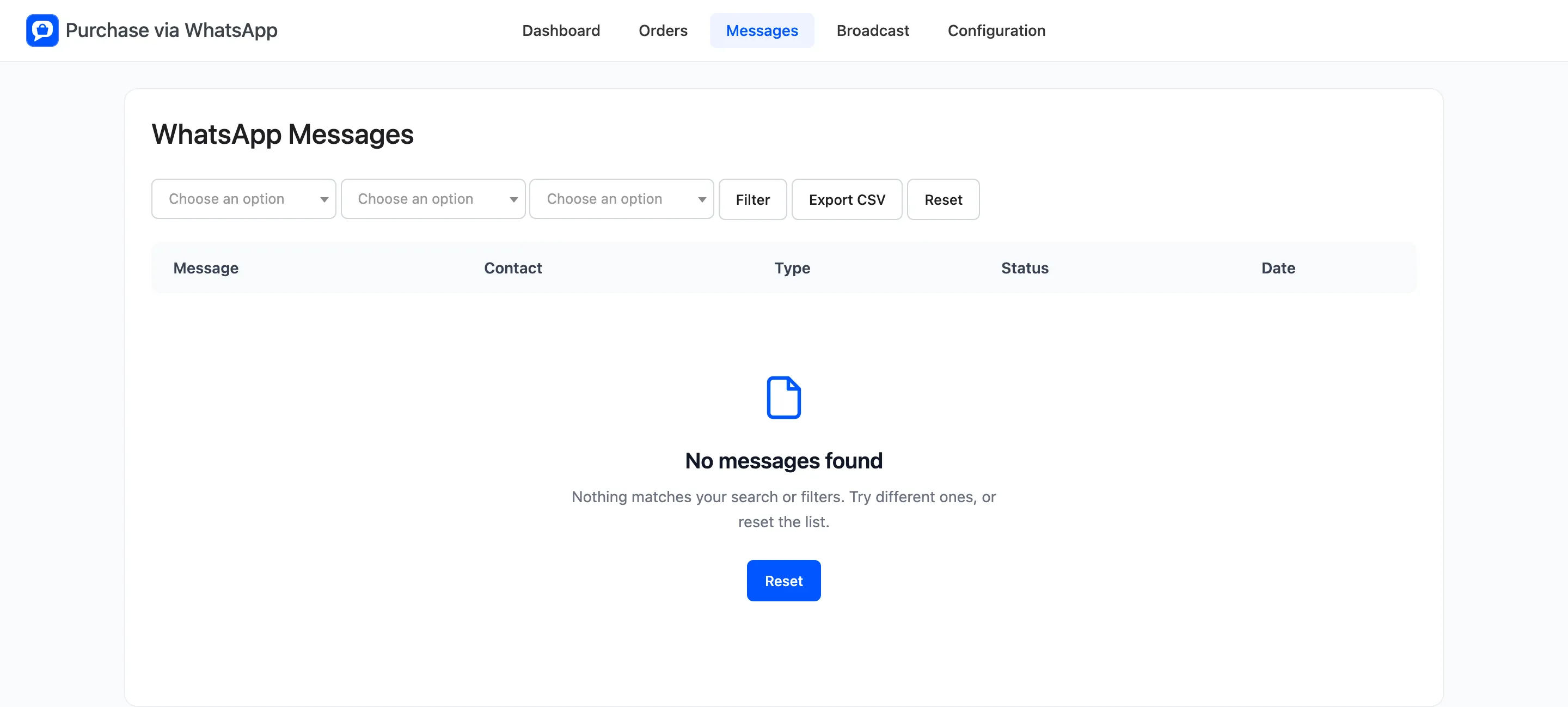
Open Purchase via WhatsApp → Messages and filter Type to Order update.
If a send fails, the order gets a note starting “WhatsApp update could not be sent”, with the reason.
Who does not get updates
Section titled “Who does not get updates”- A customer who replied STOP, until they reply START.
- An order with no valid billing phone.
- With the consent checkbox on, a checkout customer who did not tick it. WhatsApp orders are always included.