

How WhatsApp Ordering Works
This page follows one order from the first tap to the confirmation. Every reply quoted here was sent by the live demo and arrived on a real phone.
1. The customer taps the button
Section titled “1. The customer taps the button”The button sits on the product page, the cart, and the shop pages if you switch them on. On a variable product the customer picks the options first. Otherwise they see “Please choose product options first.”
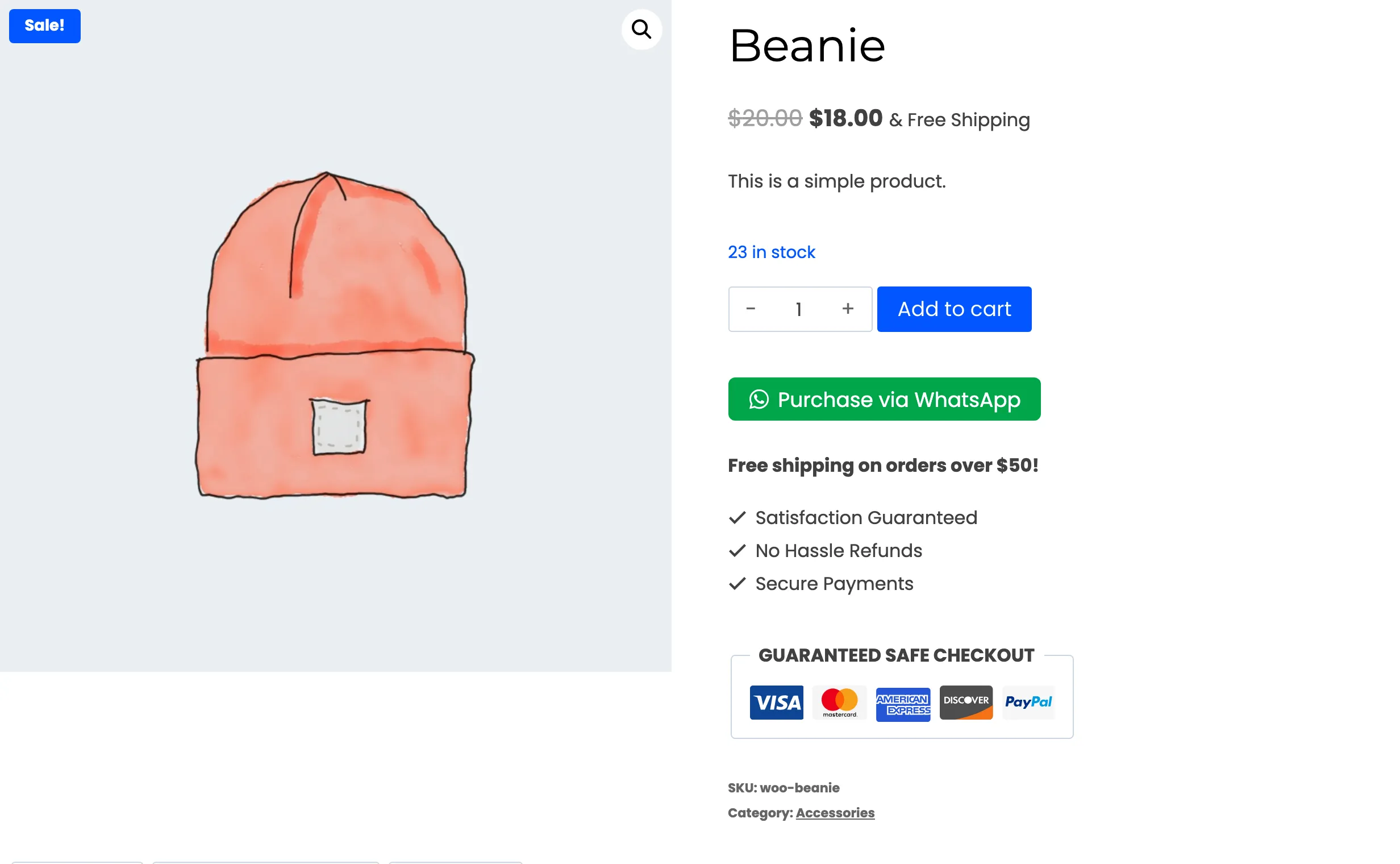
The plugin checks stock at this point. Asking for more than you have shows “Only 3 left in stock” with the real number, before WhatsApp ever opens.
2. The plugin collects a delivery address
Section titled “2. The plugin collects a delivery address”A logged-in customer with a complete saved address skips this step. Everyone else gets the Where should we deliver? popup with your store’s own checkout fields.
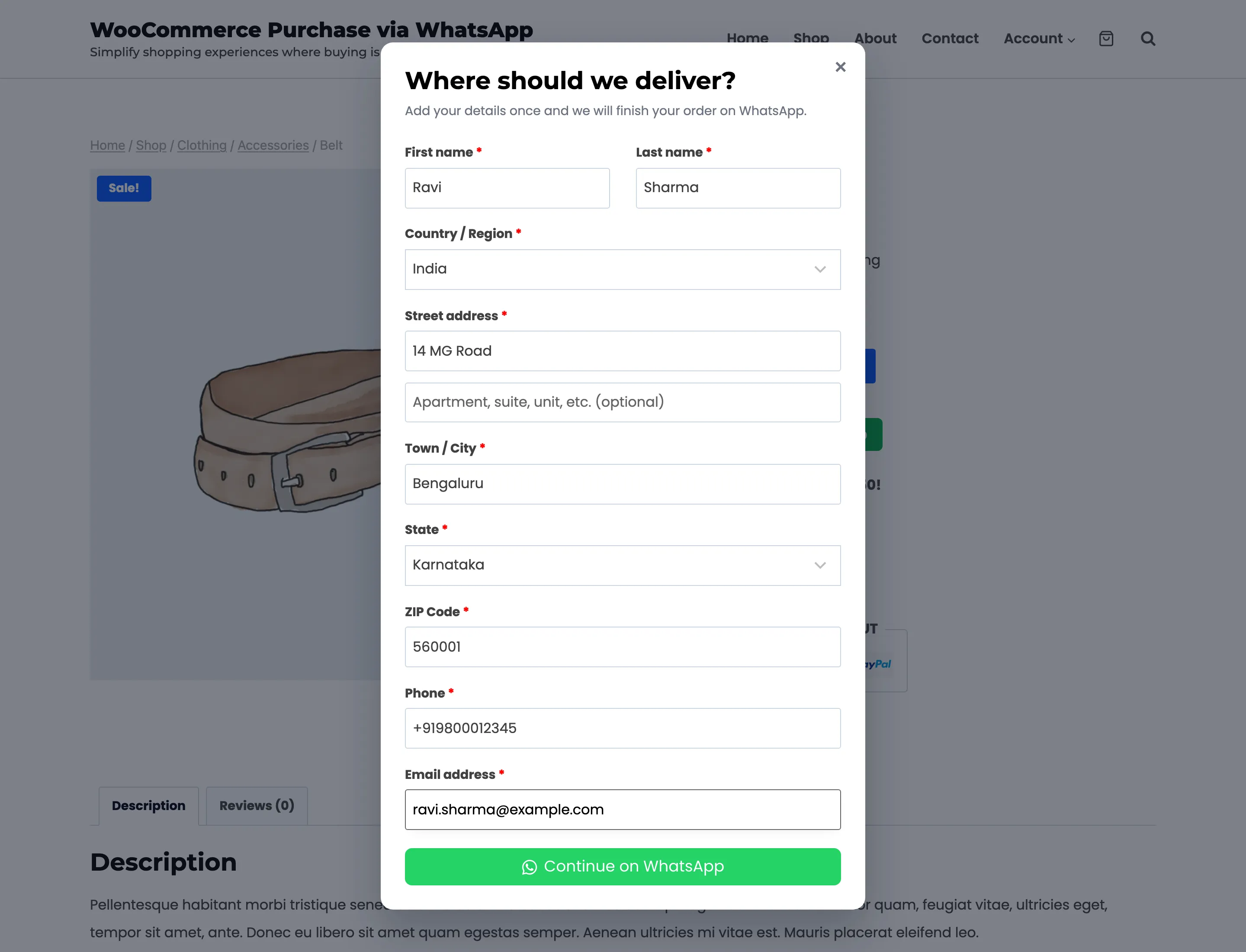
The phone field matters most. Its hint reads “Use the number you have WhatsApp on. We continue your order there.” The plugin saves the order request under this number.
3. WhatsApp opens with the order typed out
Section titled “3. WhatsApp opens with the order typed out”Continue on WhatsApp opens a wa.me link to your sender number. On a phone it goes straight into the
WhatsApp app. On a computer WhatsApp’s own page opens first and offers the app or WhatsApp Web.
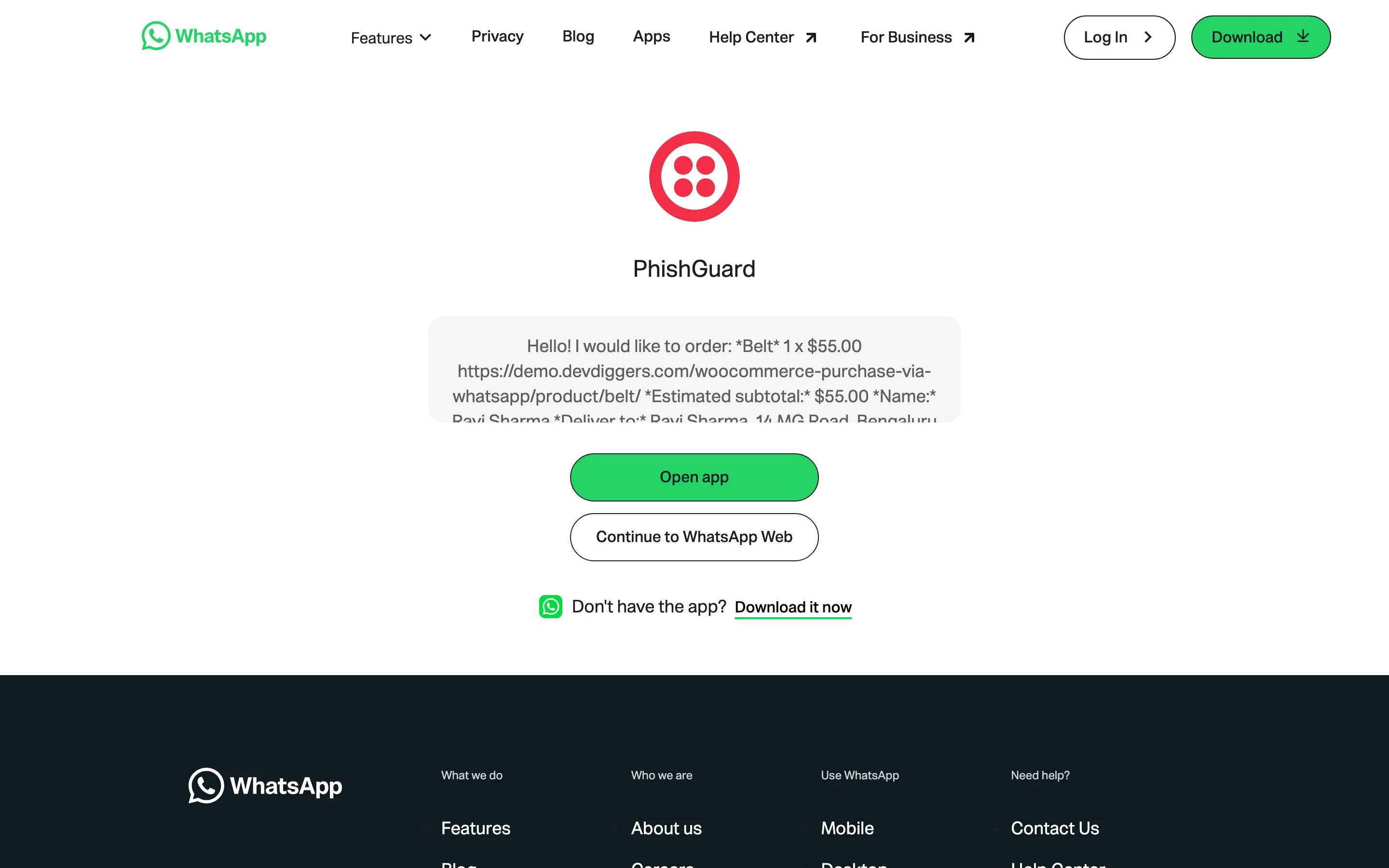
The message follows your Order Request template from the General tab. On the demo it reads:
Hello! I would like to order:
*Belt*1 x $55.00https://demo.devdiggers.com/woocommerce-purchase-via-whatsapp/product/belt/
*Estimated subtotal:* $55.00*Name:* Ravi Sharma*Deliver to:* Ravi Sharma, 14 MG Road, Bengaluru 560001, Karnataka, India
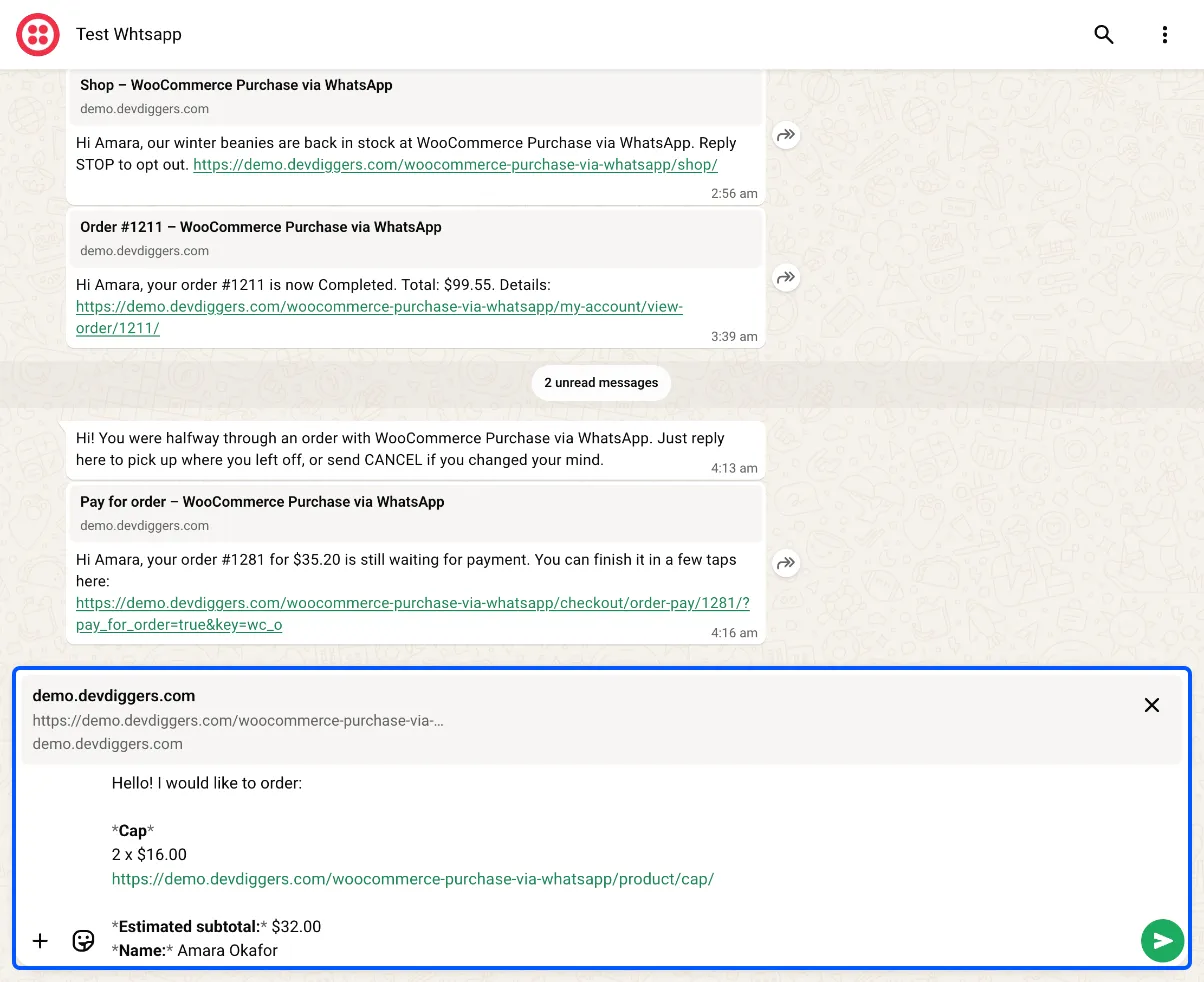
Please send this message as it is to continue.In WhatsApp Web the order sits in the message box, ready to send.
4. The assistant asks three questions
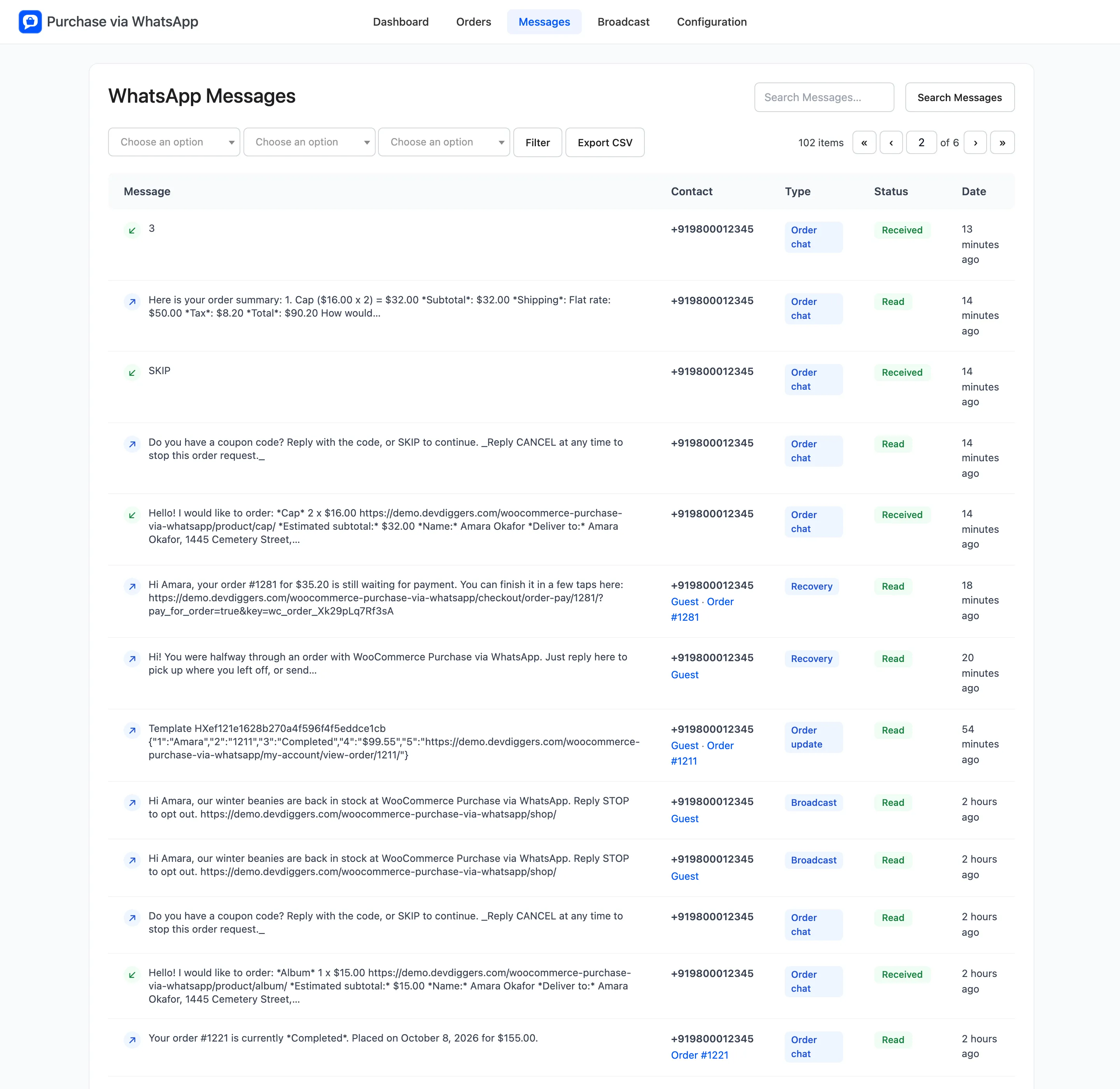
Section titled “4. The assistant asks three questions”Twilio passes the message to your store, and the assistant replies within a few seconds. Each reply ends with “Reply CANCEL at any time to stop this order request.”
- Delivery: “How would you like it delivered? Reply with a number.” When your store has only one shipping option for that address, the plugin picks it and skips the question. When it has none, the customer is told you do not ship to their address yet.
- Coupon: “Do you have a coupon code? Reply with the code, or SKIP to continue.” A valid code gets “Coupon applied!” and the same question again, so the customer can add a second one. This step is skipped when coupons are switched off in WooCommerce.
- Payment: The assistant sends the order summary with subtotal, shipping, coupons, tax and total, then “How would you like to pay? Reply with a number.”
On the demo the payment list read:
1. Direct bank transfer2. Check payments3. Cash on delivery4. Wallet (balance $113.80)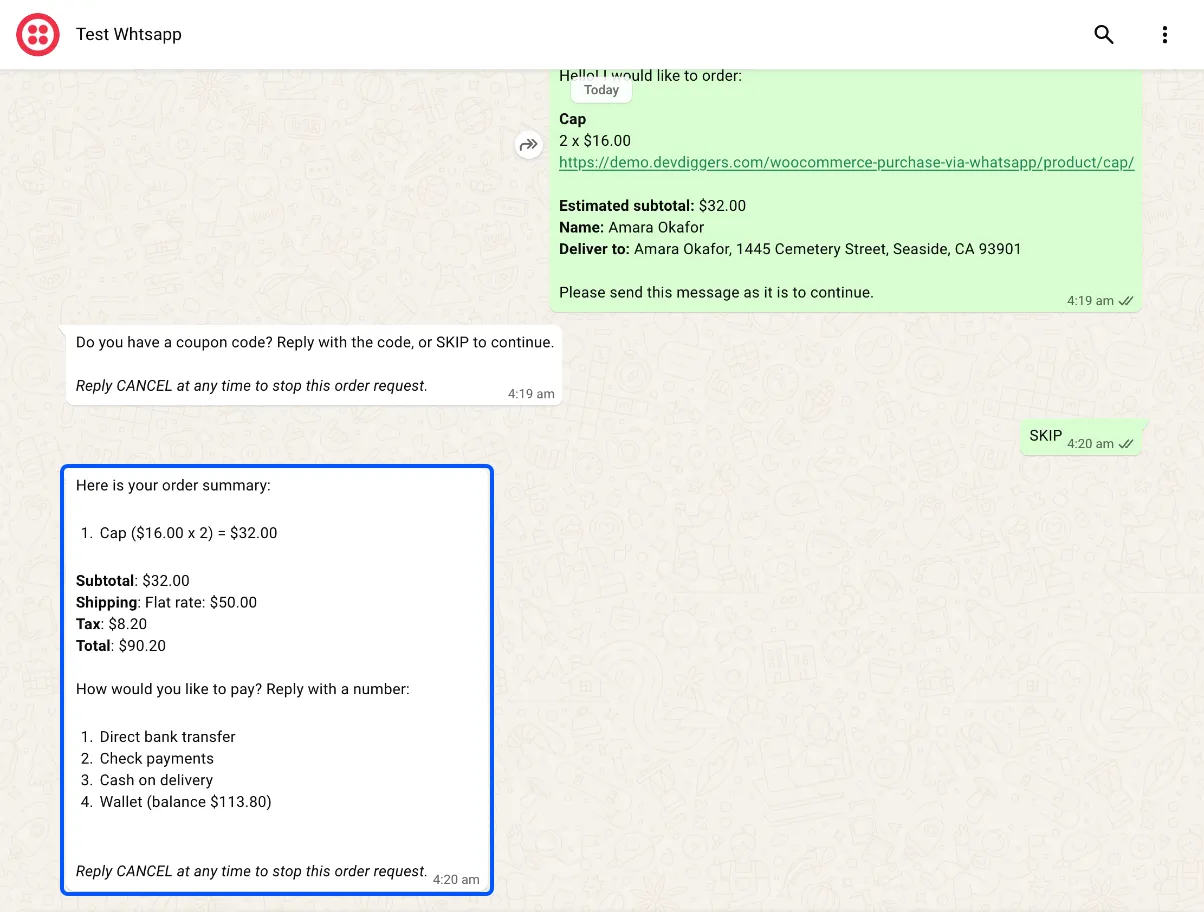
The list follows Payment Methods on the Chat Assistant tab. The wallet appears only when the customer’s balance covers the whole order.
5. The order is created
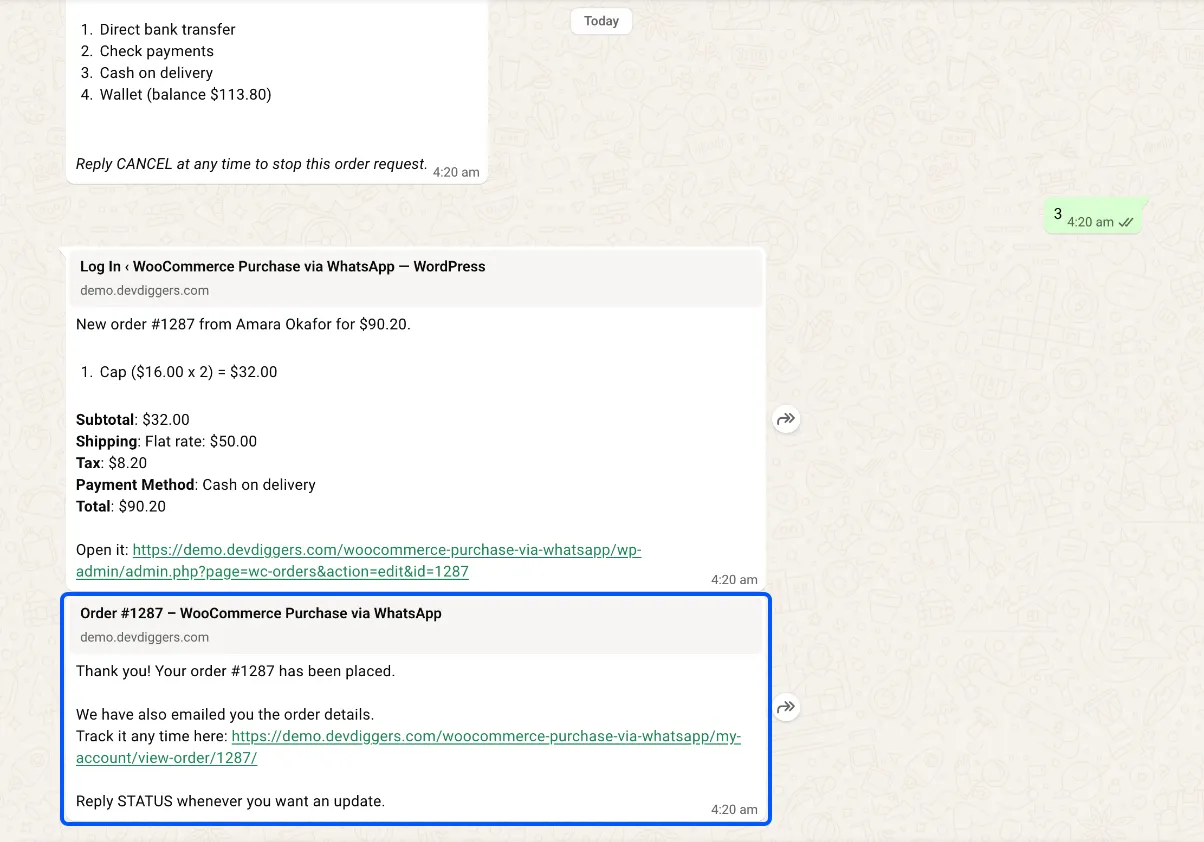
Section titled “5. The order is created”The customer replies with a number and the order exists. The confirmation reads “Thank you! Your order #1221 has been placed.”
It adds a line about the email receipt, and a tracking link for customers with an account.
What happens to payment depends on the method:
- Cash on delivery, bank transfer and cheque are settled in the chat. The order takes the status WooCommerce gives that method, so cash on delivery is Processing and bank transfer is On hold.
- Wallet is paid at once when Pay Inside The Chat is on. The confirmation adds the remaining balance.
- Every other method, such as a card, gets “Please complete your payment securely here” with your store’s payment page for that order.
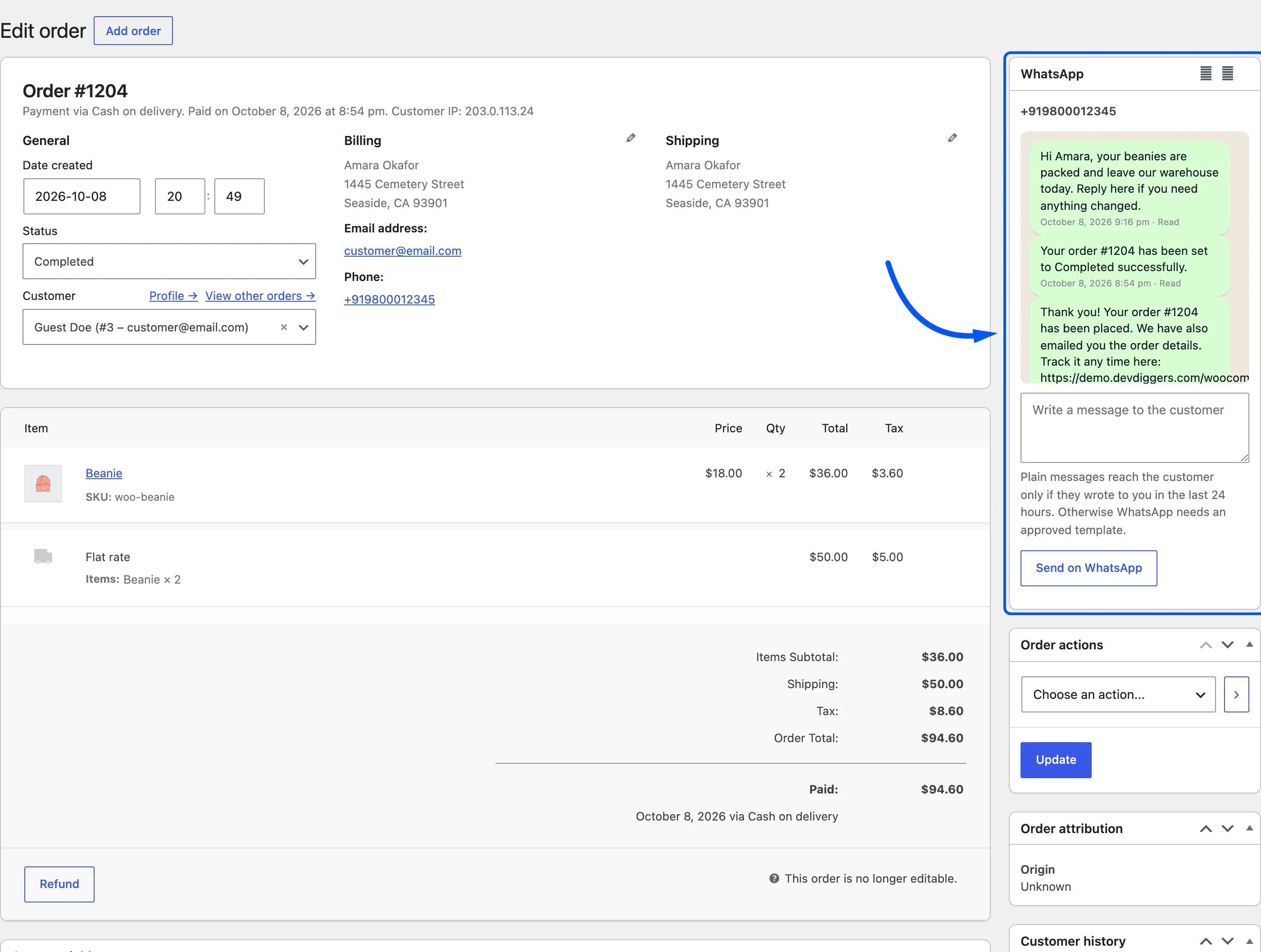
The order carries the note “Order created through a WhatsApp conversation.” WooCommerce sends its usual emails, and the order appears on the plugin’s Orders screen.
What can stop an order
Section titled “What can stop an order”- CANCEL: The request is deleted and the customer gets the Cancelled Reply.
- Silence: An unfinished request expires after Unfinished Requests Expire After, 24 hours by default, counted from the customer’s last message. A late reply gets the Expired Reply.
- A new tap on the button: The plugin keeps one open request per phone number. Starting a new order replaces the old one.
- Out of stock: Stock is checked again when the order is placed.
After the order
Section titled “After the order”- Status changes are sent on WhatsApp if Order Status Updates is on. See How to Send Order Updates on WhatsApp.
- The customer can reply STATUS at any time for their latest order.
- An unfinished chat can get one reminder. See How to Recover Unfinished Chats and Unpaid Orders.
Common questions
Section titled “Common questions”Why did the customer get the welcome message instead of their order?
The order request is saved under the phone number the customer gave on your site. If they send the message from a different WhatsApp number, the assistant cannot find the request and answers with the welcome message. Ask them to send it from the number they entered.
Does the customer have to type anything?
They send the prefilled message, then answer each question with a number or a word, such as 1 for the first delivery option or SKIP for no coupon. The assistant lists the choices in every message.