

Notification Settings (Pro)
The Notifications tab holds every message your store sends without the customer writing first. Open Purchase via WhatsApp → Configuration → Notifications.
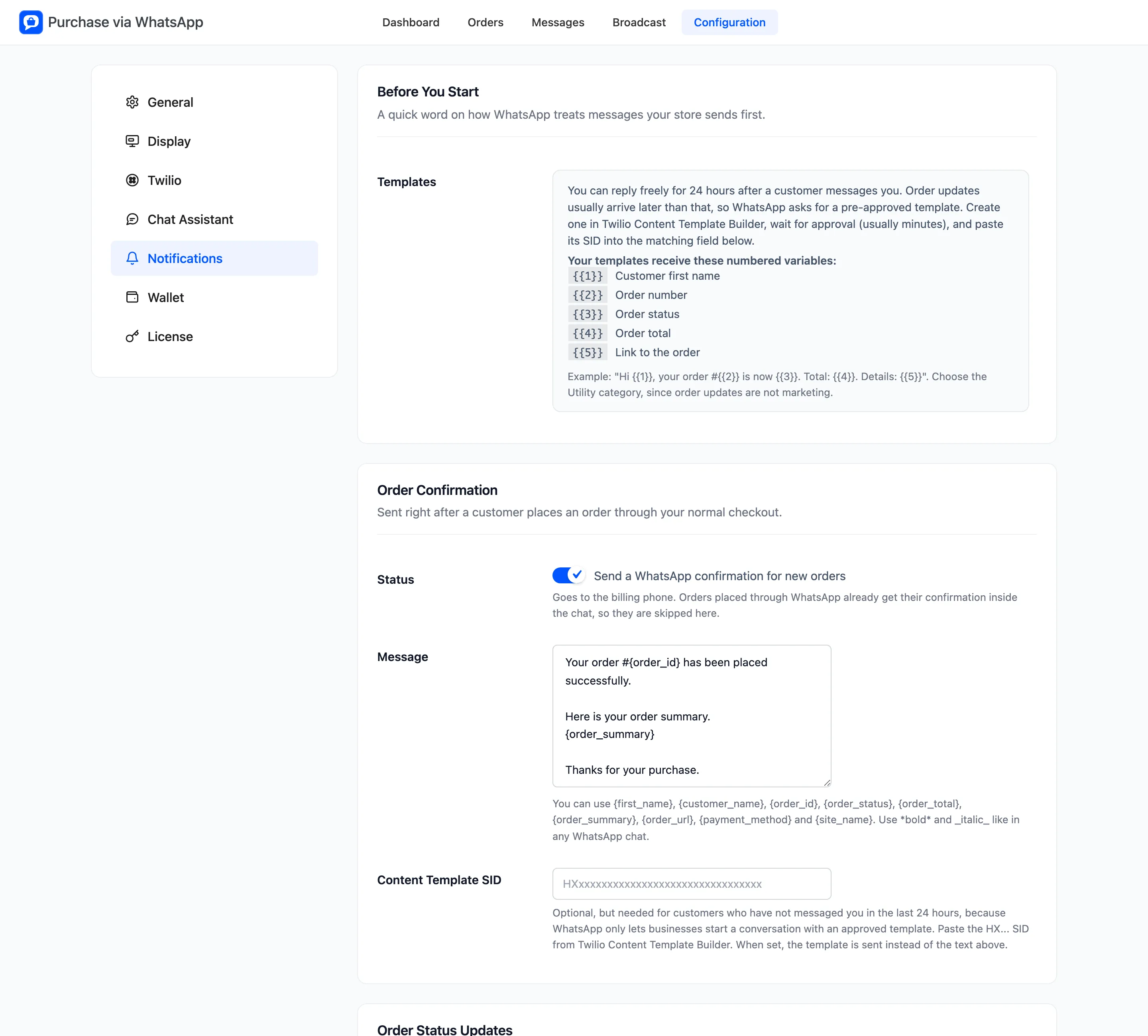
Before You Start: the 24 hour rule
Section titled “Before You Start: the 24 hour rule”WhatsApp lets a business reply freely for 24 hours after a customer writes. After that, a message only arrives if it uses a template WhatsApp approved. Order updates usually come later than a day, so each section here has a Content Template SID field for one.
Templates get these numbered variables:
| Variable | Filled with |
|---|---|
{{1}} |
Customer first name |
{{2}} |
Order number |
{{3}} |
Order status |
{{4}} |
Order total |
{{5}} |
Link to the order |
Choose the Utility category in Twilio, since order updates are not marketing. How to Create WhatsApp Message Templates in Twilio covers the whole process.
When a SID is set, the template is sent instead of the text above it.
Message placeholders
Section titled “Message placeholders”Every message box on this tab can use {first_name}, {customer_name}, {order_id}, {order_status},
{order_total}, {order_summary}, {order_url}, {payment_method} and {site_name}. Use *bold* and
_italic_ as in any WhatsApp chat.
Order Confirmation
Section titled “Order Confirmation”- Status: “Send a WhatsApp confirmation for new orders”. Off by default.
- Message: The confirmation text.
- Content Template SID: Optional.
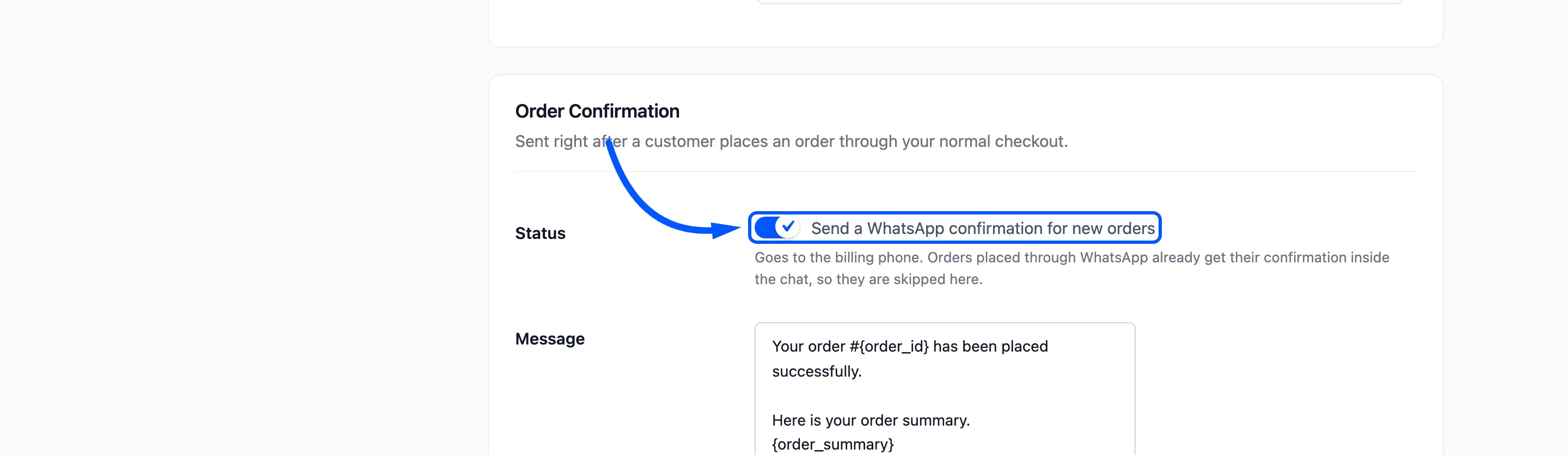
The confirmation goes to the billing phone of orders from your normal checkout, classic or block. Orders placed through WhatsApp are skipped, because they already got a confirmation in the chat.
Order Status Updates
Section titled “Order Status Updates”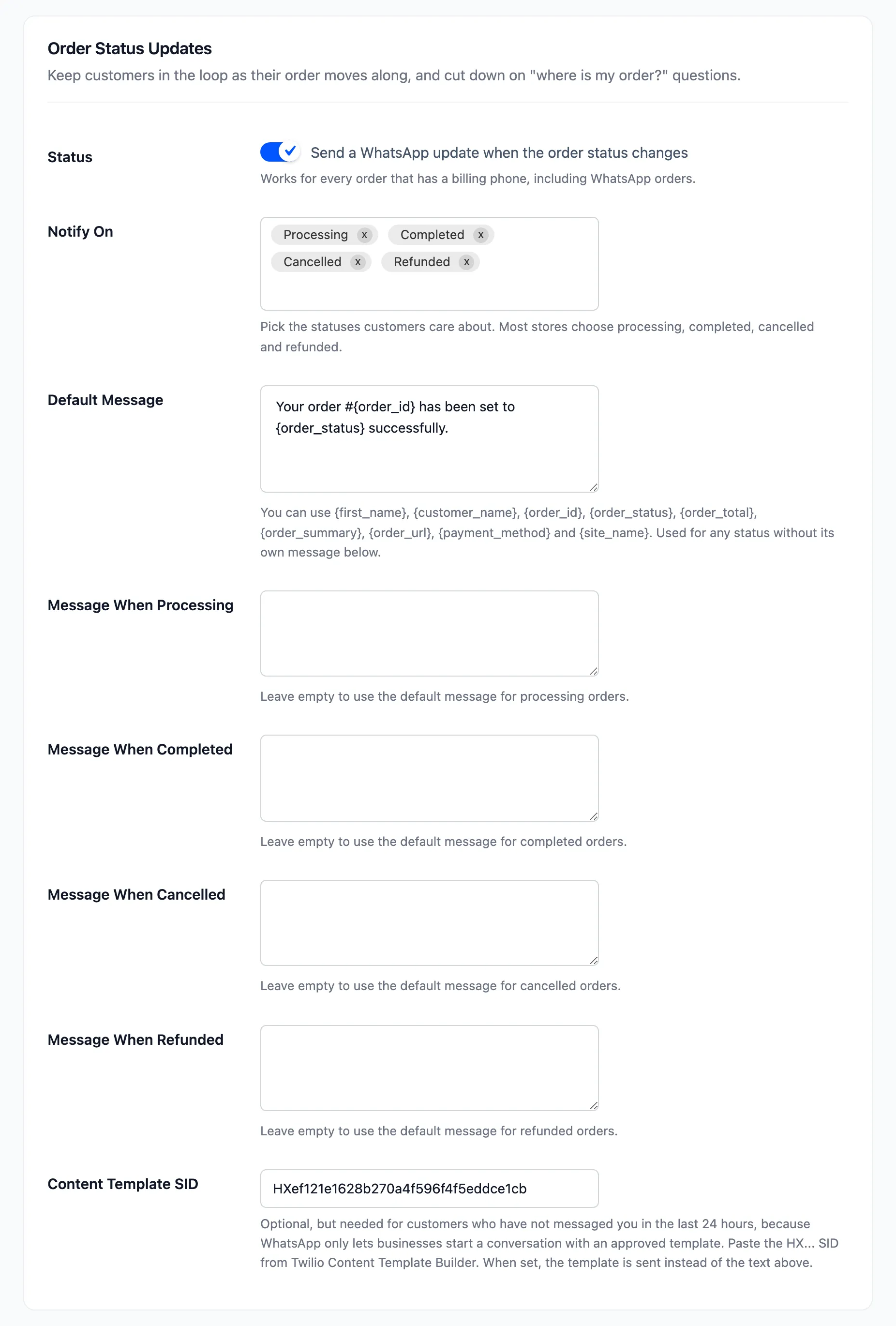
- Status: “Send a WhatsApp update when the order status changes”. Off by default. It covers every order with a billing phone, WhatsApp orders included.
- Notify On: The statuses that send an update. Processing, Completed, Cancelled and Refunded by default.
- Default Message: Used for any status without its own message.
- Message When Processing, Completed and so on: one box appears for each status you picked. Leave one empty to use the default.
- Content Template SID: One template for every status. Only
{{3}}changes between them.
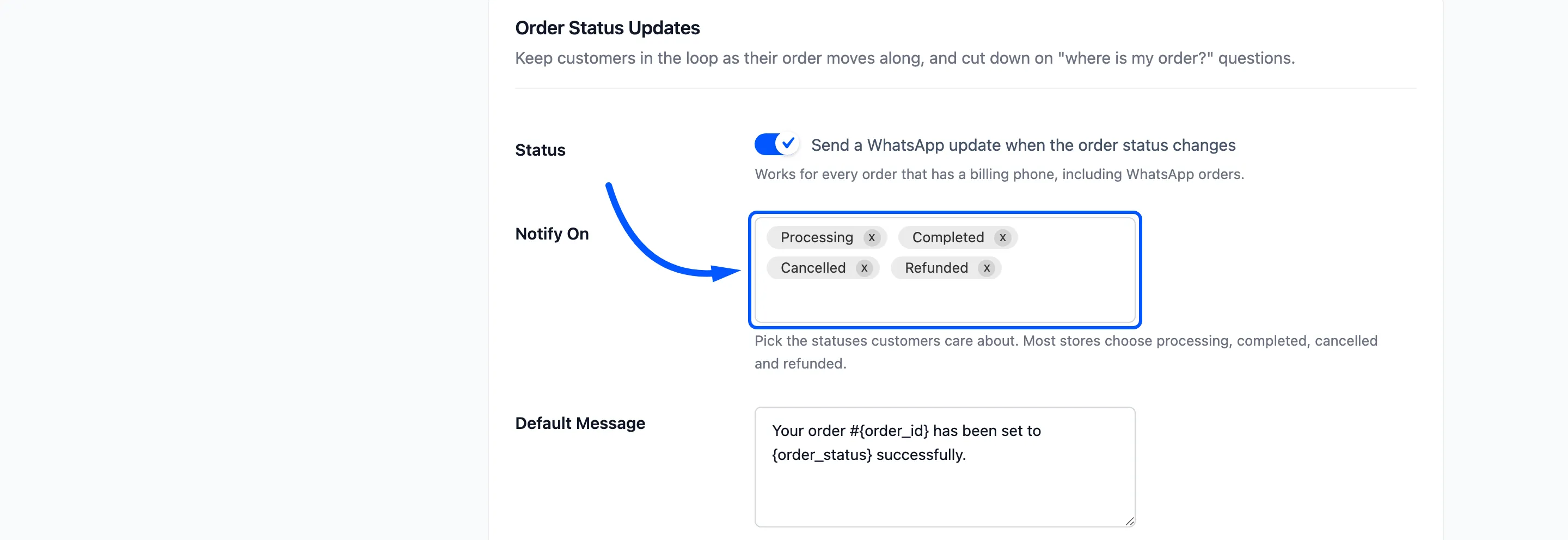
An order that just got its confirmation does not also get a “processing” update in the same moment.
Recover Lost Orders
Section titled “Recover Lost Orders”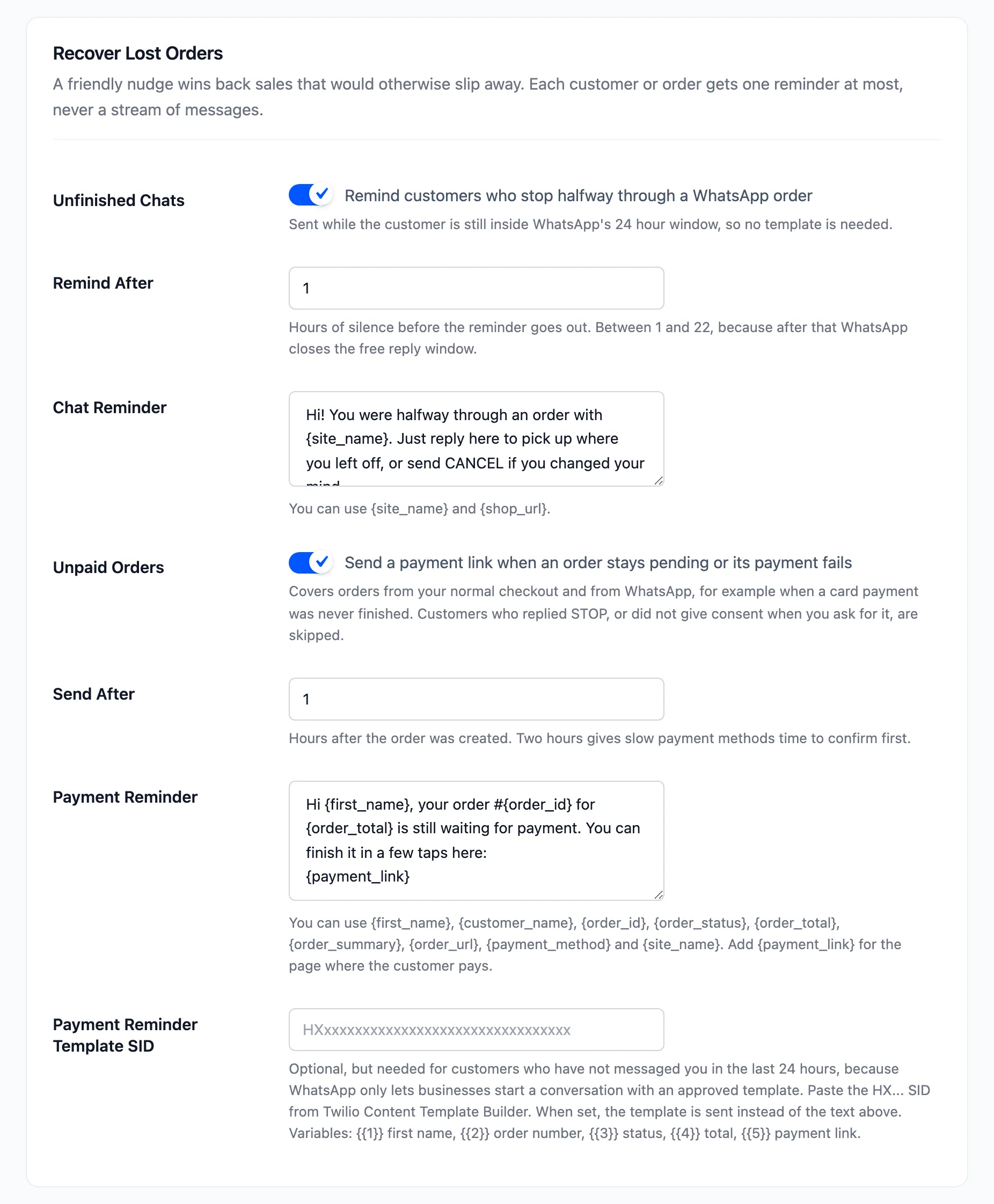
- Unfinished Chats: “Remind customers who stop halfway through a WhatsApp order”. Off by default.
- Remind After: Hours of silence before the reminder, from 1 to 22. The ceiling keeps the reminder inside WhatsApp’s free window, so no template is needed.
- Chat Reminder: The text. It can use
{site_name}and{shop_url}. - Unpaid Orders: “Send a payment link when an order stays pending or its payment fails”. Off by default.
- Send After: Hours after the order was created, 2 by default.
- Payment Reminder: The text. Add
{payment_link}for the page where the customer pays. - Payment Reminder Template SID: Here
{{5}}is the payment link.
Each chat and each order gets one reminder at most. The plugin checks every hour, so a reminder can arrive up to an hour after its delay.
New Order Alerts For You
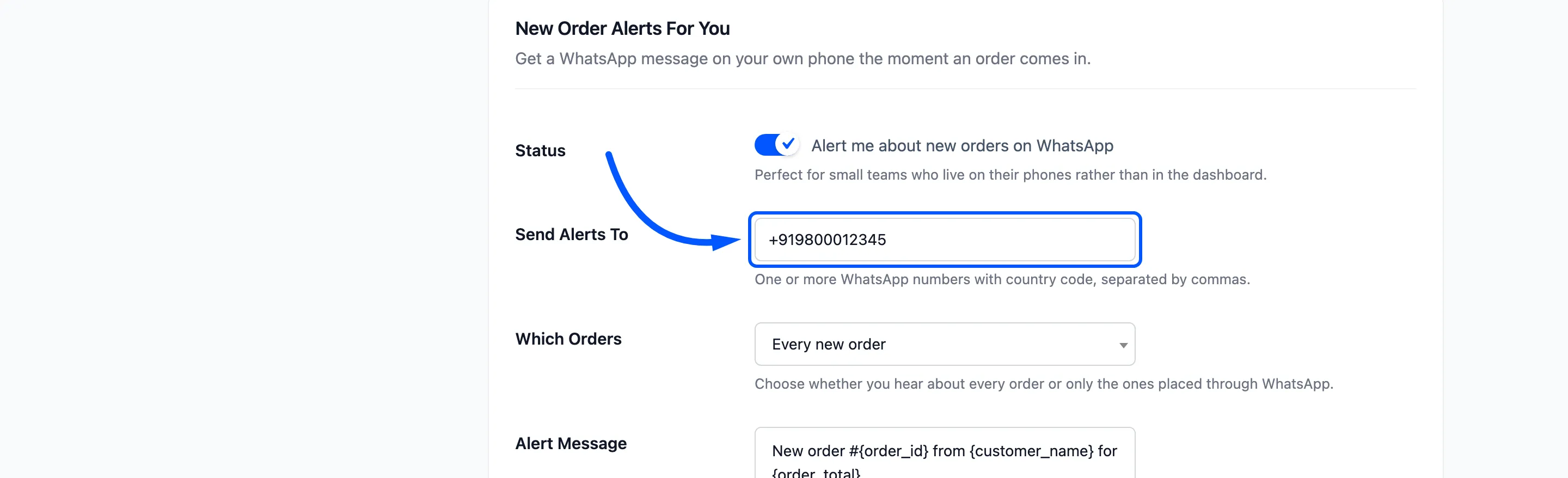
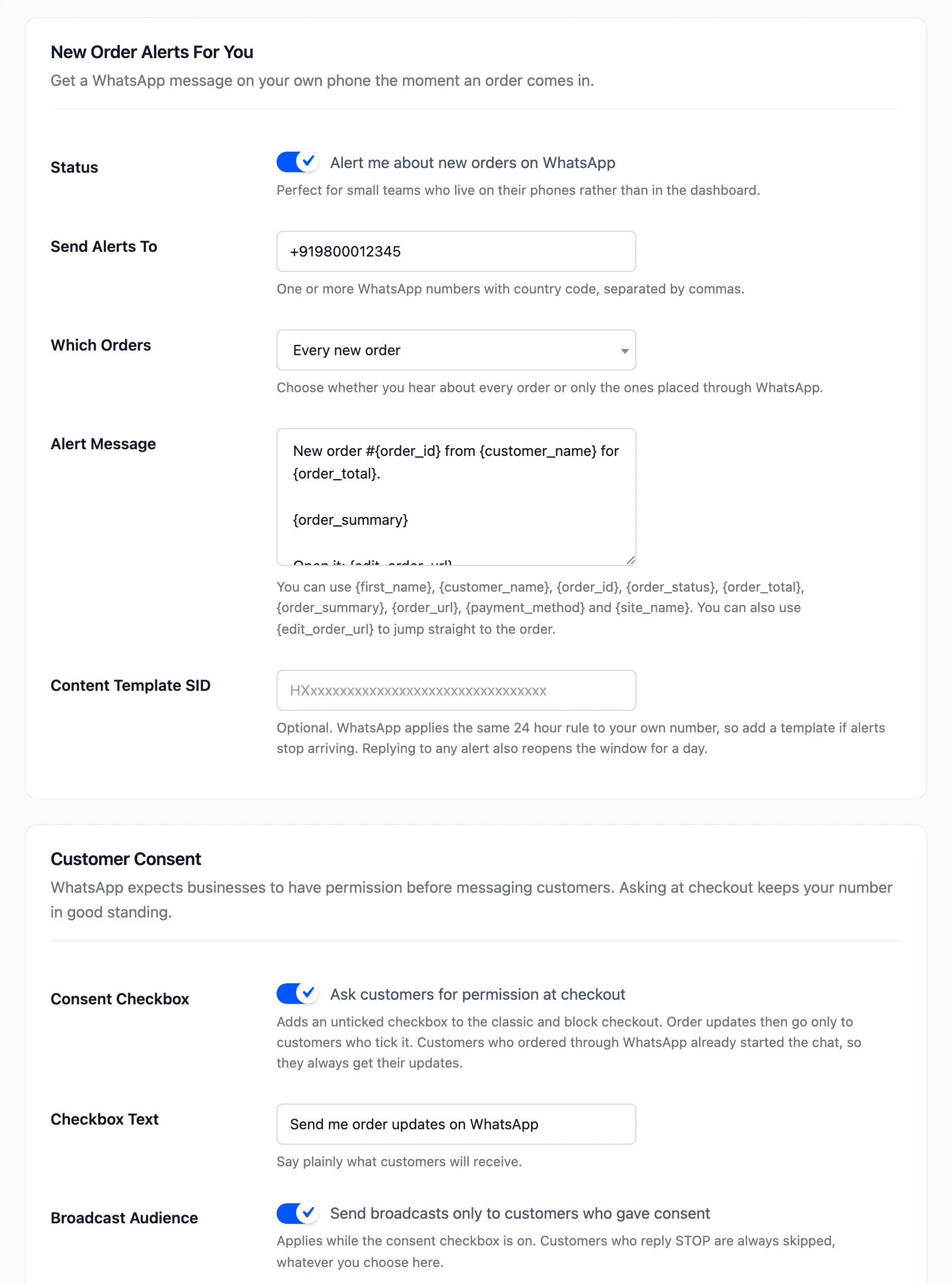
Section titled “New Order Alerts For You”- Status: “Alert me about new orders on WhatsApp”. Off by default.
- Send Alerts To: One or more WhatsApp numbers with the country code, separated by commas.
- Which Orders: Every new order or Only WhatsApp orders.
- Alert Message: Can also use
{edit_order_url}, which opens the order in your admin. - Content Template SID: Optional. The 24 hour rule applies to your own phone too. Replying to any alert opens the window again for a day.
Customer Consent
Section titled “Customer Consent”- Consent Checkbox: “Ask customers for permission at checkout”. Off by default. Adds a checkbox to the classic and the block checkout. Updates then go only to customers who tick it, plus customers who ordered through WhatsApp.
- Checkbox Text: “Send me order updates on WhatsApp” by default.
- Broadcast Audience: “Send broadcasts only to customers who gave consent”. Applies while the consent checkbox is on.
A customer who replies STOP is never messaged again until they reply START, whatever these settings say.
Click Save Changes.