

WhatsApp Orders (Pro)
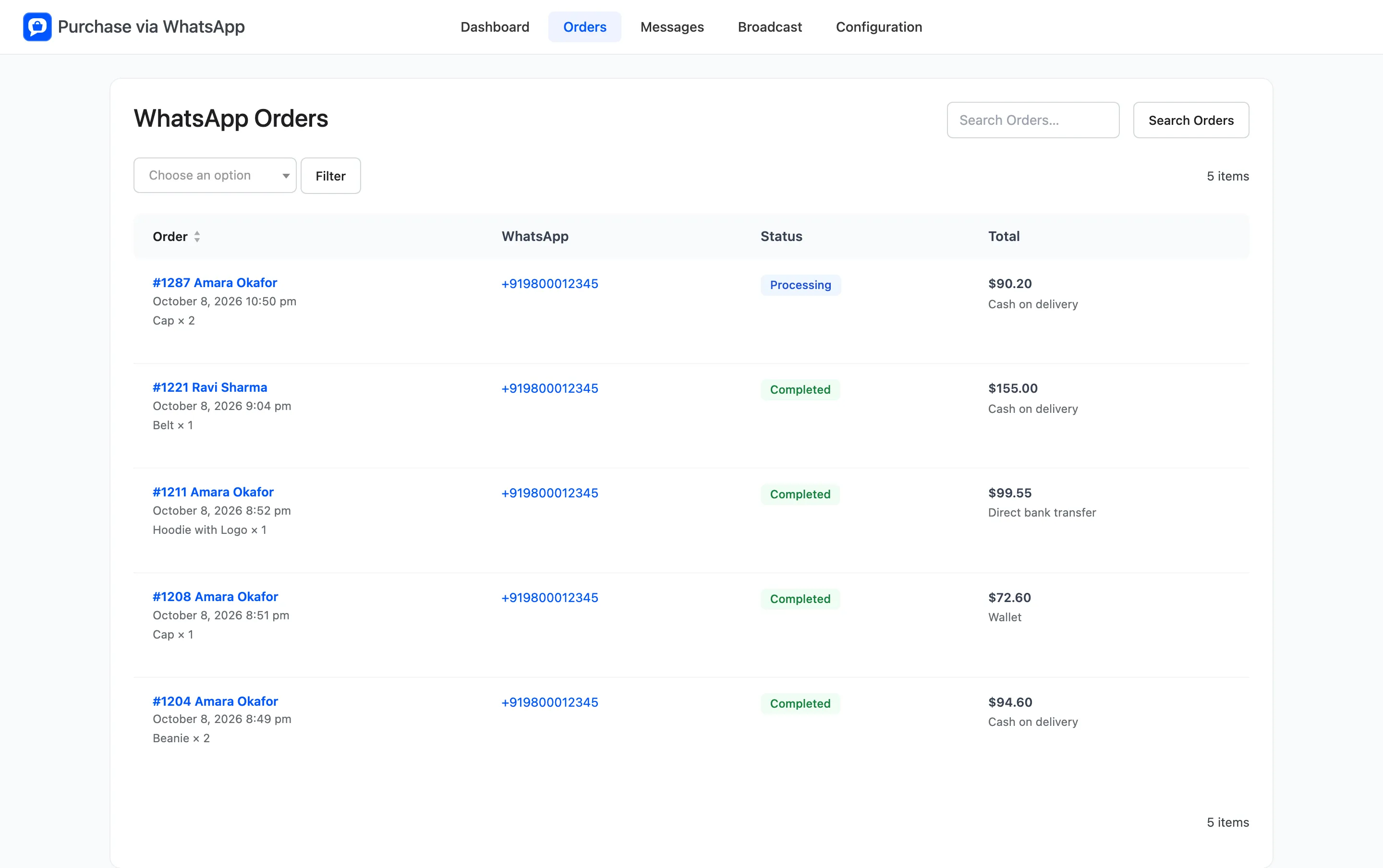
The Orders screen lists the orders that were placed in a WhatsApp chat. Open Purchase via WhatsApp → Orders.
Orders from your normal checkout are not listed, even when they got WhatsApp updates. They stay on WooCommerce → Orders with every other order.
The columns
Section titled “The columns”- Order: The number and customer name, the date, and the first three items.
- WhatsApp: The customer’s number. It opens a chat with them in WhatsApp.
- Status: The WooCommerce order status.
- Total: The order total and the payment method chosen in the chat.
Click Order to sort by date, newest or oldest first.
Row actions
Section titled “Row actions”Hover a row to see two links under the order.
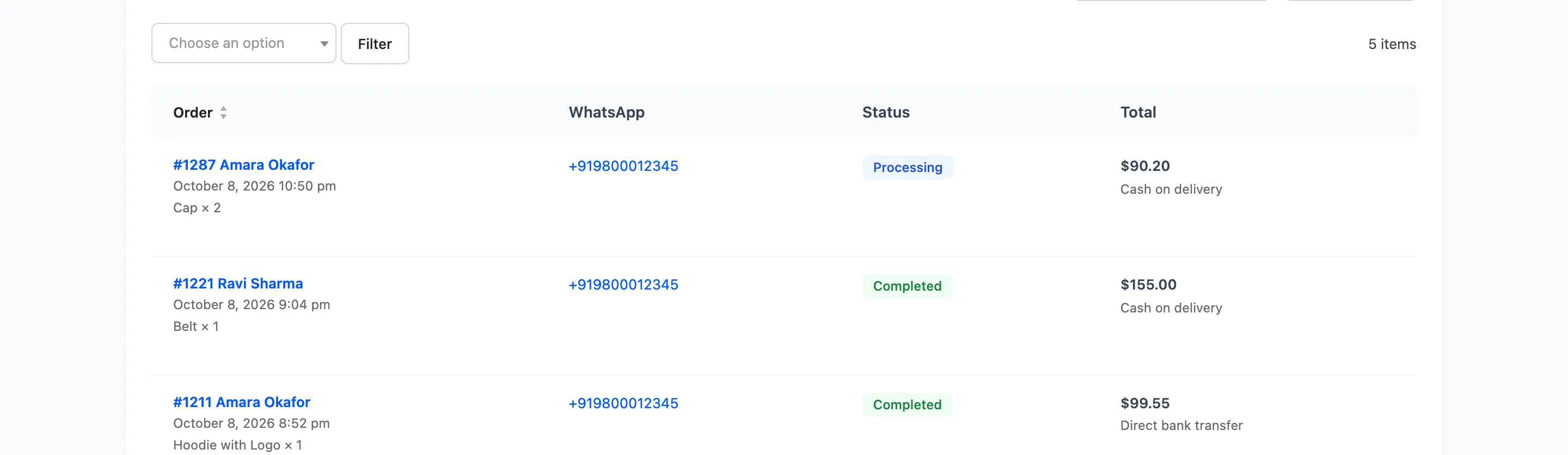
- View order: Opens the WooCommerce order screen.
- View chat: Opens the Messages screen filtered to this customer’s number, so you can read the whole conversation.
Filter and search
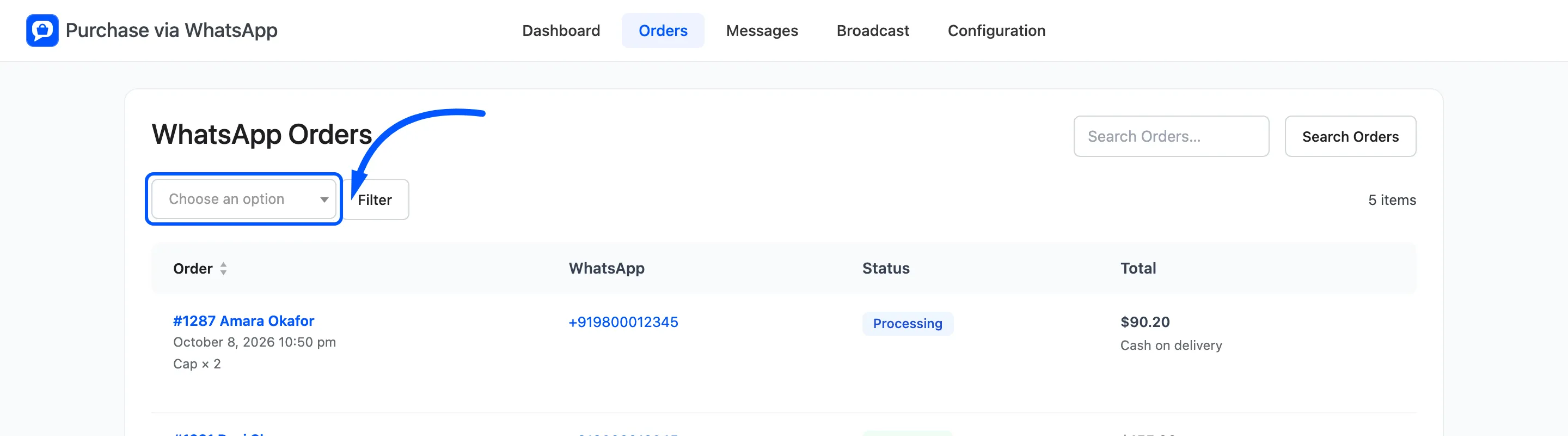
Section titled “Filter and search”Pick a status and click Filter. Reset clears it.
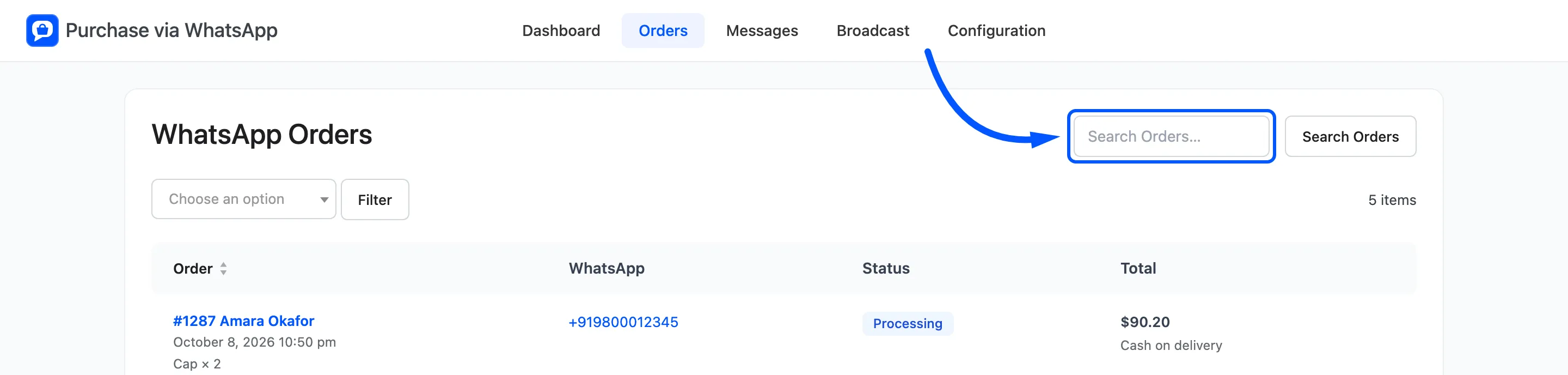
Search Orders finds an order by number, name, email or phone.
The screen has no bulk actions. Change orders in bulk from WooCommerce → Orders.
Screen options
Section titled “Screen options”Open Screen Options at the top right and change Orders Per Page, 20 by default.
When the list is empty
Section titled “When the list is empty”A new store shows No WhatsApp orders yet with an Open Shop button. Try the whole journey yourself with How to Place a Test Order on WhatsApp.