

How to Take Orders on WhatsApp Only
Some stores want every order to start as a conversation: made-to-order goods, wholesale, or anything priced per customer. Catalog mode removes Add to cart and leaves only the WhatsApp button. It is in the free version too.
Step 1: Keep a product page position
Section titled “Step 1: Keep a product page position”Go to Purchase via WhatsApp → Configuration → Display and check that Product Page is set to a position.
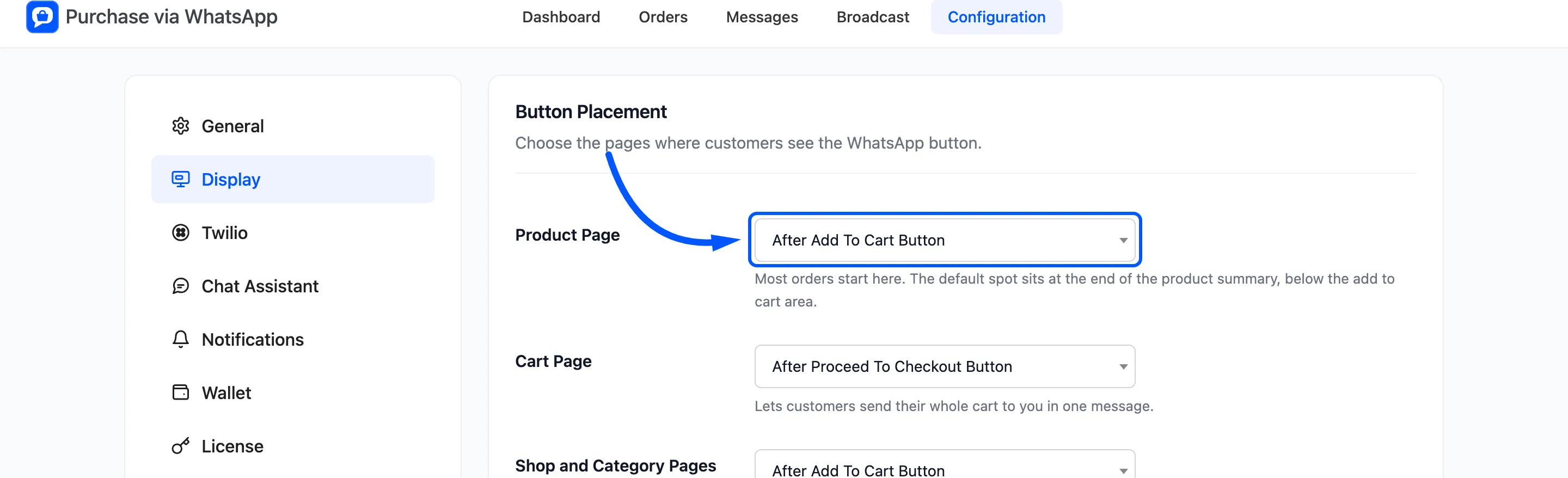
If Product Page is set to Do not show, catalog mode puts the button at the end of the product summary anyway. Without it, the page would have no way to order.
Step 2: Turn on WhatsApp Only
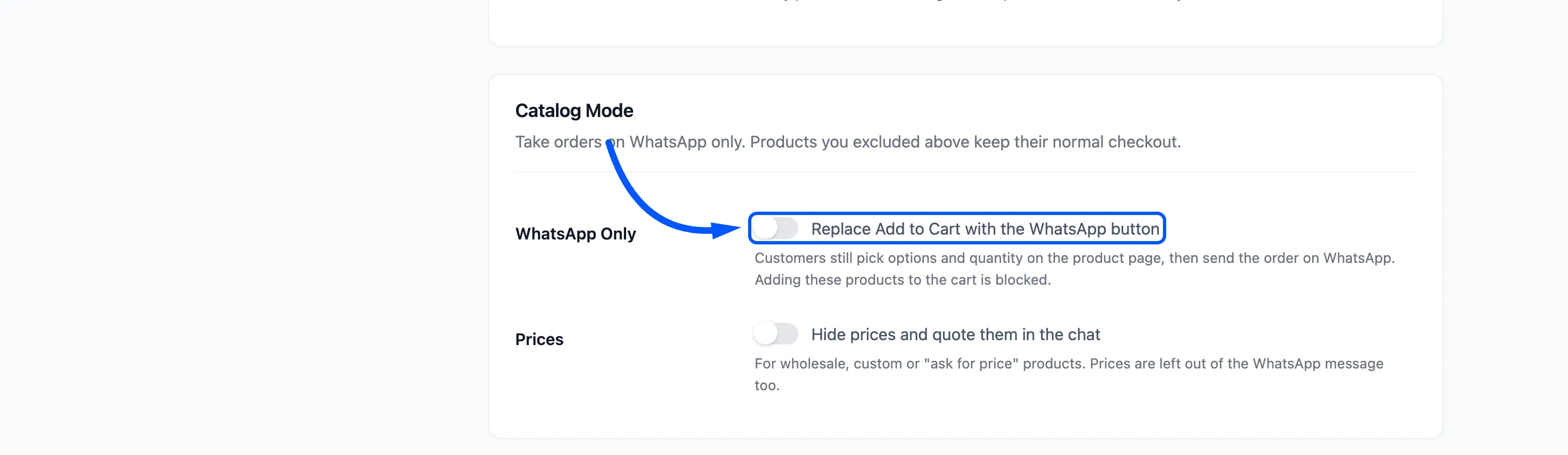
Section titled “Step 2: Turn on WhatsApp Only”Go to the General tab, tick WhatsApp Only in Catalog Mode, and click Save Changes. Its label reads “Replace Add to Cart with the WhatsApp button”.
Step 3: Keep some products on the normal checkout
Section titled “Step 3: Keep some products on the normal checkout”Products in Excluded Products or Excluded Categories keep Add to cart and get no WhatsApp button. Use it for gift cards or anything you would rather sell the usual way.
Step 4: Check the product and shop pages
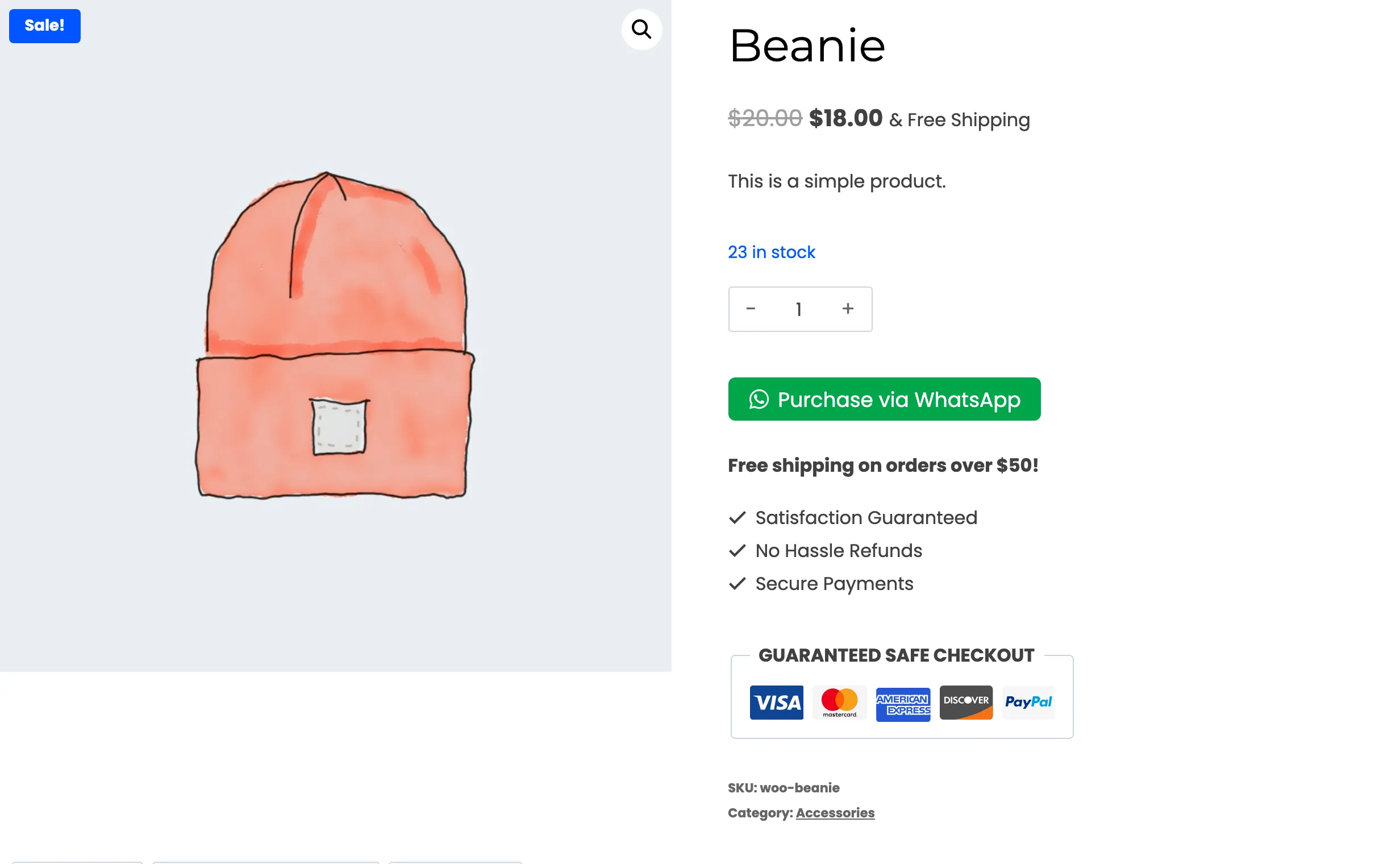
Section titled “Step 4: Check the product and shop pages”Open a product logged out. The quantity box and Add to cart are gone, and the WhatsApp button takes their place. Variable products still show their option pickers.
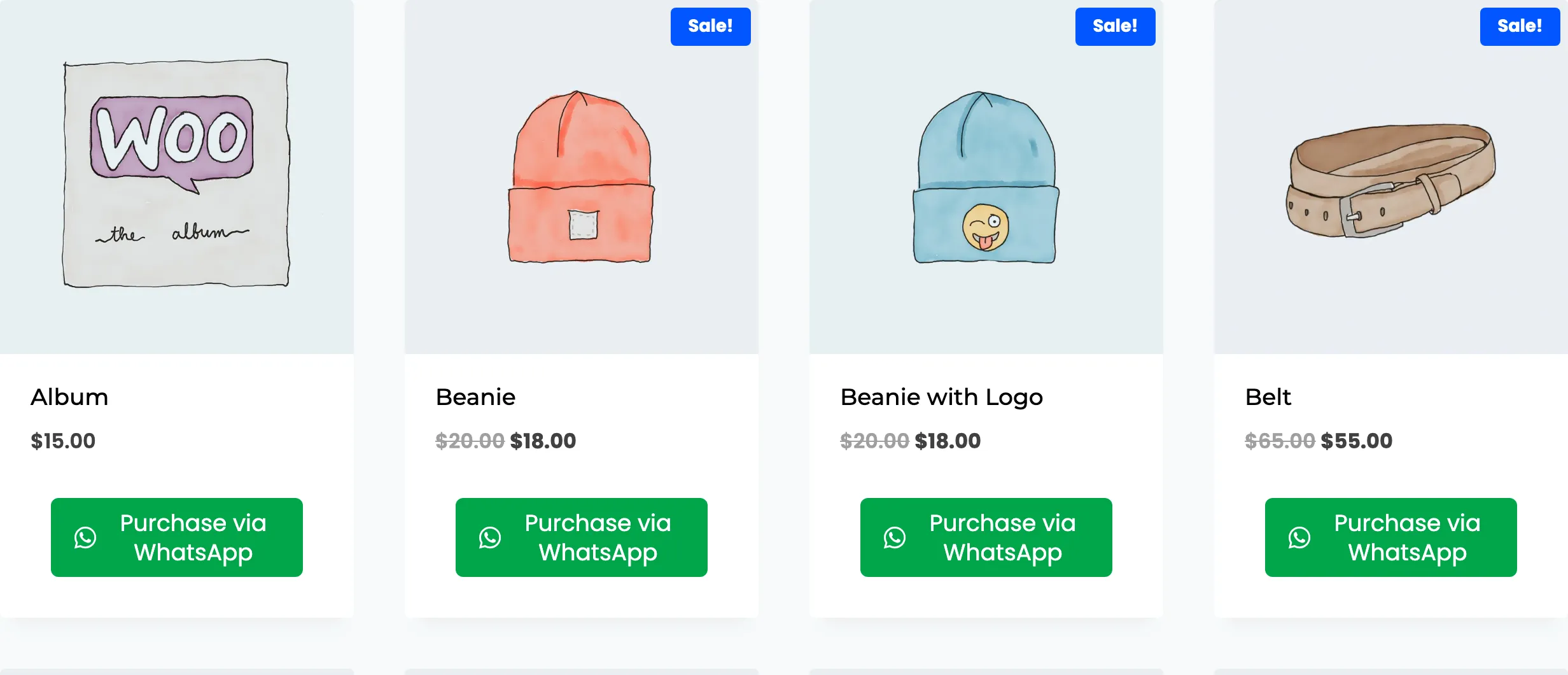
On the shop page the WhatsApp button replaces each card’s Add to cart.
The block is not only visual. On the demo, a direct ?add-to-cart= link for a catalog product left the cart
empty.
Hide prices too
Section titled “Hide prices too”To quote each customer in the chat, also tick Prices. See How to Hide Prices and Quote Them in the Chat.