

How to Set Your Vendor Manager PIN
Your Manager PIN lets you approve something a cashier is not allowed to do alone, such as a refund or a big discount. You type it on their screen. It works at your store only.
Step 1: Open the Permissions tab
Section titled “Step 1: Open the Permissions tab”In the store manager, go to Point of Sale → Configuration → Permissions and scroll past Save Changes to Your Manager PIN.
Step 2: Type your PIN
Section titled “Step 2: Type your PIN”Type 4 to 8 digits in Manager PIN.
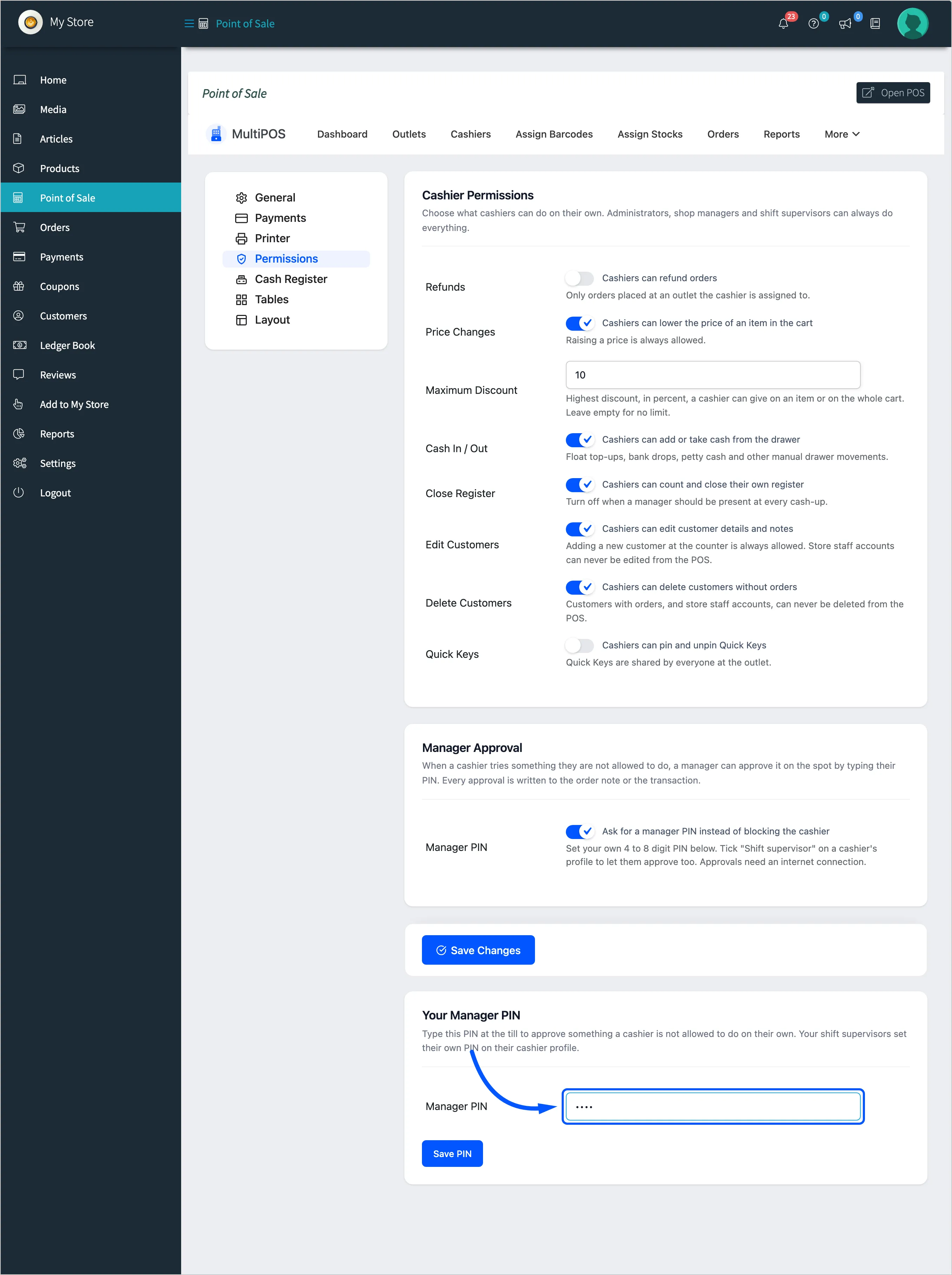
Each PIN in the marketplace is unique. If someone already has yours, the save is refused with Another user already has this Manager PIN.
Step 3: Save it
Section titled “Step 3: Save it”Click Save PIN. The message Your Manager PIN was saved. appears, the field now reads Leave empty to keep your PIN, and a Remove my PIN box appears.
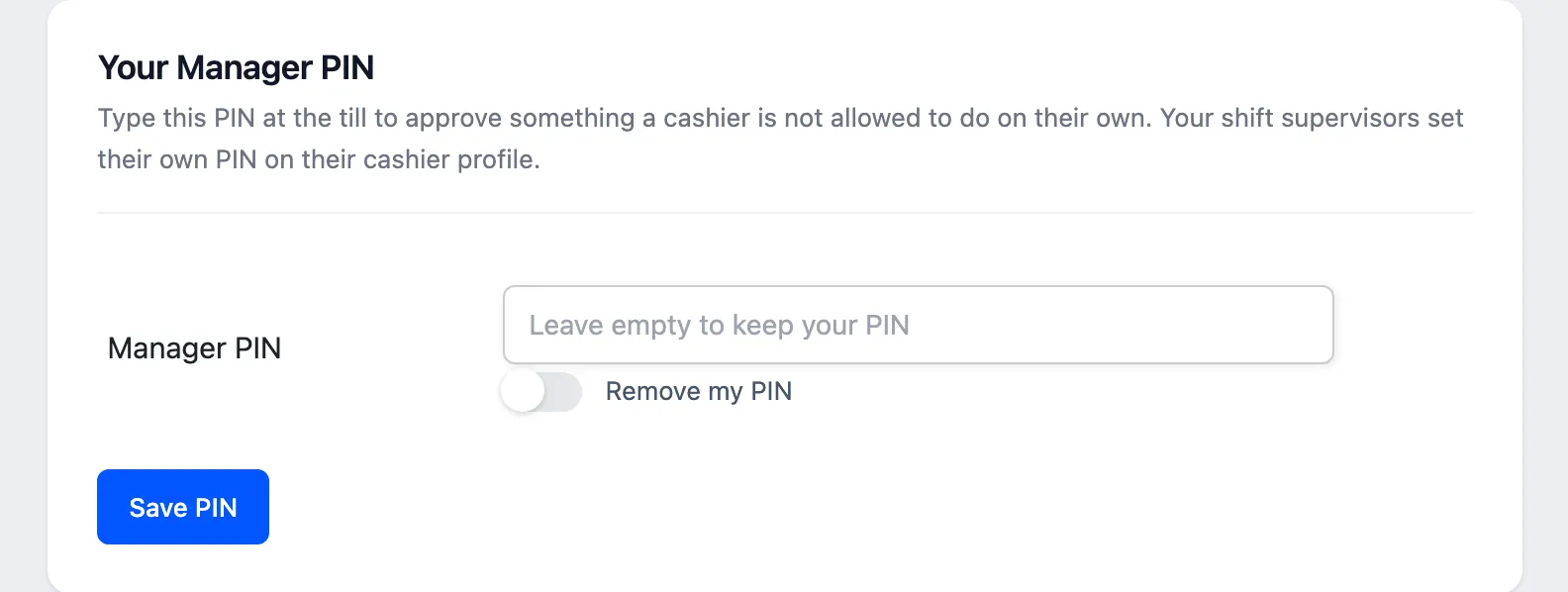
To change it, type a new PIN and save. To remove it, tick Remove my PIN and save.
Step 4: Use it at the POS
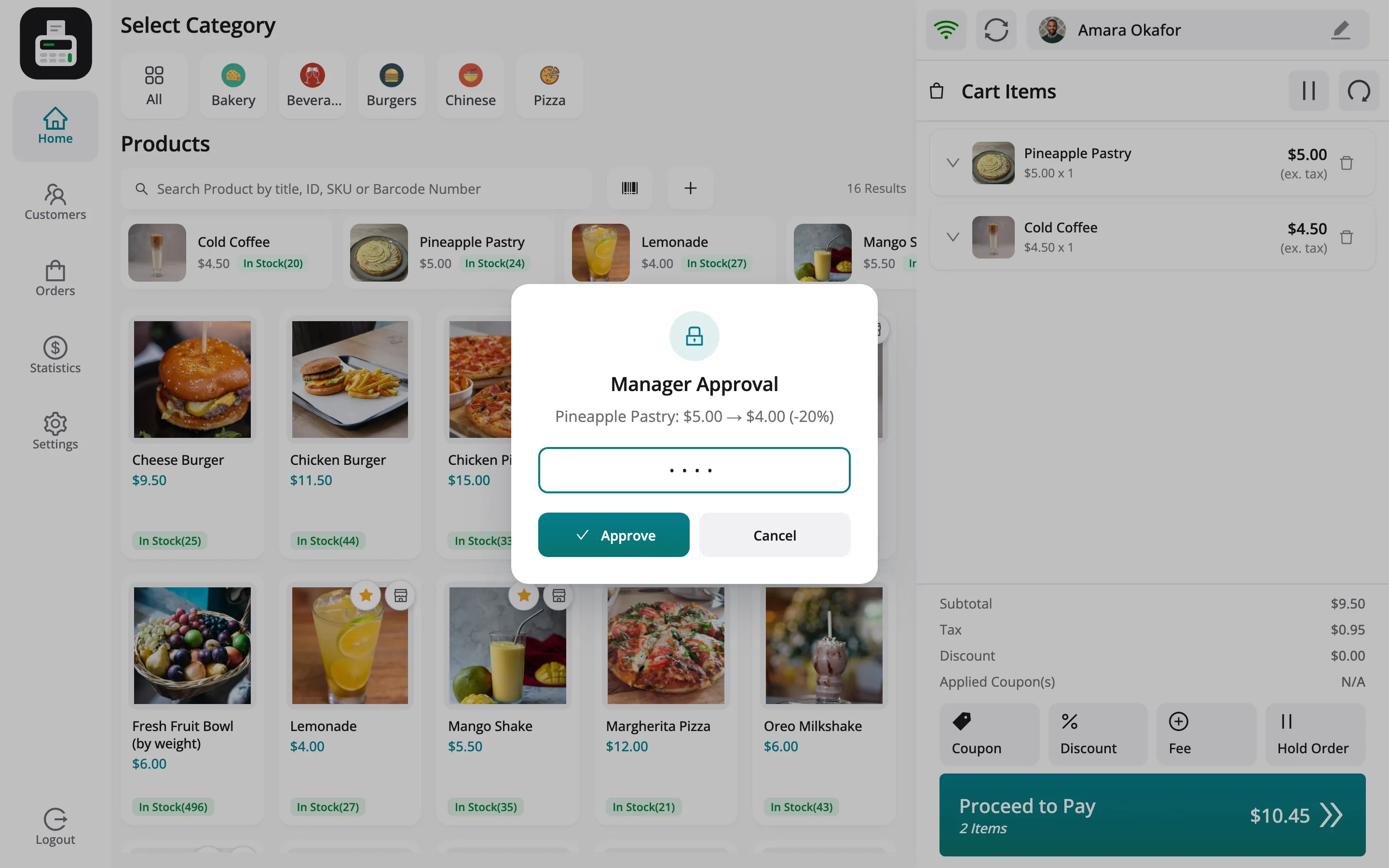
Section titled “Step 4: Use it at the POS”When one of your cashiers is refused, the POS shows Manager Approval. Type your PIN on their screen and press Approve.
Things to know
Section titled “Things to know”- Your PIN works at your store only. Typed at another store’s POS it is refused.
- Approval needs a connection. The PIN is checked by the server.
- Five wrong tries lock the prompt for 15 minutes.
- Your name is recorded on the order note or transaction you approved.